Список контейнеров Docker
Продолжение серии статей про Docker. В прошлой мы разбирали, как создать контейнер на основе образа. Сегодня же хочу более подробно рассказать, как посмотреть список контейнеров, чтобы понять, какие из них запущены, какие упали, а какие вообще следовало бы удалить, чтобы они не занимали места на диске.
Для просмотра списка контейнеров используется команда docker ps. Она позволяет смотреть как запущенные контейнеры Docker, так и все контейнеры, которые есть в системе.
Синтаксис команды docker ps
В синтаксисе команды вообще нет ничего сложного:
$ docker ps опции
Вот её основные опции:
- —all , -a — вывести все контейнеры, и запущенные и не запущенные;
- —filter , -f — фильтровать контейнеры при выводе;
- —format — более красивый вывод списка контейнеров;
- —last , -n — показать только N последних созданных контейнеров;
- —latest , -l — вывести только последний контейнер;
- —no-trunc — не обрезать вывод программы;
- —quiet , -q — отображать только цифровые идентификаторы контейнеров;
- —size , -s — отображать размер контейнера.
А теперь разберёмся более подробно, как посмотреть контейнеры Docker.
Запущенные контейнеры Docker
По умолчанию docker ps выводит только запущенные контейнеры и при этом обрезает слишком длинные поля:

Чтобы вывести контейнеры, не обрезая информацию, используйте параметр —no-trunc:
docker ps —no-trunc
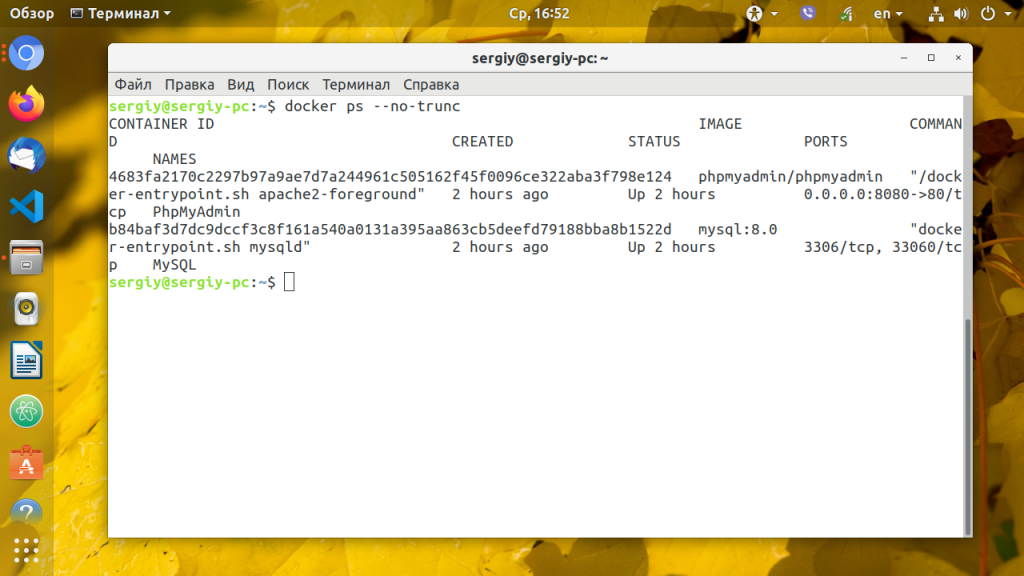
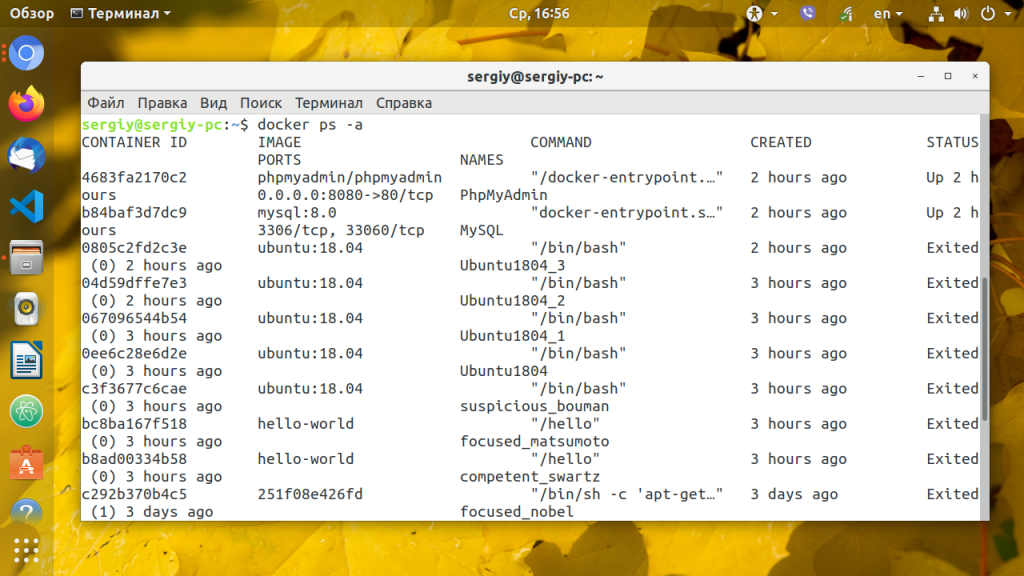
Для того чтобы посмотреть не только запущенные контейнеры, а все, используйте опцию -a:
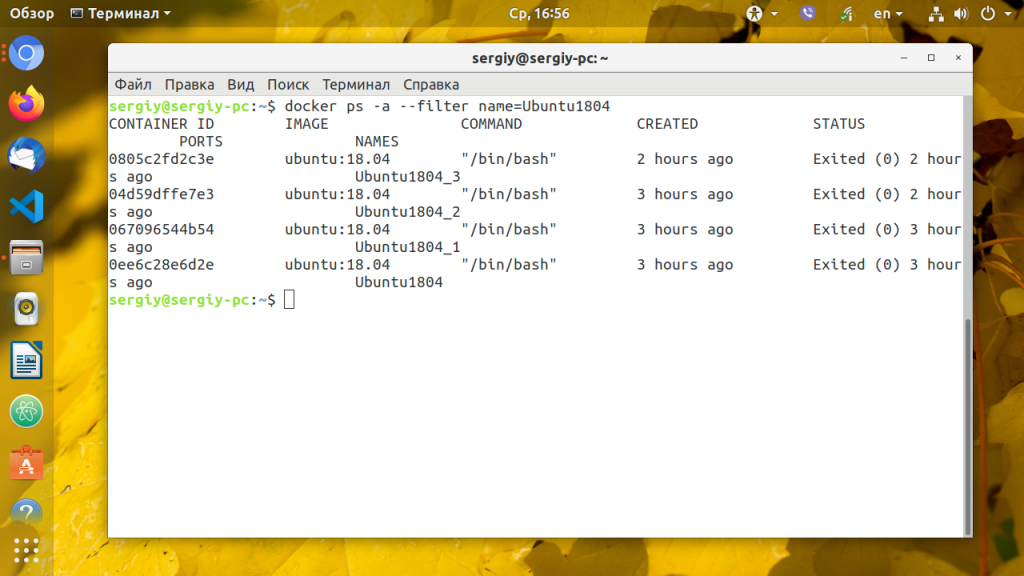
Вы можете фильтровать контейнеры по имени, например, вывести только те, в имени которых содержится Ubuntu1804:
docker ps —filter name=Ubuntu1804
Есть и другие фильтры, но я не буду здесь их описывать, если они вам нужны, посмотрите официальную документацию. Для того чтобы вывести в список контейнеров Docker дополнительно размер контейнера, используйте опцию -s:
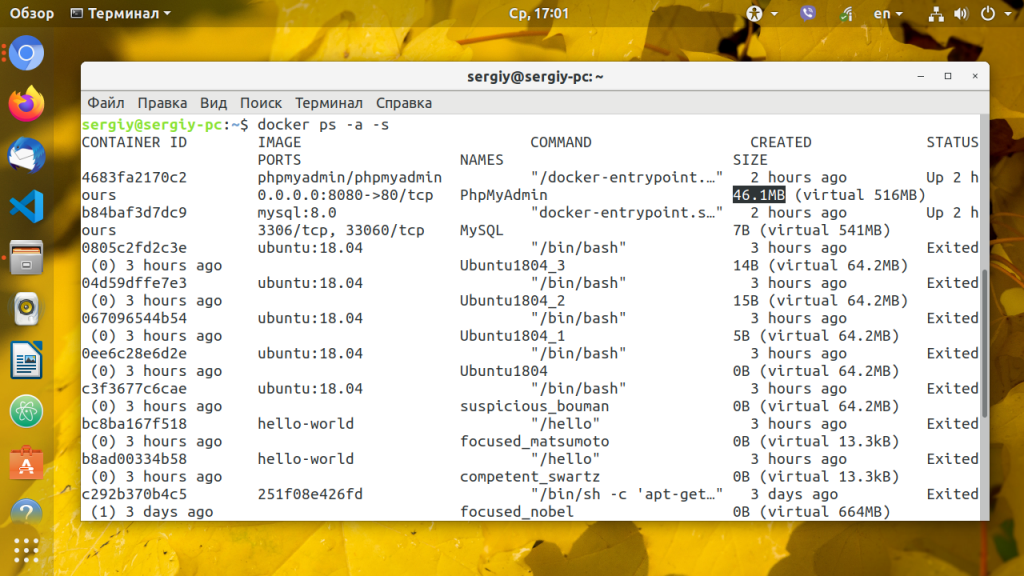
Команда показывает два размера. Первый из них — это объём, занимаемый записываемой частью контейнера. Второй размер -виртуальный, это общее пространство, занимаемое и записываемой частью контейнера, и доступными только для чтения данными образа.
Опция -l может использоваться для просмотра только последнего созданного образа. Это может быть полезно, например, чтобы узнать его идентификатор:
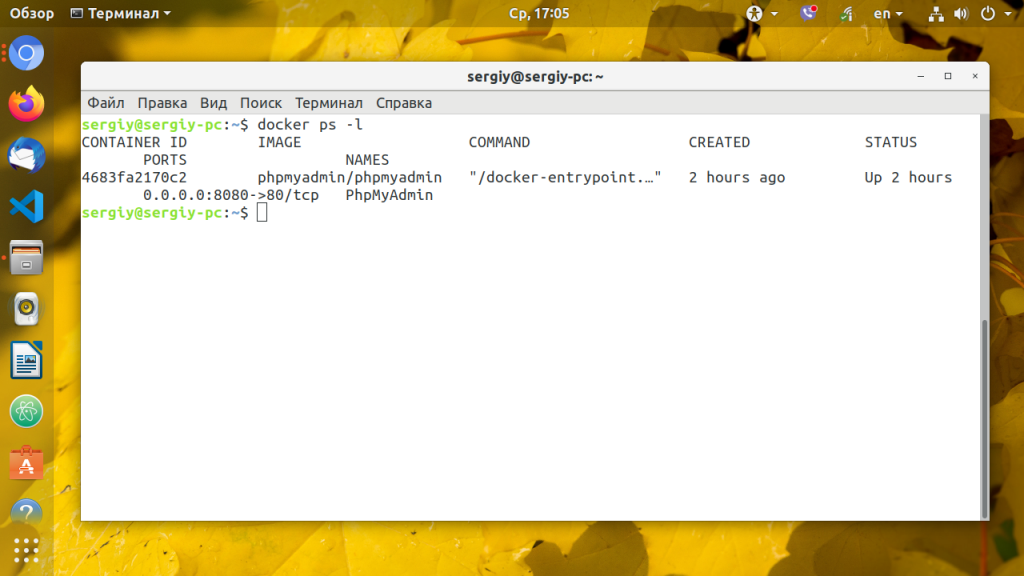
Если вас интересует, где хранятся контейнеры docker , то тут вам поможет команда docker inspect. Она позволяет смотреть подробную информацию про контейнер. У контейнера есть несколько папок для различных целей, давайте посмотрим MergedDir:
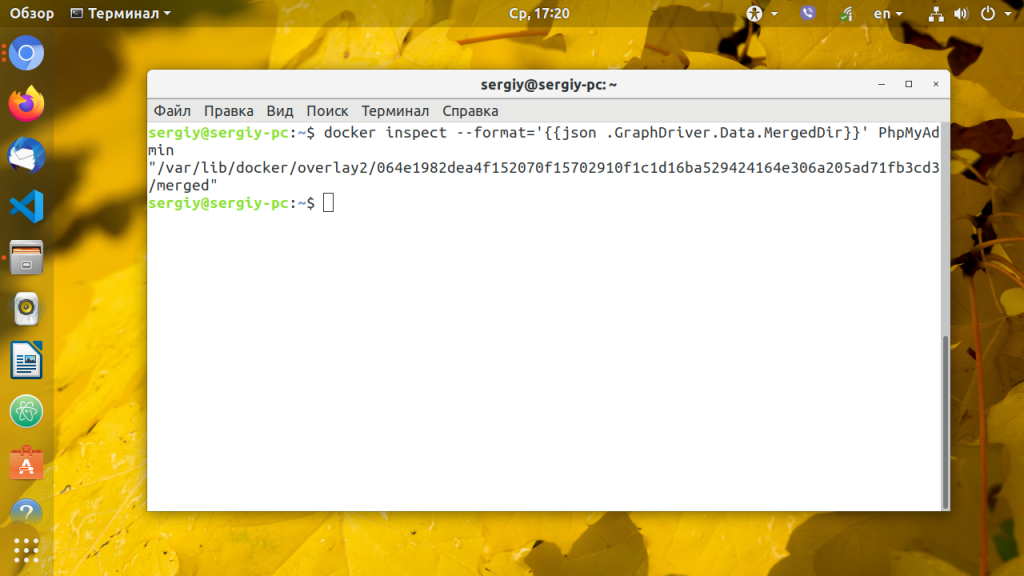
С тем же успехом вы можете смотреть LogPath или другие директории контейреа.
Выводы
Из этой статьи вы узнали, как выполнить просмотр контейнеров Docker. Это довольно простая задача по сравнению с созданием контейнера, но тоже не менее важная.
docker ps
For example uses of this command, refer to the examples section below.
Options
| Name, shorthand | Default | Description |
| —all , -a | Show all containers (default shows just running) | |
| —filter , -f | Filter output based on conditions provided | |
| —format | Format output using a custom template: ‘table’: Print output in table format with column headers (default) ‘table TEMPLATE’: Print output in table format using the given Go template ‘json’: Print in JSON format ‘TEMPLATE’: Print output using the given Go template. Refer to https://docs.docker.com/go/formatting/ for more information about formatting output with templates | |
| —last , -n | -1 | Show n last created containers (includes all states) |
| —latest , -l | Show the latest created container (includes all states) | |
| —no-trunc | Don’t truncate output | |
| —quiet , -q | Only display container IDs | |
| —size , -s | Display total file sizes |
Examples
Do not truncate output (—no-trunc)
Running docker ps —no-trunc showing 2 linked containers.
Show both running and stopped containers (-a, —all)
The docker ps command only shows running containers by default. To see all containers, use the —all (or -a ) flag:
docker ps groups exposed ports into a single range if possible. E.g., a container that exposes TCP ports 100, 101, 102 displays 100-102/tcp in the PORTS column.
Show disk usage by container (—size)
The docker ps —size (or -s ) command displays two different on-disk-sizes for each container:
- The “size” information shows the amount of data (on disk) that is used for the writable layer of each container
- The “virtual size” is the total amount of disk-space used for the read-only image data used by the container and the writable layer.
For more information, refer to the container size on disk section.
Filtering (—filter)
The —filter (or -f ) flag format is a key=value pair. If there is more than one filter, then pass multiple flags (e.g. —filter «foo=bar» —filter «bif=baz» )
The currently supported filters are:
| Filter | Description |
|---|---|
| id | Container’s ID |
| name | Container’s name |
| label | An arbitrary string representing either a key or a key-value pair. Expressed as <key> or <key>=<value> |
| exited | An integer representing the container’s exit code. Only useful with —all . |
| status | One of created , restarting , running , removing , paused , exited , or dead |
| ancestor | Filters containers which share a given image as an ancestor. Expressed as <image-name>[:<tag>] , <image id> , or <image@digest> |
| before or since | Filters containers created before or after a given container ID or name |
| volume | Filters running containers which have mounted a given volume or bind mount. |
| network | Filters running containers connected to a given network. |
| publish or expose | Filters containers which publish or expose a given port. Expressed as <port>[/<proto>] or <startport-endport>/[<proto>] |
| health | Filters containers based on their healthcheck status. One of starting , healthy , unhealthy or none . |
| isolation | Windows daemon only. One of default , process , or hyperv . |
| is-task | Filters containers that are a “task” for a service. Boolean option ( true or false ) |
label
The label filter matches containers based on the presence of a label alone or a label and a value.
The following filter matches containers with the color label regardless of its value.
The following filter matches containers with the color label with the blue value.
The name filter matches on all or part of a container’s name.
The following filter matches all containers with a name containing the nostalgic_stallman string.
You can also filter for a substring in a name as this shows:
exited
The exited filter matches containers by exist status code. For example, to filter for containers that have exited successfully:
Filter by exit signal
You can use a filter to locate containers that exited with status of 137 meaning a SIGKILL(9) killed them.
Any of these events result in a 137 status:
- the init process of the container is killed manually
- docker kill kills the container
- Docker daemon restarts which kills all running containers
status
The status filter matches containers by status. You can filter using created , restarting , running , removing , paused , exited and dead . For example, to filter for running containers:
To filter for paused containers:
ancestor
The ancestor filter matches containers based on its image or a descendant of it. The filter supports the following image representation:
- image
- image:tag
- image:tag@digest
- short-id
- full-id
If you don’t specify a tag , the latest tag is used. For example, to filter for containers that use the latest ubuntu image:
Match containers based on the ubuntu-c1 image which, in this case, is a child of ubuntu :
Match containers based on the ubuntu version 22.04 image:
The following matches containers based on the layer d0e008c6cf02 or an image that have this layer in its layer stack.
Create time
before
The before filter shows only containers created before the container with given id or name. For example, having these containers created:
Filtering with before would give:
since
The since filter shows only containers created since the container with given id or name. For example, with the same containers as in before filter:
volume
The volume filter shows only containers that mount a specific volume or have a volume mounted in a specific path:
network
The network filter shows only containers that are connected to a network with a given name or id.
The following filter matches all containers that are connected to a network with a name containing net1 .
The network filter matches on both the network’s name and id. The following example shows all containers that are attached to the net1 network, using the network id as a filter;
publish and expose
The publish and expose filters show only containers that have published or exposed port with a given port number, port range, and/or protocol. The default protocol is tcp when not specified.
The following filter matches all containers that have published port of 80:
The following filter matches all containers that have exposed TCP port in the range of 8000-8080 :
The following filter matches all containers that have exposed UDP port 80 :
Format the output (—format)
The formatting option ( —format ) pretty-prints container output using a Go template.
Valid placeholders for the Go template are listed below:
| Placeholder | Description |
|---|---|
| .ID | Container ID |
| .Image | Image ID |
| .Command | Quoted command |
| .CreatedAt | Time when the container was created. |
| .RunningFor | Elapsed time since the container was started. |
| .Ports | Exposed ports. |
| .State | Container status (for example; “created”, “running”, “exited”). |
| .Status | Container status with details about duration and health-status. |
| .Size | Container disk size. |
| .Names | Container names. |
| .Labels | All labels assigned to the container. |
| .Label | Value of a specific label for this container. For example ‘<<.Label "com.docker.swarm.cpu">>’ |
| .Mounts | Names of the volumes mounted in this container. |
| .Networks | Names of the networks attached to this container. |
When using the —format option, the ps command will either output the data exactly as the template declares or, when using the table directive, includes column headers as well.
The following example uses a template without headers and outputs the ID and Command entries separated by a colon ( : ) for all running containers:
To list all running containers with their labels in a table format you can use:
Docker основные команды. Шпаргалка по командам.
Пусть данная заметка будет эдакой шпаргалкой для начинающего админа Docker. В ней мы рассмотрим, как ты уже догадался, десятку самых полезных команд.
#1. docker ps — смотрим список запущенных контейнеров
Наверное, следует начать с команды docker ps, выводящей список запущенных контейнеров. Ей можно передать несколько параметров, вот самые полезные из них:
- -q — «тихий» режим, в котором команда выводит только id контейнеров (полезно, когда вам нужно знать только id или же при использовании этой команды в сценариях).
- -a — показывает все контейнеры, а не только запущенные.
#2. docker pull — загрузка образа
Как правило, образы создаются на основе базового — из Docker Hub, где есть множество уже готовых образов и которые ты можешь использовать, а не тратить время на создание собственного. Для загрузки образа используется команда docker pull.
#3. docker build — собирает образ
Данная команда собирает образ Docker из файла докера (dockerfile) и контекста сборки. Контекст сборки — это набор файлов, расположенных по определенному пути. Для задания имени образа используйте параметр -t, например, «docker build -t my.». Собирает образ из текущего каталога (».«) — последний параметр это имя каталога, в нашем случае точка указывает, что каталог — текущий.
Установка
get.docker.com — Установка в любую систему через оф. скрипт
После выполнения скрипта будет уст. стабильная версия docker и все доп. пакеты
После выполнения скрипта будет предложено добавить пользователя docker в группу суперпользователей чтобы не вводить sudo в дальнейшем. Пример
И перезапуск демона
Установка в Ubuntu 16.04. v2
2) Установка docker-ce
Использование docker без прав sudo
Если хочеться автокомплит но его нет…
Установка docker-compose
Установка docker-machine
Проверка
Параметры
docker run — Запуск контейнера
Ключи it позволяют создавать tty соединение с контейнером
В новом контейнере, в `/etc/hosts` записывается IP контейнера к которому идет соединение
- myredis — название контейнера
- alias_in_hosts — алиас, по которому можно обратиться к хосту. Опционален
Задается имя по которому можно обращяться к контейнеру
Используется проброс порта на хост машину. Порт при этом выбирается рандомный
docker run debian echo «hi»
Эта команда скачает образ debian из репозитория и выполнит команду echo
docker port — Узнать какие порты открыты
docker ps — Список запущеных контейнеров
- -q = Показать только ID контейнеров
- -a = Список всех контейнеров. После выполнения команды docker ps -a выводится список всех контейнеров, включая остановленные (stopped)
Команда выводит краткую информацию о контейнерах. В последнем столбце NAMES контейнеру писваивается название по которому можно обращаться вместо ID
docker inspect — Информация о контейнере
- -a =
- -a =
docker inspect [NAME|ID|часть id (?)]
Выводит полную информацию о контейнере в формате json
docker diff — Список файлов измененных в контейнере
- -a =
- -a =
docker diff friendly_wozniak
docker logs — Список событий произошедших в контейнере
- -f = Непрерывный вывод
- -t = Вывести в каждой строке время
docker commit — Превращение контейнера в образ
- cowsay — название контейнера (работающего или нет)
- test_rep — название репозитория
- cowsay_image — название образа
docker attach — Присоединится к запущеному контейнеру
- -a =
- -a =
Нажатие Ctrl+C прекращает запущенный контейнер!
Для коректной остановки контейнера-наблюдателя нужно нажать Ctrl+P, Ctrl+Q
docker exec — Выполнить команду внутри запущенного контейнера
docker top — Выполняемые процессы внутри контейнера
docker create — Cоздать но не запускать контейнер
- -a =
- -a =
docker start — Запуск контейнера
docker pause/unpause — Приостановка/запуск контейнера
docker restart — Перезапуск контейнера
docker stop — Остановка контейнера
docker rm — Удалить контейнер
docker kill — Послать сигнал основному процессу
docker tag — Добавить тег образу
docker history — Список уровней образа
- -H, —human=(true/false) — Вывести размеры и даты в человеческом формает. По умолчанию включено
Информация о механизме Docker
docker info — Инфо
Различкая информация о машине
docker help — Справка
docker version — Версия
Сборка
docker build — Собрать образ
- -t — Задать тег сборке
- -f — Имя файла отличного от Dockerfile
- —no-cache = Не использовать кеш при сборке
- -a =
Последний аргумент всегда должен быть контекст, в рамках которого работает Dockerfile