Sorry, you have been blocked
This website is using a security service to protect itself from online attacks. The action you just performed triggered the security solution. There are several actions that could trigger this block including submitting a certain word or phrase, a SQL command or malformed data.
What can I do to resolve this?
You can email the site owner to let them know you were blocked. Please include what you were doing when this page came up and the Cloudflare Ray ID found at the bottom of this page.
Cloudflare Ray ID: 7a28c0fc6dc02da0 • Your IP: Click to reveal 88.135.219.175 • Performance & security by Cloudflare
Как установить Wine 6 на Fedora 33/32/31/30
Добро пожаловать в наше руководство по установке Wine 6 в Fedora 33/32/31/30. Wine — это программное обеспечение с открытым исходным кодом, которое позволяет запускать приложения Microsoft Windows в Linux. Узнайте больше о выпуске Wine 6 и новых функциях . Используя его библиотеку Winelib , вы можете компилировать приложения Windows, чтобы облегчить их перенос на Unix-подобные системы.
Шаг 1. Добавьте репозиторий WineHQ
Просто веселое видео для отвлечения и расслабления в течение 2 минут
Начните с добавления репозитория WineHQ с последними стабильными пакетами для Wine.
Fedora 33:
Fedora 32:
Fedora 31:
Fedora 30:
Fedora 29
Шаг 2: Установите Wine 6 в Fedora 33/32/31/30/29
После добавления репозитория установите любой из следующих пакетов Wine 6 в Fedora 33/32/31/30/29.
Stable branch – (Recommended)
Development branch – Только для тестов
Staging branch – Bleeding edge
Более подробную информацию об установленном пакете можно проверить с помощью команды rpm.
Версию установленного вина также можно проверить с помощью.
Чтобы настроить вино, запустите:
Шаг 4: Установите winetricks
Winetricks — это вспомогательный сценарий для загрузки и установки различных распространяемых библиотек времени выполнения, необходимых для запуска некоторых программ в Wine. Они могут включать замену компонентов Wine с использованием библиотек с закрытым исходным кодом.

Это потрясающе. Теперь посетите базу данных приложений Wine, в которой содержится более 20 000 приложений, и выберите те, которые будут запускаться в Wine.
Privacy Overview
Этот веб-сайт использует файлы cookie, чтобы улучшить вашу работу во время навигации по веб-сайту. Из них файлы cookie, которые классифицируются как необходимые, хранятся в вашем браузере, поскольку они необходимы для работы основных функций веб-сайта. Мы также используем сторонние файлы cookie, которые помогают нам анализировать и понимать, как вы используете этот веб-сайт. Эти файлы cookie будут храниться в вашем браузере только с вашего согласия. У вас также есть возможность отказаться от этих файлов cookie. Но отказ от некоторых из этих файлов cookie может повлиять на ваш опыт просмотра.
Fedora
Thanks to Fedora’s multilib arrangement, once you have the dependencies, building either a plain 32-bit or WoW64 version of Wine should be straight-forward. The appropriate sections on Building Wine should list all the steps.
Plain 32-bit wine on 64 bit system
A Bit of History
Fedora has a unique history among GNU/Linux distributions that partly explains its goals and relationship to other distros. It initially began as a minor distro, Fedora Linux, that would test and package extra software on top of the venerable RedHat distro (now technically Red Hat Enterprise Linux). Around the same time though, Red Hat Inc. decided to focus on very stable releases with long-term support for enterprises.
At first, the company tried directly managing a more fluid branch geared towards desktops, but many non-subscribing PC users began switching to Fedora Linux. At that point, Red Hat made the farsighted decision to cooperate with the Fedora Linux community on experimental work, and the Fedora project was born. The resulting distribution was originally called «Fedora Core» before being renamed simply «Fedora» after a few years.
Today, Fedora is the work of a worldwide community of volunteers, but Red Hat Inc. still contributes a great deal to the project through both collaboration and financial support. In a bit of a role-reversal, Fedora is also now effectively upstream of its parent distro; RedHat (and its child distros) will periodically branch off a new Fedora release, then after much more testing and bug-fixing, provide a new release to their more stability-minded users.
How To Install Wine 8.0 on Fedora 37/36
Wine is a compatibility layer that allows users to run Windows applications on Linux and other operating systems. WineHQ is the official distributor of the Wine project, which includes the latest stable version of Wine as well as additional features and enhancements.
Before proceeding with the installation, it is important to note that Wine is not an emulator, it does not emulate the Windows operating system. Instead, it provides a compatibility layer that allows Windows applications to run natively on Linux.
In this article, we will show you how to install Wine 8.0 stable release on Fedora Linux..
Prerequisite
You must have a sudo privileged account for the Wine installation on Fedora.
Wine required many development packages. First, we recommend upgrading all system packages using the following commands.
Step 1: Configure Wine Repository
The first step in installing WineHQ on Fedora is to add the WineHQ repository to your system. This can be done by running the following commands. First, import the Winehq GPG key into your system.
Next, add the Wine package repository to your system.
If you are running Fedora 35 or older version repository contains WineHQ 7 and older versions. So if you want to use Wine 8, you need to upgrade Fedora to the latest version.
Step 2: Install WineHQ on Fedora
You have configured the WineHQ yum repository on your Fedora system. The next step is to install WineHQ by running the following command:
The above command will install a large number of packages as a dependency. The installation may take time as per your network speed. Enjoy a cup of coffee until the installation finishes.
Step 3: Verify the Installation
After finishing the installation process, Use the following command to check the version of wine installed on your system.
Step 4: Configure Wine
WineHQ is now installed on your system, but it is not yet configured. The next step is to configure Wine by running the following command:
This will open the Wine configuration window, where you can set various options such as the Windows version to emulate and the location of the virtual C drive.
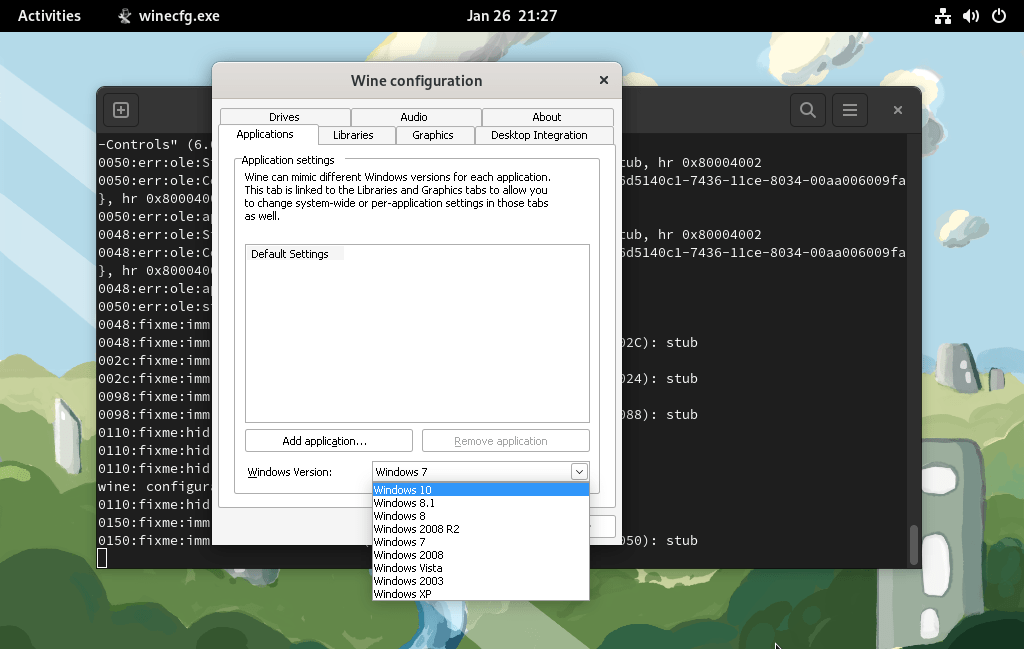
Configure Wine on Fedora
Step 5: Running .exe file Using Wine
For this example, I have downloaded the putty.exe file. Now use the wine utility to run this putty Windows application on your Fedora system.
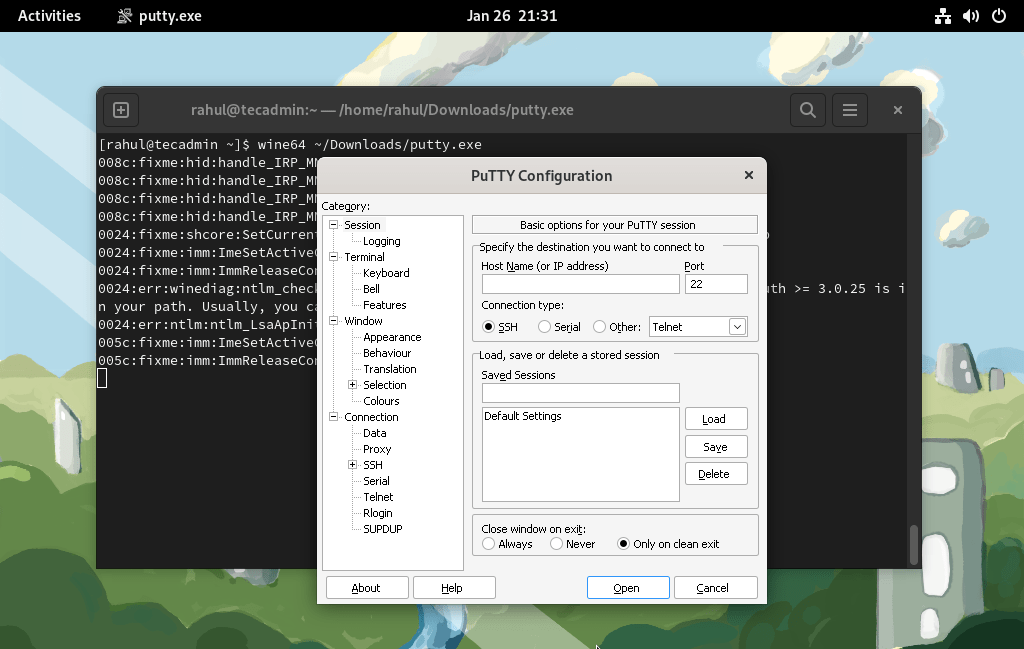
Running windows application on Fedora
Conclusion
In this article, we have shown you how to install WineHQ on Fedora Linux. With WineHQ, you can run Windows applications on Linux, making it easy to use your favorite Windows programs on your Linux system.
It’s worth noting that some applications may not work perfectly or may require additional configuration. Some applications may not work at all and compatibility with the new windows versions may not be available. However, you can always check the compatibility of specific applications on the official website of WineHQ.