Introduction
This is a method of outputting OBS as a virtual camera and recognizing it as a video source with Zoom or Teams.
OBS is originally distributed in cooperation with YouTube and video distribution systems.
However, by adding a virtual camera as a plug-in, Zoom, Teams, etc.
It can be used as a video source for other software.
I will show you how.
Install OBS plugin
It is possible by introducing the following OBS plug-ins.OBS-VirtualCam
https://obsproject.com/forum/resources/obs-virtualcam.539/
Install OBS while stopped.
After installation, launch OBS.
(The source of the image is BaBiNiku with FaceRig © ︎Kizuna AI)
Sorry, The UI is Japanese Interface.
Open “Tools”-> “VirtualCam” from the menu at the top.
Select “OBS-Camera” (default) for Target Camera.
Buffered Frames “0”. I think it’s probably a delay.
Start with Start.
Zoom settings
Open Zoom, join the meeting and select the camera “OBS-Camera”.
That’s it for Zoom.
(If the mirror is displayed, change the mirror setting in the Zoom settings.)
Teams Settings
Next is Teams.
After startup, select the camera “OBS-Camera”.
It will be displayed inverted.
I just want to be able to set up mirrors in Teams, but unfortunately not.
There is a solution.
Make the reverse setting on the OBS side.
Select all sources (Ctrl + A).
Click “Edit” → “Convert” → “Flip Horizontal” from the top menu.
After reversing, the placement location is shifted, so relocate it in a good condition.
If you display it in Teams, you can see it without problems.
Close
The above is an introduction of how to output OBS as a virtual camera and make it recognized by Zoom and Teams.
OBS has a lot of plugins, so it might be interesting to play around with it.
Virtual Camera Guide
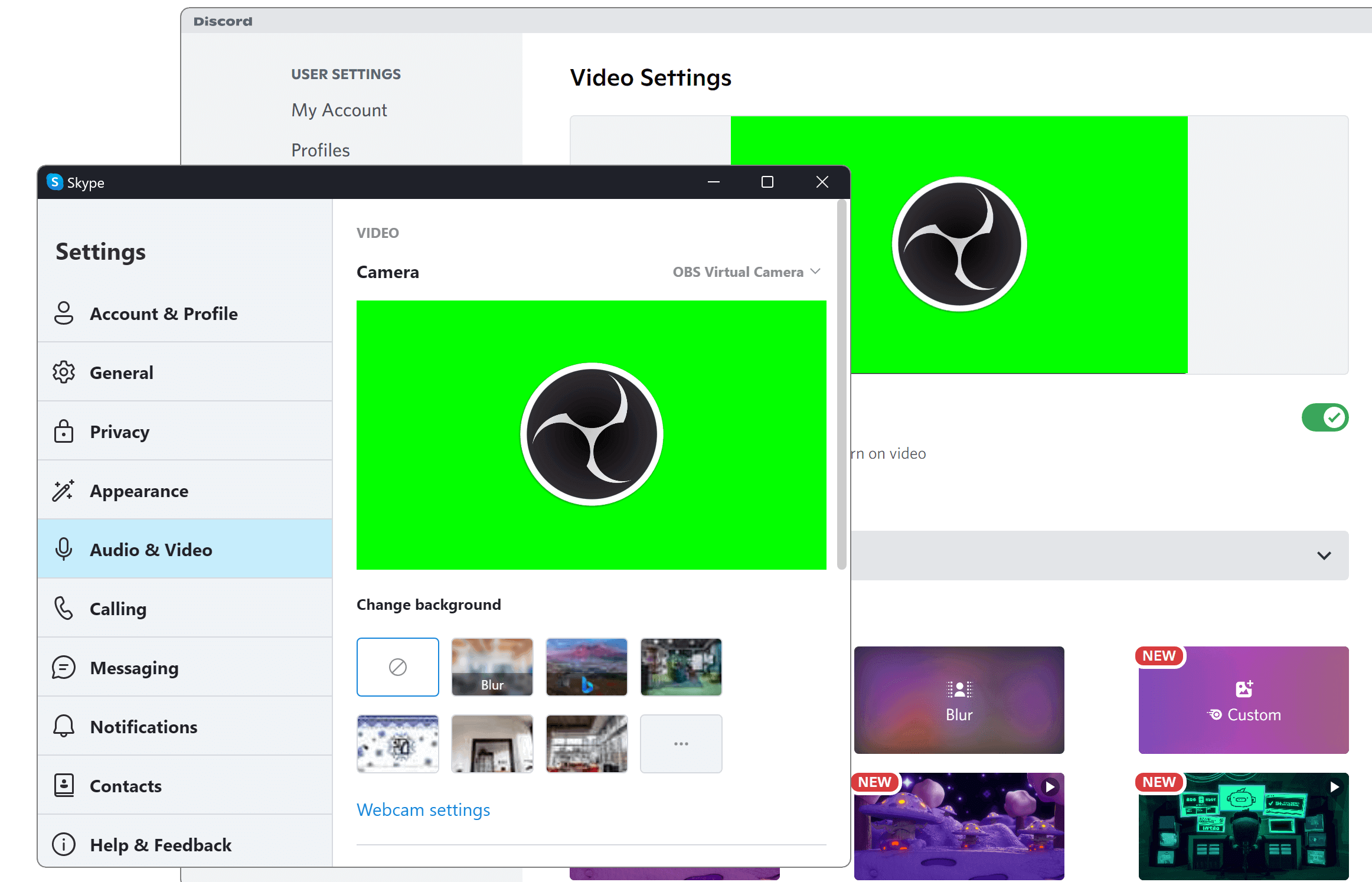
The Virtual Camera is a feature of OBS Studio that allows you to share your OBS Studio scene with any applications that can make use of a webcam, such as Zoom, Skype, Discord, etc. This feature is particularly useful for applications that cannot capture the screen directly.
Using the virtual camera
To start the virtual camera, click Start Virtual Camera in the Controls dock. To stop the virtual camera, click the same button again (which will be labelled Stop Virtual Camera).
To adjust settings for the virtual camera, click on the ⚙ Gear icon in the Controls dock.
From the Virtual Camera settings window, you can adjust the following settings:
- Internal
- Program Output: the virtual camera will show what OBS Studio normally outputs
- Preview Output: if using Studio Mode, the virtual camera will show the Preview. This means anybody watching the video feed will see you changing scenes, making edits, etc.
Show a single source in the virtual camera
In a future update, you will be able to select a single source for the virtual camera to show. Until then, you can show a single source by creating an extra scene containing the source.
- Add a new scene. In this tutorial, it will be called Virtual Camera.
- Add an existing source:
- click on the + Add Source button
- select the type of the source you want to show
- click on Add Existing
- select the source
(Alternatively, you can copy the source and paste a reference to it)
- Your Virtual Camera should contain a single source. You can resize the source to fit the source to the size of the scene.
The quickest method to fit a source to the scene is to right-click on the source and choose:
Что такое плагин OBS VirtualCam, установка и инструкция
Применение OBS VirtualCam считается отличным методом проявления творческого потенциала в применении веб-камеры с целью совершения видеовстреч разностороннего формата. Если вы до сегодня еще ни разу не слышали про OBS VirtualCam, данное руководство поможет вам справиться со всеми трудностями последующей установки плагина.
Что такое плагин OBS VirtualCam
OBS VirtualCam является дополнительной функцией, которая внедряется непосредственно внутрь вашего плагина OBS. Программа устанавливается с целью создания виртуальной камеры, которая идеально подходит для вашей работы на любом сайте. Таким образом отпадает потребность в скачивании дополнительного софта наподобие Logitech capture или сплиттеров, которые будут нагружать устройство.
Софт OBS VirtualCam отличается от встроенной виртуальной WEB-камеры стандартного образца несколькими дополнительными возможностями:
- Способность вывода определенной сцены или источника как виртуальной WEB камеры;
- Способность вывода четырех виртуальных WEB камер.
Пользователь сможет выводить основную WEB камеру из OBS Studio 27.2.4 в любое нужно для вас приложение по типу Skype, Discord или Zoom. С этой возможностью раскрывается возможность параллельного применения множества дополнительных функций. Стоит отметить, что VirtualCam способен бесперебойно совмещать свою деятельность с неограниченным количеством сайтов.

Установка плагина OBS VirtualCam
Полную установку плагина OBS VirtualCam трудно назвать затруднительной процедурой. Давайте более детально рассмотрим порядок ваших действий:
- Изначально потребуется установить последнюю версию программы OBS Studio.
- Далее устанавливаем специальный модуль для использования WEB камеры, поскольку функция виртуальной камеры до сих пор не встроена программное обеспечения.
- Производим настройку источников и различных сцены, которые вы планируете использовать для дальнейших звонков в Zoom или для подобных собраний на любой другой платформе.
- После завершения настроек остается только активировать виртуальную камеру. Для этого перейдите в раздел «Управление» в правом нижнем углу окна OBS и нажмите «Запустить виртуальную камеру».
После выполнения данного руководства уже можно приступить к непосредственной работе. Программа позволяет вашему компьютеру использовать OBS в качестве видео источника в другом приложении. Просто выберите OBS в качестве веб-камеры в настройках видео программного обеспечения.
Инструкция по применению OBS VirtualCam
Поскольку все больше людей предпочитают работать у себя дома, можно наблюдать как стремительно увеличивается количество вопросов относительно инструкции по применению OBS Studio в качестве виртуальной камеры.
Чтобы настроить параметры виртуальной камеры, щелкните значок шестеренки на панели управления. Далее следуем строго в соответствии с инструкцией:
• Установите плагин OBS VirtualCam.
• Перезагрузите ваш компьютер.
• Настройте OBS с применением дополнительного цветного ключа.
• В OBS Studio выберите вкладку «Инструменты», расположенную в верхнем меню, затем перейдите во вкладку «VirtualCam».
• Нажмите кнопку «Пуск». При желании можно установить флажок «Автозапуск», если вы желаете, чтобы VirtualCam запускался всякий раз, когда вы работаете с OBS Studio.Настройка завершена. Теперь вы можете наблюдать «OBS-Camera» в качестве опции веб-камеры.
В настоящие время в жизни людей складывается тенденция учащенного использования удаленной коммуникации через сторонние методы связи. Улучшите воспроизведение онлайн медиаконтента, транслируемого через OBS Studio. Интегрируйте плагин и наслаждайтесь результатом.
How to Use an OBS Virtual Camera
In the Sources box, select the source.
Click Start Virtual Camera.
Need more options? Draw on recordings and highlight mouse clicks with Movavi Screen Recorder. Make your videos more engaging!
Using OBS virtual camera is a great way to get creative with your webcam feed when live streaming, video calling, or attending online meetings and conferences. If you’re not sure how to use an OBS virtual camera, this guide will go over all you need to know.
Another great app you can use for recording video calls, meetings, and more is Movavi Screen Recorder. This app makes it easy to capture and record webinars, online calls, and other screen activities. It can also be used for making your own recordings for tutorials or video guides. Available for both Mac and Windows, Movavi Screen Recorder is easy to use and even has basic editing tools.
What is an OBS virtual camera?
So, what is an OBS virtual camera? As the name suggests, the virtual camera in OBS is basically a virtual cam tool that can be used to replace your webcam feed in apps like Zoom, Skype, Google Meet, and more. It’s part of OBS Studio, a video recording and editing program. The OBS virtual cam plugin lets you use various kinds of media, like images and videos, as the camera output in these kinds of apps.
If you launch a Skype call with a friend using OBS virtual camera, for example, you can show them different content, like videos or even a live feed of your screen, instead of your usual webcam. It can also be used to display your webcam with special filters and enhancements. There are many different uses of the OBS virtual camera download.