Sorry, you have been blocked
This website is using a security service to protect itself from online attacks. The action you just performed triggered the security solution. There are several actions that could trigger this block including submitting a certain word or phrase, a SQL command or malformed data.
What can I do to resolve this?
You can email the site owner to let them know you were blocked. Please include what you were doing when this page came up and the Cloudflare Ray ID found at the bottom of this page.
Cloudflare Ray ID: 7a266da4a98777a9 • Your IP: Click to reveal 88.135.219.175 • Performance & security by Cloudflare
How Do I Find My IP Address in Ubuntu
An IP address identifies any device connected to a network. The IP address is a numerical representation used by devices for communication, such that a package from device A can reach the target destination based on the IP of the given machine. Besides, when connected to the internet, each device has a public IP address unique to that device. So, how can you find your public or private IP address in Ubuntu?
4 Ways of Finding IP Address on Ubuntu
A public IP address is unique to every device on the internet and you should not share your public IP with anyone. However, the private IP can be dynamically assigned by the DHCP server on your local network, meaning it keeps changing.
To find your public IP, type whatismyipaddress on your browser and you will find it. Alternatively, you can use curl to find it using the command below.
For the private IP address, let us dig in on four ways you can quickly find it.
1. Using ifconfig
The ifconfig command comes as part of the net-tools on Ubuntu and you can use it to analyze and configure your system’s network interfaces.
The command does not come preinstalled on Ubuntu. Instead, you must install the net-tools package for you to access it.
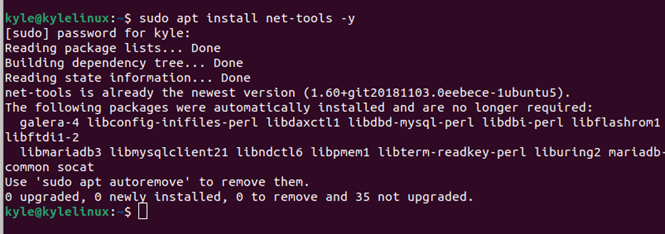
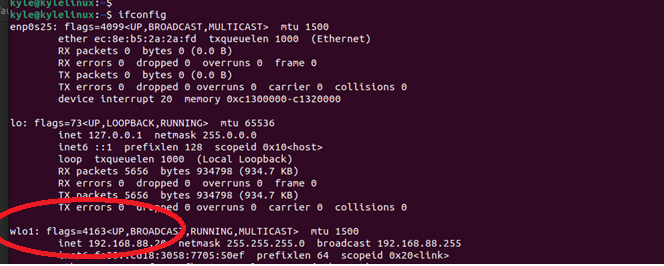
When you execute the command, it will return the available network interface and the IP address of the interface connected to the internet.
In this case, we are connected to the wireless network and our interface is wlan1 with the displayed IP address.
2. Using Hostname
The hostname command is used for displaying the DNS of the host system. However, if you add the -I flag, it will output the IP address of your system. It offers a quick way of getting an IP address on Ubuntu with minimal output.

3. Using IP a
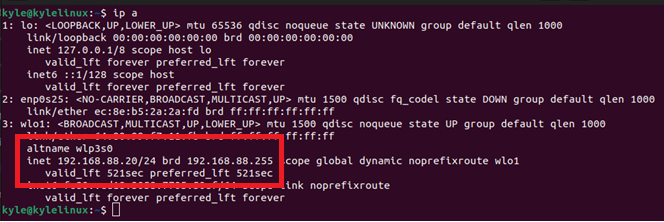
Running the ip address command will display the network details of your system, including the different interfaces and their IP address. A shorthand for the command is ip a.
In this case, we are connected to the wlo1, and you can note the IP address is displayed as highlighted in the image.
4. Check from Network Settings
Aside from using the terminal, there is a graphical way of finding your IP address.
Start by opening the settings on your Ubuntu. You can search for it from your applications or click on it at the top of your window.
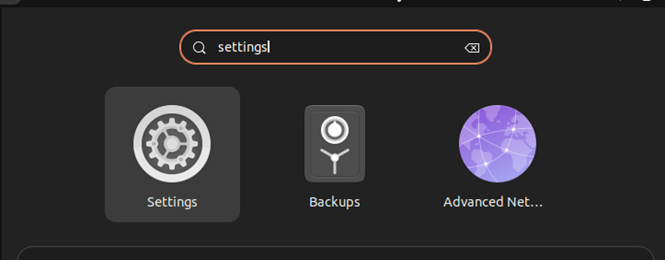
Once it opens, click the option for Wi-Fi if you are using a wireless network or Network if you are connected to a wired network.
For Wi-Fi, click on the gear icon next to the wireless network that you are connected to.
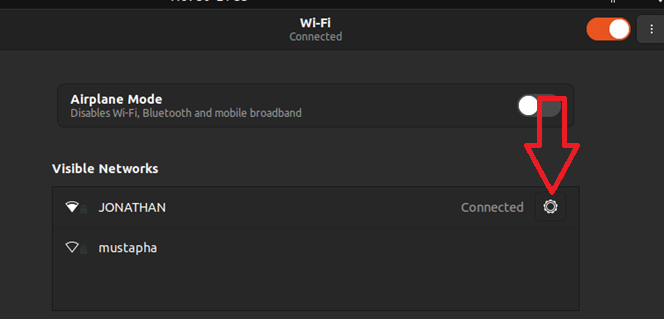
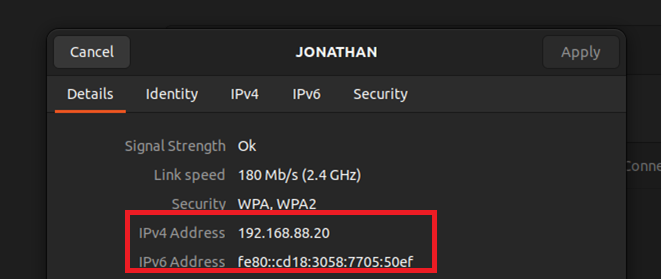
Once you click on the settings icon, a menu displaying the details of your Wi-Fi network will open. Your IP is the IPv4 address.
In the case of a wired network, click on Network. Next, click on the gear icon for the wired network on the right.
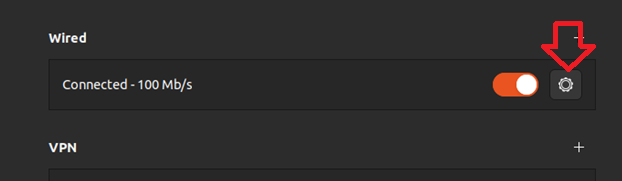
A window will appear, showing you all your network details, including the IP address, like in the case of Wi-Fi.
Conclusion
An IP address is how a device is recognized on a network. The public IP address is unique for each device connected to the internet and the private IP address is assigned to each device connected to your local network. You can use different ways to find your IP address, and this guide has presented multiple examples.
About the author
Denis Kariuki
Denis is a Computer Scientist with a passion for Networking and Cyber Security. I love the terminal, and using Linux is a hobby. I am passionate about sharing tips and ideas about Linux and computing.
How To Check Your IP Address in Ubuntu [Beginner's Tip]
Wonder what’s your IP address? Here are several ways to check IP address in Ubuntu and other Linux distributions.
What is an IP Address?
An Internet Protocol address (commonly referred to as IP address) is a numerical label assigned to each device connected to a computer network (using the Internet Protocol). An IP address serves both the purpose of identification and localisation of a machine.
The IP address is unique within the network, allowing the communication between all connected devices.
You should also know that there are two types of IP addresses: public and private. The public IP address is the address used to communicate over the Internet, the same way your physical address is used for postal mail. However, in the context of a local network (such as a home where are router is used), each device is assigned a private IP address unique within this sub-network. This is used inside this local network, without directly exposing the public IP (which is used by the router to communicate with the Internet).
Another distinction can be made between IPv4 and IPv6 protocol. IPv4 is the classic IP format,consisting of a basic 4 part structure, with four bytes separated by dots (e.g. 127.0.0.1). However, with the growing number of devices, IPv4 will soon be unable to offer enough addresses. This is why IPv6 was invented, a format using 128-bit addresses (compared to the 32-bit addresses used by IPv4).
Checking your IP Address in Ubuntu [Terminal Method]
The fastest and the simplest way to check your IP address is by using the ip command. You can use this command in the following fashion:
Actually, it’s short for this:
Both commands show the same output. They will show you both IPv4 and IPv6 addresses:

Display IP Address in Ubuntu Linux
If you prefer to get minimal details, you can also use hostname command:
It will just give the IP address of the system. Nothing else.
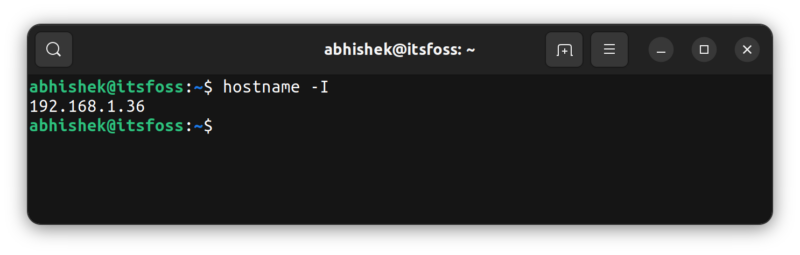
Hostname only shows IP address
There are some other ways to check IP address in Linux but these two commands are more than enough to serve the purpose.
What about ifconfig?
Long-time users might be tempted to use ifconfig (part of net-tools), but that command is deprecated. Some newer Linux distributions don’t include this package anymore and if you try running it, you’ll see ifconfig command not found error.
Checking IP address in Ubuntu [GUI Method]
If you are not comfortable with the command line, you can also check IP address graphically.
Open up the Ubuntu Applications Menu (Show Applications in the bottom-left corner of the screen) and search for Settings and click on the icon:
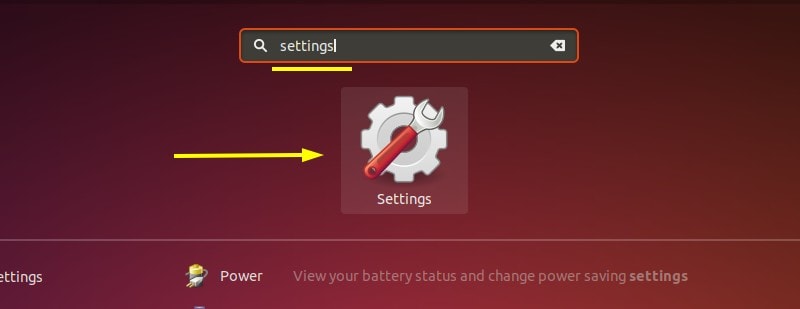
Applications Menu Settings
This should open up the Settings Menu. Go to Network:

Network Settings Ubuntu
Pressing on the gear icon next to your connection should open up a window with more settings and information about your link to the network, including your IP address:
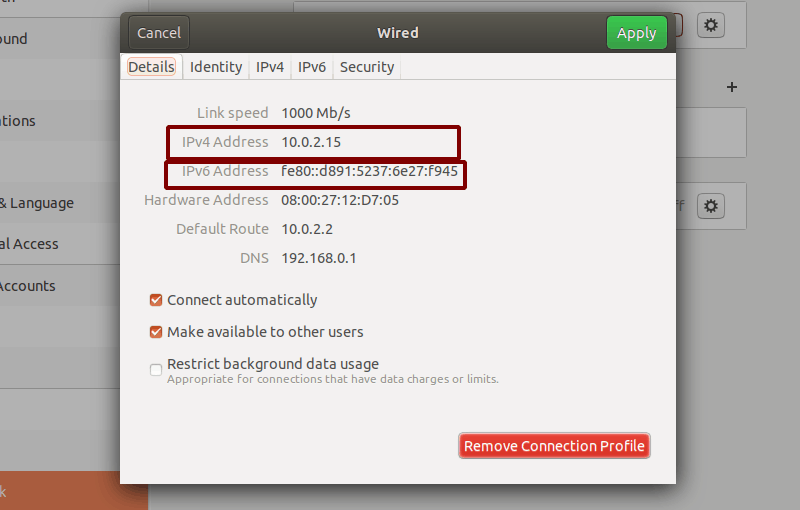
IP Address GUI Ubuntu
You can see the IP address of your router as well in the above screenshot. It’s displayed with “Default Route”.
Bonus Tip: Checking your Public IP Address (for desktop computers)
First of all, to check your public IP address (used for communicating with servers etc.) you can use curl command. Open up a terminal and enter the following command:
This should simply return your IP address with no additional bulk information. I would recommend being careful when sharing this address, since it is the equivalent to giving out your personal address.
Note: If curl isn’t installed on your system, simply use sudo apt install curl -y to install curl on Ubuntu based Linux distributions.
Another simple way you can see your public IP address is by searching for ip address on Google.
Summary
In this article I went through the different ways you can find your IP address in Uuntu Linux, as well as giving you a basic overview of what IP addresses are used for and why they are so important for us.
I hope you enjoyed this quick guide. Let us know if you found this explanation helpful in the comments section!
Определение своего IP-адреса
Знание своего IP-адреса может помочь в решении некоторых проблем с подключением к Интернету. Возможно, вас удивит то, что у вашего компьютера два IP-адреса: IP-адрес компьютера в локальной сети и IP-адрес в Интернете.
Определение своего внутреннего IP-адреса (в локальной сети)
Откройте Обзор и начните вводить: Настройки .
Нажмите на Настройки .
Нажмите Сеть на боковой панели, чтобы открыть этот раздел настроек.
Если доступно более одного типа проводного подключения, вы можете увидеть такие названия, как PCI Ethernet или USB Ethernet вместо Проводное .
Нажмите кнопку рядом с активным подключением, чтобы узнать IP-адрес и другие сведения.
Определение своего внутреннего IP-адреса (в локальной сети)
Откройте Обзор и начните вводить: Настройки .
Нажмите на Настройки .
Нажмите Wi-Fi на боковой панели, чтобы открыть этот раздел настроек.
Нажмите кнопку рядом с активным подключением, чтобы узнать IP-адрес и другие сведения.
Определение своего внешнего IP-адреса (в Интернете)
Этот сайт покажет внешний IP-адрес вашего компьютера.
В зависимости от способа подключения вашего компьютера к интернету, внутренний и внешний адреса могут быть одинаковыми.
Дополнительная информация
- Сетевые термины и советы — Узнать об IP-адресе, прокси-серверах и о том, как обеспечить безопасность в интернете.
Смотрите также
- Создание соединения с фиксированным IP-адресом — Использование статического IP-адреса может упростить предоставление компьютером некоторых сетевых услуг.
- Что такое IP-адрес? — IP-адрес — что-то вроде телефонного номера вашего компьютера.
You can choose the displayed language by adding a language suffix to the web address so it ends with e.g. .html.en or .html.de.
If the web address has no language suffix, the preferred language specified in your web browser’s settings is used. For your convenience:
[ Change to English Language | Change to Browser’s Preferred Language ]
The material in this document is available under a free license, see Legal for details.
For information on contributing see the Ubuntu Documentation Team wiki page. To report errors in this documentation, file a bug.