How is Powershell Different from Command Prompt? (2021)
For many of experienced IT professionals the question seems a little absurd. Powershell and command prompt share a few similarities, but the differences between the two are vast. We want to expand on this a little and show where you would use each of these tools in your day to day work, or play. We will be looking at Powershell 5.1 in our blog post as it is more closely aligned with Windows processes. Newer versions of Powershell are being developed with the idea of creating a universal platform that can be run on other platforms like Linux. We will be looking more at Powershell 7.2 (and beyond!) in the coming months, so keep checking in with us.
If you are new to Information Technology then you might not really have much of a grounding with using The Microsoft Windows Command Line (CMD). Back in the old days, most administrative work and technical maintenance was done exclusively with text based tools and very few graphical tools existed that would help with getting critical work done. Old DOS based systems used batch files to help automate some scripts and queue up commands and it even had some variable controls as well.
It could not really compete with Linux and Unix systems that had Bash. Many ‘nix system admins were able to harness the power of these systems and were able to build scheduled scripts that were automated and able to interact across sessions and networks. Powershell is the newest of these examples, and it takes things to a new level.
We want to take a step back and look at CMD and Powershell, and how Powershell differs from CMD.
Command Prompt: A Short Backgound
You may have heard a few terms being thrown around like DOS (Directory Operating System), CLI (Command Line Interface), or CMD (Command Line). All of these terms more or less refer to the same thing: a non-graphical interface where users can enter text commands. Text commands can be used to launch built in utilities within the Windows operating system, or they can be used to launch applications.
In a time before 3D accelerated graphics cards and blisteringly fast processors there weren’t too many user friendly operating systems for folks to use. Unix was the king of university computer labs and any other computer required that you understood how to operate them, usually with a big fat user manual close at hand with a list of commands. When DOS first arrived on the scene it made things a lot more simple for people to start using personal computers, and it helped to create demand for the fledgling personal computer market.
Most people had no use for a mouse, and only needed a keyboard to get around the operating system. Eventually as computers moved on to bigger and better things like Microsoft Windows, development of the command prompt started to take a back seat. That is not to say that things were not still maintained and updated, but the consumer focus was understandably on the Graphical User Interface of Windows. Even the time honored traditions of creating and executing bat files could be accomplished by using notepad and then executing creations from the desktop with a simple double click. Command prompt didn’t even have text completion in the early days, so typing out the full paths to directories got really old really fast.
CMD in its current iteration is used primarily as a diagnostics tool to help and repair Windows installations that cannot boot into the main OS. You are normally guided towards this as a repair Windows screen and it can be found under advanced options.
By going into the command prompt you can run useful tools like diskpart to check out your current disks, chkdsk to scan the health of your file structure and drives, and sfc to rebuild indexes and other important files on our hard drive. There are many other things you can do from here as well, such as copying over backups of important system files and configs so that you can restore a computer to a bootable condition.
Powershell: A Little History
Powershell was the brainchild of Jeffery Snover back in 2003. There is quite an interesting backstory, including a famous manifesto for the then named Monad (Powershell has a much better ring to it, don’t you think?)
From the beginning, Powershell was designed to be an automation tool with .Net at its center. Taken from the Monad Manifesto:
“Monad is the next generation platform for administrative automation. Monad solves traditional management problems by leveraging the .Net Platform. From our prototype (though limited), we can project significant benefits to developers, testers, power users, and administrators. Monad leverages the .NET Common Runtime to provide a powerful, consistent, intuitive, extensible and useful set of tools that drive down costs of administration and make the life of non-programmers a lot easier.”
I really appreciate the last few words of that quote “…make the lives of non-programmers a lot easier.” because a few years ago I was a non-programmer, struggling to solve problems at work. When I first came across Powershell, I was able to sit down and write a script in a single afternoon. The script was very simple — it restarted a process that would fail from time to time due to a memory leak- usually in the middle of the night- causing the factory to to stop production.
When its memory use was getting out of control I would have my script restart the service, which would then start behaving itself again for a few days, weeks, or sometimes months. (I received an email every time it had to smack the process back to its senses).
The process in question controlled the main PLCs on the floor, which operated the instruments attached to the manufacturing plant. This was an issue that the vendors and suppliers couldn’t solve cheaply, and they wanted us to spend huge amounts of money to upgrade to their latest and greatest solution. Needless to say the bosses were very happy — and my little script is probably still running to this day. I no longer work there, but it piqued my interest and got me on the road to learning how to code.
What Are the Main Differences Between CMD and Powershell?
Powershell was designed to be a Bash-styled command line tool that integrated tightly with Windows .NET frameworks. It is a powerful tool that has been actively developed, updated and improved over many years — so it is not really a question about whether it is better than CMD or not. It is simply an evolution of command line tools, and it is obviously better at everything than CMD is. Instead, we are looking at what the differences are between the two.
Powershell is a far more interactive tool which makes it ideal for creating scripts and fully interactive applications. You can even compile Powershell scripts into exes and install them as services on your server, computer or laptop. This makes it a very different creature to what CMD is. And that is not to knock CMD. On the contrary, CMD has all of the raw utilities and basic functionality that is needed in order to accomplish simple tasks. This is even more true when you are trying to bring a system back from the brink of an Operating System failure, or boot issue. So with this in mind, we have decided to wrangle a list of some of the most common commands that are used in CMD, and we have paired them off with similar Powershell cmdlets. Below is a table that we have put together that distills the main differences that we come across in our daily work, and general alternatives between CMD and Powershell.
Getting Things Done: cmdlets, scripts, executables and batch files
Powershell uses a range of and combination cmdlets (command-lets) that are both native to Powershell and installed via third parties and Microsoft’s own Powershell Gallery. Powershell has a range of different cmdlets that do exactly what CMD commands can do. Below are some examples of the commands that CMD does, and the equivalents that are found in Powershell.
Set-Location: Set-Location is Powershell’s way of navigating or setting a location in a script. You can use this to target a location or you can use it to navigate around the environment with it. It replaces the tried and test cd command. (cd stands for Change Directory)
Get-ChildItem: Get-ChildItem is Powershell’s cmdlet that allows it to read data about objects such as files and directories, much like CMD’s dir command. Get-ChildItem has a lot more functionality than simply listing the contents of a directory, so it is definitely worth reading the documentation that we have linked above.
Rename-Item: Rename-Item allows users to perform the same operation as CMD’s ren command. It is far more simple to use a mouse to do this, and it is probably the more commonly used method of renaming files but being able to do this with text commands is important.
Get-Help: Everybody gets stuck sometimes, and when that happens we ask for help. Before the internet and search engines, users needed help finding out how commands would run by following a command with /? . In Powershell this is done by typing get-help followed by the command that you need help with.
Remove-Item: When it comes time to send things into the void of nothingness, CMD users have the del command. There are plenty of command switches that can give you increased functionality with it. Powershell uses the remove-item command as a replacement for that same purpose, and it also has as huge amount of additional functionality just by virtue of the fact that it is a Powershell cmdlet!
Copy-Item: Copying files across your hard drive and network is really important, so both CMD’s copy command and Powershell’s copy-item command will get a quick run down as well. Copying files in Powershell scripts is also possible with this command. Most people use xcopy in bat file scripts, or third party copying apps, but we are just looking at plain old copy.
New-Item: If you have ever wanted to create a folder when in the CMD prompt then you might be familiar with the md command, which stands for make directory. Powershell has its own version of this, although it allows you to create more than just folders. You can create files, credentials, and even profiles with new-item, but we will be looking at the directory or folder creation capabilities of these cmdlets/commands.
Conclusion: So What Are the Differences?
As you can see there are tons of differences between CMD and Powershell. And this is not to say anything negative about CMD — it has been used for a very long time and it has served an important purpose in the Microsoft Windows ecosystem of Operating Systems. Unfortunately is was never designed to scale with modern computer networks and systems, and much of its core commands and features were ported from previous versions of MS-DOS, at least in a very loose sense.
Powershell is a necessary tool if you are administering computers on a network, servers in a cloud, or scripts in a department. There are a ton of reasons to learn Powershell and get a feel for what you can do with it. Once you have found a challenge or solution that you think is worth investigating then why not look into finding out how to build your own solution. You might surprise yourself to find that you are not only capable of solving issues on your network, but learning new and advanced skills at the same time. This can lead you on a path to learning Python, C# or anything else that uses the same object oriented principles that we find in Powershell.
We hope that you have found this article useful, and hopefully you have learned a thing or two about what the differences are between Powershell and CMD. What are some of your favorite cmdlets that you use often as as replacement for the CMD equivalents? Did we miss any important ones? Let us know in the comments and we will do our best to include them.
Windows PowerShell vs Command Prompt (cmd): Which to Choose
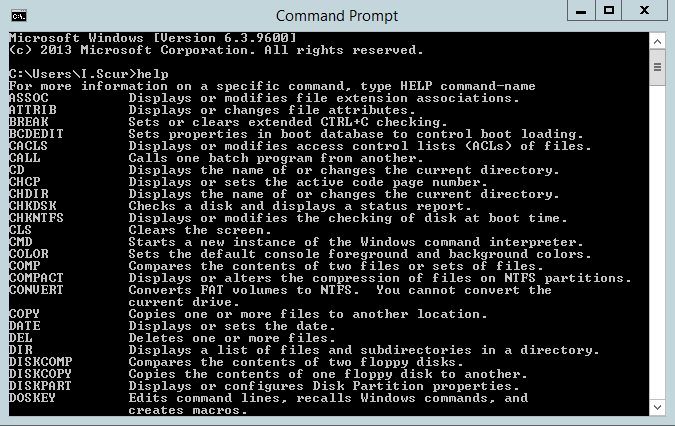
Windows Command Prompt (also known as the command line, cmd.exe or simply cmd) is a command shell based on the MS-DOS operating system from the 1980s that enables a user to interact directly with the operating system. Specifically, this venerable command shell provides an environment to run applications and various utilities; output is displayed in the same window. It is possible to use the cmd shell to create and edit scripts and save them to batch files to solve automation tasks in one-system frames; however, it was never intended for remote system administration.
What is Windows PowerShell?
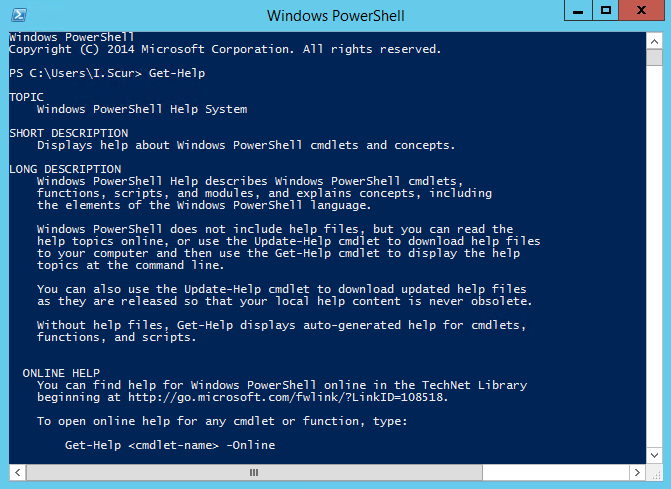
Windows PowerShell is a command shell and scripting language designed for system administration tasks. It was built on top of the .NET framework, which is a platform for software programming developed by Microsoft in 2002.
PowerShell commands, or cmdlets, help you manage your Windows infrastructure. In addition, they enable a user to access the registry, the file system and Windows Management Instrumentation (WMI) space on systems remotely. Moreover, the PowerShell command shell enables you to create complex scripts with multiple conditions.
How PowerShell differs from Command Prompt
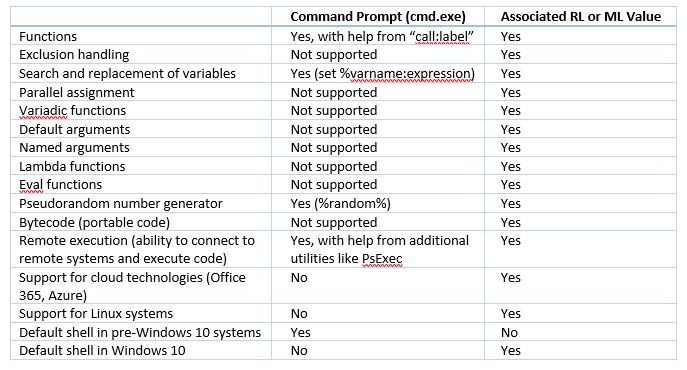
As mentioned earlier, cmd is a very old tool that was never intended for remote system administration. Extending its functionality requires additional utilities, such as Microsoft Sysinternals PsExec.
PowerShell, on the other hand, provides many cmdlets to simplify system administration tasks. It supports the automation of a wide range of tasks, such as Active Directory administration, user and permissions management, and extracting data about security configurations. Moreover, PowerShell now supports Linux.
The following table summarizes the key differences between Command Prompt and PowerShell from a programming and operations perspective:
PowerShell or cmd: Which should I choose
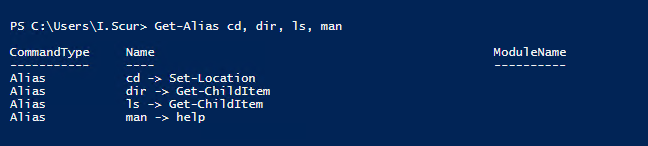
Clearly, there are many reasons why Windows PowerShell replaced the Command Prompt as the default in the Windows 10 operating system, and was preinstalled starting with Windows XP. But if you’re used to using cmd, you don’t need to feel any urgency in switching to PowerShell. In fact, most commands from cmd work fine in the PowerShell environment — Microsoft wanted to simplify the lives of system administrators, so it created command prompt aliases in PowerShell that enable it to interpret old DOS commands as new PowerShell commands.
To find out how old cmd commands map to the newer PowerShell cmdlets, use the Get-Alias command:
However, there is a good case to be made for making the leap to PowerShell. Everything you can do with cmd you can also do with PowerShell — and often it is more convenient, since there is a special environment to develop and test scripts. Additionally, PowerShell is a live language with a strong community ready and willing to help those new to scripting.
If you are a beginner and have questions about how to get started with Windows PowerShell, here is a PowerShell tutorial that will help you learn the basics of scripting and code creation:
Windows PowerShell против CMD — в чем разница
Большинство из вас, должно быть, использовали командную строку в какой-то момент времени — будь то просто ради эксперимента или решения проблемы, такой как восстановление данных после заражения ярлыком вируса. Но как насчет PowerShell, который появился позже? В чем разница между PowerShell и cmd?
Что ж, я уверен — если вы не являетесь опытным пользователем со знанием программирования, вам даже не придется открывать PowerShell. Но можно ли его использовать в качестве замены командной строки? Это только для программистов или с ним легко познакомиться?
У нас есть все, что вам нужно знать о них обоих. Чтобы упростить задачу, мы не будем углубляться в корни их различий, а в этой статье будет выделено только существенное различие между PowerShell и cmd, чтобы помочь вам выбрать, какой из них использовать.
История
1. Командная строка
Командная строка — это интерпретатор командной строки. Он существует в Windows с тех пор, как введение Windows 95. В то время она называлась не «Командная строка», а просто «cmd.exe», которая позволяла пользователям взаимодействовать с операционной системой с помощью определенных команд. А затем с Windows NT это было названо — «Командная строка».
Что ж, теоретически это было почти то же самое, что и COMMAND.COM (или более известное как MS-DOS), с множеством улучшений.
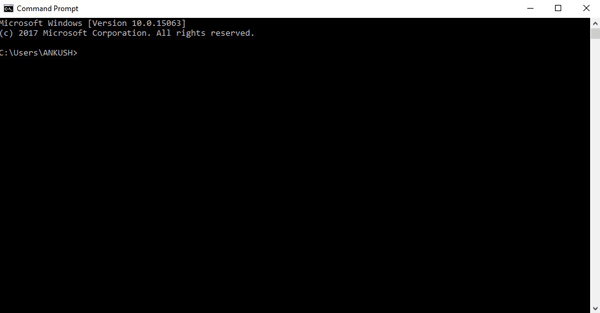
Хотя командная строка технически была оболочкой, но у нее было много недостатков. Во-первых, оболочка не могла помочь автоматизировать все аспекты функциональности графического интерфейса. Во-вторых, он не поддерживает создание сложных сценариев.
2. PowerShell
Чтобы преодолеть недостатки командной строки, Microsoft начал разработку оболочки под названием Monad, которая была намного мощнее командной строки (могла выполнять множество основных административных задач, которые CMD не могла).
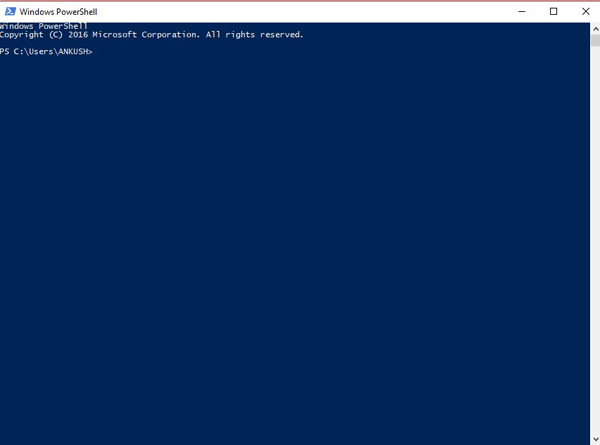
Позже, в 2006 году, он был переименован в Microsoft PowerShell. А недавно (в 2016 году) PowerShell был сделан с открытым исходным кодом с кроссплатформенной поддержкой.
Технические функции
Технические различия будут иметь значение только для тех, кто хочет управлять и автоматизировать определенные задачи, взаимодействуя с ОС через интерфейс командной строки. Если вы понятия не имеете, что такое язык программирования, знание технических различий вам не поможет.
PowerShell использует другой набор команд, известный как командлеты. С его помощью вы можете попробовать управлять множеством задач системного администрирования. Однако вы не можете получить доступ к тому же через командную строку. PowerShell также позволяет вам использовать — «каналы» — что является просто способом облегчить передачу информации из одной программы в другую — это делает PowerShell еще более мощным.
Кроме того, как указано выше, с помощью PowerShell вы можете создавать сложные сценарии, но этого не произойдет в командной строке.
Короче говоря, PowerShell — это улучшенная среда командной строки по сравнению с командной строкой.
CMD против Powershell: команды
Если вы собираетесь использовать какой-либо из них большую часть времени, вам следует внимательно изучить их документацию здесь:
Если вы просто хотите узнать основную разницу в их командах, то вот что:
Когда вы наблюдаете такую команду, как cd / dir / переименовать (команды из одного слова), это командная строка для вас. Вот почему это по-прежнему самый простой инструмент командной строки.
Однако с Powershell вы получите более выразительные команды (описывающие их работу), например:
Windows PowerShell против командной строки: какую из них использовать?
Учитывая, что PowerShell — это гораздо более продвинутая среда командной строки, она подходит только для системных администраторов Windows.
Если вы знаете о создании сценариев, управлении задачами автоматического администрирования в Windows и хотите сделать это с большей расширяемостью, тогда PowerShell для вас. Кроме того, если вы знаете язык программирования C #, это отлично подойдет.
Однако, если вы не программист и понятия не имеете, что делают системные администраторы, вам следует придерживаться командной строки. Он не устареет. Командная строка по-прежнему будет использоваться многими пользователями (включая программистов) для выполнения менее сложных, но важных вещей, таких как очистка жесткого диска, преобразование диска из GPT в MBR, восстановление после ярлыка вируса и т. д.
Вы бы не захотели использовать PowerShell, если хотите исправить незначительные проблемы или просто проверить данные ping.
Подводя итог
Теперь, когда вы знаете о разнице между PowerShell и CMD, вы можете выбрать любого, кого хотите, в соответствии с задачей, которую вы хотите решить. Среди этих двух нет ничего лучше или хуже, все зависит от того, чего хочет пользователь.
Все еще не понимаете, чем PowerShell отличается от командной строки? Поделитесь с нами своими мыслями в комментариях ниже.
PowerShell VS CMD – What’s The Difference
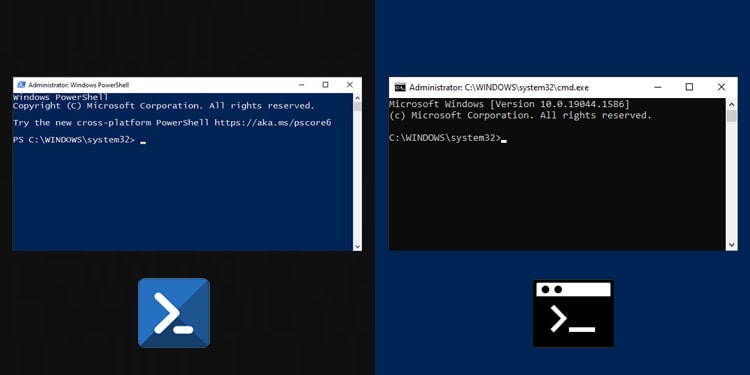
Command Prompt is the traditional command-line shell in Windows. It provided a way to directly communicate with an app or the operating system via the CLI, automate operations with batch ( .bat ) files and run scripts.
PowerShell, which is currently the default command-line shell, extends on these and provides even more robust automation capability. It’s a scripting language in itself with its own ISE and support for cmd and bash commands as well.
Since they both serve similar purposes, you may be wondering, are they really all that different? Is CMD just a simpler version of PowerShell? Is PowerShell going to replace Command Prompt in the future? We’ve answered these and similar queries in the article below.
Table of Contents
What is Command Prompt?
Back in the days of MS-DOS, users had to enter commands entirely through the command-line interface (CLI) to operate computers. With time and innovation, MS-DOS was replaced by GUI-based operating systems. But one part of CLI stuck in the form of command prompt, which was first released in 1987.
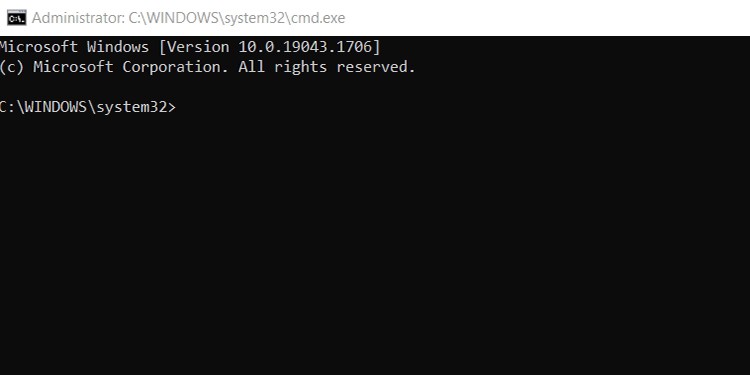
Command Prompt, also called CMD, is the command-line interpreter in the Windows NT line of operating systems. It interacts with the user via a CLI, which is implemented through the Win32 console.
CMD accepts the user’s inputs (commands) and translates (interprets) them into a form understandable by the computer (machine language.) CMD commands are preset, and each performs a certain task.
These commands can be used for simple purposes (like checking your ping or IP address) to advanced stuff like creating batch files and scripts for automating system administration tasks (installing software, backing up servers, or logging out users on PCs on a large network, for instance).
Performing tasks via CMD is generally faster and more efficient than GUI, especially those that can be done by running batches of commands. As your commands and scripts are stored in a text file, not only are your commands repeatable, they’re also auditable, which is another great benefit.
Command Prompt can be accessed with the run command cmd .
What is PowerShell?
PowerShell is a cross-platform command-line shell, a scripting language, and an automation framework, all in one. Built on the new .NET Core framework, PowerShell has been traditionally used by System Administrators.
These days, it’s increasingly popular among DevOps, Cloud Ops, and Developers thanks to features such as pipeline chaining, tab completion/command prediction, aliases, command-line history, PowerShell drives, PowerShell remoting, and more.
PowerShell is commonly used for automatic system management and administration tasks, cloud management, building, testing, and deploying solutions in CI/CD environments, and so on. It can work with technologies like Azure, SQL, Exchange, AWS, Google Cloud, VMWare, and more.
PowerShell uses unique lightweight commands known as cmdlets (pronounced command-lets). In addition to the native cmdlets, PowerShell also supports CMD and Bash commands in the form of aliases. Oh, and you can also create your own custom cmdlets, modules, and functions.
As the default command-line shell, PowerShell can be accessed from the power user menu (Windows + X). Of course, the run command powershell works just fine as well.
PowerShell VS CMD – The Main Differences
While PowerShell and CMD may look similar at first glance, they’re completely different from each other, from their commands and language structure to the environment and scripting capabilities. Here are the main differences between PowerShell and Command Prompt.
Commands
PowerShell cmdlets differ from CMD commands in the sense that they are instances of .NET classes rather than stand-alone executables.
PowerShell supports the creation of new and custom cmdlets, which can be created from a few lines of code while CMD does not.
PowerShell also supports CMD commands and Bash commands in the form of aliases, whereas the same cannot be said for Command Prompt.
Additionally, PowerShell also has native cmdlets for working with Windows Management Instrumentation (WMI) on both local and remote computers, whereas CMD does not.
Language Structure
CMD has a lot of simple batch commands reminiscent of MS-DOS, such as cd or dir . These can be difficult to understand/remember if you don’t have much experience with them.
On the other hand, PowerShell cmdlets are much easier to learn and interpret because of how the language is structured. PowerShell cmdlets generally follow a Verb-Noun, or sometimes Verb-ModuleNoun format.
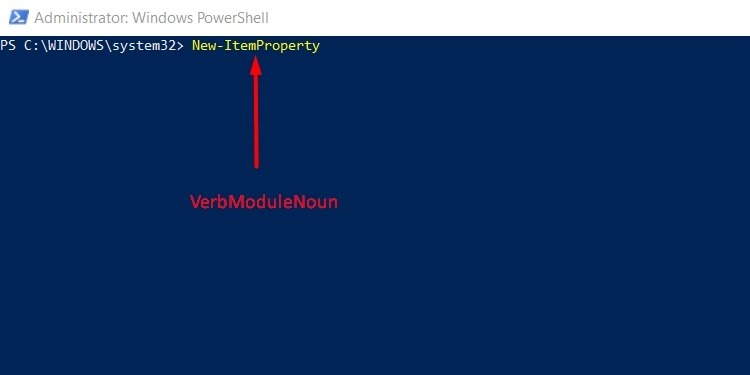
Verb indicates what type of action you’re trying to perform. Commonly used verbs include Get (get the details of something), Set (change the state or settings of something), New (Create a new item) and Remove (Delete an existing item). You can get a full list of all possible verbs with the Get-Verb cmdlet.
Module indicates which module contains the command, while Noun indicates what type of item you are working on.
With a consistent format like this, it’s possible to make an educated guess in a lot of situations, which makes the learning process much easier than with command prompt.
Pipes, Objects, and Variables
A pipeline is used to run multiple commands sequentially, where the output from one command is directly used as the input for the next command. The concept of a pipeline isn’t unique to PowerShell.
What is unique is that in PowerShell, objects are used to retrieve and return data, whereas, in Command Prompt, the inputs and outputs are just plain strings. This makes PowerShell more efficient and capable of processing complex data the same way programming languages do, which CMD is incapable of.
In CMD, you have to pass variables into commands in a strict order as the number of variables is limited. There are no such limitations in PowerShell.
Help System
In PowerShell, Get-Help and Get-Command are commonly used to figure out the commands and get additional information. The help system in PowerShell is also integrated with online help articles.
Using Get-Help gives you information about how to use this cmdlet. If you use get-help ip , you get a list of all functions, cmdlets, and aliases related to IP. If you use get-help set-netipaddress , it only displays information regarding that specific function.
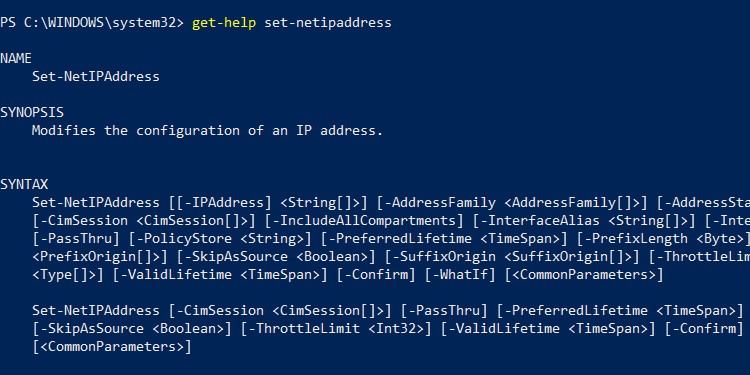
Similarly, using Get-Command displays an extensive list of all commands installed on the computer. You can modify it with various parameters such as Get-Command -Type Cmdlet for instance.
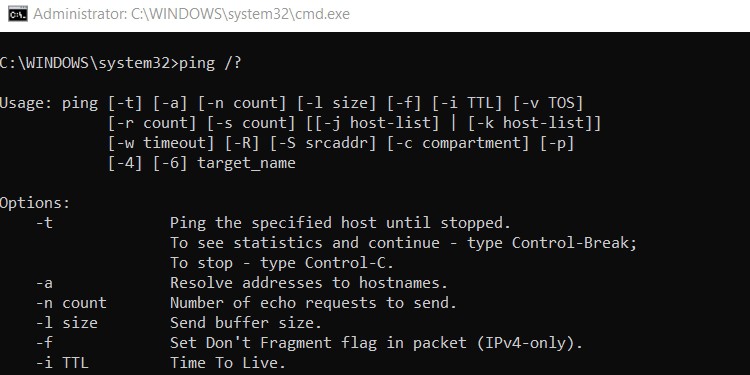
In the case of CMD, the help command displays a list of available system commands. Typing help dir , for instance, gives detailed information on the dir command instead. But this doesn’t work with all the commands, in which case, you can instead use /? as it serves the same purpose. For example, ping /? displays information about the ping command.
Environment and Scripts
Command Prompt is very limited in that you can only perform basic DOS commands which do not have access to many system management features.
In CMD, you would need to write a script in a notepad, save it as a batch file and run it separately, whereas this can be invoked directly in PowerShell. On that note, CMD scripts are saved as .bat files, whereas PowerShell scripts are saved as .ps1 files.
CMD doesn’t have an ISE (Integrated Scripting Environment) either, which means it simply cannot match the ability of PowerShell to create complex scripts.
PowerShell has access deep into the Windows System and can interact with system objects at the core level. Furthermore, PowerShell’s ISE allows you to write, run, test, and debug commands, aliases, and scripts.
Some other key features of the PowerShell ISE include multiline editing, selective execution, context-sensitive help, tab completion, syntax coloring, support for right-to-left languages, and appearance customization, among others.
Final Verdict – PowerShell VS CMD
To sum it up, here are the main differences between PowerShell and CMD:
| PowerShell | CMD |
| Powershell uses self-contained programming objects called cmdlets that follow a consistent Verb-Noun format. | CMD commands don’t follow a consistent format. |
| It also supports aliases and the creation of custom cmdlets. | CMD doesn’t support aliases or the creation of new commands. |
| Powershell supports Bash commands, and thus Linux systems. | CMD doesn’t support Linux systems. |
| You can pipe outputs as objects in Powershell. | The output from a command in CMD is a string, and you can’t pipe it to another command. |
| Powershell has an ISE. | CMD has no ISE. |
| Powershell has access to programming libraries. | CMD doesn’t have access to programming libraries. |
For the average user, the reason you use the command line most of the time is likely to check your ping or IP. Command Prompt is a perfectly fine tool for this purpose.
Or perhaps you’re an older user proficient in CMD and unwilling to let go of it just yet. CMD isn’t going away anytime soon, so if it’s getting the job done for you, that’s fine too.
But there’s no denying that PowerShell is superior to CMD in almost every metric. PowerShell is extensible, chainable, and offers way more functionality.
The introduction of PowerShell eliminated the hassle sysadmins used to face: manually combing and navigating Windows directories to locate cmdlets in order to automate administration tasks, especially backups, restore, upgrade, and maintenance-related cron-jobs.
Command Prompt simply cannot match PowerShell’s system administration and automation capabilities. This is obvious to most power users and sysadmins alike, which is why Microsoft will likely try to replace cmd with PowerShell eventually. After all, PowerShell can do most of what CMD can and much more.
Most Useful Commands Comparison
Most users have come across an error or two that required them to use command-line tools to resolve the issue. Using powershell or cmd can seem daunting at first, but we trust the table below will be handy in such cases. In it, we’ve compiled some of the most useful powershell cmdlets and cmd commands, and shortly described their function.