VMware Proactive HA
You are a VMware Administrator. In your data center, there’s a vSphere 6.0 cluster running rock-solid! But, with the 6.0 end of support coming up March 12, 2020, you’re forced to look into the newer version of vSphere. You may have noticed that there’s been a couple of improvements and new features since 6.0 came out. In this post, I’ll walk you through the feature called Proactive HA, released in 6.5.
In short, Proactive HA is and extension of DRS that uses the vendor Health Provider to move VM’s off degraded hosts. You may think, but why?? Why does it have HA in the name if it’s not part of vSphere HA?! Well, it is not part of the vSphere HA architecture, and I’ll explain the difference. But, you do enable and configure it in the same GUI window as vSphere HA.

There are a couple of different states reported from the health provider, and it’s up to you as an admin to configure the responses. The severity levels are; Healthy, Moderate Degradation, Severe Degradation, and Unkown. I’ll jump directly to the recommended actions, and they are, Quarantine mode for Moderate and Maintenance mode for severe failure. In reality, the moderate state could be that one of ten fans failed, and the severe level could be a critical memory error.
Quarantine mode is where no new VM’s are allowed to run on the host, but the ones running will be allowed to stay on the host if the cluster resources are overcommitted.
Maintenance mode is straightforward. All VM’s will be moved off the host.
To enable Proactive HA, you need the following:
- vCenter Server & ESXi 6.5 or above
- Enterprise Plus or Platinum license
- Supported Health Provider plugin from your hardware vendor
The licensing is straight forward, but what the heck is “Health Provider plugin” ?! It’s the hardest part with Proactive HA. The plugin is the middle-man between the hardware layer and vCenter. The plugin is hard to find from most hardware providers. I advise you to reach out to your hardware vendor or partner.
Steps to enable Proactive HA:
- Edit “vSphere Availability” on the cluster
- Select “Turn on Proactive HA”
- Click “Proactive HA Failures and Responses”
Modify the settings to:
- Automation Level: Automated
- Remediation: Quarantine mode for moderate and Maintenance mode for severe failure (Mixed).
Written by me, John Henriksson. I live and work in Sweden as Technical Partner Manager @ NetApp. You should connect with me on LinkedIn.
vSphere 6.5: HA & DRS improvements. Part I
A number of improvements that have been introduced in vSphere HA and DRS in the last several years are impressive. vSphere 6.5 continues this tradition by bringing new features into HA Admission Control, by adding flexibility with HA Orchestrated Restart and by enabling DRS to make more intelligent balancing.
I will be trying a new format today. First, I will be explaining the challenges you might have had in previous vSphere releases and then I will show you how the new vSphere 6.5 HA & DRS features address those challenges.
Challenge: Default Admission Control settings do not ensure the same level of performance in the event of host failure
Description
“Admission Control is more than likely the most misunderstood concept… and because of this it is often disabled” – that’s my favorite phrase from the “vSphere HA and DRS technical deepdive” book by Duncan Epping and Frank Denneman. Based on my personal experience I would add that often people enable Admission Control (AC) using default settings without understanding how each of the AC modes fits into their environment. Moreover, admins rarely review these settings as the infrastructure grows.
Before explaining what vSphere 6.5 brings to HA & DRS let’s just quickly refresh what Admission Control is and what types of AC there are.
According to vSphere Documentation, “vCenter Server uses admission control to ensure that sufficient resources are available in a cluster to provide failover protection and to ensure that virtual machine resource reservations are respected.”
Do you see a problem here? Many admins don’t recognize a potential issue as well. Admission Control doesn’t care about virtual machines’ performance after failing them over to other hosts. All AC requires is that there are just enough resources to be able to power on VMs and to provide corresponding CPU and RAM reservations. If there is not enough compute power after a host failure to ensure the same level of VM performance Admission Control wouldn’t bother to tell you about it. Therefore, you either have to assign sufficient reservations to all VMs (ugh, nasty practice) or to use dedicated failover host. The former results in resource micromanagement and huge operational overhead. The latter means you will be wasting your compute resources on a hot-standby host.
There are three AC policies in vSphere 6.5:
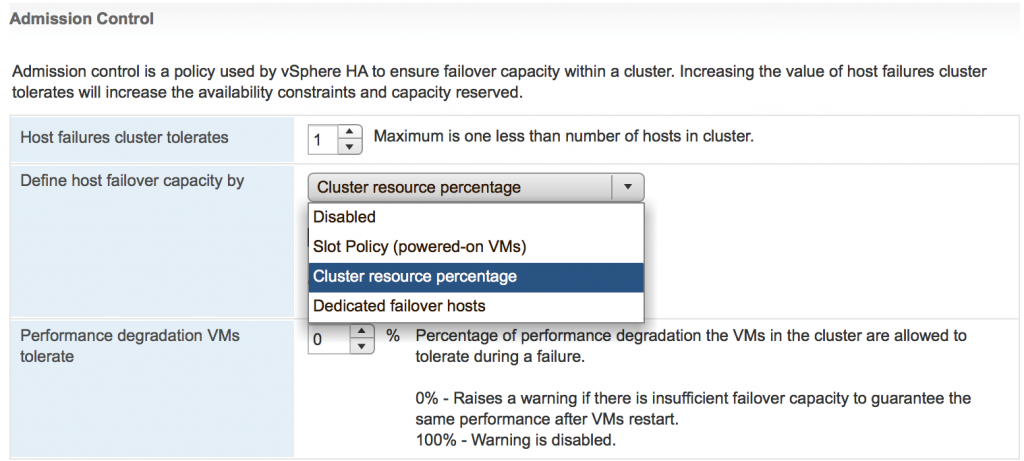
- Slot policy
As policy name states it uses slot size to calculate an amount of available resources for a failed host scenario. The slot size can be either defined automatically by using the largest reservations for RAM and vCPU. Alternatively, you can define a custom slot size. The problem with this policy is that it is not flexible and one VM with large reservations may skew calculations, which in turn will prevent an admin from powering on VMs when there are still plenty of resources.
- Cluster Resource Percentage
This is the most recommended policy and more flexible than slot based policy. However, it still uses VMs’ reservations and overhead for its calculations. It doesn’t take into consideration the amount of Active RAM. Imagine you have a virtual machine with 4 x vCPU and 16GB of RAM. If you are not using reservations Admission Control will only reserve 4 x 32MHz for vCPU and 125MB for RAM. That is all Admission Control needs to power on the VM. Therefore, AC will use these numbers only in its calculations. But why would you need to power on VMs if you cannot be sure VMs have enough resources to provide services? What’s the point of running VM if it cannot get resources to run the applications?
So, if you want to be sure the VMs can still deliver the services after the host failure you can’t rely on default Admission Control settings. The vSphere admin will need to figure out the vCPU /RAM reservations for all VMs, assign them and then update these values as needed. That’s not something you can easily automate and it could be easily overlooked.
Another problem with this policy was the requirement to adjust reserved percentage has to be adjusted every time the number of hosts in the cluster change. For instance, with 5 hosts you want to reserve 20% of CPU and RAM to cover 1 host failure. With 10 hosts in the cluster, you will need only 10% of resources reserved for the same scenario.
- Dedicated Failover host
That was my personal choice for AC mode in pre-vSphere 6.5 when you have a cluster of 10 hosts and more. This policy ensures VMs can be restarted during the host failure and that VMs will get the same performance, provided that dedicated failover host has the same specs as other hosts in the cluster.
If you want to have a bit more details on AC policies and their corresponding drawbacks have a look at my blog post Why I prefer to disable vSphere HA Admission Control
I also strongly recommend reading “vSphere HA and DRS technical deepdive” book by Duncan and Frank.
Solution
Here is what VMware came up with to address these issues. There is a new setting now in HA Admission Control called ‘Performance Degradation VMs tolerate’.
The default value for this setting is 100% which means Admission Control will ignore any possible performance impact of the host failure.
Setting it to 0% will generate a warning if AC thinks there is insufficient failover capacity to ensure the same performance after VMs are failed over. This is achieved through monitoring of actual usage of CPU and RAM resources.
Here is a quick example. Let’s say your 4 x node cluster has 100GHz and 100GB of RAM. The ‘Performance Degradation VMs tolerate’ is set to 10%. ‘Host failures cluster tolerate’ is set to 1.
The actual usage is 60% of CPU and 90% of RAM resources.
AC assumes that after the host failure it will only have 75% of resources available. The cluster will have enough CPU resources to cover the current CPU usage, but actively used RAM will be 15GB higher than available RAM. 15GB is more than 10% of used RAM = 9GB. So, that will make AC trigger a warning.
In pre-vSphere 6.5 this won’t be brought up as an issue for the simple reason that AC only monitored VMs’ overhead and reservations.
Just to make Admission Control even better VMware made percentage recalculations automatic. Whenever you add or remove the host from the cluster AC will adjust the percentage of reserved failover capacity.
Note – Reading documentation it is not clear at the moment whether Admission Control uses Active memory metric + Overhead to calculate actually used memory or Dynamic DRS memory entitlement which consists of Active Memory + 25% of (Consumed memory – Active memory) + Overhead. I personally hope it uses Dynamic DRS memory entitlement as it seems to me as a more realistic value. I will update this article once I get this information confirmed.
StarWind HyperConverged Appliance is a turnkey hyper-converged hardware platform fitted into a small two-node footprint. You don’t need anything else to build a budget-friendly new IT infrastructure or upgrade an existing one. All your systems will be “babysitted” by StarWind 24/7/365, troubleshooting any concerns without your involvement. Everything’s operated through a neat web UI. We’ll also migrate your workloads at no extra cost.
Dramatically decrease your CapEx, OpEx, and IT management costs, while visibly increasing return on investment (ROI) with hyperconvergence for ROBO, SMB & Edge from StarWind.
Challenge: HA mechanism is reactive only
Description
vSphere HA has proven to be a very simple and at the same time reliable technique to protect virtual machines against the failure of the hardware. When the ESXi host becomes irresponsive, isolated, partitioned or simply experiences power outage all the virtual machines residing on this server can be restarted on other hosts in the cluster. As you can see HA used to be a reactive mechanism. It helps to cope with catastrophic health events and obviously improves the availability of the virtual machines, but it still results in short interruption of the services running in this VM.
Solution
In vSphere 6.5 VMware improved clusters’ high availability with proactive logic. The funny fact is that even though this new feature is called Proactive HA it is actually more an extension of DRS functionality.
The main new component of Proactive HA is a web client plugin provided by server vendor, e.g. HPE or Dell, which passes component health data to DRS. The plugin covers the following components of the servers:
- Networking
- Power
- Memory
- Local Storage
- Fans
Based on the type of the failure there could be two types of the failure – Moderate and Severe. One thing to note here – the conditions for each of the failure type are actually defined by vendors, not by VMware.
Proactive HA also introduces new state for the ESXi server – Quarantine Mode (QM). When the host is placed in QM mode the DRS will try to evacuate all VMs off this host provided that there is no performance impact on the cluster workload. For instance, if the migrated VMs don’t cause any compute resource contention in the cluster that all VMs will be migrated. Otherwise, if there are not enough resources DRS will keep some of the VMs on the affected host but will try to keep the load on the ESXi server at the minimum. You can consider QM as a “soft” maintenance mode.
There are three Proactive HA responses HA:
- Quarantine mode for all failures
No matter what type of failure the ESXi server is experiencing the vCenter will put this host in QM which will make DRS migrate all VMs off the degraded server as long as there is no contention
- Quarantine mode for moderate and Maintenance mode for severe failures
The name is self-explanatory. This mixed response ensures that the performance of other VMs is not impacted, but may put some VMs at risk by keeping them running on the degraded host if there are not enough resources in the cluster.
- Maintenance mode for all failures
This response will ensure that no VMs run on a degraded ESXi server.
There are just 2 requirements for Proactive HA:
- You should have hardware monitor plugin installed in your environment. So far 3 vendors released this software for their servers – Dell, Cisco and HPE, but other vendors are working on it as well
- DRS has to be enabled on the cluster
When vendor’s health plugin recognizes partial failure, which leads to a loss of redundancy, e.g. one NIC reports disconnected or one PSU fails it will make an API call to vCenter to inform about Proactive HA failure. Based on that information vCenter will trigger one of the responses you chose to configure.
You can also use Proactive HA in Manual mode, which will produce DRS recommendations but will not vMotion any of the VMs.
Since it is DRS feature which is a part of vCenter functionality, Proactive HA is supported on all versions of ESXi servers supported by vCenter 6.5. So, you don’t have to rush upgrading your hosts to get Proactive HA.
A couple of things to keep in mind when using Proactive HA:
- If the root cause of the problem is resolved host will be taken from the quarantine mode automatically. However, If the host is placed into maintenance mode it won’t be taken out of MM automatically after the issues are fixed. This was done on purpose as you would very probably want to test the host before putting VMs back on it
- It is supported with vSAN, but currently, vSAN doesn’t take much advantage of Proactive HA. For instance, when the host is placed in QM it won’t trigger data evacuation. However, if vCenter puts the host into maintenance mode the vSAN will use default maintenance mode – Ensure Accessibility. This behavior can be changed using advanced setting DefaultHostDecommissionMode.
In vSphere 6.5 – HA & DRS improvements – Part II I will talk about HA Orchestrated Restarts, new DRS balancing options and Predictive DRS with vRealize Operations Manager 6.4.
vSphere 6.5 High Availability New Features – Proactive HA

vSphere 6.5 released with lot of new features that most of them were waiting for. vSphere 6.5, the latest version of its industry-leading virtualization platform. This new release of vSphere features a dramatically simplified experience, comprehensive built-in security, and a universal app platform for running any app. As usual with the release of each vSphere version,It continues to provide the best availability and resource management features for business critical application workloads. vSphere 6.5 also added new and improved features. We will talk about new features available with vSphere 6.5 High Availability & DRS.
- Proactive HA
- vSphere HA Orchestrated Restart
- Simplified vSphere HA Admission Control
From the multiple new features available from vSphere 6.5 High Availability, We will talk in detail about Proactive HA in this article.
vSphere 6.5 High Availability – Proactive HA
vSphere 6.5 High Availability (HA) now also detect the hardware conditions of the ESXi host and allow you to evacuate the Virtual machines before the hardware issues cause an outage to Virtual machines with the help of Proactive HA. Proactive HA works in conjunction with hardware vendors monitoring solutions to receive the health status of the hardware components such as memory, fans and power supplies. You can configure vSphere HA to respond according to the failure of hardware components. This feature proactively avoids the virtual machine downtime by detecting the hardware failures and place that esxi host in Quarantine Mode or Maintenance mode based on configuration option. You need to have DRS enabled on the cluster to make use of Proactive HA.
If any hardware components is failed and it is marked as unhealthy by hardware monitoring, vSphere will classify the affected ESXi host as either moderately degraded or severely degraded based on the component failure. vSphere will place that affected ESXi host into new state called “Quarantine Mode”.
In the Quarantine Mode, DRS will not use the ESXi host for new Virtual machine placements and also DRS will attempt to evacuate the host as long as it would not cause performance issue. You can also configure proactive HA to place the degraded ESXi hosts into Maintenance mode, which perform the vMotion of Virtual machine to other healthy ESXi hosts in the cluster. Proactive HA can respond to different types of failures. Currently, there are five failure events that are supported:
- Power Supply
- Memory
- Fan
- Storage
- Network
How to Configure vSphere 6.5 Proactive HA?
Right-Click your ESXi cluster from vSphere Web Client -> Cluster Properties -> Click on Edit. You can notice vSphere Proactive HA is disabled by default.
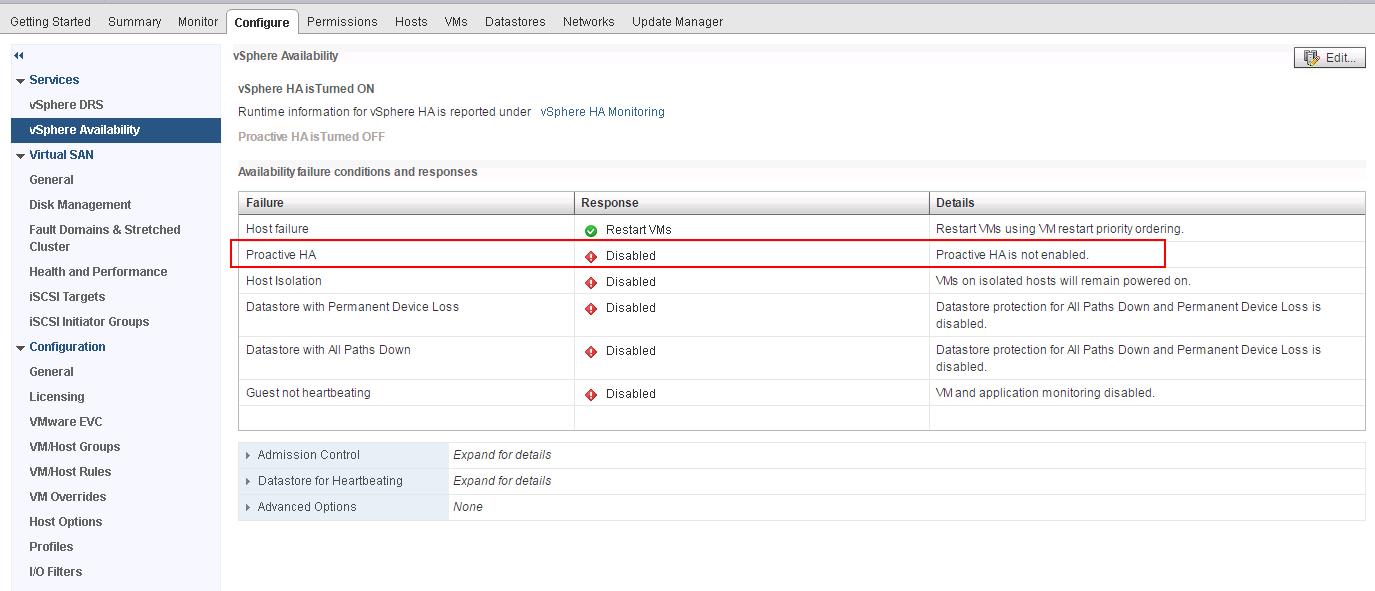
Select the checkbox “Turn on Proactive HA”. You can configure configuration options under “Proactive HA Failures and Responses”
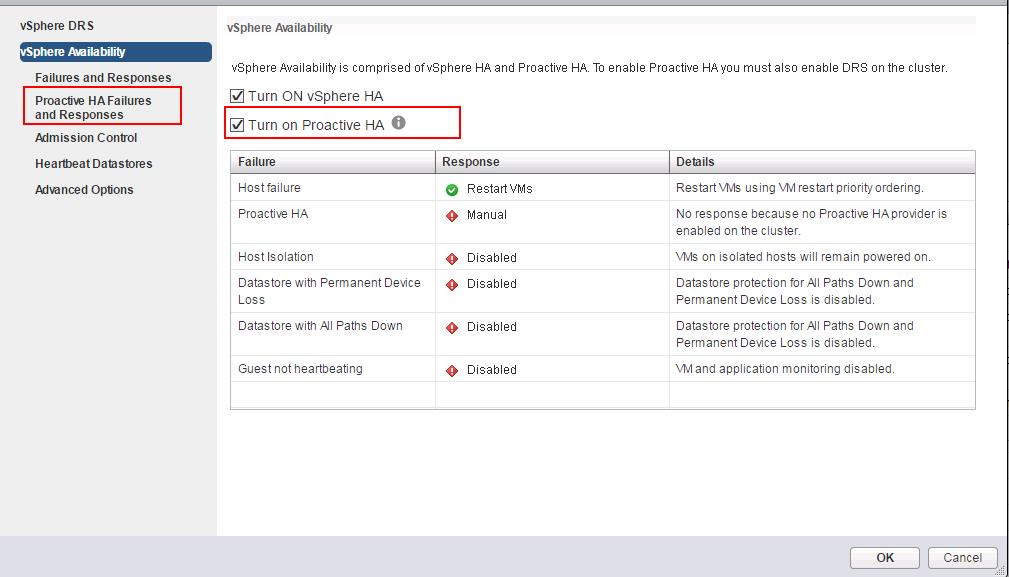
There are two vSphere Proactive HA Automation Levels:
Manual: vCenter Server will suggest only the migration recommendations for virtual machines. You need to manually migrate the virtual machines out from the degraded hosts.
Automated: Virtual Machines will be migrated to healthy hosts and degraded hosts will be entered into remediation action either quarantine or maintenance mode depending on the configured Proactive HA automation level
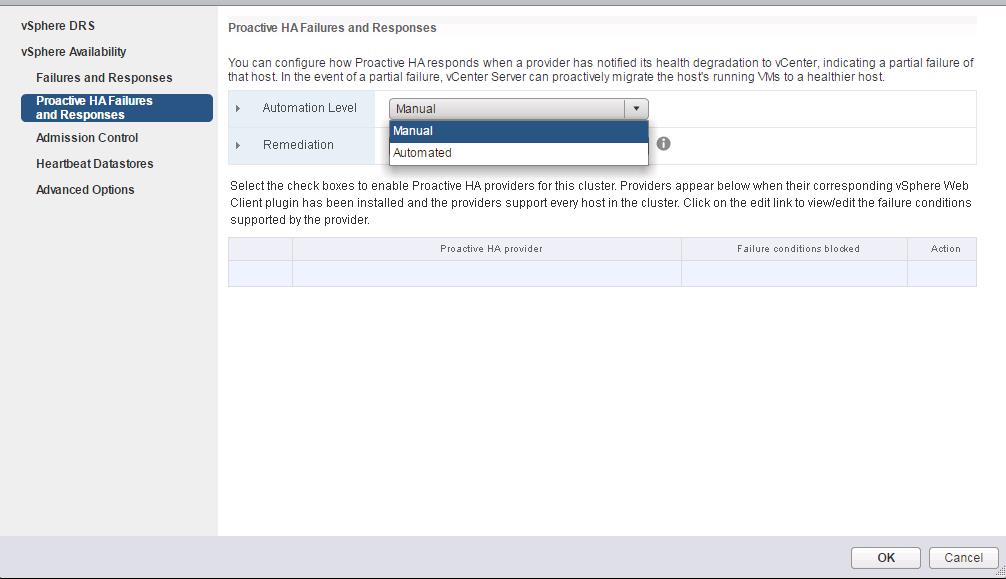
There are three remediation actions for partial failed hosts:
- Quarantine Mode : No New VM additions on the host
- Mixed Mode : Keeps VMs running on the host for moderate failure. But it will migrate VMs for severe failures
- Maintenance Mode : Migrates all the Virtual Machines from the host and place ESXi host in maintenance mode.
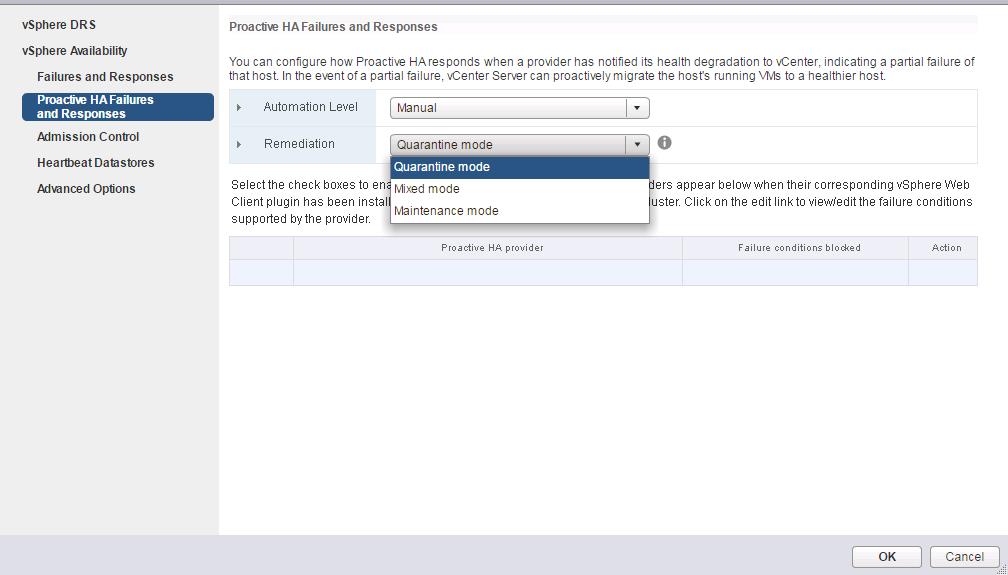
Here are the detailed information of three Remediation actions which determine what happens to partially degraded hosts:
- Quarantine mode for all failures : This option balances performance and availability, by avoiding the usage of partially degraded hosts as long as virtual machine performance is unaffected. In Simple terms, No New VM additions on the partially degraded host
- Mixed Mode (Quarantine mode for moderate and Maintenance Mode for Severe Failure) : Keeps VMs running on the host for moderate failure. But it will migrate VMs for severe failures. This option balances performance and availability, by avoiding the usage of moderately degraded hosts as long as virtual machine performance is unaffected. This ensures virtual machines do not run on severely failed hosts.
- Maintenance mode for all failures: Migrates all the Virtual Machines from the host and place ESXi host in maintenance mode.Ensures virtual machines do not run on partially failed hosts
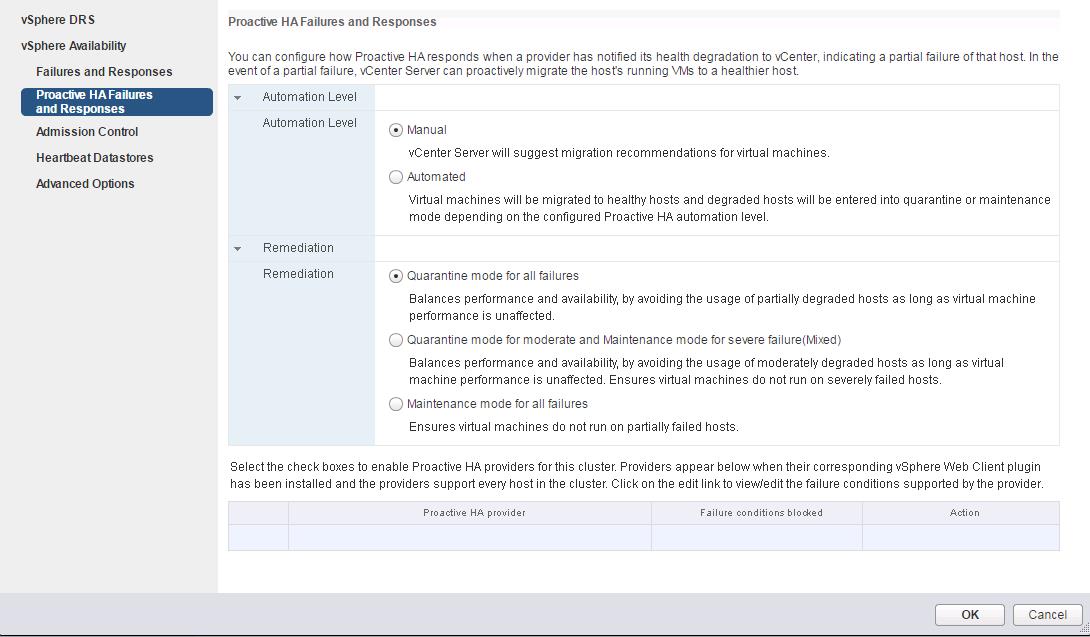
Select the check boxes to enable Proactive HA providers for this cluster. Proactive HA Providers appear below when their corresponding vSphere Web Client plugin has been installed and the providers monitor every host in the cluster. Click on the edit link to view/edit the failure conditions supported by the provider. Since I don’t have installed any of the Proactive HA providers vSphere Web client, It is not providing any information in my demo environment. That’s it. We are done with configuring vSphere 6.5 Proactive HA. I hope this is informative for you. Thanks for Reading!! Be social and share it in social media, if you feel worth sharing it.
Proactive ha vmware что это
There are many new features have been introduced with vSphere 6.5 and In this post we are going to discuss about what’s new with HA in vSphere 6.5 .From vSphere 6.5 you can fin the configuration under vSphere Availability , you can check on below image .

Below are points we are going to discuss which are part of vSphere Availability .
- Admission Control
- Restart Priority enhancements
- HA Orchestrated Restart
- ProActive HA
Admission Control
Admission control has the same functionality as earlier with version 6.0 but with 6.5 , it is introduced in easier way with some more options . vSphere HA uses admission control to ensure that sufficient resources are reserved for virtual machine recovery when a host fails.

Navigate to Cluster -> Configure -> Services -> vSphere Availability and Edit on the option -> Select Admission Control

Cluster resource percentage
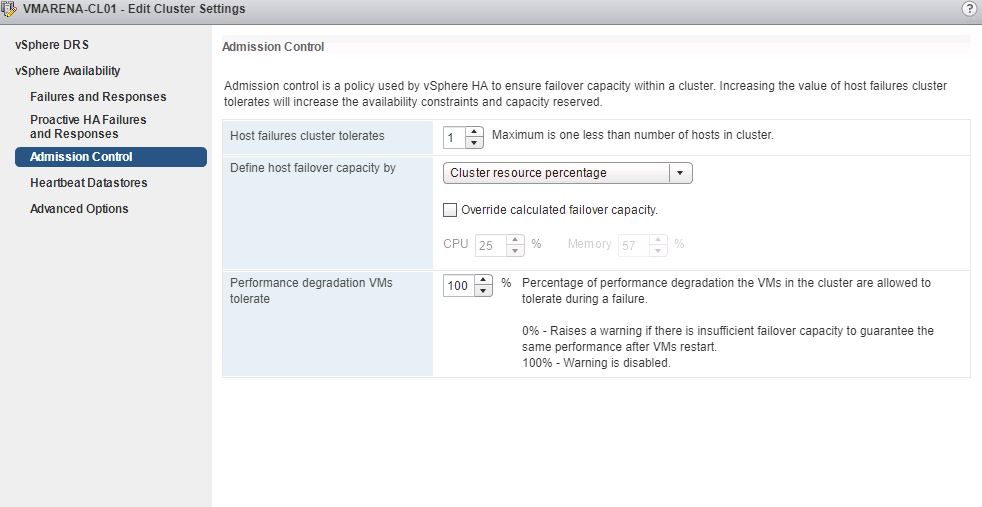
You can see the “Host failures cluster tolerates” as “1” which we selected on current configuration and “Cluster Resource Percentage” .If you scale up by adding new nodes or scale down by remove node , the percentage value will be automatically adjusted based on the selected number of failures you want to tolerate.As per our current configuration , we have four ESXi hosts in the cluster and we can run the VM infra with 1 host failure worth of 25% CPU and 57 % Memory
Another enhancement is “ Performance degradation VMs tolerate ” ,from this section you can specify the performance degradation you can accept for a failure. By default set to 100% , but you can configure for instance 25% or 50%, depending on your business requirement . This can be configured from the same option , just need to mention the percentage only and DRS should be enabled to use this feature .
If you reduce the threshold to 0%, a warning is generated when cluster usage exceeds the available capacity.
If you reduce the threshold to 20%, the performance reduction that can be tolerated is calculated as performance reduction = current utilization * 20%. When the current usage minus the performance reduction exceeds the available capacity, a configuration notice is issued
Restart Priority Enhancements
This feature will allow you control the virtual machine startup priority if a host fails and HA triggered .We can set the priority in 3 modes high, medium or low .
Navigate to Cluster -> Configure -> Configuration -> VM Overrides and Click on Add

Select the virtual machines and click OK

Next Select the VMs by clicking the add option (green plus icon) and then specify their relative startup priority. Here I select on 2 VMs and then choose “lowest” option , also other available options are “low, medium, high and highest”.

After specifying the priority you can also specify other settings if required , example additional delay before the next batch will start , or you can specify even what triggers the next priority “group”, this could for instance be the VMware Tools guest heartbeat . Another option is “resources allocated” which is using for scheduling batch itself, the power-on event completion or the “app heartbeat” detection. app heartbeat option is completely depend on App HA , it has to enabled and services to be defined , it required detailed configuration .There are different value for heart beat detection and this can be modified ( decrease or increase ) as per requirement . If there is no Guest heartbeat , it will take more time to understand so there should be a timeout setting .

This Option is very useful in many cases such as if you have 2 VM ( Server and Application ) , first server should be powered on and then application .
HA Orchestrated Restart
HA Orchestrated Restart can be configured by creating “VM” Groups and assigning the VM Rule which is asscoaiated with the requirement .
Navigate to Cluster -> Configure -> Configuration -> VM/Host Groups and Click on Add to create new VM Group

Provide the Name for group the click on Add and select the First VM and click OK twice to close both windows .
Here we created Test Server Group and Add the Server VM to be part of Primary Group .

 Follow Same Create Another group for depended machine and here it is Test App .
After creation of both groups you can see both on the VM/Host Groups Option
Next Select the VM Groups according to requirement , here First is Server and then Application
Next Navigate to Cluster -> Configure -> Configuration -> VM/Host Rules and Click on Add provide the Policy Name
and add Type of Policy then VM Groups and Click OK .

Here we Choose the Rule Type Virtual Machine to Virtual Machine which will used for vSphere HA to restart virtual machines in the VM group Test Server first. When the cluster dependency restart condition has been met, virtual machines in the VM group Test App will be started afterwards.

There are Four Type which you can use for Set the Policy Rule , You have to choose the appropriate one .

Pro-Active HA
Proactive HA is a function of DRS not a vSphere HA , but it is part of “Availability” section in Configuration .Proactive HA will adds an additional layer of availability to your environment. Proactive HA integrates with the Server vendor’s monitoring software (more on this later), via a Web Client plugin, which will pass detailed server health status/alerts to DRS, and DRS will react based on the health state of the host’s hardware.
A Proactive HA failure occurs when a host component fails, which results in a loss of redundancy or a disastrous failure. However, the functional behavior of the VMs residing on the host is not yet affected .For example, if a power supply on the host fails, but other power supplies are available, that is a Proactive HA failure. If a Proactive HA failure occurs, the VMs on the affected host will be evacuated to other hosts and the host is either placed in Quarantine mode or Maintenance mode .

Navigate to Cluster -> Configure -> Configuration -> vSphere Availability Click Edit Option
Enable Proactive HA by selecting the Check box -> Turn on Proactive HA
Providers appear when their corresponding vSphere Web Client plugin has been installed and the providers monitor every host in the cluster. To view or edit the failure conditions supported by the provider, click the edit link.

Select Proactive HA Failures and Response Option as below and Click OK
Automation Level – Automated / Manual
Remediation gives you 3 options for how Proactive HA will handle host-degradation alerts.
- The first is to place a host into Quarantine Mode for any alert or degradation regardless of the severity.
- The second is to place hosts into Quarantine Mode for moderate degradation, but Maintenance Mode for severe degradation.
- The third option is to place hosts into Maintenance Mode for any alert or degradation regardless of severity.
Pro-Active HA will trigger for different types of failures like power supply, memory, network, storage and even a fan failure. Which state this results in (severe or moderate) is up to the vendor, this logic is built in to the Health Provider itself and w\this comes with the vendor Web Client plugins.

Health provider reads all the sensor data and analyze the results and then serve the state of the host up to vCenter Server. These states are “Healthy”, “Moderate Degradation”, “Severe Degradation” and “Unknown”. (Green, Yellow, Red) When vCenter is informed DRS can now take action based on the state of the hosts in a cluster, but also when placing new VMs it can take the state of a host in to consideration. The actions DRS can take by the way is placing the host in Maintenance Mode or Quarantine Mode.
Maintenance Mode – All VMs will be migrated off the host.
Quarantine Mode – This mode will attempt to evacuate it’s running virtual machines with below
- No impact of VM performance results on any virtual machine in the cluster
- None of the DRS Affinity/Anti-Affinity rules are violated
If the above are satisfied, then the VMs will evacuate and DRS will avoid placing virtual machines on said quarantined host.