How to fix “Can not find script file C:\Windows\run.vbs” error ?
Issue: How to fix “Can not find script file C:\Windows\run.vbs” error ?
Hi, I tried logging into my computer and a black screen appeared with an error window stating that the Windows startup file cannot be found. I have no idea what this is. How can I fix this “Can not find script file C:\\Windows\\run.vbs” error?
- Two ways to fix “Can not find script file C:\\Windows\\run.vbs” error on Windows
- Method 1: Edit Registry Keys
- Method 2: Change the value of .vsb key
- Access geo-restricted video content with a VPN
- Don’t pay ransomware authors – use alternative data recovery options
- References
“Can not find script file C:\\Windows\\run.vbs” is an error which might appear on Windows operating systems [1] . Researchers note that this issue is not related to the software/hardware or applications. In fact, it indicates that your computer is infected with malware [2] .
You can encounter a black screen when trying to log in into the computer as the malicious program manipulates Userinit registry value and changes Windows default value data with Vbscript filename. Since this virus deletes or moves the .vbs file from the common System32 folder, users receive “Can not find script file C:\\Windows\\run.vbs” error.
Usually, malware causing “Can not find script file C:\\Windows\\run.vbs” problem spreads via spam email attachments, peer-to-peer (P2P) networks or malvertising. Users who tend to download music or movies illegally, click on suspicious online ads, or open spam emails risk infecting their computers with this and other cyber threats.
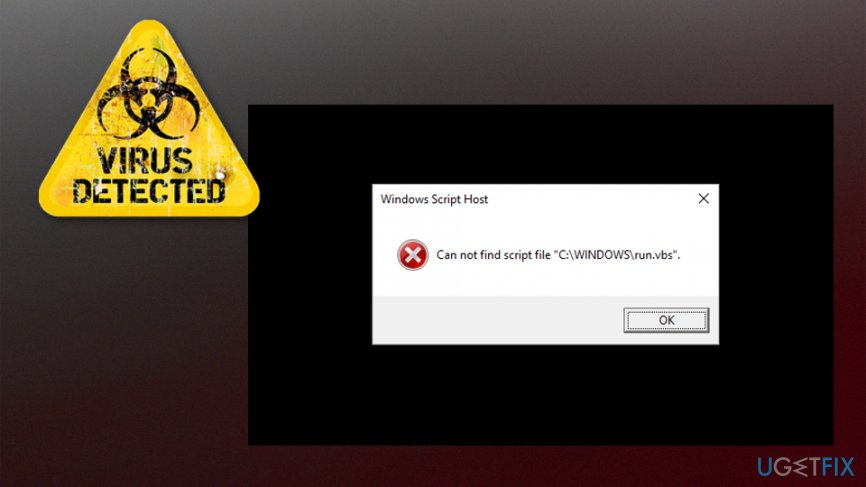
Can not find script file C:\Windows\run.vbs error is related to malicious activity on your system.
Note malware which is leading to “Can not find script file C:\\Windows\\run.vbs” error can be programmed to perform other malicious actions on your system, including the following:
- Logging keystrokes;
- Infiltrating potentially unwanted programs (PUPs) or malware;
- Creating a backdoor by connecting the PC to the remote server.
Our security experts recommend you to protect your computer and private information. For that, you should use a reliable antivirus software to perform regular scans and eliminate potentially unwanted programs (PUPs) or malware. Reimage Mac Washing Machine X9 can help you fix “Can not find script file C:\\Windows\\run.vbs” error automatically and uninstall the malware as well.
Otherwise, you can try to fix “Can not find script file C:\\Windows\\run.vbs” issue by resetting the registry keys back to defaults. However, as it might get risky to cause more system damage, we have prepared instructions showing how to fix “Can not find script file C:\\Windows\\run.vbs” below.
Two ways to fix “Can not find script file C:\\Windows\\run.vbs” error on Windows
Note that if you choose to fix “Can not find script file C:\\Windows\\run.vbs” error manually, you must not forget to uninstall the malware as well. Unfortunately, this can only be done by running a full system scan with a professional antivirus or by an IT specialists.
This video will make your life easier:
Method 1: Edit Registry Keys
Please, be attentive when editing Windows Registry [3] keys — if you fail to enter them correctly it might lead to further damage of the operating system. Likewise, carefully follow these steps:
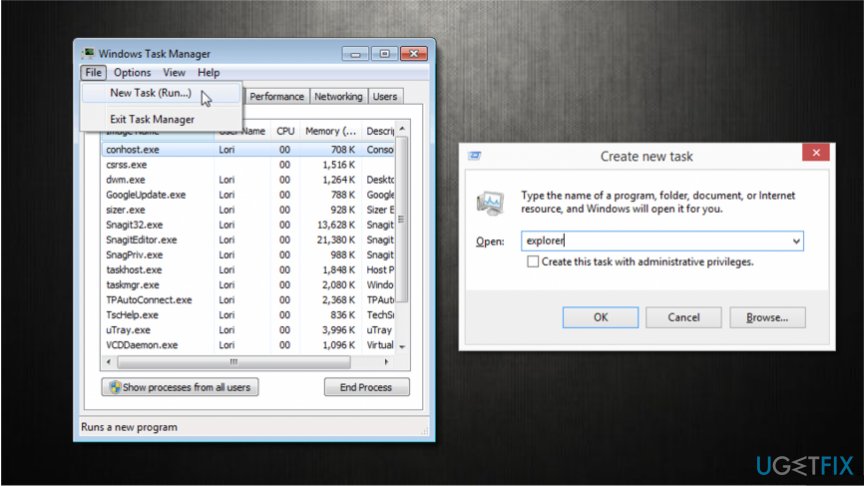
- Log in and press CTRL + ALT + DEL until Task Manager appears;
- Click File button and select Run New Task;
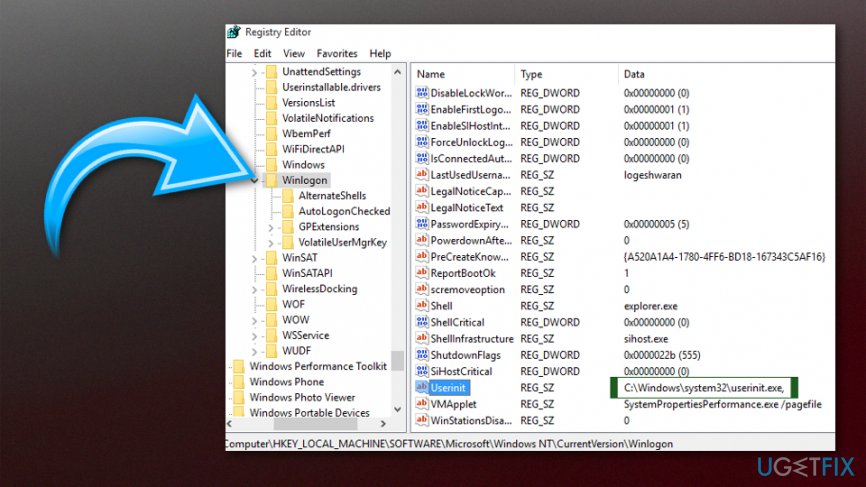
Method 2: Change the value of .vsb key
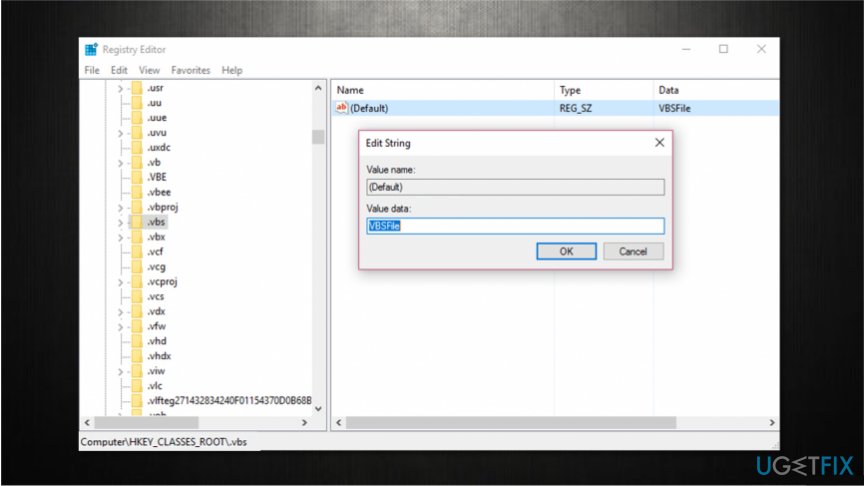
- Click Windows key + R and submit Regedit.exe;
- Go to Computer\\HKEY_CLASSES_ROOT\\.vbs on the left;
Repair your Errors automatically
ugetfix.com team is trying to do its best to help users find the best solutions for eliminating their errors. If you don’t want to struggle with manual repair techniques, please use the automatic software. All recommended products have been tested and approved by our professionals. Tools that you can use to fix your error are listed bellow:

Access geo-restricted video content with a VPN
Private Internet Access is a VPN that can prevent your Internet Service Provider, the government, and third-parties from tracking your online and allow you to stay completely anonymous. The software provides dedicated servers for torrenting and streaming, ensuring optimal performance and not slowing you down. You can also bypass geo-restrictions and view such services as Netflix, BBC, Disney+, and other popular streaming services without limitations, regardless of where you are.
Don’t pay ransomware authors – use alternative data recovery options
Malware attacks, particularly ransomware, are by far the biggest danger to your pictures, videos, work, or school files. Since cybercriminals use a robust encryption algorithm to lock data, it can no longer be used until a ransom in bitcoin is paid. Instead of paying hackers, you should first try to use alternative recovery methods that could help you to retrieve at least some portion of the lost data. Otherwise, you could also lose your money, along with the files. One of the best tools that could restore at least some of the encrypted files – Data Recovery Pro.

Linas Kiguolis is a qualified IT expert that loves sharing his excellent knowledge about problems in Windows and Mac operating systems. Linas’ insights often help other team members find quick solutions for visitors of UGetFix site.
How to fix Cannot find script file in Windows 11/10
When you log in to the computer, if you see a message box with an error message saying Can not find script file in Windows 11 and Windows 10, then this post may be able to guide you in the right direction to resolve the issue. Windows users usually see it when they log-in.
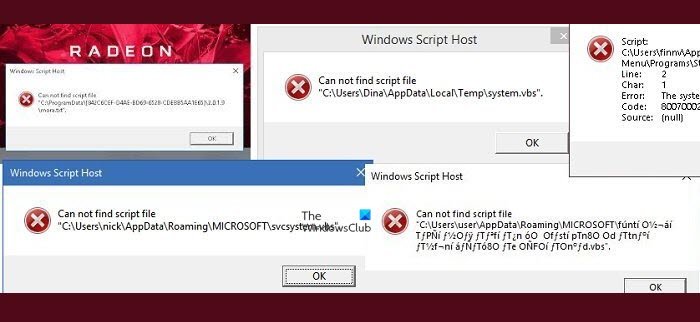
How to fix Cannot find script file in Windows 11/10
- Check the ownership of this script
- Reinstall the program
- Fix Winlogin entry via Registry
- Fix the .vbs entry in Registry
- Recreate the missing files
- Run an Antivirus scan.
1] Does this script file belong to you?
The error message can appear as – Cannot find script file or Cannot find Run.vbs. That said, there is one thing that I want you to be sure of before we go ahead and fix it.
Does the error message box display the path of the script file or any file? If yes, you need to figure out if this was set up or installed by you. If you have set up some macro to run during the startup or have a program that has done it when you set it up, then it would be better if you fix it using the original method.
Usually, these script files are available in the Startup folder or they run using the Task Scheduler. I would strongly suggest going through them if you are unable to find your custom script.
You should also check if the file was related to a program that you recently uninstalled.
2] Reinstall the program
If you can identify the program with which the missing file is associated with. I suggest you reinstall the program and see.
If it is a Windows OS file, run System File Checker.
3] Using Registry Editor to fix Winlogon entry
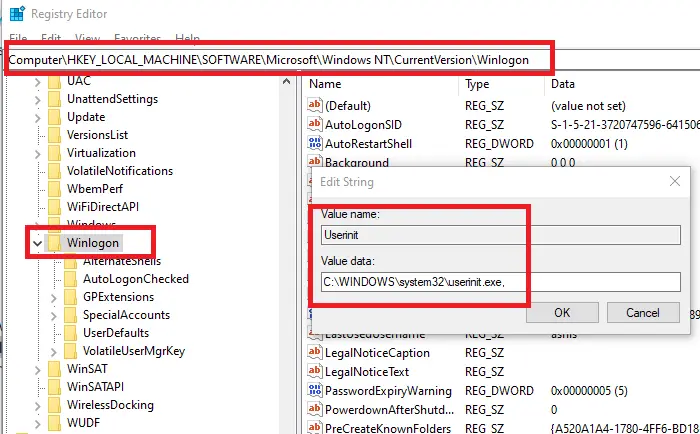
Open Registry Editor by typing regedit in the Run prompt followed by pressing the enter key.
Navigate to the following path in the editor
Locate the string Userinit, and double-click to edit it
The default value of the string is “C:\Windows\system32\userinit.exe,” if there is anything else than it, then make sure to change it, and click on the OK button.
Log out and log in again to check if the error is now gone.
4] Run.vbs error
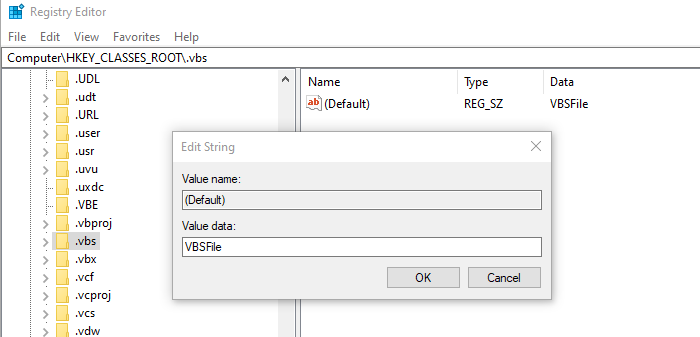
If you receive a Windows Script Host error, then you need to set the default value for the vbs key.
You will have to use the Registry Editor to change the value at-
Follow our detailed guide to fix Windows Script Host errors.
You may also want to check if the Windows Script Host access is disabled on your machine.
5] Recreate the missing files
- Note the path, and navigate to it using File Explorer
- If other folder structures are missing as well, you will have to create it
- Once you create the blank file wait for it to be called by the program
- If nothing happens, you are all set.
If the application is a legit one, I am sure you will see the related error again, giving you information about what has gone wrong. Sometimes we end up using a junk cleaner, and the software removes files thinking its a junk file.
6] Run Antivirus
While not necessary, if the script file doesn’t belong to you, then it to make sure the system is not compromised further; it is best to run the antivirus software once. You can use any antivirus solution or the in-built Windows Security software to scan and remove the problem.
How do I fix Windows Script Host problem?
Multiple things are required to fix the Windows Script Host popup error after logging into Windows 11/10 PC. The first thing you must do is check if you have the correct permission to access the file. If you have some account permission-related issue on your computer, there is a high chance of getting this error frequently.
Cannot find script file CheckUpdateLauncher.vbs?
If you get Cannot find script file CheckUpdateLauncher.vbs error immediately after logging in to your user account, you might have to follow the aforementioned solutions. IN other words, you can verify the setting in Registry Editor or reinstall the program which is mentioned in the error message. Apart from that, you can run an antivirus scan to check if there is any potential malicious file or not.
How do I stop Windows Script Host pop up?
To stop Windows Script Host popup message, you need to check the ownership of the file or script, reinstall the app mentioned in error, fix Winlogin using Registry Editor, etc. There is no one-click solution, and you must find the cause to prevent this popup from appearing on your screen.
Fixed the error “Can`t find script file run.vbs” at logon
Using virtualization-based security, or VBS, Windows 11 isolates unsafe code from a secure memory enclave. VBS is also used to prevent unsigned or questionable software and drivers from entering memory through a feature called Hypervisor-Enforced Code Integrity (HVCI). Despite the fact that malware can get past your antivirus software, VBS and HVCI together provide a layer of protection against damage.
During today’s post, we will try to resolve an error message in Windows 10 referring to the run.VBS script not finding the script file at logon. This Windows script host displays a blank screen with a black background. Malware changes the Userinit registry value and replaces default Windows data with the name of the VBScript file.
Can Not Find Script File Startupcheck Vbs
StartupCheckLibrary does not provide any information about the producer.
The error appears when AppDataLocalUpdatesRun.vbs is run from a Windows Script Host. How can I fix it?
It executes login scripts, restores network connections, and launches Explorer.exe after executing login scripts. In Windows operating systems, Winlogon is an integral part of the secure loading of a user profile during login, making it a crucial part of ensuring a secure user experience.
What is the cause of the “Could not find the script file run.VBS” error when logging in?
The malware manipulates the Userinit registry value and changes the Windows default values with a name that sounds like Vbscript, which can cause a black screen to appear when attempting to log on to your computer. Users receive an error message “The C: Windows script file Vbs cannot be found” when deleting or moving the .vbs file from the System32 shared folder.
It is most common for malware to spread by unsolicited email attachments, peer-to-peer networks (P2P), or malicious ads to cause the “C: Windows Script File. Un.vbs can’t be found” problem. The risk of infection with this and other cyber threats increases for users who download illegally music or movies, click on suspicious online advertisements, or open unsolicited emails.
Note: that the malware that results in the error message “Script file C: Windows VBS cannot be found” can be programmed to perform other malicious actions on your system, including the following:
- Keystroke recording.
- PUPs and malware can be injected into your computer.
- Through remote connection, you can create a backdoor on your computer.
To solve the problem “Cannot find script file run.VBS” error when logging in
Execution Of The Windows Script Host Failed Access Is Denied
After some Googling, someone suggested that I set HKLM/SOFTWARE/Microsoft/Windows Script Host/Settings/UseWINSAFER to 0 in the registry. That did not fix it however.
Use Windows Restore Point
You should use a system restore point to restore your operating system to a time when there was no malware on your computer that caused booting problems.
The following steps will guide you through restoring your system:
- Enter %systemroot%system32rstrui.exe in the Run dialog box by pressing Windows + R.
- By pressing Next, you will be able to select a different restore point.
- Select the desired recovery point from the menu, being sure to note the time and date of the recovery point. Now click on Next to proceed.
- The recovery process can be completed by following the instructions on the screen.
Perform the following commands
These troubleshooting steps are for computers that don’t have a system restore point:
- Run the command line as administrator by typing cmd in the search menu.
- Commands:
- It means “Reg Add “HKLMSoftwareMicrosoftWindows NTCurrentVersionWinlogon” /v “Shell” /t REG_SZ /d “explorer.exe” /f “explorer.exe”.
- The following registry entry is needed to add HKLMSoftwareMicrosoftWindows NTCurrentVersionWinlogon” /v “Userinit” /t REG_SZ /d “C:WindowsSystem32userinit.exe,” /f
- Registry editing “HKLMSoftwareWow6432NodeMicrosoftWindowsNTCurrentVersionWinlogon” . This code is only applicable to Shell.
You will need to restart your computer after you have run all the commands.
Perform a detailed system scan
Your computer may have a malware problem. Malware can modify your registry and cause the run.VBS error.
How To Open A Vbs File
The default settings for “txt” or text files in Notepad are “.txt” or text files. Select “All Files’ from the “File” menu to view VBS files.
Our top antivirus utilities can help ensure your system is free of malware. Rather than just relying on your firewall, it’s crucial to run a full system scan with your antivirus program.
You may encounter malware in the form of a script.vbs.js or.wsf when you run windows scripts with wscript.exe or cscript.exe errors.
The problem should be resolved completely after removing all malware from your PC through a full system scan.
Edit your registry
It is possible that your registry may be causing the run.VBS error. A malicious application can modify your registry, causing this problem. Nonetheless, by making some changes to your registry, you can easily fix the issue. Simply follow these steps to accomplish this:
- Enter Regedit or press Enter or OK after pressing Windows + R.
- Double-click the Userinit value in the right pane of the registry editor after you open it. You will see it under HKEY_LOCAL_MACHINESOFTWAREMicrosoftWindows NTCurrentVersionWinlogon on the left.
- Click OK to save your changes after setting the values to C:Windowssystem32userinit.exe.
Depending on the cause of the problem, the problem may be completely resolved after modifying the registry.
Perform SFC and DISM scans
In order to resolve the run.VBS error on your computer, you will need to run an SFC and DISM scan. The following steps will guide you through this process:
- You can access the PowerShell or Command Prompt (Admin) menu by pressing Windows + X together.
- SFC / scan now should be executed when you are prompted by the command line.
- You may need to wait 15 minutes for the SFC scan to begin. Do not interrupt the scan at any time.
It is highly recommended that you perform a DISM scan after completing the SFC scan if the problem persists. To do this, follow these steps:
- Make sure you are logged in as an administrator when running the command line.
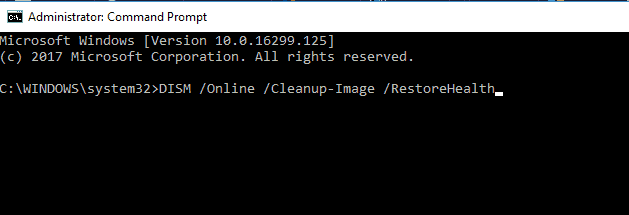
- Make sure you have DISM /Online /Cleanup-Image / RestoreHealth enabled before proceeding.
- There may be a delay of up to 2 hours during the DISM scan, so do not interrupt it during this period.
In case there is a problem after the DISM scan is completed, enter the following commands at the command line:
- Using the Task Manager requires pressing Ctrl+Shift+Esc.
- You can now run a new task by clicking File – New Task.
- Then click OK or press Enter after typing cmd and selecting Create this task with administrator privileges.
- The SFC and DISM scans can be run once the prompt is running.
Going to Safe Mode
For problems such as run.VBS, enter Safe Mode, which runs with default settings.
- It is a good idea to reboot the computer several times while it is booting.
- Then select Troubleshooting – Advanced – Boot Settings and click Restart.
- If the computer is restarted, press the appropriate key on the keyboard to select one of the Safe Mode versions.
In Safe Mode, you can determine if the problem still exists or if it has been resolved.
Frequently Asked Questions
Can’t find the fix in the script file?
- Check the property of the script.
- Reinstall the program.
- Restore win login entry in the registry.
- Restore the .vbs entry in the registry.
- Run a virus scan.
Can’t find Octave’s VBS script file?
A permanent solution. Right-click on Octave GUI, properties, check target location. Change it from the octave. VBS to Octave for the first time.
При входе в Windows отображается сообщение об ошибке: Cannot find script file “C:\Windows\Temp\VAIO Care Rescue Tool.vbs”
После включения компьютера VAIO и входа в Windows 7, вы можете получить сообщение об ошибке, указанное ниже.
Не найден файл сценария“C:\Windows\Temp\VAIO Care Rescue Tool.vbs”.
Cannot find script file “C:\Windows\Temp\VAIO Care Rescue Tool.vbs”.
Для устранения этой проблемы, пожалуйста, используйте один из способов, указанных ниже.
Важно: Для выполнения действий, указанных ниже, вы должны войти в систему, как пользователь с правами администратора.
Способ 1: Загрузить и запустить автоматическое исправление
- Щелкните OK в диалоговом окне Script Host, если окно отображается.
- Сохраните загруженный файл в директории компьютера. Запомните название директории.
- Когда загрузка закончена, перейдите в директорию, в которую загрузили файл и запустите файл.
- Следуйте инструкциям, отображаемым на экране.
Способ 2: Вручную отменить задание VAIO Care Rescue Tool в Планировщике Задач
- Щелкните OK в диалоговом окне Script Host, если окно отображается.
- Откройте командную строку. Чтобы открыть командную строку щелкните Пуск , щелкните Все программы , щелкните Аксессуары , и затем щелкните Командная строка .
- В командную строку введите Taskschd.msc .
- Щелкните OK . Открывается окно Планировщика задач.
- Щелкните по Библиотека Планировщика задач на левой панели. Щелкните по VAIO Care Rescue Tool .
- В перечне Действия справа в окне щелкните Отключить .
- Закройте окно.
Для просмотра этого видео в Youtube примите все файлы cookie.
Зайдите в настройки файлов cookie ниже и включите сохранение файлов cookie для Youtube в разделе «Функциональные».