Как настроить горячие клавиши в клип студио
Если будете покупать, то версии Pro (которая дешевле) для курса достаточно.
В версии EX дополнительно есть разные инструменты для верстки книг, которые нам не понадобятся.
Если будете качать с торрентов, то там скорее всего будет лежать версия EX,
она включает в себя инструментарий Pro версии, и тоже подойдет. Но лучше купить, ибо программа часто обновляется и улучшается.
Примерно 4 раза в год на нее стабильно бывают большие скидки. Нужно следить за их сайтом и подписаться на новости.
- Закрыть все лишние.
- Оставить tool, subtool, tool property, layers, color (поменять на треугольник).
- Если вдруг что-то случайно закрыли — ищите в window.
- Выбрать pen > pen > G-pen.
- Дублировать ее (кликнуть правой кнопкой, duplicate subtool).
- Перетащить ее в новую группу.
- Переименовать в sketch (кликнуть правой кнопкой, settings of subtool).
- отключить нажатие в панели brush size
- включить pen pressure в панели opacity
- Stabilization 20
Группы инструментов (tools) > подгруппы инструментов (subtools) > конкретный инструмент.
Горячая клавиша S — наша кисть для рисования, ее можно дублировать с разными параметрами и новым кистям будет тоже присвоена эта
горячая клавиша. Таким образом вы можете выбирать их по очереди, или перенести вверх ту, которая больше нужна в данный момент
- мягкая — горячая клавиша E
- твердая — горячая клавиша R
ctrl + S или ctrl + shift + S
Сохранить проект, чтобы потом доделывать его
CLIP STUDIO FORMAT (.clip) — формат программы клип студио пэйнт.
PHOTOSHOP DOCUMENT (.psd) — формат программы Фотошоп, его потом можно открыть в фотошопе и работать с ним там. В этом формате не сохраняются векторные слои и перспективные линейки.
Если в будущем при сохранении в PSD у вас будут странные цвета,
то сохраняйте через file > save duplicate > psd
и там в окне psd export settings поставmnt галочку Embed ICC profile.
Сохранить картинку — формат .jpeg
ВНИМАНИЕ!
Если вы активно используете отражение экрана, то может сохранится отраженная версия.
Чтобы это исправить, зайдите в view> rotate/ flip и уберите галочку с flip horizontal.
выделите все слои и edit > transform > flip hotizontal.
Теперь сохраняйте.
Как настроить горячие клавиши в клип студио


Shortcut Settings [Windows]
Allows you to set a shortcut for some of the main menu items, tool property items and brush sizes, as well as tools and sub tools.
Selecting [File] menu > [Shortcut settings] opens the [Shortcut settings] dialog box.
On the [Shortcut Settings] dialog box, you can edit, add or delete the shortcuts of menu items, etc.
Shortcut settings dialog box
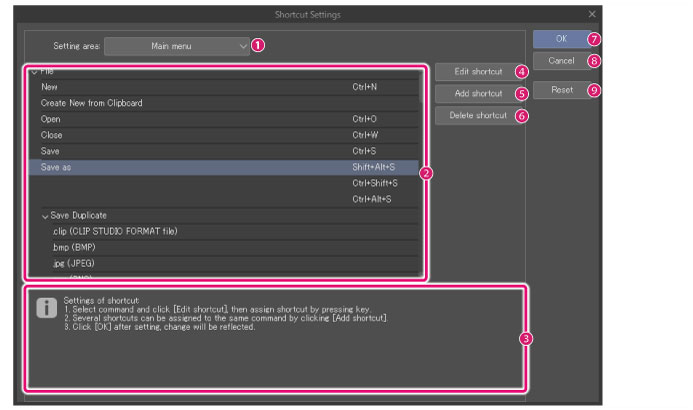
(1) Setting area
Select the category of the item(s) you want to assign a shortcut.
Displays a list of the top menus, submenus, and commands.
Pop-up palette [Windows/macOS/Tablet]
Switches the [Shortcut list] to [Pop-up palette] items. The [Pop-up] palette is a function that pops up a menu next to the mouse cursor.
Displays a list of functions and operations that are not included in the menus and tools.
Displays a list of tools and sub tools.
Auto action
[PRO/EX]
Displays a list of auto actions.
(2) Shortcut list
Displays the list of current shortcuts.
Sub-menu commands can be displayed or hidden in the following ways:
· Click the leftmost arrow symbol.
· Double-click the item name.
(3) Information area
The area where messages are shown when the set shortcut is duplicated.
(4) Edit shortcut
Select the row of the item you want to edit, and then click the button to edit the shortcut. To change the shortcut, type the shortcut you wish to use and press Enter.
· When using a Wacom stylus, shortcuts can be assigned to the side button of the stylus pen.
· With macOS, you cannot set shortcuts that are duplicated with keyboard shortcuts set in [System preference].
· When using a Tablet, edge keyboard buttons can also be set. Please refer to " Using the edge keyboard " for information on the edge keyboard for the Tablet/Smartphone.
· Pressing Esc after typing the shortcut cancels the input setting.
· Double clicking the item in the Shortcut list also enables shortcut editing.
(5) Add shortcut
Adds shortcut settings.
Select the row of the item you want to edit, and then click the button and type the shortcut. To change the shortcut, type the shortcut you wish to use and press Enter.
· When using a Wacom stylus, shortcuts can be assigned to the side button of the stylus pen.
· With macOS, you cannot set shortcuts that are duplicated with keyboard shortcuts set in [System preference].
· When using a Tablet, edge keyboard buttons can also be set. Please refer to " Using the edge keyboard " for information on the edge keyboard for the Tablet/Smartphone.
· Pressing Esc after typing the shortcut cancels the input setting.
(6) Delete shortcut
Select the item you want to delete, and click. The shortcut of the selected item is deleted.
Keyboard Shortcut Guide for Artists
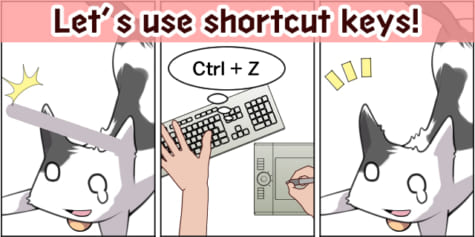
Shortcut keys make digital drawing faster with changing tools or commands using shortcuts. Learn popular Clip Studio Paint and Photoshop shortcuts!
Shortcut keys are essential for many, advanced artists and great for beginner artists to learn.
Some go beyond customizing their own shortcut keys and are even using specialized devices!
The more you draw, the more important shortcut keys become.
In this article, we will explain some of the basic shortcuts you can find in most drawing software.
Using shortcuts
By using shortcut keys, you can make drawing with your software much easier!
This tutorial uses the Clip Studio Paint shortcuts, but you can use the same keys for Photoshop shortcuts and Paint Tool SAI shortcuts.
Example 1: Zooming in on the canvas
Use the following shortcut key to zoom in on your canvas.
Hold down Ctrl and press +.
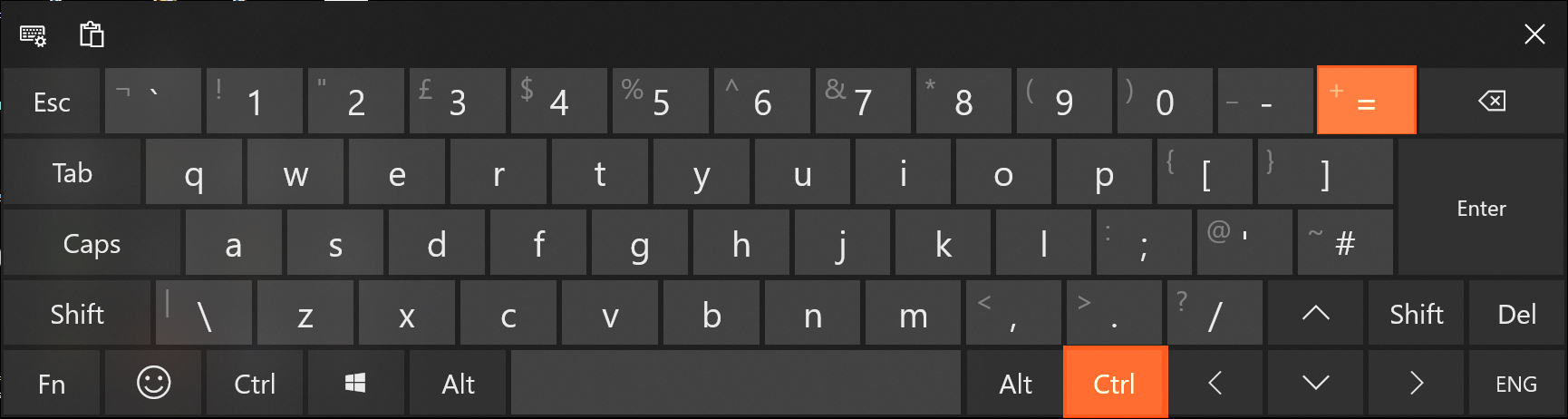
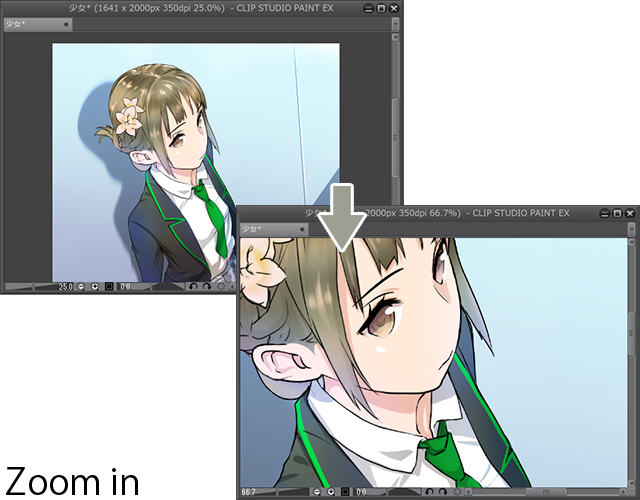
This will zoom in gradually each time you press the + key. The example below was zoomed in on three times by holding down the Ctrl key and pressing + three times.
Note
- macOS users can do the same by holding down the Command key instead of the Ctrl key.
- You can use both Ctrl keys on the keyboard for this.
If you’re using a drawing tablet or mouse to zoom in on the canvas, you don’t have to click the zoom icons or use the menu commands to do so.
Example 2: Picking up colors with the [Eyedropper] tool
Use the following shortcut key to temporarily change your brush to the [Eyedropper].
Hold down the Alt key.
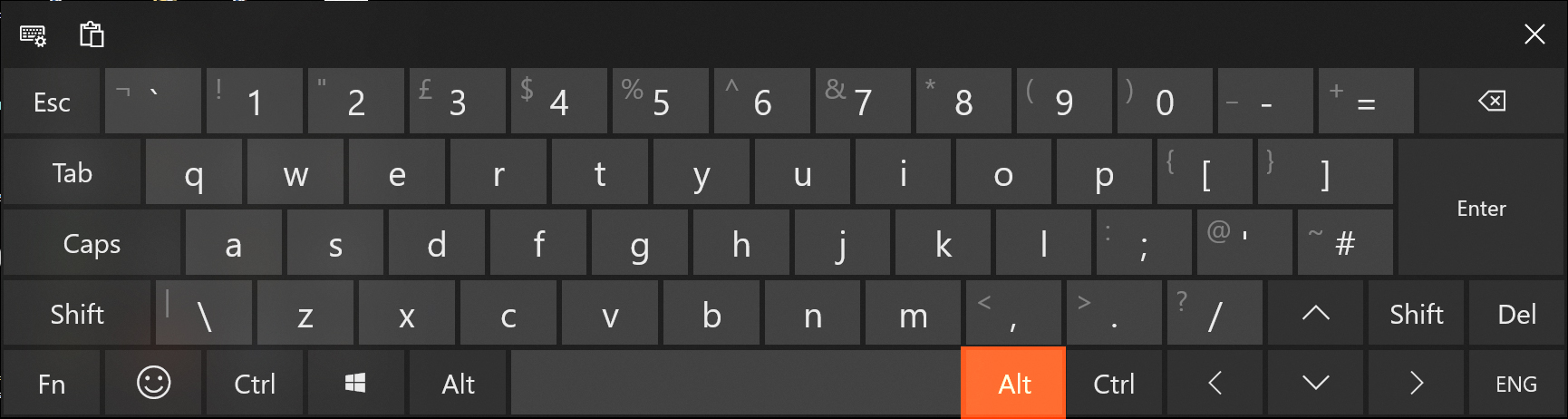
When using a brush, change to the Eyedropper tool when pressing the Alt key.
This allows you to easily pick up colors by clicking on the canvas with the mouse or the tablet pen.
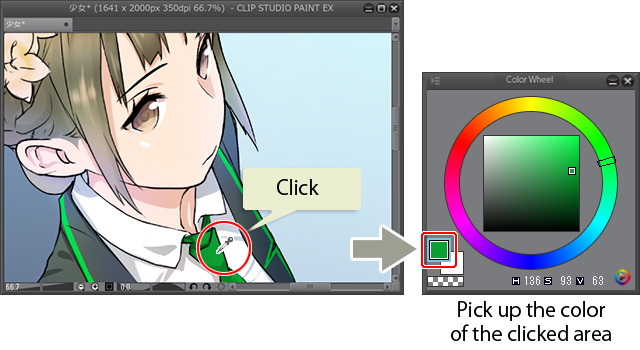
Frequently used shortcut keys (Photoshop/Clip Studio Paint/Paint Tool SAI)
The following are some of the most frequently used Photoshop shortcuts, Clip Studio Paint shortcuts, and Paint Tool SAI shortcut keys.
Keys marked with a “+” indicate that you need to press both buttons. These commands are the same in Photoshop, Clip Studio Paint, and Paint Tool SAI unless stated otherwise.
Zooming in on the canvas
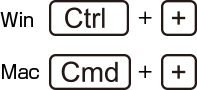
Windows : Ctrl + +
Mac: Cmd + +
Zooming out of the canvas
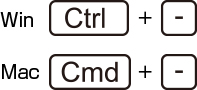
Windows : Ctrl + –
Mac: Cmd + –
Undo
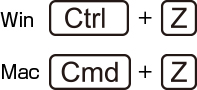
Windows : Ctrl + Z
Mac: Cmd + Z
Redo
– For Clip Studio Paint & Paint Tool SAI
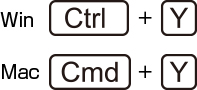
Windows : Ctrl + Y
Mac: Cmd + Y
– Photoshop
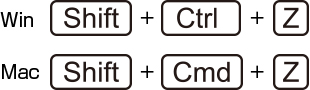
Windows : Shift + Ctrl + Z
Mac: Shift + Cmd + Z
– Brush size shortcuts
Increase brush size

] key
Decrease brush size

[ key
Picking up color with the [Eyedropper] tool
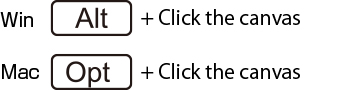
Windows : Alt + Click the canvas
Mac: Opt + Click the canvas
Moving the canvas (scroll/pan)

Space + Drag the canvas
Handy Clip Studio Paint shortcut keys
Change between Brush tools: B
Change between Pen/Pencil: P
Change to Eyedropper: I
Change to Eraser: E
Change to Fill: F
Handy Photoshop shortcut keys
Duplicate layer: Control + J (Windows), Command + J (macOS)
Swap colors (foreground/background): D
Free Transform: Control + T (Windows), Command + T (macOS)
Discovering more shortcut keys
Of course, there are many more shortcut keys than the ones introduced here. Use your drawing program and discover them as you draw!
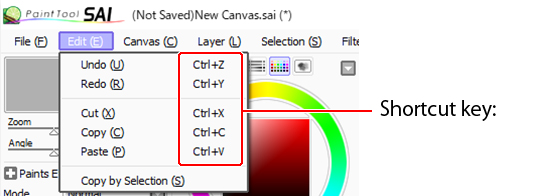
Shortcuts for menu commands
Menu commands that have shortcut keys will have their shortcuts displayed right next to them in the menu.
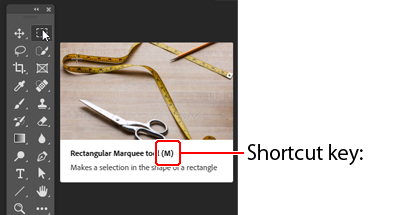
Tool shortcuts
In Photoshop and Clip Studio Paint, hovering the cursor over a specific tool will reveal the shortcut key in a tooltip.
Photoshop users can also hold down on the tool button to display the shortcut key.
Check the help page!
The help pages of graphics software sometimes have a list of shortcut keys, which can be a great way to discover new shortcuts easily.
Photoshop
Photoshop Elements
Clip Studio Paint
Paint Tool SAI
Select the Other menu > Help to go to the page explaining the various available shortcut keys of the software.
You can also check “How to change shortcut keys” to find a list of shortcuts.
How to customize shortcut keys
You can change the initial shortcut settings of most graphics software, or add new shortcut keys for menu commands and tools.
It may be helpful for you to change the key bindings to something easier to remember, or something that is easier to reach with one hand on the keyboard.
Photoshop shortcut customization
From the Edit menu, select Keyboard Shortcuts.
From the Keyboard Shortcuts and Menus dialog, set your preferred shortcut keys for different commands and tools.
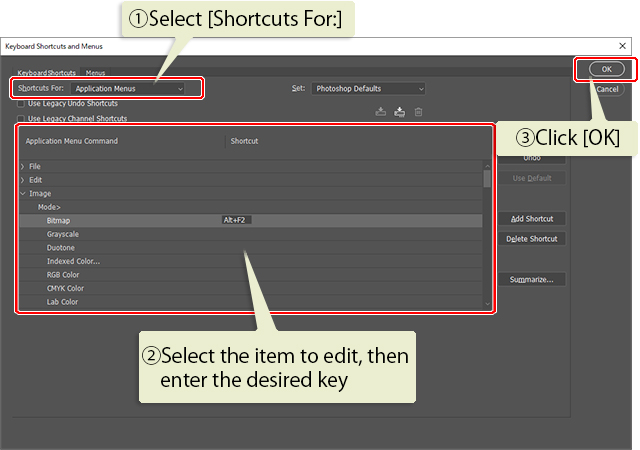
(1) Select Area
(2) Select the item to edit, then enter the desired key
(3) Click OK
Clip Studio Paint shortcut customization
From the File menu (the application menu in macOS) choose Shortcut Settings.
From the Shortcut Settings dialog box, set the shortcut keys for commands and tools.
Here you will see all the Clip Studio Paint shortcuts you can set.
Some useful ones to set are Rotate/Flip under the View Menu Commands.
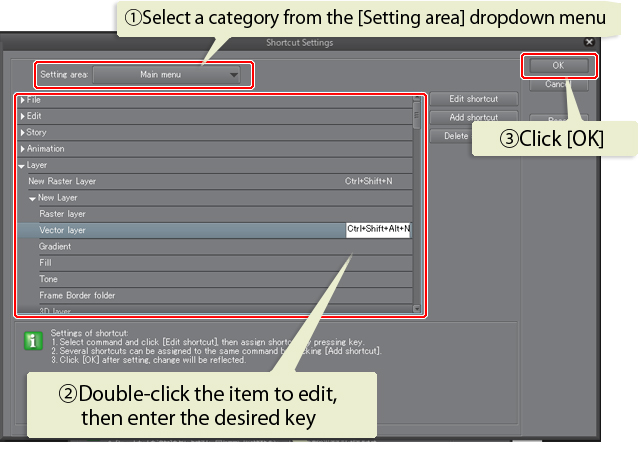
(1) Select a category from the Setting area dropdown menu
(2) Double-click the item to edit, then enter the desired key
(3) Click OK
Paint Tool SAI shortcut customization
From the Other menu, select Keyboard Shortcuts.
Once the Keyboard Shortcuts Preference dialog box appears, you can add commands for shortcut keys.
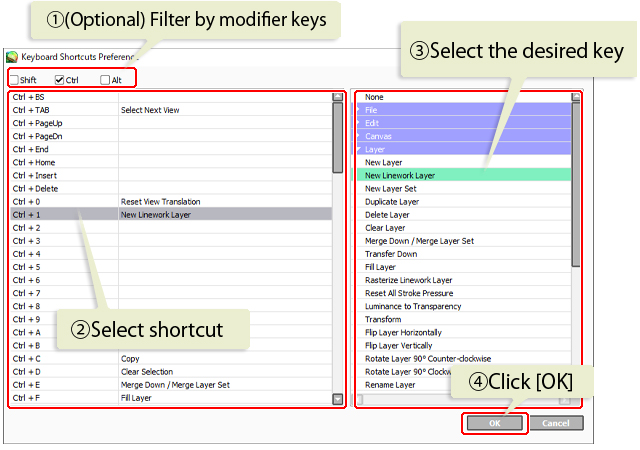
(1) (Optional) Filter by modifier keys
(2) Select shortcut
(3) Select the desired key
(4) Click OK
To set shortcut keys for tools, double click the tool that you want to adjust to open the Custom Tool Settings dialog box. Enter the key in the Shortcut Key field, and press OK to confirm.
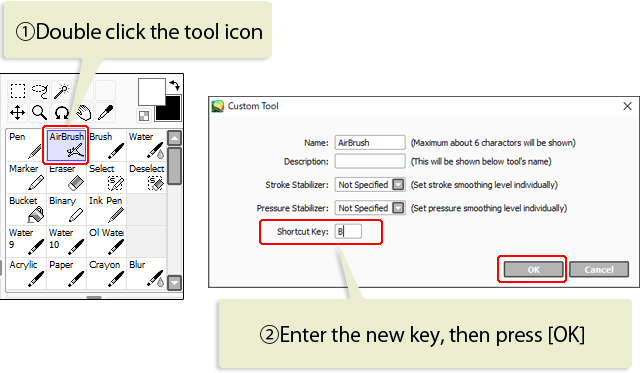
(1) Double click the tool icon
(2) Enter the new key, then press OK
Even if a specific graphics software is not mentioned here, most available programs have shortcut keys and the option to customize them.
Try using shortcut keys when drawing to make your workflow more efficient.
#02 Уроки Clip Studio Paint (Базовые операции и Горячие клавиши)
Приношу извинения за артифакты, кодек неадекватно воспринял быстрые действия в кадре, в следующий раз использую другой.

sat1va
Подскажите, можно ли повернуть кисть, например плоскую чтобы она была горизонтально, а не вертикально
Dr Ezro
а можете подсказать, как отразить по горизонтали, только один слой?)
Xenychan
Просто жесть, как медленно ты разговариваешь
Raven559
Ты лучший! Спасибо за обучение!
Dmitry Aktavius
как поворачивать фигуру или текст? не надо мне холст
Igushe
Опаздываю с комментарием (10.07.2019)
*AnimeObserver очень любезно видео урок замечательно сделан, и где можно найти горячие клавиши для Clip studio paint для анимации тип хочу добавить новый кадр из кнопки в графическом планшете а кнопка биндить биндить
но блин найти горячую кнопку это беда а таблица ещё лучше. *
Дайте хоть ссылку на таблицу горячих клавиш ;C