Смена SID при клонировании и массовом развёртывании
Привет, Хабр! Упомянутая в заголовке тема всё ещё порождает множественные дискуссии и недопонимание между системными администраторами. В своей статье я постараюсь ответить на следующие вопросы:
- Что такое SID и каких он бывает типов?
- Когда наличие двух и более машин с одинаковыми Machine SID будет порождать проблемы? Или, другими словами, когда всё-таки (не)нужно менять Machine SID?
- Что такое Sysprep и нужен ли Sysprep для клонирования/развёртывания?

В основу рассуждений была взята популярная статья Марка Руссиновича (доступна также на русском языке), которую довольно часто неправильно интерпретируют (судя по комментариям и «статьям-ответам»), что приводит к неприятным последствиям. Добро пожаловать под кат.
- Менять SID машины само по себе бессмысленно и даже вредно для современных ОСей (пример последствий смены SID на Windows 10 ниже).
- Для подготовки машины к клонированию/развёртыванию образа стоит использовать sysprep.
- SID машины будет иметь значение, только если одну из склонированных машин промоутить до домен контроллера. Так делать не стоит.
- Не стоит клонировать/развёртывать образ машины, которая УЖЕ добавлена в домен; добавление в домен нужно делать после клонирования/развертывания.
Что такое SID, его типы и чем отличается Machine SID от Domain SID?
В первую очередь, важно различать SID компьютера (Machine SID) и SID домена (Domain SID), которые являются независимыми и используются в разных операциях.
Machine SID и Domain SID состоят из базового SID’а (base SID) и относительного SID’а (Relative SID = RID), который «приклеивается» в конец к базовому. Базовый SID можно рассматривать как сущность, в рамках которой можно определить группы и аккаунты. Машина (компьютер) является сущностью, в рамках которой определяются локальные группы и аккаунты. Каждой машине присваивается machine SID, и SID’ы всех локальных групп и аккаунтов включают в себя этот Machine SID с добавлением RID в конце. Для примера:
| Machine SID для машины с именем DEMOSYSTEM | S-1-5-21-3419697060-3810377854-678604692 |
| DEMOSYSTEM\Administrator | S-1-5-21-3419697060-3810377854-678604692-500 |
| DEMOSYSTEM\Guest | S-1-5-21-3419697060-3810377854-678604692-501 |
| DEMOSYSTEM\CustomAccount1 | S-1-5-21-3419697060-3810377854-678604692-1000 |
| DEMOSYSTEM\CustomAccount2 | S-1-5-21-3419697060-3810377854-678604692-1001 |
Именно SID’ы (а не имена) хранятся в токенах доступа (access tokens) и дескрипторах безопасности (security descriptors), и именно SID’ы используются при проверке возможности доступа к объектам системы Windows (в том числе, например, к файлам).
На машине вне домена используются локальные SID’ы, описанные выше. Соответственно, при соединении с машиной удалённо используется локальная аутентификация, поэтому даже имея 2 или более машин с одинаковым machine SID в одной сети вне домена, проблем с логином и работой внутри системы не будет, т.к. SID’ы в операциях удалённой аутентификации попросту не используются. Единственный случай, в котором возможны проблемы, это полное совпадение имени пользователя и пароля на двух машинах – тогда, например, RDP между ними может глючить.
Когда машина добавляется в домен, в игру вступает новый SID, который генерируется на этапе добавления. Machine SID никуда не девается, так же как и локальные группы, и пользователи. Этот новый SID используется для представления аккаунта машины в рамках домена. Для примера:
| Domain SID для домена BIGDOMAIN | S-1-5-21-124525095-708259637-1543119021 |
| BIGDOMAIN\DEMOSYSTEM$ (аккаунт машины (computer account)) | S-1-5-21-124525095-708259637-1543119021-937822 |
| BIGDOMAIN\JOHNSMITH (аккаунт пользователя (user account)) | S-1-5-21-124525095-708259637-1543119021-20937 |
Таким образом, машина DEMOSYSTEM теперь имеет два независимых SID’а:
• Machine SID, определяющая машину как сущность, в рамках которой заданы группы и аккаунты (первая строчка в первой таблице).
• SID аккаунта машины (computer account SID) в рамках домена BIGDOMAIN (вторая строчка во второй таблице).
Увидеть точное значение machine SID можно с помощью утилиты PsGetSid, запустив её без параметров. Второй SID, относящийся к домену, можно увидеть, запустив PsGetSid со следующими параметрами: psgetsid %COMPUTERNAME%$ . Соответственно, для примера из таблиц это будет “ psgetsid DEMOSYSTEM$ «.
Основная суть в том, что SID’ы должны быть уникальны в пределах окружения (authority), к которому они применимы. Другими словами, если машине DEMOSYSTEM присвоен machine SID S-1-5-21-3419697060-3810377854-678604692-1000, то неважно, что у другой машины в той же сети будет идентичный machine SID, т.к. этот SID используется только локально (в пределах машины DEMOSYSTEM). Но в пределах домена BIGDOMAIN computer SID у обоих машин должен быть уникальным для корректной работы в этом домене.
Смена SID при клонировании или развёртывании
В применении к продукту Acronis Snap Deploy 5 (основное предназначение — массовое развёртывание систем из мастер-образа), в котором функциональность смены SID-а присутствовала с самой первой версии, это означает, что мы, как и многие пользователи, ошибочно пошли на поводу у устоявшегося мнения, что менять SID нужно.
Однако исходя из вышесказанного, ничего страшного в развёртывании (или клонировании) машины без изменения Machine SID вовсе нет, в случае если это развёртывание происходит до добавления машины в домен. В противном случае — возникнут проблемы.
Из этого правила есть одно исключение: нельзя клонировать машину, если в дальнейшем роль этого клона планируется повышать (promote) до уровня домена контроллера. В этом случае Machine SID домен контроллера будет совпадать с computer SID в созданном домене, что вызовет проблемы при попытке добавления оригинальной машины (из которой производилось клонирование) в этот домен. Это, очевидно, относится только к серверному семейству Windows.
Проблемы, связанные со сменой SID
Пересмотреть точку зрения на функциональность смены SID нас подтолкнул выпуск новой версии Windows. При первом тестовом развёртывании образа Windows 10 со сменой SID на получившейся машине обнаружилось, что кнопка Start перестала нажиматься (и это оказалось только вершиной «айсберга»). Если же развёртывать тот же образ без смены SID, то такой проблемы не возникает.
Основная причина в том, что эта опция вносит изменения практически во всю файловую систему развёртываемой машины. Изменения вносятся в реестр Windows, в разрешения NTFS (NTFS permissions) для каждого файла, в SID’ы локальных пользователей (так как SID пользователя включает в себя в том числе и machine SID; подробнее тут) и т.д.
В случае с Windows 10 большая часть ключей реестра не могла быть модифицирована («Error code = C0000005. Access violation» и другие ошибки) и, как следствие, наша функция смены SID’а отрабатывала не до конца, что и приводило к трагической гибели практически нерабочей копии Windows 10.
Было принято решение убрать эту опцию в случае, если в мастер-образе мы находим Windows 10 (или Windows Server 2016). Решение было принято на основе теоретических выкладок описанных выше плюс, естественно, было подтверждено практикой при тестировании недавно вышедшего обновления Acronis Snap Deploy 5 во множестве комбинаций: с и без переименования машин после развёртывания, с добавлением в домен и рабочую группу, развёртывание из мастер-образов снятых от разных состояний мастер-машины (она была добавлена в домен или рабочую группу в разных тестах) и т.д.
Использование Sysprep
Начиная с Windows NT клонирование (развертывание) ОСи с использованием только NewSID никогда не рекомендовалось самим Microsoft. Вместо этого рекомендуется использовать родную утилиту Sysprep (см. KB314828), которая, помимо смены SID’а, также вносит большое число других изменений, и с каждой новой версией Windows их становится только больше. Вот небольшой (неполный) список основных вносимых изменений:
- Удаляется имя машины
- Машина выводится из домена: это нужно для последующего успешного добавления в домен с новым именем
- Удаляются plug-and-play драйвера, что уменьшает риск возникновения проблем с совместимостью на новом «железе»
- Опционально удаляются Windows Event Logs (параметр ‘reseal’)
- Удаляются точки восстановления
- Удаляется профиль локального администратора и этот аккаунт отключается
- Обеспечивается загрузка целевой машины в режим аудита, позволяющий устанавливать дополнительные приложения и драйверы
- Обеспечивается запуск mini-setup при первом запуске для смены имени машины и другой дополнительной конфигурации
- Сбрасывается период активации Windows (сброс возможен до 3 раз)
Таким образом, клонирование/развертывание без использования Sysprep может повлиять (читай «скорее всего, сломает») на функциональность Windows Update, Network Load Balancing, MSDTC, Vista и выше Key Manager Activation (KMS), который завязан на CMID (не путать с Machine SID), также изменяемый Sysprep’ом, и т.д.
Итого
Повторяя TL;DR из начала статьи, основной вывод можно сделать такой: для подготовки образа машины к клонированию/развёртыванию следует использовать sysprep в подавляющем большинстве случаев. 
Sid Changer Windows 10
A SID or a Security Identifier is a unique code that helps in the identification of any user or group and computer accounts across Windows Operating Systems. They are created as soon as a user account is created and being the unique identifiers, no two SIDs are same on a common computer, ever. It is also referred to as a Security ID. This unique identification is used internally in the operating system instead of display names that we set like, Personal, Dad or anything else. This also means that, even if you change your display name, it would not affect anything pre-configured for that account as every configuration is tied up to the SID which remains constant even when you change your display name or even your username.
SID’s are crucial to systems because every user accounts are associated to an unchangeable alphanumeric character string. Any changes to the username will not affect the users access to the system resources and in case if you delete a username, and later someone tries to create an account with your old username, it’s impossible to regain the access to the resources as the SIDs are always unique to every username and in this case it isn’t the same.
SIDCHG and SIDCHG64 (64-bit Windows) These are directly executables of SIDCHG SID Change Utility. There is no installation program. It is important to not interrupt SID change in process. Additionally, on Windows 10, Do not Log in into the computer during SID change! Logging in will affect Start Menu and modern Windows interfaces and apps.
Now, let us see how to Find Security Identifier (SID) of any User in Windows 10.
Find Security Identifier (SID) of any User in Windows 10
1] Using WMIC
Finding a user’s SID or Security Identifier is really easy. We have to use the Windows Management Instrumentation Command Line (WMIC) to do this.
So first of all, start by, opening the Command Prompt. You can do this by searching for Command Prompt in the Cortana Search Box. Or if you are using Windows 8 or newer, hit the WINKEY + X button combination to launch a context menu on the Start Button and click on Command Prompt (Admin).
Now, type in the following command,
And then hit the Enter key.
Now you will get results like in the screen snippet below. You will get the User Account with the SID of the same.
Filtering out SID for your desired user
Readers who are used to be using SQL queries might relate to this. But this command helps the user to get SID of a particular user and ignore all the hassle. This is most useful when a large system (like a server) is logged in and used simultaneously by multiple users, this command will save a lot of your time. But will only work if you know the username of the user.
Now, the command you are gonna use is-
Now, you have to replace USER with the actual username of the user inside the quotes in the command above.
For example, it should be like-
In case, you get an error while using the command above, try changing the path to C:Windows|System32|wbem instead of C:WindowsSystem32
The result of the above command would look something like this,
2] Using Whoami
Find SID of Current User using Command Prompt or PowerShell
Open a PowerShell/CMD window and type the following command:
Another way to find SID of a Current user is using the command wmic useraccount as below
Open a PowerShell/CMD window and type the following command:
Find SID of All Users using Command Prompt or PowerShell
Open a Command Prompt/PowerShell window and type the following command:
Find SID of a Specific User using CommandPrompt or PowerShell
Open a Command Prompt/PowerShell and type the following command:
Give the actual name of the user in place of username in the above command.
Find Username of SID using Command Prompt or PowerShell
Open a Command Prompt/PowerShell and type the following command
Give the actual SID value in place of <sid> in the above command.
3] Use PowerShell
Another way to find SID of all user is using the command Get-WmiObject in the PowerShell. https://pridenew.medium.com/compaq-cq58-drivers-45a98bb4f127.
Open PowerShell and type the following command:
4] Using the Registry Editor
Here, start by opening the Registry Editor. You can do it by searching for it in the Cortana Search box or just hit WINKEY + R combination to launch start and type in regedit and then hit Enter.
Once you have opened the Registry Editor, navigate to the following path,
Now, inside the ProfileImagePath values for each SID under the folder of ProfileList, you can find the desired SIDs and other details like Usernames. The page would look similar to this screen snippet below.
It is worth noting that you can find the SIDs for the users who are already logged in to the computer. Either they should be accessing their account remotely or their account should be logged in and then switched to another user on whose account this activity is being done. This is the only drawback of this method but the Method 1 of using WMIC, it is not an issue at all.
. 2d rpg pc games. Expected in 2019, the video game will retain the classic top-down perspective as players go through their journey of defeating a series of boss fights and solving puzzles. Publisher: Electronic Arts. Developer: BioWare. Platforms: PC, PS4, XBO.
Identifying SIDs
A SID in the format of S-1–0–0 is called as a Null SID. It is assigned to a SID when its value is unknown or it is assigned to a group without any members.
Also, a SID in the format of S-1–1–0 is a World SID. It is assigned to a group of every user.
Finally, a SID in the format of S-1–2–0 is called as a Local SID. It is assigned to a user who is supposed to be logged in from a local terminal.
You can learn more about these System Identifiers here on Microsoft Developer Network.
With inputs from Pavithra Bhat
TIP: Download this tool to quickly find & fix Windows errors automatically
Related Posts:
Active2 months ago
I needed to setup 2 vms and naively simply setup one from scratch, made sure it worked correctly, then copied it to another host. Now getting message ‘the trust relationship between this workstation and the primary domain failed’ which apparently is due to the SID being the same on both machines. I’ve looked around and see a lot of conflicting info about sysprep and how to resolve at this point.
Can I just update SID the machine having domain issues and then all will be well? If so, how can I accomplish that? Thank you
29233 gold badges77 silver badges1818 bronze badges
5 Answers
The only Microsoft supported method to change the SID of the computer is to run sysprep with the /generalize option
edit: So. clarifying. This goes back to the idea that the computer SID really doesn’t matter (except for domain controllers) because it’s really the computer account SID in the domain that matters and not the computer/machine SID itself. Removing/deleting/Rejoining the computer will create a unique computer account SID in the domain and would really resolve his issue. But it would not, in the technical sense, create a new SID for the computer itself.
Mark Russinovich discussed the unique machine SID ‘myth’ and there is a follow up article by a different author that goes into additional detail. Finally, there is this MSDN post that, I find, illustrates the machine vs domain computer account SID pretty clearly.
Personally, I’ve run into the duplicate SID issue where a cloned system was used to create the Domain Controller for a new domain at the start of a domain migration project and the servers in the source domain were not able to authenticate users on the new target domain or join the target domain due to the SID duplication. So, 99% of the time, it doesn’t matter. but when it does matter, it sucks. As a result, I still recommend users generate new machine SID’s when they are able to.
7,45233 gold badges2323 silver badges4343 bronze badges
‘Can I just update SID the machine having domain issues and then all will be well? If so, how can I accomplish that?’
Yes, you can. In Active Directory you will need to delete the computer object of your problem server and then rejoin it to the Domain. This will get you a new SID for the server. However, doing this creates a new Computer Object for your server so all of its group memberships, permissions, etc. will need to be recreated because it has a new SID. Active Directory doesn’t see it as the same server.
EDITI followed my own instructions and found that my server was issued a new SID. My forest is Windows Server 2012 level.
Before I deleted my server from AD and removed it from the domain
The SID after rejoining the domain.
I had to restart two times after joining back to the domain.So, to me, the computer receives a new SID from Active Directory after
- deleting the computer object in AD
- Removing from Domain
- Joining the Domain again
1,08933 gold badges1010 silver badges2424 bronze badges
Check out the spiritual successor to NewSID, SIDCHG:
Sid Change Windows 10
Command-line utility to modify local computer SID and computer name, for Windows 2016/10/8.1/2012 R2/8/2012/7/2008 R2/2008/Vista/2003/XP. It replaces current computer SID with new random SID. In addition, it changes the WSUS ID for Windows Updates, the MachineGuid, the Device Identifier for modern Windows apps, the MSDTC CID, the Dhcpv6 DUID, and the encryption state to preserve encrypted files, Windows Action Center settings, Certificates and other encrypted stored information.
Miles WolbeMiles Wolbe
If the instance is not busy, or its a new installation, run C:Windowssystem32>Sysprepsysprep.exe and check generalize
JJEMBA KENNETHJJEMBA KENNETH
Download NewSID from any website. Go to local Administrator account who has SID issue, run this tool and restart the computer. Now the system will be able to access Domain account.
Как поменять sid компьютера windows 10
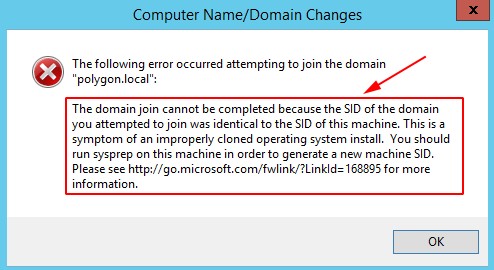
« The domain join cannot be completed because the SID of the domain you attempted to join was identical to the SID of this machine. This is a symptom of an improperly cloned operating system install. You should run sysprep on this machine in order to generate a new machine SID »
На Windows Server 2012 R2 — Win + X → Command Prompt (Admin)
C:\Windows\system32>cd Sysprep
C:\Windows\System32\Sysprep>sysprep /oobe /generalize /shutdown
Win + X → Command Prompt (Admin)
C:\Windows\system32>net user Administrator | findstr /C:expires
Account expires Never
Password expires 11/6/2018 8:42:46 PM
C:\Windows\system32>wmic useraccount where name=’Administrator’ set passwordexpires=FALSE
Updating property(s) of ‘\\WIN-ENBQ1C4A7CM\ROOT\CIMV2:Win32_UserAccount.Domain=»WIN-ENBQ1C4A7CM»,Name=»Administrator»‘
C:\Windows\system32>net user Administrator | findstr /C:expires