How to Check Crontab logs in Linux
As a Linux user, you are probably already familiar with crontab. You can automate tasks by running commands and scripts at a predefined schedule. Want to automatically take backups? Crontab is your friend.
I am not going into the usage of crontab here. My focus is on showing you the different ways to check crontab logs.
It helps investigate whether your cronjobs ran as scheduled or not.
Method 1: Check the syslog for crontab logs
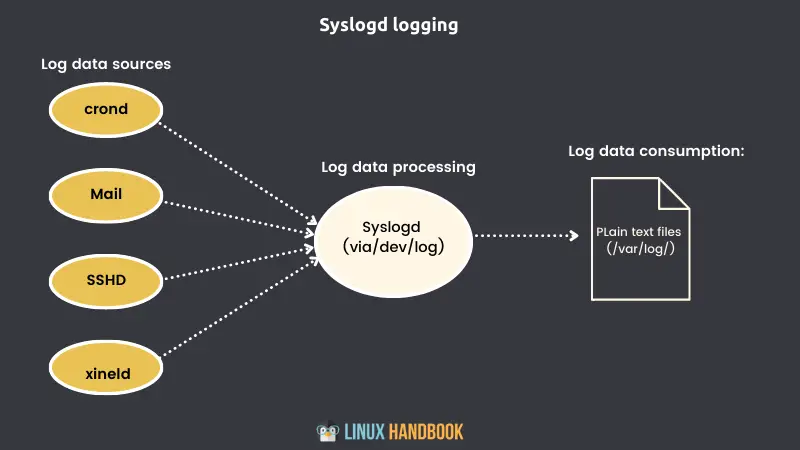
As per the Linux directory hierarchy, the /var/log directory in Linux stores logs from the system, services, and running applications.
While the cron logs are also in this directory, there is no standard file for these logs. Different distributions keep them in different files.
For Debian-based distributions, the file /var/log/syslog contains the logs from the cron job execution and should be consulted in case your cron jobs are not working:
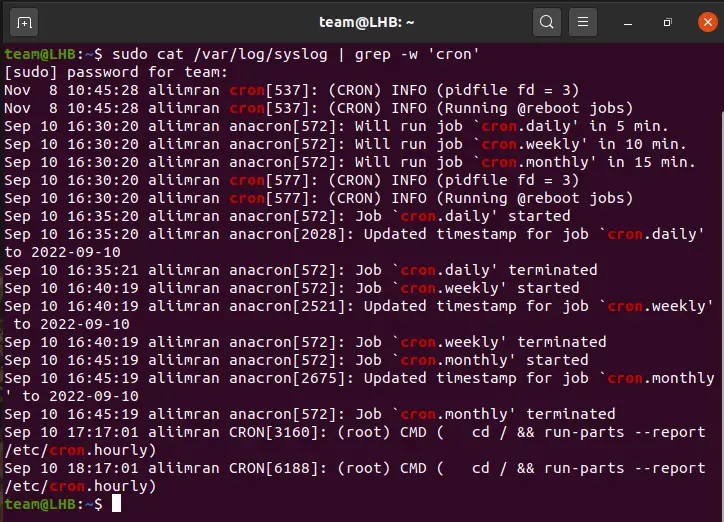
You will see all cron jobs listed on your terminal when the above command is run. The grep command will filter the cron related messages apart from the rest.
For RedHat-based distros, the cron logs have dedicated file /var/log/cron .
In both cases, you will probably need to specify the sudo keyword or use the root account to access the logs.
Linux Handbook LHB Community
Method 2: Use a custom log file (recommended)
Using a separate custom file for logging cron jobs is a recommended practice.
For this, you can configure ‘rsyslog’ to forward cron logs. Rsyslog is a Linux service that has features similar to Syslog logging.
Simply create a file cron.log under the directory /etc/rsyslog.d :
Now open the file /etc/rsyslog.d/50-default.conf for editing:
and locate the line starting with #cron.* and remove the # at the start of the line.
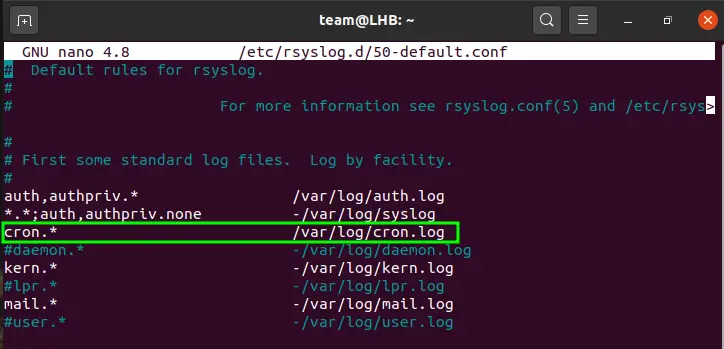
To make the changes work, save and close this file and finally restart the rsyslog service and check its status:
The status of the service should be highlighted as active (running).
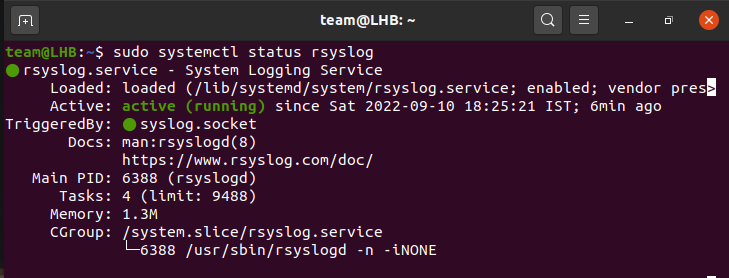
Now, whenever you need to access the crontab logs, just read the content of this log file:
Method 3: Use dedicated services like Cronitor monitor cron jobs
Cronitor is a service that can be deployed to monitor any type of cron job.
Many of the cron versions will start logging when the scheduled job executes or if there are any problems with the crontab. However, the output from the cron job or its exit status is not logged.
Here Cronitor comes in handy and works perfectly. It is a complete solution for all your crontab needs. It captures logs, metrics, and status from all the jobs and creates instant alerts for crashed or failed to start cron jobs.
You can see all this through a web-based interface.
For Cronitor or CronitorCLI installed on Kubernetes, logs can be captured for as high as 100MB for a single execution. Here, you can find the detailed installation steps on Linux for CronitorCLI.
Other monitoring tools and services like Better Uptime also provide the feature to monitor the cron jobs automatically.
Free Web Monitoring & Status Page

Conclusion
System log files are very crucial for troubleshooting and diagnosing system-related issues, cron logs are thus no exception for this.
The Syslog keeps the logs related to crontab however, having a dedicated log file for cron is recommended. A web-based service like Cronitor, Better Uptime, and Uptime Robot also helps.
Where cron logs are stored on your server
The cron daemon does it’s work in the background, reading crontab files and running jobs on schedule, and the logs it writes are helpful for debugging and auditing your cron jobs. Most versions of cron will log when jobs run and whether there are any errors with your crontab. They do not log cron job output or exit statuses. (For that, use Cronitor).
Finding cron logs on Ubuntu and Debian
On Ubuntu, Debian and related distributions, you will find cron jobs logs in /var/log/syslog . Your Syslog contains entries from many operating system components and it’s helpful to grep to isolate cron-specific messages.
You will likely require root/sudo privileges to access your Syslog.
Finding cron logs on CentOS and Redhat
On CentOS, Redhat and Amazon Linux cron logs are written to /var/log/cron .
You will likely require root/sudo privileges to access your cron logs.
Deciphering your cron job logs
Cron logs store the time the job was started, the user account used, and the command run. In this example, a data-pipeline.py cron job ran on March 29th, on the data-processing host as the dataproc user.
As valuable as cron logs are they can’t tell you what cron jobs didn’t run. Monitor your cron jobs with Cronitor to easily collect output, capture errors and alert you when something goes wrong. Learn about cron monitoring.
Related Guides
Creating cron jobs with Python
What is the cron job working directory
The 5 places cron jobs are saved
Cron job troubleshooting guide
List all cron jobs for all users
Cronitor automatically finds and monitors cron jobs. Complete your setup in minutes.
Выполнение заданий через CRON в Linux
 Admin
Admin  18.05.2017 , обновлено: 28.05.2022
  Bash, CentOS, Linux, VPS
CRON – это планировщик заданий в Linux, который запускает выполнение скриптов по заданному расписанию.
Пример CRON задания
Добавление задания в CRON
В операционной системе Cent OS (Linux) файл, отвечающий за выполнение заданий, лежит по такому пути: /etc/crontab.
Для редактирования общего крона на сервере вводим консольную команду:
Для альтернативного внесения в cron — для каждого отдельного пользователя — смотрите ниже.
Исполняемые файлы имеют расширение sh. В начале файла принято записывать:
Как просмотреть логи в CRON
Если добавленное в CRON задание не выполняется, можно проверить ошибки в логах.
Скрипт лежит в папке my_scripts и называется backup_webdav_day.sh. Для просмотра логов CRON
По умолчанию он имеет такой вид:
Команда означает, что скрипт будет запускаться в 2 часа каждую ночь.
Предположим, что выполнение команды не работает, нам нужно понять, почему так происходит. Изменяем в файле backup_webdav_day.sh данные скрипта, чтобы тот записывал ход выполнения работы в специальный лог файл, который будет создан в той же директории. И меняем время на ближайшее, допустим сейчас 16.00 и мы хотим узнать, будет ли работать скрипт. Тогда делаем его выполнение через 5 минут.
Ждём пока не наступит 16.05, а затем смотрим что показывает файл backup_webdav_day.log.
CRON отказано в доступе / Permission denied
Если скрипт не будет выполняться, то в логах файла вы увидите соответствующую ошибку. Например, в ошибке может находиться такая информация:
Это означает, что в операционной системе Linux, нет прав доступа к файлу. В этом случае файлу backup_webdav_day.sh присваиваем права доступа на исполнение – chmod +x:
После этого данная ошибка должна исчезнуть.
Альтернативное изменение cron в Ubuntu
Иногда изменение файла /etc/crontab напрямую не даёт результата.
Также этот способ добавления заданий в cron считается более надёжным. Задания добавляются конкретному пользователю.
Where are cron errors logged?
If I setup cron jobs incorrectly they appear to silently fail. Where should I look for an error log to understand what went wrong?

11 Answers 11
As others have pointed out, cron will email you the output of any program it runs (if there is any output). So, if you don’t get any output, there are basically three possibilities:
- crond could not even start a shell for running the program or sending email
- crond had troubles mailing the output, or the mail was lost.
- the program did not produce any output (including error messages)
Case 1. is very unlikely, but something should have been written in the cron logs. Cron has an own reserved syslog facility, so you should have a look into /etc/syslog.conf (or the equivalent file in your distro) to see where messages of facility cron are sent. Popular destinations include /var/log/cron , /var/log/messages and /var/log/syslog .
In case 2., you should inspect the mailer daemon logs: messages from the Cron daemon usually appear as from root@yourhost . You can use a MAILTO=. line in the crontab file to have cron send email to a specific address, which should make it easier to grep the mailer daemon logs. For instance:
In case 3., you can test if the program was actually run by appending another command whose effect you can easily check: for instance,
so you can check if crond has actually run something by looking at the mtime of /tmp/a_command_has_run .