PlayOnLinux – Run Windows Software and Games in Linux
In our earlier articles on this blog, we used the Wine program to install and run windows based applications on Debian-based and and other Red Hat-based Linux distributions.
There is another open source software available called PlayOnLinux that uses Wine as its base and gives feature-rich functions and a user-friendly interface to install and run windows applications on Linux.
The purpose of PlayOnLinux software is to simplify and automates the process of installing and running Windows applications on Linux platforms. It has a list of applications where you can automate each installation process as much as you can.
What is PlayOnLinux?
PlayOnLinux (POL) is an open-source gaming framework (software) based on Wine, that allows you to easily install any Windows-based applications and games on Linux operating systems, via the use of Wine as a front-end interface.
The following are the list of some interesting features to know.
- PlayOnLinux is license-free, with no need for a Windows License.
- PlayOnLinux uses base as Wine.
- PlayOnLinux is open-source and free software.
- PlayOnLinux is written in Bash and Python.
In this article, I will guide you on how to install, setup, and use PlayonLinux on RHEL-based distributions such as Fedora, CentOS Stream, Rocky Linux, AlmaLinux, and Debian-based distributions such as Ubuntu and Linux Mint
How to Install PlayOnLinux in Linux Distributions
To install PlayOnLinux, you need to add a software repository and install the PlayonLinux software using the following commands.
On RHEL-based Systems
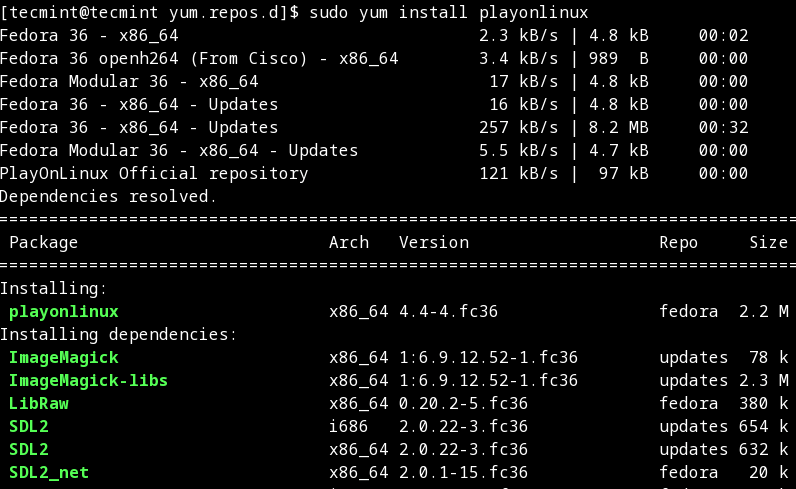
To install PlayonLinux on RHEL-based distributions such as Fedora, CentOS Stream, Rocky Linux, and AlmaLinux use the following commands.
On Debian Systems
For the Debian Bullseye 11 and Debian Buster 10 versions.
With the Debian 9 Stretch repository
With the Debian 8 Jessie repository
On Ubuntu Systems
For the Ubuntu 22.04 and Ubuntu 20.04 versions.
For the Ubuntu 18.04 version.
How do I Start PlayOnLinux
Once it’s installed, you can start the PlayOnLinux as a normal user from the application menu or use the following command to start it.
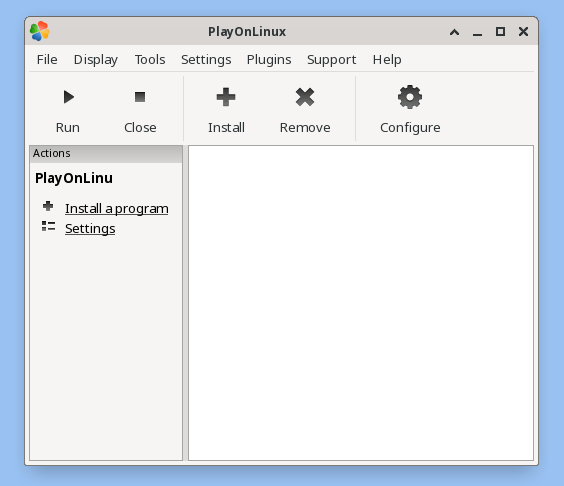
Once it’s done, click on the ‘Install‘ button to explore available software or search for software. playonlinux provides some supported games, you can search them using the ‘Search‘ tab as shown below.
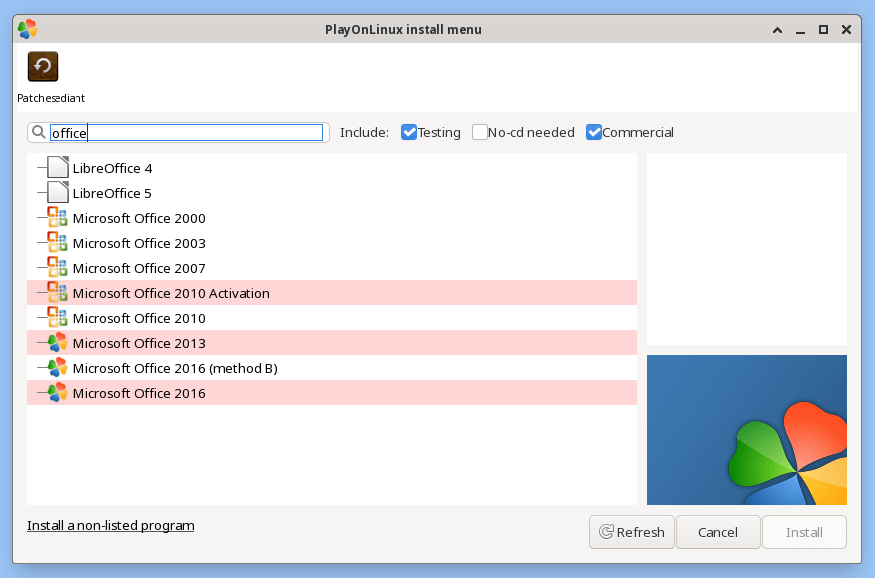
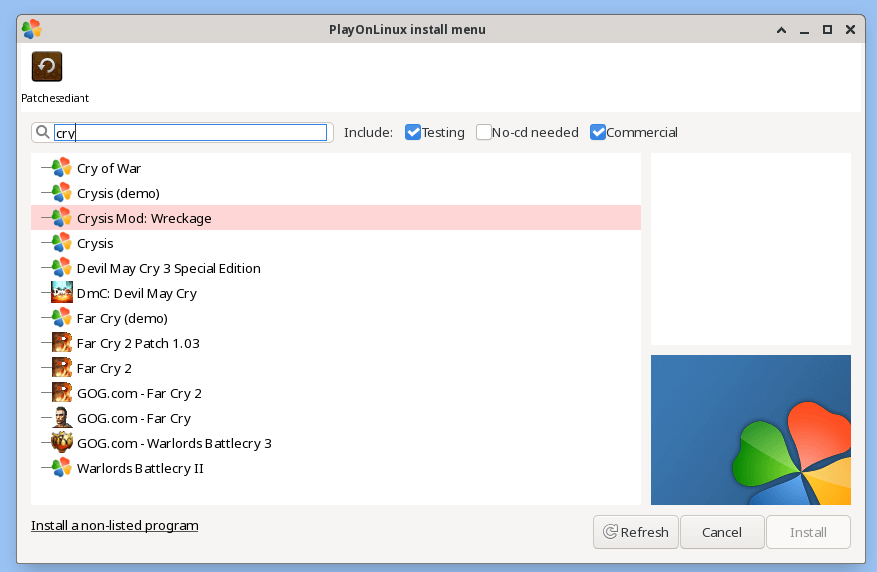
This way, you can search and install as many as Windows-supported applications and games on your Linux.
Tutorial Feedback.
If You Appreciate What We Do Here On TecMint, You Should Consider:
TecMint is the fastest growing and most trusted community site for any kind of Linux Articles, Guides and Books on the web. Millions of people visit TecMint! to search or browse the thousands of published articles available FREELY to all.
If you like what you are reading, please consider buying us a coffee ( or 2 ) as a token of appreciation.

We are thankful for your never ending support.
Related Posts






12 thoughts on “PlayOnLinux – Run Windows Software and Games in Linux”
I tried to install a pc game called Bioshock using playonlinux after 8 hours and a little circle was going around and around and the game wasn’t installed yet.
Any advice? I have also installed wine and winetricks.
yum install epel-release
in my case, i just do this.
I’m running rhel desktop 7.3, I added the repo and when try to install show this error if dependencies, I tried to install it form rpmfind, it require other, and other another and need to search manually all the dependencies … :(, do you know how can I do for resolve for more ease the installation?
The first mesa-libOSMesa installed without problems but redhat-lsb, ….. is the problem.
when i trying to play this…… This Error found (cabextract not found)……..
try to google but prob not solve…
Try to install these following packages to get rid of such cabextract not found error.
Big thanks for the fedora repo file, much appreciated.
after installing the playonlinux it shows
Looking for python… 2.6.6 – selected
PlayOnLinux is not supposed to be run as root. Sorry……………
Just run ‘playonlinux’ as normal user..
i have a problem :/ wine is not runing a game :/
Error: Multilib version problems found. This often means that the root
cause is something else and multilib version checking is just
pointing out that there is a problem. Eg.:
1. You have an upgrade for libwayland-server which is missing some
dependency that another package requires. Yum is trying to
solve this by installing an older version of libwayland-server of the
different architecture. If you exclude the bad architecture
yum will tell you what the root cause is (which package
requires what). You can try redoing the upgrade with
–exclude libwayland-server.otherarch … this should give you an error
message showing the root cause of the problem.
2. You have multiple architectures of libwayland-server installed, but
yum can only see an upgrade for one of those arcitectures.
If you don’t want/need both architectures anymore then you
can remove the one with the missing update and everything
will work.
3. You have duplicate versions of libwayland-server installed already.
You can use “yum check” to get yum show these errors.
…you can also use –setopt=protected_multilib=false to remove
this checking, however this is almost never the correct thing to
do as something else is very likely to go wrong (often causing
much more problems).
Protected multilib versions: libwayland-server-1.0.5-1.fc18.i686 != libwayland-server-1.0.0-1.fc18.x86_64
Error: Protected multilib versions: fontconfig-2.10.2-2.fc18.i686 != fontconfig-2.10.2-1.fc18.x86_64
Error: Protected multilib versions: pixman-0.28.0-1.fc18.i686 != pixman-0.26.2-5.fc18.x86_64
Error: Protected multilib versions: cyrus-sasl-lib-2.1.23-37.fc18.i686 != cyrus-sasl-lib-2.1.23-36.fc18.x86_64
Error: Protected multilib versions: libwayland-client-1.0.5-1.fc18.i686 != libwayland-client-1.0.0-1.fc18.x86_64
Error: Protected multilib versions: libjpeg-turbo-1.2.90-1.fc18.i686 != libjpeg-turbo-1.2.1-3.fc18.x86_64
Error: Protected multilib versions: pulseaudio-libs-2.1-6.fc18.i686 != pulseaudio-libs-2.1-4.fc18.x86_64
Error: Protected multilib versions: harfbuzz-0.9.12-2.fc18.i686 != harfbuzz-0.9.7-1.fc18.x86_64
Error: Protected multilib versions: glib2-2.34.2-2.fc18.i686 != glib2-2.34.2-1.fc18.x86_64
Error: Protected multilib versions: graphite2-1.1.1-4.fc18.i686 != graphite2-1.1.1-3.fc18.x86_64
Thanks, Successful Run
When I run “PlayOnLinux” got Error message
“playonlinux cannot find curl (from curl)
you need to install it to continue”
and I have run the “sudo apt-get install curl” then run it Successful
sudo apt-get install curl
Internet Explorer 1 to 8 are Available in PlayonLinux. IE 10 are not available.
Sorry, no support for IE 10 yet in PlayonLinux. It’s better to Install Wine and install IE 10.
Как пользоваться PlayOnLinux
Под операционную систему Windows было написано гораздо больше профессиональных программ, чем для Linux. А если дело доходит до игр, то большинство из них работают только под Windows. Но такая ситуация не способствует развитию Linux. В последнее время положение улучшается и популярные разработчики игр выпускают все больше и больше продуктов для Linux, но их все еще недостаточно.
С помощью прослойки совместимости Wine можно запускать различные Windows программы в Linux без эмуляции. Но в wine пока что реализованы далеко не все возможности Windows, поэтому она часто требует дополнительных настроек или установки библиотек из Windows. Чтобы облегчить установку и запуск Windows программ в Linux для новичков была заработана программа PlayOnLinux. Она содержит рецепты установки популярных программ, которые выполняются автоматически. В этой статье мы рассмотрим как пользоваться PlayOnLinux.
Что такое PlayOnLinux?
PlayOnLinux — это графическая оболочка над Wine, которая очень сильно облегчает использование программы. Как я уже сказал, PlayOnLinux содержит готовые скрипты установки, разработанные пользователями. Эти скрипты содержат все необходимое для установки программы.
Для каждой программы используется не только отдельная бутылка (папка со всеми программами и системными файлами), но и отдельная версия Wine. Также в скрипты входят команды для установки пакетов, команды для добавления и регистрации библиотек, а также другие возможности. Фактически, если программа есть в списке PlayOnLinux, то вы сможете установить ее, выполнив несколько шагов мастера. Но вам по-прежнему нужно иметь установщик программы.
Установка PlayOnLinux
Это достаточно популярная программа, поэтому вы можете установить ее в большинстве дистрибутивов Linux из официальных репозиториях. Например, в Ubuntu, Debian и основанных на них дистрибутивов вы можете выполнить команду:
sudo apt install playonlinux
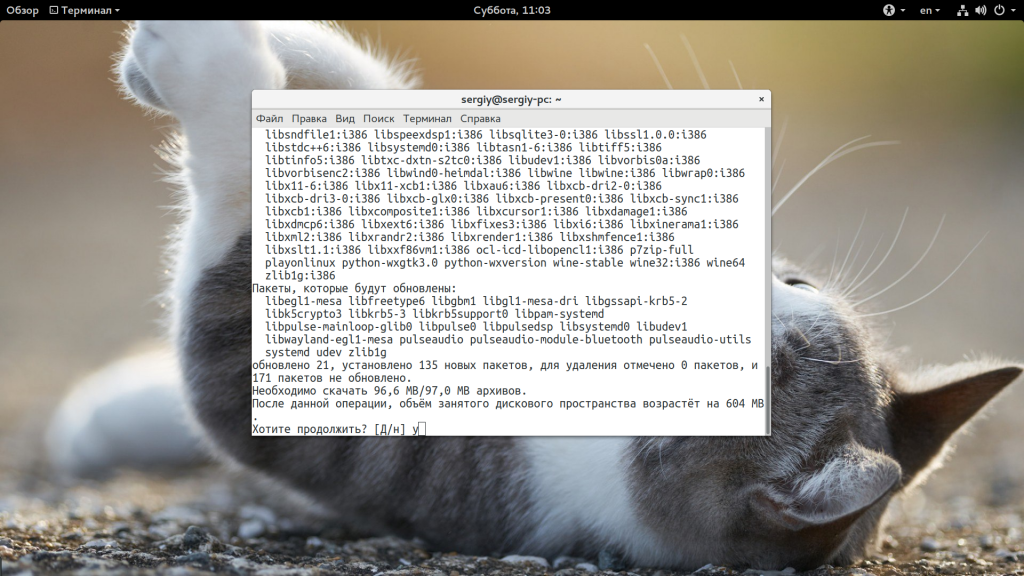
В дистрибутивах, основанных на Fedora, Red Hat и CentOS установка PlayOnLinux выполняется:
sudo yum install playonlinux
В ArchLinux команда будет выглядеть вот так:
sudo pacman -Syu playonlinux
В OpenSUSE вы можете установить PlayOnLinux с помощью команды:
sudo zypper in playonlinux
После выполнения одной из этих команд система загрузит более 100 мегабайт данных, а после этого программа будет доступна из главного меню:
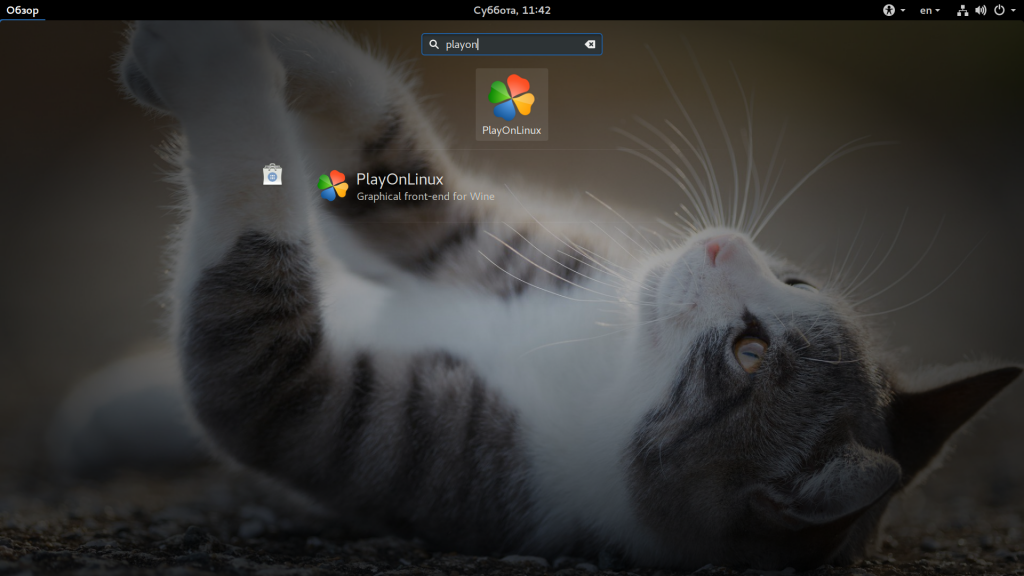
Как пользоваться PlayOnLinux?
Далее мы более подробно рассмотрим как пользоваться программой и устанавливать приложения Windows.
1. Интерфейс
Начнем с интерфейса программы. Он достаточно прост:
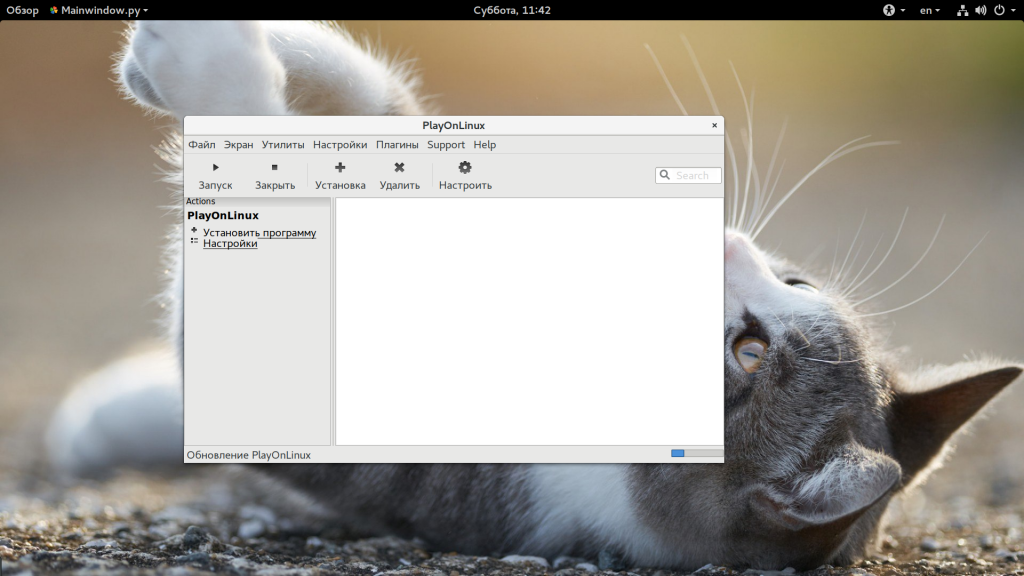
- В самом верху окна находится главное меню, с помощью которого можно получить доступ к большинству функций программы;
- Чуть ниже находится панель инструментов, которые позволяют делать основные действия;
- Дальше оно разделено на две панели. На левой из них находятся ярлыки основных действий, например, для установки программ;
- На правой панели размещен список программ, которые были установлены;
- В нижней части окна находится статус бар, где отображается статус обновления или другие данные.
2. Установка программы
Для того чтобы установить программу Windows сначала выберите «Установить программу» в главном меню:
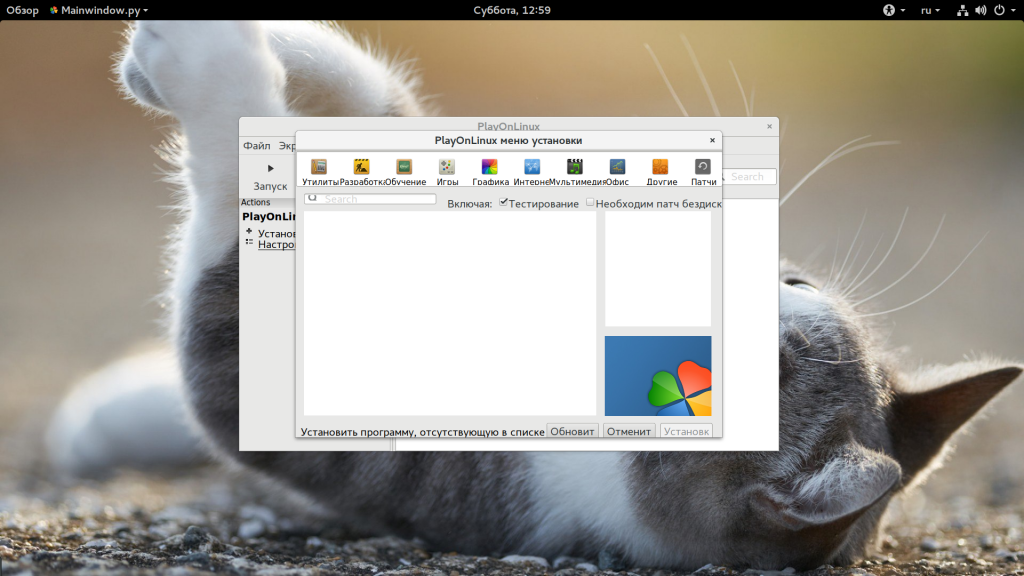
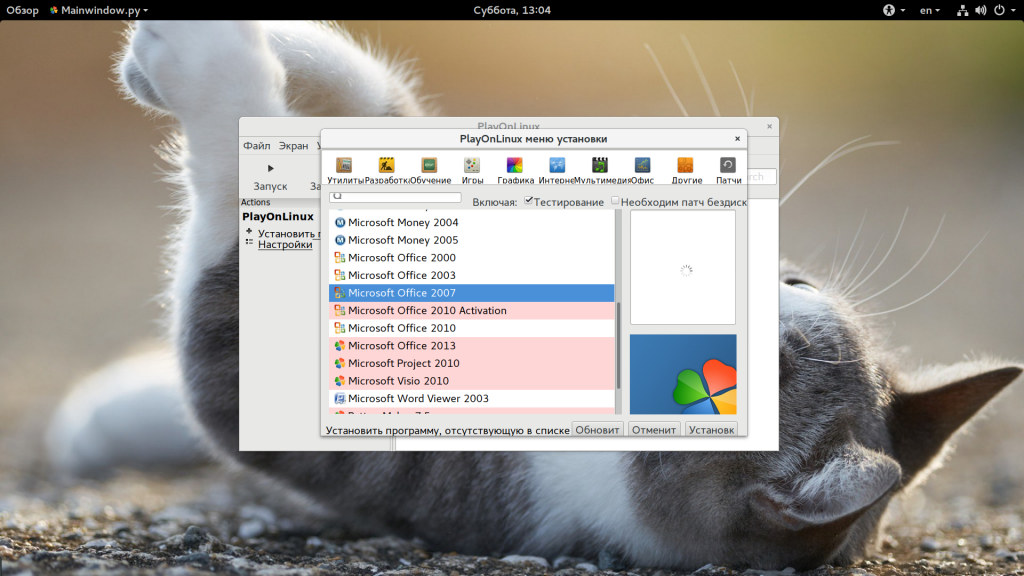
В открывшемся окне вам нужно выбрать программу, которую вы хотите установить. Например, выберите «Офис», затем «Microsoft Office 2007», для продолжения нажмите «Установить»:
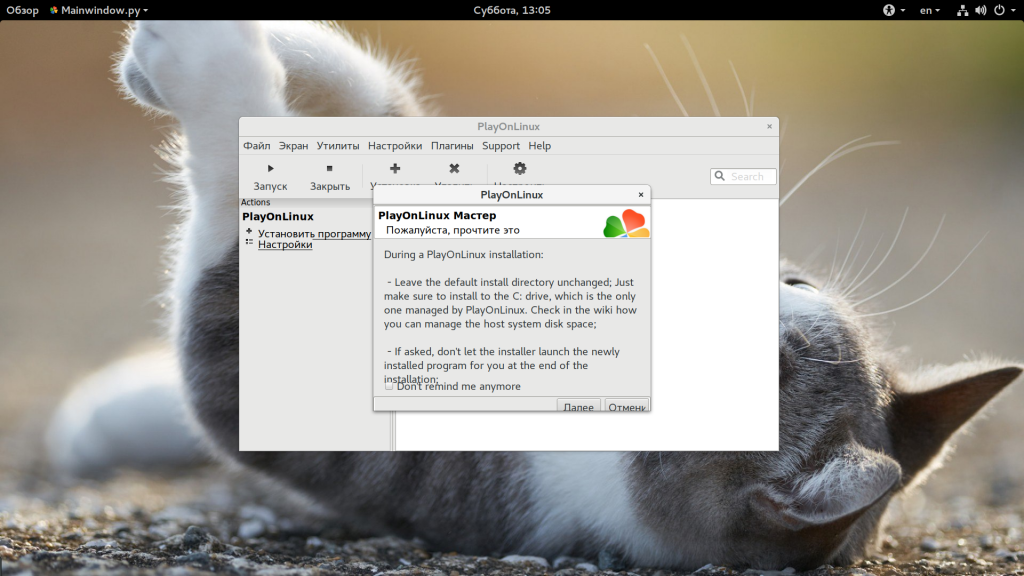
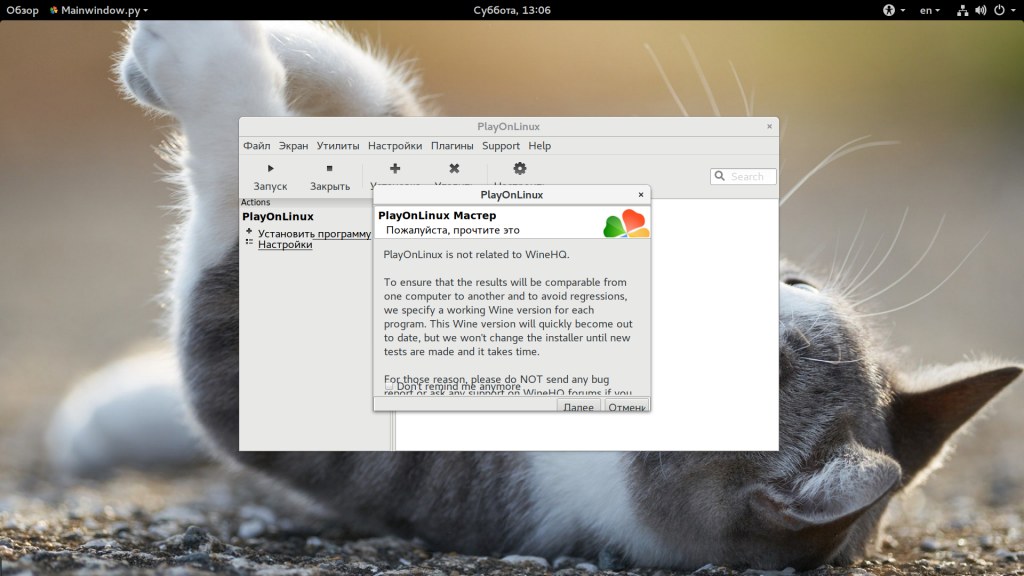
Дальше следуют два диалоговых окна, в которых программа сообщает, что разработчики не гарантируют успеха и она никак не связана с WineHQ:
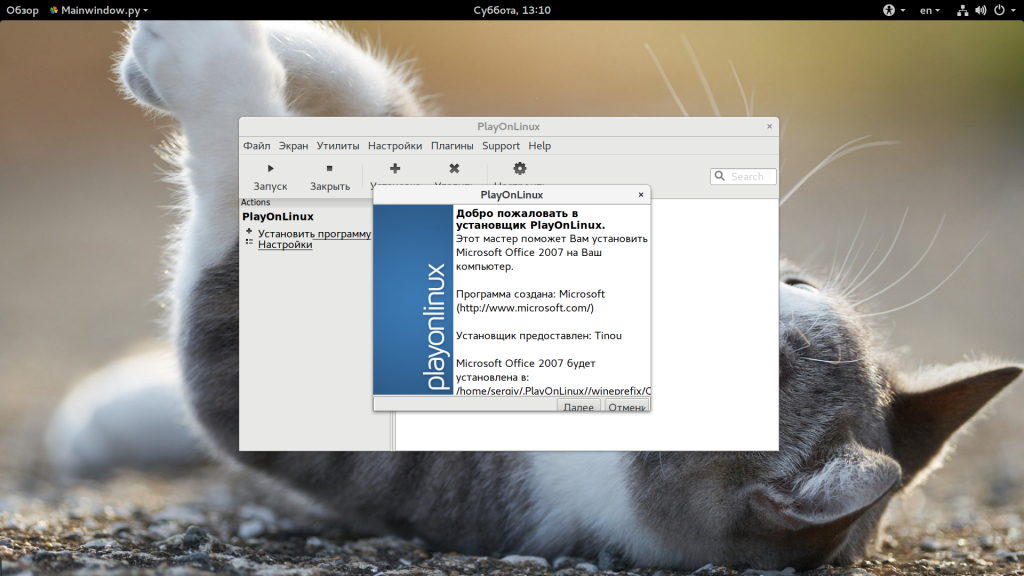
Дальше откроется мастер установки программы:
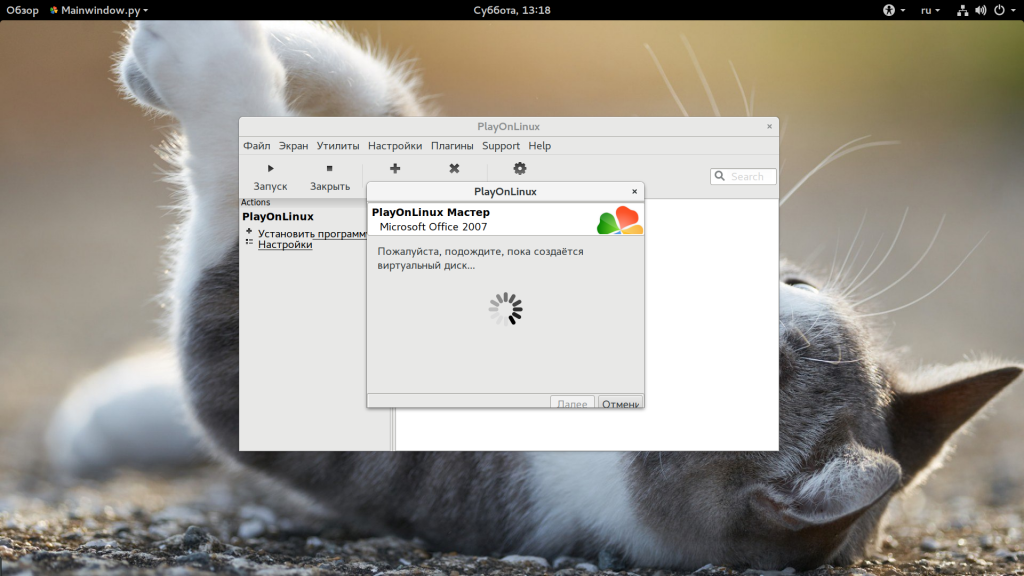
После нажатия кнопки «Далее» начнется загрузка необходимых компонентов, среди которых загрузка Wine, других необходимых компонентов и их распаковка:
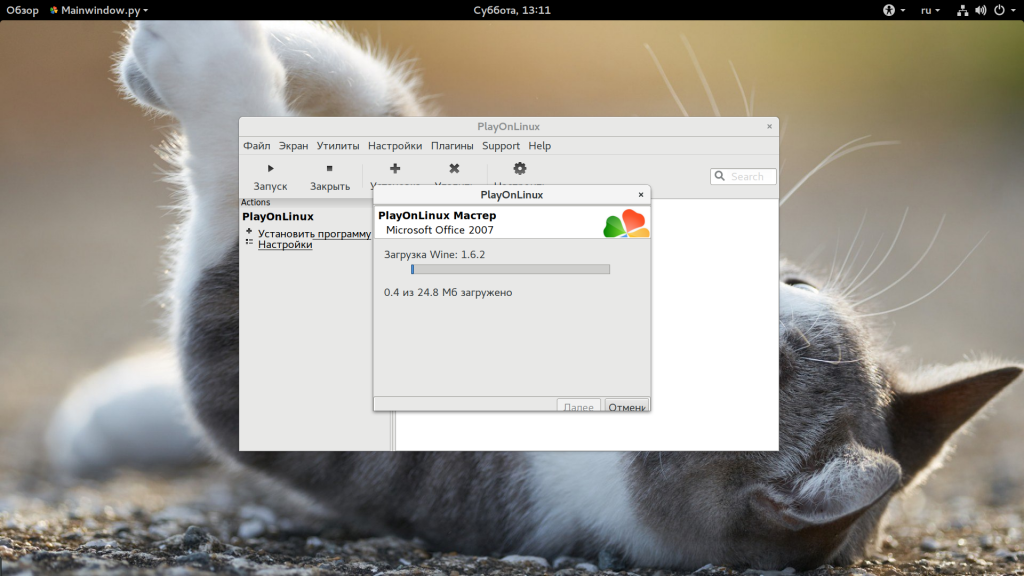
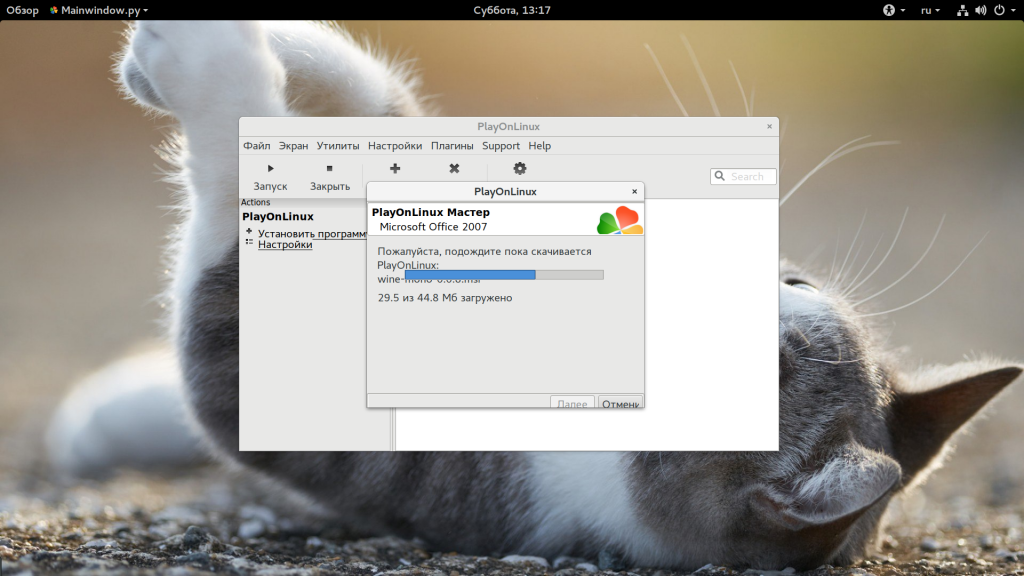 Далее вам нужно выбрать расположение установщика программы. Вы можете выбрать файл или указать папку, где расположен установщик:
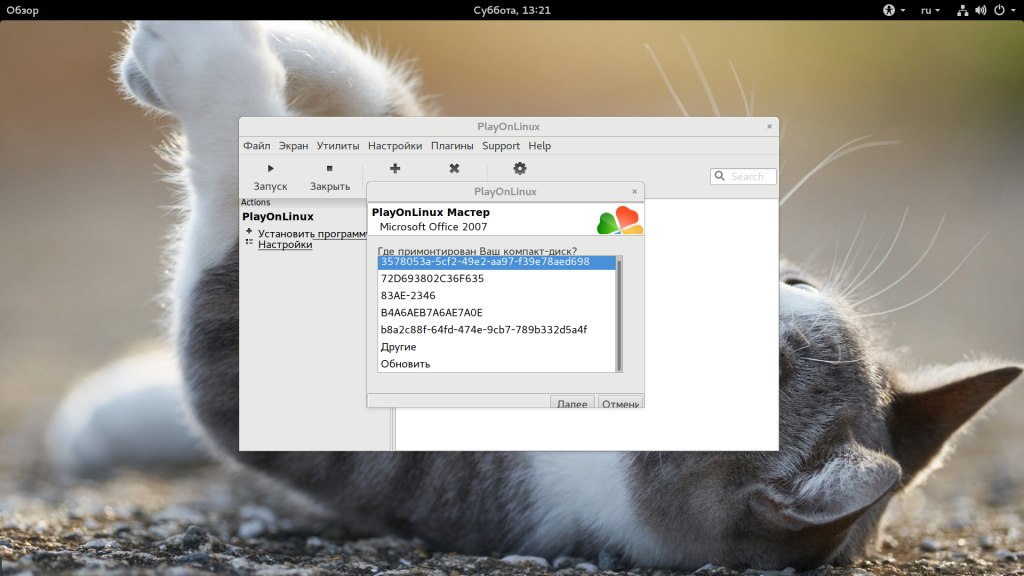
Затем запустится установщик программы, мы не будем подробно описывать установку:
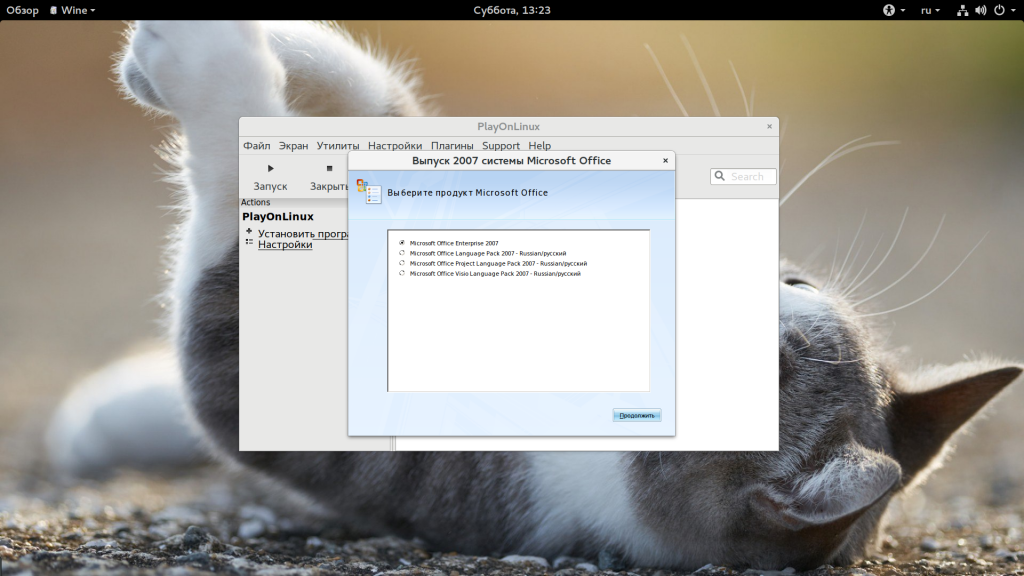
После завершения работы PlayOnLinux продолжит загружать необходимые компоненты:
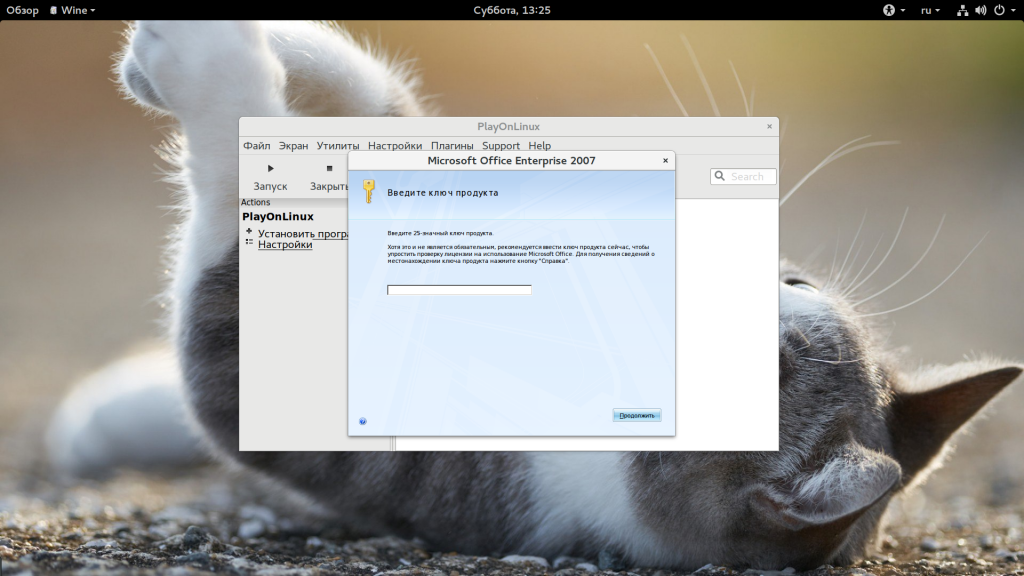
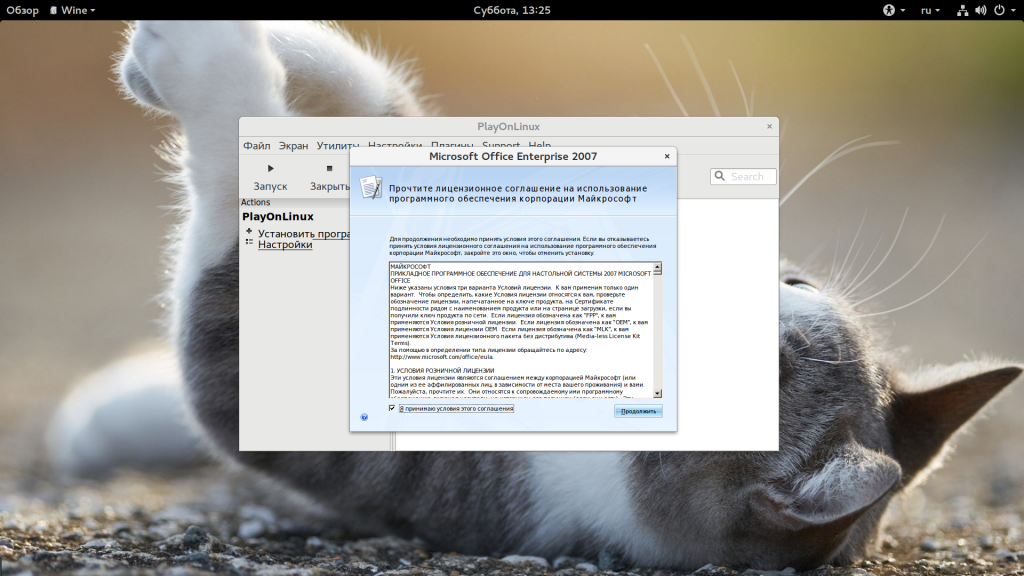
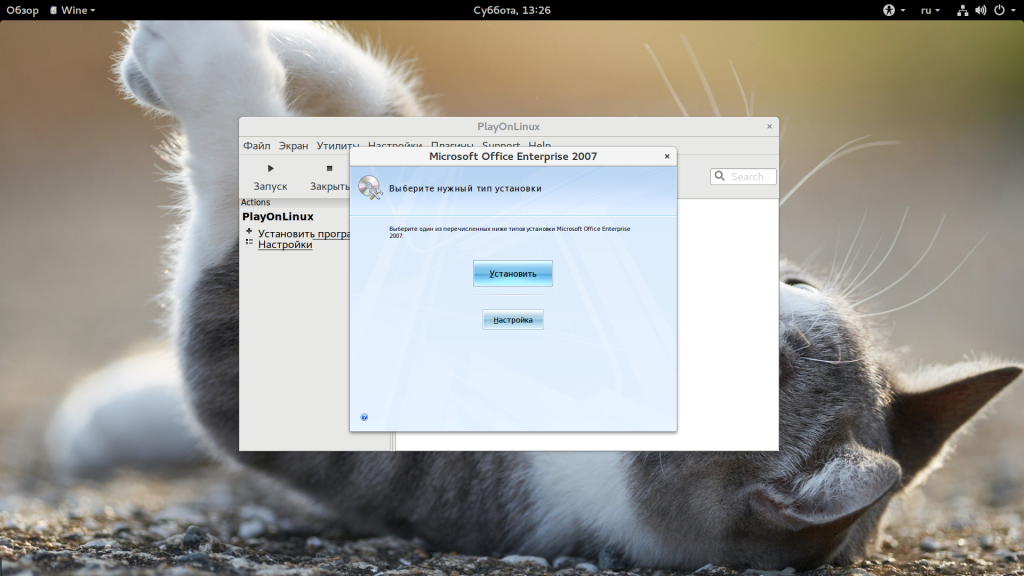
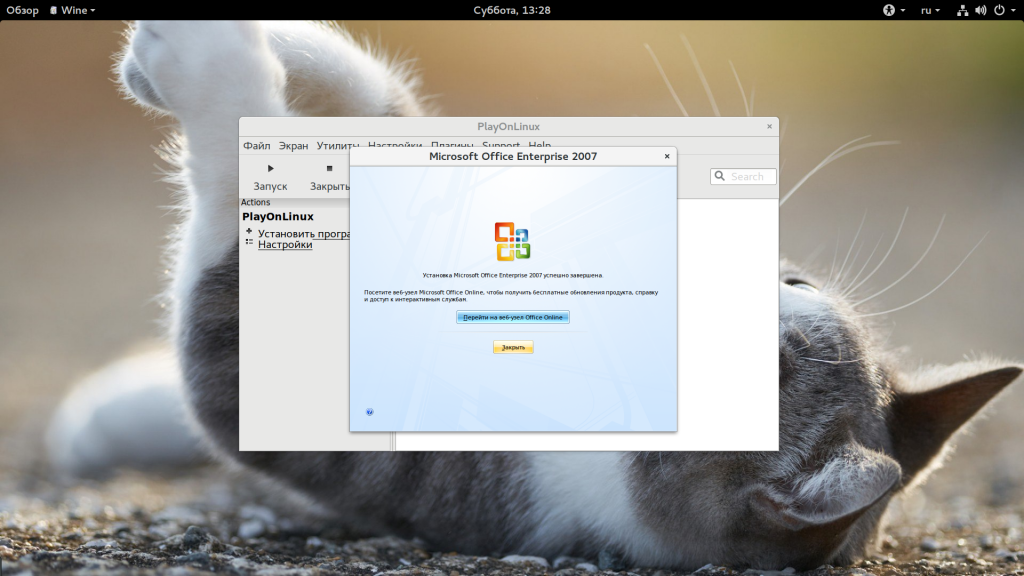
После завершения установки новые приложения появятся в списке:
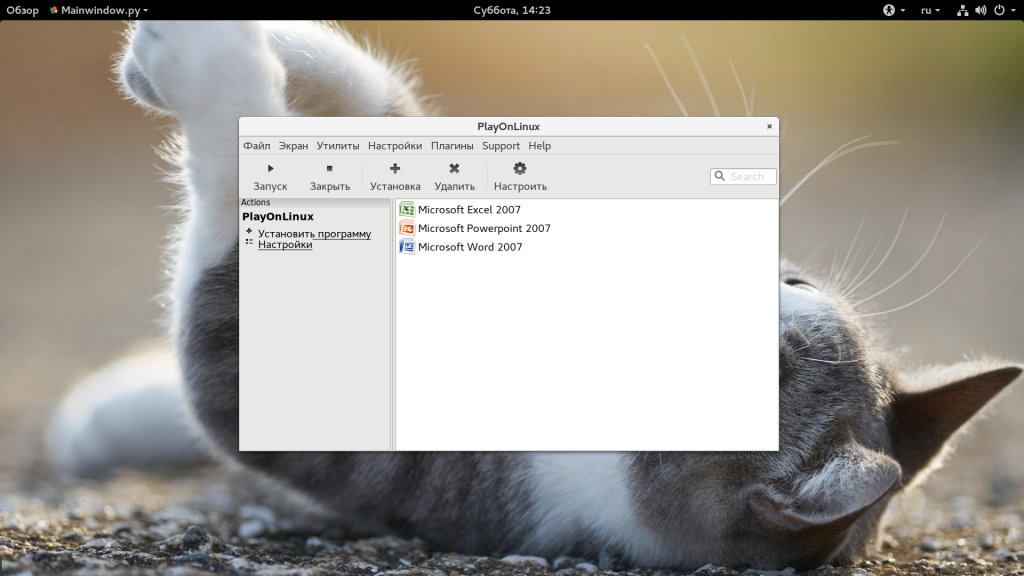
Установка игр playonlinux выполняется точно так же, как и для программ.
3. Запуск программ
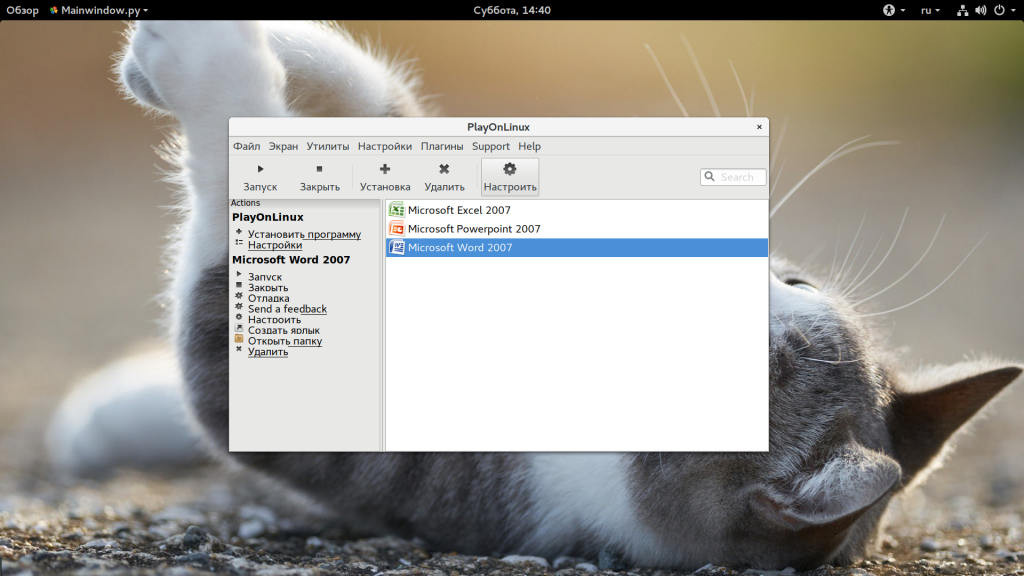
Если вы кликните по одному из ярлыков, то на левой панели отобразиться несколько функций, например, для редактирования ярлыков, отладки и другие:
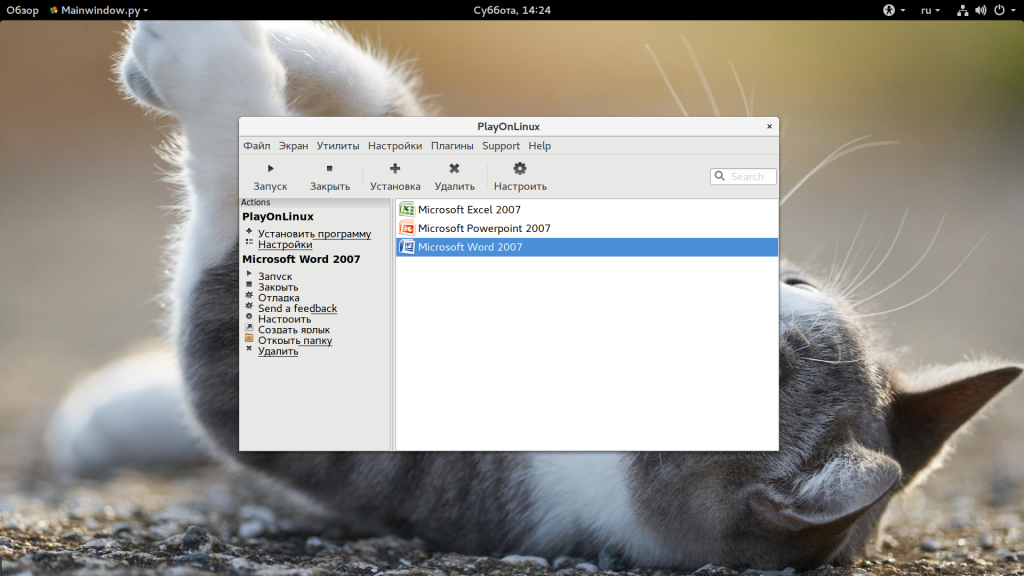
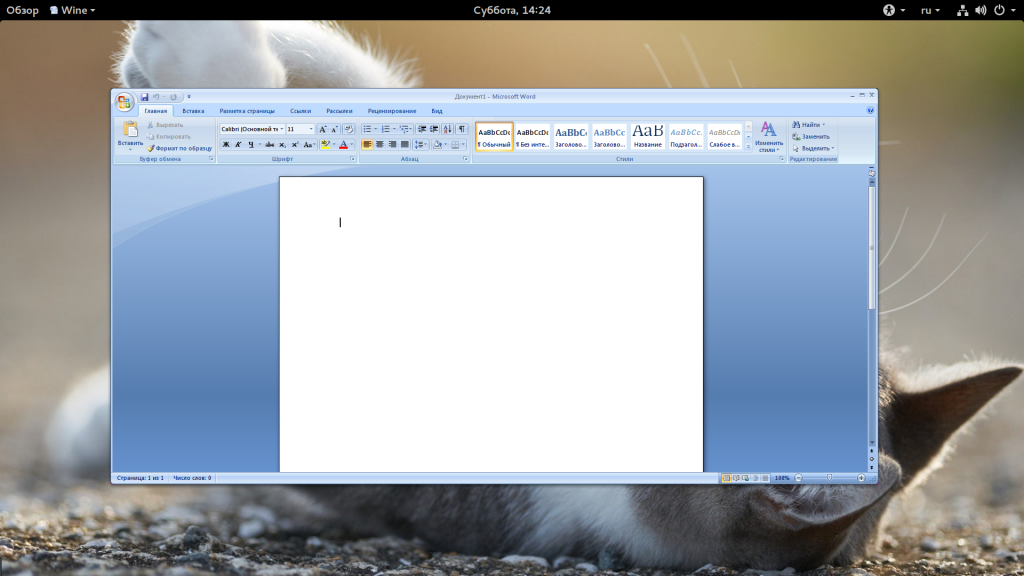
Двойной клик по программе позволяет ее запустить. Множество программ будут отлично работать, например, тот же Microsoft World:
4. Настройка оболочки
Для запуска многих программ необходима дополнительная настройка несмотря даже на скрипты. Настройка PlayOnLinux достаточно проста. Откройте контекстное меню нужного ярлыка и выберите «Настройка Wine»:
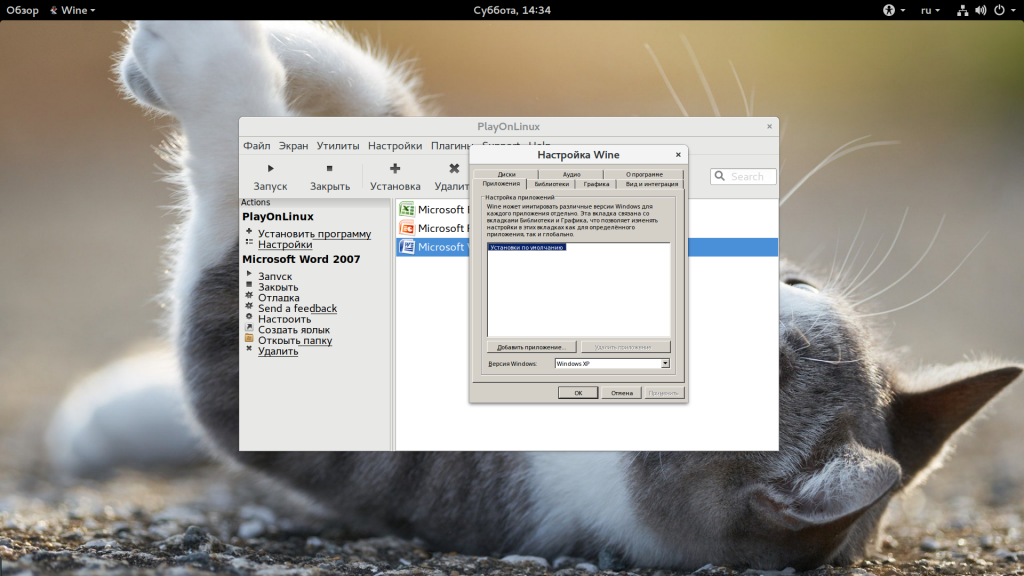
Здесь можно выполнить все необходимые настройки бутылки Wine, которые доступны в winecfg. Чтобы получить доступ к реестру, достаточно запустить второй пункт меню «Редактор реестра»:
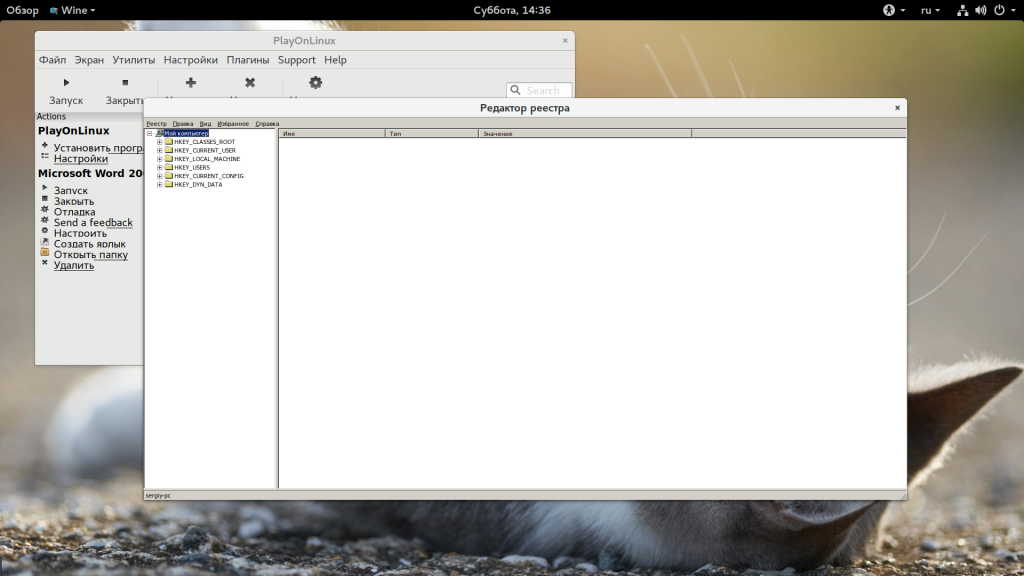
Также из того же меню можно открыть папку приложения. Если вы нажмете кнопку «Настроить», то можете изменить параметры приложения, например, версию Wine:
Вкладка Wine позволяет запустить одну из стандартных программ Windows:
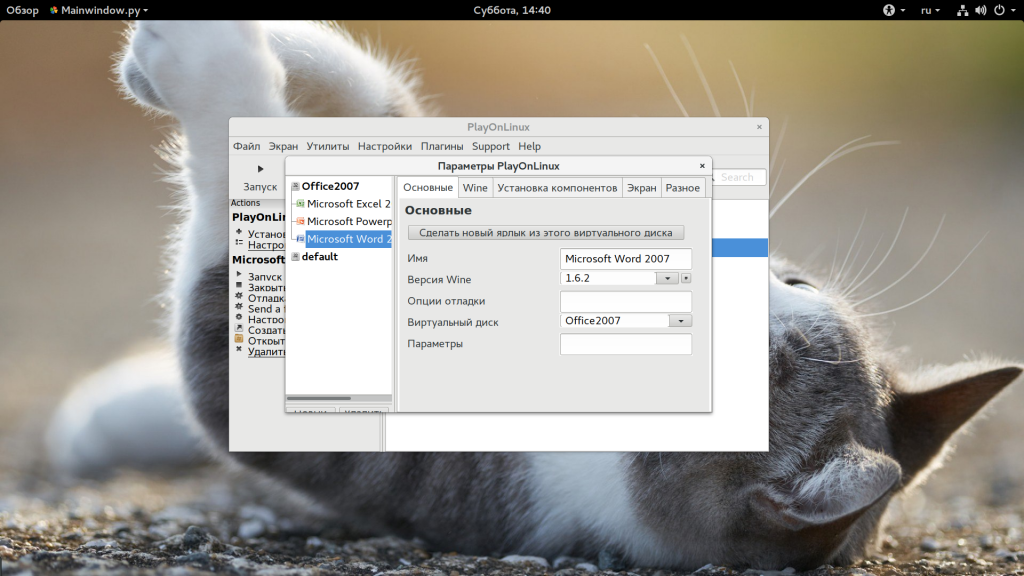
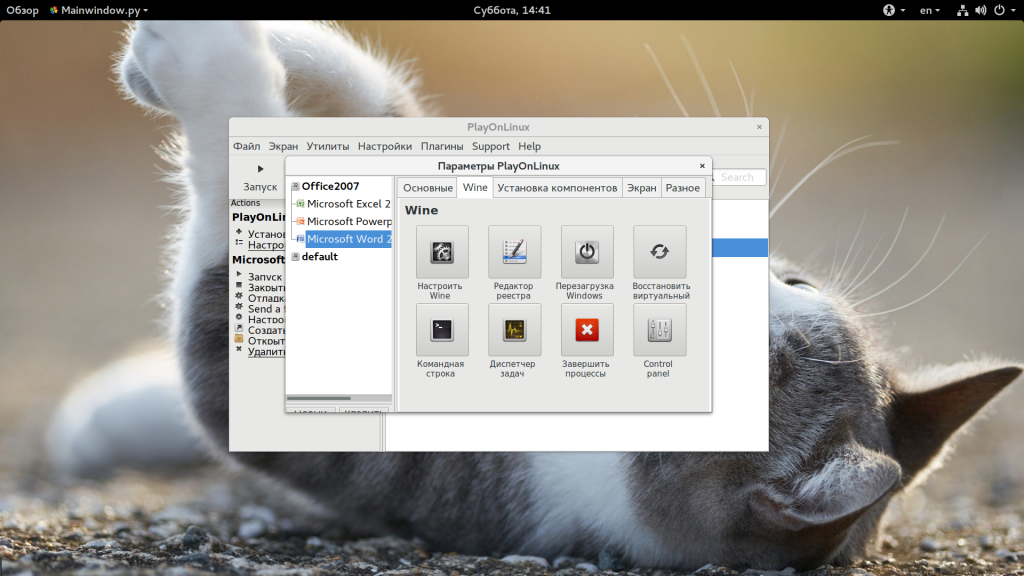
А на вкладке «Установка компонентов» можно установить пакеты, которые обычно доступны по winetricks.
5. Настройки PlayOnLinux
Вы можете настраивать не только тот или иной ярлык, но и изменить настройки целой программы. Для этого нажмите кнопку «Настройки».
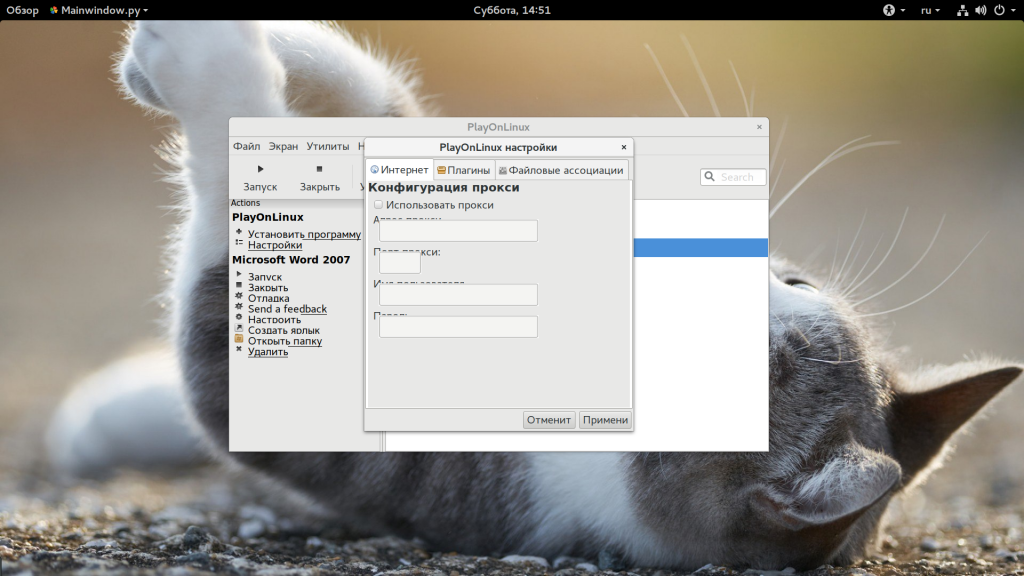
На открывшемся окне вы сможете настроить прокси. А на следующей вкладке можно установить плагины, которые расширяют функциональность программы. Вот некоторые из них:
- Capture — позволяет записывать аудио ALSA и видео данные OpenGL от программы Wine, очень полезно для захвата видео;
- Offline PlayOnLinux — плагин, который позволяет выполнять локальные скрипты;
- PlayOnLinux Vault — резервное копирование бутылок Wine и их восстановление;
- ScreenCap — создание снимков экрана;
- Wine Look — позволяет менять темы Windows приложений;
- WineImport — позволяет импортировать ранее созданные префиксы.
Плагины можно установить из файловой системы, перед этим, загрузив из интернета.
6. Отладка программ
Если с программой возникли проблемы, то, возможно, вы захотите понять в чем причина. В этом вам помогут логи. Чтобы посмотреть логи по каждой программе откройте «Утилиты», а затем «Отладчик PlayOnLinux»:
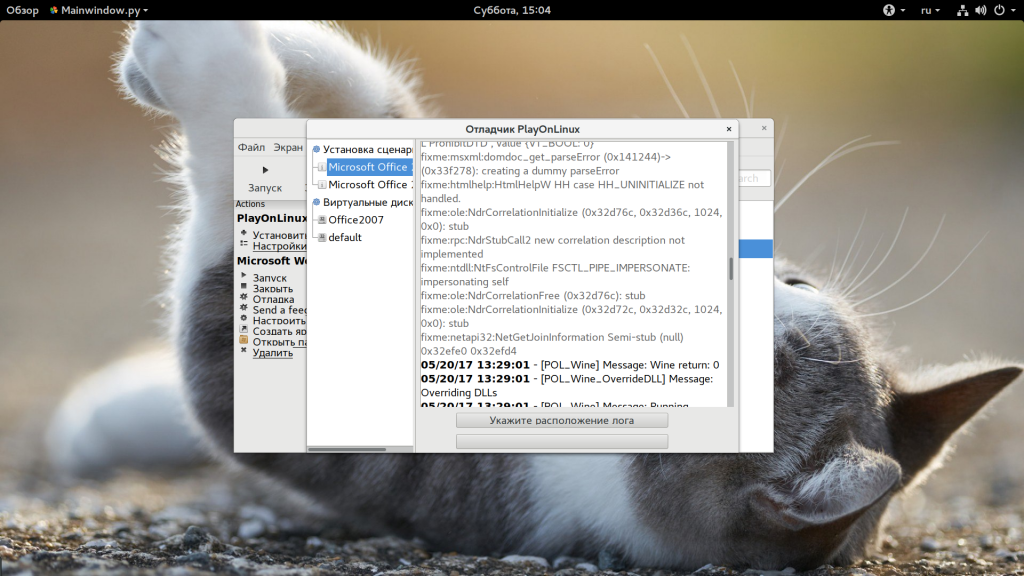
Здесь есть все логи, ранее запущенных программ.
Выводы
В этой статье мы рассмотрели как пользоваться PlayOnLinux. Эта программа позволяет очень сильно облегчить запуск Windows программ. Если вам часто приходится устанавливать программы, популярные в Windows, то такая оболочка будет очень полезной. А какие программы из Windows используете вы? Или игры? Напишите в комментариях!
Как установить playonlinux на fedora 32
PlayOnLinux mainly relies on WineHQ project. If you want help them and to get a professional support of wine, please consider buying codeweavers products.
We would also like to thank ScummVM and DOSBox projects
Developement version
To get the latest developement version, open a terminal and type:
git clone https://github.com/PlayOnLinux/POL-POM-4
Packages

Скомпилированный пакет
.tar.gz файл :
Вам нужно просто извлечь этот файл и выполнить «./playonlinux». PlayOnLinux написан на python, так что вам не нужно ничего компилировать.

Arch Linux
Добавление репозитория archlinufr:
Как root (или через sudo), добавьте в /etc/pacman.conf следующие строки (для архитектур i686):
Или эти строки (для архитектур x86_64):
Установка PlayOnLinux
Как root (или через sudo), выполните следующую команду:

Debian
Deb-файлы :
Через Squeeze репозиторий
Выполните следующие команды :
Через Lenny репозиторий
Выполните следующие команды :
Через Etch репозиторий
Выполните следующие команды :

Fedora
Перейдите по ссылке и установите пакет playonlinux-yum.

Frugalware
Просто выполните следующую команду

PlayOnLinux
PlayOnLinux — надстройка над Wine, позволяющая легко устанавливать в Linux игры и программы, созданные для Windows. Для своей работы утилита использует bash и python.
В PlayOnLinux можно создавать множество префиксов и использовать несколько версий Wine.
Так же в PlayOnLinux есть база протестированных приложений, гарантированно работающих в Wine. При установке используются скрипты, которые создают новый префикс с собственной конфигурацией, устанавливают необходимые библиотеки и, если позволяет лицензия, скачивают приложение.
Если нет, то для установки может понадобится локальный инсталлятор или диск с игрой.
Содержание
Установка
После установки программа отображается в разделе «Игры».
ALT Linux
Fedora
Установите вручную пакет playonlinux-yum отсюда.
Arch Linux
Frugalware
Готовая, скомпилированная версия
Если в вашем дистрибутиве отсутствует playonlinux, то вы можете скачать версию для любого дистрибутива. (Для запуска нужен python)
Первый запуск
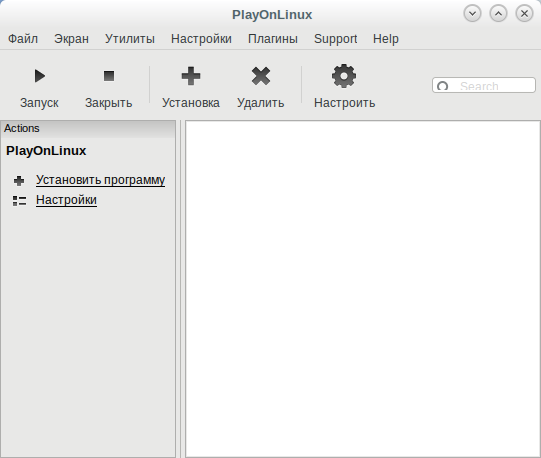
Главное окно программы разделено на три части:
- панель инструментов
- панель действий
- список приложений
Панель инструментов

На панели отображается пять кнопок:
- запустить — запускает приложение, выбранное в списке (можно использовать двойной щелчок)
- закрыть — предназначена для аварийного закрытия зависшего приложения
- установка — обеспечивает доступ к списку приложений, которые PlayOnLinux может установить на ваш компьютер
- удалить — удаляет существующее приложение
- настроить — открывает окно конфигурации префикса (WINEPREFIX, «бутылка»)
Панель действий

По-умолчанию на ней всего два пункта:
- Установить программу
- Настройки
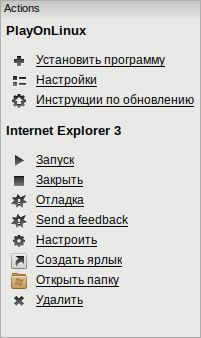
Но, после установки приложений и выборе любого из них на панели отобразятся следующие пункты:
- Запуск — запускает приложение, выбранное в списке (можно использовать двойной щелчок)
- Закрыть — предназначена для аварийного закрытия зависшего приложения
- Отладка — отображает отладку приложения, которую при случае, удобно сохранить в виде файла и отправить разработчикам
- Send a feedback — отправить отчет о неправильной работе установочного скрипта
- Настроить — открывает окно конфигурации префикса (WINEPREFIX, «бутылка»)
- Создать ярлык — создает красивый linux-ярлычок приложения со значком на рабочем столе
- Открыть папку — открывает папку с программой
- Удалить — удаляет существующее приложение
Список приложений

Данный список включает все приложения, установленные с помощью PlayOnLinux, который так же является списком ярлыков. Отсюда вы можете легко устанавливать, запускать и деинсталлировать приложения.
Кроме того, у каждого элемента есть свое контекстное меню:
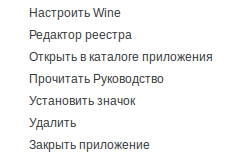
- Настроить Wine — открывает winecfg префикса
- Редактор реестра — открывает regedit префикса
- Открыть в каталоге приложения — открывает в файловом менеджере каталог с программой
- Прочитать руководство — открывает help-файл программы (если есть)
- Установить значок — выбор значка для ярлыка (кроме ico доступны xmp, png, jpg, png, jpeg)
- Удалить — удаляет префикс
- Закрыть — принудительно закрывает зависшее приложение
Окно настройки
Управление версиями Wine
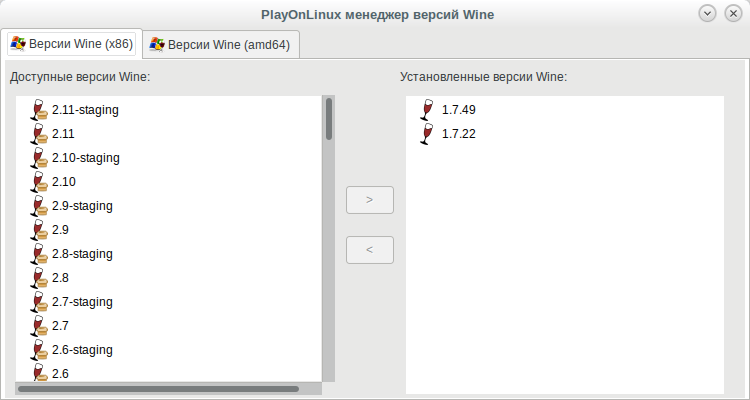
У PlayOnLinux есть уникальная возможность использовать отдельную версию Wine для каждого префикса. Преимущество состоит в том, что у вас может быть автономная среда для вашей программы с конкретной версией Wine. При этом, без конфликтов между версиями и с возможностью тестировать сразу множество версий.
Для установки дополнительных версий Wine, откройте «Утилиты»>»Управление версиями Wine»
Установка программы
После нажатия на кнопку «Установить программу» («Установка») откроется «Центр приложений», с помощью которого вы сможете произвести установку приложения.
Если программа отсутствует в списке, вы можете запустить локальный мастер и выполнить настройку вручную.
How to Install PlayOnLinux on Fedora 37/36/35
When running Windows applications on Linux, Wine is a popular software many people use. However, one of the issues with Wine is that it can be pretty time-consuming and prone to errors when setting up required configurations for each application. Thankfully, a great program called PlayOnLinux can make your life much easier by providing automated installation of popular apps. This can be a massive benefit for those new to using Linux or who don’t want to spend a lot of time setting things up. Fedora is one distribution that makes it easy to install PlayOnLinux with the application being available in the default repositories.
In the following tutorial, you will learn how to install PlayOnLinux on Fedora 37/36/35 Linux using the command line terminal using the default Fedora’s repository or installing the Flatpak third-party package manager for an optional choice of installation.
Table of Contents
Recommended Steps Before Installation
Before you continue, your system is advised to ensure all existing packages are up to date to avoid system conflicts.
#1st Method – Install PlayOnLinux – Fedora Repository
The first and perhaps best method is installing PlayOnLinux directly from your Fedora repository using the DNF package manager, which can be done using the following command.
For users that love using Flatpak installations, the following method would interest you more.
#2nd Method – Install PlayOnLinux – Flatpak/Flathub Repository
The second option is to use the Flatpak package manager. Flatpak should already be pre-installed on your Fedora Linux desktop unless you have removed it. Flatpaks are often ahead if the maintainer is active.
First, install the Flatpak manager if it was removed previously.
Optionally, rebooting your system is often recommended for users re-installing Flatpak. Failure to do this can occur in odd issues, such as wrong icon paths.
SKIP THE REBOOT IF FLATPAK IS INSTALLED.
Next, you need to enable Flatpack using the following command in your terminal.
Now install using the following flatpak command.
If the above command does not work and you receive the “error: Unable to load summary from remote flathub: Can’t fetch summary from disabled remote ‘flathub,” use the following command.
Launch PlayOnLinux on Fedora Linux
With the installation complete from one of the installation methods, you can run the application immediately from your terminal.
First, while in your terminal, you can use the following command.
Flatpak users will need to launch using the command below from a terminal instance.
Most desktop users prefer to use the application icon, which can be found in the following path.
Activities > Show Applications > PlayOnLinux
Alternatively, if you cannot find it, use the search function in the Show Applications menu if you have many applications installed. Depending on your chosen method. The icons will look different due to the version differences between Fedora and Flatpak.

Once open, you can begin navigating and adding applications from the Library. The default Fedora version is plainer but straightforward to use, and more information can be found on the official wiki for further learning.

Update PlayOnLinux on Fedora Linux
Updates should appear in notifications, but if these fail to show sometimes, it is recommended to check using the terminal regardless of the following commands to check for updates.
DNF Method
Flatpak Method
Remove PlayOnLinux on Fedora Linux
Use one of the following commands to suit the original installation method for users who no longer require the application.
DNF Method
Flatpak Remove Method
Next, run the following command for any leftover clean-ups required, similar to the autoremove command described for the DNF remove example command.
PlayOnLinux – Run Windows Software and Games in Linux
In our earlier articles on this blog, we used the Wine program to install and run windows based applications on Debian-based and and other Red Hat-based Linux distributions.
There is another open source software available called PlayOnLinux that uses Wine as its base and gives feature-rich functions and a user-friendly interface to install and run windows applications on Linux.
The purpose of PlayOnLinux software is to simplify and automates the process of installing and running Windows applications on Linux platforms. It has a list of applications where you can automate each installation process as much as you can.
What is PlayOnLinux?
PlayOnLinux (POL) is an open-source gaming framework (software) based on Wine, that allows you to easily install any Windows-based applications and games on Linux operating systems, via the use of Wine as a front-end interface.
The following are the list of some interesting features to know.
- PlayOnLinux is license-free, with no need for a Windows License.
- PlayOnLinux uses base as Wine.
- PlayOnLinux is open-source and free software.
- PlayOnLinux is written in Bash and Python.
In this article, I will guide you on how to install, setup, and use PlayonLinux on RHEL-based distributions such as Fedora, CentOS Stream, Rocky Linux, AlmaLinux, and Debian-based distributions such as Ubuntu and Linux Mint
How to Install PlayOnLinux in Linux Distributions
To install PlayOnLinux, you need to add a software repository and install the PlayonLinux software using the following commands.
On RHEL-based Systems
To install PlayonLinux on RHEL-based distributions such as Fedora, CentOS Stream, Rocky Linux, and AlmaLinux use the following commands.
On Debian Systems
For the Debian Bullseye 11 and Debian Buster 10 versions.
With the Debian 9 Stretch repository
With the Debian 8 Jessie repository
On Ubuntu Systems
For the Ubuntu 22.04 and Ubuntu 20.04 versions.
For the Ubuntu 18.04 version.
How do I Start PlayOnLinux
Once it’s installed, you can start the PlayOnLinux as a normal user from the application menu or use the following command to start it.
Once it’s done, click on the ‘Install‘ button to explore available software or search for software. playonlinux provides some supported games, you can search them using the ‘Search‘ tab as shown below.
This way, you can search and install as many as Windows-supported applications and games on your Linux.
Tutorial Feedback.
If You Appreciate What We Do Here On TecMint, You Should Consider:
TecMint is the fastest growing and most trusted community site for any kind of Linux Articles, Guides and Books on the web. Millions of people visit TecMint! to search or browse the thousands of published articles available FREELY to all.
If you like what you are reading, please consider buying us a coffee ( or 2 ) as a token of appreciation.
We are thankful for your never ending support.
Related Posts




12 thoughts on “PlayOnLinux – Run Windows Software and Games in Linux”
I tried to install a pc game called Bioshock using playonlinux after 8 hours and a little circle was going around and around and the game wasn’t installed yet.
Any advice? I have also installed wine and winetricks.
yum install epel-release
in my case, i just do this.
I’m running rhel desktop 7.3, I added the repo and when try to install show this error if dependencies, I tried to install it form rpmfind, it require other, and other another and need to search manually all the dependencies … :(, do you know how can I do for resolve for more ease the installation?
The first mesa-libOSMesa installed without problems but redhat-lsb, ….. is the problem.
when i trying to play this…… This Error found (cabextract not found)……..
try to google but prob not solve…
Try to install these following packages to get rid of such cabextract not found error.
Big thanks for the fedora repo file, much appreciated.
after installing the playonlinux it shows
Looking for python… 2.6.6 – selected
PlayOnLinux is not supposed to be run as root. Sorry……………
Just run ‘playonlinux’ as normal user..
i have a problem :/ wine is not runing a game :/
Error: Multilib version problems found. This often means that the root
cause is something else and multilib version checking is just
pointing out that there is a problem. Eg.:
1. You have an upgrade for libwayland-server which is missing some
dependency that another package requires. Yum is trying to
solve this by installing an older version of libwayland-server of the
different architecture. If you exclude the bad architecture
yum will tell you what the root cause is (which package
requires what). You can try redoing the upgrade with
–exclude libwayland-server.otherarch … this should give you an error
message showing the root cause of the problem.
2. You have multiple architectures of libwayland-server installed, but
yum can only see an upgrade for one of those arcitectures.
If you don’t want/need both architectures anymore then you
can remove the one with the missing update and everything
will work.
3. You have duplicate versions of libwayland-server installed already.
You can use “yum check” to get yum show these errors.
…you can also use –setopt=protected_multilib=false to remove
this checking, however this is almost never the correct thing to
do as something else is very likely to go wrong (often causing
much more problems).
Protected multilib versions: libwayland-server-1.0.5-1.fc18.i686 != libwayland-server-1.0.0-1.fc18.x86_64
Error: Protected multilib versions: fontconfig-2.10.2-2.fc18.i686 != fontconfig-2.10.2-1.fc18.x86_64
Error: Protected multilib versions: pixman-0.28.0-1.fc18.i686 != pixman-0.26.2-5.fc18.x86_64
Error: Protected multilib versions: cyrus-sasl-lib-2.1.23-37.fc18.i686 != cyrus-sasl-lib-2.1.23-36.fc18.x86_64
Error: Protected multilib versions: libwayland-client-1.0.5-1.fc18.i686 != libwayland-client-1.0.0-1.fc18.x86_64
Error: Protected multilib versions: libjpeg-turbo-1.2.90-1.fc18.i686 != libjpeg-turbo-1.2.1-3.fc18.x86_64
Error: Protected multilib versions: pulseaudio-libs-2.1-6.fc18.i686 != pulseaudio-libs-2.1-4.fc18.x86_64
Error: Protected multilib versions: harfbuzz-0.9.12-2.fc18.i686 != harfbuzz-0.9.7-1.fc18.x86_64
Error: Protected multilib versions: glib2-2.34.2-2.fc18.i686 != glib2-2.34.2-1.fc18.x86_64
Error: Protected multilib versions: graphite2-1.1.1-4.fc18.i686 != graphite2-1.1.1-3.fc18.x86_64
Thanks, Successful Run
When I run “PlayOnLinux” got Error message
“playonlinux cannot find curl (from curl)
you need to install it to continue”
and I have run the “sudo apt-get install curl” then run it Successful
sudo apt-get install curl
Internet Explorer 1 to 8 are Available in PlayonLinux. IE 10 are not available.
Sorry, no support for IE 10 yet in PlayonLinux. It’s better to Install Wine and install IE 10.
Загрузки
PlayOnLinux mainly relies on WineHQ project. If you want help them and to get a professional support of wine, please consider buying codeweavers products.
We would also like to thank ScummVM and DOSBox projects
Developement version
To get the latest developement version, open a terminal and type:
git clone https://github.com/PlayOnLinux/POL-POM-4
Packages
All distributions
Скомпилированный пакет
.tar.gz файл :
Вам нужно просто извлечь этот файл и выполнить «./playonlinux». PlayOnLinux написан на python, так что вам не нужно ничего компилировать.
Archlinux
Arch Linux
Добавление репозитория archlinufr:
Как root (или через sudo), добавьте в /etc/pacman.conf следующие строки (для архитектур i686):
Или эти строки (для архитектур x86_64):
Установка PlayOnLinux
Как root (или через sudo), выполните следующую команду:
Debian
Debian
Deb-файлы :
Через Squeeze репозиторий
Выполните следующие команды :
Через Lenny репозиторий
Выполните следующие команды :
Через Etch репозиторий
Выполните следующие команды :
Fedora
Fedora
Перейдите по ссылке и установите пакет playonlinux-yum.
Frugalware
Frugalware
Просто выполните следующую команду
Ubuntu