Adobe Animate vs. After Effects
Adobe Animate and Adobe After Effects are two great software options that every animator, motion designer, and video editor needs to know. They both have their unique benefits and drawbacks, which is why it can be difficult to decide which software to use for your next creative project. . In this guide, we will compare Adobe Animate with Adobe After Effects to help you decide on when and how to use them to create your next animation.
Use Code: BLOG10 At Checkout To Save 10% off our Online Adobe Animate & After Effects Courses


Table of Contents
Overview
Adobe Animate CC (formerly called Adobe Flash) and After Effects are animation programs manufactured by Adobe. If you are an experienced animator, this guide might be a good reminder for you. If you are just starting to learn animation, reading this article might save you a lot of time and money. So, read on!
In a nutshell.
Adobe Animate is a good software for creating 2D animations, character animations, and interactive content. Adobe After Effects is great for creating compelling motion graphics, compositing, and visual effects.
Common use cases & interesting facts
2D Animation
Adobe Animate is a good software for creating 2D animations. You can use it to create sprites, traditional animation, and motion graphics. It also has a wide range of features for interactivity, such as buttons, input fields, and more.
For example, if you want to create a cartoon or even a traditional hand-drawn frame-by-frame animation, Adobe Animate is a good choice.
In the past, Adobe Flash Professional used to be the only program for animators. It was first released by Adobe in 1996 for vector graphics and vector animation. Throughout the years, Adobe Flash increased in popularity and gained new features until ultimately, it was renamed Adobe Animate in 2016. Imagine a software program that grew and improved for over 25 years! There are thousands of animated films and series created using Adobe Animate by animators around the world. It is also one of the go-to tools for Youtubers.
Character animation
Creating character animation is one of Adobe Animate’s strengths. You can create character rigs, control poses, and animate them easily. Adobe Animate also has a bone tool that lets you create realistic skeleton animations.
You can export your animations to many different formats including HTML5, SWF, and MP4. Adobe Animate is also one of the few programs that can export to FLA format. Adobe After Effects can’t do this. FLA files stores all the resources from the animation project including assets like graphics, audio, videos, etc., and the other tools and the project timeline.
Puppet character animation
Puppet character animation is a newer technique that is growing in popularity. Adobe Animate is one of the few programs that have this feature. Puppet pins let you control the movement and shape of a character’s body parts easily. You can also use them to create realistic motion curves.
You can create puppet characters in both Adobe Animate and After Effects. Adobe Animate requires less technical knowledge for creating puppet characters, while Adobe After Effects has a more powerful toolset for this. You can create realistic deformations, use expressions to control your puppets, and more.
Web animations
Adobe Animate is also a good choice for creating web animations. You can create SWF files that play in browsers or HTML5 files that work on tablets and mobile devices.
Frame-by-frame animation
Creating frame-by-frame animation from hand drawings is Adobe Animate’s other strength. Adobe After Effects can’t do this. Adobe Animate has a wide range of features for animating your drawings, such as onion skinning, which makes it easy to see the previous and next frames while you are drawing.
Motion Graphics
Adobe After Effects is great for creating motion graphics, including animated titles, logos, «lower thirds», visual effects, infographics, and more. You can also use its compositing features to combine different video clips and images and create a single cohesive scene.
For example, if you want to create an intro for your video, a promo — or «explainer» video, or a title sequence, use Adobe After Effects.
Visual Effects
Adobe After Effects is also great for creating visual effects. With its built-in tools, you can create fire, smoke, and other realistic effects. You can also use its keying features to remove a background from a scene or combine multiple scenes into one.
Filmmakers use Adobe After Effects in post-production. Videogame creators use it for creating cutscenes. Adobe After Effects is even used by NASA to create training videos! In 2019, Adobe After Effects won an Academy Award for scientific and technical achievement.
Which is better for you?
Now that we have looked at the basics of Adobe Animate and Adobe After Effects animation software, it’s time to decide which program is better for your animation process.
Step 1
First of all, ask yourself what type of animation you want to do: 2D or motion graphics? Adobe Animate is great for 2D animation, while Adobe After Effects is great for motion graphics.
Step 2
Second, ask yourself what you want to create: an intro for your video, a promo video, or a title sequence? Adobe After Effects is the best software for this type of work.
Step 3
Finally, ask yourself if you want to create visual effects. Adobe After Effects is the best software for this type of work.
Other considerations
As we have seen, Adobe Animate and Adobe After Effects are both great animation programs with their unique benefits and drawbacks. In the end, it all comes down to what you want to create, your experience level, and how much time you want to invest in learning.
Adobe Animate vs. After Effects for beginners
If you are an absolute beginner, start with Adobe Animate and then move on to Adobe After Effects when you are ready. Adobe Animate is easier to learn and has more features for interactivity. Adobe After Effects is a great program, but it takes time to learn all its features.
Adobe Animate tips for beginners:
- To create a simple animation, draw a few frames on paper, scan them in as images, and then add them to Adobe Animate.
- To create a more complex animation, use Adobe Animate’s motion tweening features. This will allow you to create animations without having to draw every frame.
- To create buttons and input fields, use Adobe Animate’s interactivity features.
Adobe After Effects tips for beginners:
- To create an intro for your video, a promo video, or a title sequence, start with a template. Adobe After Effects comes with many templates that you can use as a starting point.
- To create visual effects, experiment! Try out different effects and see what works best for your project.
Adobe Animate vs. Adobe After Effects for professionals
If you are a professional animator or motion graphics artist, Adobe After Effects is the better choice. Adobe After Effects has more features than Adobe Animate, and it is more powerful. However, it takes time to learn all its features.
Adobe Animate tips for seasoned professionals:
- To create more complex animations, use Adobe Animate’s motion tweening features. This will allow you to create animations without having to draw every frame.
- To create buttons and input fields, use Adobe Animate’s interactivity features.
- With its legacy in vector graphics, Adobe Animate has great vector drawing tools for creating illustrations and logos.
- Get in-depth, instructor-led hands-on experience with our live, online Adobe Animate classes
Adobe After Effects tips for seasoned professionals:
- Take advantage of the various templates and tutorials available online. These can help you learn the basics of After Effects and start exploring its potential.
- Experiment with different settings and options to find what works best for you.
- Don’t be afraid to ask for help when needed — there are many online resources and forums available to answer any questions you may have. With these tips in mind, you’ll be well on your way to becoming an Adobe After Effects pro!
- Get in-depth, instructor-led hands-on experience with our live, online Adobe After Effects classes
In summary
The animation process could be easier if Adobe Animate and Adobe After Effects could merge into one software. However, until that day comes, we have to decide on which software to use for our specific animation needs. Adobe Animate is great for 2D animation and interactivity, while Adobe After Effects is great for motion graphics and visual effects.
Adobe Certifications & Prep Courses
Are you looking to get Adobe Certified?
FMC Training is the leading provider of Adobe certification exams . We’ve helped thousands of people just like you pass their certification exam and land that dream job. Our training material is written and recorded by industry experts who know what it takes to succeed in today’s competitive market.
Join our ever-growing Facebook group and ask any Photoshop questions you might have!
Animate vs After Effects: Which One is Better
If you’re a motion graphics artist, the debate between using After Effects and Animate is one that you’re likely familiar with. Both programs have their pros and cons, and there’s no clear consensus on which is better. In this blog post, we’ll take a closer look at the two programs to help you decide which is right for your needs.
Adobe’s two most popular animation programs are Animate CC (previously Flash) and After Effects. If you’re new to animation software, it may be difficult to determine which one is best for you. So, we’ll look at the differences between these programs to help you choose the one that’s right for you. To put it another way, Animate vs After Effects; which one should you pick?
Animate vs After Effects
Do you need to create animation for your next project? Wondering whether to choose Animate CC or After Effects? Both programs are powerful tools for creating animation, but they are quite different. In this post, we’ll take a look at the key features of both programs and help you decide which one is the best fit for your needs.
- Choose Animate CC if you want to do frame-by-frame animation, publish for the web, or simply want a simple tool to get started with and put your creativity to work.
- If you want to invest the time in learning a deep and versatile program with applications outside of animation, choose After Effects.
- Making animations in the “InfoGraphic Style” is extremely marketable for advertising and business, and After Effects is ideal for this type of animation. However, it is not well suited to producing highly expressive character animation or narrative content.
Begin now
So, what’s the verdict? Is After Effects or Animate still king of video editing software? The answer is a resounding yes for most users.
Animate CC vs. After Effects (Which One Should you Use?)
Animate CC (previously Flash) and After Effects are the two biggest animation programs available from Adobe. If you’re new to animation software, it might be hard for you to figure out which one is right for you.
In this post we’ll look at the differences between these programs to find the one that best suits your needs.
In other words: Animate CC vs. After Effects. Which one should you choose?
Contents:
Use Cases
Animate CC
Adobe Animate is better suited for creating what you would think of as traditional “cartoons”.
It offers the ability to do hand drawn frame-by-frame animation, limited animation where individual pieces of the character can be swapped, and puppet animation where a character rig can be posed without redrawing it.
Animate, back when it was still called Flash, used to be the only practical way of creating animation for the web. Now, Animate’s ease of use and low barrier to entry continue to make it a go-to for independent animators producing content for Youtube.
YouTubers who use Adobe Animate (Flash):
Alan Becker (Check out his animation course)
TheOdd1sOut
Jaiden Animation
Adobe Animate has also been used to create TV animation as well.
Great looking shows made using Adobe Animate (Flash):
After Effects
The main type of animation where After Effects excels is motion graphics / info-graphics. You’ll see this style frequently in commercials and explainer videos online.
This type of animation focuses on strong 2D design and leverages After Effects unparallelled compositing features to animate slick transitions between scenes. The animation of characters in these works are typically very limited.
However, you can use the same type of limited puppet animation with more elaborate character designs to create more traditional looking animated shows like FX’s Archer:
Animate CC vs. After Effects: Main differences
Animate CC:
- Narrative Animations
- Interactive Web Content
- Puppet Characters
- Hand Drawn Animation
After Effects:
- Motion Graphics
- Video Compositing
- Puppet Characters
Learning Curve
Animate CC
Adobe Animate is definitely the easier of the two to pick up as a beginner and get started with.
There’s a lot of techniques to learn in order to best make use of Animate’s features, and the vector based drawing tools will take some getting used to. However, the basic interface and workflow for making animation is generally intuitive and easy to pickup.
After Effects
After Effects, while still an intuitive program, has a more steep learning curve. That’s because After Effects is a very deep program, with lots of uses outside of animation.
This means even the basics of how the program works might be more complicated to understand. You’ll need some guidance to even figure out which of the many panels and tools are even relevant to your animation process. Also, you’ll need to become familiar with how to rig a character to be animated in the first place.
Art Tools
Animate CC:
Adobe Animate has a series of vector drawing tools for creating crisp, scalable, artwork with a low file size, and relatively low memory usage.
If you’re used to drawing with a bitmap drawing program like Photoshop or Procreate, it can take some getting used to.
If you’re afraid that vector tools are too clunky for character animation, know that tools in Adobe Animate work differently from those in Adobe Illustrator for example and are much better suited for free hand drawing.
After Effects:
With After Effects you won’t be creating your artwork in the program itself. You would typically use Adobe Illustrator or Photoshop to build your characters as a series of separate vector shapes, that you would then import into After Effects.
Once in After Effects, you can use features like the Puppet Pin Tool to rig those pieces into an animatable character.
You can also create characters using bitmap images made in Photoshop, and rig them as puppets in After Effects, just be aware you’ll be a little bit more limited in how far you can push a character made up of photographic elements before it looks distorted.
Animation Features
Frame-by-Frame Animation
If you want the ability to draw animation frame-by-frame, Animate CC is definitely the way to go. Animate, at its core, is about using digital tools to create individual frames of animation.
After Effects on the other hand, has its roots as a video compositing program. It has lots of great features for making animation, but the only way to incorporate custom frame-by-frame animation into an After Effects scene is to prepare the animation in a different program and import the frames into After Effects. After Effects animation is all about creating rigged puppets.
Rigging Character Puppets
The character rigging features of Animate CC are fairly basic, but it’s easy to start working with them and build a character you can work with fairly quickly.
With After Effects, you can build very basic puppets quickly, but to get the results you’re really after, you’ll want to dig a little deeper. Making a more advanced character that can bend and flex like you’re used to seeing, takes another layer of knowledge.
Fortunately there are plugins that can automatically take care of the hardest parts of rigging an advanced After Effects puppet. Look into the open source plugin DUIK BASSEL to get a sense of what goes into the rigging process.
Virtual Camera
Both Animate CC and After Effects have the ability to create a virtual camera that you can animate moving through your screen.
They both also allow you to arrange your 2D layers in a 3D space to create depth and parallax in your camera moves.
The camera in After Effects however is more advanced and can simulate real camera features like depth of field and you can automatically add motion blur to your moving elements.
Other Factors
One big feature that differentiates Animate CC from After Effects, is that Animate has the ability to publish content for the web. You can create HTML5 Canvas, WebGL, and SVG animations using Adobe Animate.
This includes making animations with interactivity like for ads or games. So if that’s your goal you need to go with Animate. After Effects is only meant for outputting straight video.
Both Animate CC and After Effects are only available through Adobe’s Creative Cloud Subscription model. Individually they are the same price.
Adobe Animate vs After Effects: Which One to Pick? (2023)
We extensively tested both of these platforms and read hundreds of reviews to create an ultimate comparison of the two to help you decide which one is the best editing platform for you.
Adobe has created an array of media applications that fit just about any type of creator. Two fantastic options for compositing and animation are Adobe Animate and Adobe After Effects.
While these programs differ greatly, they can create similar results, just in vastly different ways. We’ll review them in various areas of animation and video then rate them on a scale of one to five.
Overview of Adobe Animate
Adobe Animate was previously known as Adobe Flash. Though the name has changed, the application still produces 2D animation and interactive content. It can be used for developing everything from frame-by-frame animated videos to gaming applications for mobile devices.
- Plenty of features and tools for streamlining the animation process.
- Character rigging tools make simple character animations easy to apply.
- Interactive features ideal for turning your animations into games and applications.
- Limited mostly to 2D animation.
- No compositing tools for handling video.
- The retirement of Flash limits the variety of output.
Overview of Adobe After Effects
After Effects has had a legacy as Adobe’s top video compositing app. Green-screen compositing and visual effects layering are just some of the functions. The application has also grown to become capable of motion graphics and animation.
- Industry-standard application in the visual effects field for strong video compositing tools.
- Capable of detailed and intricate motion graphics animation.
- The render queue allows for multiple projects to be rendered in sequence.
- Requires a heavy-duty computer to handle the taxing software.
- The lack of real-time previews makes the final renders harder to review.
- Steeper learning curve when it comes to creating motion graphics.
The Short Verdict
After Effects is the industry standard tool for compositing, visual effects and motion graphics, while Adobe Animate is used to design vector graphics and interactive animations for websites, games and TV shows. Overall, After Effects is a much more comprehensive tool than Adobe Animate.
Comparison at a Glance
1. Ease of Use
Winner: Adobe Animate. It’s no secret that animation software generally takes a decent amount of time to learn. However, Adobe Animate aims to limit this learning curve and allow users to create high-quality animations for less time invested. After Effects has a much wider scope of possibilities, thus giving it a steeper learning curve. The lack of excess tools aids Adobe Animate’s user-friendliness.
2. Character Animation
Winner: Adobe Animate. Adobe Animate was designed particularly for cartoon animation. While After Effects does offer many of the same effects that Adobe Animate does, it’s other features and interface can be cumbersome when just attempting character animation. Adobe Animate’s interface and tools are specifically designed for character cartoon animation.
3. Compositing
Winner: Adobe After Effects. After Effects is the industry standard for compositing and VFX. With its interface, masking tools, and extensive layering style, After Effects is designed for advanced compositing. It can also be linked to Adobe Premiere Pro CC through Adobe’s Dynamic Link for a seamless VFX application.
4. Features
Winner: Adobe After Effects. After Effect’s steep learning curve can be explained by its extensive list of complex and advanced features. But don’t count this as a disadvantage, this means that After Effects can be used as a versatile tool. From layered composition to 3D text, to camera tracking and rotoscoping, After Effects is one of the only programs on the market to offer this many features.
5. Tools
Winner: Adobe After Effects. Similar to its feature list, After Effects offers a wide array of tools fit for advanced compositing, VFX, and cartoon animation. Whereas, Adobe Animate’s focus lies in character animation.
6. Interface
Winner: Adobe After Effects. Like Adobe Animate, After Effects offers a customizable interface. However, the timeline in After Effects is a unique blend of animation and video editing, as to match it’s composition design, which effectively acts as a hybrid of animation and video editing.
7. Pricing
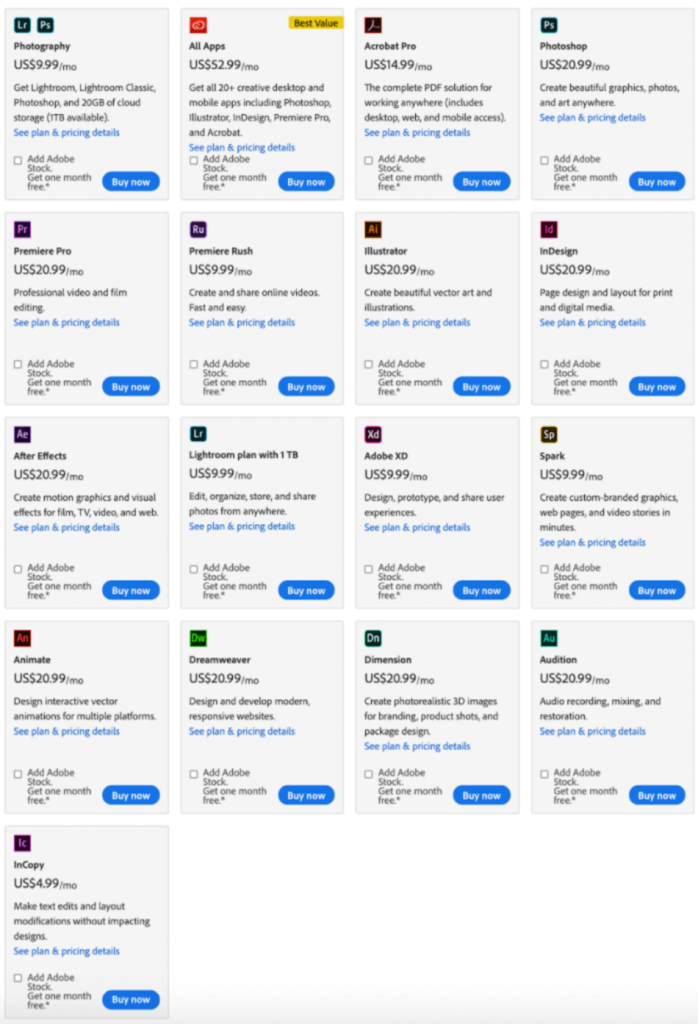
Winner: Tie. Both Adobe Animate and After Effects can be purchased with an Adobe Create Cloud subscription. With this, you also get access to many industry-standard media software such as Photoshop, Lightroom, Audition, and many more. Adobe Creative Cloud costs $52.99 per month.
8. Users
Winner: Tie. Adobe Animate and After Effects are equally matched when it comes to the users for both programs. This isn’t too surprising considering both programs have been around for decades and are widely used across various industries.
1. Ease of Use
It’s no secret that animation takes a lot of time to master. Due to this, both Adobe Animate and After Effects have a steep learning curve. But once you get over the hump, there are few limits to what you can do on these platforms.
Adobe Animate
If we were to choose a more user-friendly application, it would have to be Adobe Animate. The interface is set up for simple use; the timeline is tailored more for animation, so it makes sense when selecting frames and adding keyframes to create motion.
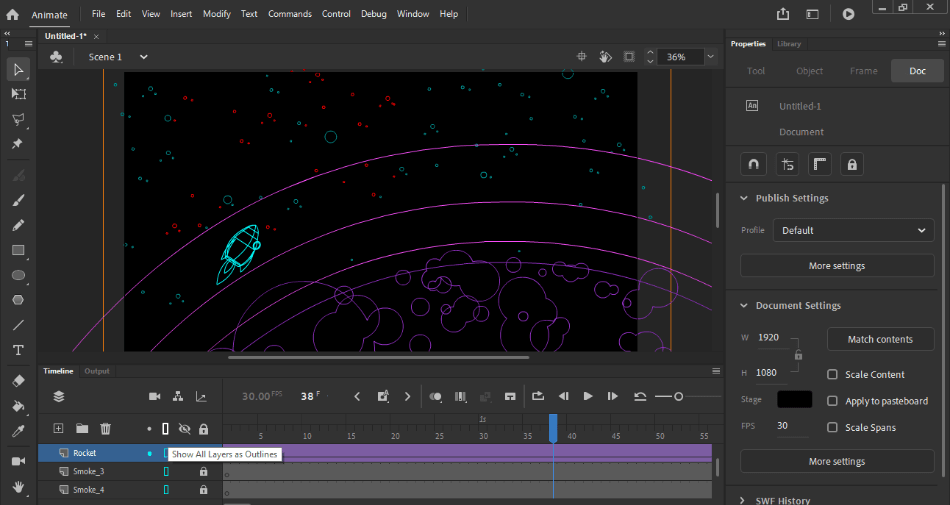
This, however, does not mean that you do not have to watch several tutorials and tinker with the platform quite a bit before even creating simple animations. The learning curve isn’t too steep that it doesn’t take long to start drawing frame-by-frame or tweened animation. For being so user friendly, it gets a perfect score.
Adobe Animate Ease of Use: 5/5
Adobe After Effects
After Effects has an even steeper learning curve. Because many of the tools are present in the interface, the program can look confusing and intimidating upon first glance. After Effects is also kind of set up like a hybrid of animation and video editing.
This means that the timeline and interface are designed to have features of both animation and video editing, which can be extremely confusing until you use them for an extended period of time to wrap your brain around the maneuvers. For such a steep learning curve, one point was taken off for the interface.
Read More
Adobe After Effects Ease of Use: 4/5
Winner: Adobe Animate. Because of these reasons, Adobe Animate is slightly more user-friendly and we recommend it be used by beginners for simple cartoon animation.
2. Character Animation
Adobe Animate
Character animation is what Adobe Animate was designed for. It’s mesh keyframing and lip-sync features make this program best suited for cartoon and character animation.
Adobe Animate offers tools that are specifically designed for cartoon animation, and much of that is manifested in the characters. These tools are vector-based so you can create original, scalable artwork inside of the program. On top of that, the tools are designed for you to have access to free-draw certain vectors inside the program, as well.
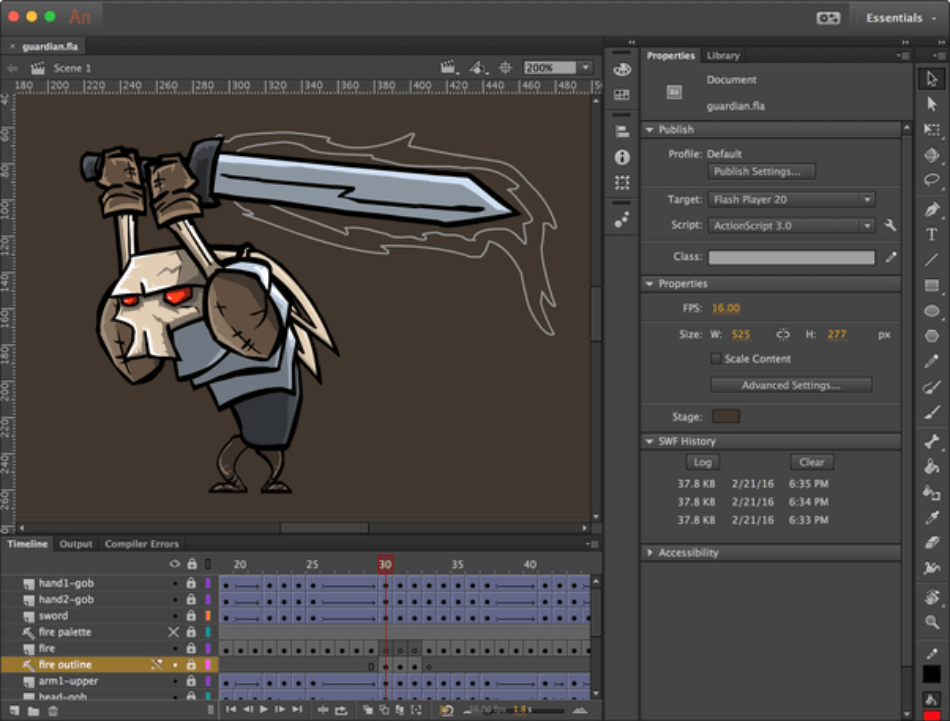
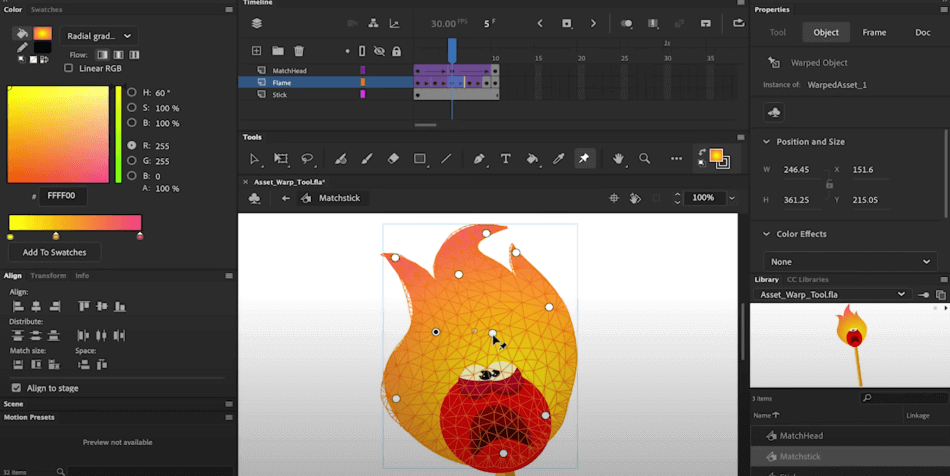
Another aspect of Adobe Animate that makes it great for character animation is its use of mesh points. When dragging and animating a character, Animate integrates points that animate together on the body of the character to make it move as if it’s one unit. This allows for realistic and lifelike movements, leading to a perfect score for the program.
Adobe Animate Character Animation: 5/5
Adobe After Effects
After Effect’s, though inferior to Adobe Animate’s cartoon animation, does have character animation capabilities as well. With After Effect’s puppet tool, you can add extensive keyframe animation to characters.
After Effects is entirely capable of character animation, however the interface and easy access of tools for this specific purpose is not as clearly laid out as it is in Adobe Animate. For being harder to master, After Effects gets a point taken off the score.
Adobe After Effects Character Animation: 4/5
Winner: Adobe Animate. Adobe Animate really shines when animating cartoon characters on this platform. The many tools and features take far less time to learn and master than it would for the same projects in After Effects. This is why Animate is the clear winner.
3. Compositing
Adobe After Effects
Like character animation for Adobe Animate, compositing is where After Effects shows its muscle. With an interface, tools and features specifically designed for extensive compositing work, After Effects is a VFX dream machine.
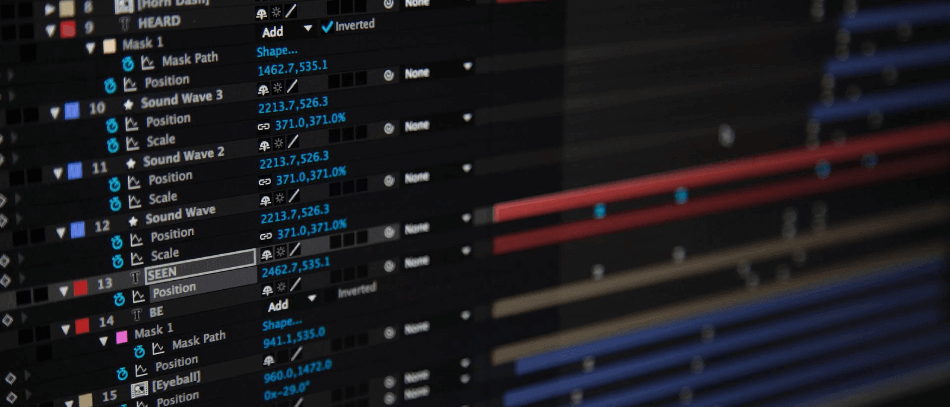
With the use of After Effects, it is possible to combine 2D animation art and live-action raw footage. With tools that match the noise and blur of the footage, After Effects allows consumers to create effects that are seamless and amazing.
Possibly most impressively, After Effects allows you to compose multiple 3D layers on top of each other. With this, you can place fire, objects, or two different live-footage video layers in the same frame. You can also control the lighting and shadows of the place-in objects to make them match the setting footage for a completely realistic look. All of this control over compositing has led to a perfect score.
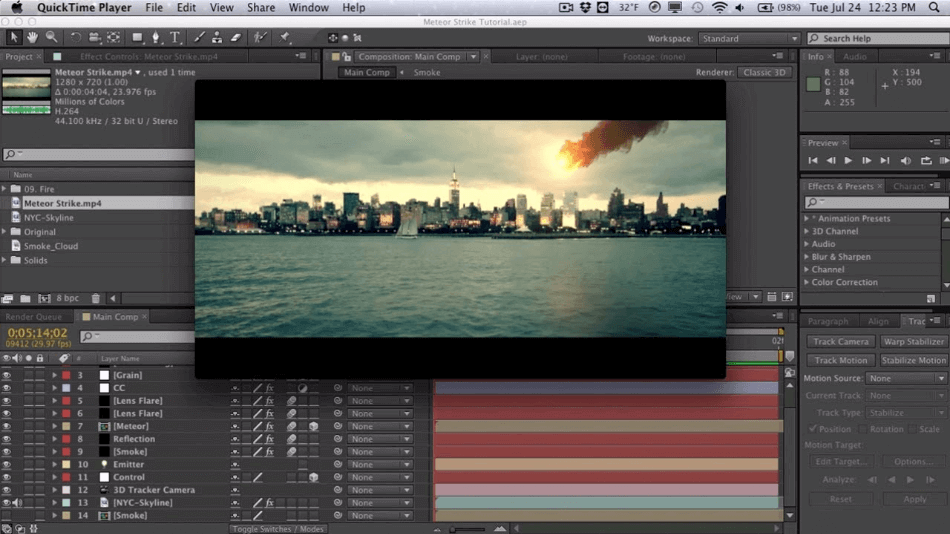
Adobe After Effects Compositing: 5/5
Adobe Animate
You won’t find much luck with any video compositing in Adobe Animate. This is mostly because Animate doesn’t really deal with video well. It has a few features you can utilize to duplicate some effects but not a whole lot.
Video can be imported into the program and you can animate on top of that footage. That being said, you can’t really alter the footage itself in anything beyond some vector drawings and effects. For these major limitations, three points were taken off the final score.
Adobe Animate Compositing: 2/5
Winner: Adobe After Effects. If you’re looking for a detour from an exclusively cartoon animation program and seek a more full-bodied composition VFX machine, After Effects is surely the program for you.
4. Features
Adobe Animate
Adobe Animate has a great array of features that aid in professional cartoon animation. One of these features is vector brushes. Vector brushes allow you to utilize a touch-sensitive device with a pen or stylus to create 2D patterns, shapes, curves, or lines.
Another Adobe Animate feature is Animate Camera. With Camera, you can match the animation style you’re looking for with the camera movement of the footage in place. This means that if there is an action scene, you can match the dramatic camera zooms and pans to the animation in place.
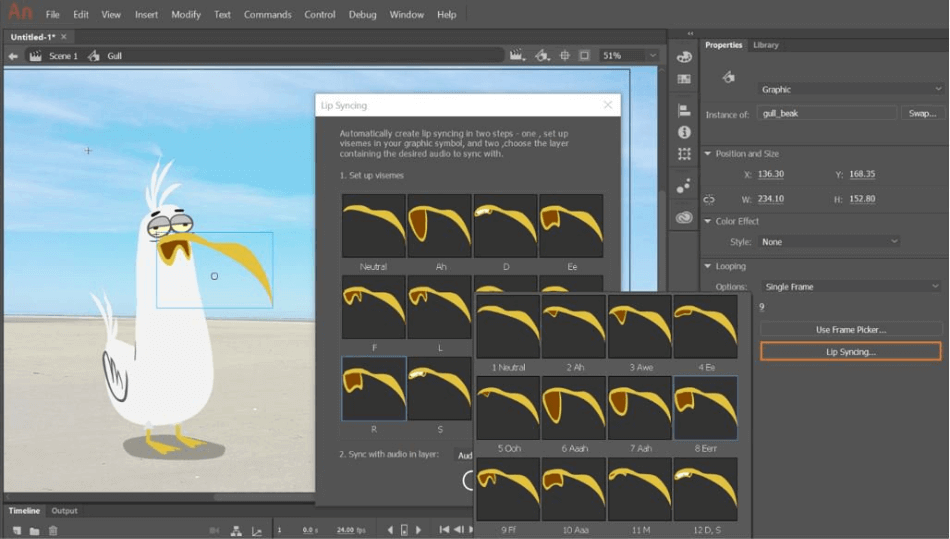
A real cartoon powerhouse feature in Adobe Animate is Lip-Sync. This will match the audio dialogue with the mouth movement on your cartoon character automatically. While it’s true that you do have to have your own mouth phenoms, there are many available online.
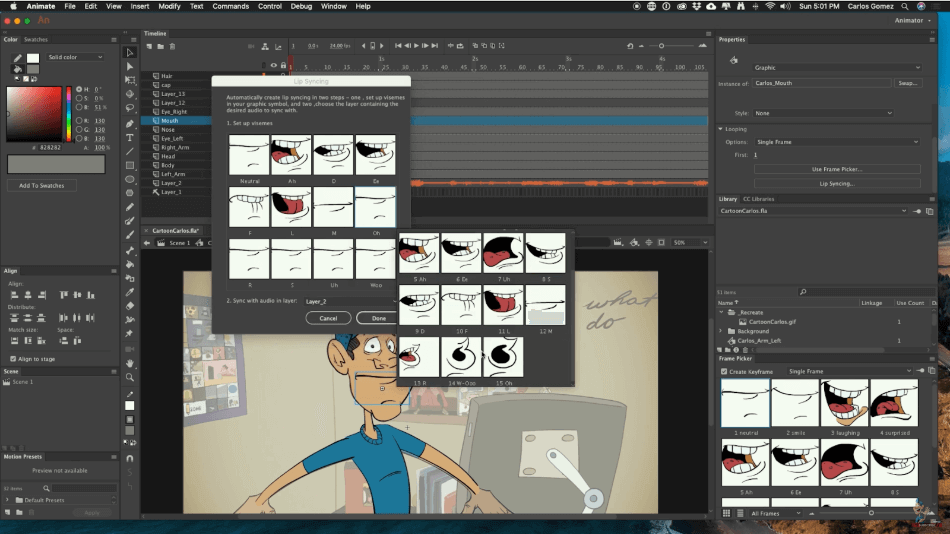
From there, you match the sounds with the mouth phenom and auto lip-sync these animations. The program works pretty well, although you may have to make some minor adjustments for perfection. For the few limitations, one point was taken off the app’s score.
Adobe Animate Features: 4/5
Adobe After Effects
Despite these enormously powerful features, After Effects offers more. On top of the previously mentioned Adobe Animate features, After Effects offers compositing and extensive text features.
Possibly After Effect’s most powerful feature is its compositing. While it can be commonly used for 2D workspaces, the compositing features really shine when used in 3D environments. With After Effect’s camera tracker, you can manipulate the space of raw footage by adding explosions, snowfall, ambiance, and just about anything, really. This gives consumers access to advanced VFX.

Another feature commonly used in After Effects is title design. This is used to animate graphics or text. Oftentimes it can be seen during logo animation at the beginning or end of videos. Because all of the compositing, scripts, and plugins can also be applied to text, titles and logos can be manipulated in 3D space, as well.
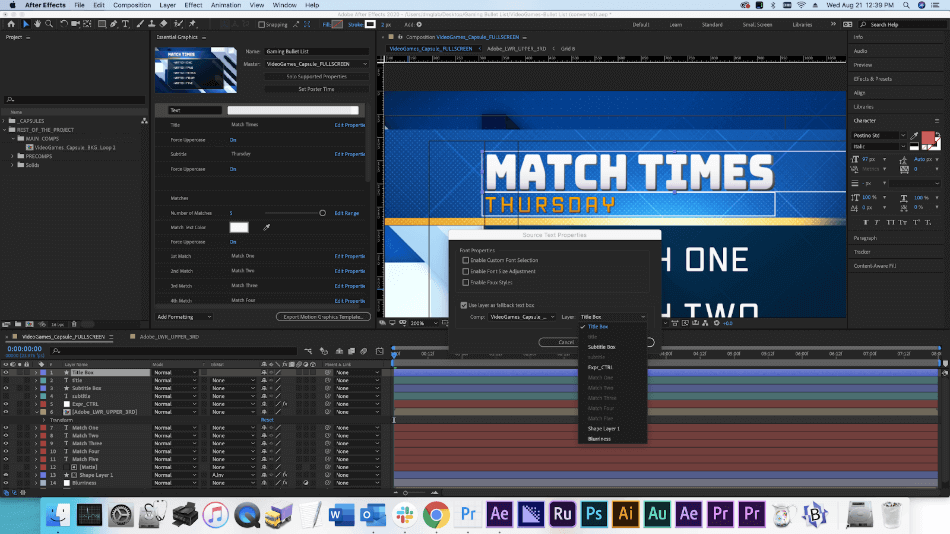
The abundance of so many useful tools makes After Effects a highly versatile application for any video projects. Be it special effects compositing or detailed motion graphics, the program can handle it all. It’s for this reason why it gets a perfect score.
Adobe After Effects Features: 5/5
Winner: Adobe After Effects. While both apps work well in their respective areas, the range of features in After Effects is incredibly vast. The many post-production and animation projects you can develop in the app makes it the clear winner over Animate.
5. Tools
Adobe Animate
Adobe Animate’s asset warp tool is one of its standout tools. This tool makes for realistic movements of 2D animation objects and characters. By using a mesh design on the object, you can add points that can transform and rotate. This also moves the mesh, which moves the object, creating realistic movements.
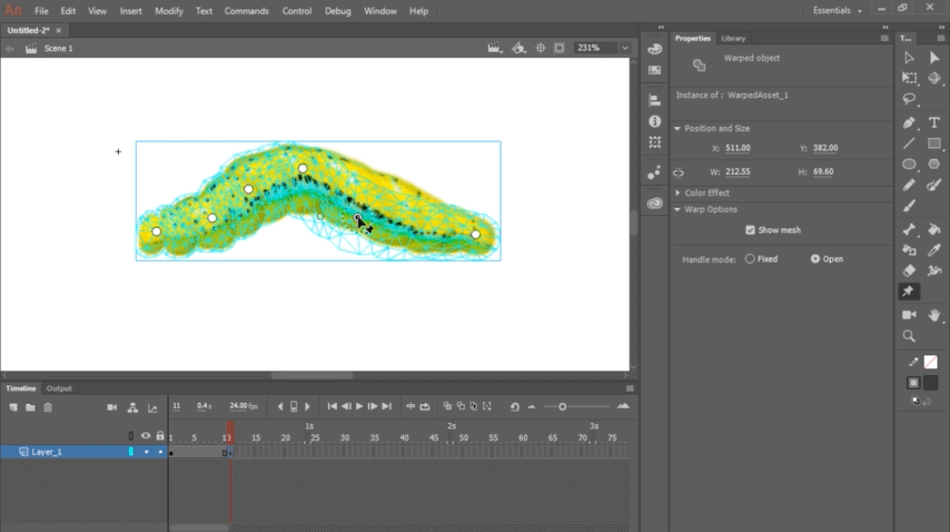
Adobe Animate also offers its lip-sync tool, which we’ve mentioned previously. Another powerful tool in Adobe Animate is the audio synchronizing tool. This will synchronize your audio with movements in your animations. For these many powerful tools, only a half-point was deducted for the lack of handling alternatives to 2D animation.
Adobe Animate Tools: 4.5/5
Adobe After Effects
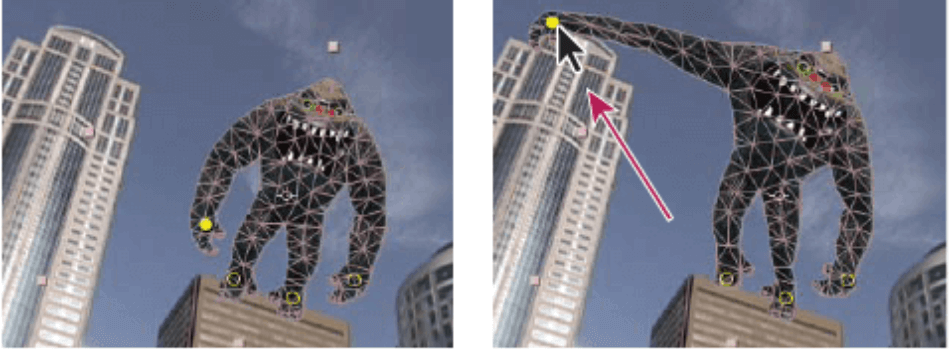
After Effects has so many effects, it is impossible to delve into everything in a comparison article. However, we can cover the main attractions. After Effect’s legacy puppet tool is similar to Adobe Animate’s asset warp tool. Here you can layout a mesh-like structure on a 2D object and animate to your liking, creating realistic movements.
With a keyframe in After Effects, you can apply and customize an ease into or out of it. Best of all, you can copy those ease settings and apply them to other ease ins or outs. Another fun tool is the gif gun, where you can render and export a gif with the click of a button. This can be a huge time saver if you’re creating a lot of gifs.
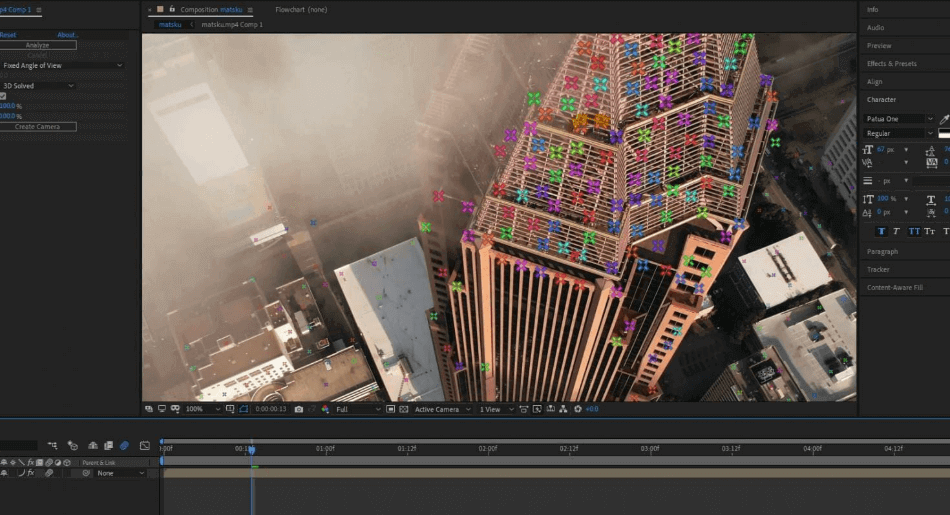
The camera tracker in After Effects is top of the line. With this, you can select a point in the frame and hit play. After Effects will automatically track the movement of the camera. Afterward, you can apply this motion to other layers to match the footage you’re working in. This can be hugely helpful when adding and compositing layers into live-action raw footage that is handheld. This same effect can be applied to 3D compositions.
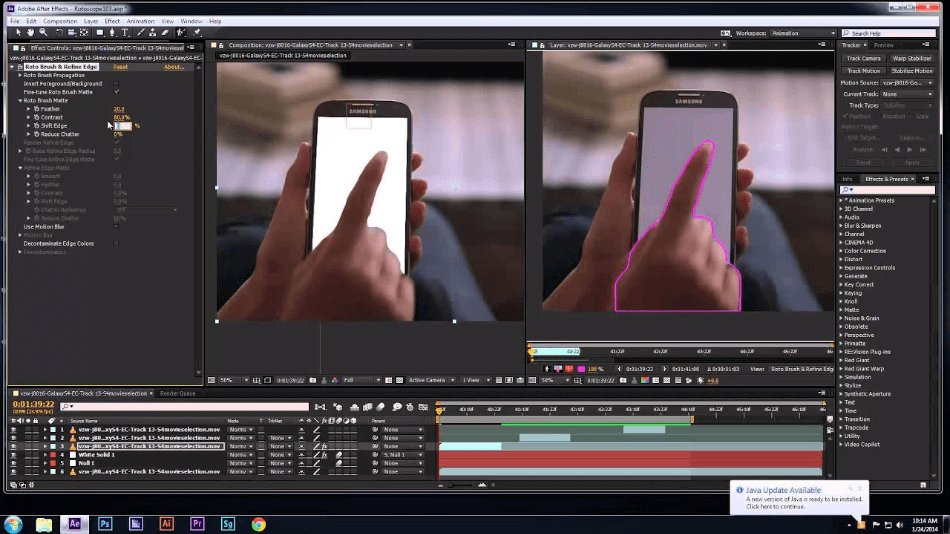
Lastly, you can’t talk about the tools in After Effects without mentioning its rotoscoping capabilities. Think of it as a green screen keying process without a green screen, but rather applied to objects, limbs, heads, windows, or anything really! This sophisticated tool will track the object you wish to rotoscope out automatically throughout the footage. Obviously, to achieve perfection, you might need to do some fine-tuning on individual frames. However, this tool is immensely powerful.
With an abundance of powerful and useful tools for a wide range of video projects, it’s easy to see why After Effects gets a perfect score for tools.
Adobe After Effects Tools: 5/5
Winner: Adobe After Effects. It’s no secret that Adobe Animate and After Effects both offer an extensive set of tools for compositing and animation. However, if we have to choose one, it would definitely be the tools offered in After Effects. It doesn’t only offer cartoon and character animating tools but tools for text, compositing, VFX and puppet animation.
6. Interface
Adobe Animate
Adobe Animate’s interface is customizable, as each panel can be shifted in location and size to perfectly fit the user’s intentions. However, the generic interface is preferable to most. Here, you’ll see the timeline at the top, where each individual frame can easily be selected and manipulated, unlike many video editing platforms. The Library panel on the right gives quick access to assets. The color, alignment, and scene panels on the left give easy access to animation tools.
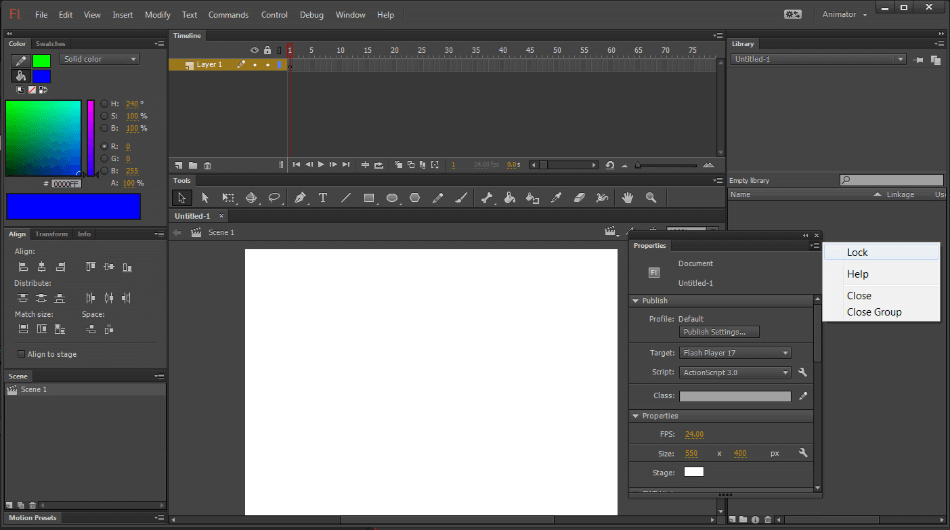
The interface does take a bit of time to get used considering how compartmentalized everything appears. For some navigation education required, one point was taken off the score.
Adobe Animate Interface: 4/5
Adobe After Effects
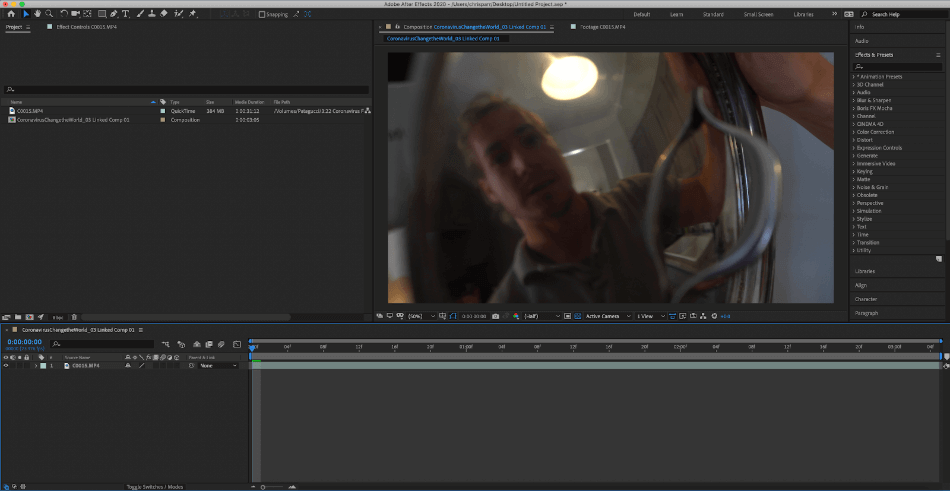
The After Effects interface is set up like a hybrid between an animation and video editing software. The timeline at the bottom of the interface is pretty standard for most platforms. But the quick access to effects in the upper right gives you searchable results for placement of effects onto clips.
The effect controls lie on the left of the interface, where this program shows its power. Here you can take a deep dive into each effect and create keyframes. You can also add masks into the program panel from here and layer compositions.
While it will take you perhaps the same amount of time to learn the program as Animate, After Effects has the benefit of keeping an organized layout for a smoother workflow. With this aspect considered, only a half-point was taken off the final score.
Adobe After Effects Interface: 4.5/5
Winner: After Effects. The interfaces in Adobe Animate and After Effects are different in many ways. For one, the Adobe Animate interface is much more understandable for a first-timer. After Effects takes much more getting used to.
However, after toying around for a few days, you’ll be sure to know the basics of advanced compositing. This is why After Effects is the winner considering the interface gets easier the more you get used to it.
7. Pricing
Adobe Animate
As with the other applications of Adobe’s Creative Cloud platform, you’ll have to pay a monthly fee to use the app. The monthly cost under an annual plan is $20.99. There isn’t much of an alternative here.
This is a price that can add up over time given the monthly expenses. The only benefit to this model is that your software will constantly be updated with the latest version. For that expensive long-haul price, two points were taken off the score.
Adobe Animate Pricing: 3/5
Adobe After Effects
After Effects isn’t much different from Animate in terms of pricing. In fact, the price is exactly the same. You’ll also pay $20.99/monthly to use the application without much alternative.
You can get both apps if you’re willing to pay for the complete Creative Cloud. That will cost you $52.99/monthly. For the program itself, the cost is the same as Animate and so the score will be the same.
Adobe After Effects Pricing: 3/5
Winner: Tie. Animate and After Effects are equally priced so this category is a tie by default. There are student plans that are significantly lower in price. There are also teacher, school and business plans as well.
8. Users
The greatest determining factor in choosing the right program for you is what type of user you are. And that can be determined by what type of work you do or are seeking to do.
Adobe Animate
Adobe Animate is primarily for users that create cartoons, TV episodes, advertisements, films, games and interactive content for publishing on Flash Player & Air, HTML5 Canvas, custom platforms like Snap SVG, or WebGL.
Adobe Animate has been used for Nickelodeon TV shows, for example. It’s features, tools and interface are decently easy to use and work efficiently and effectively to create super high-quality cartoon animations.
Working with Adobe Animate has been described by many as interesting and fun. While there is a learning curve, like many powerful animation platforms, Adobe Animate has been around for many years and continues to strive for the industry standard. Because of this, Adobe Animate is a great resource for a user seeking to create high-quality cartoon animations fit for the big screen and beyond. It is for these reasons why the app gets a perfect score for users.
Adobe Animate Users: 5/5
Adobe After Effects
Adobe After Effects has a different user base. After Effects is primarily used for creators compositing 2D footage or text in 3D spaces, extensive VFX artistry, character animation, text and title animation, green screen and rotoscope styling.
Because After Effects offers more features, the user base is more vast and extensive than that of Adobe Animate. Most After Effects users take their footage from another platform to hyper-focus on one clip or section that requires compositing or VFX. In fact, many video editors utilize Adobe’s Dynamic Link by taking the footage from Premiere Pro in After Effects for VFX work.
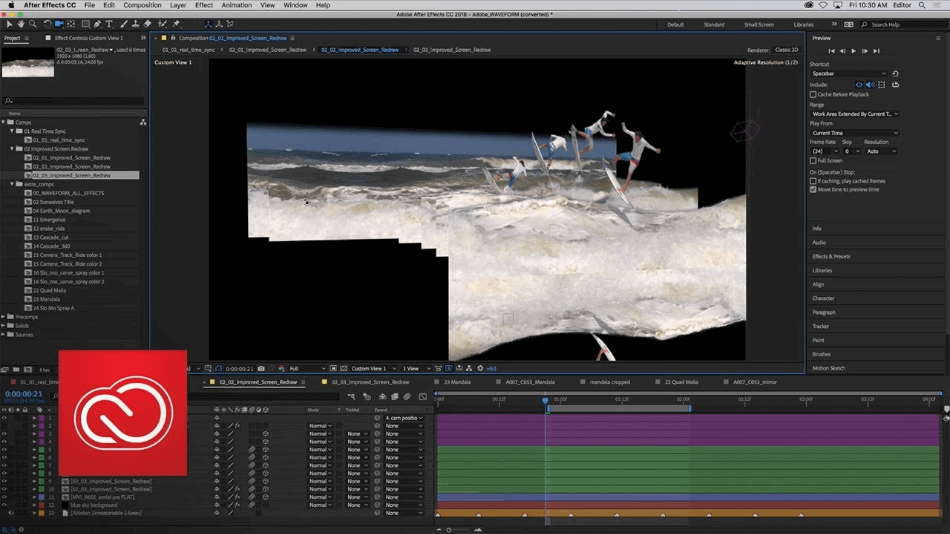
Like Adobe Animate, many users have used After Effects for many years, as it has been in the media industry for many years. This makes After Effects a safe choice to learn, as it will be sure to be around for many more years and continue to be the industry standard in compositing and video graphics. For being so robust with its legacy, After Effects gets a perfect score.
Adobe After Effects Users: 5/5
Winner: Tie. It’s a bit of a close call when it comes to winner for users. Both programs serve their userbase well with more than enough resources to learn with ease. There’s also equal amounts of support offered by both Adobe and third-party websites. For this category, the result is a tie.
| Adobe Animate | Adobe After Effects | |
| Video Compositing | No | Yes |
| Vector Animation | Yes | No |
| Ideal For | 2D Animation, Motion Graphics, Mobile Applications | Motion Graphics, 3D Graphics, Video Compositing |
| Pricing | $20.99/monthly | $20.99/monthly |
Final Thoughts
After Effects offers unparalleled compositing features and has become the industry standard in visual effects and motion graphics, while Adobe Animate is used for designing interactive animations. Adobe Animate is easier to use if you’re a beginner while After Effects has a steeper learning curve.
You May Also Like
Frequently Asked Questions (FAQs)
The better application ultimately comes down to the type of video projects you’re developing. If you’re trying to create 2D animation with a frame-by-frame drawing quality, Animate is the better app. If you’re trying to add special effects on top of video, After Effects is the better application.
Yes, Adobe Animate is used by professionals for both animation and interactive games. Some companies that use the program include Electronic Arts, Universal Pictures, and Netflix.
Yes, After Effects can be used to create motion graphics. You will, however, have to assemble parts of your animation in a program to organize the many moving assets. You may want to use this program in conjunction with Adobe Photoshop.
Adobe Animate can easily be used for frame-by-frame animation. In fact, it’s probably the easiest part of the program to learn. Simply create individual frames on the timeline and start drawing in each frame for the desired traditional-animation workflow.
Adobe After Effects does take some time to learn. Compositing video and creating motion graphics in the program has gotten easier over time. That being said, you’ll have to spend some time figuring out where all the tools are and how to use them.
Both applications cost the same price. Each one costs $20.99/monthly to use. You can also get both programs and all of Adobe’s Creative Cloud applications, such as Photoshop, for $52.99/monthly.