Создание и управление заданиями планировщика из PowerShell
 07.04.2021
 itpro
itpro
 PowerShell, Windows 10, Windows Server 2016
 комментариев 9
Большинство пользователей и администраторов привыкли использовать графический интерфейс консоли Taskschd.msc для создания заданий планировщика Windows (Task Scheduler), запускаемых по расписанию. Однако в различных скриптах и автоматизируемых задачах для создания заданий планировщика гораздо удобнее использовать возможности PowerShell. В этой статье мы покажем, как создавать и управлять заданиями планировщика Windows из PowerShell.
Управление заданиями Task Scheduler с помощью PowerShell
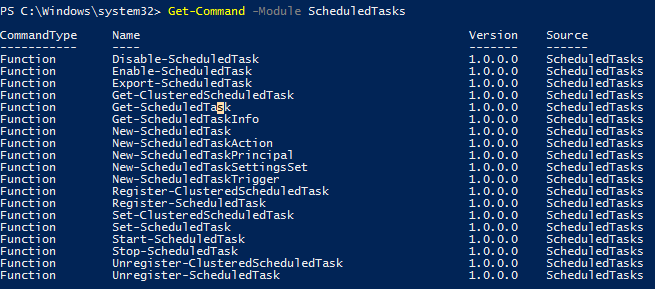
В Windows 10/Windows Server 2016 для управления задачами в планировщике используется PowerShell модуль ScheduledTasks. Список командлетов в модуле можно вывести так:
Get-Command -Module ScheduledTasks
- Disable-ScheduledTask
- Enable-ScheduledTask
- Export-ScheduledTask
- Get-ClusteredScheduledTask
- Get-ScheduledTask
- Get-ScheduledTaskInfo
- New-ScheduledTask
- New-ScheduledTaskAction
- New-ScheduledTaskPrincipal
- New-ScheduledTaskSettingsSet
- New-ScheduledTaskTrigger
- Register-ClusteredScheduledTask
- Register-ScheduledTask
- Set-ClusteredScheduledTask
- Set-ScheduledTask
- Start-ScheduledTask
- Stop-ScheduledTask
- Unregister-ClusteredScheduledTask
- Unregister-ScheduledTask
Как создать задание планировщика с помощью PowerShell?
В современных версиях PowerShell (начиная с PowerShell 3.0 в Windows Server 2012/Windows 8) для создания заданию планировщика нужно использовать командлеты New-ScheduledTaskTrigger и Register-ScheduledTask.
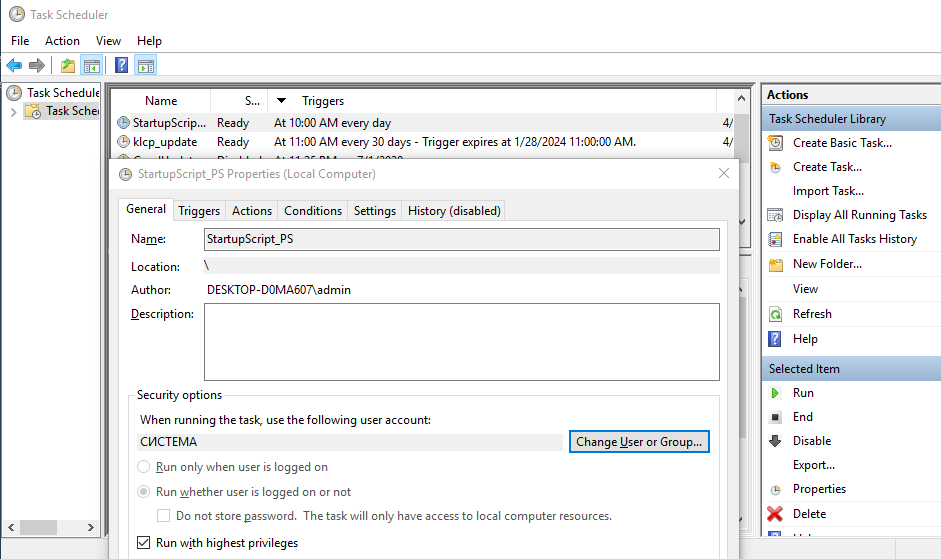
Предположим, наша задача создать задание планировщика, которое должно запускаться при загрузке компьютера (или в определенное время) и выполнять какой-то PowerShell скрипт. Создадим задание планировщика с именем StartupScript_PS. Данное задание должно каждый день в 10:00 запускать PowerShell скрипт, хранящийся в файле C:\PS\StartupScript.ps1 из-под учетной записи системы (SYSTEM). Задание будет выполняться с повышенными привилегиями (галка “Run with highest privileges”).
$Trigger= New-ScheduledTaskTrigger -At 10:00am -Daily
$User= «NT AUTHORITY\SYSTEM»
$Action= New-ScheduledTaskAction -Execute «PowerShell.exe» -Argument «C:\PS\StartupScript.ps1»
Register-ScheduledTask -TaskName «StartupScript_PS» -Trigger $Trigger -User $User -Action $Action -RunLevel Highest –Force
Если задание успешно создано, появится надпись Ready.
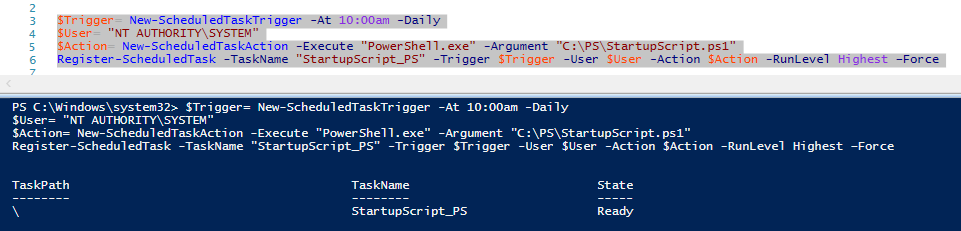
Теперь ваш PowerShell скрипт будет запускаться по указанному расписанию. Если на вашем компьютере настроена PowerShell Execution Policy, блокирующая запуск скриптов PS1, вы можете запустить скрипт их планировщика с параметром –Bypass.
Используйте такую строку при создании нового задания:
$Action= New-ScheduledTaskAction -Execute «PowerShell.exe» -Argument “-NoProfile -NoLogo -NonInteractive -ExecutionPolicy Bypass -File C:\PS\StartupScript.ps1″
Откройте консоль Taskschd.msc и проверьте, что проверьте, что в Task Scheduler Library появилось новое задание планировщика.
$TaskName = «NewPsTask»
$TaskDescription = «Запуск скрипта PowerShell из планировщика»
$TaskCommand = «c:\windows\system32\WindowsPowerShell\v1.0\powershell.exe»
$TaskScript = «C:\PS\StartupScript.ps1»
$TaskArg = «-WindowStyle Hidden -NonInteractive -Executionpolicy unrestricted -file $TaskScript»
$TaskStartTime = [datetime]::Now.AddMinutes(1)
$service = new-object -ComObject(«Schedule.Service»)
$service.Connect()
Получение информации и запуск заданий планировщика из PowerShell
Вы можете вывести список всех активных заданий планировщика в Windows с помощью команды:
Get-ScheduledTask -TaskPath | ? state -ne Disabled
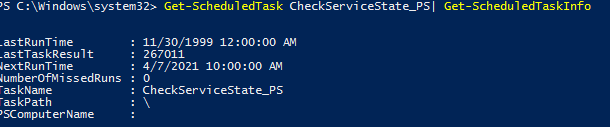
Чтобы получить информацию о конкретном задании:
Get-ScheduledTask CheckServiceState_PS| Get-ScheduledTaskInfo
Вы можете отключить это задание:
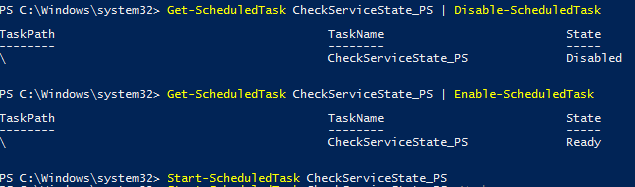
Get-ScheduledTask CheckServiceState_PS | Disable-ScheduledTask
Чтобы включить задание:
Get-ScheduledTask CheckServiceState_PS | Enable-ScheduledTask
Чтобы запустить задание немедленно (не дожидаясь расписания), выполните:
Чтобы полностью удалить задание из Task Scheduler:
Unregister-ScheduledTask -TaskName CheckServiceState_PS
Если нужно изменить имя пользователя, из-под которого запускается задание и, например, режим совместимости, используйте командлет Set-ScheduledTask:
$task_user = New-ScheduledTaskPrincipal -UserId ‘winitpro\kbuldogov’ -RunLevel Highest
$task_settings = New-ScheduledTaskSettingsSet -Compatibility ‘Win7’
Set-ScheduledTask -TaskName CheckServiceState_PS -Principal $task_user -Settings $task_settings

Экспорт и импорт заданий планировщика в XML файл
С помощью PowerShell можно экспортировать любое задания планировщика в текстовый XML файл для распространения на другие компьютеры. Вы можете экспортировать задание из графического интерфейса Task Scheduler или из консоли PowerShell.
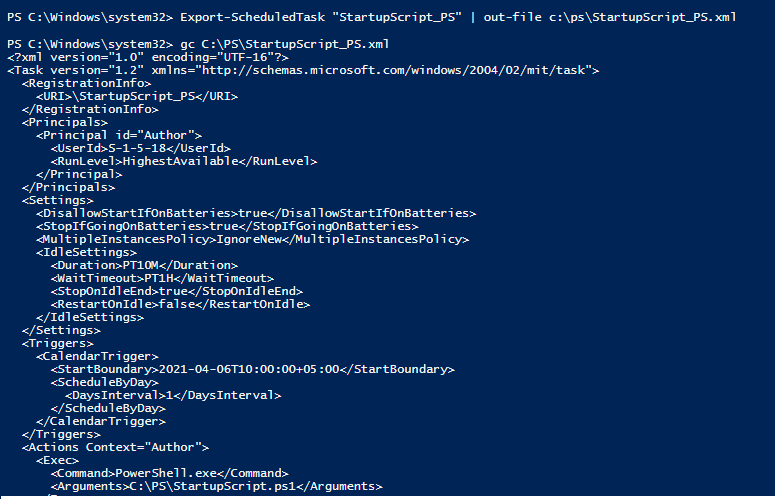
Следующая команда экспортирует задание StartupScript_PS в файл StartupScript_PS.xml:
Export-ScheduledTask «StartupScript_PS» | out-file c:\temp\StartupScript_PS.xml
schtasks /query /tn «NewPsTask» /xml >> «c:\ps\NewPsTask.xml»
После того, как настройки задания планировщика экспортированы в XML файл, его можно импортировать на любой другой компьютер с помощи графической консоли, SchTasks.exe или PowerShell.
Воспользуйте командлетом PowerShell Register-ScheduledTask чтобы параметры задания из файла и зарегистрировать его:
Register-ScheduledTask -Xml (Get-Content “\\Server1\public\NewPsTask.xml” | out-string) -TaskName «NewPsTask»
schtasks /create /tn «NewPsTask» /xml «\\Server1\public\NewPsTask.xml » /ru corp\aaivanov /rp Pa$$w0rd
schtasks /Run /TN «NewPsTask»
Обратите внимание, что в этом примере указаны данные учетной записи, из-под которой будет запускаться задание. Если имя и пароль учетной записи не указаны, то т.к. они не хранятся в задании, они будут запрошены при импорте.
 Предыдущая статья Следующая статья
Name already in use
PowerShell-Docs / reference / 5.1 / Microsoft.PowerShell.Core / About / about_PowerShell_exe.md
- Go to file T
- Go to line L
- Copy path
- Copy permalink
- Open with Desktop
- View raw
- Copy raw contents Copy raw contents
Copy raw contents
Copy raw contents
Explains how to use the powershell.exe command-line interface. Displays the command-line parameters and describes the syntax.
Loads the specified PowerShell console file. Enter the path and name of the console file. To create a console file, use the Export-Console cmdlet in PowerShell.
-Version <PowerShell Version>
Starts the specified version of PowerShell. Valid values are 2.0 and 3.0. The version that you specify must be installed on the system. If Windows PowerShell 3.0 is installed on the computer, «3.0» is the default version. Otherwise, «2.0» is the default version. For more information, see Installing PowerShell.
Hides the copyright banner at startup.
Does not exit after running startup commands.
Starts PowerShell using a single-threaded apartment. In Windows PowerShell 2.0, multi-threaded apartment (MTA) is the default. In Windows PowerShell 3.0, single-threaded apartment (STA) is the default.
Starts PowerShell using a multi-threaded apartment. This parameter is introduced in PowerShell 3.0. In PowerShell 2.0, multi-threaded apartment (MTA) is the default. In PowerShell 3.0, single-threaded apartment (STA) is the default.
Does not load the PowerShell profile.
This switch is used to create sessions that shouldn’t require user input. This is useful for scripts that run in scheduled tasks or CI/CD pipelines. Any attempts to use interactive features, like Read-Host or confirmation prompts, result in statement terminating errors rather than hanging.
Describes the format of data sent to PowerShell. Valid values are «Text» (text strings) or «XML» (serialized CLIXML format).
Determines how output from PowerShell is formatted. Valid values are «Text» (text strings) or «XML» (serialized CLIXML format).
-WindowStyle <Window style>
Sets the window style for the session. Valid values are Normal, Minimized, Maximized and Hidden.
Accepts a base-64-encoded string version of a command. Use this parameter to submit commands to PowerShell that require complex quotation marks or curly braces. The string must be formatted using UTF-16LE character encoding.
Specifies a configuration endpoint in which PowerShell is run. This can be any endpoint registered on the local machine including the default PowerShell remoting endpoints or a custom endpoint having specific user role capabilities.
If the value of File is «-«, the command text is read from standard input. Running powershell -File — without redirected standard input starts a regular session. This is the same as not specifying the File parameter at all.
If the value of File is a file path, the script runs in the local scope («dot-sourced»), so that the functions and variables that the script creates are available in the current session. Enter the script file path and any parameters. File must be the last parameter in the command. All values typed after the File parameter are interpreted as the script file path and parameters passed to that script.
Parameters passed to the script are passed as literal strings, after interpretation by the current shell. For example, if you are in cmd.exe and want to pass an environment variable value, you would use the cmd.exe syntax: powershell.exe -File .\test.ps1 -TestParam %windir%
In contrast, running powershell.exe -File .\test.ps1 -TestParam $env:windir in cmd.exe results in the script receiving the literal string $env:windir because it has no special meaning to the current cmd.exe shell. The $env:windir style of environment variable reference can be used inside a Command parameter, since there it will be interpreted as PowerShell code.
Similarly, if you want to execute the same command from a Batch script, you would use %
dp0 instead of .\ or $PSScriptRoot to represent the current execution directory: powershell.exe -File %
dp0test.ps1 -TestParam %windir% . If you instead used .\test.ps1 , PowerShell would throw an error because it cannot find the literal path .\test.ps1
When the value of File is a file path, File must be the last parameter in the command because any characters typed after the File parameter name are interpreted as the script file path followed by the script parameters.
You can include the script parameters and values in the value of the File parameter. For example: -File .\Get-Script.ps1 -Domain Central
Typically, the switch parameters of a script are either included or omitted. For example, the following command uses the All parameter of the Get-Script.ps1 script file: -File .\Get-Script.ps1 -All
In rare cases, you might need to provide a Boolean value for a parameter. It is not possible to pass an explicit boolean value for a switch parameter when running a script in this way. This limitation was removed in PowerShell 6 ( pwsh.exe ).
[!NOTE] The File parameter cannot support scripts using a parameter that expects an array of argument values. This, unfortunately, is a limitation of how a native command gets argument values. When you call a native executable (such as powershell or pwsh ), it does not know what to do with an array, so it’s passed as a string.
Sets the default execution policy for the current session and saves it in the $env:PSExecutionPolicyPreference environment variable. This parameter does not change the PowerShell execution policy that is set in the registry. For information about PowerShell execution policies, including a list of valid values, see about_Execution_Policies.
Executes the specified commands (and any parameters) as though they were typed at the PowerShell command prompt, and then exits, unless the NoExit parameter is specified.
The value of Command can be — , a script block, or a string. If the value of Command is — , the command text is read from standard input.
The Command parameter only accepts a script block for execution when it can recognize the value passed to Command as a ScriptBlock type. This is only possible when running powershell.exe from another PowerShell host. The ScriptBlock type may be contained in an existing variable, returned from an expression, or parsed by the PowerShell host as a literal script block enclosed in curly braces ( <> ), before being passed to powershell.exe .
In cmd.exe , there is no such thing as a script block (or ScriptBlock type), so the value passed to Command will always be a string. You can write a script block inside the string, but instead of being executed it will behave exactly as though you typed it at a typical PowerShell prompt, printing the contents of the script block back out to you.
A string passed to Command is still executed as PowerShell code, so the script block curly braces are often not required in the first place when running from cmd.exe . To execute an inline script block defined inside a string, the call operator & can be used:
If the value of Command is a string, Command must be the last parameter for pwsh, because all arguments following it are interpreted as part of the command to execute.
When called from within an existing PowerShell session, the results are returned to the parent shell as deserialized XML objects, not live objects. For other shells, the results are returned as strings.
If the value of Command is — , the command text is read from standard input. You must redirect standard input when using the Command parameter with standard input. For example:
This example produces the following output:
The process exit code is determined by status of the last (executed) command within the script block. The exit code is 0 when $? is $true or 1 when $? is $false . If the last command is an external program or a PowerShell script that explicitly sets an exit code other than 0 or 1 , that exit code is converted to 1 for process exit code. To preserve the specific exit code, add exit $LASTEXITCODE to your command string or script block.
Similarly, the value 1 is returned when a script-terminating (runspace-terminating) error, such as a throw or -ErrorAction Stop , occurs or when execution is interrupted with Ctrl + C .
Displays help for PowerShell.exe. If you are typing a PowerShell.exe command in a PowerShell session, prepend the command parameters with a hyphen (-), not a forward slash (/). You can use either a hyphen or forward slash in cmd.exe.
Troubleshooting note: In PowerShell 2.0, starting some programs from the PowerShell console fails with a LastExitCode of 0xc0000142.
Powershell test for noninteractive mode
I have a script that may be run manually or may be run by a scheduled task. I need to programmatically determine if I’m running in -noninteractive mode (which is set when run via scheduled task) or normal mode. I’ve googled around and the best I can find is to add a command line parameter, but I don’t have any feasible way of doing that with the scheduled tasks nor can I reasonably expect the users to add the parameter when they run it manually. Does noninteractive mode set some kind of variable or something I could check for in my script?
Edit: I actually inadvertently answered my own question but I’m leaving it here for posterity.
I stuck a read-host in the script to ask the user for something and when it ran in noninteractive mode, boom, terminating error. Stuck it in a try/catch block and do stuff based on what mode I’m in.
Not the prettiest code structure, but it works. If anyone else has a better way please add it!
Powerhsell 7.x Linux not honoring opt-out env variables
I have a Rocky Linux 8 installation with powershell 7.1.4. I use powershell for monitoring and run pwsh to get a set of results. I’ve added opt-out environment variables as following to the systemd.
[Service]
Environment=POWERSHELL_TELEMETRY_OPTOUT=1
Environment=DOTNET_TELEMETRY_OPTOUT=1
Environment=POWERSHELL_CLI_TELEMETRY_OPTOUT=1
Environment=DOTNET_CLI_TELEMETRY_OPTOUT=1
printenv gives me the optout parameters as expected when verifying.
printenv
LANG=en_US.UTF-8
INVOCATION_ID=69a4bad5f0c14cf4b291504873445d19
PWD=/
JOURNAL_STREAM=9:66980
CONFFILE=/etc/zabbix/zabbix_server.conf
POWERSHELL_CLI_TELEMETRY_OPTOUT=1
DOTNET_TELEMETRY_OPTOUT=1
DOTNET_CLI_TELEMETRY_OPTOUT=1
SHLVL=1
POWERSHELL_TELEMETRY_OPTOUT=1
PATH=/usr/local/sbin:/usr/local/bin:/usr/sbin:/usr/bin
_=/usr/bin/printenv
Related issues would be running ps1 script create temp file in everytime #11599 and PowerShell ignoring telemetry opt-out options, tries to call home regularly #10005
Expected behavior
Actual behavior
Error details
Environment data
Visuals
I think this is distribution related issue. Nothing like this do reproduce in my linux environment.
I think this is distribution related issue. Nothing like this do reproduce in my linux environment.
What OS and do you have selinux enabled?
WG-Security
This is an engine telemetry issue.
WG-Security
@rkeithhill @TravisEz13 and I looked at this and it appears to be a telemetry issue and not a security issue. Why are you adding the security working group?
Misunderstanding on my part. Sorry.
The reported issue is not related to telemetry.
Each run of powershell generates a folder in /tmp/ as following;
04ad7c7a-7fd1-4465-9b31-38b83f70fcc1/
.cache/powershell/StartupProfileData-NonInteractive
15661dc5-9fdc-42ed-bf20-12d902193070/
30544f3e-6e5b-47d2-be8d-e2518802caa3/
.
This is because the environment variable Home is not defined. PowerShell needs to create a few cache folders (e.g. .cache, .local) under $Home , and when the environment variable Home is not defined or has an empty value, PowerShell will create a temporary folder and consider that as the user home directory. This is why you see those folders with GUID names.
This should be fixed. We partially fixed the issue before (see #13239), where we make sure only 1 temporary folder is used within a pwsh session, but that didn’t solve the problem when many pwsh sessions start and end quickly. We should fix that too.
This is likely due to the policy of SELinux.
According to this article, the «< getattr >» means that someone tried to stat() the file. In this case, the file’s attributes were looked up first (or at least, the operation tried to look them up), couldn’t get those attributes and gave up. And the «path=/usr/sbin/lvm» is the path to the object you tried to perform an operation on — it could be a command resolution (searching executables in PATH) triggered by a command invocation.