Исправить динамическую ссылку Photoshop, недоступную в Windows 10

Динамическая ссылка Photoshop — это функция Adobe, которая избавляет пользователей от процесса рендеринга, предоставляя альтернативу промежуточному рендерингу между программами. Он создает связь между двумя приложениями, такими как Premiere Pro и After Effects, которые помогают установить живую связь между ними и обеспечивают необходимые эффекты. Но некоторые пользователи Adobe не могли завершить видеокадры в слои при использовании ссылки. Если вы столкнулись с той же проблемой, то вы попали в нужное место, потому что у нас есть идеальное руководство для вас, которое научит вас, как исправить недоступную динамическую ссылку Photoshop.
Как исправить динамическую ссылку Photoshop, недоступную в Windows 10
Динамическая ссылка обычно используется для экономии времени рендеринга и делает его практически незначительным. Кроме того, это помогает в создании нескольких медиафайлов. Это экономит время при отправке файла из Premiere Pro в After Effects и позволяет добавлять эффекты в файл по мере необходимости, экономя время для пользователей Adobe.
Что вызывает сбой динамической ссылки?
Если динамическая ссылка недоступна для вас, это может быть вызвано многими основными причинами, давайте кратко рассмотрим их ниже:
- Убедитесь, что программное обеспечение Premiere Pro и After Effects обновлено. Если одно из приложений устарело, это может стать причиной того, что ссылка у вас не работает.
- Если исходные файлы эффектов Premiere Pro или After перемещаются или переименовываются, это также может привести к ошибке динамической ссылки.
- Чтобы избежать сбоя динамической ссылки в вашей системе, убедитесь, что вы не нажимаете кнопку «Сохранить» в редактируемом файле слишком часто.
- Проблемы с сетью и хранилищем также могут быть связаны с проблемами с динамической связью.
- Поврежденные проекты After Effects — еще одна причина, из-за которой ссылка может не работать.
- Ошибки — это еще одна причина, по которой динамическая ссылка может быть недоступна для вас.
Теперь, когда вы хорошо знакомы с причинами, по которым динамическая ссылка недоступна для вас, пришло время узнать о методах, которые также могут помочь вам исправить ситуацию, поэтому давайте начнем с них:
Способ 1: выполнить обновление Windows
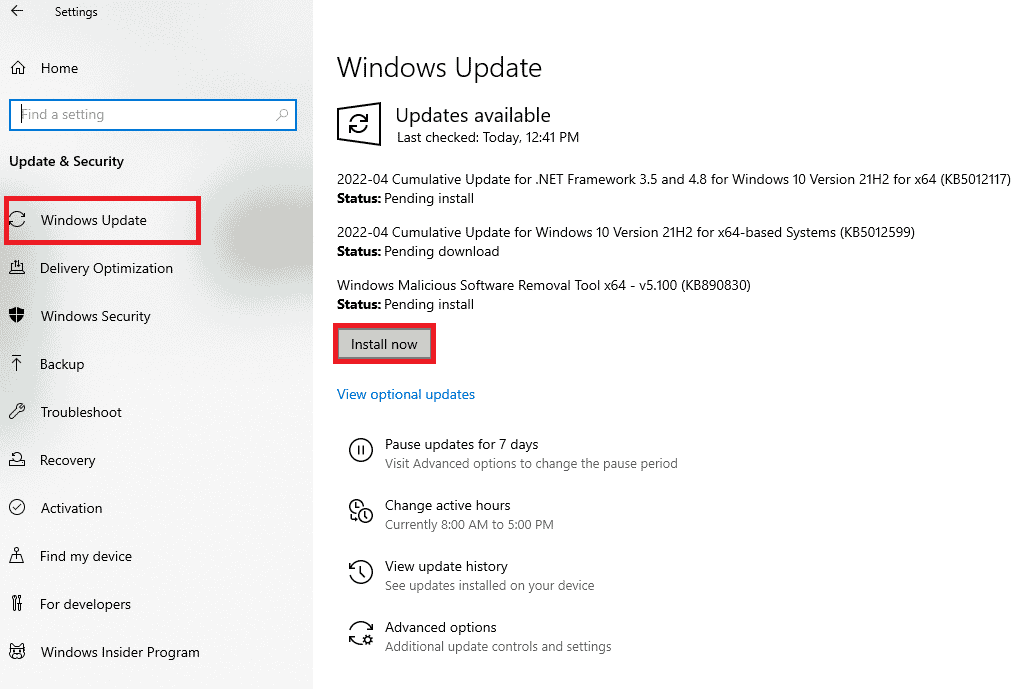
Если вы столкнулись с тем, что динамическая ссылка на Photoshop недоступна, попробуйте обновить Windows. Устаревшая Windows, помимо устаревших приложений, также может вызывать программные сбои, поэтому сначала проверьте ожидающие обновления вашей системы. Вы можете прочитать наше руководство о том, как загрузить и установить последнее обновление Windows 10, чтобы узнать больше.
Способ 2: временно отключить антивирус (если применимо)
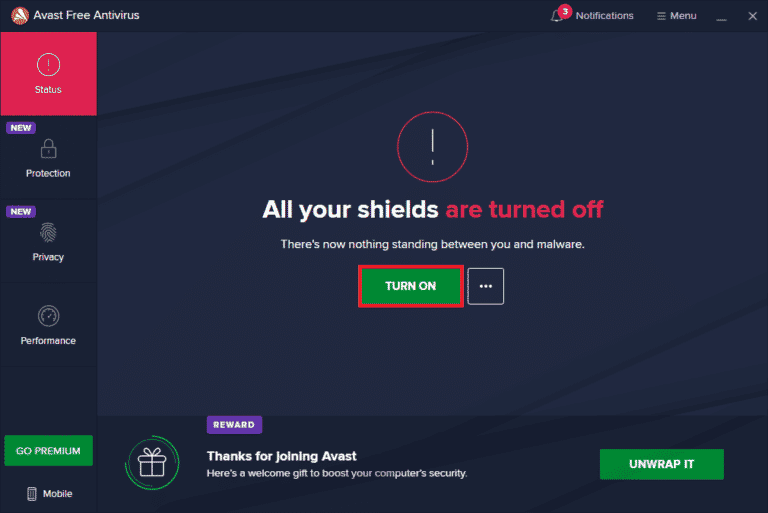
Вполне возможно столкнуться с проблемой недоступности динамической ссылки Photoshop, когда динамическая ссылка недоступна в вашей системе из-за того, что антивирус блокирует ее путь. Поэтому рекомендуется отключить антивирусное программное обеспечение в вашей системе, чтобы ссылка работала. Вы можете навсегда или временно отключить антивирус, для подробного ознакомления с руководством по временному отключению антивируса в Windows 10.
Способ 3: обновить драйверы устройств
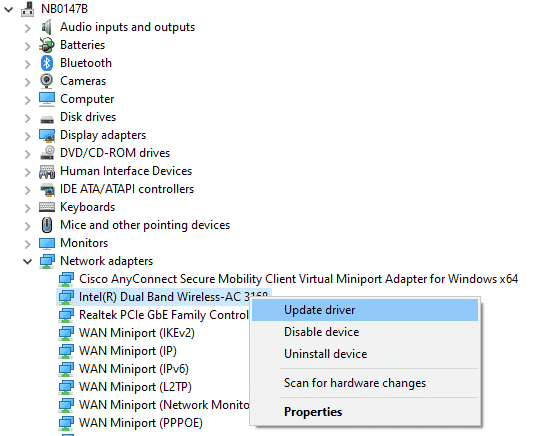
Другая причина, которая может мешать ссылке и вызывать ошибку динамической ссылки недоступна, — это устаревшие драйверы в вашей системе. Драйверы сети, графики и устройств необходимо обновить, чтобы повысить производительность вашей системы и обеспечить ее эффективную работу при редактировании файлов в Adobe с использованием динамической ссылки. Вы можете обновить все свои драйверы с помощью наших подробных руководств: «Как обновить драйверы сетевого адаптера в Windows 10», «4 способа обновить графические драйверы в Windows 10» и «Как обновить драйверы устройств в Windows 10».
Способ 4: отключить брандмауэр Защитника Windows (не рекомендуется)
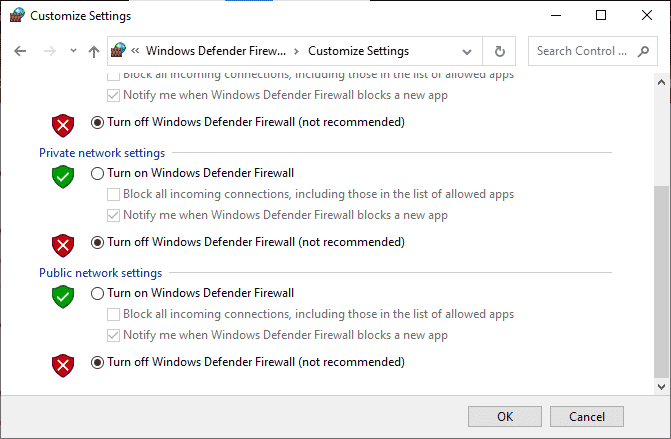
Еще одна причина, по которой динамическая ссылка в вашей системе блокируется и в результате чего пользователь не может завершить преобразование видеокадров в слои, — это брандмауэр Windows на вашем ПК. Брандмауэр Windows отлично защищает ваш компьютер от вирусов или неизвестных вредоносных программ, но иногда он создает конфликты с программами, установленными на вашем рабочем столе, такими как Adobe Photoshop. Таким образом, отключение его навсегда, чтобы программа работала без каких-либо проблем, является решением. Вы можете прочитать наше руководство о том, как отключить брандмауэр Windows 10, чтобы исправить ошибку динамической ссылки Photoshop, недоступную.
Способ 5: восстановить системные файлы
Сканирование SFC хорошо знакомо пользователям Windows, которым приходится проверять целостность файла, тем самым устраняя любые проблемы, которые могут присутствовать в файле. Такое сканирование очень полезно для исключения проблем с динамической ссылкой. Прочтите наше руководство по восстановлению системных файлов в Windows 10 и следуйте инструкциям по запуску сканирования.
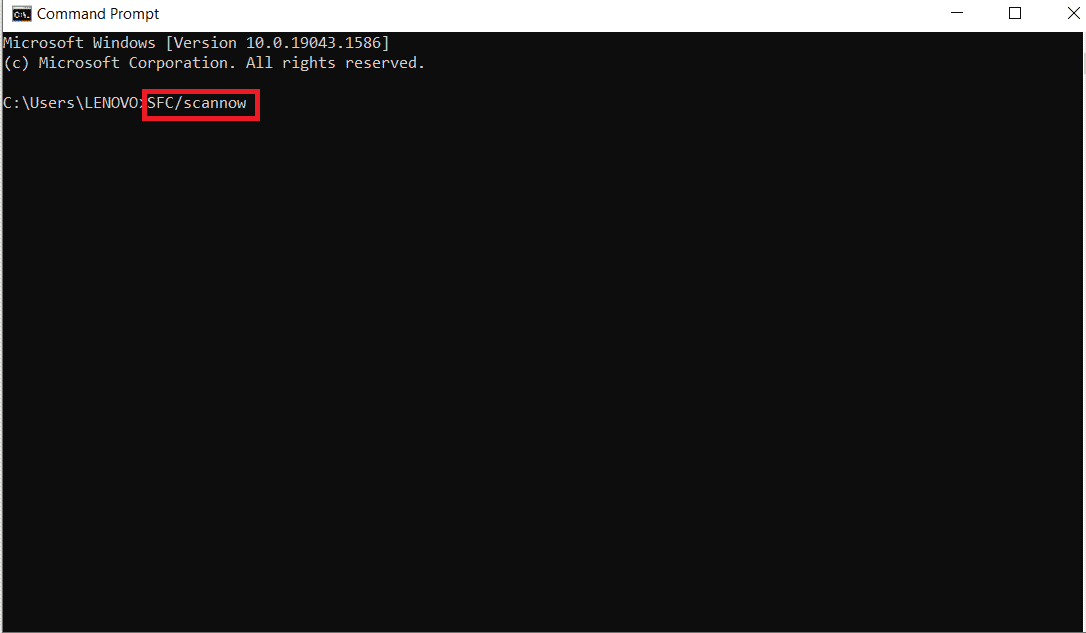
После завершения сканирования перезагрузите компьютер, чтобы проверить, решена ли проблема с динамической ссылкой.
Способ 6: переустановите программное обеспечение Adobe
Также возможно, что проблема с недоступной динамической ссылкой Photoshop связана с программными проблемами Adobe. Следовательно, рекомендуется удалить, а затем переустановить программное обеспечение Adobe, которое вы используете, чтобы запустить его без каких-либо сбоев.
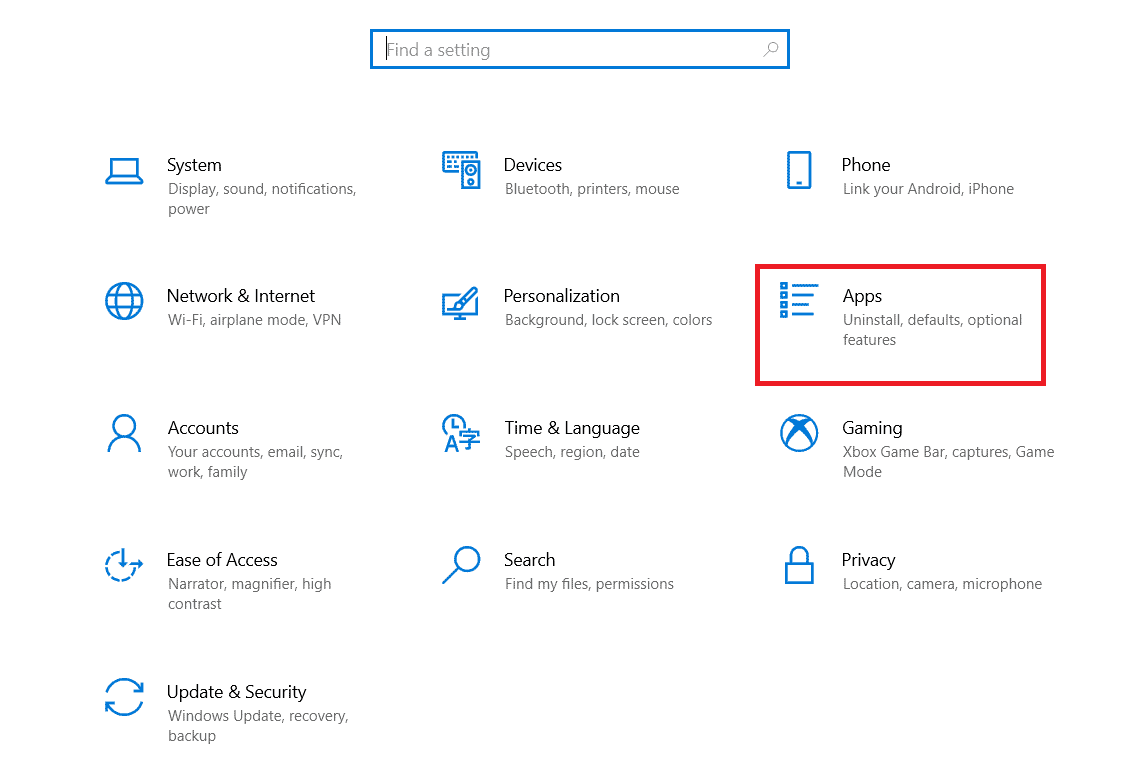
1. Нажмите одновременно клавиши Windows + I, чтобы открыть «Настройки».
2. Затем нажмите Приложения.
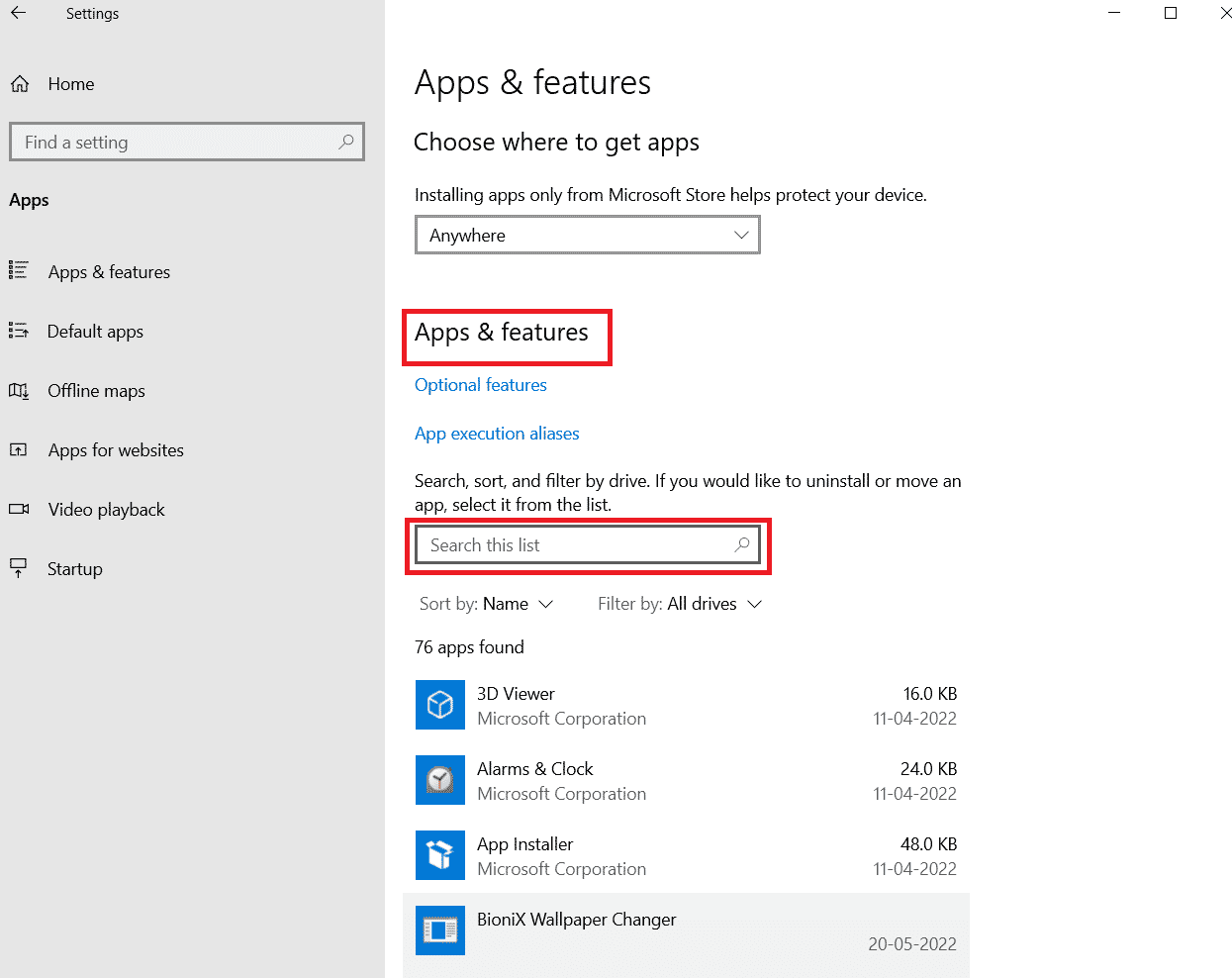
3. Найдите программное обеспечение Adobe в списке приложений и функций.
4. Наконец, нажмите «Удалить».
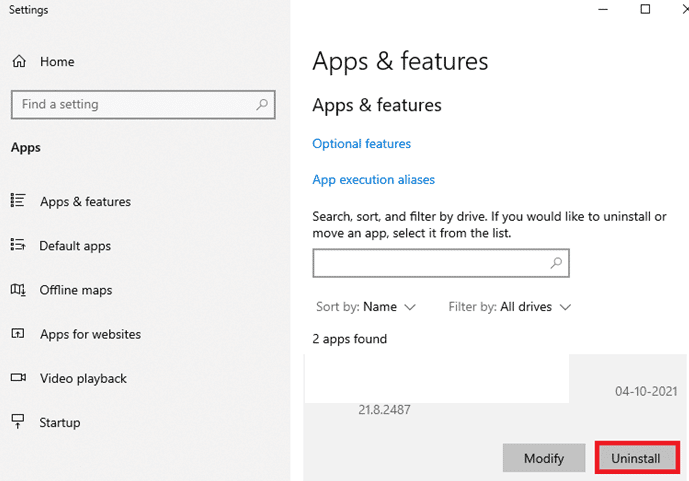
5. После удаления программы перезагрузите компьютер.
6. Теперь загрузите программу Adobe с официального сайта.
7. После загрузки файла запустите установочный файл и следуйте инструкциям на экране, чтобы установить приложение.
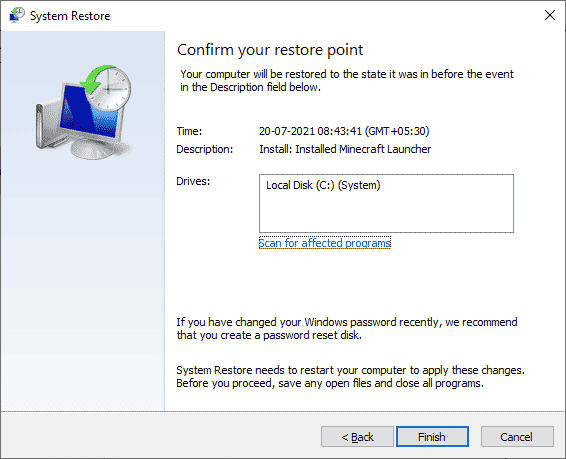
Способ 7: выполнить восстановление системы
Восстановление вашего ПК — это последнее средство для устранения ошибки динамической ссылки Photoshop, которая недоступна, не удалось завершить видеокадры в слоях. Всегда важно убедиться, что перед выполнением восстановления системы все ваши данные заархивированы и не стираются при восстановлении. Чтобы убедиться в этом, важно использовать восстановление системы, которое использует защиту системы для создания и сохранения точек восстановления для вашего ПК. Это помогает пользователям восстановить свою систему до исходного состояния без потери ценных данных. Вы можете сделать это с помощью нашего руководства Как использовать восстановление системы в Windows 10.
Часто задаваемые вопросы (FAQ)
Q1. Почему динамическая ссылка недоступна?
Ответ Динамическая ссылка, недоступная в вашей системе, может быть вызвана такими причинами, как проблемы с безопасностью или разрешениями. Поэтому рекомендуется отключить инструменты безопасности, если таковые имеются, на вашем устройстве, чтобы ссылка работала без проблем.
Q2. Как я могу установить динамическую ссылку?
Ответ Вы можете установить динамическую ссылку на Adobe Premiere Pro в композиции After Effects, выбрав файл, который хотите отредактировать. Включив динамическую ссылку, вы можете избавиться от рендеринга.
Q3. Почему динамическая ссылка в Adobe неактивна?
Ответ Если в Adobe динамическая ссылка отображается серым цветом, это может быть связано с устаревшей версией Premiere Pro или After Effects. Поэтому рекомендуется обновить обе программы, чтобы избежать проблем с динамической связью.
Q4. Могу ли я создать динамическую ссылку в HTML?
Ответ Да, вы можете создать динамическую ссылку в HTML с помощью атрибута href тега привязки. Атрибут должен содержать полный URL-адрес страницы, на которую вы хотите сослаться.
Q5. Как я могу исправить динамическую ссылку, которая не работает?
Ответ Вы можете исправить неработающую динамическую ссылку, убедившись, что ссылка указывает на правильную страницу. Кроме того, убедитесь, что URL-адрес правильно отформатирован.
Dynamiclink действительно отличная функция для пользователей Adobe, поскольку она помогает сэкономить время рендеринга, позволяя добавлять полные эффекты в файл, который пользователь хочет отредактировать. Но проблемы со ссылкой сделали использование программы Photoshop довольно тревожным. Мы надеемся, что наше руководство помогло вам всеми возможными способами, и вы смогли исправить недоступную динамическую ссылку Photoshop. Сообщите нам, какой метод помог вам больше всего, и если у вас возникнут дополнительные вопросы по теме или предложения, свяжитесь с нами в разделе комментариев ниже.
Troubleshooting Dynamic Link Problems in Premiere Pro and After Effects
After reading some posts, especially on the Premiere Pro user forum and in Facebook groups about Premiere Pro, I realized that Dynamic Link is being underutilized because of the problems some people have. Users were experiencing After Effects compositions (comps) going offline, having to re-link comps every time they opened a project, slow performance, color differences, etc.
At first it was unclear what was going on, but watching some screen recordings of these issues revealed that at least some of the problems were self-induced and avoidable. Use the right workflow and Dynamic Link will most likely work flawlessly.
So what is Dynamic Link?
Essentially, Dynamic Link turns After Effects into a frame server for Premiere Pro. When you move the Premiere Pro playhead over a dynamically linked comp clip, Premiere Pro asks for a frame from the After Effects comp, and After Effects says: “here you go” and delivers the frame. Pretty simple, actually.
Sometimes this happens in real time, but if it’s a complex comp it may need to be rendered before you get smooth playback.
The main goal with Dynamic Link is to minimize rendering time. Rendering time is lost time. Using Dynamic Link also means you’re creating fewer media files on disk.
What Dynamic Link can do
A very common way to use Dynamic Link is sending a clip from Premiere Pro to After Effects to alter the footage or add visual effects. Or dragging an After Effects comp with motion graphics into Premiere Pro so that any changes you make in After Effects are automatically and instantly updated in the Premiere Pro timeline.
These are both massive timesavers!
After Effects is running—even when it’s not
It’s worth noting that Dynamic Link works even when After Effects is closed. When you play back a Dynamic Link comp in Premiere Pro (or using a MOGRT made in After Effects) After Effects’ frame rendering is needed. So even if After Effects is closed, part of it is still running as a background process.
If you’re not using third-party plug-ins, or the Cinema 4D renderer, the frames are rendered by AELib—an After Effects engine included in Premiere Pro. If After Effects is required, Headless AE will launch, provided you have After Effects installed. A few effects or formats have not been ported to AELib, and may also cause Headless AE to start.
Headless AE is an instance of After Effects, just without a UI, so it’s got Multi-Frame Rendering. AELib still has not gotten Multi-Frame Rendering as of this writing, but let’s hope it’s coming soon.
A brief history of Dynamic Link
Adobe Dynamic link was first introduced in Adobe Creative Suite Production Studio in January 2006, connecting After Effects CS2 to Premiere Pro CS2 and the now obsolete Adobe Encore DVD. Even Flash had Dynamic Link support at one time. These days, Dynamic Link can be used between Premiere Pro and Audition, and to Adobe Media Encoder.
Note: We will not cover Dynamic Link to Adobe Audition or Adobe Media Encoder in this article.
Dynamic Link changed a lot of workflows for a lot of users, and was one of the reasons that many editors started to get more interested in using Premiere Pro.
After Effects was already widely used, especially in the broadcast industry, so the ability to send a clip from the NLE timeline to After Effects with just a right-click or a keyboard shortcut was intriguing. That’s no surprise when we compare the steps needed, and the potential for error in the existing method.
| After Effects to other NLEs | Premiere Pro with Dynamic Link |
| 1 | Export the clip you want to edit in After Effects. |
Even if you don’t count the export stage, Dynamic Link reduced the workflow steps by half—every time you needed to use it. For example, if you get the clip back into the NLE and find it’s a bit too orange or there’s a spelling mistake—you’d need to go through steps 4-8 again for every fix you need to make. With Dynamic Link, you’ll just repeat steps 2 and 3 on the right side as many times as needed—often with no rendering necessary.
The biggest limitation of the early version was that the playback engine in Premiere Pro wasn’t very powerful. But the 64-bit Mercury Playback Engine introduced in Creative Suite 5 brought support for more RAM and GPU-accelerated rendering. That’s when Dynamic Link really took off.
OK, that’s enough about history. Now let’s get to work.
How to create a Dynamic Link
There are several ways to establish a Dynamic Link between the two apps. You can send one or more clips from Premiere Pro to After Effects, or you can import an existing After Effects comp to Premiere Pro. Let’s have a look at the options.
If you think you already know everything about creating a Dynamic Link, skip directly to Tips for a smoother Dynamic Link Experience.
Edit a clip from Premiere Pro in After Effects
With an After Effects project open, this will be your workflow: select one or more clips in a sequence and then choose File->Adobe Dynamic Link-> Replace with After Effects Comp. This option is also available when you right-click on the clip. The clips show up in After Effects, and you will also have access to all the clip handles.
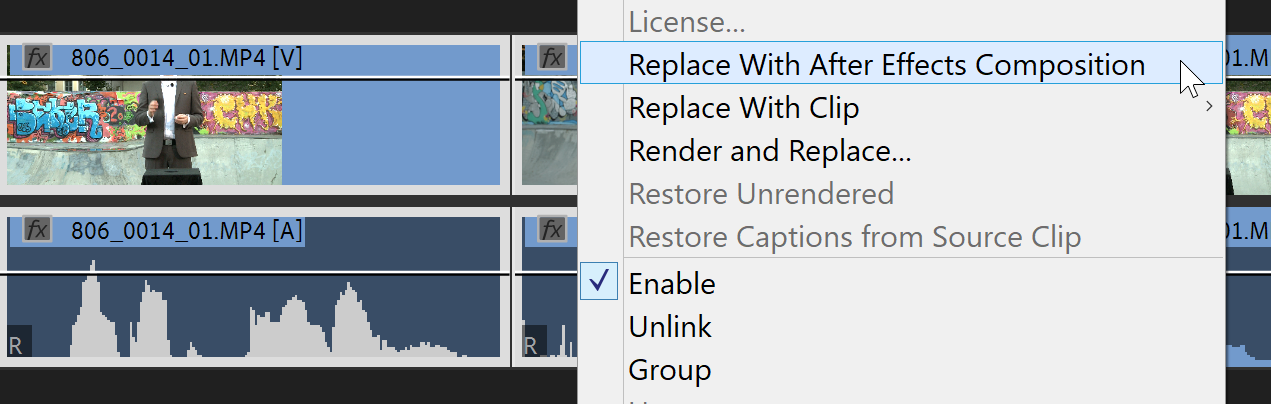
Right-click the clip(s) and choose Replace with After Effects Composition…
You can send multiple clips and even nested sequences. The latter will become a nested sub-comp in After Effects.
Although the Audio part of a clip is carried over to After Effects and back to the bin in Premiere Pro, the Audio part is not replaced in the timeline, so any changes you make to Audio in After Effects will not be heard in Premiere Pro.
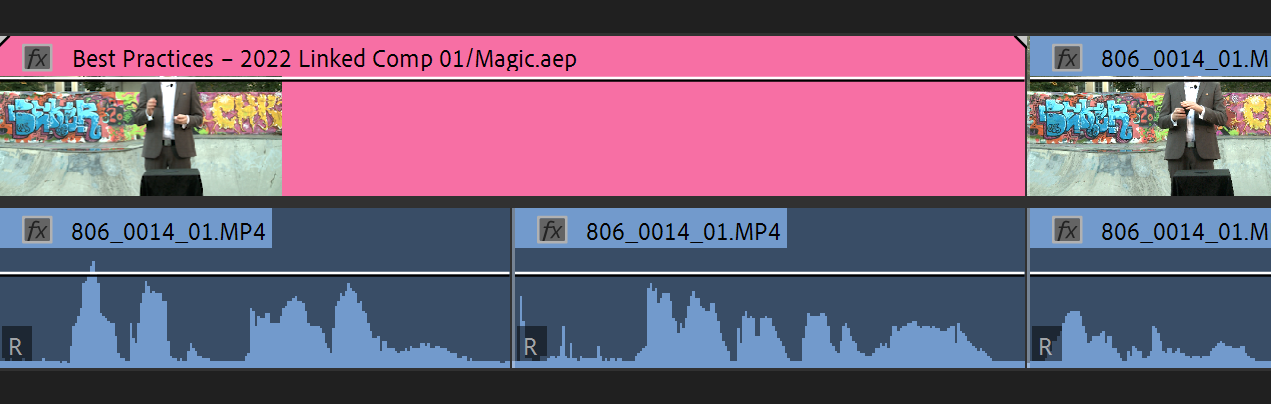
…and the two clips are replaced by one Dynamic Link clip
So if you need the Audio from After Effects, you can drag the Dynamic Link comp from the bin to the timeline with the audio.
Note: You can rename the Dynamic Link clips in the Premiere Pro timeline—even in the bin—and still use the Edit Original command (Cmd/Ctrl+E) with the clip selected to immediately open the correct comp in the After Effects project. At least on a single system, it should also be safe to rename the Dynamic Link comp in After Effects.
Create a new After Effects comp from Premiere Pro
Click File->Adobe Dynamic Link->New After Effects Comp and this will create a new After Effects project—or a new comp in an existing project if it’s already open in After Effects.
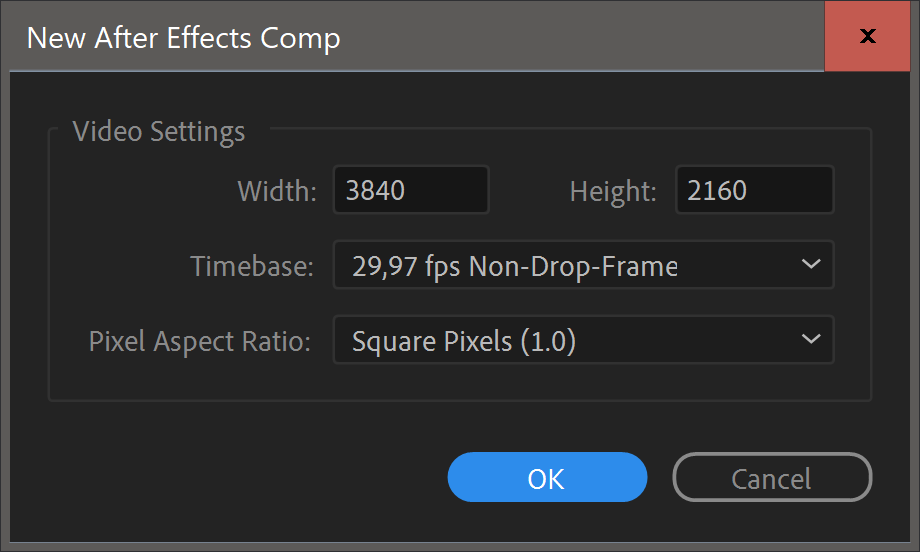
The created comp will be empty, so you might think that it’s easier to just open After Effects and create a new comp. But the benefit of doing it from within Premiere Pro is that the new comp will take its frame size and frame rate from the active sequence in Premiere Pro. It’s probably what you want, and removes the possibility of user error from the process.
Import an After Effects Comp
There are many ways to import an existing After Effect comp into Premiere Pro.
- Dragging the After Effects comp into the Project panel in Premiere Pro is the most direct way. If the software windows are overlapping, hit Cmd+Tab (macOS) or Alt+Tab (Win) while still dragging, until you get to Premiere Pro, before dropping it in the Project panel or an open bin. This is probably the most common way to import an After Effects comp.
- Clicking File->Adobe Dynamic Link->Import After Effects Comp, then selecting the .aep file and choosing what comp to import.
- Using the Media Browser panel in Premiere Pro to select an .aep file. Media Browser will show the comps inside it so you can choose which one to import.
- Or dragging an .aep file into the Project panel in Premiere Pro, and choosing which comp to import.
When you import a comp, any necessary subcomps will also be imported.
Note: Copying a comp from After Effects and pasting it into Premiere Pro does not work as expected, even though this may seem like a valid workflow. You’ll just get a sequence with the same settings as the comp, and all the source files inside it. Any text, shapes or other elements you’ve added in After Effects will not carry over.
If this sounds like a feature you’d like to see, you can add a feature request from Premiere Pro’s Help menu: Help->Provide Feedback.
Reverse Dynamic Link
Alternatively, you can go the other way, importing a Premiere Pro sequence into After Effects. This is not as common but can be useful in special cases. To do this, just drag a Premiere Pro project file (.prproj) into the Project panel in After Effects, and choose the sequence you want to import.
The sequence opens as one single clip in After Effects, and you can create a comp from that clip. Any changes you make to the Premiere Pro sequence will automatically update in After Effects.
Note: It probably doesn’t need saying, but you can’t “double up” a Dynamic Link. So if you’ve imported a Premiere Pro sequence to After Effects, you can’t import the comp back to Premiere Pro.
Now let’s get to what you came here for.
Tips for a smoother Dynamic Link experience
Remember that under the hood, Dynamic Link is just a headless copy of After Effects acting as a frame server into Premiere Pro. Always have this in mind, as it will help you understand why problems occur in some workflows.
Let’s have a look at some common causes for Dynamic Link failure.
Make sure the software versions match
After Effects and Premiere Pro must be the same version for Dynamic Link to work. This is the number one reason why it fails for some people. They have updated either one, but not the other. Update both at the same time—and include Media Browser—and it should work.
It’s basic, I know, and since Adobe now uses the same version numbering system on all apps, it should be easier to avoid version problems going forward.
Avoid missing After Effects project file, source files, or renders
Leave things where they are. If the .aep file (After Effects project file) has been moved, renamed, or even deleted, Premiere Pro loses the link to the After Effects project. If source files used in the After Effects project have been moved, renamed or deleted, the Dynamic Link shows Offline video.
While human error is typically the cause of these errors, it can be system related. For example, if you’re working off external drives, the file path to the project file on the drive might change if it’s reattached—or when the system boots.
Note: Renaming a comp in After Effects will also cause a Media Offline warning in Premiere Pro. Also, make sure your comps have unique names, to avoid linking to the wrong comp.
Losing render files also happens. It’s most common in shared environments where the scratch disks aren’t set up on shared storage. So when one editor renders a clip, it’s only available to them on that system, and will be missing on all the others. To avoid this, always save rendered files to a shared folder, preferably one named something descriptive.
Don’t hit Save so often!
You heard me. Some cautious users hit Save every minute. Other have a habit of saving numbered iterations of project files for easier recovery.
To avoid losing the Dynamic Link, don’t use File->Save As–>Save As to save iterations and versions updates. This creates a new project and leaves your Dynamic Link pointing to an older file. It’s a recipe for disaster.
Instead, use the File->Save As–>Save a Copy option. This keeps the main project open and saves a copy without opening it, avoiding the need to relink the .aep file every time you open the project.
“This creates a new project and leaves your Dynamic Link pointing to an older file. It’s a recipe for disaster.”
If you’re a frequent saver, Adobe also provides File->Increment and Save which adds a growing number to the file name. Just make sure your file name doesn’t already end with a number, as that number will increase by one. So Autumn Campaign 2022 will suddenly be named Autumn Campaign 2023, which can be misleading.
Autumn 2022 Campaign is a safer name, and will just be renamed to Autumn 2022 Campaign 2. If Ctrl/Cmd+S is part of your After Effects shortcuts muscle memory, just remap that to Increment and Save, and use Alt/Option+S (or some other combination) for the standard Save command.
There’s an option in After Effects preferences called “Dynamic Link with After Effects Uses Project File Name with Highest Number”. Enable this, and use Increment and Save, and you should never lose the link to the After Effects project.

Some people are surprised that the Dynamic Link comps need to be re-rendered every time they save the After Effects project. This is not so strange if you think about what Dynamic Link is.
If you hit Enter (Render Effects In to Out) in Premiere Pro to render the Dynamic Link comp clips, and then save the After Effects project, that means the source has changed—and this triggers a re-render. The same goes for Render Selection and Render In to Out. Premiere Pro is looking at a changed source and will need a re-render.
Use Render and Replace instead, and you won’t have to re-render anything.
Minimize re-renders with Render and Replace
As explained above, most users just hit Enter in Premiere Pro to render the Dynamic Link clips, and this causes re-rendering every time the After Effects project is saved. Use Render and Replace instead. That’s what it’s for. No more red render bars!
Tip: Render and Replace can also be used to render After Effects MOGRTs in Premiere Pro.
To replace the dynamically linked comp with a rendered file click Clip-> Render and Replace while the clip is selected. You can do this with multiple clips in one go, and render them during breaks.
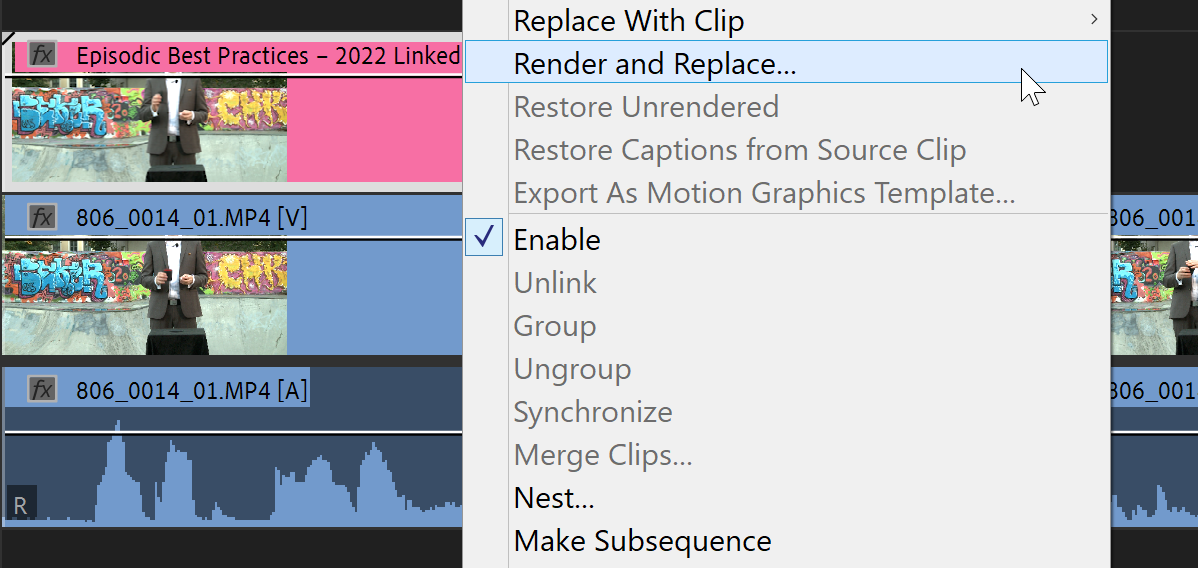
Choosing Premiere Pro’s Render and Replace option.
Choose a high-quality format for your renders— like QuickTime ProRes 422 or 422 HQ for full-frame Dynamic Links, or ProRes 4444 when you need transparency. Whenever you need an active link again because you’re making changes in After Effects, choose Clip->Restore Unrendered to re-establish the live link.
Render and Replace is much more flexible than just rendering the sequence. You can move the clips around in the timeline whenever you want without re-rendering them, and you won’t lose render files when saving the After Effects project. Since the Dynamic Link is not live, the system also uses less resources, like RAM, CPU and GPU. This is all good stuff!
Just remember to hit Restore Unrendered for a clip when you actually need the active link again, like after you have made changes to a comp in After Effects.
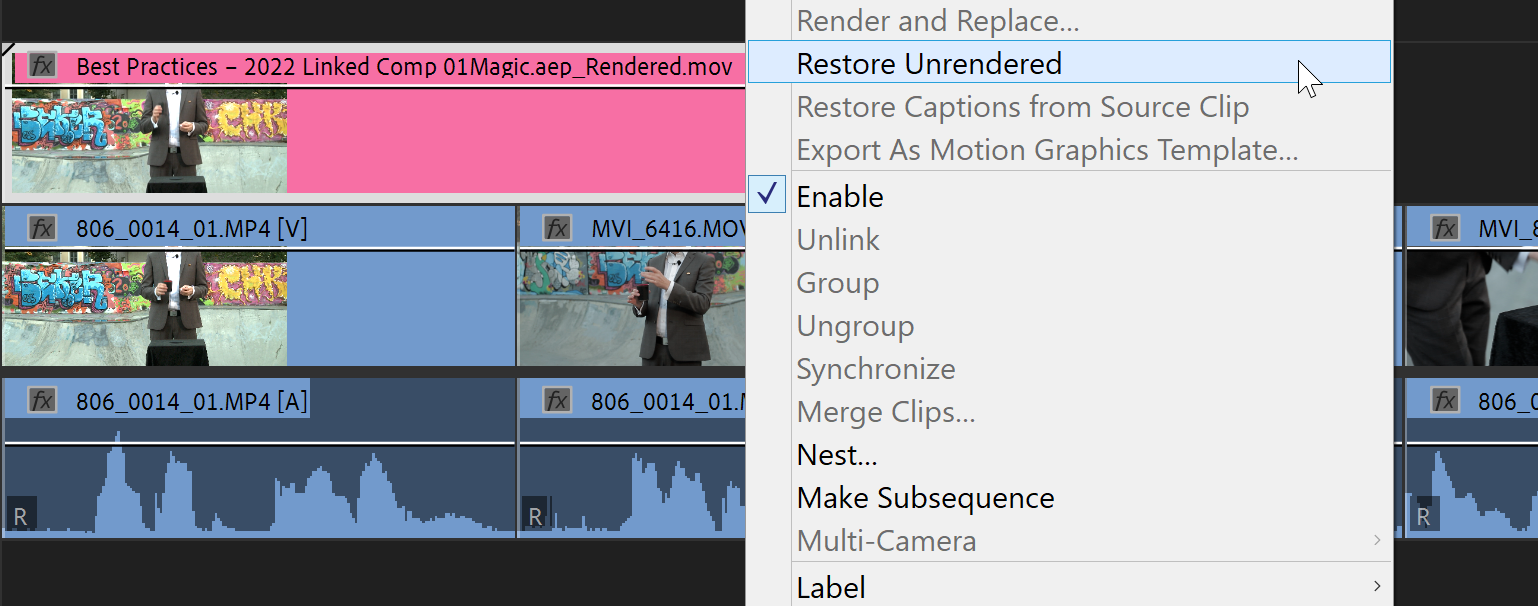
Selecting the Restore Unrendered option.
I recommend that you keep your project tidy by having Dynamic Link comps and Dynamic Link renders in separate bins. I also keep the Dynamic Link comps in a separate folder in the After Effects project panel.
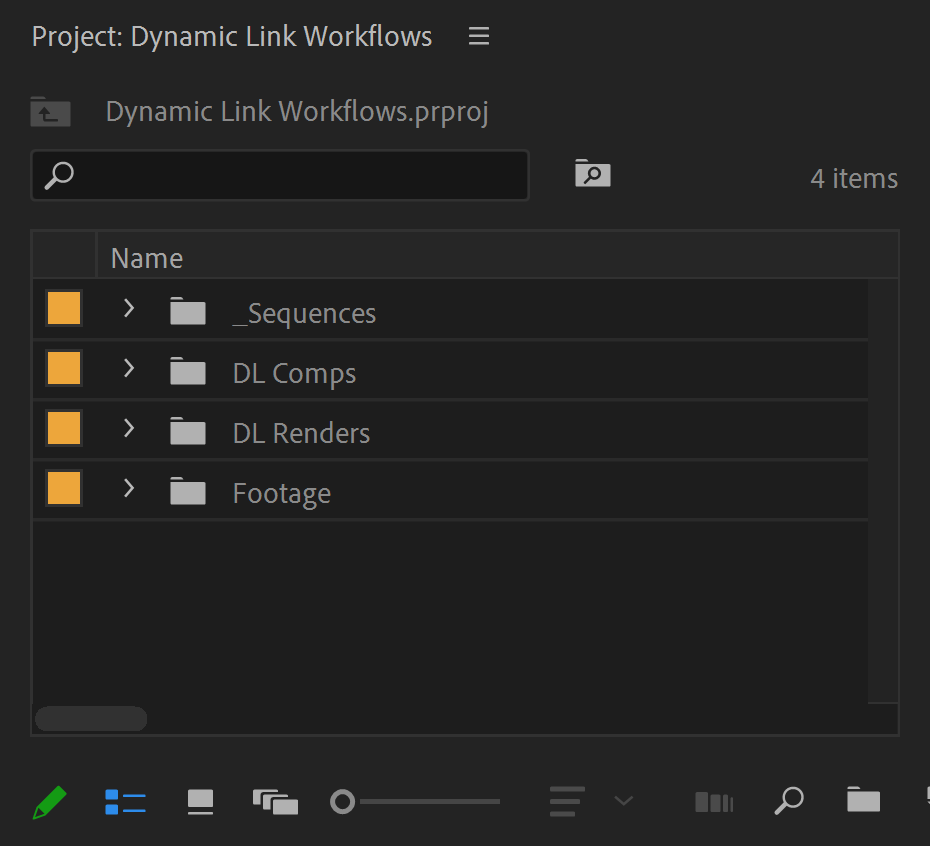
Keeping Dynamic Link comps in a separate bin.
Note: If you delete the render files after you’ve used Render and Replace, Premiere Pro will show Media Offline. Use Restore Unrendered to re-establish the link to the comp.
Use custom keyboard shortcuts
I highly recommend creating a keyboard shortcut for File->Adobe Dynamic Link->Replace with After Effects Comp. Personally, I use the number 0 key. Yes, it’s the default for Multi-Camera Record On/Off Toggle, but as far as I know, that function no longer does anything meaningful in Premiere Pro.
Also, Clip->Restore Unrendered is a good candidate for a custom keyboard shortcut. I use the number 9 key because I very seldom have that many cameras in my multicams. If you’re doing more multicam editing than me, then feel free to use your F-keys or whatever keys you find ripe for a change.
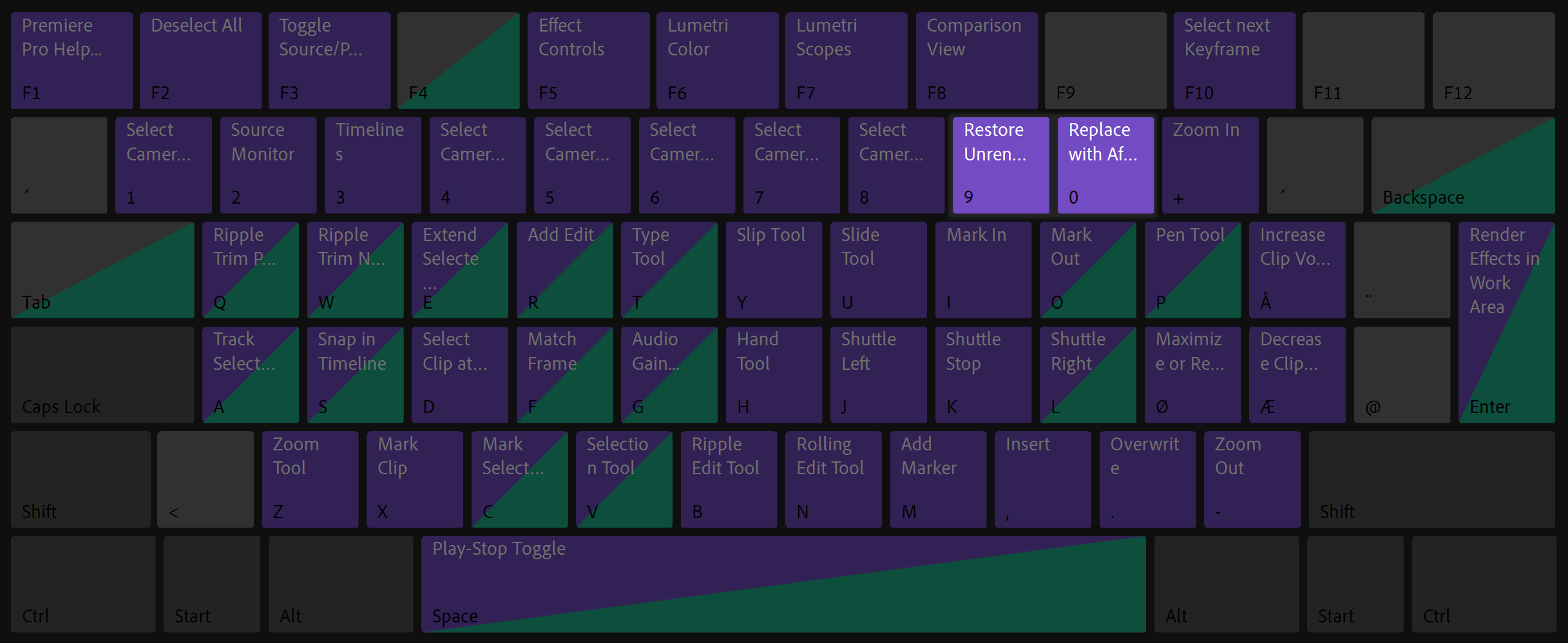
Creating your own keyboard shortcuts.
Duplicate clips before replacing them
When you select clips and replace them with an After Effects comp, there’s no easy way to get back to the original video clips. To get easy access to the originals, make copies of them before sending them to After Effects,
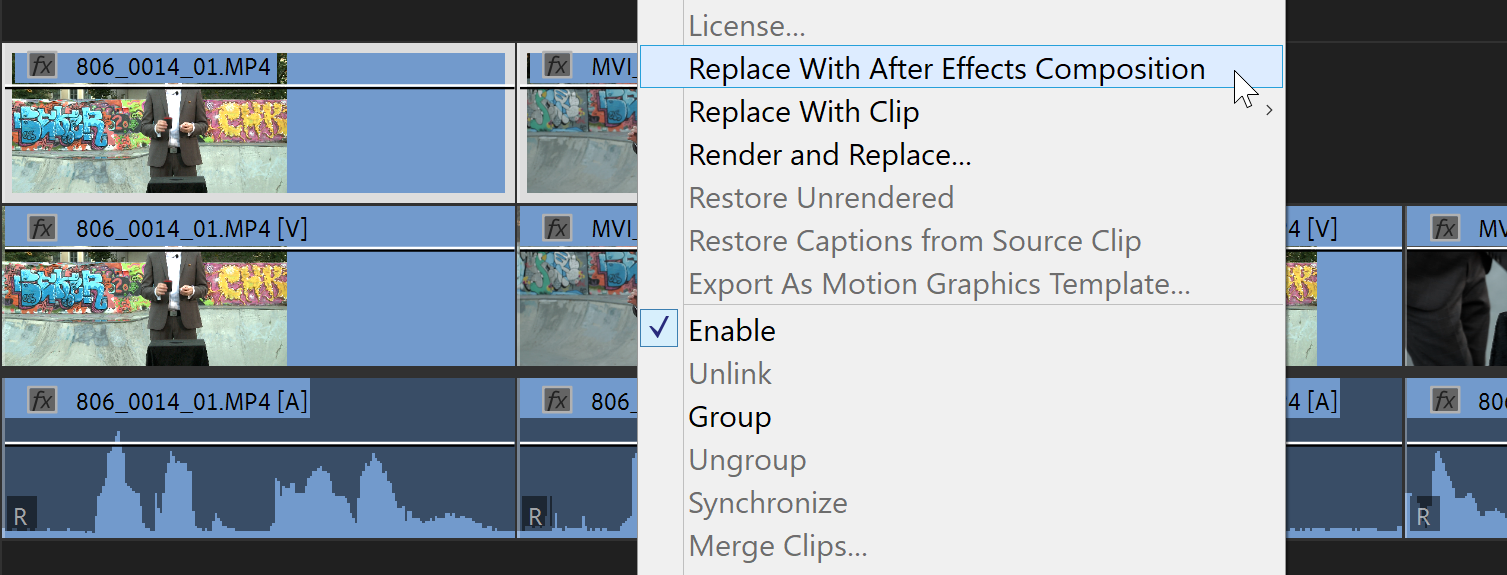 It’s a good idea to copy timeline assets before they’re replaced with a comp.
 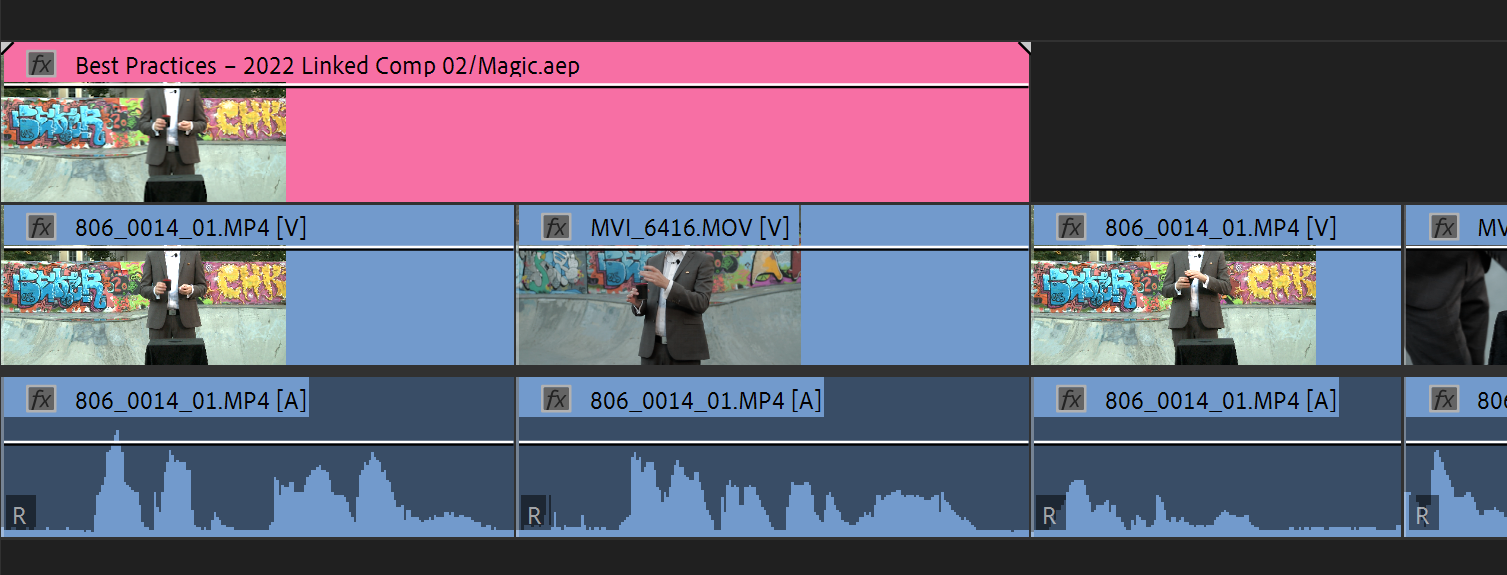 You now have access to both the original clips and the Dynamic Link comp.
You can disable the duplicate clips while they’re still highlighted. The keyboard shortcut for Enable/Disable Clip is Shift+E on Windows and Shift+Cmd+E on macOS.
So the workflow goes like this:
- Alt/Opt-drag a copy of your clip to another track.
- Disable the copy using the keyboard shortcut, or put it on a track with the eye icon (Toggle Track Output) off.
- Select the original clips and use your custom keyboard shortcut to Replace with After Effects Comp.
- Alt/Cmd+Tab over to AE, and do your thing there.
- When you’re finished, Alt/Cmd+Tab back to Premiere Pro.
- If necessary, hit your custom keyboard shortcut for Render and Replace to get smooth playback.
- Use your custom keyboard shortcut for Restore Unrendered if you need a live link again.
Of course, you could also set up a macro, or even create an extension that does multiple steps with one click.
Avoid Performance Hits
It’s important to understand that every live Dynamic Link instance eats some RAM. As we’ve seen, Render and Replace can help save resources.
You should also use as few After Effects projects as possible. If the dynamically linked After Effects comps are in multiple After Effects project files, Dynamic Link will need to run a bunch of After Effects (headless) processes. Depending on system specs, that can create some huge bottlenecks.
Best practice, if possible, is to use one After Effects project with multiple comps, rather than lots of single comp projects.
After Effects renders comps faster internally than Premiere Pro can do via Dynamic Link (or MOGRTs), for now. Sometimes much faster. To reduce playback delays for very complex comps, you can make a Dynamic Link clip offline, and replace it with a video clip you’ve rendered out of After Effects.
Free up some disk space using less cache
After Effects Disk Cache may be filling up your disks when you’re using Dynamic Link. A common remedy for playback problems with Dynamic Link is scrubbing or playing back the clips a few times in Premiere Pro. This will cache frames, and can improve playback. But these frames will be stored in RAM, and/or on the disk if Disk Cache is enabled in After Effects preferences.
Both can reduce performance. if Disk Cache is stored on your system drive (not recommended, but some systems only have one drive) it can fill it up. You can try Edit->Purge->All Memory & Disk Cache in After Effects to see if it helps performance in Premiere Pro.
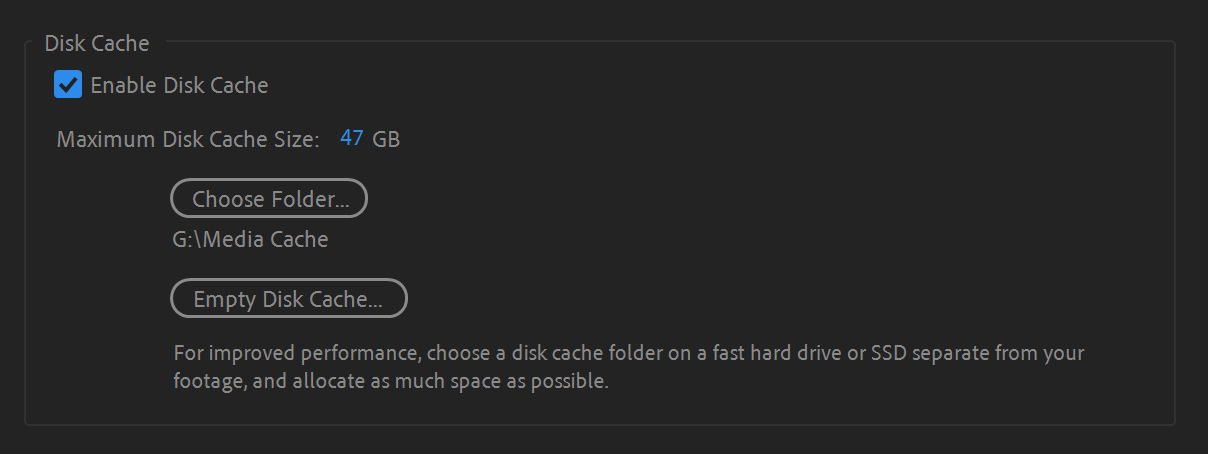
After Effects’ disk cache can benefit from a good cleanup.
Disk cache eats as much of your disk space as you allow it to. You can set the maximum size of the Disk Cache in preferences for Media & Disk Cache in After Effects.
Your Dynamic Link clips will perform better without rendering if you enable Disk Cache, so if storage space is not an issue, go ahead and keep it enabled. You can Use Render and Replace in Premiere Pro to avoid building up Disk Cache just by playing back the Premiere Pro timeline.
Make sure your color spaces match
It’s common to build lower thirds and other graphics using a guide layer in After Effects to adjust transparency. An example would be a call-out title or a text message effect. You need the original clip in After Effects as a guide, to place the elements correctly, but you don’t need the original clip to be part of the Dynamic Link.
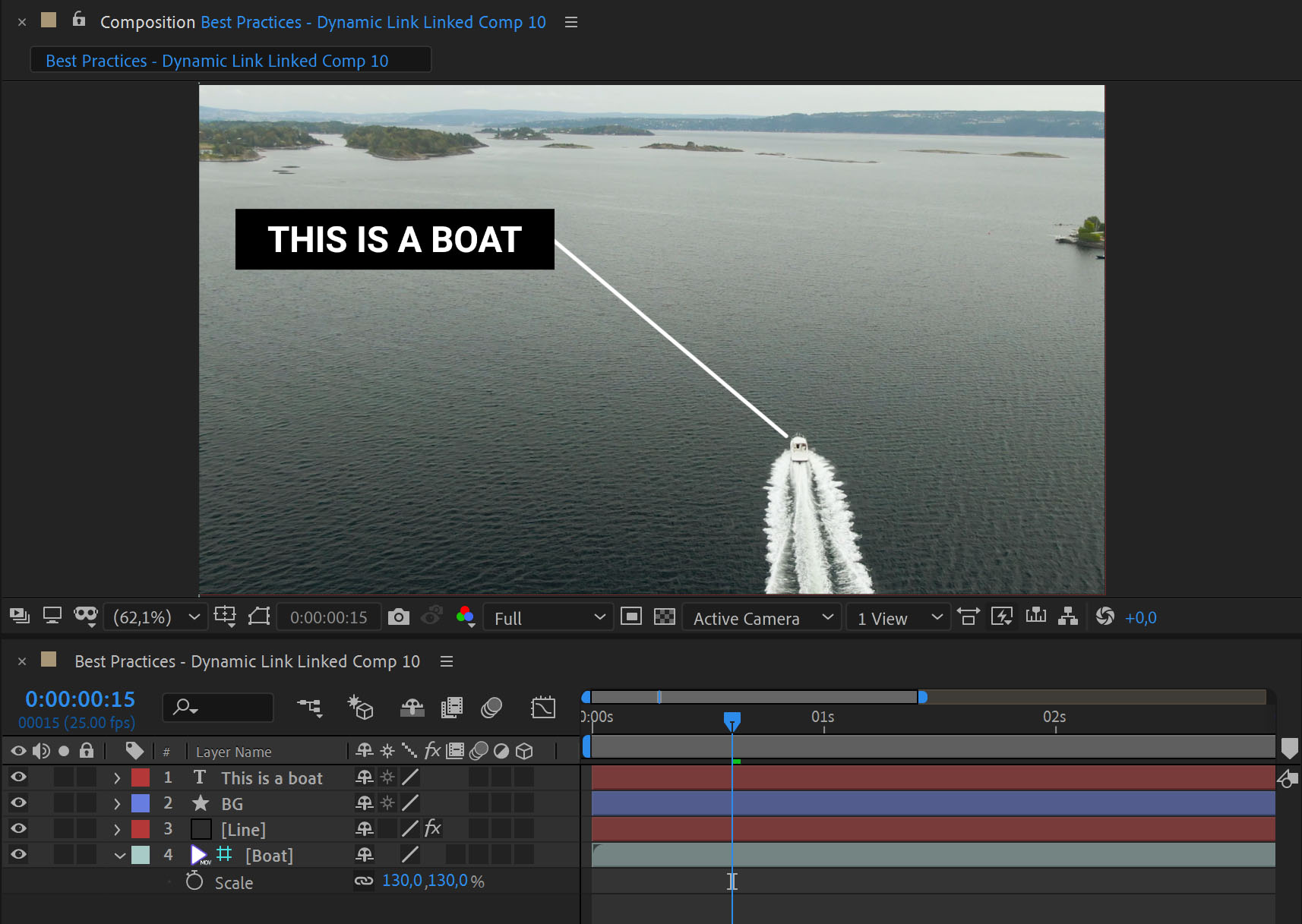
Creating a titles in After Effects is common. Drone footage courtesy of Sune Alexandersen Narud.
A quick and easy way is to send the clip to After Effects using Replace with After Effects Composition as usual, but immediately make the clip a Guide Layer in After Effects.

Creating a Guide Layer.
This is done by choosing Layer->Guide Layer—or right-clicking on the clip and choosing Guide Layer. Guide Layers are not rendered, they’re just visible while you’re working in After Effects. The Dynamic Link clip in Premiere Pro will only contain the overlay, not the original clip.
But if you build a comp with a transparent shape in After Effects, it may look much more transparent in Premiere Pro. This is because Premiere Pro works in 32-bit linear color by default, while After Effects works in 8-bit non-linear color by default.
 What you see when creating a lower third in After Effects.
  What you see in Premiere Pro when you bring in the lower third. Note the difference in transparency.
To make After Effects use linear color, go to File->Project Settings->Color and check Blend Colors Using 1.0 Gamma. You should probably set the Depth to 32-bit, too, if your system can handle it—it can make a huge difference for color sensitive work (like Keying) and can avoid unnecessary banding.
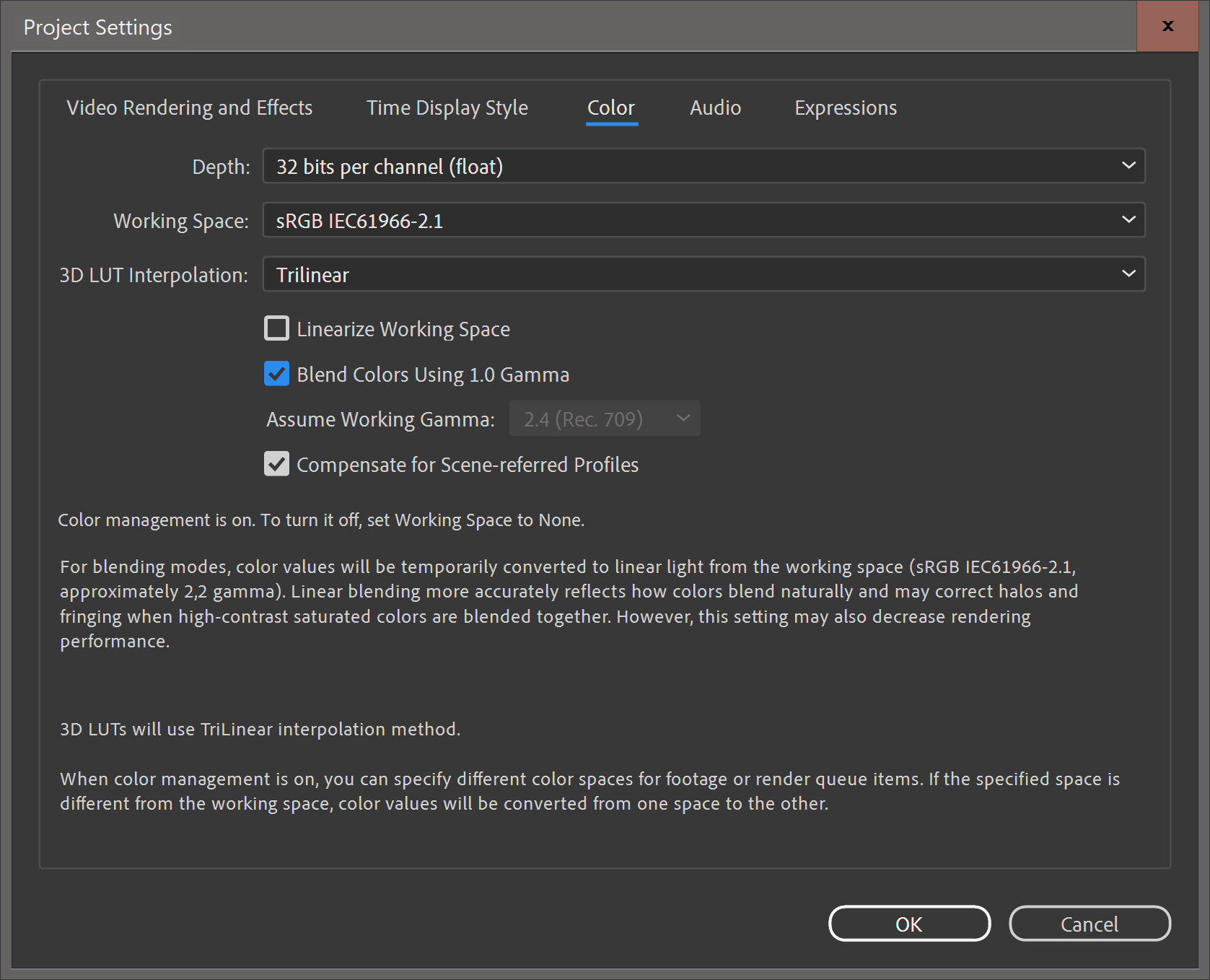
After Effects’ color settings.
With this setting, After Effects should show an image that’s much closer to what you’ll see in Premiere Pro.

With the settings above, the transparency looks the same as it will look in Premiere Pro.
Alternatively, you can make Premiere Pro work in non-linear color by turning off Composite in Linear Color in Sequence Settings. But you’d have to remember to do that in every sequence, or always use a Sequence preset with this checkbox off.
Dynamic Link and proxies
If your clips have proxies attached in Premiere Pro, they’ll also be available in After Effects. By default, After Effects will use the original media but you can use the proxy clip instead by toggling the Proxy button to the left of the file name.

Toggle the proxy button to the left of the layer name in After Effects to switch between proxies and the original media.
Flatten your multicams
Dynamic Link will preserve Multi-Camera Source Sequences in After Effects. You’ll not get only the active angle, but all of them, plus some extra comps. If you don’t want all the Multicam angles, right click on the Multicam and choose Multi-Camera->Flatten before creating a Dynamic Link. Of course, you’ll do this on a copy of the multicam clip, to preserve the multicam functionality.
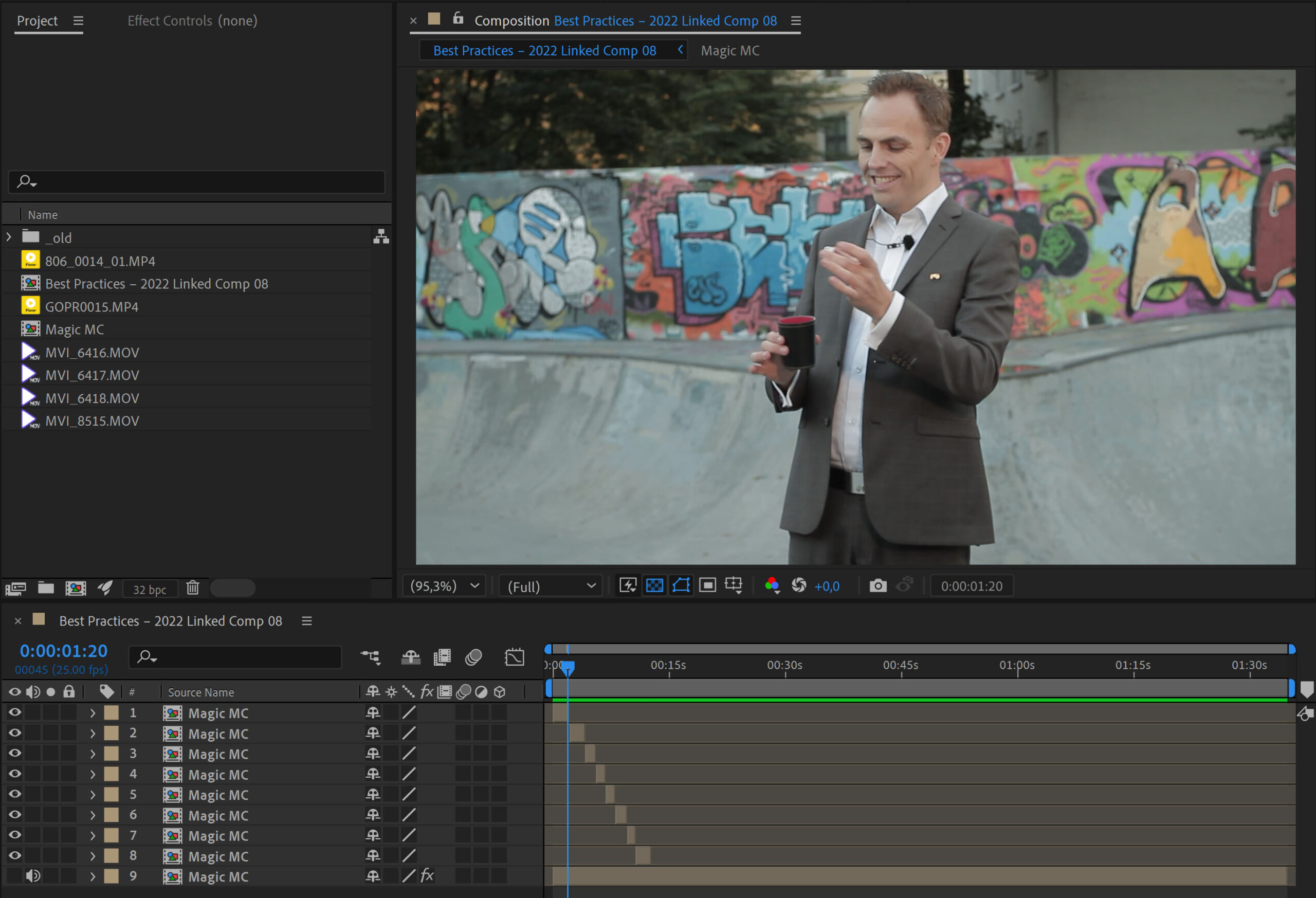 The result of not flattening the multicam clip before linking. A lot of unnecessary clips are imported, and all the clips have been placed in precomps.
 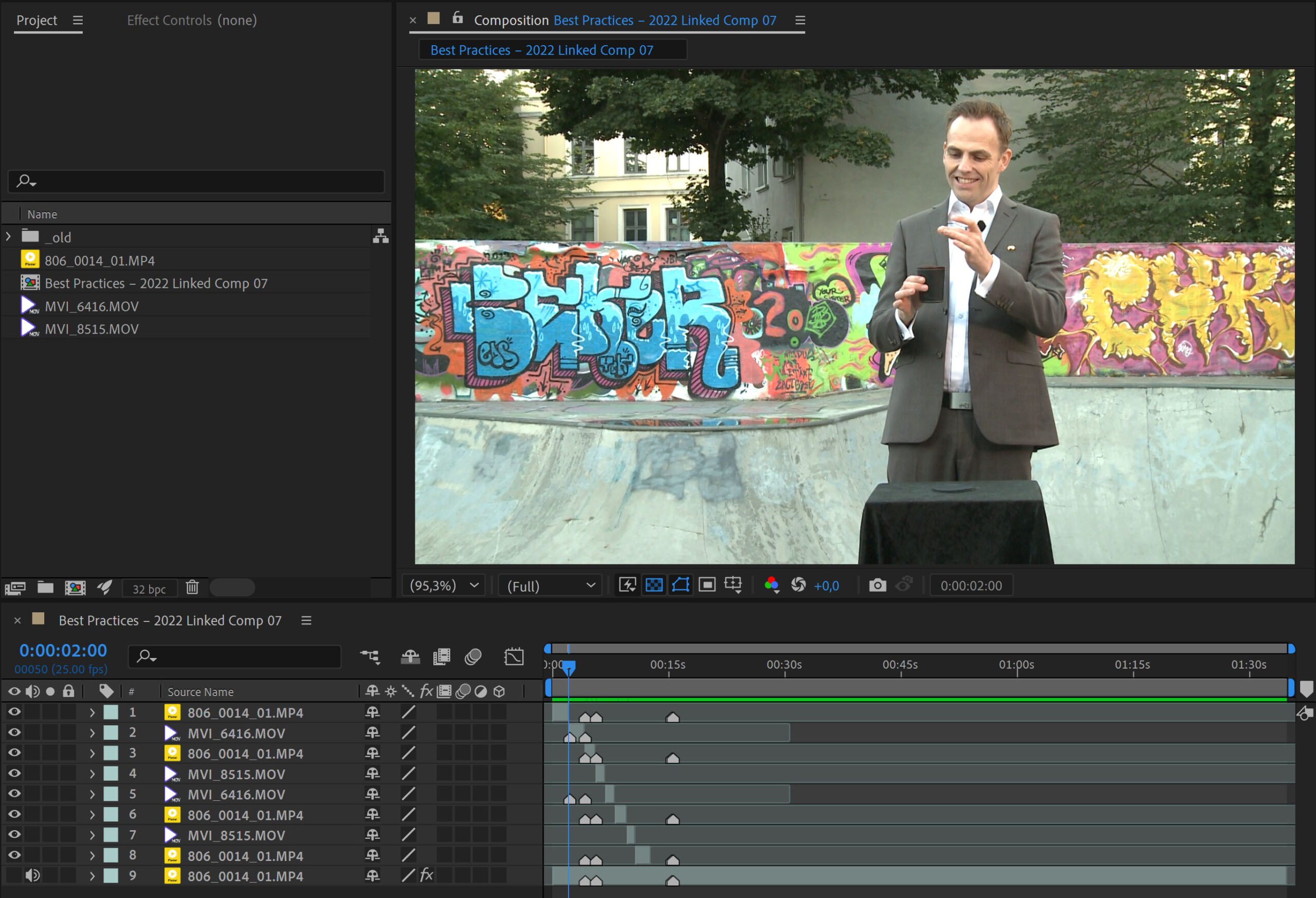 The result of flattening the multicam clip before linking. No extra clips are imported, and no precomps are made.
Can you use a MOGRT instead?
You won’t be as likely to lose the link to MOGRTs in a shared storage environment as if you use Dynamic Link. I’ve seen a lot of Dynamic Link usage where MOGRTs would yield a much better and faster workflow.
If Motion Graphics Template Media is stored locally on each computer, it will be missing on all the other systems, available only on the system where it was added. This is a Bad Idea. So set the Scratch Disks for Motion Graphics Template Media to the shared storage, and use Libraries to share the templates to team members.
Troubleshooting Dynamic Link
There are many reasons why Dynamic Link could fail. Here are some of them, plus some ways to hopefully fix them.
Network and shared storage issues
The Dynamic Link process uses ports and protocols to connect to or from a network drive. You should contact the network admin if you suspect that firewalls may be the cause of problems with Dynamic Link. For network storage, SMB (server message block) is almost always the recommended protocol for video editing software.
The server may also have permissions issues, or the clock may be out of sync with one or more of the systems that are using them—which can cause all kinds of interesting trouble. Setting the clock on the server and the systems to auto-sync to a common source regularly may be the simplest solution.
Some servers do not support all characters, and may be confusing a ® to R, or a ™ to TM, or regular dashes to em-dashes, etc. This changes the file name and may cause After Effects projects or source files in the comp to go offline. Avoiding such special characters in file names is good advice.
Preferences gone bad
Many issues with software can be caused by corrupted Preferences.
To restore the default preferences in After Effects, press and hold Ctrl+Alt+Shift (Windows) or Cmd+Opt+Shift (macOS) while After Effects is starting.
To restore the default preferences in Premiere Pro, press and hold Opt (macOS) or Alt (Windows) while Premiere Pro is starting. Just be aware that you’ll have to redo any preferences you have changed from the default.
Corrupted After Effects project
I’ve had After Effects projects that were working fine, then stopped working with Dynamic Link. Creating a new After Effects project and importing the corrupted one into the new one made Dynamic Link behave normally again.
If you do this, you’ll have to replace all the dynamically linked comps with the ones from the new project, which is a hassle, but at least Dynamic Link will work again.
Stale media cache
Media cache files can get corrupted or outdated. The latter happens after updating the software. Adobe may have changed format support or other things under the hood, causing the media cache files from the old version to misbehave in the newer version. Deleting all the media cache files forces Premiere Pro and After Effects to rebuild the media cache, which often makes things work again.
To do this in Premiere Pro, close all projects. Then go to Preferences for Media Cache and click on the Delete button next to “Remove Media Cache Files” and choose to Delete all media cache files from the system.
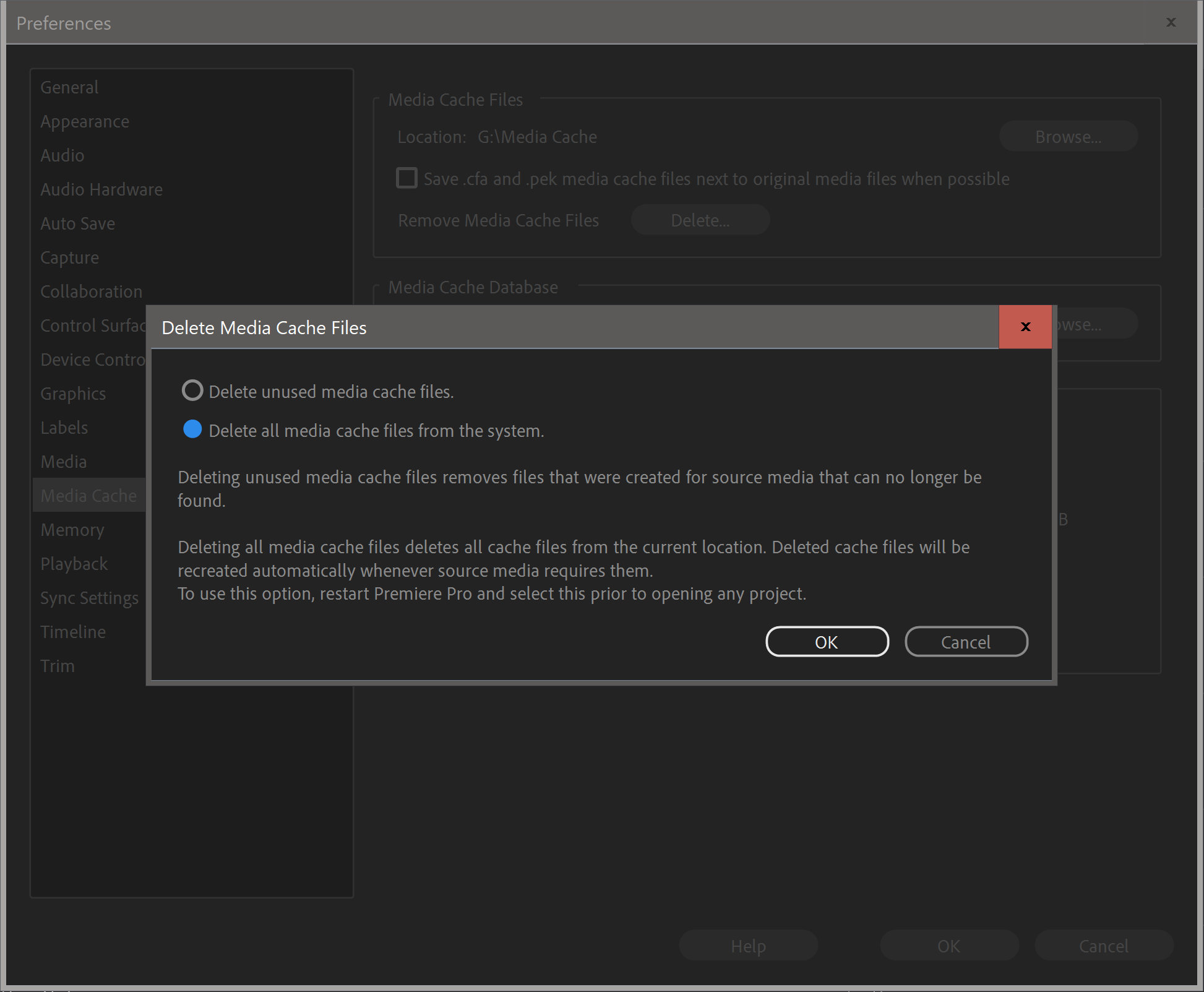
Deleting your Media Cache.
This should delete all the media cache files for Premiere Pro, After Effects and Adobe Media Encoder. If you want to make absolutely sure, go to the folder where you’ve chosen to store your media cache files and manually delete all the subfolders. Don’t worry, they’ll be rebuilt automatically.
Please note that deleting the unused media cache files will not help. It’s always the ones in use that will cause problems.
Installation/update issues
The software installation may go wrong, especially when updating Premiere Pro and After Effects, as opposed to a clean install. Reinstalling After Effects, Premiere Pro, and Adobe Media Encoder may help. Restart the whole system after doing this. Or do a clean install, as explained below.
Turning off Multi-Frame Rendering has also been reported to help in some cases. Go to Preferences in After Effects and uncheck Enable Multi-Frame Rendering under Memory & Performance. Restart both After Effects and Premiere Pro and try again.
Lacking Permissions
Security/privacy settings on your system may prevent the Dynamic Link process from accessing your drive. This often happens after a security update of the OS or some other software, especially on macOS.
One way to fix this on older versions of macOS would be to repair permissions. According to Apple, this should not be necessary in newer versions of macOS.
You can also just uninstall and reinstall After Effects and Premiere Pro—and even Adobe Media Encoder—to re-establish the necessary folder permissions.
It’s also possible that aggressive antivirus software could be blocking the Dynamic Link process.
Bugs do sneak in from time to time. There was a bug in the initial 22.0 release that made Dynamic Link unusable, but it was fixed in 22.0.1 a few days later. The 2018 and 2019 versions also had some initial Dynamic Link bugs.
If you think your Dynamic Link problems may be caused by a bug, look for an update—or roll back to a previous version until it’s fixed.
Do a clean install
If nothing else works you can try uninstalling both After Effects and Premiere Pro and running the Adobe Creative Cloud Cleaner tool—a utility to clean up corrupted installations. You must choose your OS at the bottom of the linked page to show the download link and instructions for your OS.
As a last resort, create a new user account in macOS or Windows and see if that helps.
If Dynamic Link still fails: export the comp
If nothing else works, you can export the comp as a ProRes file (use ProRes 4444 if you need transparency) and place it in the Premiere Pro timeline. I recommend using Composition->Add to Adobe Media Encoder Queue for export.
It’s not a Dynamic Link anymore, but at least you’ll be able to finish the job.
Final notes
I use Dynamic Link all the time and I honestly believe it has saved me weeks of work since its birth in CS2. I can’t imagine editing documentaries, corporate movies, and social media videos without it.
Hopefully you now have a better understanding of how Dynamic Link works and what its limitations are. By using the techniques and advice described in this article, you should experience fewer problems, which should give you the confidence you need to start using Dynamic Link more.
Почему не работает adobe dynamic link

У вас возникают проблемы с Adobe из-за ошибок Dynamic Link?
- Post author: William Hancock
- Post published: January 28, 2022
- Post category: Russian
Table of Contents
Обновлено
В последние дни некоторые из наших читателей столкнулись с известным купоном с ошибкой Adobe Dynamic Link Error. Эта проблема возникает по ряду причин. Давайте обсудим этот метод сейчас. г.vidaconsciente.coImage: vidaconsciente.co В большинстве случаев ошибки исследования dynamiclinkmanager.exe, возникающие во время работы программы, приводят к ее ненормальному завершению. Большинство связанных с этими сообщениями об ошибках dynamiclinkmanager.exe означают, что Adobe Captivate не может найти этот файл при запуске, изображение может быть повреждено, что прерывает процесс запуска.
Adobe Dynamic Link — это специальная функция, созданная в Adobe Creative Suite Production Studio как практически любая фантастическая альтернатива промежуточному рендерингу между продуктами. Пользователи могут импортировать свои композиции между Adobe After Effects и Adobe Premiere Pro или Adobe Encore без рендеринга.
Тем не менее, я обновил свои AME и After Effects для Creative Cloud до последних доступных версий, насколько я могу судить. AME — это модель 2017.0, сборка 11.0.0.131, а моей версией After Effects будет 2017.0, версия 14.0.0.207, и я продолжаю получать, как правило, одну и ту же ошибку AME «Возможно, невозможно подключиться к Adobe After Effects. Пожалуйста, ищите…”
Возможно ли, что с этим последним улучшением существует двойной разрыв между AME и AE? Я использую Mac поверх El Capitan версии 10.11.3. Моя динамическая ссылка как путь к серверу работала очень хорошо, так что во многих случаях соединение было невероятно медленным. Поэтому я обновил AME и AE, потому что думал, что эта концепция фактов улучшит производительность. Но теперь я начинаю получать эту ошибку. Любая помощь будет принята с благодарностью. Спасибо в подъеме!
Premiere Pro CC 2020 не просто выравнивает медиафайлы с AME через Файл -> Экспорт -> Мультимедиа -> Очередь
After Effects CC 2020 не подключается к AME при создании из AME
PP и AE вряд ли смогут соединиться, если я заменю медиакомпозицию AE.
Возможная причина проблемы:
Облачные каталоги Creative Apps были удалены с диска C, после чего стандартное обслуживание было перенесено на другой диск. Все приложения устанавливаются и кроме того работают нормально, кроме динамической ссылки.
File -> Premiere добавляет композицию Pro Sequence — AE, и AME успешно поставила этот метод в очередь.
Не удается подключиться к динамической ссылке Adobe After Effects?
Попытки исправить: удалить AE, PR и AME 2020 и переустановить этот комп. Удалите и переустановите приложение Creative Cloud для настольных ПК. Удалите AE, PR, AME (все версии) и CC Desktop, удалите некоторые из оставшихся связанных версий, включая все в Dynamic Link, затем переустановите эти приложения CC Desktop или 2020 Video.
мысли? Нужно ли мне выполнять чистую установку всего моего экземпляра Creative Cloud? Как это сделать?
Динамическая ссылка, Ошибка или проблема
Dynamic Link больше не активен после обновления элементов видеоприложений с поддержкой CC 2020. Это коснулось не только моего недавно установленного WordPress, но и моих любимых ранее установленных (и запущенных) приложений 2019 года.
Что делать, если в вашем бизнесе возникает ошибка dynamiclinkmanager.exe?
g.Восстановите свой компьютер из резервной копии. Если на этапе 1 не удается выбрать ошибку dynamiclinkmanager.exe, перейдите к шагу 2 ниже. Всего один шаг: если сегодня утром вы установили Adobe Captivate (или установили программное обеспечение), удалите следующее и попробуйте снова установить приложение Adobe Captivate.
У меня вопрос, как правильно установить ссылку на динамический компонент? Могут ли они поставляться с Media Encoder или Creative Cloud? Или это конфигурация системы?
С macOS 10.14.6 на рабочем столе imac 2017. Я использую корпоративную установку, как ПК, так и CC, честно говоря, у меня есть права администратора и я могу нормально настроить программное обеспечение.
- Невозможно перейти в Media Queue Encoder с помощью Premiere или After Effects: «Media Encoder не установлен» «Ошибка подключения в качестве Adobe Media Encoder»
- Невозможно переместить проект Premiere или After Effects Media Encoder программное обеспечение: «Не удалось подключиться к Adobe After Effects. Убедитесь, что Adobe After Effects и Adobe Dynamic Linkk установлены. “
- Невозможно импортировать файл After Effects в Premiere для импорта: после” При импорте этого файла процесса необходимо установить Adobe Effects. “
- Удалите и переустановите AE, PR и AME 2020.
- Удалите вместе с переустановкой приложение Creative Cloud для настольных ПК.
- Удалите AE, PR, AME (все версии) и CC Desktop, удалите все связанные папки, которые были извлечены и содержат все, что связано с динамическими ссылками “,”, затем переустановите CC Desktop and Video Apps 2020
- Перезагрузите компьютер на любом этапе.
Обновлено
Вы устали от того, что ваш компьютер работает медленно? Раздражают разочаровывающие сообщения об ошибках? ASR Pro — это решение для вас! Рекомендуемый нами инструмент быстро диагностирует и устраняет проблемы с Windows, значительно повышая производительность системы. Так что не ждите больше, скачайте ASR Pro сегодня!

Я попытался связаться с чатом поддержки, но мне было перенаправлено время для поддержки After Effects вместо обычной установки. Я могу попытаться связаться с вами в ближайшее время.
Если у кого-то есть идея или подход, которым можно поделиться, я полностью открыт. Из-за этого мои предыдущие рабочие процессы были временно отключены через 3 дня.
Загрузить одновременно для установки, динамическая ссылка, Ошибка или проблема Экспорт или визуализация, Импорт
Как включить динамическую ссылку для Adobe?
С Ссылка на существующую песню В Adobe Premiere Pro выберите «Файл» > «Adobe Dynamic Link» > «Импортировать композицию After Effects». Выберите каталог ремоделирования After Effects (.Aep), а затем выберите одну или несколько композиций. В Adobe Premiere Pro выберите замечательный файл проекта After Effects и нажмите «Открыть».
Я чувствую, что у меня было так много проблем, пока я решал обновление AE. Я связал с обновлениями трафика 1 год безотказной работы до сих пор. Мой ноутбук никогда не обновлялся.
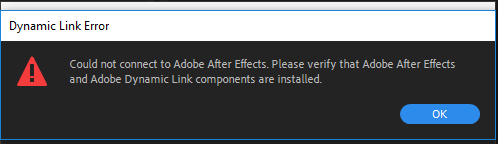
(1) Первоначальная проблема заключалась в том, что After Effects больше не может отправлять почти все файлы в кодировщик мультимедиа. Программное обеспечение обновлено.
Как исправить динамические ссылки в Adobe?
(2) Когда я пытаюсь открыть и снова открыть After Effects, происходит сбой! Требуется инициализация ресурса. Иногда, когда я удаляю и переустанавливаю, я получаю его обратно.

(3) Однажды в каком-то кодировщике носитель, который это сделал, разбился строго при попытке подключения к библиотеке динамической компоновки, а затем произошел сбой!
(3) Когда я вернусь в After Effects, Media Encoder больше не будет загружаться !!
Что делать, если Adobe Dynamic Link часто не работает?
Если вы обнаружите, что ваше расписание буквально показывает неверный рендеринг или неправильную композицию, вам может потребоваться очистить документацию по рендерингу или кэш-память новостей, чтобы они отображались правильно. Вы, безусловно, можете навсегда удалить файлы рендеринга, выбрав «Последовательность»> «Удалить файлы рендеринга» и перейдя к основному медиа-кэшу, перейдя на вкладку «Медиа» в «Настройки» или используя Pro Maintenance Tools.
Я переустановил все программы Adobe и графики для дополнительной безопасности. Та же проблема.
Как исправить динамическую ссылку в Adobe?
Закройте все свои собственные приложения.Выйдите из Dynamic Link Manager вне Activity Monitor.Откройте Finder, перейдите в «Документы»> «Adobe» и переименуйте конкретную папку dynamiclinkmediaserver в dynamiclinkmediaserver OLD (похоже, этот шаг подходит для Windows).
Как исправить Dynamic Link в After Effects?
Просто загрузите исходный проект из After Effects в Media Encoder, и он должен работать.
Не работает Dynamic Link
8.Остановка плейбека на платформе Mac OS 10.6.x . При попытке воспроизведения аудио или видео файлов в Soundbooth или Adobe Premiere Pro CS5.5, плейбек останавливается или зацикливание (loops) после очень короткого времени, от нескольких кадров до нескольких секунд. Варианты исправления: необходимо удалить файл Aggregate Devices plist.
— Открываем Finder и переходим в директорию /YOUR_HD/Library/Preferences.
— Переименовываем или удаляем файл com.apple.audio.AggregateDevices.plist.
— Запускаем приложения: Soundbooth или Adobe Premiere Pro и проверяем работу.
Далее, входим в систему как корневой пользователь. Как только вы вошли в систему с правами администратора, запускаем приложения Adobe и повторите процесс, который вызывал ошибку. После того как вы убедились, что программное обеспечение работает правильно, вы можете вернуться к вашей обычной учетной записи пользователя.
9.Не работает функция Adobe Dynamic Link . Недоступна команда New After Effects Composition в программе Adobe Premiere Pro CS5.5 или появляются сообщения: Using Adobe Dynamic Link with Adobe After Effects requires Adobe Production Premium. и Adobe Dynamic Link requires Production Premium . Для решения данной проблемы, выполняем следующие действия:
а) Сбрасываем активацию программы (или всего набора Creative Suite) с помощью команды: Help > Deactivate. И регистрируем продукт заново (желательно с другими ключами, более «свежими»).
Если команда недоступна. То удаляем следующий файл С:/Program Files (х86)/Common Files/Adobe/Adobe PCD/cache/cache.db (предварительно сделав копию или изменив имя текущего). И регистрируем Adobe Premiere Pro CS5.5 заново.
б) Включить TCP сообщение в firewall (ZoneAlarm) для следующих компонентов: AfterFX.exe, Adobe QT32 Server.exe, dynamiclinkmanager.exe, PProHeadless.exe.
в) Полная переустановка программы, с очисткой утилитой Adobe Creative Suite Cleaner Tool системы от остатков продуктов Adobe.
10.Внедрение таймкода SMPTE в аудиоканал или работа с исходным таймкодом, теперь работает корректно в Adobe Premiere Pro CS5.5.
Если есть проблемы с передачей таймкода в WAV файлах, то идем в свойства проекта, смотрим директорию нахождения папки Media Cache Database:
Идем в директорию C:\Users\Имя пользователя\AppData\Roaming\Adobe\Common\Media Cache Files и находим с помощью поиска все.ims файлы:
И удаляем все.ims файлы в этой директории, сначала выделив их Ctrl+A, а затем удаляем без отправки в Корзину командой Shift+Delete.
Слишком мало информации. Хотя в большинстве случаев — это нормальное условие экспорта. Все зависит.
Adobe Premiere Pro CC — для любых работ, больших или небольших.
Фото из видеоролика
Добрый день! Элементс у меня не стоит на компьютере и уже давно не поддерживаю данную программу. Раб.
Как вернуть вот это окошко
Обычно это окно всплывает каждый раз, когда Вы открываете программу заново и переносите на таймлайн.
Как вернуть вот это окошко
Здравствуйте! У меня тот же вопрос «Как вернуть окошко». Ответа на него я не вижу?
Пожалуйста Александр!
Дрожание видео при выводе фильма
Спасибо, Сергей. Вот только заказы у меня в основном детские сады и школы по20 30 человек, и по мимо.
Дрожание видео при выводе фильма
Александр, возможно Вы сами ответили на свой вопрос. Тут дело все в умении и скорости считывания моз.
Дрожание видео при выводе фильма
Сергей, тут вот ещё какой момент. Пробовал создать два варианта при экспорте: 25 и 50 кадров в сек. .
Дрожание видео при выводе фильма
А на каком телевизоре дрожание идет?
Дрожание видео при выводе фильма
Все в прогрессиве. Во время монтажа ничего с исходниками не делал (без эффектов и т.д.). Исходники A.
Дрожание видео при выводе фильма
Здравствуйте, Александр! Исходник прогрессив или интерлейс (с каким полем). Выводили в прогрессиве и.
Это в версии CC 2015 переходов меньше, чем в CS5.5. Т.е. миграция переходов идет таким образом из ст.
Современные переходы в Аdobe Premier cs 5.5
Да, полностью с Вами согласен, сам пользуюсь одним, двумя переходами, но иногда на перебивках, смена.
Современные переходы в Аdobe Premier cs 5.5
Добрый день! Обычно много переходов не используется в профессиональном видео, все делается на жестки.
Вывод в adobe Encore
Если формат изначально не адаптирован под MPEG DVD, то пережимает, а если уже подготовлен, то нет. В.
помогите найти курс
Надо просто попробовать сделать с надстройкой прозрачного фона, а потом сохранить в режиме демонстра.
помогите найти курс
Добрый день. Это понятно,что только через PDF, но я думаю что в PP нет такой возможности чисто из за.
помогите найти курс
В РР есть возможность встроить Flash в разделе Acrobat или Вставка, однако фон получается черным, а.
помогите найти курс
Добрый день. Все курсы получил и просмотрел. Спасибо. Надеялся что найду в них ответ на мой главный.
помогите найти курс
Здравствуйте! Если Вы имеете в виду курс VIDEO BOOK ULTIMATE, то его объем около 1 ГБ. Если не получ.
помогите найти курс
Добрый день. Если после оплаты не получится скачать электронную версию, возможно получение на DVD? П.
помогите найти курс
Тогда посмотрите еще вот это курс, он как раз и решит эти вопросы — http://panferoff.ru/videobook/
Иногда ошибки dynamiclink.dll и другие системные ошибки DLL могут быть связаны с проблемами в реестре Windows. Несколько программ может использовать файл dynamiclink.dll, но когда эти программы удалены или изменены, иногда остаются «осиротевшие» (ошибочные) записи реестра DLL.
В принципе, это означает, что в то время как фактическая путь к файлу мог быть изменен, его неправильное бывшее расположение до сих пор записано в реестре Windows. Когда Windows пытается найти файл по этой некорректной ссылке (на расположение файлов на вашем компьютере), может возникнуть ошибка dynamiclink.dll. Кроме того, заражение вредоносным ПО могло повредить записи реестра, связанные с Adobe Photoshop Elements 10. Таким образом, эти поврежденные записи реестра DLL необходимо исправить, чтобы устранить проблему в корне.
Редактирование реестра Windows вручную с целью удаления содержащих ошибки ключей dynamiclink.dll не рекомендуется, если вы не являетесь специалистом по обслуживанию ПК. Ошибки, допущенные при редактировании реестра, могут привести к неработоспособности вашего ПК и нанести непоправимый ущерб вашей операционной системе. На самом деле, даже одна запятая, поставленная не в том месте, может воспрепятствовать загрузке компьютера!
В связи с подобным риском мы настоятельно рекомендуем использовать надежные инструменты очистки реестра, такие как WinThruster (разработанный Microsoft Gold Certified Partner), чтобы просканировать и исправить любые проблемы, связанные с dynamiclink.dll. Используя очистку реестра , вы сможете автоматизировать процесс поиска поврежденных записей реестра, ссылок на отсутствующие файлы (например, вызывающих ошибку dynamiclink.dll) и нерабочих ссылок внутри реестра. Перед каждым сканированием автоматически создается резервная копия, позволяющая отменить любые изменения одним кликом и защищающая вас от возможного повреждения компьютера. Самое приятное, что устранение ошибок реестра может резко повысить скорость и производительность системы.
Предупреждение: Если вы не являетесь опытным пользователем ПК, мы НЕ рекомендуем редактирование реестра Windows вручную. Некорректное использование Редактора реестра может привести к серьезным проблемам и потребовать переустановки Windows. Мы не гарантируем, что неполадки, являющиеся результатом неправильного использования Редактора реестра, могут быть устранены. Вы пользуетесь Редактором реестра на свой страх и риск.
Перед тем, как вручную восстанавливать реестр Windows, необходимо создать резервную копию, экспортировав часть реестра, связанную с dynamiclink.dll (например, Adobe Photoshop Elements 10):
- Нажмите на кнопку Начать .
- Введите «command » в строке поиска. ПОКА НЕ НАЖИМАЙТЕENTER !
- Удерживая клавиши CTRL-Shift на клавиатуре, нажмите ENTER .
- Будет выведено диалоговое окно для доступа.
- Нажмите Да .
- Черный ящик открывается мигающим курсором.
- Введите «regedit » и нажмите ENTER .
- В Редакторе реестра выберите ключ, связанный с dynamiclink.dll (например, Adobe Photoshop Elements 10), для которого требуется создать резервную копию.
- В меню Файл выберите Экспорт .
- В списке Сохранить в выберите папку, в которую вы хотите сохранить резервную копию ключа Adobe Photoshop Elements 10.
- В поле Имя файла введите название файла резервной копии, например «Adobe Photoshop Elements 10 резервная копия».
- Убедитесь, что в поле Диапазон экспорта выбрано значение Выбранная ветвь .
- Нажмите Сохранить .
- Файл будет сохранен с расширением.reg .
- Теперь у вас есть резервная копия записи реестра, связанной с dynamiclink.dll.
Следующие шаги при ручном редактировании реестра не будут описаны в данной статье, так как с большой вероятностью могут привести к повреждению вашей системы. Если вы хотите получить больше информации о редактировании реестра вручную, пожалуйста, ознакомьтесь со ссылками ниже.