Loopback capture setup
The following will explain capturing on loopback interfaces a bit.
If you are trying to capture traffic from a machine to itself, that traffic will not be sent over a real network interface, even if it’s being sent to an address on one of the machine’s network adapters. This means that you will not see it if you are trying to capture on, for example, the interface device for the adapter to which the destination address is assigned. You will only see it if you capture on the «loopback interface», if there is such an interface and it is possible to capture on it; see the next section for information on the platforms on which you can capture on the «loopback interface».
Supported Platforms
See CaptureSetup/NetworkMedia for Wireshark capturing support on various platforms. Summary: you can capture on the loopback interface on Linux, on various BSDs including macOS, and on Digital/Tru64 UNIX, and you might be able to do it on Irix and AIX, but you definitely cannot do so on Solaris, HP-UX, or Windows without Npcap.
Windows
Starting from Windows 7: Npcap
Npcap is an update of WinPcap using NDIS 6 Light-Weight Filter (LWF), done by Yang Luo for Nmap project during Google Summer of Code 2013 and 2015. Npcap adds several new features to those existing in WinPcap, including loopback traffic capture.
In the list of capture interfaces, select «Adapter for loopback traffic capture» and begin capturing as usual. The data link type for this adapter is DLT_NULL .
Earlier releases of Npcap (before 0.9983) installed a software network adapter called «Npcap Loopback Adapter» for this purpose. This is no longer necessary, and can disrupt network operations in some cases. If it is present in a more recent installation, it can be removed by running (as Administrator) NPFInstall.exe -ul from the Npcap installation directory (usually C:\\Program Files\\Npcap ). Check Device Manager ( devmgmt.msc ) to ensure the adapter itself has been uninstalled.
The current latest installer can be found here: https://npcap.com/#download, the source code can be found here: https://github.com/nmap/npcap
Starting from Wireshark 3.0.0, the Windows installer includes and will install a recent version of Npcap.
IP 127.0.0.1
You can’t capture on the local loopback address 127.0.0.1 with WinPcap. The following page from «Windows network services internals» explains why: The missing network loopback interface.
You can, however, use Npcap or a raw socket sniffer like RawCap to capture localhost network traffic in Windows. Read more here:
IP other
You can add a virtual network card called Microsoft Loopback Adapter, but in most cases that might not give results as expected either.
This adapter is available from Microsoft:
… and is quite different than the ones available for various UN*X systems. This adapter is a virtual network adapter you can add, but it will not work on the 127.0.0.1 IP addresses; it will take its own IP address. BTW: You can only add one Loopback Adapter to the system!
Beware: Capturing from this Loopback Adapter requires the WinPcap 3.1 release, 3.1 beta versions won’t work!
Let’s suppose you have set the IP address of the loopback adapter to 10.0.0.10 and are capturing on that interface. If you ping to this 10.0.0.10 address the ping will get ping replies, but you won’t see any of this traffic in Wireshark (much like the 127.0.0.1 problem). If you ping on 10.0.0.11, you won’t get ping replies as there is obviously no remote host, but you will see the corresponding ARP requests in Wireshark.
The only benefit I can see so far is if you use it with colinux (and probably other PC virtualization software) to capture the traffic between Windows and the virtual machine. — UlfLamping
Recipe (to capture traffic on ms loopback adapter / Windows XP): — by mitra
I am now using the loopback adapter to capture traffic that I source into a Dyanmips/Dynagen virtual router network. This is a potentially very useful tool/feature that I will be testing further in the weeks to come. As it stands, I can connect my loopback adapter to a virtual router interface and capture ping, arp, etc. In the near future, I hope to tie a server w/ a loopback adapter to a virtual router and then capture a full client/server type of exchange across a Dynamips/Dynagen emulated network. – Scott Vermillion
NOTE: To get to the Microsoft Loopback Adapter Properties: Start -> Settings -> Control Panel -> System -> Device Manager -> Network Adapters and right click Microsoft Loopback Adapter to select Properties. – saran
Commercial Alternatives
A commercial network sniffer called CommView (from TamoSoft) allows you to capture packets on the localhost network adapter but it dissects fewer protocols, so you can capture packets with CommView and save them into a file and open it with Wireshark.
Other Alternatives
- Add a route to your local machine going through the network gateway:
with <your_IP> being different from 127.0.0.1. It should (has to) be the result of ipconfig command (ip address field) <the_gateway> has to be the default gateway field taken from ipconfig /all result.
Doing so, every network traffic from your machine to itself will use the physical network interface, it will then go to the gateway, back to you. Therefor, you will see each packet twice, but it can be filtered on the view.
Be careful, since your machine will use the actual network to talk to itself, it may overload the network. It may be wise to remove the new route once you are done with the tests:
- Proxocket — A Winsock Proxy Sniffer Written by Luigi Auriemma, this great tool appears to be a Layered Service Provider that can be used to capture calls between an application and the Winsock functions in Windows. By doing this, one is able to effectively capture loopback traffic on a per-process basis.
My own experience with proxocket is as follows: After installing the ws2_32.dll from proxocket into a directory containing 3 binaries that communicate with each other over the loopback interface and starting them all up, it generated 3 separate capture files, one for each process, which I was then able to merge together into a single capture file using mergecap. After filtering out the duplicate packets in the file, which contained the source IP address of 0.0.0.0, I had a pretty good capture file containing loopback traffic on Windows. Some packets were clearly ordered incorrectly, but it was easy enough for me to spot them and tell what was going on.
While certainly not as good/easy as capturing loopback traffic on a *NIX platform, prior to using RawCap, this was the best way for me to obtain loopback traffic on Windows. Having said that, after using RawCap, I don’t see why anyone would want to use this.
Setup localhost capturing from powershell
Recipes and explanation is here. (Note: Since the link no longer appears to work, here is an archived one.)
Npcap loopback adapter что это
A manual and guide to Npcap, a packet capture and network analysis framework for Windows, for users and software developers. Npcap is a modern, safe, and compatible update to WinPcap.
- Introduction
- What is Npcap?
- What kind of programs use Npcap?
- What Npcap can’t do
- Installation
- Installer options
- Uninstaller options
- Disabled and enforced options for GUI Mode
- Diagnostic report
- General installation log
- Driver installation log
- Dynamic link library (DLL) log
- Driver log
- Blue screen of death (BSoD) dump
- Using the Npcap SDK
- Examples
- Updating WinPcap software to Npcap
- How to detect what version Npcap/WinPcap you are using?
- Npcap version
- Install-time detection
- Run-time detection
- DLL loading
- Service name
- Steps
- Tips
- Terminology
- WlanHelper
- Extensions to libpcap for Windows
- Obtaining the device list
- Obtaining advanced information about installed devices
- Opening an adapter and capturing the packets
- Capturing the packets without the callback
- Filtering the traffic
- Interpreting the packets
- Handling offline dump files
- Saving packets to a dump file
- Reading packets from a dump file
- Sending a single packet with pcap_sendpacket()
- Send queues
- Npcap structure
- Main components of Npcap.
- NPF and NDIS
- NPF structure basics
Introduction
This Manual describes the programming interface and the source code of Npcap. It provides detailed descriptions of the functions and structures exported to programmers, along with complete documentation of the Npcap internals. Several tutorials and examples are provided as well.
What is Npcap?
Npcap is an architecture for packet capture and network analysis for Windows operating systems, consisting of a software library and a network driver.
Most networking applications access the network through widely-used operating system primitives such as sockets. It is easy to access data on the network with this approach since the operating system copes with the low level details (protocol handling, packet reassembly, etc.) and provides a familiar interface that is similar to the one used to read and write files.
Sometimes, however, the “ easy way ” is not up to the task, since some applications require direct access to packets on the network. That is, they need access to the “ raw ” data on the network without the interposition of protocol processing by the operating system.
The purpose of Npcap is to give this kind of access to Windows applications. It provides facilities to:
- capture raw packets, both the ones destined to the machine where it’s running and the ones exchanged by other hosts (on shared media)
- filter the packets according to user-specified rules before dispatching them to the application
- transmit raw packets to the network
- gather statistical information on the network traffic
This set of capabilities is obtained by means of a device driver, which is installed inside the networking portion of the Windows kernel, plus a couple of DLLs.
All of these features are exported through a powerful programming interface, easily usable by applications. The main goal of this manual is to document this interface, with the help of several examples.
What kind of programs use Npcap?
The Npcap programming interface can be used by many types of network tools for analysis, troubleshooting, security and monitoring. In particular, classical tools that rely on Npcap are:
- network and protocol analyzers
- network monitors
- traffic loggers
- traffic generators
- user-level bridges and routers
- network intrusion detection systems (NIDS)
- network scanners
- security tools
What Npcap can’t do
Npcap receives and sends the packets independently from the host protocols, like TCP/IP. This means that it isn’t able to block, filter or manipulate the traffic generated by other programs on the same machine: it simply “ sniffs ” the packets that transit on the wire. Therefore, it does not provide the appropriate support for applications like traffic shapers, QoS schedulers and personal firewalls.
Npcap Features
Npcap has many exciting features that set it above other packet capture solutions:
Built for modern Windows : Npcap is written for Windows 10, Windows 8.1, Windows 8, and Windows 7. Using up-to-date NDIS versions, it allows you to capture traffic without slowing down the network stack. Npcap is implemented as a NDIS 6 Lightweight Filter driver, faster and with less overhead than the legacy NDIS 5 Protocol Driver used by WinPcap.
WinPcap compatibility : Npcap is a drop-in replacement for WinPcap in most applications.
Updated cross-platform libpcap API : The libpcap API allows cross-platform packet capture applications to target Linux, Windows, macOS, BSD, Solaris and others. Npcap includes the latest version of libpcap, providing the best solution for compatibility, performance, functionality, and security.
Loopback packet capture and injection : Npcap is able to see Windows loopback packets using the Windows Filtering Platform (WFP). Npcap supplies an interface named “ NPF_Loopback ” , with the description “ Adapter for loopback capture. ” Wireshark users can choose this adapter to capture all loopback traffic the same way as other non-loopback adapters. Packet injection works as well with pcap_inject() .
Raw 802.11 Packet Capture Support : Npcap is able to see 802.11 frames instead of emulated Ethernet frames on ordinary wireless adapters. You need to select the Support raw 802.11 traffic (and monitor mode) for wireless adapters option in the installation wizard to enable this feature. When your adapter is in “ Monitor Mode ” , Npcap will supply all 802.11 data + control + management packets with Radiotap headers. When your adapter is in “ Managed Mode ” , Npcap will only supply Ethernet packets. Npcap directly supports using Wireshark to capture in “ Monitor Mode ” . Npcap also provides the WlanHelper.exe tool to manually configure WiFi PHY parameters. See more details about this feature in the section called “For software that uses Npcap raw 802.11 feature”.
“ Admin-only Mode ” Support : Npcap supports restricting its use to Administrators for safety purpose. If Npcap is installed with the option “ Restrict Npcap driver’s access to Administrators only ” checked, only Built-in Administrators may access its features via user software (Nmap, Wireshark, etc). This provides a level of restriction similar to requiring root access for packet capture on Linux/UNIX.
Purpose of this manual
The purpose of this manual is to provide a comprehensive and easy way to browse the documentation of the Npcap architecture. You will find three main sections:
the section called “Npcap Users’ Guide” is for end users of Npcap, and primarily concerns installation options, hardware compatibility, and bug reporting procedures.
the section called “Developing software with Npcap” is for programmers who need to use Npcap from an application: it contains information about functions and data structures exported by the Npcap API, a manual for writing packet filters, and information on how to include it in an application. A tutorial with several code samples is provided as well; it can be used to learn the basics of the Npcap API using a step-by-step approach, but it also offers code snippets that demonstrate advanced features.
the section called “Npcap internals” is intended for Npcap developers and maintainers, or for people who are curious about how this system works: it provides a general description of the Npcap architecture and explains how it works. Additionally, it documents the complete device driver structure, the source code, the Packet.dll interface and the low-level Npcap API. If you want to understand what happens inside Npcap or if you need to extend it, this is the section you will want to read.
Terminology
We call Npcap an architecture rather than library because packet capture is a low level mechanism that requires a strict interaction with the network adapter and with the operating system, in particular with its networking implementation, so a simple library is not sufficient.
For consistency with the literature, we will use the term packet even though frame is more accurate since the capture process is done at the data-link layer and the data-link header is included in the captured data.
Npcap License
Even though Npcap source code is publicly available for review, it is not open source software and may not be redistributed without special permission from the Nmap Project. The Npcap Free License allows end users to download, install, and use up to 5 copies of Npcap from our site for free. Copies which are only used with Nmap, Wireshark, and/or Microsoft Defender for Identity don’t count toward this 5-install limit.
We fund the Npcap project by selling the Npcap OEM Edition. This special version of Npcap includes enterprise features such as the silent installer and commercial support as well as special license rights allowing customers to redistribute Npcap with their products or to install it on more systems within their organization with easy enterprise deployment. We offer two commercial license types:
The Npcap OEM Redistribution License is for companies that wish to distribute Npcap OEM within their products (the free Npcap edition does not allow this). Licensees generally use the Npcap OEM silent installer, ensuring a seamless experience for end users. Licensees may choose between a perpetual unlimited license or an annual term license, along with options for commercial support and updates.
The Npcap OEM Internal-Use License is for organizations that wish to use Npcap OEM internally without redistribution outside their organization. This allows them to bypass the 5-system usage cap of the Npcap free edition. It includes commercial support and update options, and provides the extra Npcap OEM features such as the silent installer for enterprise-wide deployment.
Obtaining Npcap
The latest Npcap release can always be found on the Npcap website as an executable installer and as a source code archive.
Acknowledgements and copyright
Npcap is an update of WinPcap. It is developed by the Nmap Project as a continuation of the project started by Yang Luo under Google Summer of Code 2013 and 2015. It also received many helpful tests from Wireshark and NetScanTools.
What Is Npcap Loopback Adapter Used For? (Explained)
Npcap is the project sniffing and sending library for Windows. If you have a thing for the networking and using the Microsoft Windows for that purpose, then you should definitely have seen this term appear on your PC more than once.
It is based on the WinPcap library but have some fundamental improvements that make it better choice for have if you are after Speed, Portability and the security on your network. If you are looking for what it might be used for, it is imperative that you understand what Npcap Loopback adapter is and how it works. This way, you can classify the applications in a better manner.
What Is Npcap Loopback Adapter Used For?
Npcap is the best thing that you can get as it is able to sniff loopback packets. These loopback packets are about the transmission between the services on the same machine. That means, if you are using different services or applications on the same computer or the PC, they might be interacting with each other as well. These data packets that are being sent or received are covered on the Windows Filtering Platform. After you have it installed, Npcap will create an adapter on your PC settings and it will be shown as Npcap Loopback Adapter.
Keeping an eye on the traffic
Npcap adapter will allow you to keep a close eye on the traffic that is domestic and inter-services as some adapters on the external traffic allow. This way, you will be able to check if there is some sort of virus or unauthorize access on the connection and the network that you are using.
There might be some services that can cause you to have problems if there are issues with them. This is simply the optimal way to keep an eye on the inter-services communications as well as making sure that the network is optimized the right way as it should be.
Extra Layer of Security
Npcap is one of the best things to have on your PCs if you are concerned about the network security. It allows Administrators only to sniff the packets that are being transferred over the network. This way, other users with the credentials will also not be able to sniff any packets and have access to the communication that is being done on the inter-services part. This extra layer of security can be disabled or enabled according to your choice.
Commercial Usage
There are also some commercial applications that these Npcap might being used for. Microsoft is offering a special version of Npcap with enterprise features with commercial features and a lot more on it.
This can help all the commercial users to have license rights allowing customers to redistribute Npcap with their products as well. In addition to all that, the enterprise features allow them to install commercial support and other installations. This way, whole commercial network for up to 5 PCs are secure and they are going to help you out in securing the servers overall for all sorts of commercial applications.
How to Fix the Npcap Loopback Adapter Issue on Windows 10? [MiniTool Tips]
You may find something called Npcap loopback adapter in the available network on your Windows 10 computer. Do you know what is it and how to fix the issue with it? Now, you can read this post from MiniTool to learn more information.
What Is Npcap Loopback Adapter
What is Npcap Loopback Adapter? Npcap runs on Windows 7 and higher by using the new NDIS 6 Lightweight Filter (LWF) API. It is faster than the deprecated NDIS 5 API, and Microsoft can remove it at any time.
Moreover, the driver has been signed with our EV certificate and signed by Microsoft, so the driver can work normally even under the stricter driver signing requirements in Windows 10 1607.
Sometimes, when you click the WIFI icon on the Windows desktop, it will display «Npcap Loopback Adapter No Internet». Some users also reported that this Npcap Loopback Adapter error will pop up after Windows 10 is updated.
After checking this network adapter in the Npcap Loopback Adapter device Manager, there may also be no network connection on Windows 10. Or, you may also encounter the Npcap loopback adapter does not have a valid IP configuration on Windows 10 issue.
Now, let’s see how to fix the Npcap Loopback Adapter issue.
How to Fix the Npcap Loopback Adapter Issue
Fix 1: Reinstall Npcap Loopback Adapter Driver
You can fix the Npcap Loopback Adapter issue by reinstalling it. Here are the steps.
Step 1: You need to open Device Manager, then navigate to Network adapters.
Step 2: Right-click your Npcap Loopback Adapter Driver, and select Uninstall.
Step 3: Wait for the process to complete.
Step 4: Click the Action tab, and select Scan for hardware changes.
Then you can download the latest drivers directly from your manufacturer’s website. After you reinstall them, you can check if the Npcap Loopback Adapter issue has been fixed. If not, try the next fix.
Fix 2: Flush the DNS
If the Npcap Loopback Adapter issue still appears, you can flush the DNS to fix the issue. Here is how to do that:
Step 1: Type Command Prompt in the Search box.
Step 2: Right—click it to select Run as Administrator.
Step 3: Type ipconfig/flushdns to completely flush the DNS.

Step 4: Now run the game and check to see if the Npcap Loopback Adapter problem persists.
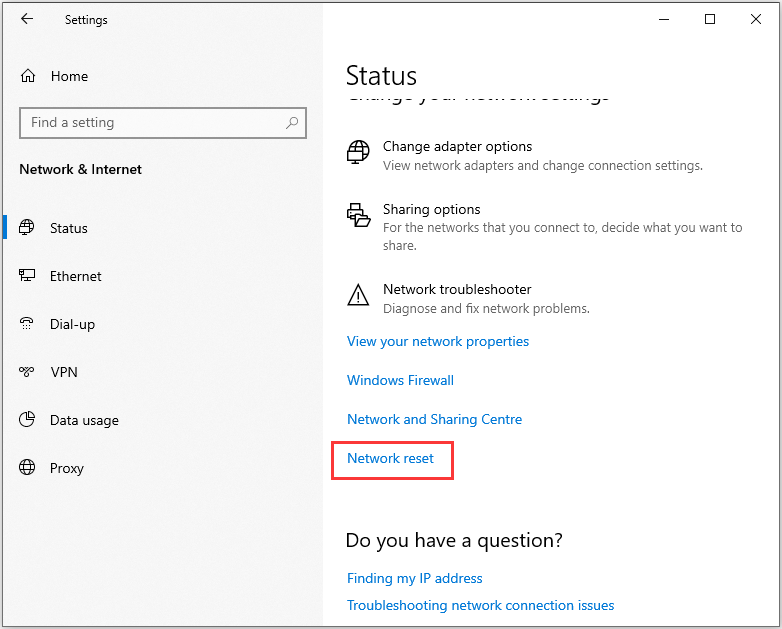
Fix 3: Reset the Network
If the above methods do not work for you, you may have to reset the network connection on the system. In this case, you can try to reset the Npcap loopback adapter and system network settings. Follow the guide below:
Step 1: Open the Settings application by pressing the Windows + I keys at the same time.
Step 2: Then, click the Network & Internet part. Next, click the Status tab and click the Network reset option.
Final Words
In summary, this post shows 3 ways to fix the Npcap Loopback Adapter issue. If you have the same trouble, try these solutions. If you have any better ideas to fix this problem, share them in the comment zone.
About The Author
She was graduated from the major in English. She has been the MiniTool editor since she was graduated from university. She specializes in writing articles about backing up data & systems, cloning disks, and syncing files, etc. She is also good at writing articles about computer knowledge and computer issues. In daily life, she likes running and going to the amusement park with friends to play some exciting items.
- What is Npcap?