Установка PostgreSQL 12 на Windows 10
В этой статье мы рассмотрим, как установить PostgreSQL 12 на Windows 10. Кроме того, также установим и настроим pgAdmin 4, который является стандартным и бесплатным графическим инструментом управления СУБД PostgreSQL, который можно использовать для написания SQL-запросов, разработки процедур, функций, а также для администрирования PostgreSQL.
Что такое PostgreSQL?
PostgreSQL – это бесплатная объектно-реляционная система управления базами данных (СУБД). PostgreSQL реализован для множеств ОС, таких как: BSD, Linux, macOS, Solaris и Windows. PostgreSQL использует язык PL/pgSQL
PL/pgSQL – процедурное расширение языка SQL, разработанное и используемое в СУБД PostgreSQL.
Язык PL/pgSQL спроектирован для создания функций, триггеров, а также для добавления управляющих структур в язык SQL, и для помощи нам в выполнении сложных вычислений. PostgreSQL – одна из самых популярных СУБД. На момент написания этой статьи мы будем устанавливать самую последнюю версию PostgreSQL 12.
Системные требования для установки PostgreSQL 12 в Windows
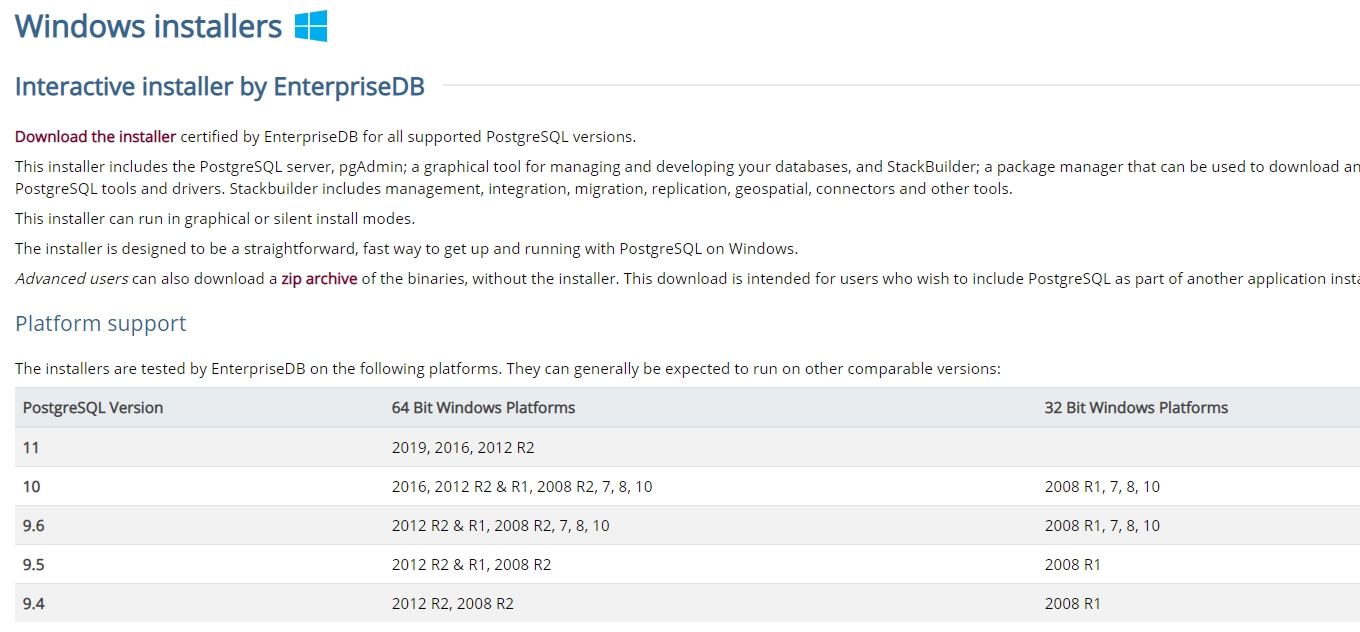
PostgreSQL 12 не может быть установлен на всех версиях Windows, в частности, официально поддерживаются следующие версии и только 64-разрядные:
- Windows Server 2012 R2;
- Windows Server 2016;
- Windows Server 2019
Как видим, в официальном списке нет Windows 10, но установка в этой системе пройдет гладко, как и последующее функционирование PostgreSQL.
Кроме того, существуют и другие требования:
- Процессор с частотой не менее 1 ГГц;
- 2 Гб оперативной памяти;
- Не менее 512 Мб свободного дискового пространства (рекомендуется больше для установки дополнительных компонентов);
- Также рекомендуется установить все обновления ОС Windows.
Установка PostgreSQL 12 и pgAdmin 4 на Windows 10
Итак, давайте перейдем к процессу установки и рассмотрим все этапы, которые необходимо выполнить, чтобы установить PostgreSQL 12 и pgAdmin 4 на Windows 10.
Step 1. Загрузка инсталлятора для Windows
Как ранее уже говорилось, PostgreSQL реализован для многих платформ, но т.к. будем устанавливать PostgreSQL на Windows, нам потребуется соответствующий установщик Windows. Конечно, можно скачать этот дистрибутив с официального веб-сайта PostgreSQL, вот страница загрузки. После перехода на страницу нам нужно нажать на ссылку “Download the installer”, в результате чего попадаем на сайт EnterpriseDB, который делает графические дистрибутивы PostgreSQL для многих платформ, включая Windows, поэтому можем сразу перейти на этот сайт. Здесь нам предоставлен выбор версии и платформы PostgreSQL, в моем случае я выбираю PostgreSQL 12 и Windows x86-64. В итоге мы загрузили файл postgresql-12.3-2-windows-x64.exe размером 194Мб (Версия 12.3-2 доступна на момент написания статьи).
Step 2. Запускаем установщик PostgreSQL
Теперь, чтобы начать установку, нам нужно запустить загруженный файл (установка PostgreSQL требует прав администратора). После запуска откроется экран приветствия, щелкаем по кнопке Next.
Step 3. Указываем каталог для установки PostgreSQL 12
Далее, при необходимости, мы можем указать путь к каталогу, в который мы хотим установить PostgreSQL 12, но мы можем оставить его по умолчанию. Щелкаем по кнопке Next.

Step 4. Выбираем компоненты для установки
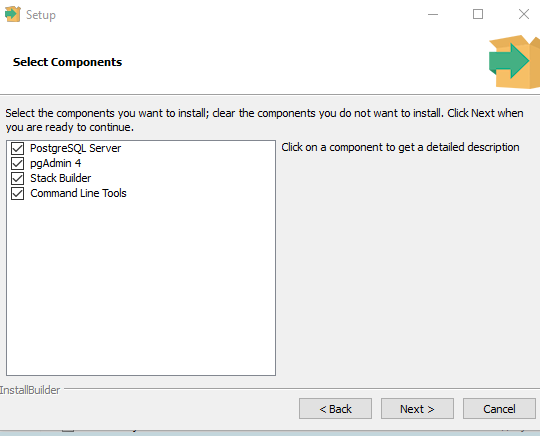
Выбираем компоненты, которые нам нужно установить. Для этого мы отмечаем флажками те компоненты, которые нам нужны, и убеждаемся, что нам нужны PostgreSQL Server и pgAdmin 4. Утилиты командной строки и Stack Builder можно установить самостоятельно, т.е. не надо их ставить. Нажимаем Next.

Step 5. Указываем каталог для хранения файлов базы данных
На данном этапе мы указываем каталог, в котором по умолчанию будут располагаться файлы БД. Примечание. В случае тестовой установки, например, для обучения, можно оставить это по умолчанию, но “боевые” БД всегда должны храниться в отдельном месте, поэтому, если планируется использовать сервер PostgreSQL для каких-то других целей, лучше указать отдельный диск. Щелкаем по кнопке Next.

Step 6. Назначаем пароль для пользователя Postgres
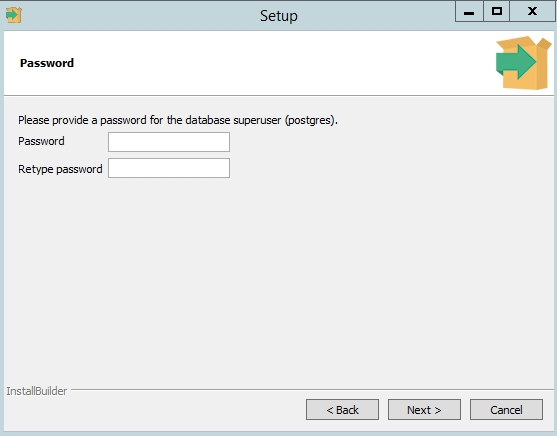
Далее нам нужно задать пароль для пользователя Postgres – это администратор сервера PostgreSQL с максимальными правами. Вводим и подтверждаем пароль.

Step 7. Определяем порта для экземпляра PostgreSQL
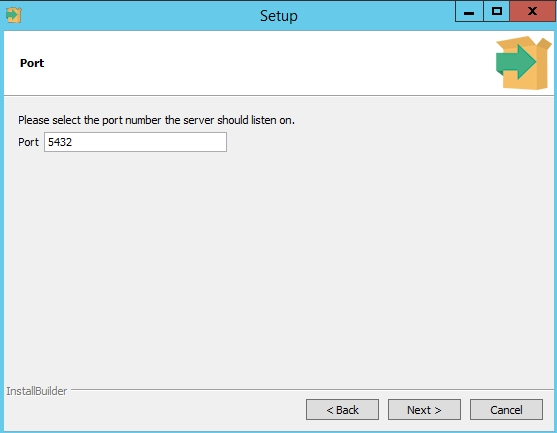
На этом этапе при необходимости можем изменить порт, на котором будет работать сервер PostgreSQL. Если у нас нет такой необходимости, то оставляем его по умолчанию.

Step 8. Указываем кодировку данных в базе
Здесь мы можем задать конкретную кодировку данных в БД. Для этого нам нужно выбрать что-то из выпадающего списка. Однако мы можем оставить все по умолчанию, а именно Default locale, нажав на кнопку Next.

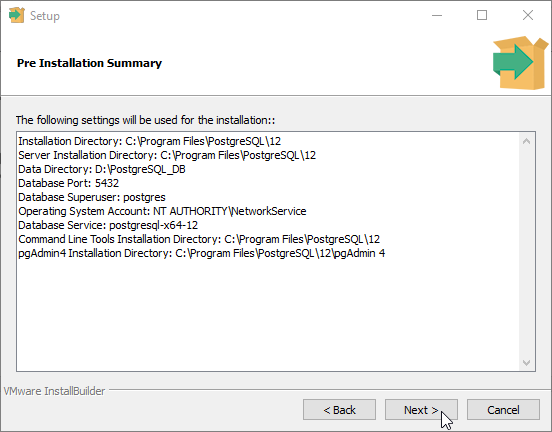
Step 9. Проверяем параметры установки PostgreSQL
Вот и все готово к установке. На этом этапе мы проверяем введенные ранее параметры и, если все правильно, то нажимаем Next.
Step 10. Запускаем процесс установки
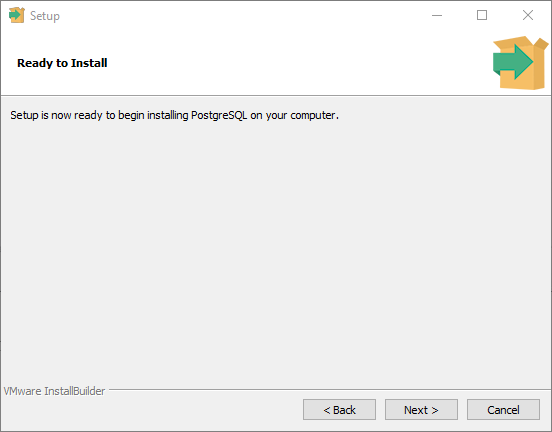
Далее мы увидим еще одно дополнительное окно, в котором мы должны нажать на кнопку Next, чтобы начать процесс установки PostgreSQL на нашем компьютере.
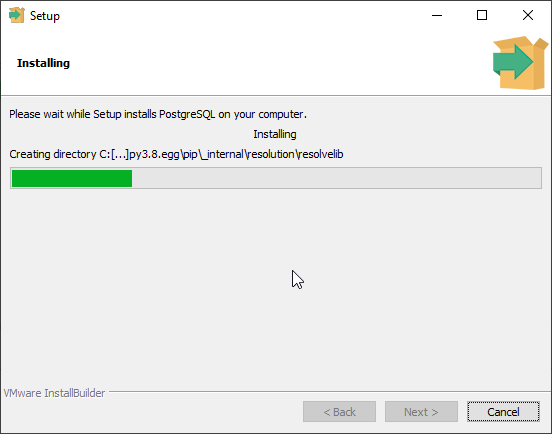
Установка началась, и она продлится буквально одну минуту.
Step 11. Завершаем процесс установки
Когда появится окно сообщения “Completing the PostgreSQL Setup Wizard”, то это значит, что установка PostgreSQL 12 и pgAdmin 4 завершена. Щелкаем по кнопке Finish.

Запуск и настройка pgAdmin 4
PostgreSQL 12 и pgAdmin 4 мы установили, а теперь давайте запустим pgAdmin 4, подключимся к серверу и настроим рабочую среду pgAdmin. Чтобы запустить pgAdmin 4, переходим в меню Start > PostgreSQL 12 > pgAdmin 4.
Подключение к серверу PostgreSQL 12
pgAdmin 4 имеет веб-интерфейс, поэтому в результате мы должны запустить свой браузер и открыть приложение pgAdmin 4. При первом запуске pgAdmin 4 увидим окно “Set Master Password”, в котором мы должны задать “master password”. Этого можно не делать, но если сохраняем пароль пользователя (флажок “Save password”), например, чтобы при каждом подключении не нужно вводить пароль, то настоятельно рекомендуется придумать и ввести дополнительный пароль. Это делается один раз. Введем пароль и щелкаем по кнопке OK.

Чтобы подключиться к недавно установленному локальному серверу PostgreSQL, в браузере сервера нажимаем на Servers > PostgreSQL 12. Откроется окно “Connect to Server”, в котором мы введем пароль пользователя postgres, т.е. тот же пароль, который мы создали во время установки Postgres. После того, как ввели пароль, ставим галочку на “Save Password” для сохранения пароля, и при каждом запуске приложения уже не нужно вводить (благодаря функции “master password” все пароли, сохраненные таким образом, будут дополнительно зашифрованы).

В результате чего мы подключимся к локальному серверу PostgreSQL 12 и увидим все объекты, которые находятся на этом сервере.

Пример написания SQL-запроса в Query Tool
Чтобы убедиться, что наш сервер PostgreSQL работает, давайте напишем простой запрос SELECT, который покажет нам версию сервера PostgreSQL. Для написания запросов SQL в pgAdmin воспользуемся Query Tool. Мы его запустим с помощью значка на панели или из меню Tools. После того, как открыли Query Tool, напишем следующее предложение:
Установка и базовая настройка PostgreSQL в Windows 10
 30.08.2022
 itpro
itpro
 Windows 10, Windows Server 2016
 комментариев 11
PostgreSQL — это бесплатная объектно-реляционная СУБД с мощным функционалом, который позволяет конкурировать с платными базами данных, такими как Microsoft SQL, Oracle. PostgreSQL поддерживает пользовательские данные, функции, операции, домены и индексы. В данной статье мы рассмотрим установку и краткий обзор по управлению базой данных PostgreSQL. Мы установим СУБД PostgreSQL в Windows 10, создадим новую базу, добавим в неё таблицы и настроим доступа для пользователей. Также мы рассмотрим основы управления PostgreSQL с помощью SQL shell и визуальной системы управления PgAdmin. Надеюсь эта статья станет хорошей отправной точкой для обучения работы с PostgreSQL и использованию ее в разработке и тестовых проектах.
Установка PostgreSQL 11 в Windows 10
Для установки PostgreSQL перейдите на сайт https://www.postgresql.org и скачайте последнюю версию дистрибутива для Windows, на сегодняшний день это версия PostgreSQL 11 (в 11 версии PostgreSQL поддерживаются только 64-х битные редакции Windows). После загрузки запустите инсталлятор.
В процессе установки установите галочки на пунктах:
- PostgreSQL Server – сам сервер СУБД
- PgAdmin 4 – визуальный редактор SQL
- Stack Builder – дополнительные инструменты для разработки (возможно вам они понадобятся в будущем)
- Command Line Tools – инструменты командной строки
Установите пароль для пользователя postgres (он создается по умолчанию и имеет права суперпользователя).
По умолчание СУБД слушает на порту 5432, который нужно будет добавить в исключения в правилах фаерволла.
Нажимаете Далее, Далее, на этом установка PostgreSQL завершена.
Доступ к PostgreSQL по сети, правила файерволла
Чтобы разрешить сетевой доступ к вашему экземпляру PostgreSQL с других компьютеров, вам нужно создать правила в файерволе. Вы можете создать правило через командную строку или PowerShell.
Запустите командную строку от имени администратора. Введите команду:
netsh advfirewall firewall add rule name=»Postgre Port» dir=in action=allow protocol=TCP localport=5432
- Где rule name – имя правила
- Localport – разрешенный порт
Либо вы можете создать правило, разрешающее TCP/IP доступ к экземпляру PostgreSQL на порту 5432 с помощью PowerShell:
New-NetFirewallRule -Name ‘POSTGRESQL-In-TCP’ -DisplayName ‘PostgreSQL (TCP-In)’ -Direction Inbound -Enabled True -Protocol TCP -LocalPort 5432
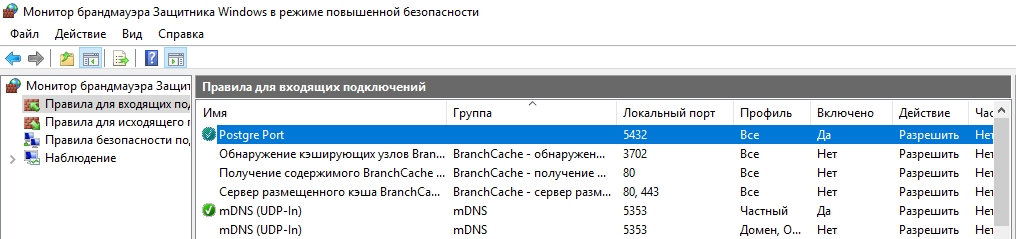
После применения команды в брандмауэре Windows появится новое разрешающее правило для порта Postgres.
Измените значение в пункте port = 5432 . Перезапустите службу сервера postgresql-x64-11 после изменений. Можно перезапустить службу с помощью PowerShell:
Restart-Service -Name postgresql-x64-11

Более подробно о настройке параметров в конфигурационном файле postgresql.conf с помощью тюнеров смотрите в статье.
Утилиты управления PostgreSQL через командную строку
Рассмотрим управление и основные операции, которые можно выполнять с PostgreSQL через командную строку с помощью нескольких утилит. Основные инструменты управления PostgreSQL находятся в папке bin, потому все команды будем выполнять из данного каталога.
-
Запустите командную строку.

Основные команды PostgreSQL:
- Проверка установленной версии СУБД: psql –V
- Для создания новой базы данных воспользуйтесь утилитой createdb: createdb -U postgres testdb (где postgres суперпользователь, testdb новая база данных)Введите пароль суперпользователя.

- Проверить список активных баз: Psql -U postgres –l (пароль)
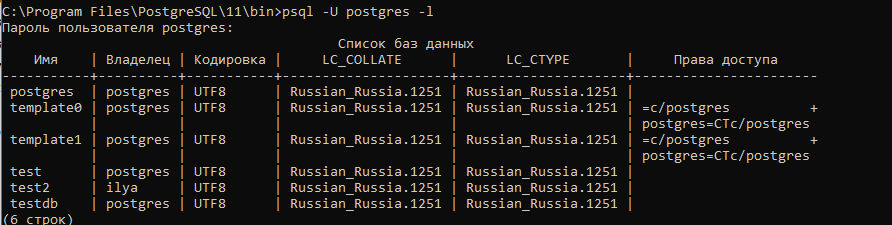
- С помощью инструмента createuser cоздадим нового пользователя: createuser –U postgres operator (где operator -имя нового пользователя)

- Предоставим пользователю привилегии суперпользователя (на практике этого делать не надо). Запустите интерактивную командную оболочку управления PostgreSQL (shell): psql –U postgres . С помощью SQL команды ALTER ROLE предоставим нужные права нашему пользователю: ALTER ROLE operator SUPERUSER CREATEROLE CREATEDB; . Мы предоставили пользователю права суперпользователя, права на создание ролей и баз данных.
- Для выводы списка пользователей и ролей в СУБД выполните команду: \du

PgAdmin: Визуальный редактор для PostgresSQL
Редактор PgAdmin служит для упрощения управления базой данных PostgresSQL в понятном визуальном режиме.
По умолчанию все созданные базы хранятся в каталоге base по пути C:\Program Files\PostgreSQL\11\data\base.
Для каждой БД существует подкаталог внутри PGDATA/base, названный по OID базы данных в pg_database. Этот подкаталог по умолчанию является местом хранения файлов базы данных; в частности, там хранятся её системные каталоги. Каждая таблица и индекс хранятся в отдельном файле.
Для резервного копирования и восстановления лучше использовать инструмент Backup в панели инструментов Tools. Для автоматизации бэкапа PostgreSQL из командной строки используйте утилиту pg_dump.exe.
Query Tool: использование SQL запросов в PostgreSQL
Для написания SQL запросов в удобном графическом редакторе используется встроенный в pgAdmin инструмент Query Tool. Например, вы хотите создать новую таблицу в базе данных через инструмент Query Tool.
- Выберите базу данных, в панели Tools откройте Query Tool
- Создадим таблицу сотрудников:
CREATE TABLE employee
(
Id SERIAL PRIMARY KEY,
FirstName CHARACTER VARYING(30),
LastName CHARACTER VARYING(30),
Email CHARACTER VARYING(30),
Age INTEGER
);
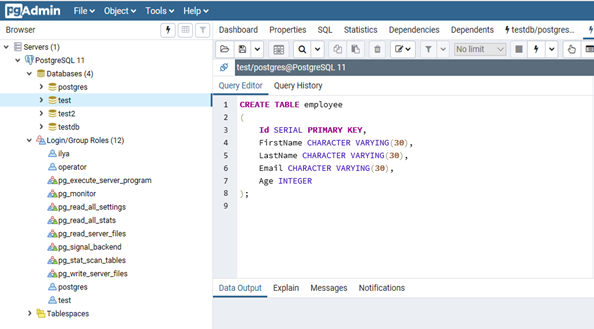
Id — номер сотрудника, которому присвоен ключ SERIAL. Данная строка будет хранить числовое значение 1, 2, 3 и т.д., которое для каждой новой строки будет автоматически увеличиваться на единицу. В следующих строках записаны имя, фамилия сотрудника и его электронный адрес, которые имеют тип CHARACTER VARYING(30), то есть представляют строку длиной не более 30 символов. В строке — Age записан возраст, имеет тип INTEGER, т.к. хранит числа.
После того, как написали код SQL запроса в Query Tool, нажмите клавишу F5 и в базе будет создана новая таблица employee.
Для заполнения полей в свойствах таблицы выберите таблицу employee в разделе Schemas -> Tables. Откройте меню Object инструмент View/Edit Data.
Здесь вы можете заполнить данные в таблице.
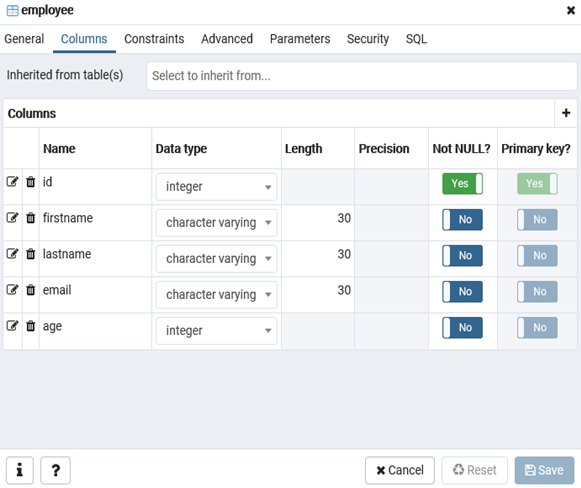
После заполнения данных выполним инструментом Query простой запрос на выборку:
select Age from employee;
Install PostgreSQL 12 on Windows 10 — for beginners
In addition, we will also install and configure pgAdmin 4, which is a standard and free graphical tool for PostgreSQL DBMS management that we can use for writing SQL queries, developing procedures, functions, as well as for PostgreSQL administration.
WHAT IS POSTGRESQL?
PostgreSQL is a free object-relational database management system (DBMS). PostgreSQL is implemented for many operating systems such as: BSD, Linux, macOS, Solaris and Windows.
PostgreSQL uses the PL/pgSQL language.
PL/pgSQL is a procedural extension of the SQL language, developed and used in PostgreSQL DBMS.
PL/pgSQL language is designed to create functions, triggers, it adds control structures to SQL language, and it helps us to perform complex calculations.
PostgreSQL is one of the most popular database management systems (TOP 5 popular database management systems).
At the time of writing, the most up-to-date version of PostgreSQL 12 is the one we will be installing.
SYSTEM REQUIREMENTS FOR POSTGRESQL 12 INSTALLATION ON WINDOWS
PostgreSQL 12 can not be installed on all versions of Windows, in particular, the following versions are officially supported and only 64-bit:
- Windows Server 2012 R2;
- Windows Server 2016;
- Windows Server 2019.
As you can see, there’s no Windows 10 on the official list, but installation on this system goes smoothly, as does subsequent PostgreSQL functioning.
In addition, there are other requirements:
- Processor with at least 1 GHz;
- 2 gigabytes of RAM;
- At least 512 megabytes of free disk space (more for installing additional components is recommended);
- It is also recommended that all Windows operating system updates be installed.
INSTALLING POSTGRESQL 12 AND PGADMIN 4 ON WINDOWS 10
So let’s move on to the installation process and look at all the steps that need to be followed in order to install PostgreSQL 12 and pgAdmin 4 on Windows 10.
STEP 1 — DOWNLOADING THE INSTALLER FOR WINDOWS
As mentioned earlier, PostgreSQL is implemented for many platforms, but since we will be installing PostgreSQL on Windows, we need a Windows installer accordingly. You can of course download this distribution from the official PostgreSQL website, here is the download page — https://www.postgresql.org/download/windows/.
After going to the page you need to click on the link “Download the installer”, as a result you will be taken to the site of EnterpriseDB, which prepares graphical distributions of PostgreSQL for many platforms, including Windows, so you can immediately go to this site, here is the link to the download page https://www.enterprisedb.com/downloads/postgres-postgresql-downloads.
Here you need to select the PostgreSQL version and platform, in our case choose PostgreSQL 12 and Windows x86–64.
As a result, you should download the file postgresql-12.2–2-windows-x64.exe with the size of about 191 Mbytes (version 12.2–2 is available at the time of writing).
STEP 2 — STARTING THE POSTGRESQL INSTALLER
Now in order to start the installation you need to run the downloaded file (PostgreSQL installation requires administrator rights).
After the launch, a welcome screen will open, click “Next”.
STEP 3 — SPECIFY THE DIRECTORY TO INSTALL POSTGRESQL 12
Next, if necessary, we can specify the path to the directory where we want to install PostgreSQL 12, but we can leave it by default. Click “Next”.
STEP 4 — CHOOSE COMPONENTS FOR INSTALLATION
Then select the components that we need to install, to do this we leave the checkboxes for the components that we need, and be sure we need PostgreSQL Server and pgAdmin 4.
You can install the command line utilities and Stack Builder on your own, i.e. you can not install them. Press “Next.”
STEP 5 — SPECIFY A DIRECTORY TO STORE DATABASE FILES
On this step, we need to specify the directory where the database files will be located by default.
In the case of a test installation, for example, for training, you can leave it by default, but “combat” databases should always be stored in a separate location, so if you plan to use the PostgreSQL server for some other purposes, it is better to specify a separate disk.
Click “Next”.
STEP 6 — SET A PASSWORD FOR THE POSTGRES SYSTEM USER
Next we need to set a password for a postgres user — this is a PostgreSQL Server administrator with maximum rights.
We enter and confirm the password. Click “Next”.
STEP 7 — SPECIFY THE PORT FOR YOUR POSTGRESQL INSTANCE
On this step, if necessary, we can change the port on which PostgreSQL Server will work, if you do not have such a need, then leave it by default.
Click “Next”.
STEP 8 — SPECIFY THE ENCODING IN THE DATABASE
Then we can specify a specific data encoding in the database, for this purpose we need to select the desired Locale from the drop-down list.
However, you can also leave it by default by clicking “Next”.
STEP 9 — CHECKING POSTGRESQL INSTALLATION PARAMETERS
Everything is ready for installation, at this step we check the parameters we entered earlier and if everything is correct, i.e. everything we entered, we press “Next”.
STEP 10 — START THE INSTALLATION PROCESS
Next you will see another additional window where we must click “Next” to start the PostgreSQL installation process on your computer.
The installation has begun, it will last literally one minute.
STEP 11 — FINISHING THE INSTALLATION
When the “Completing the PostgreSQL Setup Wizard” message window is displayed, the installation of PostgreSQL 12, pgAdmin 4 and other components will be completed.
Also in this window we will be offered to run Stack Builder to download and install additional components, if you do not need it, then uncheck “Lanch Stack Builder at exit?
Click “Finish”.
RUN AND CONFIGURE PGADMIN 4
PostgreSQL 12 and pgAdmin 4 we have installed, now let’s start pgAdmin 4, connect to the server and configure the pgAdmin work environment.
To start pgAdmin 4, go to the start menu, find PostgreSQL 12 and pgAdmin 4 in it.
CONNECTING TO THE POSTGRESQL 12 SERVER
pgAdmin 4 has a web interface, so as a result you should run your browser and open the pgAdmin 4 application.
The first time you start pgAdmin 4, you will see a “Set Master Password” window, where we must set a “master password”, this may not be done, but if we save the user’s password (“Save password” checkbox), for example, so that every time you connect you do not need to enter it, it is strongly recommended to invent and specify an additional password here, it is done once.
Enter it and click “OK”.
To connect to the newly installed local PostgreSQL server in the server browser, click on “PostgreSQL 12”.
The “Connect to Server” window will start, where you need to enter the password of the postgres system user, i.e. this is the password that you invented when you installed PostgreSQL.
Enter the password, tick “Save Password” to save the password and each time you do not enter it (thanks to the “master password” functionality, all passwords saved in this way will be additionally encrypted).
Click on “OK”.
As a result you will connect to the local PostgreSQL 12 server and see all the objects that are located on this server.
EXAMPLE OF WRITING AN SQL QUERY IN QUERY TOOL
In order to make sure that our PostgreSQL server is running, let’s write a simple SELECT query that will show us the PostgreSQL server version.
To write SQL queries in pgAdmin 4, you can use Query Tool or Russian “Query”, you can run it using the icon on the panel or from the menu “Tools”.
After you open the Query Tool, write.
This query shows the PostgreSQL version. As you can see, everything works!
How to Download and Install PostgreSQL on Windows
PostgreSQL is an open-source, object-based relational database management system. It is well-known for its robustness, SQL compliance, and extensibility.
In this tutorial, we will go over the step-by-step process of installing PostgreSQL on Windows 10. We will also show different ways to connect to a PostgreSQL database and verify the installation.
- A system running Windows 10
- Access to a user account with administrator privileges
Download PostgreSQL Installer
Before installing PostgreSQL, you need to download the installation file from the EDB website.
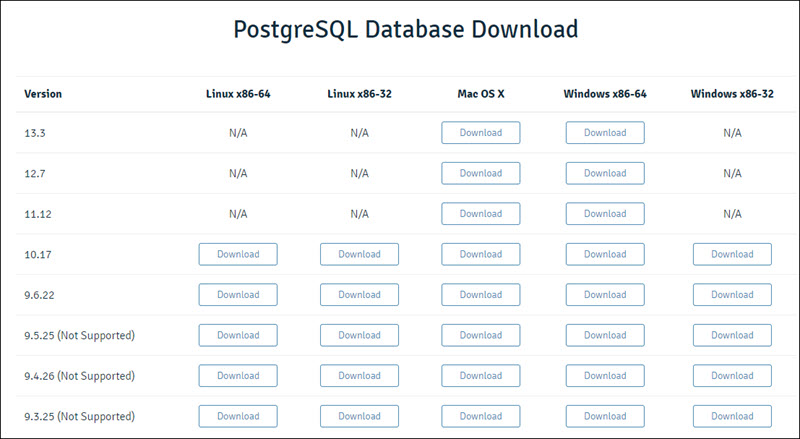
Find the Windows x86-64 category for the latest version of PostgreSQL and click the Download button.
Note: For more information on installing PostgreSQL on other operating systems, check out our guide to installing PostgreSQL on Ubuntu.
Install PostgreSQL on Windows
Follow the steps below to install PostgreSQL on Windows:
1. Open the PostgreSQL install file to start the installation wizard. Click Next to continue.
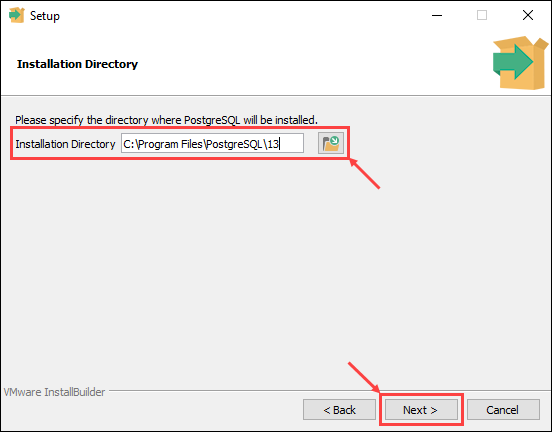
2. Choose an install location for PostgreSQL and click Next to proceed.
3. Select which software components you want to install:
- PostgreSQL Server: Installs the PostgreSQL database server.
- pgAdmin 4: Provides a graphical interface for managing PostgreSQL databases.
- Stack Builder: Allows you to download and install additional tools to use with PostgreSQL.
- Command Line Tools: Installs the command line tool and client libraries. Required when installing PostgreSQL Server or pgAdmin 4.
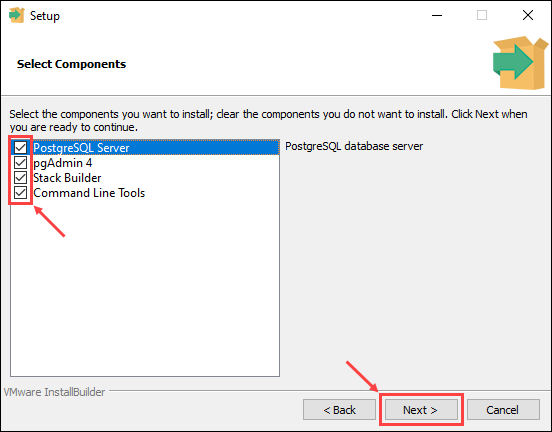
Once you check the boxes next to the components you want to install, click Next to continue.
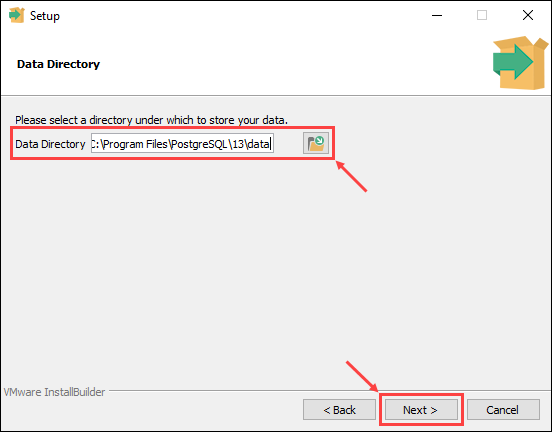
4. Choose a database directory to store data and click Next to continue.
5. Enter and retype the password for the database superuser. Click Next to proceed.
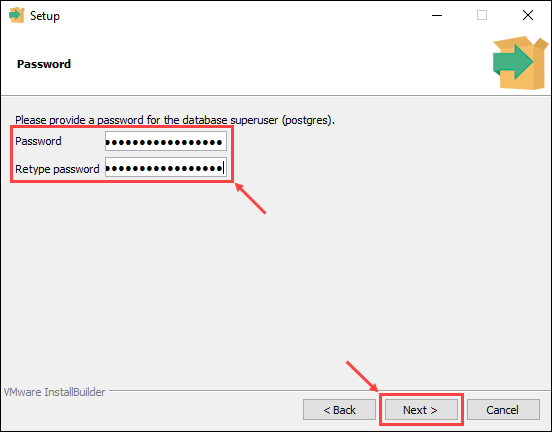
Note: PostgreSQL runs as a background process under a service called postgres. If you already have a service named postgres running, enter the password for that service account when prompted.
6. Enter the port number for the PostgreSQL server to listen on and click Next to continue.
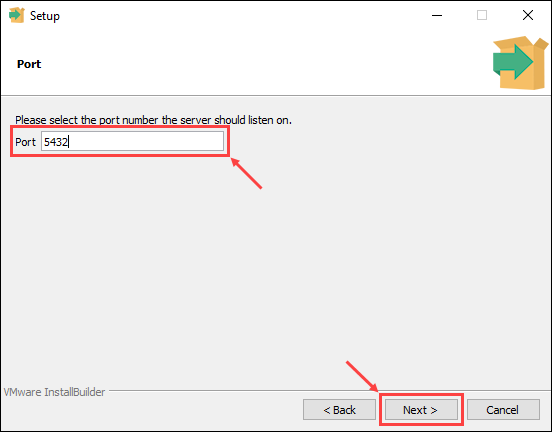
Note: The default port number for the PostgreSQL server is 5432. When entering a custom port number, make sure no other applications are using the port.
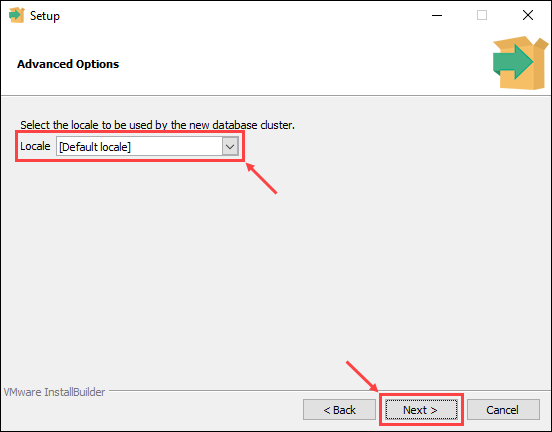
7. Choose the locale for the database to use. Selecting the [Default locale] option uses the locale settings for your operating system. Once you have chosen a locale, click Next to continue.
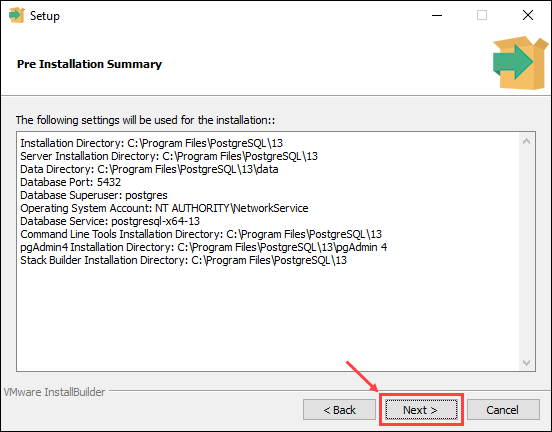
8. The last step offers a summary of the installation settings. Click Back if you want to change any of the settings you made, or click Next to proceed.
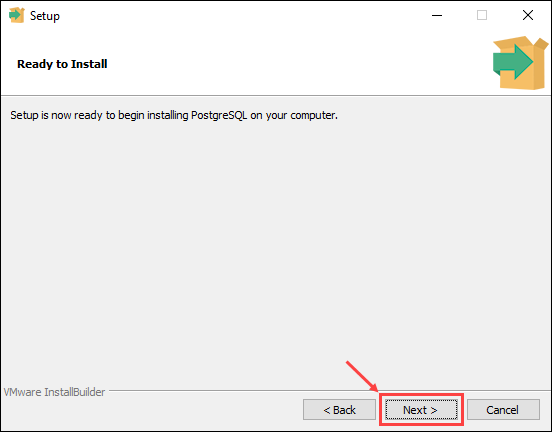
9. The setup wizard informs you it is ready to start the installation process. Click Next to begin installing PostgreSQL.
Connect to the PostgreSQL Database
You can verify the new PostgreSQL installation by connecting to the database using the SQL shell or the pgAdmin tool:
Connect to the PostgreSQL Database Using the SQL Shell (psql)
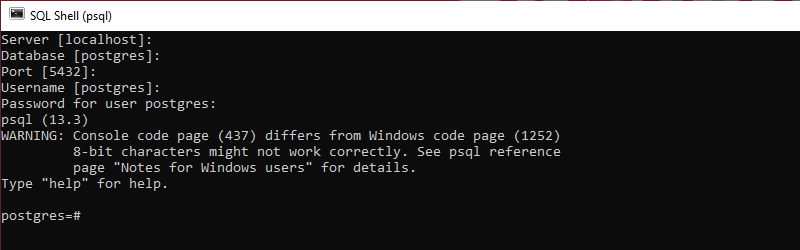
1. Open the SQL Shell (psql) in the PostgreSQL folder in the Start menu.
2. Enter the information for your database as defined during the setup process. Pressing Enter applies the default value, as shown in the square brackets.
3. Verify the new database by using the command:
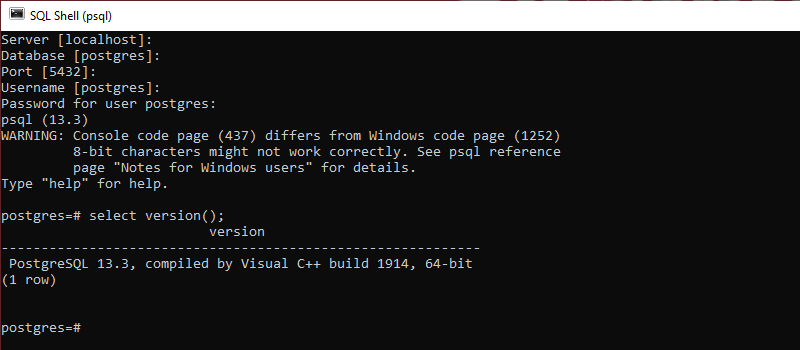
Note: For more details on PostgreSQL version commands, check out our article on how to check PostgreSQL version.
Connect to the PostgreSQL Database Using pgAdmin
1. Open the pgAdmin 4 tool from the PostgreSQL folder in the Start menu.
Note: pgAdmin requires you to set a master password at first launch.
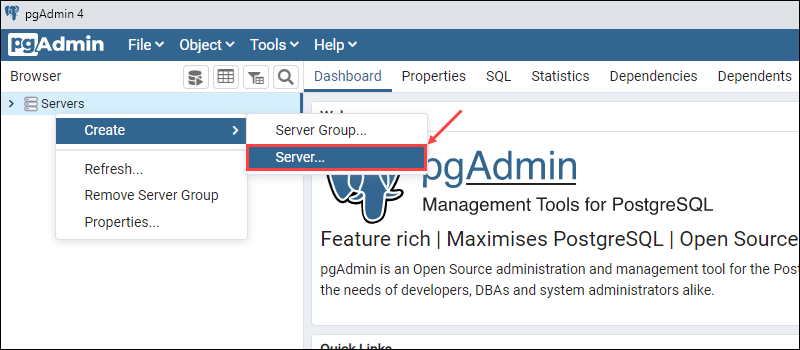
2. Right-click the Servers icon on the left-hand side. Select Create > Server to set up a new database server.
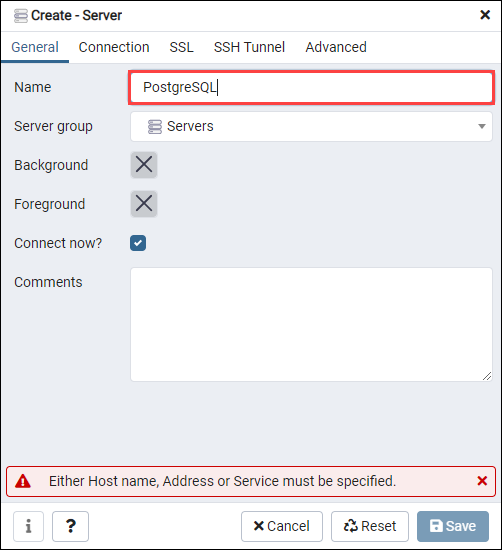
3. In the General tab, enter the name for the new database. In this example, we are using PostgreSQL as the database name.
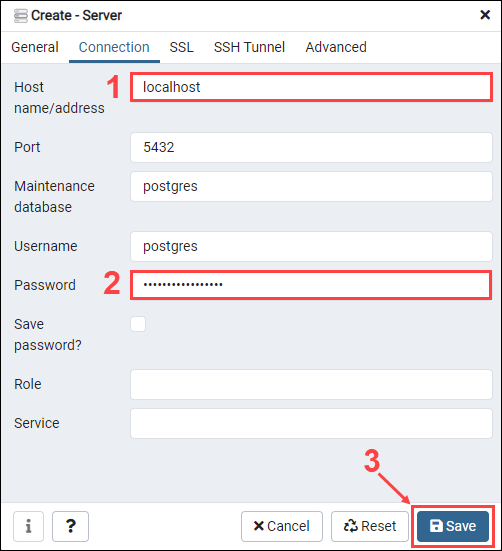
4. In the Connection tab, enter the hostname (default is localhost) and password selected during the setup process. Click Save to create the new database.
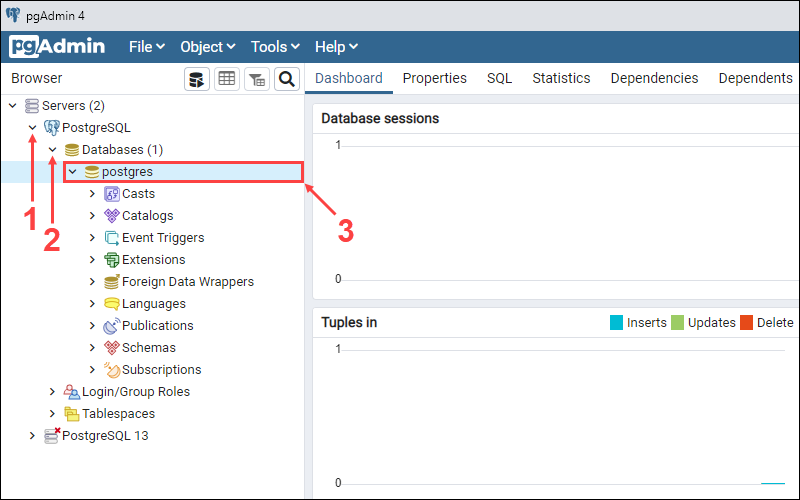
5. Expand the server display by clicking on the Servers > PostgreSQL icons on the left-hand side. Select the default postgres database.
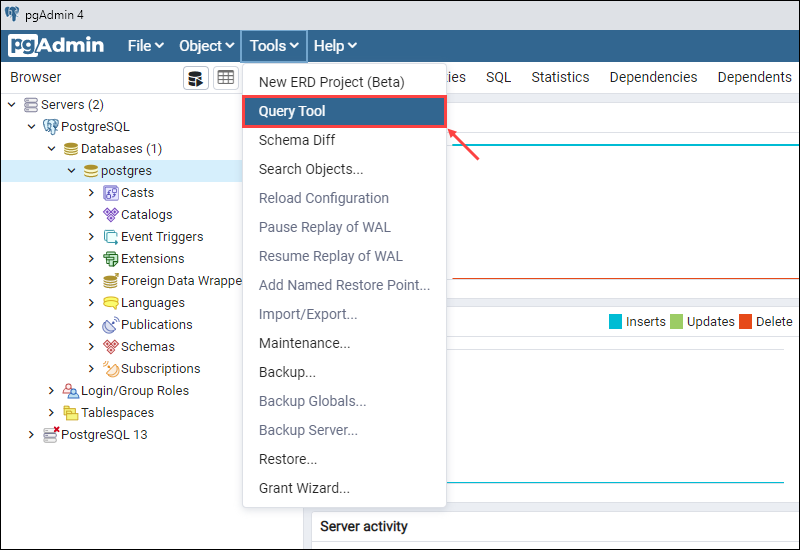
6. In the Tools drop-down menu, click Query Tool to open the query editor.
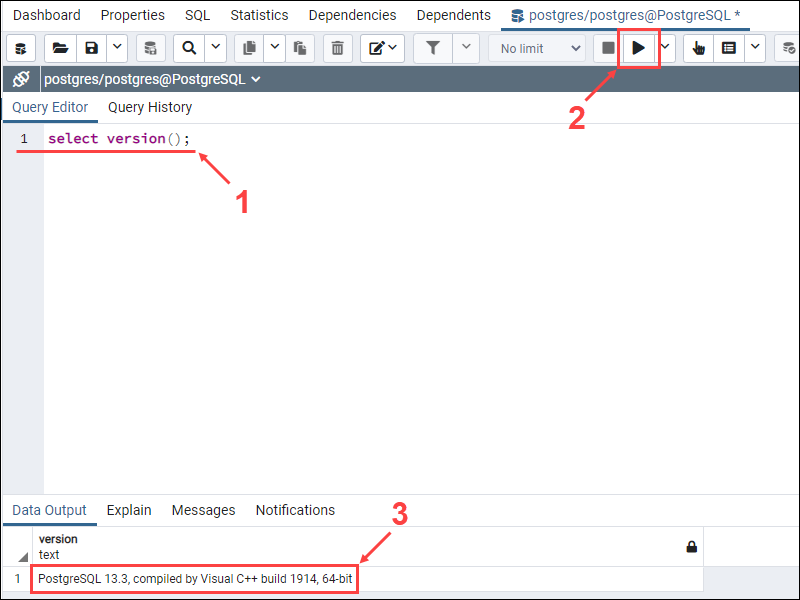
7. Verify the database in the query editor by entering the following command and clicking the Execute button:
If the database is working properly, the current version of the database will appear in the Data Output section.
After following this tutorial, you should have PostgreSQL installed and working on your Windows system. You should also have your first PostgreSQL database set up and ready to use.