Настройка политики запуска скриптов (Execution Policy) PowerShell
 03.06.2020
 itpro
itpro
 PowerShell, Windows 10, Windows Server 2016
 комментариев 8
По-умолчанию настройки Windows запрещают запуск скриптов PowerShell. Это необходимо для предотвращения запуска вредоносного кода на PowerShell. Настройки политик запуска PowerShell скриптов определяются в Execution Policy. В этой статье мы рассмотрим доступные политики запуска PS скриптов, как изменить Execution Policy и настроить политики использования PowerShell скриптов на компьютерах в домене.
Выполнение PowerShell скриптов запрещено для данной системы
При попытке выполнить PowerShell скрипт (файл с расширением PS1) на чистой Windows 10, появляется ошибка:

Текущее значение политики выполнения скриптов PowerShell на компьютере можно получить командой:
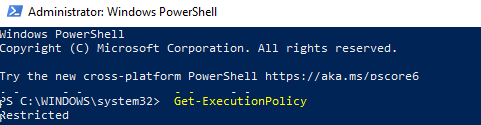
Доступны следующие значения PowerShell Execution Policy:
- Restricted – запрещен запуск скриптов PowerShell, можно выполнять только интерактивные команды в консоли;
- AllSigned – разрешено выполнять только подписанные PS скрипты с цифровой подписью от доверенного издателя (можно подписать скрипт самоподписанным сертификатом и добавить его в доверенные). При запуске недоверенных скриптов появляется предупреждение:
Как разрешить запуск скриптов PowerShell с помощью Execution Policy?
Чтобы изменить текущее значение политики запуска PowerShell скриптов, используется командлет Set-ExecutionPolicy.
Например, разрешим запуск локальных скриптов:
Подтвердите изменение политики запуска PS1 скриптов, нажав Y или A.

Чтобы запрос не появлялся, можно использовать параметр Force.
Set-ExecutionPolicy RemoteSigned –Force
Если вы установили значение политики PowerShell Execution Policy в Unrestricted, то при запуске удаленных скриптов из сетевых каталогов по UNC пути, скачанных из интернета файлов, все равно будет появляться предупреждение:

Также следует различать различные области действия политик выполнения скриптов PowerShell (scopes):
- MachinePolicy – действует для всех пользователей компьютера, настраивается через GPO;
- UserPolicy – действует на пользователей компьютера, также настраивается через GPO;
- Process — настройки ExecutionPolicy действует только для текущего сеанса PowerShell.exe (сбрасываются при закрытии процесса);
- CurrentUser – политика ExecutionPolicy применяется только к текущему пользователю (параметр из ветки реестра HKEY_CURRENT_USER);
- LocalMachine – политика для всех пользователей компьютера (параметр из ветки реестра HKEY_LOCAL_MACHINE);
Область применения политики можно указать с помощью параметр Scope командлета Set-ExecutionPolicy. Например:
Set-ExecutionPolicy -Scope Process -ExecutionPolicy Bypass –Force
Проверим текущие настройки ExecutionPolicy для всех областей:
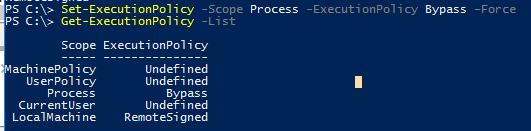
Значение политики выполнения, которые вы задаете с помощью командлета Set-ExecutionPolicy для областей CurrentUser и LocalMachine, хранятся в реестре. Например, выполните командлет:
Set-ExecutionPolicy -Scope LocalMachine -ExecutionPolicy Restricted –Force
Откройте ветку реестра HKEY_LOCAL_MACHINE\SOFTWARE\Microsoft\PowerShell\1\ShellIds\Microsoft.PowerShell и проверьте значение REG_SZ параметра ExecutionPolicy. Оно изменилось на Restricted (допустимые значения параметра Restricted, AllSigned, RemoteSigned, Bypass, Unrestricted и Undefined).
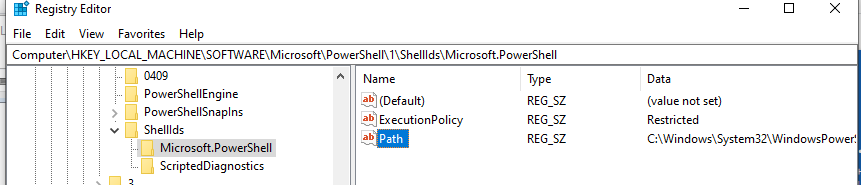
Аналогичные настройки для области CurrentUser находятся в разделе реестра пользователя HKEY_CURRENT_USER\SOFTWARE\Microsoft\PowerShell\1\ShellIds\Microsoft.PowerShell.
Отметим, что чаще всего в корпоративной среде используется ExecutionPolicy со значением AllSigned на уровне LocalMachine. Это обеспечивает максимальный баланс между безопасностью и удобством. Для личного пользования на компьютере можно использовать RemoteSigned. Ну а Bypass политику лучше использовать только для запуска отдельных задач (например для запуска скриптов через GPO или заданий планировщика).
Настройка PowerShell Execution Policy с помощью групповых политик
Вы можете настроить политику выполнения PowerShel скриптов на серверах или компьютерах домена с помощью групповых политик.
- С помощью редактора доменных GPO (gpmc.msc) создайте новую GPO (или отредактируйте) существующую и назначьте ее на OU с компьютерами, к которым нужно применить политику запуска PowerShell скриптов;
- В редакторе политики перейдите в раздел Computer Configuration -> Policies -> Administrative Templates -> Windows Components -> Windows PowerShell и найдите политику Turn on Script Execution (Включить выполнение сценариев);
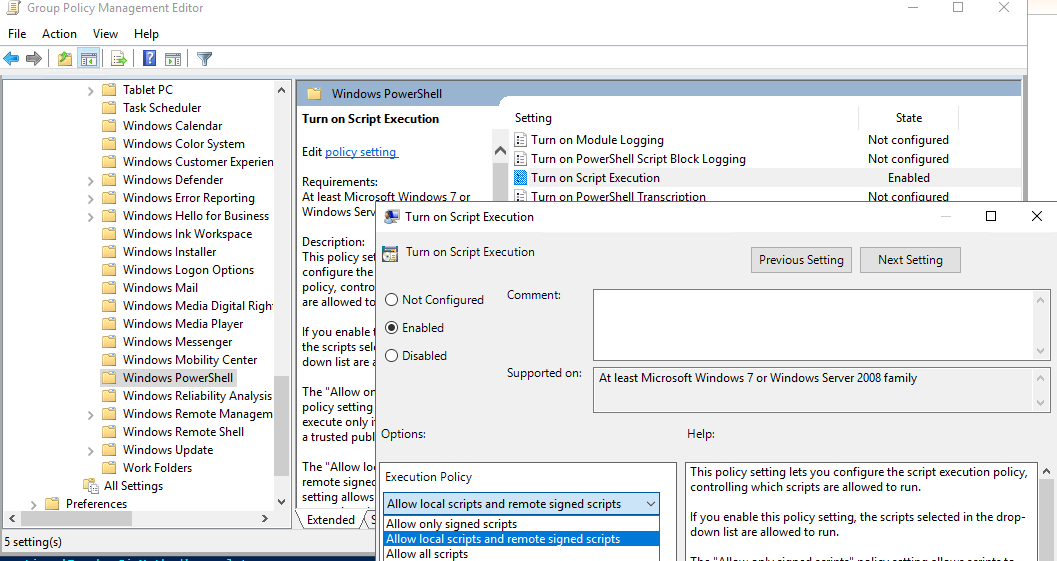
- Allow only signed scripts (Разрешать только подписанные сценарии) — соответствует политике AllSigned;
- Allow local scripts and remote signed scripts (Разрешать локальные и удаленные подписанные сценарии) — соответствует политике PS RemoteSigned;
- Allow all scripts (Разрешать все сценарии) — политика Unrestricted.
После настройки политики выполнения через GPO вы не сможете изменить настройки политики выполнения скриптов вручную. При попытке изменить настройки Execution Policy на компьютере, на который применяется такая GPO, появится ошибка:

Способы обхода политики PowerShell Execution
Есть несколько трюков, которые могут помочь вам, когда нужно запустить на компьютере PowerShell скрипт, не изменяя настройки политики выполнения. Например, я хочу запустить простой PS1 скрипт, который поверяет, что запущен с правами администратора.
Можно с помощью Get-Content получить содержимое скрипта и перенаправить его в стандартныq поток ввода консоли PS.
Set-ExecutionPolicy for Managing PowerShell Execution Policies
Download a free trial of Veeam Backup for Microsoft 365 and eliminate the risk of losing access and control over your data!
Table of Contents
Have you ever downloaded a PowerShell script, ran it, and run into the infamous error message below? If so, you need the Set-ExecutionPolicy cmdlet and this tutorial!
Not a reader? Watch this related video tutorial!
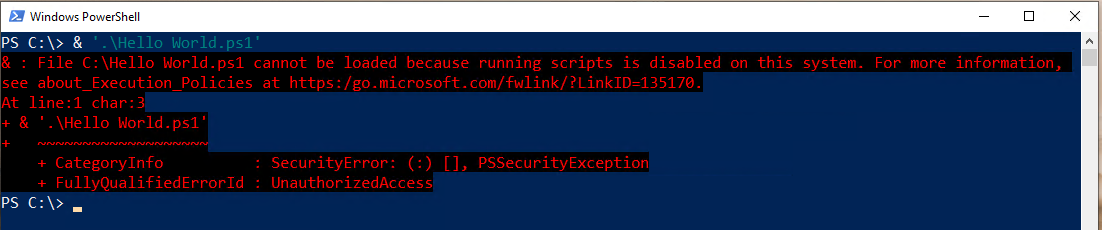
PowerShell Script Execution Disabled Error
In this post, you’re going to learn about PowerShell execution policies and how to manage them with the Set-ExecutionPolicy cmdlet. By the end of this post, you’ll know not only to run scripts but how to use execution policies too!
This tutorial was written with Windows PowerShell in mind, and all demonstrations were performed with Windows PowerShell. Execution policies are not unique to Windows PowerShell, and they operate very similarly in PowerShell 6+. But, if you’re working with PowerShell 6+, you may find small differences in behavior.
What is an Execution Policy?
If you’ve ever run into the error described above, you’ve encountered an execution policy. PowerShell execution policies are a security mechanism to protect your system from running malicious scripts. Execution policies don’t prevent you from running PowerShell code in the console as a shell but script execution.
Microsoft says an execution policy isn’t technically a “security” measure but more of a gate you can open and close. After all, you can bypass a defined execution policy easily, as you’ll learn later.
Execution policies are based on trust. If you trust a script, chances are, it’s not malicious. Execution policies don’t typically prevent script execution of all scripts. Their primary purpose (most notably when configured more strictly) is to ensure you trust the script you’re running is cryptographically-signed with a certificate.
Execution Policy Scopes
As you’ve learned, execution policies restrict script execution, but PowerShell can execute scripts in many different contexts. PowerShell executes scripts under a user’s logged-in context or a global machine context, via scheduled tasks running as SYSTEM or within the scope of a single open PowerShell console.
To accommodate all of these contexts, PowerShell has five different contexts or scopes you can define an execution policy.
- MachinePolicy – This scope is limited to a single computer. It affects all users who log onto that computer, and an Active Directory group policy object sets it. When defined, it takes precedence over all other scopes.
- LocalMachine. This is the default scope that affects all computer users and is stored in the HKEY_LOCAL_MACHINE registry subkey. When you set an execution policy using Set-ExecutionPolicy , this scope is the default.
The execution policy for LocalMachine is stored in the registry key HKEY_LOCAL_MACHINE\SOFTWARE\Microsoft\PowerShell\1\ShellIds\Microsoft.PowerShell.
- UserPolicy – The UserPolicy scope affects only a single user on a computer, and an Active Directory group policy object sets it. You cannot change this policy with Set-ExecutionPolicy .
- CurrentUser. The CurrentUser policy scope sets the execution policy only for the current user and is stored under the HKEY_CURRENT_USER registry hive. You cannot change this policy with Set-ExecutionPolicy .
The execution policy for CurrentUser is stored in the registry key HKEY_CURRENT_USER\SOFTWARE\Microsoft\PowerShell\1\ShellIds\Microsoft.PowerShell.
- Process – This scope defines the execution policy for a single PowerShell session for a single user. The Process execution policy scope is the most granular execution policy you can define. Unlike other execution policies, this policy is saved in an environment variable called PSExecutionPolicyPreference rather than the registry.
Execution Policy Types
Execution policies have various “security levels.” These levels dictate how strict the execution policy is. For example, you can have an execution policy in place that essentially does nothing; it’s disabled, but, on the other hand, an execution policy can completely disable script execution.
Let’s cover each of the ways you can configure an execution policy’s security level from least to most restrictive.
Unrestricted
The least restrictive policy is one that does not affect at all; it’s Unrestricted. Unrestricted execution policies are essentially disabled. Users can run all scripts regardless of trust when an execution policy is Unrestricted.
Bypass
Like the Unrestricted type, an execution policy set to Bypass, blocks nothing.
While Bypass and Unrestricted have a similar effect, the Bypass execution policy type isn’t technically a type at all. It skips a defined execution policy entirely.
Undefined
Although not commonly used, you can essentially remove an execution policy by setting it to Undefined. When you set an execution policy to Undefined, PowerShell completely removes any assigned execution policies from the assigned scope.
On non-Windows computers, the execution policy is always set to Unrestricted and cannot be changed.
When all scopes are set to Undefined, PowerShell essentially treats all scopes as Restricted.
RemoteSigned
As you read earlier, execution policies are all about trust earned via a digital signature on scripts. PowerShell also takes into account where that script came from. Was it created on your local computer or from some random person on the Internet?
Scripts built somewhere other than your local computer should not be inherently trusted. This is why PowerShell provides the RemoteSigned execution policy. The RemoteSigned execution policy enforces that all scripts are written somewhere other than your local computer to be cryptographically-signed.
You can override this execution policy to some degree for files downloaded from the Internet using the Unblock-File cmdlet. Get more information on this behavior a little later in the How the RemoteSigned Policy Works section.
For Windows Server, RemoteSigned is assigned as the default policy.
AllSigned
If you’d like to ensure all PowerShell scripts are cryptographically-signed, set the execution policy to AllSigned. Like RemoteSigned, this execution policy takes the signing requirement a step further and enforces all scripts are signed before execution.
Even if you have the AllSigned execution policy set, you can still get around the execution policy by bypassing it, as you’ll learn later.
Restricted
The most restrictive execution policy is Restricted. When an execution policy is to Restricted, absolutely no scripts can execute; regardless of they’re trusted or not. This policy essentially disables script execution completely.
Also, unlike the less restrictive types, the Restricted type ensures PowerShell formatting and configuration files (PS1XML), module script files (PSM1), and PowerShell profiles cannot execute.
All Windows clients, by default, are set to a Restricted execution policy.
Technically, Microsoft defines a seventh execution policy called Default, but the type is essentially another label for RemoteSigned (Windows Server) and Restricted (Windows Clients).
How the RemoteSigned Policy Works
One particular scenario to point is how the RemoteSigned execution policy works. This execution policy (as you’ve learned) prevents scripts from running that have been created somewhere other than your local computer.
But how does PowerShell know the script was created elsewhere? Data streams.
Understanding and Querying NTFS Data Streams
Whenever you create a file on an NTFS file system, NTFS applies an alternate data stream (ADS) attribute to the file. An ADS has two file attributes: $Data and zone.Identifier. PowerShell uses the zone.Identifier attribute to identify whether a PowerShell script file created somewhere else.
Unlike other attributes like Compressed or Read Only, ADS attributes are hidden in File Explorer. But, by using PowerShell, you can inspect these data streams.
Run the Get-Item cmdlet using the path to the script and the Stream parameter as shown below. In this example, Hello World.ps1 was written on the local computer. Notice the only attribute assigned to the Stream property is $DATA . There is no ADS attribute.
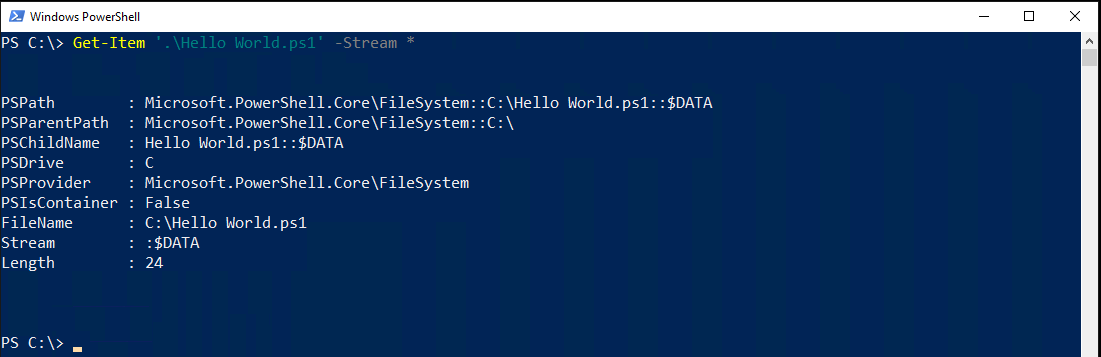
ADS Stream output for local file
Now, run the same command on a script downloaded from the Internet. Notice now Get-Item returns another object completely with a Stream of Zone.Identifier .
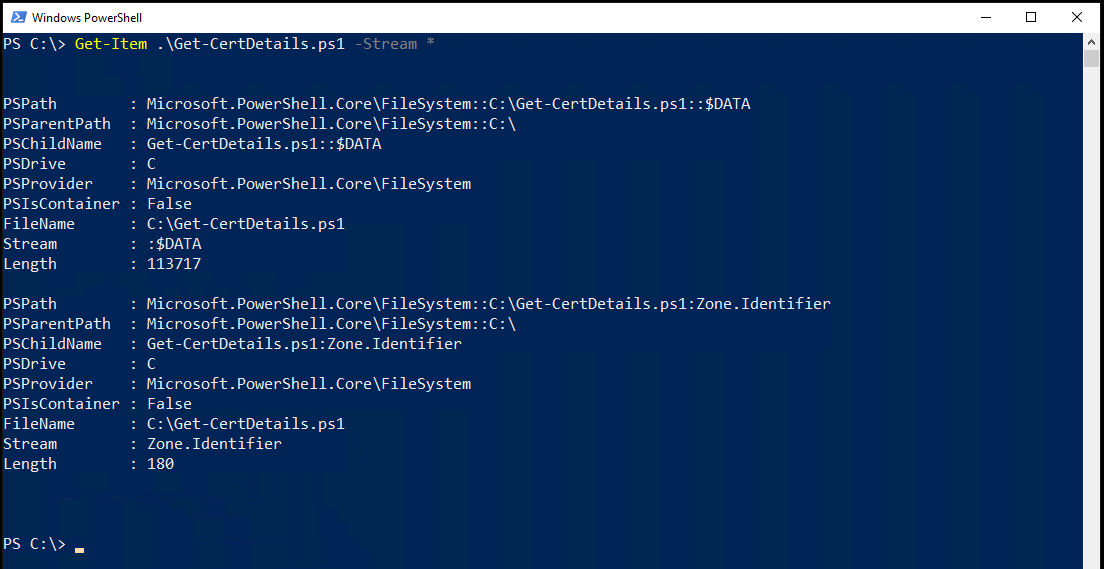
ADS Stream output for PowerShell file downloaded from internet
Once you know a file has an ADS, you can then use the Get-Content command to discover the zone. The zone defines where the file came from.
Get-Content will return a ZoneId value which represents the zone the file came from.

Zone ID Value
Possible zone values are:
Execution Policy Precedence
As covered above, many different execution policies exist at once. All of these execution policies, when combined, dictate the settings of your current session. When you have multiple execution policies in effect, you must have precedence.
Policy precedence is the order in which PowerShell applies different policies set at different scopes. Some execution policies have higher priority than others.
When you run Get-ExecutionPolicy -List , you will find all execution policies currently in effect ordered from lowest priority to highest. For example, since MachinePolicy has a lower priority, the LocalMachine and CurrentUser policies will override it.
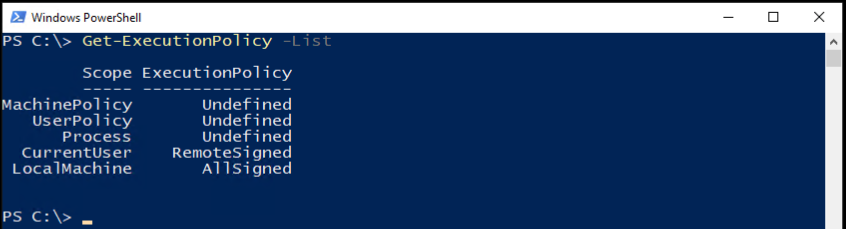
Get-ExecutionPolicy cmdlet output
Working with Execution Policies
Enough understanding the background of execution policies, let’s now dig into how to work with them! To work with PowerShell’s execution policies, you have two commands at your disposal Get-ExecutionPolicy to discover currently-defined policies and Set-ExecutionPolicy to set new policies.
Getting Currently-Assigned Policies
Before you can begin changing execution policies, you need to learn what you’re working with. To do that, you’ve got the Get-ExecutionPolicy command. This command enumerates all of the currently-assigned policies on a computer.
When you directly run the Get-ExecutionPolicy command on a PowerShell console with no parameters, it will show the execution policy set for your current PowerShell session.

Get-ExecutionPolicy cmdlet output
To see the execution policy set to a scope, specify the Scope parameter using the scope name you’d like to see the results for.

Get-ExecutionPolicy cmdlet with scope parameter output
To view all scopes and their execution policies, use List parameter as shown below.
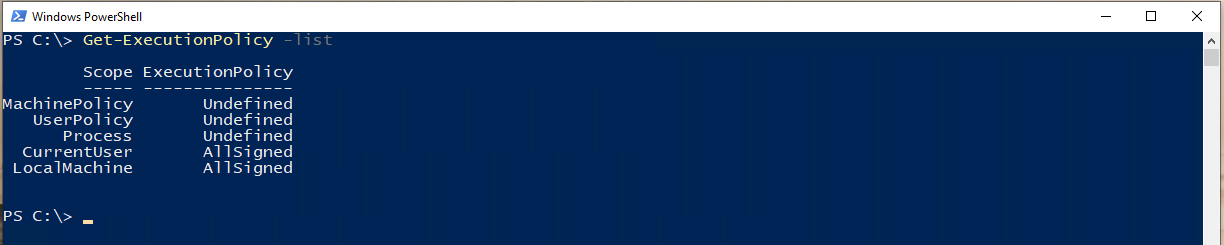
Get-ExecutionPolicy cmdlet displaying all scopes
Changing Execution Policies
Once you know what execution policies are currently assigned, you can change them too. To change the policy on a single computer, you have the Set-ExecutionPolicy command at your disposal. But, if you’re in an organization, you’ll want to change policies in bulk. If that’s the case, you always have Group Policy if you’re in an Active Directory domain.
Using Set-ExecutionPolicy
Let’s first cover how to change policies with the Set-ExecutionPolicy command. To do so, open up PowerShell as administrator.
Now run the Set-ExecutionPolicy command with a single parameter ( ExecutionPolicy ) providing the name of the execution policy.
PowerShell will then ask if you’d like to change the execution policy. If you do, type Y or A and hit Enter.

Change Execution Policy
Some PowerShell commands need to run multiple other tasks to operate. If in the example above you enter Y , PowerShell may prompt you to continue for each step. If you press A , it will continue for all the subsequent steps.
Running Set-ExecutionPolicy Without Prompts
By default, when you run Set-ExecutionPolicy , it will prompt you whether or not you want to change the execution policy. You can skip this prompt by adding the Force parameter to your command. Using the Force parameter will suppress all confirmation prompts.
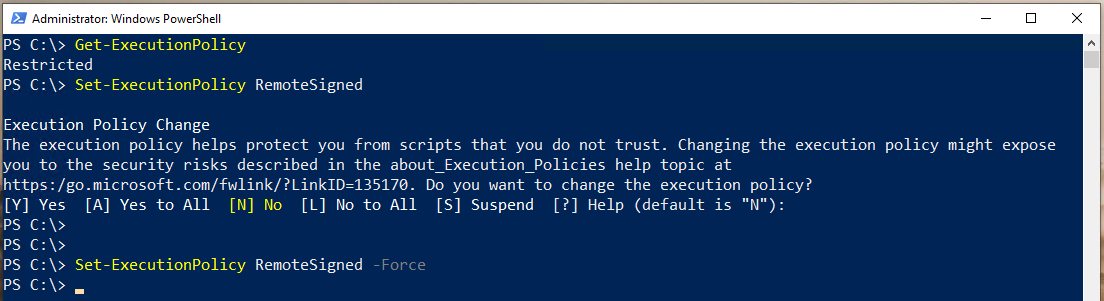
Output of Set-ExecutionPolicy command when Force Parameter is used
Setting PowerShell Execution Policy via Registry
Since most execution policies are stored in the registry (excluding Process), you can also change policies directly via the registry.
To change execution policies via the registry:
- Open up the Windows Registry Editor (regedit) or your choice of registry editing tool.
2. Navigate to the execution policy scope’s registry key you’d like to change.
LocalMachine – HKEY_LOCAL_MACHINE\SOFTWARE\Microsoft\PowerShell\1\ShellIds\Microsoft.PowerShell
CurrentUser – HKEY_CURRENT_USER\SOFTWARE\Microsoft\PowerShell\1\ShellIds\Microsoft.PowerShell
3. Right-click on the registry key and create a new string value called ExecutionPolicy.
4. Double-click on the newly-created ExecutionPolicy string value and enter desired execution policy name (Restricted, RemoteSigned, AllSigned, Unrestricted, or Undefined).
5. Create another string value in the same key called Path. The Path string value represents the path to the PowerShell engine. Ensure the Path value is C:\Windows\System32\WindowsPowerShell\v1.0\powershell.exe which points to the Windows PowerShell engine.
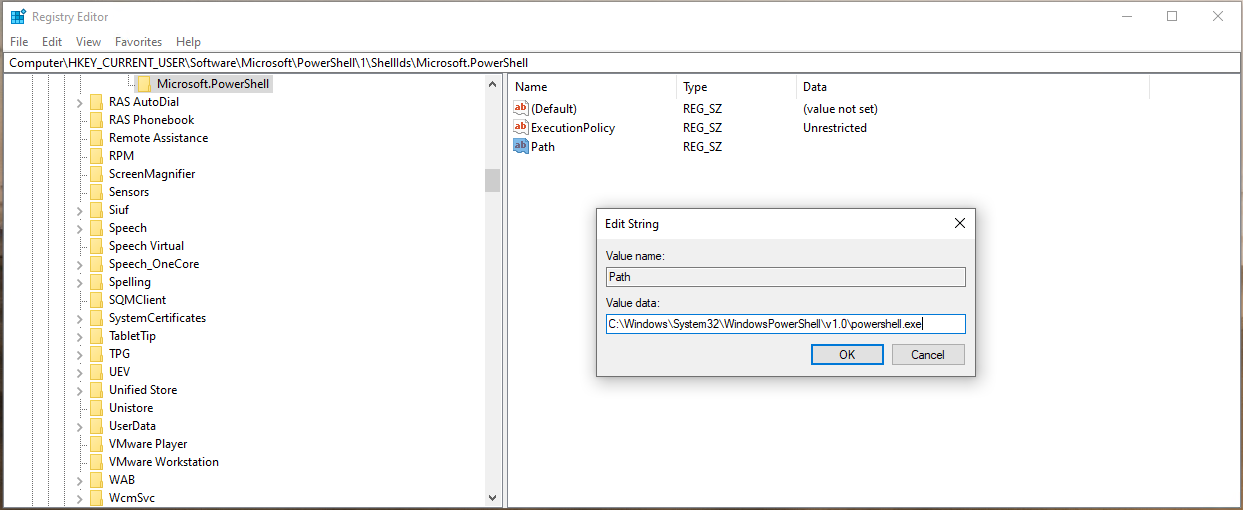
Registry path for ExecutionPolicy in registry for current user
The CurrentUser execution policy overrides a LocalMachine policy. If you have a CurrentUser policy set in the registry and try to change the execution policy via Set-ExecutionPolicy , which, by default, sets the policy at the LocalMachine scope, PowerShell will return an error shown below.
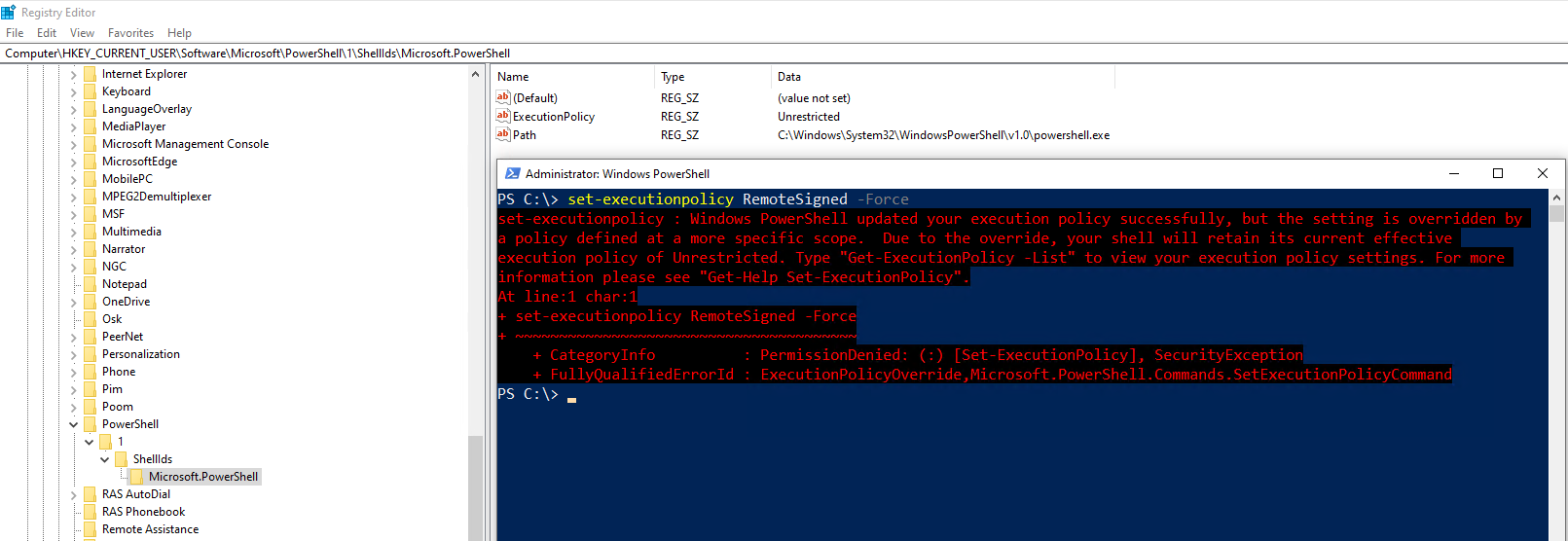
Execution Policy Permission Denied
Setting PowerShell Execution Policy via Group Policy
If you are in an organization with Active Directory, you’re not going to want to go around to all of your Windows machines and run the Set-ExecutionPolicy cmdlet. Instead, you can manage policies in bulk with Group Policy.
To manage execution policies via GPO:
Create the Group Policy Object
- Open up the Group Policy Management application on a domain controller or on your domain-joined workstation.
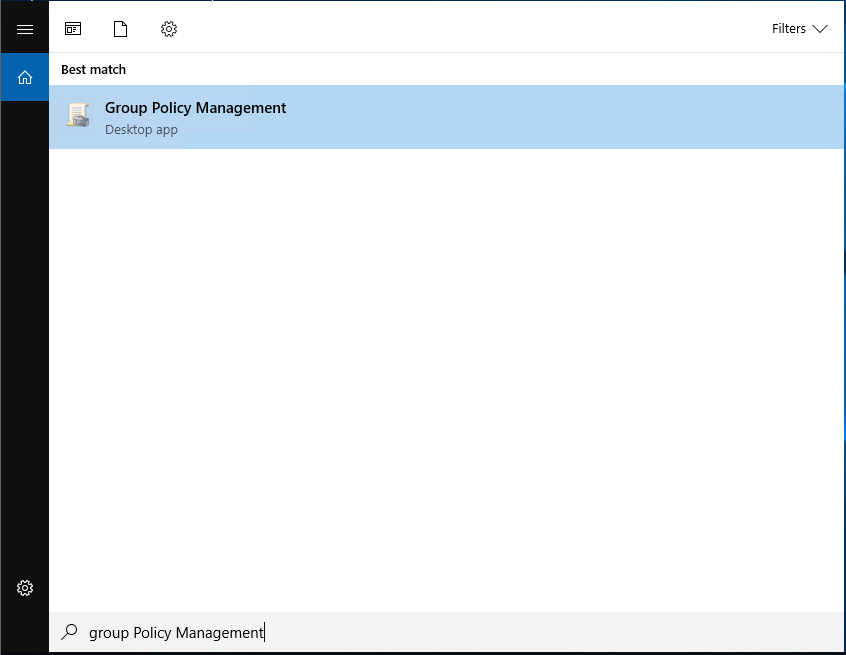
Group Policy Management Console
2. Expand Domains —> <your Active Directory forest> —> Group Policy Objects.
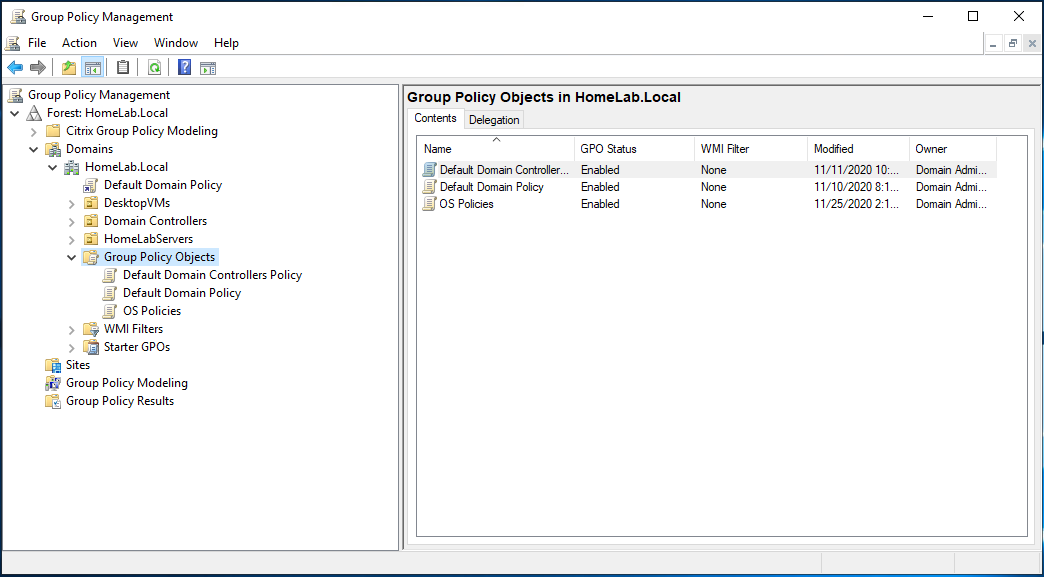
Select Group Policy Objects node
3. Right-click on Group Policy Objects and click New.
4. Give your GPO a name. In this tutorial, the GPO is called PowerShell Execution Policy.
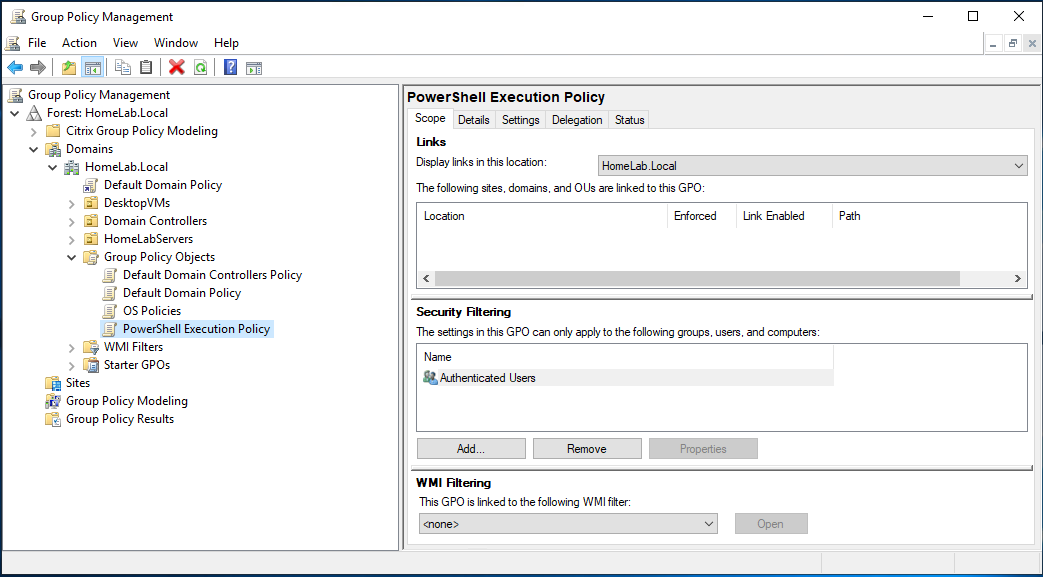
Create new Group Policy Object
5. Right-click on the newly-created GPO and click Edit.
6. Navigate to Computer Configuration\Policies\Administrative Templates\Windows Components\Windows PowerShell.
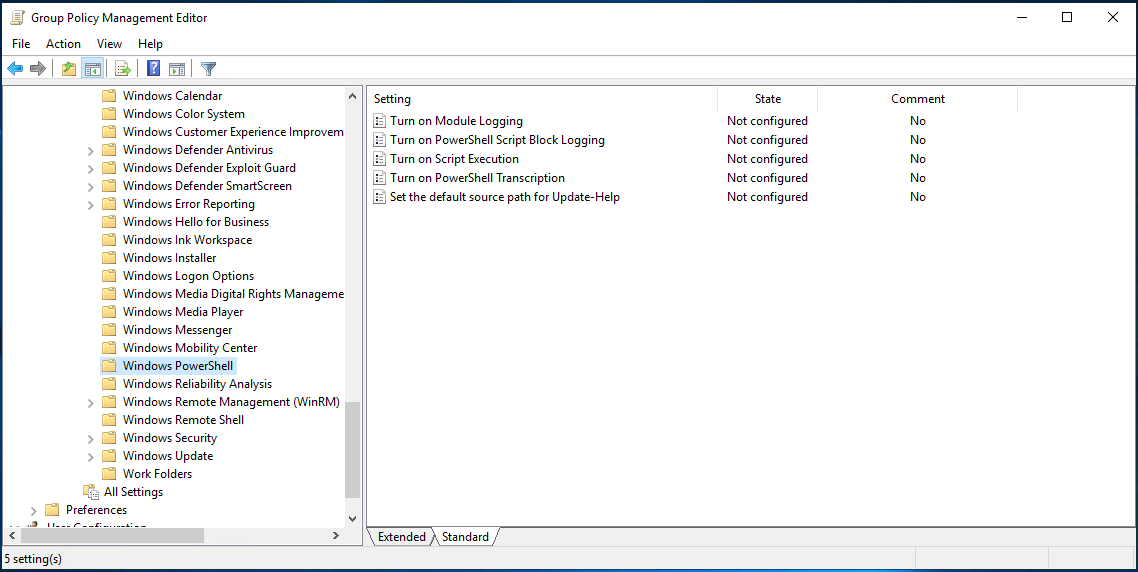
Navigate to the setting in Group Policy Object
7. Open the setting in the right window pane, open the Turn on Script Execution setting.
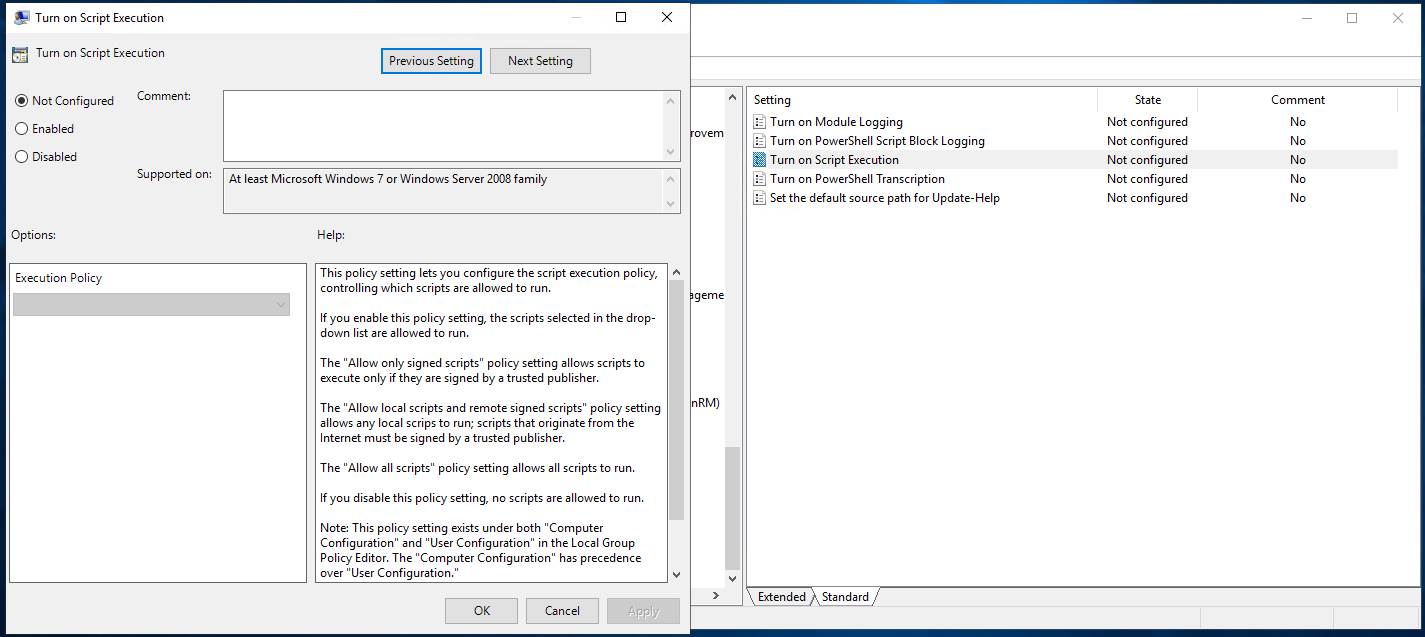
Turn on Script Execution Policy
8. In the Turn on Script Execution box, Select the Enabled option. You can now select any one of the options shown below:
9. Now change the Execution Policy to your desired policy.
- Allow only signed scripts – Allows all scripts execution when a trusted publisher signs them.
- Allow local scripts and remote signed scripts – Allows local scripts to run but scripts that are downloaded from the internet should be signed by a trusted publisher.
- Allow all scripts – Allows all scripts to run.
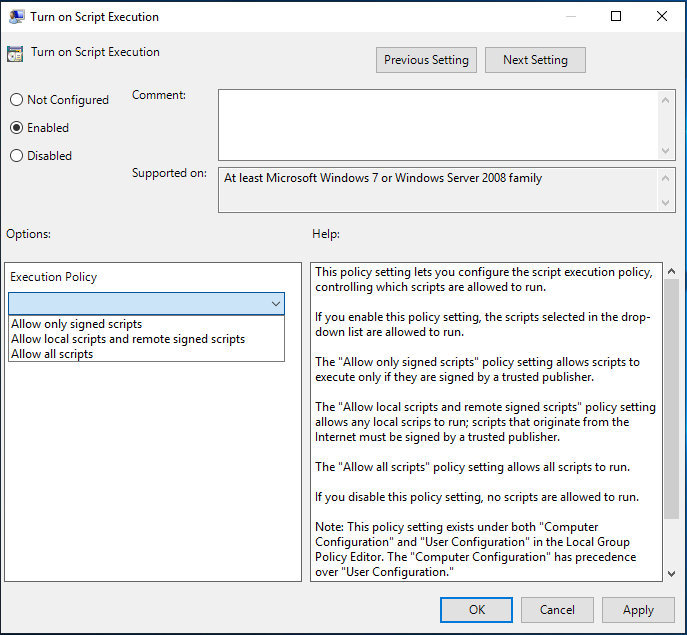
List Execution Policy
Assign the Group Policy Object
Once you have the GPO created, it’s time to assign it to your target computers. To do that, you must assign the GPO to an Active Directory Organizational Unit (OU).
If, instead of creating a new GPO, you edited an existing GPO, that GPO has already probably already been assigned to an OU.
- In Group Policy Management, navigate to your OU of choice by going to Domains —> <your Active Directory forest> —> <Your OU>.
2. Right-click on the OU and select Link an Existing GPO…
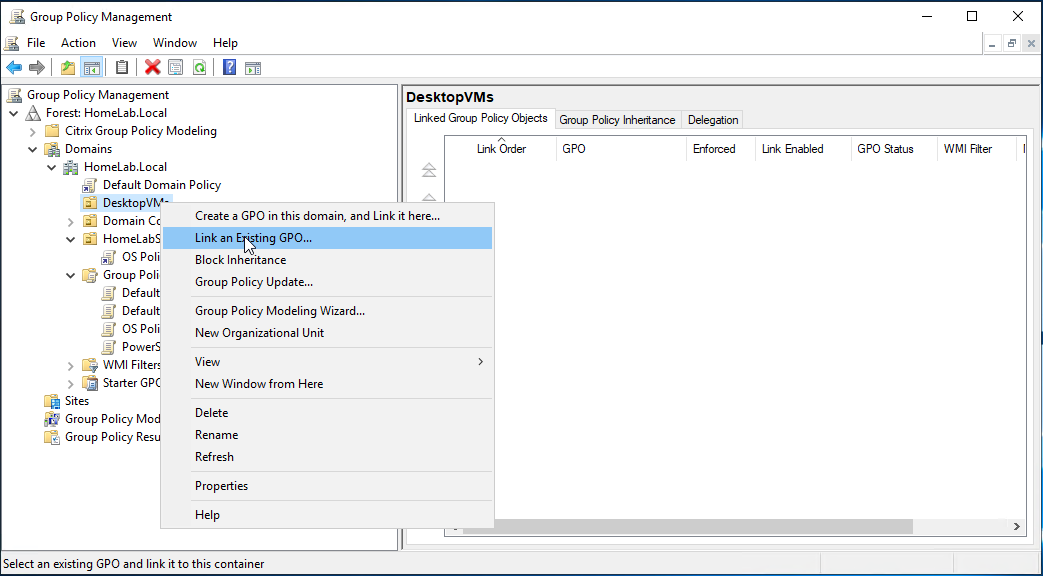
Link an Existing GPO…
3. Select the GPO just created (PowerShell Execution Policy) and click OK.
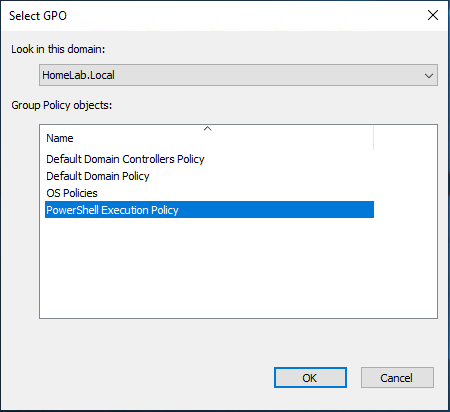
Select the GPO
You should now see the GPO assigned to the OU as shown below.
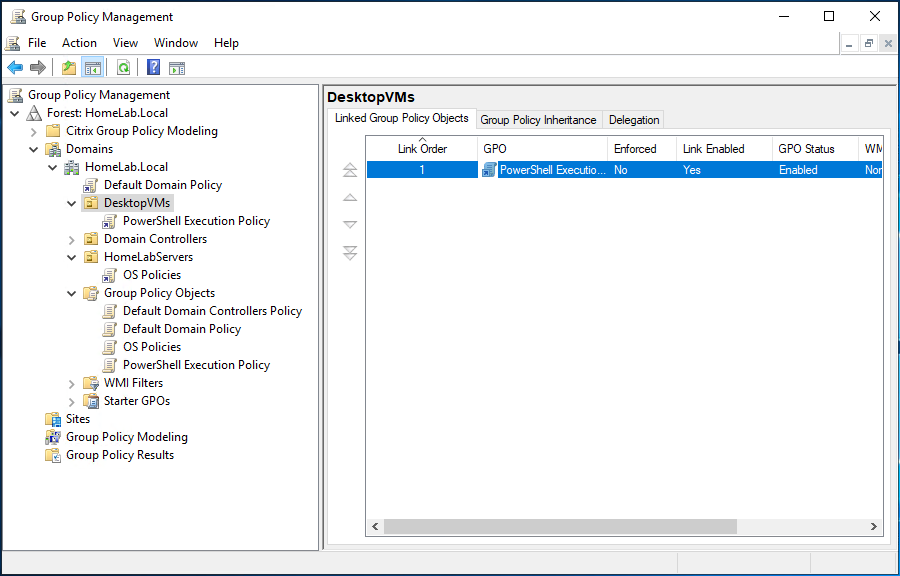
Link the Group Policy Object
At this point, you can either wait for the defined Group Policy refresh interval or run the gpupdate command on a target computer to force a refresh.
Locking Down Local Policy Changes
Once a GPO is in effect that changes the execution policy, local users can no longer change the policy via the local PowerShell console. If they try, they will receive an error, as shown below.
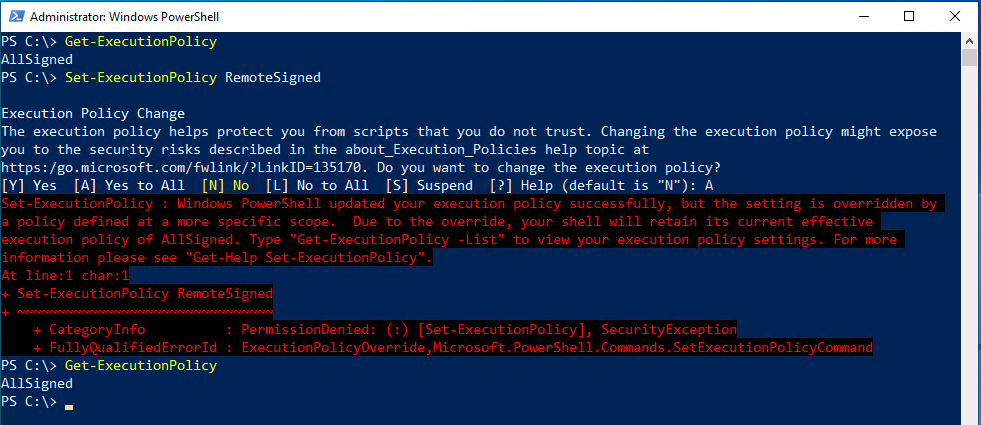
Error on trying to changing execution policy manually
Bypassing the Execution Policy Completely
As mentioned earlier, an execution policy isn’t necessarily meant to be a security measure. Why? Because you can completely bypass it if you’d like in a few different ways.
Using the -ExecutionPolicy Bypass Parameter
Unlike the other execution policies, the Bypass policy is typically set not in the PowerShell console but passed to the powershell.exe engine run as administrator.
For example, to run a script called Hello World.ps1 completely skipping any execution policy, invoke powershell.exe, use the Bypass parameter and provide the file path as shown below.
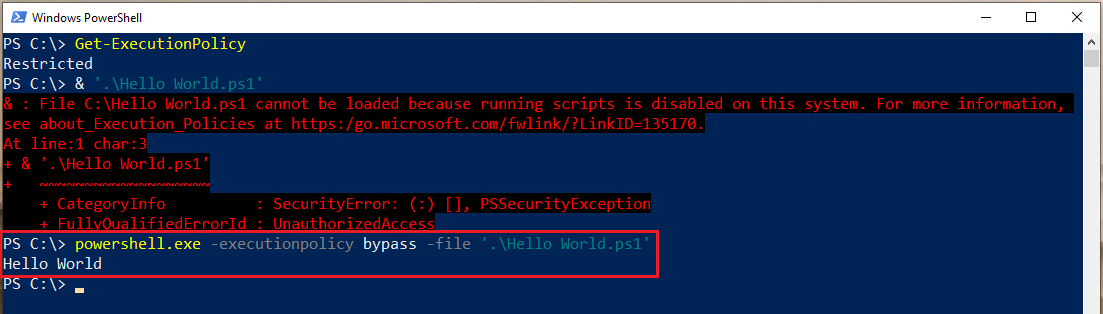
ByPass Execution Policy using bypass execution policy
Reading Scripts and Executing Raw Code
You can also get around any execution policy by first reading the contents of a script and then passing that contents directly to the PowerShell engine. Doing so, runs each command individually and not as a whole script at once.
As you can see below, the execution policy is set to Restricted, but by reading the script and passing it to powershell.exe, it still works.
This approach is similar to opening a script in a PowerShell editor like PowerShell ISE or Visual Studio Code, selecting a line and pressing F8.
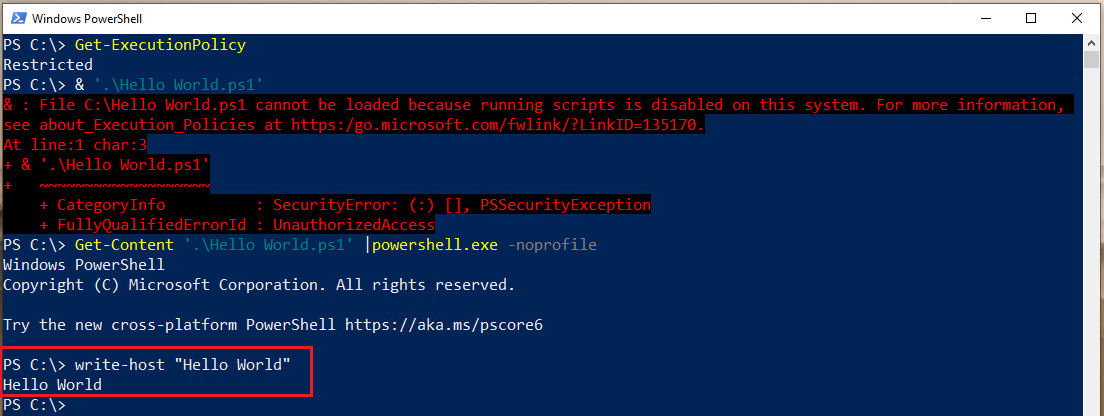
Alternative way to Bypass Execution Policy
Conclusion
By now you should know all there is to know about PowerShell execution policies. Even though they’re not technically a security measure, you should still manage them in your organization according to organizational policies.
Hate ads? Want to support the writer? Get many of our tutorials packaged as an ATA Guidebook.
More from ATA Learning & Partners
Recommended Resources!
Recommended Resources for Training, Information Security, Automation, and more!
Get Paid to Write!
ATA Learning is always seeking instructors of all experience levels. Regardless if you’re a junior admin or system architect, you have something to share. Why not write on a platform with an existing audience and share your knowledge with the world?
ATA Learning Guidebooks
ATA Learning is known for its high-quality written tutorials in the form of blog posts. Support ATA Learning with ATA Guidebook PDF eBooks available offline and with no ads!
Политика выполнения скриптов PowerShell
При разработке PowerShell особое внимание было уделено безопасности. Одной из мер безопасности является наличие политики выполнения (Execution Policy), которая определяет, могут ли скрипты PowerShell выполняться в системе, и если могут, то какие именно.
Для примера возьмем чистую Windows 10, откроем консоль PowerShell и попробуем выполнить простой скрипт. Попытка завершится ошибкой, поскольку, как видно из сообщения, выполнение скриптов в системе запрещено.
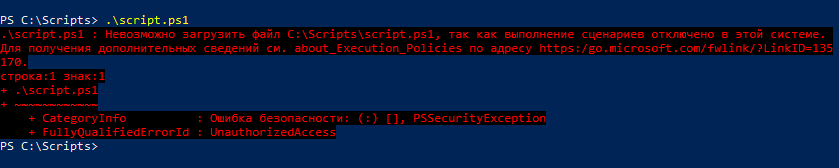
Это сработала политика выполнения, и если мы все же хотим выполнить скрипт, то ее необходимо изменить. Выбрать можно одно из следующих значений:
• Restricted — в системе запрещено выполнение любых скриптов, допускается только выполнение отдельных команд. Это политика по умолчанию для клиентских ОС Windows;
• AllSigned — разрешено выполнение только скриптов, имеющих цифровую подпись от доверенного издателя;
• RemoteSigned — для удаленных скриптов требуется наличие цифровой подписи, локальные скрипты выполняются без ограничений. Удаленными считаются скрипты, полученные из удаленных источников (загруженные из интернета, полученные по электронной почте и т.п.), локальными — скрипты, созданные на локальном компьютере. Это политика по умолчанию для серверных ОС Windows;
• Unrestricted — разрешено выполнение любых скриптов, как локальных так и удаленных. При выполнении удаленного скрипта без цифровой подписи будет выдано предупреждение. Это дефолтная и единственно возможная политика для всех ОС, отличных от Windows;
• Bypass — разрешено выполнение любых скриптов, никакие предупреждения и запросы не выводятся;
• Default — сбрасывает политику на значение по умолчанию. Для серверов это RemoteSigned, для клиентов Restricted;
• Undefined — не определено. В случае, если значение политики не определено, то применяется политика Restricted.
Теоретически все понятно, проверим на практике. Для просмотра параметров политики используется командлет Get-ExecutionPolicy, а для изменения Set-ExecutionPolicy.
Для начала выведем действующую политику выполнения командой:
Как и ожидалось, текущая политика Restricted. Разрешим выполнение скриптов, установив для политики значение Unrestricted:
Set-ExecutionPolicy Unrestricted -Force
И еще попробуем запустить скрипт. На сей раз он выполнился без ошибок.

Политика Unrestricted разрешает выполнение любых скриптов, но у нее все же есть ограничения. Для проверки я подготовил два скрипта, локальный localscript.ps1 и удаленный remotescript.ps1. Сначала запустим локальный, он выполнится без проблем. А вот при запуске удаленного скрипта PowerShell выдаст предупреждение и потребует подтвердить его запуск. При ручном выполнении это не является большой проблемой, а вот в случае автоматического запуска (напр. из планировщика) скрипт может не отработать.
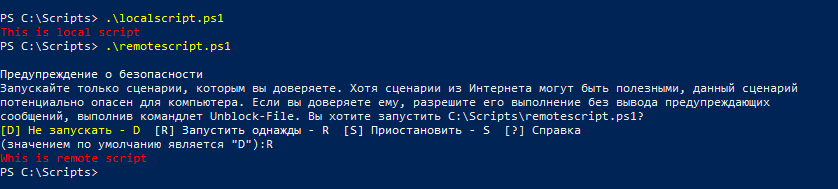
Теперь изменим политику на Bypass и еще раз запустим удаленный скрипт. На сей раз он просто выполнился, безо всяких сообщений и подтверждений. Bypass удобно использовать в ситуациях, когда скрипт должен гарантированно отработать, причем автоматически, без вмешательства пользователя.

Следующим пунктом нашего меню идет политика RemoteSigned. Она является наиболее сбалансированной как с точки зрения безопасности, так и удобства использования, поэтому на серверах включена по умолчанию. Установим для политики значение RemoteSigned и проверим ее действие. Локальный скрипт снова выполняется без проблем, а удаленный выдает ошибку, поскольку у него нет подписи.

У вас может возникнуть вопрос, как именно PowerShell различает локальные и удаленные скрипты. Тут все просто. При загрузке файла приложение (напр. браузер) добавляет файл идентификатор зоны (ZoneId), который и определяет, откуда был взят файл. Идентификатор хранится в альтернативном потоке и имеет значение от 0 до 4:
• Локальный компьютер (0)
• Местная сеть (1)
• Надежные сайты (2)
• Интернет (3)
• Опасные сайты (4)
Если файл имеет ZoneId 3 или 4, то PowerShell считает его удаленным. А если на компьютере включена конфигурация усиленной безопасности Internet Explorer, то файлы, взятые из локальной сети, тоже могут считаться удаленными.
Как выполнить удаленный скрипт? Во первых его можно разблокировать (превратить в локальный), для этого есть специальный командлет Unblock-File. Хотя если просто открыть скрипт на локальном компьютере и внести в него изменения, то он тоже станет локальным.
Ну и во вторых удаленный скрипт можно подписать. Подписывание скриптов — это тема отдельной статьи, поэтому вдаваться в подробности не будем. Просто подпишем его уже имеющимся сертификатом, проверим подпись и выполним. На сей раз успешно.
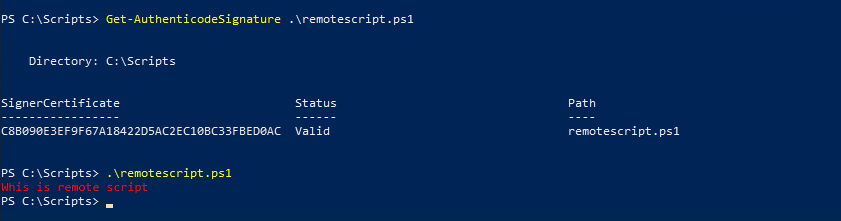
Переходим к политике AllSigned. Это наиболее жесткая политика, требующая подписывания всех без исключения скриптов, как удаленных так и локальных. И даже с подписанными скриптами она работает не так, как RemoteSigned. Для примера сменим политику на AllSigned и снова запустим подписанный скрипт. В этот раз для его выполнения потребуется подтверждение, т.к. PowerShell посчитал подпись недоверенной.

Области применения
Политика выполнения имеет свою область действия (scope). Всего есть 5 областей:
• LocalMachine — политика действует на всех пользователей данного компьютера. Значение хранится в реестре, в разделе HKEY_LOCAL_MACHINE;
• CurrentUser — политика действует только на текущего пользователя. Хранится в разделе реестра HKEY_CURRENT_USER;
• Process — действие политики распространяется только на текущий сеанс PowerShell. Значение хранится в переменной окружения $PSExecutionPolicyPreference и при закрытии сеанса удаляется;
• Userpolicy — политика действует на всех пользователей данного компьютера. Распространяется с помощью групповых политик. Значение хранится в разделе пользователя, соответственно политика применяется при входе пользователя в систему;
• MachinePolicy — действует на всех пользователей данного компьютера. Распространяется с помощью групповых политик. Значение хранится в разделе компьютера, политика применяется при загрузке системы;
Вывести значение политики для всех областей можно командой:

Получается, что при установке политики без указания области изменяется значение LocalMachine. Если же требуется указать конкретную область действия, то сделать это можно с помощью параметра Scope командлета Set-ExecutionPolicy. Для примера установим для области СurrentUser политику Bypass:
Set-ExecutionPolicy -Scope CurrentUser -ExecutionPolicy Bypass -Force
Затем проверим значение политики в текущем сеансе и убедимся в том, что оно изменилось на Bypass.
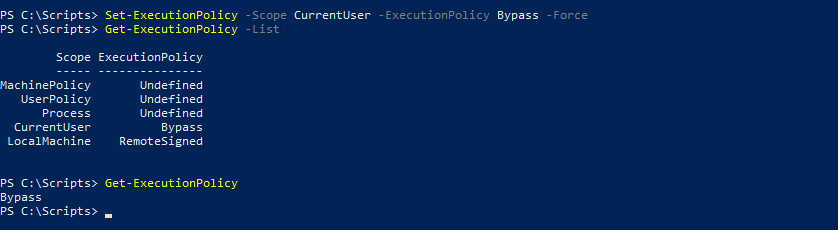
Теперь установим политику Unrestricted для области Process:
Set-ExecutionPolicy -Scope Process -ExecutionPolicy Unrestricted -Force
Еще раз проверим текущую политику, теперь она имеет значение Unrestricted. Т.е. более ″конкретная″ политика всегда имеет больший приоритет.

Для областей UserPolicy и MachinePolicy значение политики задаются через GPO. За настройку отвечает параметр Turn on Script Execution (Включить выполнение сценариев), находящийся в разделе Administrative Templates\Windows Components\Windows PowerShell. Для UserPolicy он находится в конфигурации пользователя (User Configuration), для MachinePolicy — в конфигурации компьютера (Computer Configuration). Политика, применяемая к компьютеру, имеет приоритет перед политикой пользователя.
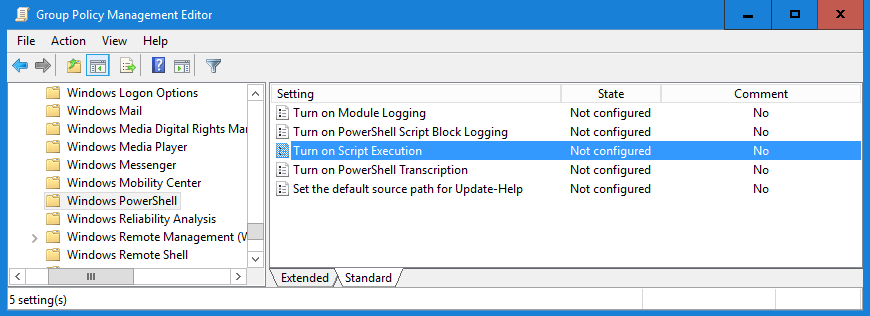
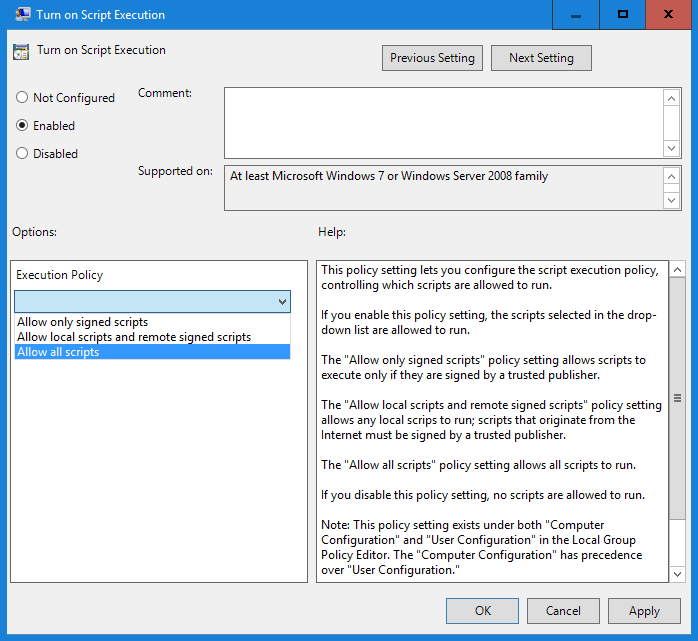
Для установки политики надо включить параметр и выбрать одно из трех значений:
• Allow only signed scripts (Разрешать только подписанные сценарии) — политика AllSigned;
• Allow local scripts and remote signed scripts (разрешать локальные и удаленные подписанные сценарии) — политика RemoteSigned;
• Allow all scripts (Разрешать все сценарии) — политика Unrestricted.
Политика Bypass считается небезопасной и ее нельзя установить через групповые политики.
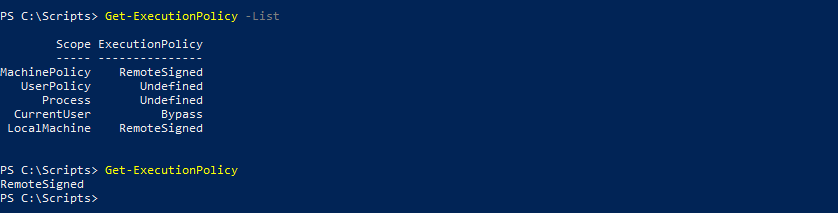
Для примера установим для MachinePolicy политику RemoteSigned и проверим результат. Как видите, политика, назначенная через GPO, имеет больший приоритет и переопределяет все остальные политики.
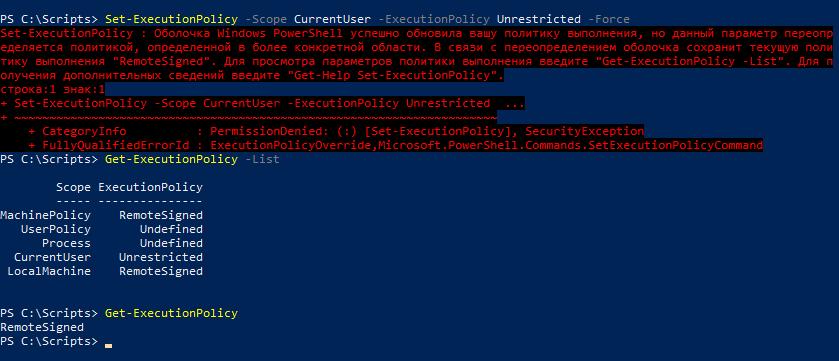
Более того, при использовании GPO становится невозможным переназначить политики вручную. При попытке изменения выдается предупреждение, а текущая политика остается без изменений.
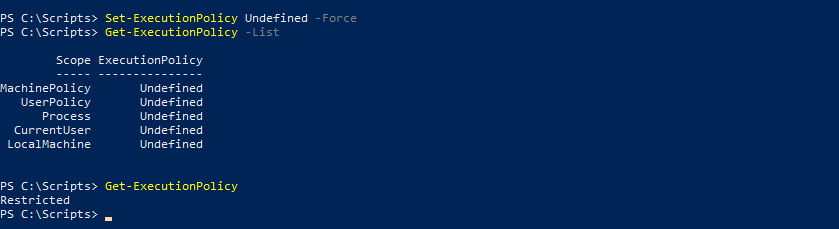
А что будет, если ни для одной области политика не определена, т.е. везде стоит значение Undefined? В этом случае все просто, выполнение всех скриптов запрещается, а текущая политика принимает значение Restricted.
Обход политики
Можно ли как то запустить скрип в обход политики выполнения, не изменяя ее значение? В принципе можно, есть несколько способов.
К примеру для того, чтобы выполнить скрипт, достаточно открыть его в проводнике, кликнуть правой клавишей мыши и выбрать пункт Выполнить с помощью PowewrShell (Run with PowerShell). Это запускает оболочку PowerShell c политикой Bypass. При этом политика применяется только для выполнения конкретного скрипта, значение политики в реестре не изменяется.
Этот способ называется ″Run with PowerShell″ и у него есть некоторые ограничения. Скрипты, запущенные таким образом, не могут взаимодействовать с пользователем (выводить сообщения на экран, требовать ввода данных и т.п.). Скрипт просто запускается, выполняется и немедленно закрывается.
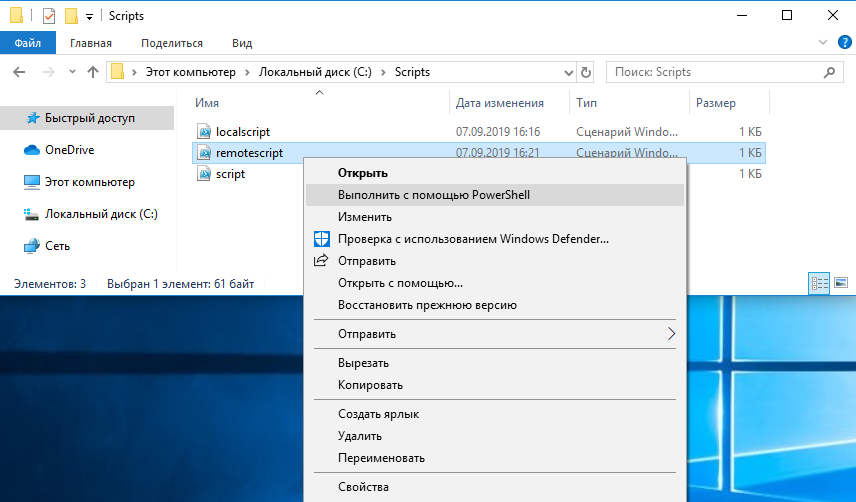
Собственно говоря, предыдущий способ использует запуск PowerShell с указанием требуемой политики. Сделать это можно из командной строки, например для запуска скрипта можно попробовать такую команду:
powershell.exe -file .\script.ps1 -Executionpolicy Bypass
Теоретически эта команда должна выполнить скрипт, не смотря на текущую политику. Так написано в официальной документации Microsoft. На практике же этот способ работает не всегда, например на одном из проверенных мной компьютеров я получил ошибку. При этом из проводника скрипт успешно выполнился.

Еще один вариант — это попробовать изменить политику выполнения для области Process. Эта операция не вносит изменений в реестр и не требует прав администратора. Но в том случае, если для назначения политики выполнения используются групповые политики, этот способ не сработает.
Ну и наконец можно просто считать содержимое скрипта и выполнить его в виде команды. Например так:
PowerShell Execution Policy
By  Chirag Nagarekar
Introduction to PowerShell Execution Policy
The PowerShell execution policy is the security feature for the PowerShell environment, which determines whether users can load the configuration files such as PowerShell profile, basic configuration files or users can run the script. It also determines whether scripts should be digitally signed before they run instead of allowing any user to run the script like VBScript. The PowerShell execution policy is not the hardcore security feature that prevents the user action, rather it prevents the malicious code or script from being run in the environment. Users can change the execution policy with the command line to run the script.


PowerShell Execution Policy Scopes
When an execution policy is applied, it is applied to the particular scopes. Scopes are mentioned below in their precedence level.
Hadoop, Data Science, Statistics & others
- Machine Policy
- User Policy
- Process (Current Session)
- Current User
- Local Machine
1. Machine Policy
This policy is set by the group policy for all the users of the computer. It can be set through GPO : Computer Configuration -> Policies -> Administrative Templates -> Windows Components -> Windows PowerShell.
2. User Policy
This policy can be set by the group policy for the current user of the computer. It can be set through GPO : User Configuration -> Policies -> Administrative Templates -> Windows Components -> Windows PowerShell.
3.Process (Current Session)
This policy is valid till the PowerShell session when the session is closed this policy is removed. This policy is set in the windows environment variable $Env: PSExecutionPolicyPreference. By default, this variable doesn’t exist and created only when this policy is set.

4. Current User
This policy is for the current user only. When this policy is set, it is stored in the registry
5. Local Machine
This policy is set for the local computer. When this policy is set, it is stored in the registry HKEY_LOCAL_MACHINE
PowerShell Execution Policy Modes
Below are PowerShell Execution Policy Modes:
1. Restricted
This is the default execution policy for the Windows Systems for PowerShell. Meaning that you can’t run any scripts (.ps1), configuration files (.ps1xml), and module script (.psm1) but you can run the cmdlets. When this mode is set and you try to run the script, you will get the error as shown in the below example.

2. All Signed
Users can run scripts that are only digitally signed by trusted publishers. Scripts which are not digitally signed, users will get prompt for it.
3. Remote Signed
Scripts that are running from the local computer, they do not require digitally signed but they should not be downloaded from the internet and run. Scripts which are downloaded from the internet including email applications and instant messaging app, they require digitally signed. PowerShell can run the script from which are downloaded from the internet and not digitally signed if the file is unblocked. The file can be unblocked using the file property or through the Unblock-File
4. Unrestricted
Users can run the script which is not signed but this can run malicious scripts as well. PowerShell warns the users when they run the script which is downloaded from the internet.
5. Bypass
No script requires digitally signed when this execution policy is set. Users will not get any prompt for running unsigned scripts. This is useful when there is a large application that need the PowerShell as the base model and needs to run several configuration files. This generally not recommended policy because it is easy to target windows machines to run malicious code when this policy is set.
6. Undefined
When the undefined policy is set then it would be the default policy. The default policy would be Restricted To remove the current execution policy generally, this policy is set.
Examples to Implement PowerShell Execution Policy
Below are some examples mentioned:
Example #1
To get the current execution policy on the machine
Code:
Output:

Example #2
To get all the execution policies and to check which policy is applied for the scope you need to use the below command.
Code:
Output:
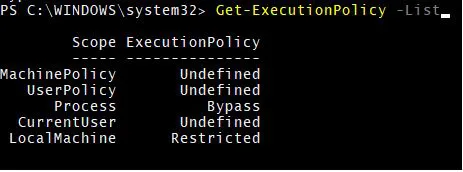
Explanation: Here, as per the output of the above example, the Bypass policy is applied for the current session (process) scope.
Example #3
To get the execution policy for the particular scope, you need to use –Scope For example, to get the execution policy for the Process scope, use the below command.
Code:
Get-ExecutionPolicy -Scope Process
Output:

Similarly, you can set the policy for different scopes. For example,
Get-ExecutionPolicy -Scope MachinePolicy
Get-ExecutionPolicy -Scope UserPolicy
Get-ExecutionPolicy -Scope CurrentPolicy
Example #4
To set the execution policy, you need to use the Set-Execution policy
Code:
When you set the execution policy without any scope, it will be set for the local machine by default.
Example #5
Set the execution policy with the -Scope
Code:
Set-ExecutionPolicy -Scope LocalMachine -ExecutionPolicy RemoteSigned
Set-ExecutionPolicy -Scope LocalMachine -ExecutionPolicy Restricted
Example #6
Set the Execution Policy with the –Force
When you set the execution policy, PowerShell prompts for the user confirmation. To avoid this step, you need to use the Force parameters. This parameter directly applies the policy to the particular scope or the default scope.
Code:
Set-ExecutionPolicy -Scope LocalMachine -ExecutionPolicy RemoteSigned -Force
Example #7
Remove execution Policy
To remove the execution policy for any scope, you need to use an undefined policy. It will set the policy to the default. i.e. Restricted.
Code:
Set-ExecutionPolicy -Scope LocalMachine -ExecutionPolicy Undefined –Force
Set-ExecutionPolicy -Scope LocalMachine -ExecutionPolicy Undefined -Force
Conclusion
The PowerShell Execution policy is the critical component of windows systems security for restricting users from recklessly running any scripts from the console. System admins can use the group policy to deploy the execution policy in a large windows environment system so running script from the internet and other applications can be prevented from running accidentally.
Recommended Articles
This is a guide to PowerShell Execution Policy. Here we discuss introduction to PowerShell Execution Policy, scopes, modes and programming examples. You can also go through our other related articles to learn more –