PowerShell: системное администрирование и программирование
Всё о PowerShell в Windows и на Linux. Системное администрирование Windows
Как в PowerShell перезагрузить компьютер
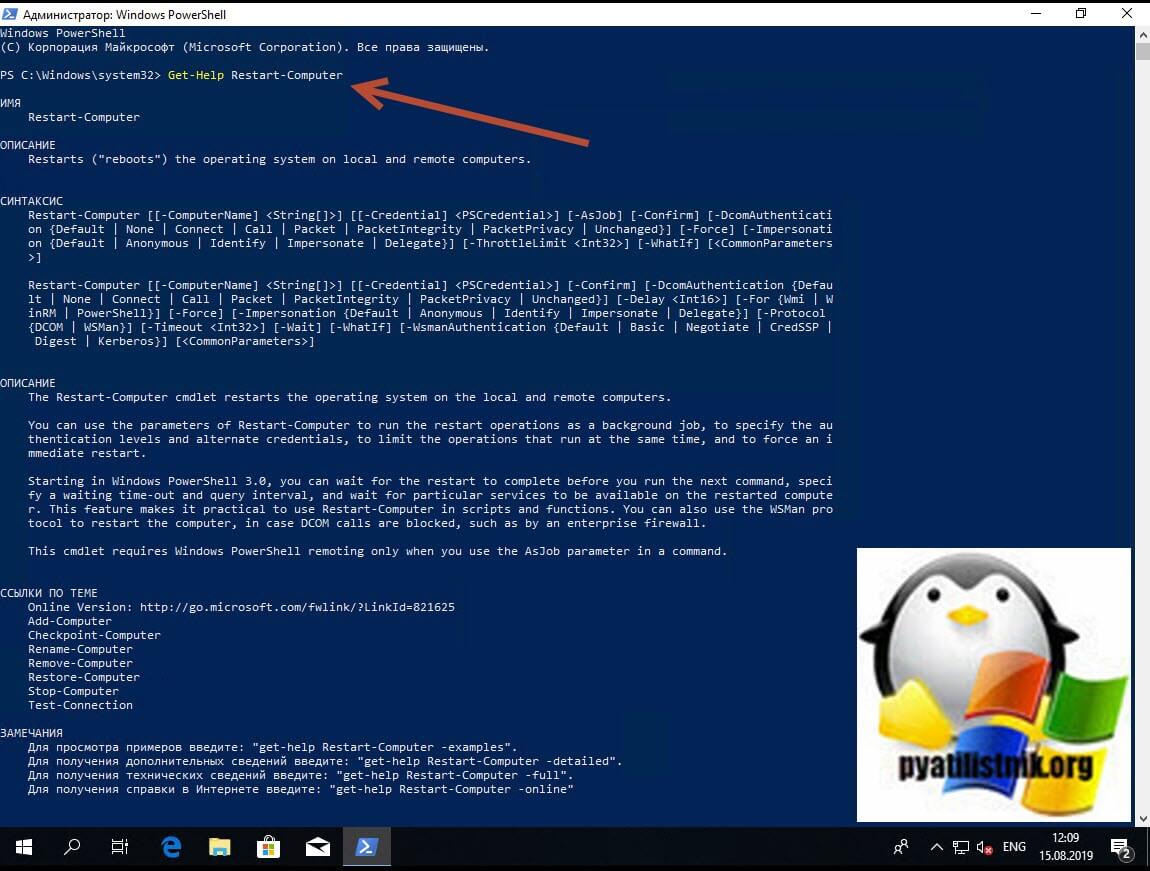
Командлет Restart-Computer
Командлет Restart-Computer перезапускает операционную систему на локальном или удалённом компьютерах.
Следующая команда перезагрузит локальный компьютер:
Вы можете использовать Restart-Computer с различными параметрами для запуска операций перезапуска, для указания уровней аутентификации и альтернативных учётных данных, для ограничения операций, выполняемых одновременно, и для немедленного перезапуска.
Начиная с Windows PowerShell 3.0, вы можете дождаться завершения перезагрузки, прежде чем запускать следующую команду. Укажите время ожидания и интервал запроса и дождитесь, пока определённые службы будут доступны на перезагруженном компьютере. Эта функция делает практичным использование Restart-Computer в скриптах и функциях.
Restart-Computer работает только на компьютерах под управлением Windows и требует WinRM и WMI для завершения работы системы, включая локальную.
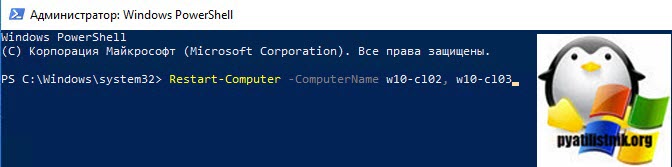
Пример перезагрузки нескольких компьютеров:
Опция -ComputerName <String[]> задаёт одно имя компьютера или массив имён компьютеров, разделённых запятыми. Restart-Computer принимает объекты ComputerName из конвейера или переменных.
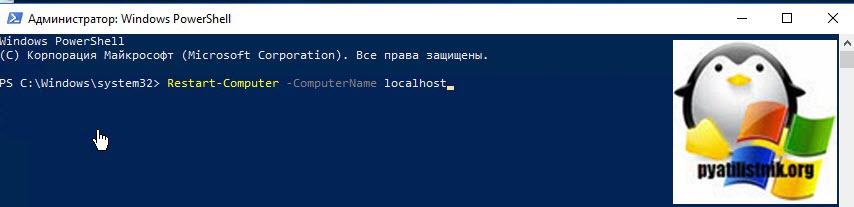
Введите имя NetBIOS, IP-адрес или полное доменное имя удалённого компьютера. Чтобы указать локальный компьютер, введите имя компьютера, точку «.» или localhost.
Этот параметр не зависит от удалённого взаимодействия PowerShell. Вы можете использовать параметр -ComputerName, даже если ваш компьютер не настроен для выполнения удалённых команд.
Если параметр -ComputerName не указан, Restart-Computer перезагружает локальный компьютер.
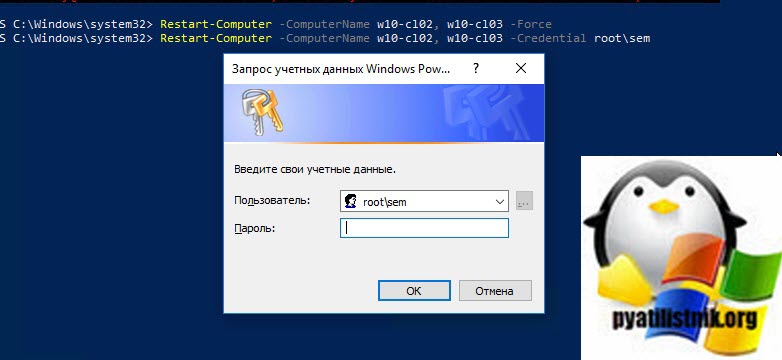
Если вы перезагружаете удалённый компьютер, то вам скорее всего понадобится опция -Credential <PSCredential>, которая задаёт учётную запись пользователя, у которой есть разрешение на выполнение этого действия. По умолчанию это текущий пользователь.
Введите имя пользователя, например User01 или Domain01\User01, или введите объект PSCredential, созданный командлетом Get-Credential. Если вы введёте имя пользователя, вам будет предложено ввести пароль.
Учётные данные хранятся в объекте PSCredential (/dotnet/api/system.management.automation.pscredential), а пароль хранится как SecureString (/dotnet/api/system.security.securestring).
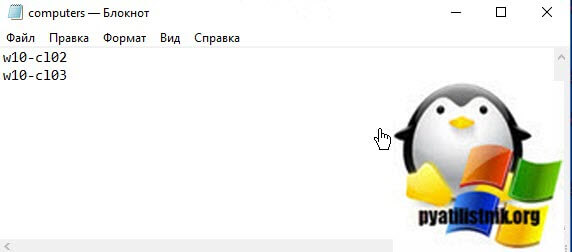
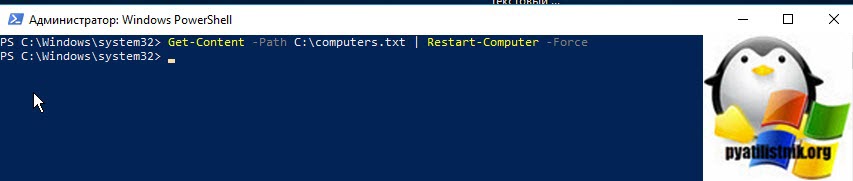
В следующем примере перезагружаются компьютеры, чьи имена получены из текстового файла:
Get-Content использует параметр -Path для получения списка имён компьютеров из текстового файла Domain01.txt. Имена компьютеров отправляются по конвейеру. Restart-Computer перезагружает каждый компьютер.
Принудительный перезапуск компьютеров, перечисленных в текстовом файле:
Get-Content использует параметр -Path для получения списка имён компьютеров из текстового файла Domain01.txt. Имена компьютеров хранятся в переменной $Names. Get-Credential запрашивает у вас имя пользователя и пароль и сохраняет значения в переменной $Creds. Restart-Computer использует параметры -ComputerName и -Credential с их переменными. Параметр -Force вызывает немедленную перезагрузку каждого компьютера.
Перезагрузка удалённого компьютера и ожидание его включения для выполнения PowerShell:
Restart-Computer использует параметр -ComputerName для перезагрузки Server01. Параметр -Wait делает так, что команда ожидает завершения перезапуска. -For устанавливает, что PowerShell может запускать команды на удалённом компьютере. Параметр -Timeout устанавливает пятиминутной ожидание. Параметр -Delay каждые две секунды опрашивает удалённый компьютер, чтобы определить, перезагружен ли он.
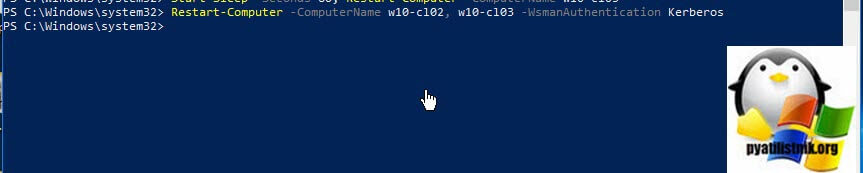
Перезагрузка компьютера с помощью WsmanAuthentication:
Restart-Computer использует параметр -ComputerName для перезагрузки удалённого компьютера Server01. Параметр -WsmanAuthentication указывает метод проверки подлинности Kerberos.
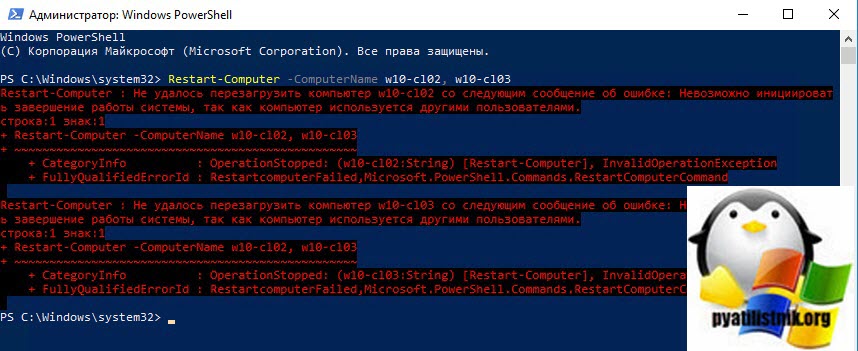
Ошибка «Невозможно инициировать завершение работы системы, так как компьютер используется другими пользователями»
При перезагрузки удалённого компьютера, например:
может возникнуть ошибка
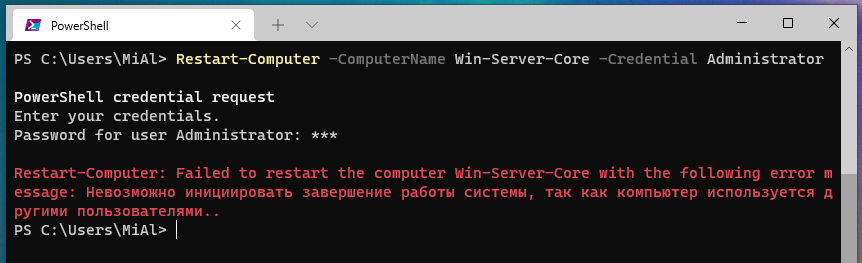
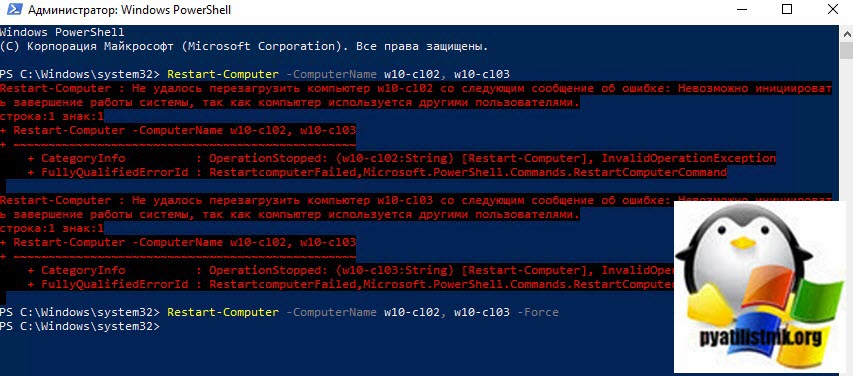
Эта ошибка возникает если какой-либо пользователь выполнил вход на удалённом компьютере, для принудительной перезагрузки используйте опцию -Force:

Перезагрузка компьютера без PowerShell
Без PowerShell вы можете перезагрузить компьютер следующей командой:
Вам будет показано предупреждение и компьютер будет перезагружен по истечении 30 секунд.
Чтобы немедленно перезагрузить компьютер выполните команду:
Вы можете добавить в команду опцию /f, которая означает принудительное закрытие запущенных приложений без предупреждения пользователей. Подразумевается использование параметра /f, если для параметра /t задано значение больше 0.
Как выключить или перезагрузить компьютер в Windows PowerShell

В данной статье показаны действия, с помощью которых можно выключить или перезагрузить компьютер в Windows PowerShell.
Операционная система Windows имеет много различных способов для выключения или перезагрузки компьютера. Например, можно выключить или перезагрузить компьютер используя меню Пуск, меню WinX, в командной строке, в окне Выполнить, а также в окне Завершение работы Windows вызываемое нажатием клавиш Alt + F4 или создав специальный ярлык и т.д.
Чтобы выключить компьютер, запустите Windows PowerShell от имени администратора и выполните следующую команду:

Чтобы перезагрузить компьютер, запустите Windows PowerShell от имени администратора и выполните команду:

Также для выключения или перезагрузки можно использовать метод Win32Shutdown из класса WMI Win32_OperatingSystem. В качестве аргумента можно использовать флаги из списка ниже:
- 0 – Log Off
- 4 – Forced Log Off
- 1 – Shutdown
- 5 – Forced Shutdown
- 2 – Reboot
- 6 – Forced Reboot
- 8 – Power Off
- 12 – Forced Power Off
Рассмотрим несколько примеров команд. Чтобы выключить компьютер выполните команду:
(Get-WmiObject Win32_OperatingSystem -EnableAllPrivileges).Win32Shutdown(1)

Чтобы перезагрузить компьютер выполните команду:
(Get-WmiObject Win32_OperatingSystem -EnableAllPrivileges).Win32Shutdown(2)

Чтобы произвести выход из системы, выполните команду:
(Get-WmiObject Win32_OperatingSystem -EnableAllPrivileges).Win32Shutdown(0)

И ещё в качестве дополнения несколько различных команд для выключения и перезагрузки компьютера используя консоль Windows PowerShell.
При помощи следующей команды можно одновременно выключить два удалённых компьютера:
Stop-Computer -ComputerName «Server01», «Server02»

Следующая команда демонстрирует как перезагрузить два удалённых компьютера с именами Server01 и Server02 и локальный компьютер, идентифицированный как localhost .
Restart-Computer -ComputerName «Server01», «Server02», «localhost»

При помощи следующей команды, можно задать время задержки (в секундах) перед выключением компьютера.
Start-Sleep -Seconds 60; Stop-Computer

Следующая команда задаёт время (в секундах) перед перезагрузкой компьютера.
Start-Sleep -Seconds 60; Restart-Computer

Дополнительную справочную информацию по командлету Restart-Computer можно посмотреть на сайте Microsoft по этой ➯ ссылке, а справку по командлету Stop-Computer смотрите ➯ здесь. На этом всё.
Effective Ways to Use PowerShell to Restart Computers
Download a free trial of Veeam Backup for Microsoft 365 and eliminate the risk of losing access and control over your data!
Table of Contents
Inevitably a system administrator will need to restart a server or system. Rather than stepping through the user interface, why not use PowerShell to restart the computer (or lots of computers!)?

Using PowerShell to restart computers
In this article, you’re going to learn all the ways to manage computer restarts with PowerShell. We’re going a lot deeper than just using the Restart-Computer cmdlet.
Prerequisites
This tutorial is going to be a guide taking you through various methods to use PowerShell to restart computers. If you intend to follow along, be sure you have the following:
- A user account on any computer (local or remote) in the local Adminstrators group
- Windows PowerShell or PowerShell Core. The tutorial will use Windows PowerShell 5.1. through the remote computer’s Windows firewall and that WMI is allowed through the Windows firewall
Using PowerShell to Restart Computers with Restart-Computer
The first PowerShell specific method, and most common, is the PowerShell Restart-Computer cmdlet. This cmdlet is simple to use with flexible parameters, some of which make script integration very easy.
As you can see in the example below, this is generally the most straightforward method and go-to solution for most PowerShell scripts.
The simple example below connects to a remote computer called SRV1. To skip the default confirmation, it uses the Force parameter to restart the computer.
The Restart-Computer cmdlet has a few parameters to configure how to command interacts with the computer as shown below.
- ComputerName – The system that you intend to restart. This parameter can take the following remote addresses, NetBIOS, IP Address, or the Fully Qualified Domain Name (FQDN). For the local system use . , localhost , or omit the parameter.
- Force – Used if other users are currently on the system. This will force a shutdown.
- Wait – This parameter will block the prompt and pipeline indefinitely (unless paired with the timeout parameter). This works in conjunction with the For parameter to poll for a specific component to become available.
- Timeout – Used with the Wait parameter, this will ensure that the restart doesn’t block the prompt and pipeline indefinitely if there is a problem.
- For – There are a few components that PowerShell can look for to indicate a successful restart. By default, Restart-Computer looks to see if PowerShell itself is running to indicate a successful restart operation. Another option is to wait for WMI or WinRM to be available.
- Delay – By default, the cmdlet will poll every 5 seconds for the defined component to check while waiting for a remote system to become available. This parameter will override that default delay time period.
The ComputerName parameter does not use WinRM for the remote system call, therefore, you don’t need to worry about if the local system is configured for WinRM.
Using PowerShell to Restart Computers with Invoke-CimMethod
Not specifically intended for rebooting a system remotely, Invoke-CimMethod works by using a WIM method to reboot the remote system. Not as flexible as the Restart-Computer cmdlet, you can use PowerShell to restart computers remotely using a native command.
Ensure that WinRM is configured and allowed through the remote computer’s Windows firewall for this method.
The Invoke-CimMethod has a few parameters you should be aware of.
- ClassName – The name of CIM class to use. In the case of a restart command, we are using the Win32_OperatingSystem class.
- ComputerName – Using the WsMan protocol, you can use any of the following remote address types, NetBIOS, IP Address, or the Fully Qualified Domain Name (FQDN). If this parameter is omitted, then local operations are performed using COM.
- MethodName – The method name is the WMI method for the class that is being targeted. In the case of a restart operation, you will need to use the Reboot method.
Using PowerShell to Restart Computers Remotely with Running shutdown.exe
Moving on from PowerShell-specific cmdlets, we come to the standard built-in executable that Windows offers to restart a system. The shutdown.exe executable has been around a long time and offers a robust series of options.
Although not technically a PowerShell cmdlet, you can still use PowerShell to restart computers with shutdown.exe by invoking as an executable.
Below are the parameters for the shutdown command you should know.
- r – Restarts a computer after first shutting the system down.
- g – This is similar to the r command, but will also restart any registered applications upon startup. Introduced in Windows Vista, the Windows Restart Manager allows gracefully shutting down and restarting applications registered with this system. An example would be the Outlook application which is automatically started back up, if it was open initially upon shutdown.
- e – Document the reason for an unexpected restart of the system.
- m – The remote system to restart, takes the parameter of \\computername .
- t – The time in seconds before initiating the restart operation. If a value greater than 0 is defined, the f (force) parameter is implied. The default value is 30 seconds, but no force.
- c – An optional restart message that will appear on-screen before the shutdown and also in the Windows event log comment and can be up to 512 characters.
- f – Force any running applications to close, which will not prompt for a File→Save prompt in any application and may cause data loss.
- d – Listing of a reason code for the restart operation. An example of this type of reason code is P:2:18 which corresponds to Operating System: Security fix (Planned).
Using PowerShell to Restart Computers with PSExec.exe
Using PowerShell to restart computers is through one of the most used utilities within the Sysinternals toolkit, psexec.exe offers several unique abilities that make interacting with a remote system easy. Taking a different approach than both PowerShell and built-in utilities, psexec.exe creates a service on the remote system that commands are then proxied through.
Ensure the SMB Service is running, file and printer sharing is enabled, simple file sharing is disabled and the admin$ administrative share is available for this method.
- d – Use psexec non-interactively by not waiting for the process to terminate, useful in scripts.
- h – If the target system is Vista or higher, run this process using the account’s elevated token, if available.
- n – Specifies a timeout in seconds while connecting to a remote computer.
- s – Run the process using the system account, which confers a much higher level of access than the typical administrative account. This is not always needed, or used, but a very useful ability to have.
- computer – A positional parameter that takes the form of \\remotecomputer this allows usage of psexec against a remote system.
- cmd – Another positional parameter that is used to specify the actual command to run against the system. Since psexec does not do the rebooting of the system itself, this command will be another utility such as shutdown.exe used to restart a system.
- arguments – This positional parameter contains any arguments that are needed to be passed to the previously defined cmd .
- accepteula – If psexec has not recorded that you have accepted the EULA, the tool would typically show an on-screen prompt to accept the EULA. This will accept that EULA without the graphical prompt.
- nobanner – When connecting to a remote system, there is banner information displayed from the tool, which nobanner will suppress.
Bonus Methods!
The methods shown below are not very commonly used but could be useful depending on the needs.
RunDLL32.exe
The rundll32.exe offers a way to run certain methods against internal executables and Windows APIs, such as shell32.dll. There are two methods you can restart a system using this functionality.
- rundll32.exe user.exe ExitWindowsExec – Restarts the local system.
- rundll32.exe shell32.dll,SHExitWindowsEx 2 – Will also restart the local system.
This method cannot be actually used remotely by itself, but you can combine this with PowerShell via an Invoke-Command on a remote system.
Taskkill.exe
Finally, taskkill.exe is one other Windows utility that offers some functionality to restart computers, though in a roundabout way. By ending the lsass.exe process, you will force a Windows restart.
Using PowerShell to Restart Computers (Multiple Systems in Parallel)
Most system administrators will need to restart multiple systems at one point or another. Let’s take a quick look at how one might be able to tie these commands together to do this.
Using PowerShell to Restart Computers in parallel is easy using PowerShell 7 and the Restart-Computer command.
As you can tell with the newer ForEach-Object -Parallel ability, it’s trivial to add parallelization onto your commands. Since Restart-Computer supports remote restarting natively when combined with ForEach-Object the ease of managing and restarting large systems can quickly be done!
Hate ads? Want to support the writer? Get many of our tutorials packaged as an ATA Guidebook.
More from ATA Learning & Partners
Recommended Resources!
Recommended Resources for Training, Information Security, Automation, and more!
Get Paid to Write!
ATA Learning is always seeking instructors of all experience levels. Regardless if you’re a junior admin or system architect, you have something to share. Why not write on a platform with an existing audience and share your knowledge with the world?
ATA Learning Guidebooks
ATA Learning is known for its high-quality written tutorials in the form of blog posts. Support ATA Learning with ATA Guidebook PDF eBooks available offline and with no ads!
Как перезагрузить компьютер через powershell

+ CategoryInfo : OperationStopped: (w10-cl02:String) [Restart-Computer], InvalidOperationException
+ FullyQualifiedErrorId : RestartcomputerFailed,Microsoft.PowerShell.Commands.RestartComputerCommand
+ CategoryInfo : OperationStopped: (w10-cl03:String) [Restart-Computer], InvalidOperationException
+ FullyQualifiedErrorId : RestartcomputerFailed,Microsoft.PowerShell.Commands.RestartComputerCommand
Перезагрузка компьютера с задержкой по времени

Скрипт PowerShell для перезагрузки по расписанию
Restart-Computer -ComputerName w10-cl01
Restart-Computer
Restarts the operating system on local and remote computers.
Syntax
Description
This cmdlet is only available on the Windows platform.
The Restart-Computer cmdlet restarts the operating system on the local and remote computers.
You can use the parameters of Restart-Computer to run the restart operations, to specify the authentication levels and alternate credentials, to limit the operations that run at the same time, and to force an immediate restart.
Starting in Windows PowerShell 3.0, you can wait for the restart to complete before you run the next command. Specify a waiting time-out and query interval, and wait for particular services to be available on the restarted computer. This feature makes it practical to use Restart-Computer in scripts and functions.
Examples
Example 1: Restart the local computer
Restart-Computer restarts the local computer.
Example 2: Restart multiple computers
Restart-Computer can restart remote and local computers. The ComputerName parameter accepts an array of computer names.
Example 3: Get computer names from a text file
Restart-Computer gets a list of computer names from a text file and restarts the computers. The ComputerName parameter isn’t specified. But because it’s the first position parameter, it accepts the computer names from the text file that are sent down the pipeline.
Get-Content uses the Path parameter to get a list of computer names from a text file, Domain01.txt. The computer names are sent down the pipeline. Restart-Computer restarts each computer.
Example 4: Force restart of computers listed in a text file
This example forces an immediate restart of the computers listed in the Domain01.txt file. The computer names from the text file are stored in a variable. The Force parameter forces an immediate restart.
Get-Content uses the Path parameter to get a list of computer names from a text file, Domain01.txt. The computer names are stored in the variable $Names . Get-Credential prompts you for a username and password and stores the values in the variable $Creds . Restart-Computer uses the ComputerName and Credential parameters with their variables. The Force parameter causes an immediate restart of each computer.
Example 6: Restart a remote computer and wait for PowerShell
Restart-Computer restarts the remote computer and then waits up to 5 minutes (300 seconds) for PowerShell to become available on the restarted computer before it continues.
Restart-Computer uses the ComputerName parameter to specify Server01. The Wait parameter waits for the restart to finish. The For specifies that PowerShell can run commands on the remote computer. The Timeout parameter specifies a five-minute wait. The Delay parameter queries the remote computer every two seconds to determine whether it’s restarted.
Example 7: Restart a computer by using WsmanAuthentication
Restart-Computer restarts the remote computer using the WsmanAuthentication mechanism. Kerberos authentication determines whether the current user has permission to restart the remote computer. For more information, see AuthenticationMechanism.
Restart-Computer uses the ComputerName parameter to specify the remote computer, Server01. The WsmanAuthentication parameter specifies the authentication method as Kerberos.
Parameters
Specifies one computer name or a comma-separated array of computer names. Restart-Computer accepts ComputerName objects from the pipeline or variables.
Type the NetBIOS name, an IP address, or a fully qualified domain name of a remote computer. To specify the local computer, type the computer name, a dot . , or localhost.
This parameter doesn’t rely on PowerShell remoting. You can use the ComputerName parameter even if your computer isn’t configured to run remote commands.
If the ComputerName parameter isn’t specified, Restart-Computer restarts the local computer.
| Type: | String [ ] |
| Aliases: | CN, __SERVER, Server, IPAddress |
| Position: | 0 |
| Default value: | None |
| Accept pipeline input: | True |
| Accept wildcard characters: | False |
Prompts you for confirmation before running Restart-Computer .
| Type: | SwitchParameter |
| Aliases: | cf |
| Position: | Named |
| Default value: | False |
| Accept pipeline input: | False |
| Accept wildcard characters: | False |
Specifies a user account that has permission to do this action. The default is the current user.
Type a user name, such as User01 or Domain01\User01, or enter a PSCredential object generated by the Get-Credential cmdlet. If you type a user name, you’re prompted to enter the password.
Credentials are stored in a PSCredential object and the password is stored as a SecureString.
For more information about SecureString data protection, see How secure is SecureString?.
| Type: | PSCredential |
| Position: | 1 |
| Default value: | Current user |
| Accept pipeline input: | False |
| Accept wildcard characters: | False |
Specifies the frequency of queries, in seconds. PowerShell queries the service specified by the For parameter to determine whether the service is available after the computer is restarted.
This parameter is valid only together with the Wait and For parameters.
This parameter was introduced in Windows PowerShell 3.0.
If the Delay parameter isn’t specified, Restart-Computer uses a five second delay.
| Type: | Int16 |
| Position: | Named |
| Default value: | None |
| Accept pipeline input: | False |
| Accept wildcard characters: | False |
Specifies the behavior of PowerShell as it waits for the specified service or feature to become available after the computer restarts. This parameter is only valid with the Wait parameter.
The acceptable values for this parameter are:
- Default: Waits for PowerShell to restart.
- PowerShell: Can run commands in a PowerShell remote session on the computer.
- WMI: Receives a reply to a Win32_ComputerSystem query for the computer.
- WinRM: Can establish a remote session to the computer by using WS-Management.
This parameter was introduced in Windows PowerShell 3.0.
| Type: | WaitForServiceTypes |
| Accepted values: | Wmi, WinRM, PowerShell |
| Position: | Named |
| Default value: | None |
| Accept pipeline input: | False |
| Accept wildcard characters: | False |
Forces an immediate restart of the computer.
| Type: | SwitchParameter |
| Aliases: | f |
| Position: | Named |
| Default value: | None |
| Accept pipeline input: | False |
| Accept wildcard characters: | False |
Specifies the duration of the wait, in seconds. When the timeout elapses, Restart-Computer returns to the command prompt, even if the computers aren’t restarted.
The Timeout parameter is only valid with the Wait parameter. Timeout overrides the Wait parameter’s indefinite waiting period.
This parameter was introduced in Windows PowerShell 3.0.
| Type: | Int32 |
| Aliases: | TimeoutSec |
| Position: | Named |
| Default value: | None |
| Accept pipeline input: | False |
| Accept wildcard characters: | False |
Restart-Computer suppresses the PowerShell prompt and blocks the pipeline until the computers have restarted. You can use this parameter in a script to restart computers and then continue to process when the restart is finished.
The Wait parameter waits indefinitely for the computers to restart. You can use Timeout to adjust the timing and the For and Delay parameters to wait for particular services to become available on the restarted computers.
The Wait parameter isn’t valid when you’re restarting the local computer. If the value of the ComputerName parameter contains the names of remote computers and the local computer, Restart-Computer generates a non-terminating error for Wait on the local computer, but waits for the remote computers to restart.
This parameter was introduced in Windows PowerShell 3.0.
| Type: | SwitchParameter |
| Position: | Named |
| Default value: | None |
| Accept pipeline input: | False |
| Accept wildcard characters: | False |
Shows what would happen if the Restart-Computer runs. The Restart-Computer cmdlet isn’t run.
| Type: | SwitchParameter |
| Aliases: | wi |
| Position: | Named |
| Default value: | False |
| Accept pipeline input: | False |
| Accept wildcard characters: | False |
Specifies the mechanism that is used to authenticate the user credentials. This parameter was introduced in Windows PowerShell 3.0.
The acceptable values for this parameter are: Basic, CredSSP, Default, Digest, Kerberos, and Negotiate.
Credential Security Service Provider (CredSSP) authentication, in which the user credentials are passed to a remote computer to be authenticated, is designed for commands that require authentication on more than one resource, such as accessing a remote network share. This mechanism increases the security risk of the remote operation. If the remote computer is compromised, the credentials that are passed to it can be used to control the network session.