Как убить kde в убунте?
Честно говоря, не претендую на знатока Убунту, но я бы попробовал это:
Вполне годно работает, не надо тут ляля.
Чтобы все-таки попробовать поставить нормально. Потом стандартно удалишь. Как то так. Хотя, как всегда, телепаты в отпуске 😉
в настройках сеанса kde появилось?
Как теперь убить кде чтобы не осталось следов?
Таки да годно. Тут дело в рученках.
Ну так убунту десктоп то уже установлен.
Намекните человеку почитать документацию на уровень новичка.
Ничего не появилось, я не вникал а просто во время установки решил что не нужно и забил. Только логотип сменился почему-то.
Я читал. По ней обычно все делаю и обычно возникают проблемы.
Вот он мне как то так отвечает, вроде кде больше нет, но глюки и логотип не исчезли, как было так и осталось. —- Уже установлена самая новая версия ubuntu-desktop. —- Package ‘kubuntu-desktop’ is not installed, so not removed —

Появилось. Это такая кнопочка кругленькая в LightDM где-то рядом с тем местом, куда ты вводишь пароль.
Ну тогда ты ничего не потеряешь, apt лишь скажет, что пакет уже установлен. Я бы не гарантировал, что после манипуляций с kubuntu-desktop, пакет ubuntu-desktop вообще есть в системе, возможно его части, т.к. это т.н. мета-пакет.
О, я и не знал. В любом случае, когда включаю плазму открывается все то же самое что и в юнити вообще без отличий. Вопрос в том как сделать так чтобы эта кнопочка совсем исчезла?
Так она по клику меняется. По дефолту там значок юнити стоит, смени на букву K, должен будешь попасть в Plasma.
Я про это и говорю. Сменил на букву К разницы 0. Ладно, меня и юнити устраивает, как вообще полностью убрать кде теперь? sudo apt-get purge kubuntu-desktop не помогает
кеды ставятся соответствующим пакетом. Ты хоть описание его читай, перед тем, как устанавливать что попало
Как удалить KDE 5
Дело не хитрое. В терминале выполняем и ждем загрузки с установкой KDE 5.
Посидел с пол часа под новой DE и увидел, что большинство косяков которые мне не нравились разработчики так и не исправили. В первую очередь это кривые виджеты которые не понятно как менять в размере.
Решил удалить KDE Plasma и вернуться на Gnome.
Как выяснилось — удалить KDE очень просто
Во-первых, вернем gdm3
Во-вторых, удалим все пакеты KDE
В-третьих, в менеджере пакетов находим и удаляем все пакеты в которых есть слово kubuntu или plasma. Я удалял с помощью менеджера пакетов Synaptic (больше шанс не удалить лишнего).
Перезагружаемся и радуемся возвращению GNOME 3.
Мы удалили окружение рабочего стола, но в системе останутся некоторые программы установленные с KDE. Чтобы их удалить откройте центр приложений, перейдите в раздел Установленные и удалите программы относящиеся к KDE (первая буква K в названии или в описании встречается слово KDE).
How do I Remove the KDE Plasma Environment in Ubuntu?
GNOME is the default desktop environment that comes pre-installed on Ubuntu distributions. After using it for a couple of months, the UI feels outdated compared to KDE. However, GNOME can be styled and used in a variety of ways, and no offence WhiteSurTheme KDE is the only theme that looks like you’re using Big Sur, and GNOME Desktop lacks many other features. which drew me to KDE Plasma, but things didn’t work out.
While installing KDE Plasma over GNOME, I made some mistakes that made the system unstable to use, so I thought to revert back and use the stock GNOME environment.
The reason you want to uninstall KDE Plasma and switch to Ubuntu’s default GNOME desktop environment may be the same as mine or completely different, but our end goal is the same. If we’re both aiming for the same result, then you should be prepared to move forward.
Table of Contents
Steps to Remove KDE Plasma Desktop Environment
In seven easy steps, you can get rid of KDE Plasma. These steps include turning off the plasma desktop, removing the splash screen, upgrading the initramfs, and turning on GDM3.
Step 1: Auto remove the plasma-desktop and kubuntu desktop
Assuming you can still get to the terminal, you can open it with the keys Ctrl + Alt + T , or whatever you’ve set it up to be. Unfortunately, I couldn’t use the terminal, so I had to use Step 1 of this article to change the run level through the boot menu, which gave me access to the shell to run further commands.
After that, execute the below command to remove plasma-desktop:
Step 2: Remove all the remaining files
Next, you should delete any leftover files that won’t be used anymore, especially anything that begins with KDE or Plasma, because some of the unneeded dependencies and configuration files may still exist even after uninstalling the desktop environment.
So, all you have to do is run the following command, which has the —autoremove flag. This will get rid of all the dependencies that aren’t needed.
Once it’s done, go to the next section to reset the splash interface.
Step 3: Reset the Splash Interface
Maybe you didn’t notice, but it looks like the gnome splash screen has been changed from how it was before, and to restore it, simply copy and paste the following command:
Upon entering the above command, you’ll see a splash interface selection screen like the one in the screenshot, so you can easily pick the correct option by reading its filename.
For me, it was the number 1, and it may be different in your case, so just enter the selection number and press enter to save your choice.
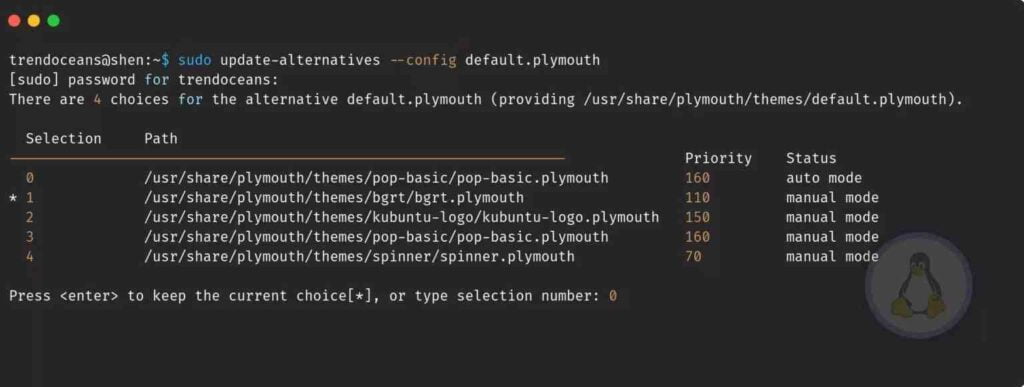
Change the Default Splash Interface in Ubuntu
If you are reading the path, then you may be wondering, “What is Plymouth?” A Plymouth is used to hide all the details (dmesg) while the system boots up with a lovely splash image.
This command may give you output like “update-alternatives: error: no alternatives for default.plymouth.” Simply ignore it and move on to the next steps.
Step 4: Update initramfs and grub
You are about to update the initramfs file that was already loaded. After that, you will run update-grub commands to get back to the default menu. To do this, just run the following command:
If you don’t use the -u parameter with update-initramfs , initramfs won’t be updated.
Step 5: Disable the Simple Desktop Display Manager (SDDM)
KDE uses Simple Desktop Display Manager, which is also known as SDDM, so you have to first disable it to get the default lock screen that ships with Ubuntu.
Open a terminal and type the following commands to turn off the Simple Desktop Display Manager:
And after that, you can execute the following command to remove SDDM from your system:
Step 6: Enable the GNOME Display Manager (gdm3)
You’ve almost undone it completely. Now, all you have to do is enable the GNOME Display Manager (gdm3) with the following command:
The first command will start GDM3 right away once the system boots, and the second command starts the GDM3 services.
Step 7: Reboot your system
After executing the first and second commands, you must reboot your system for the changes to take effect and so that GDM3 can start up properly.
Upon rebooting your system, GDM3 will be started and its services will be enabled, allowing you to log into your computer with a graphical user interface.
Wrap up
Voila! You have successfully taken the KDE Plasma Environment out of Ubuntu. You can now use the GNOME Desktop Environment to manage the system and its apps.
By following the steps in this article, it’s easy to get rid of the KDE Plasma Environment on Ubuntu and replace it with the GNOME Desktop Environment and other apps. Feel free to let us know in the comments if you found this article to be informative.

A man with a tech effusive who has explored some of the amazing technology stuff and is exploring more. While moving towards, I had a chance to work on Android development, Linux, AWS, and DevOps with several open-source tools.
Как удалить kde рабочий стол из ubuntu
Кажется, это ошибка wxWidgets, и затронутые приложения обновляются, чтобы обойти эту проблему.
Если вы испробовали все исправления, упомянутые в вашем вопросе, без результата, ожидая, что последняя версия этих приложений окажется вашей единственной опцией.
2 ответа
Я использовал диспетчер пакетов Synaptic для его удаления. Он работал очень хорошо.
Единственное, что я бы рекомендовал, это проявлять осторожность, поскольку это очень мощная программа. Кроме того, будьте терпеливы и детализированы.
найдите раздел «Рабочая среда KDE» и отметьте все установленные пакеты для полного удаления. Двойной проверить свой выбор и продолжить работу.
Для выполнения этой задачи потребуется несколько минут, но это произойдет. Это было легко, и он даже восстановил приветствие Ubuntu вместо приветствия Kubuntu.