How to Fix ERR_BAD_SSL_CLIENT_AUTH_CERT for Google Chrome?
When the Google Chrome browser failed to check the SSL certificate of a website, you may face an err_bad_ssl_client_auth_cert error.
Google Chrome is one of the most popular browsers across the globe. As per the Statista site, Google Chrome covers almost 47.91% share of the overall internet browser market in the U.S. But this browser displays various errors, preventing users from accessing content on the website. One such error displayed by the Chrome browser is ERR_BAD_SSL_CLIENT_AUTH_CERT.
Cause of ERR_BAD_SSL_CLIENT_AUTH_CERT Error:
This error is related to SSL certificates. When any user tries to access a website on the internet, Google Chrome tries to check the SSL certificate installed on the site for security reasons. If the Chrome browser is unable to open the respective URL entered by the user, then the above error message will be displayed by the browser. Chrome is concerned about the web safety of its users and hence this browser does not accept SSL security certificates issued by non-trustworthy Certificate Authorities.
This issue was investigated and there turned out to be multiple reasons and factors responsible for triggering ERR_BAD_SSL_CLIENT_AUTH_CERT error.
A few of the common strategies which can resolve this error are mentioned below.
How to Fix ERR_BAD_SSL_CLIENT_AUTH_CERT Error for Google Chrome?
1. Sync the Date & Time:
One of the most common reasons which cause the above-mentioned SSL error is the erroneous date and time displayed on the computer. Incorrect date and time displayed on Windows 10 may tend to create conflicts.
This indicates a discrepancy between the validation date mentioned on the SSL certificate and the system clock, due to which browsers refuse to load many sites.
To resolve this discrepancy, it is advisable to ensure that the correct configuration of date and time is done and they are in sync with the system clock.
Process:
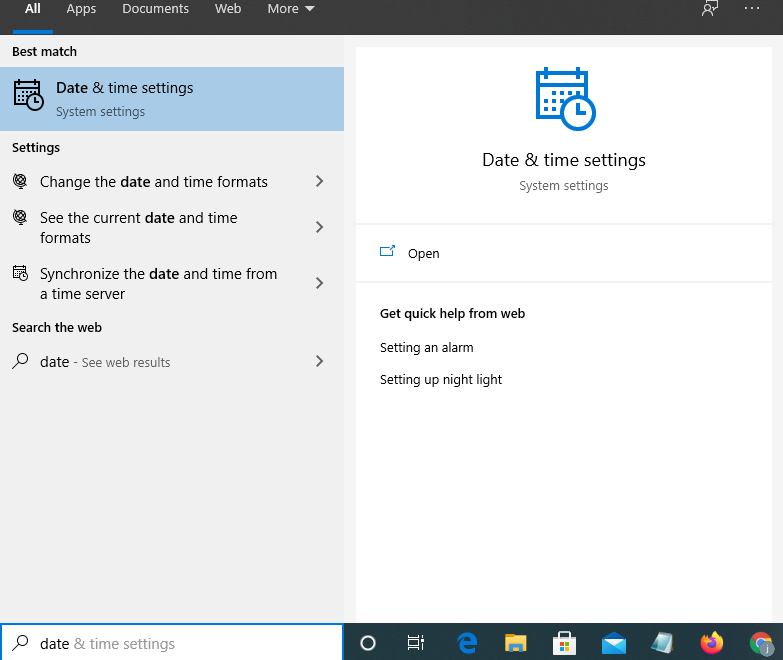
Step #1: Type “Date” in the search box
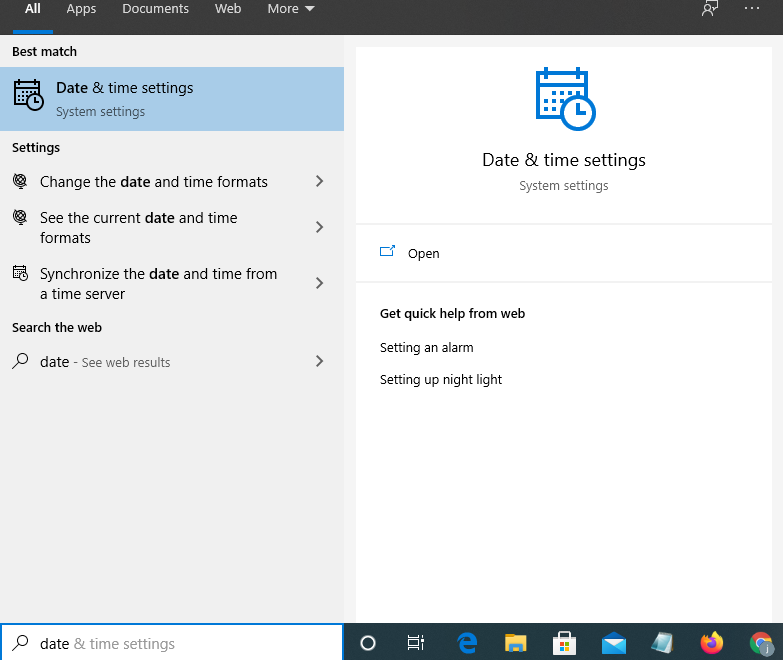
Step #3: Turn the toggle to “On” in both the below options
Set Time Automatically
Set Date Automatically
Step #1: Later click “Sync Now”
Now your system date and time are in sync with Microsoft Servers. Restart your computer to check for error resolve.
2. Update Google Chrome:
Many bugs in the Chrome browser are connected to SSL certificates. Google is known for quick patching of bugs, but to take benefit of these patches, it is essential to update Google Chrome.
Outdated browsers may cause errors and hence it is mandatory to update the browser to the latest version to get rid of small errors like;
Once the latest version of the browser is downloaded and installed on your computer, check if the desired website now opens error-free or not.
Process:
Step #1: In Chrome, click the three-dots on the upper right-hand corner
Step #2: Select Help > About Google Chrome

Step #3: Wait till the new version is updated and bound by the instructions for installation of the latest builds
Step #4: Restart your computer and check for the error.
3. Clear Browser Data:
Any browser data clashing with the website load process can also trigger the above-mentioned SSL error. This is a very reliable and basic solution and hence clearing the browser data will help to eliminate the error.
One drawback of clearing browser data is that you lose out on all previously-stored passwords, history, or bookmarks.
Process:
Step #1: Open Chrome, click on the 3-dot menu or click the CTRL+H button.
Step #2: Select More Tools > Clear Browsing Data.
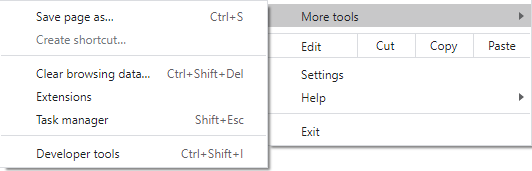
Step #3: Go to the Advanced tab, and in the Time Range option, select All time.
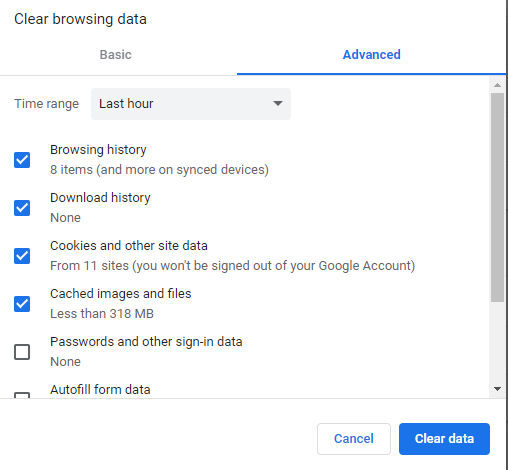
Step #4: Tick Browsing history, Download history, Cookies, and other site data and Cached images and files
Step #5: Later click Clear Data.
Step #6: Restart Chrome and check if the error is erased or not.
4. Check for Third-Party Software Conflicts:
Third-party software mainly for web protection include anti-virus software, firewall, etc. may create a conflict with the SSL/TLS certificate and tend to cause ERR_BAD_SSL_CLIENT_AUTH_CERT error.
They may perceive that the web page approached by the user is compromised and may block the same on the browser.
Solutions:
Step #1: Check all third-party software’s installed on your computer like VPN, anti-virus software, firewall, or any other web security software which may disrupt navigation.
Step #2: Disable all these software’s temporarily and eradicate your root problem.
Step #3: Later enable each one of them one-by-one to find the software culprit who is causing this error.
Step #4: Later disable the software creating the error and ensure that your site is not blocked with the error again.
5. Change TLS/SSL QUIC Settings:
Sometimes protocol fixes for SSL/TLS may cause cipher mismatch and lead to this error. It is advisable to follow the fixes to resolve the same.
Solutions:
Step #1: Try to disable previous TLS versions like TLS1.1 and TLS1.2 and enable SSL2 and SSL3, if that helps. Click save and check.
Step #2: Disabling of QUIC protocol method may also help erase this SSL error. Type “chrome://flags/#enable-quic” in the address bar and later click Enter.

Step #3: Restart Chrome.
6. Remove All Conflicting Browser Extensions:
Browser extensions interrupt the web security process causing multiple errors. One of them may be the above-mentioned error.
Process:
Step #1: Open Chrome, press Alt + F keys
Step #2: In More Tools > Click Extensions
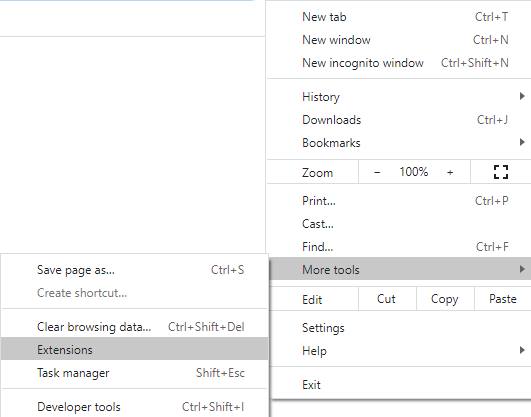
Step #3: Check skeptical browser extensions and toolbars and remove them by clicking the Recycle bin.
Step #4: Restart Chrome
If the above-mentioned process is unsuccessful in eradicating the error, restore the browser extensions.
Step #1: Open Chrome, press Alt + F keys
Step #2: In Settings > Click Advanced Option
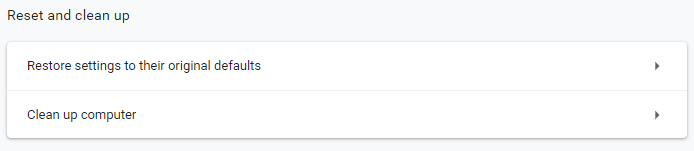
Step #3: Go to “Restore and Clean up” Option and later click “restore settings to their original defaults”
Step #4: Reset and restart Chrome
7. Update Windows:
All pending windows updates may also resolve the error. If your browser is working on an outdated machine, the browser feels that the machine is at risk and does not acknowledge the security certificate too, thus causing the error.
Process:
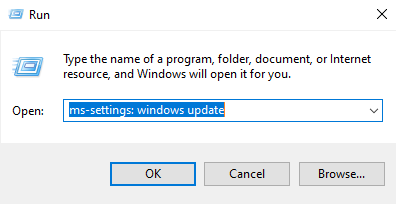
Step #1: Press Windows key + R and in run dialog box type: “ms-settings: windows update”
Step #2: When the Windows update screen opens, click Check for Updates, and install all updates.
Step #3: Later restart your computer.
In a Nutshell:
Hope the above-mentioned fixes help in eliminating your error and improving your browser’s functionality.
How to Fix ERR_BAD_SSL_CLIENT_AUTH_CERT for Google Chrome?

Step by Step Guide to Fix ERR_BAD_SSL_CLIENT_AUTH_CERT on Google Chrome.
Popular browsers, including Chrome (which covers 67.56% of the global desktop internet browser), check varied securities before opening a site at the user’s request. One of the basic security checks includes examining the SSL certificate of the website.
SSL (Secure Socket Layer) certificate is positioned on the webserver to secure the data communications between the browsers and servers. Using cryptographic keys to encrypt data is a necessity in today’s digital era.
As said before, the Chrome browser checks the SSL certificate of the website. Now, if Chrome can recognize the SSL certificate, you will be able to view the site, and it will portray the trust icons (HTTPS and secure padlock in the address bar), which are proof of a secure connection.
But, if Chrome cannot verify the SSL certificate or can’t recognize the same, it will display an error stating “ERR_BAD_SSL CLIENT_AUTH_CERT” when the user tries to open the website.
In this article, we will discuss ERR_BAD_SSL_CLIENT_AUTH_CERT error, its causes, and its solutions.
What Causes ERR_ BAD_SSL CLIENT_AUTH_CERT Error?
As stated, this is an SSL error. Users access the internet for varied reasons. When a user tries to view a website, Chrome will verify the authenticity of the SSL certificate installed on the website. If Chrome can’t open the site requested by the user due to specific issues, it will display the above error.
User safety is the 1st priority of all popular browsers. However, if the SSL certificate placed on the website is issued from untrusted Certificate Authorities (CAs), the browser fails to accept the SSL certificates.
Apart from this issue, you will be surprised to know that many factors cause this error. A few of them are:
- Incorrect Date & Time is out of sync
- Outdated Browser
- Outdated Windows
- Compromised Cache Data
- 3 rd party SSL/TLS filtering is working
- Third-party Software Conflicts
- Browser Extensions
Even the webserver may cause this error by rejecting the certificate (expiry reasons or certificate issued from non-trustworthy sources) sent by the browser (site).
So, since the causes are many, multiple solutions need to be implemented to fix this error. While you are struggling to find out which solutions will fix your error, I have penned down some troubleshooting steps, which are a sure shot for error resolution.
So, let’s eliminate all the possible reasons by implementing their solutions for fixing the error mentioned above.
How to Fix ERR_BAD_SSL_CLIENT_AUTH_CERT Error for Google Chrome?
#1. Check the Date & Time:
The most obvious reason which triggers maximum errors is the wrong date and time shown on the computer. This leads to conflicts since there is a different date and time stated on the computer as compared to the SSL certificate.
This is not acknowledged by a majority of the browsers, including Chrome, who instantly display the above-stated error and reject the loading of user-requested websites.
To resolve this issue, ensure that the system date and time are always in sync with the servers.

- Right-click on the lower-right hand corner of the Taskbar, which shows the date and time.
- Go to Adjust Date/Time.
- If the “Set time automatically” and “Set time zone automatically” are disabled, enable the same.
- Later click “Sync Now” to match the date and time with the MS servers.
- Restart your computer and check if the error is fixed or not.
#2. Update Chrome:
Chrome browser has many security lapses which are linked to SSL certificates. For example, recent issues state that users using Windows 7 were unable to utilize all Google services. Since Google is well aware of the same, it releases patches to cover these security vulnerabilities.
But, to benefit from these patches, it’s pivotal to update Google Chrome regularly.
If your Chrome is outdated, it may give rise to many minor SSL errors like ERR_CERT_AUTHORITY_INVALID, ERR_CONNECTION_REFUSED, etc.
- Click on the 3 vertical dots on the upper right-hand corner to open Google Chrome
- Go to Help > About Google Chrome

- Wait till the entire Chrome update task is over and later go ahead with all the recent instructions related to the installations.
- In the end, restart your computer.
#3. Clear Browser Data:
Browser data is a collection of users’ browsing activities collected by their browser. It’s always advisable to delete this data on a timely basis to keep your site error-free.
Outdated and old browser data may mess up with the site load process and may cause this error. It’s simple. Clean up the entire browser data to fix the error.
There is only one disadvantage of clearing this data, i.e., it will delete all the stored passwords and bookmarks.

- Open Chrome by clicking the 3 dots
- Select More Tools > Clear Browsing Data
- Select the Advanced Tab
- In the Time Range Option, select “All time.”
- Tick all the boxes, i.e., Browsing history, Download History, Cookies, and other site data, and Cached images and files.
- Later, click “Clear Data.”
- Restart your browser and check if the error is eliminated or not.
#4. Check for Third-Party Software Conflicts:
Third-party software or web securities, as you name it, include firewalls, anti-virus software, etc. Though these software securities work wonders in keeping your site secure from hackers, sometimes they protect access to genuine sites by mistakenly detecting them as suspicious.
This could cause the browser to block the website.
- You can also disable this third-party software temporarily, though I don’t personally recommend this solution since it is a risky move.
- After the site visit, don’t forget to enable these securities one at a time. This will help in finding the software causing the issue. Disable that security that is creating the issue and ensure that your site is error-free.
- One more solution is to resolve the error is to disable the SSL protocol from these 3rd party AV settings.
In AV settings > Go to Advanced Menu > Go to “Enable SSL/TLS protocol filtering” option and toggle it to OFF mode. This move may help erase the error.
If the error still exists and you feel AV is the issue, it would be best to remove all the third-party securities from your system. Once this move is made, Windows Defender will be your default security solution and may help fix the error.
#5. Change TLS/SSL QUIC Settings:
If the error mentioned above is still unresolved, check the protocol fixes for SSL/TLS. These protocol fixes may cause cipher mismatch, which may trigger this error.
- Disable old TLS versions (TLS v1.1 and TLS v1.2) to activate the current SSL versions (SSL2 and SSL3).
- Another solution is to disable the QUIC protocol by typing “chrome://flags/#enable-quic” in the address bar and clicking Enter.
- Restart your browser and check for the error.
#6. Delete all Browser Extensions:
Old and outdated browser extensions interfere with the web securities and cause varied errors, including those stated above.

- Remove these extensions by opening the Chrome menu.
- Go to More Tools > Click Extensions. Check all outdated and suspicious browser extensions and delete them.
- Restart Chrome and check for the error.
If the error persists, then:
- Open Chrome > Go to Settings > Click Advanced option
- Select the “Restore and Clean Up” option > click “Restore Settings to their original defaults.”
Now restart your browser and check again.
#7. Update your Operating System:
If you wish to abolish all the causes of error, do peep into your operating systems to confirm if the same is outdated or not. If your operating system is outdated, the browser is bound to display errors.
Even a system not being updated for long can cause issues, so the only solution is to upgrade your operating system.
Example: Many users found that majority of the errors are triggered on an old version of Windows since the browser denied the SSL certificate.
This error was rectified by updating the Windows.
- Select Win + R, and in the run dialogue box, type “ms-settings: windows update.” Press Enter to reach the Windows update screen.

- Check for recent updates on this update screen and install all pending updates.
- After the update process is over, you will get a message stating Restart is required.
- Click the “Restart now” button and restart your computer for error-check.
Wrapping Up:
By implementing the above solutions, You can easily fix ERR_BAD_SSL_CLIENT_AUTH_CERT for Google Chrome.
How to Fix ERR_BAD_SSL_CLIENT_AUTH_CERT Error Chrome
You may face the ERR_BAD_SSL_CLIENT_AUTH_CERT error when you try to access certain websites on your Chrome browser. If your Google Chrome browser failed to check the SSL certificate of that website, you would face this error.
Keep reading if you have faced this error and wondering how to fix it.
Common reasons for the ERR_BAD_SSL_CLIENT_AUTH_CERT error.
- Corrupted cache data
- The website might have been blocked by a third-party app installed on your device.
- Your computer’s date and time are not synchronized.
Whatever may be the reason for the error, you can try the following fixes to get rid of it.
1. Update Your Google Chrome Browser
The first thing you can do as soon as you see the ERR_BAD_SSL_CLIENT_AUTH_CERT error is to update your browser. Though Chrome is prone to quite a few SSL-related errors, Google always fixes these errors immediately after they are reported. To make sure your Chrome browser is updated to the latest version, follow the steps below.
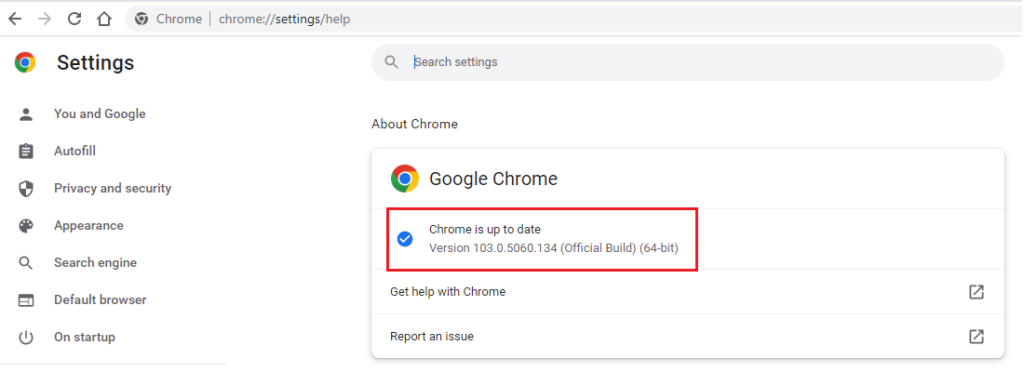
- Open Chrome and click on the three-dot menu at the top right corner of the browser.
- When you hover over Help, you will see a few options from which you will have to choose About Google Chrome.
- Now, Google Chrome will check for updates. Follow the instructions you see on the screen to install the latest version.
- Once the updates are installed, relaunch Chrome to implement the update.
2. Synchronize Your Computer’s Date and Time
As mentioned above, you might face this error if your computer’s date and time aren’t synchronized. Follow the steps below to sync your computer’s date and time.
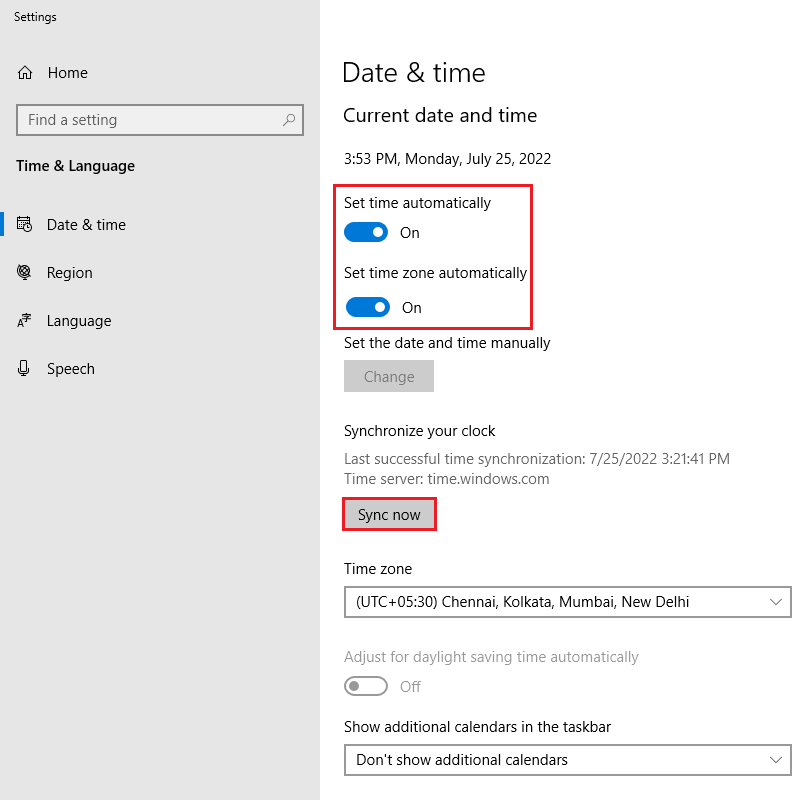
- Go to the Search box on your device and type “date” and click “Date and time settings.”
- Check if the options to set time and time zone are enabled. If they are disabled, turn on Set time automatically and Set time zone automatically.
- Once you do that, click Sync now to synchronize your device’s time and date with that of the Microsoft servers.
- Before you check if the issue is fixed, restart your device and relaunch your browser.
3. Clear Chrome’s Browser Data
ERR_BAD_SSL_CLIENT_AUTH_CERT error could be a result of your Chrome data conflicting with the load process of the website you are trying to access. Clearing your browser’s data will most likely help fix this error.
Here’s how to clear the browser data of your Chrome browser.
- Go to your Chrome browser and click the three-dot menu at the top right corner.
- When you hover over More tools, you will see a few options; you will need to click on Clear browsing data…
- On the pop-up window, click on Advanced.
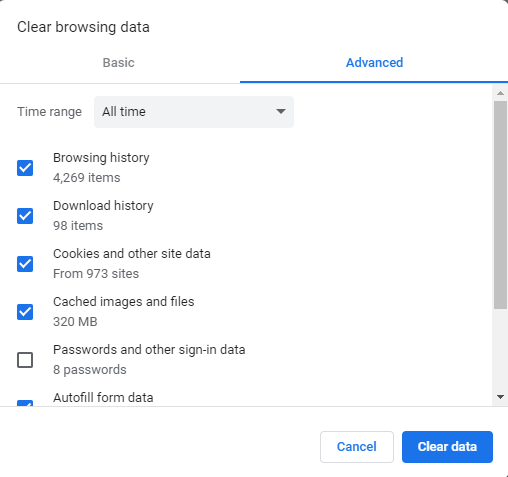
- Set the Time range to All time and make sure the boxes except the ones beside Passwords and other sign-in data and Media licenses are checked, which means boxes beside Browsing history, Download history, Cookies, and other site data, and Cached images and files must be checked.
- Now, click on Clear data and restart Chrome to check if you still face the ERR_BAD_SSL_CLIENT_AUTH_CERT error.
4. Check and Fix Third-Party Software Conflicts
If you have tried all the fixes mentioned above, try fixing third-party conflicts to get rid of the ERR_BAD_SSL_CLIENT_AUTH_CERT error. Antivirus software, VPN, etc., you have installed on your device could be the reason for this error. Such third-party online security apps may block certain websites on Chrome if they perceive that the particular webpage or website the user is trying to access has been compromised.
To fix the issue, you can check all the apps installed on your device and disable them. You can then enable them one by one and simultaneously check if the error still persists to figure out which app is preventing you from accessing the website. Once you find the problem-causing app, you can disable it to access the website.
5. Clean Your Computer’s SSL State
You can try cleaning your computer’s SSL state to fix the error ERR_BAD_SSL_CLIENT_AUTH_CERT. Quickly clear the SSL state by following the steps below.
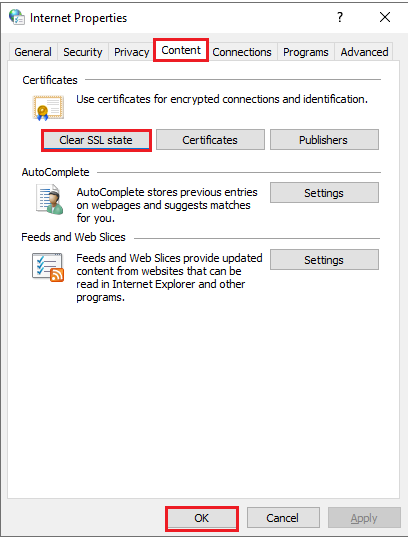
- Go to the start menu, type “Internet Options” and press enter key.
- A new Internet Properties window will pop up. Go to the Content tab and click on Clear SSL State to clean the SSL state of your computer.
- You can now relaunch Chrome and try accessing the website that displayed the error message.
Bottom Line
In this article, we have listed the top five ways to fix the ERR_BAD_SSL_CLIENT_AUTH_CERT error. We hope it helped you get rid of the error.
How to Fix ERR_BAD_SSL_CLIENT_AUTH_CERT for Google Chrome?
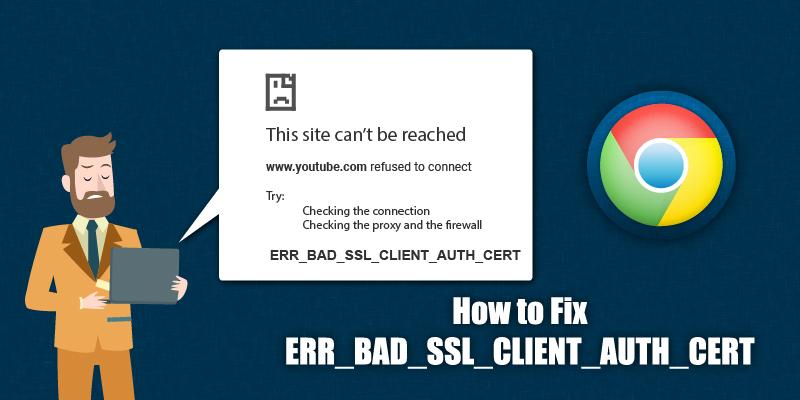
When the Google Chrome browser failed to check the SSL certificate of a website, you may face an err_bad_ssl_client_auth_cert error.
The rise in the digital market is directly proportional to the increase in web securities. SSL (Secure Socket Layer) digital certificates are such web securities essential for securing site data and information.
Research by Welivesecurity indicates that almost 51.8% of the websites are HTTPS (Hypertext Transfer Protocol Secure). When a website is protected with SSL encryption security, it shows HTTPS in the address bar and a URL padlock.
SSL certificates secure the web with their robust encryption techniques. Since SSL certificates are used for securing data-in-transit between the browsers and servers with encryption, the browser ensures that the SSL certificate is valid, and properly configured. In case of any doubts, it will display an error. There are many SSL errors, and there are various solutions to fix them.

In this article, we will discuss one such SSL error, i.e., ERR_BAD_SSL_CLIENT_AUTH_CERT. Let’s quickly peep into the reasons as to why this error occurs and how the same can be resolved.
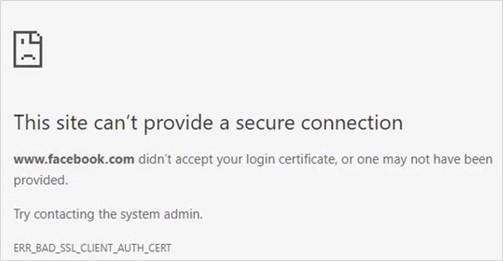
Table of Contents
Cause of ERR_BAD_SSL_CLIENT_AUTH_CERT Error:
This SSL certificate error mainly occurs when Chrome checks the SSL certificate on the website the user is trying to access. Chrome’s security procedure can trigger the above error if Chrome cannot open the site requested by the user because the SSL certificate is issued from non-trustworthy sources.
Many other factors like corrupted Cache data, browser extensions, incorrect date and time, outdated browser, third-party software blocking the site’s access, etc. can also trigger this error. To resolve the same, it is essential to eliminate the responsible factors.
There can be server issues, i.e., the client’s SSL certificate (browser) is rejected by the server. An expired SSL certificate or non-trustworthy SSL may cause this issue.
How to Fix ERR_BAD_SSL_CLIENT_AUTH_CERT Error for Google Chrome?
#1. Sync the Date & Time:
This is the most common cause of any error. Hence the foremost step is to check the date and time on your computer. Wrong date and time are bound to trigger connection errors, and err_bad_ssl_client_auth_cert error is a widespread error caused by the same. The conflicting date and time between the SSL certificate validation date and the system clock is the root cause.
Syncing the system clock may resolve the issue.
Solution:
- Right-click the taskbar > Click date and time option
- Click “Sync Now” for synchronizing the same with Microsoft servers
- Ensure that the set date and time automatically option is “On.”
- Ensure that the time mentioned on the page is correct.
- Check if the error is fixed or not.
#2. Update Google Chrome:
Chrome browser is agonized by many bugs related to SSL certificates. Recently many users of Windows 7, we’re unable to access Google services. Though Google is quick in resolving issues and patching the bugs, being a user, you need to ensure that your browser is updated at all times.
Many times, an SSL error or any other error occurs due to outdated versions of the browser. They may not support the current versions of the SSL certificate, and hence the browser triggers an error.
The same issue can happen, which may cause the error mentioned above.
The best way is to update the Chrome browser and see if it fixes the error or not. You can also uninstall Chrome and later install the latest version on your computer to resolve the issue.
Process:
- Open Chrome by clicking the three dots on the right-hand corner, select Help > About Google Chrome.
- Chrome will check for updates and hence wait for some time. If the screen pops saying the latest version available, update the same.
- Later restart your browser.
If the error persists, move to the next solution.
#3. Clear Browser Data:
Browser data is the storage of cookies, browser cache, and history of sites downloaded. The main reason why the browser stores this data is to give quick access to stored data to users on repeat requests.
But this data may contain expired cookies, cache, and outdated sites, which cause errors.
Clearing this data can fix your error.
Process:
- Open Chrome menu (3 dots)
- Go to More Tools > Clear browsing data
- In Advanced Tab > in Time Range > Select All Time
- Tick all the options.
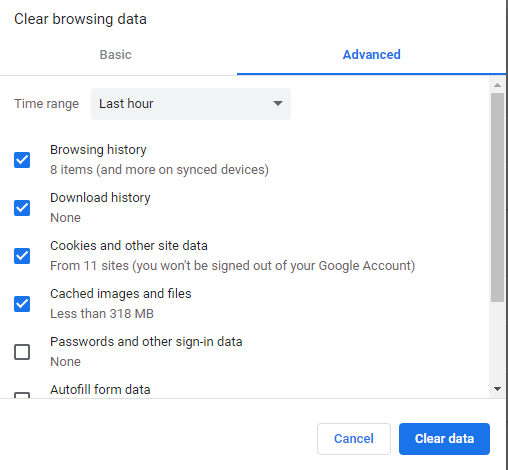
- Click “Clear Data”. Restart Chrome and check if the error is resolved or not.
#4. Check for Third-Party Software Conflicts:
Web securities and third-party software include anti-virus software, other security software, firewall, etc. Sometimes this software prevents access to genuine sites by the false detection of malicious content. Hence, they may block the site access on the browser.
Hence, it is advisable to check these third-party securities and ensure their non-interference with the browser. You can temporarily disable these securities for the time being, and once the site is visited and your purpose is solved, you can enable the same again.
Note: This is not a safe option.
#5. Change TLS/SSL QUIC Settings:
When Chrome prompts the ERR_BAD_SSL_CLIENT_AUTH_CERT error, many users have reported that disabling SSL/TLS protocols may resolve the error.
Solutions:
- 1 st option – Disable the previous TLS versions (TLS v1.1 and TLS v1.2) and enable the current SSL versions (SSL v2 and SSL v3). Save the changes and check for the error.
- 2 nd option – Disable QUIC protocol by typing “chrome://flags/#enable-quic” in the address bar. Click enter.
Restart your browser and see if the error is fixed or not.
#6. Remove All Conflicting Browser Extensions:
Browser extensions improve site functionality but sometimes interfere with digital securities. This causes errors and impacts web performance.
Removing browser extensions can erase the error message.
Process:
- In Chrome menu > go to More Tools > Click Extensions.
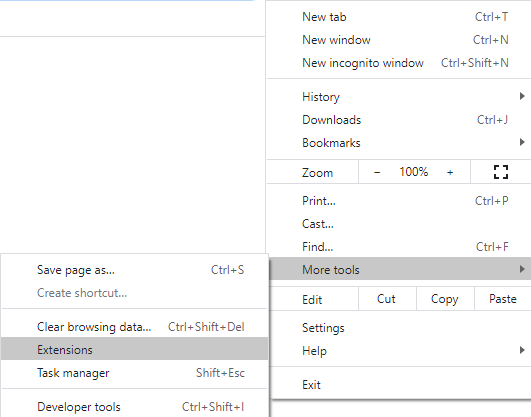
- Remove the suspicious extensions and later restart the browser
- Check for the error.
In case if the error is still visible then:
- Open Chrome > go to Settings > Click Advanced Option
- Select the “Restore and Clean Up” option > Click “restore settings to their original defaults”.
- Restart Chrome.
#7. Update Windows:
Any outdated system or software triggers errors. An obsolete browser on a new machine or an updated browser on an outdated system can trigger errors. The same goes for the Windows Operating System. If your Windows OS is not upgraded for a long time, it may cause error issues.
Some users also noticed that the above error is explicitly triggered on outdated Windows versions because the browser didn’t accept the obsolete machine’s security certificate. Hence many users could resolve the error by simply updating Windows.
Process:
- Press Win + R and type “ms-settings: windows update.”
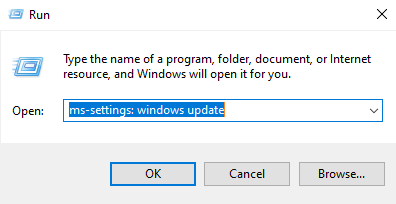
- On the Windows update screen, click “Check for updates” and install all the updates.
- Restart your computer and check for the error.
Wrapping Up:
The above mentioned are some quick, simple, and non-complicated solutions to resolve the ERR_BAD_SSL_CLIENT_AUTH_CERT error. Try the same, fix the error, and improve your browser’s effectiveness.