Download and install
Download and install Go quickly with the steps described here.
For other content on installing, you might be interested in:
- Managing Go installations — How to install multiple versions and uninstall.
- Installing Go from source — How to check out the sources, build them on your own machine, and run them.
Don’t see your operating system here? Try one of the other downloads.
Go installation
Select the tab for your computer’s operating system below, then follow its installation instructions.
- Remove any previous Go installation by deleting the /usr/local/go folder (if it exists), then extract the archive you just downloaded into /usr/local, creating a fresh Go tree in /usr/local/go:
(You may need to run the command as root or through sudo ).
Do not untar the archive into an existing /usr/local/go tree. This is known to produce broken Go installations.
You can do this by adding the following line to your $HOME/.profile or /etc/profile (for a system-wide installation):
Note: Changes made to a profile file may not apply until the next time you log into your computer. To apply the changes immediately, just run the shell commands directly or execute them from the profile using a command such as source $HOME/.profile .
- Open the package file you downloaded and follow the prompts to install Go.
The package installs the Go distribution to /usr/local/go. The package should put the /usr/local/go/bin directory in your PATH environment variable. You may need to restart any open Terminal sessions for the change to take effect.
- Open the MSI file you downloaded and follow the prompts to install Go.
By default, the installer will install Go to Program Files or Program Files (x86) . You can change the location as needed. After installing, you will need to close and reopen any open command prompts so that changes to the environment made by the installer are reflected at the command prompt.
- In Windows, click the Start menu.
- In the menu’s search box, type cmd , then press the Enter key.
- In the Command Prompt window that appears, type the following command:
- Confirm that the command prints the installed version of Go.
You’re all set!
Visit the Getting Started tutorial to write some simple Go code. It takes about 10 minutes to complete.
Report Issues
If you spot bugs, mistakes, or inconsistencies in the Go project’s code or documentation, please let us know by filing a ticket on our issue tracker. Of course, you should check it’s not an existing issue before creating a new one.
Install Go on Ubuntu

The go programming language was intended to have the efficiency of C while being as simple as Python.
And there is no doubt that it is getting popular!
That’s why the Go programming language is also available in Ubuntu’s default repository. It may not be the latest one, but it gives you the simplest installation method.
So if you don’t care about having the most recent packages, it can be installed with the single command:
While writing, I got version 1.18.1 of the go programming language:

And if that’s not enough and you want the most recent version, you can refer to the given guide.
Install the latest version of Go on Ubuntu
To get the most recent version, you can use the snap package of the go.
And the best part is Ubuntu comes pre-configured with snaps so no configuration is required.
But if you’re running something else and want to set up snaps, you can refer to the given guide:
 It's FOSS Abhishek Prakash

To install the most recent version of go using snaps, use the following command:

And as you can see, I got version 1.19.6 of the go programming language.
But that’s not enough!
You will have to create a symbolic link from /snap/bin/go to /usr/bin/go to execute go programs successfully:
Run Go programs on Ubuntu
For this example, I will be showing you how you can run your first go program (a Hello world program).
Here, I will be using the nano text editor but you can use any of your preferred ones:
And it will create a file named Hello.go and open the empty new file where you have to enter the following:
To run the program, all you have to do is append the filename with the run flag to the go command:

Similarly, if you want to create an executable file using the following:
Pretty simple. Isn’t it?
Looking for a text editor? Have a look at this
Just installing go won’t do any fair. The best way to learn to program is to practice.
Sure, you can use Vim or nano for this purpose. But if you are a beginner, you should start with something easy that comforts you so you can focus on programming only.
And for that purpose, we have a dedicated guide on the top 8 open-source text editors for Linux:
It's FOSS Abhishek Prakash
I hope you will find this guide helpful. And if you have any queries, let me know in the comments.
Как установить Go на Ubuntu 22.04, 20.04
Go является современным языком программирования, разработанным с участием Google. Он становится все более популярным в сфере разработки и предлагает обширный набор библиотек. В данном руководстве вы узнаете, как скачать и установить последнюю версию Go (версия Go 1.19 на момент публикации данного текста), а также как создать простое приложение Hello World.
Содержание статьи
Для использования данного руководства у вас должен быть доступ к системе Ubuntu 20.04, настроенной для пользователя без полномочий root с привилегиями sudo .

Рекомендуем вам супер TELEGRAM канал по Golang где собраны все материалы для качественного изучения языка. Удивите всех своими знаниями на собеседовании! ��
Мы публикуем в паблике ВК и Telegram качественные обучающие материалы для быстрого изучения Go. Подпишитесь на нас в ВК и в Telegram. Поддержите сообщество Go программистов.
How to Install Go on Linux
In this post, we will see how to install Golang in Linux (Ubuntu). Golang is a multipurpose programming language, that can be used to create system software and much more. It comes with memory safety, garbage collection, and a very accessible concurrent programming system. Installing Go in Linux is not hard. We will install it in Ubuntu using the command line.
Update Ubuntu System
It’s recommended to keep the Ubuntu system updated. We will upgrade our Ubuntu server with the latest changes using the below commands.
- The “apt update” command finds all the upgradable packages and downloads them
- The “apt upgrade” command applies the latest changes
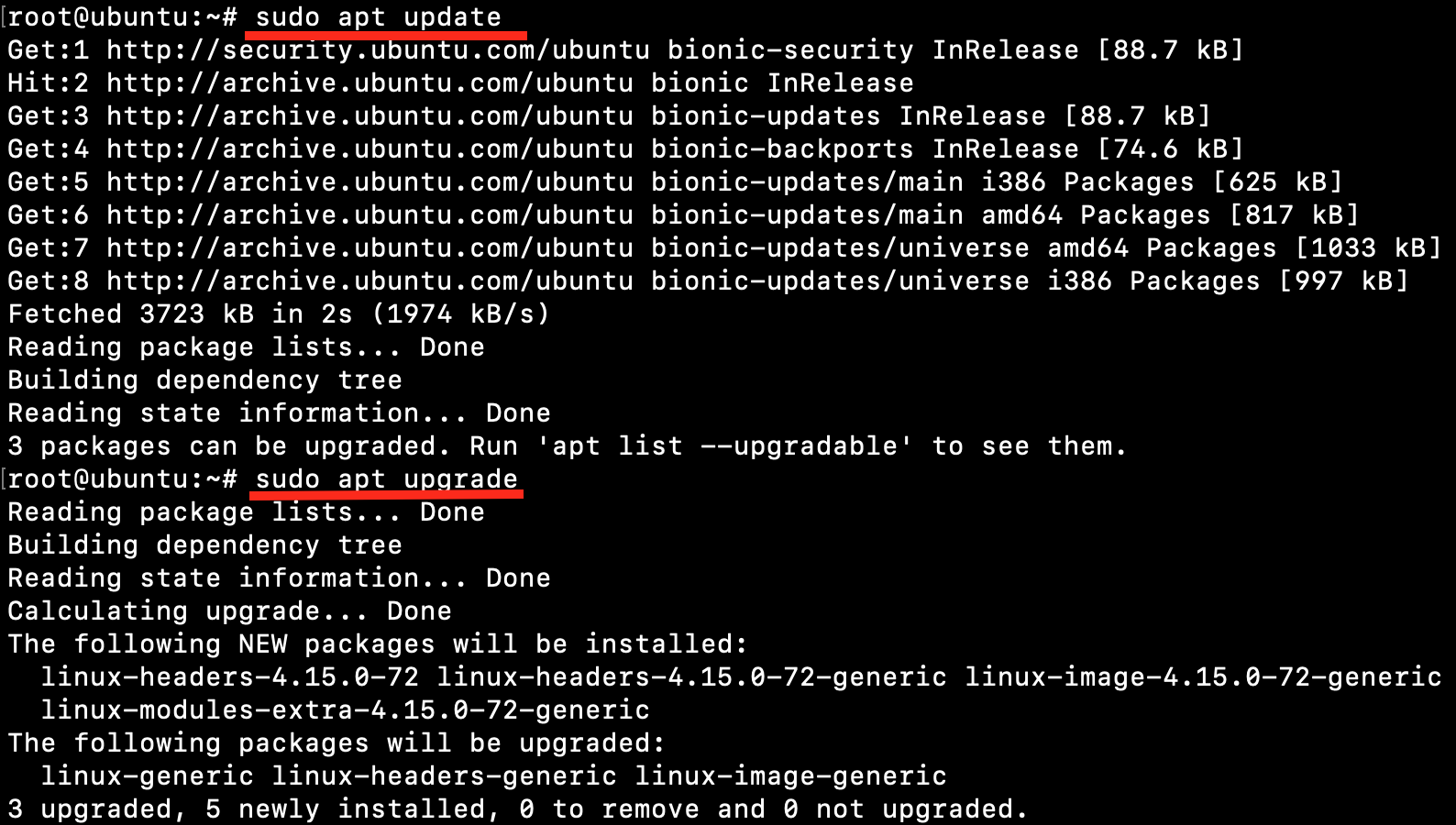
Updating Ubuntu Server
Install Go for Linux
To install Golang, we first need to download it. Then extract the tarball in the local directory. Next, we add the PATH for the Go binary.
1. Download the Go binary for Linux
The Go Linux binary can be downloaded by going to the site https://go.dev/ and then clicking on Download Go.
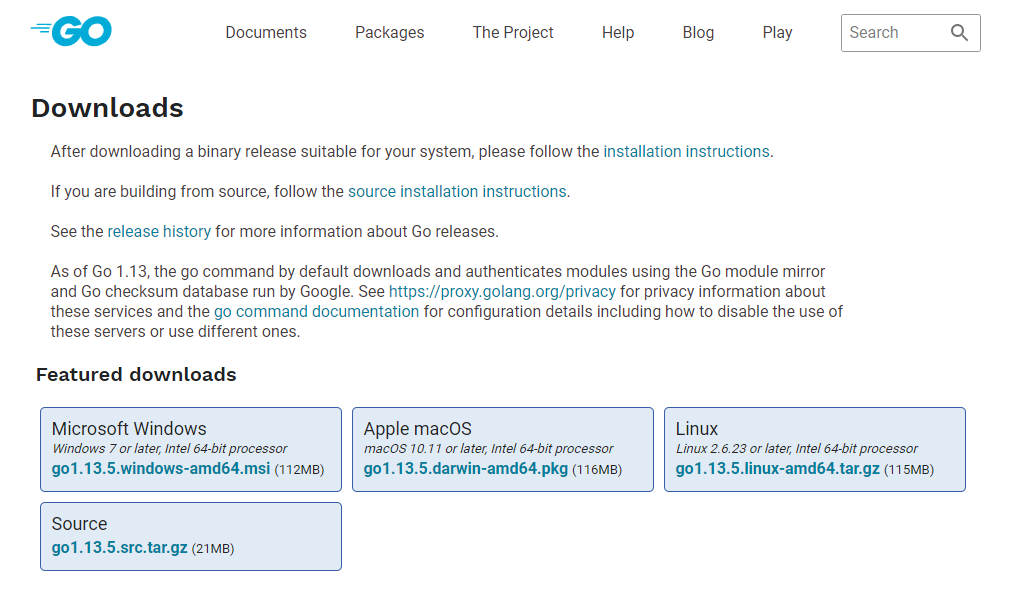
Go download for Linux amd64
Here we will download the tarball from the link using wget command.
The command to download the installer file using wget is:
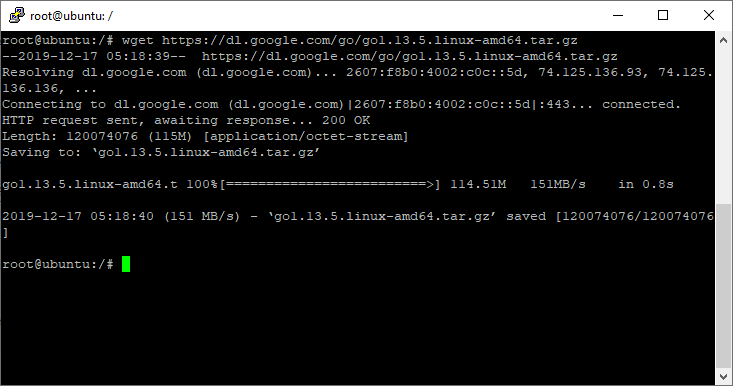
Wget Linux Go binary is downloaded
Now we can check the downloaded file as shown below, using the ls command.
The ls command lists out all files and directories in the current directory.
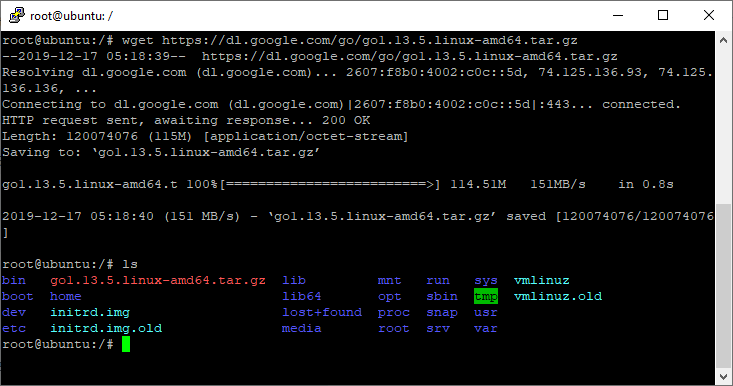
Show Go Installer tarball in the directory
We can see that go tarball has been downloaded successfully. The file will contain .tar.gz extension which means it is a gzipped tar file.
2. Extract the Golang binaries tarball
Now, we need to extract the tarball using the tar command to a directory of our choice.
We will use /usr/local/ for our convenience.
So, let’s extract the tarball using the command shown below.
Above you can see there are some flags used in conjunction with the command. Let’s see what those mean.
- The flag -C means move to the directory given. Here we use /usr/local.
- The flags -xzf are three separate flags in unison, -x for extract, -z for gzip, -f file.
The file has been extracted to the directory /usr/local.
To check if extraction is successful, simply go to the directory using the cd command.
Then ls in that directory and as we can see it has been extracted without any hassle.
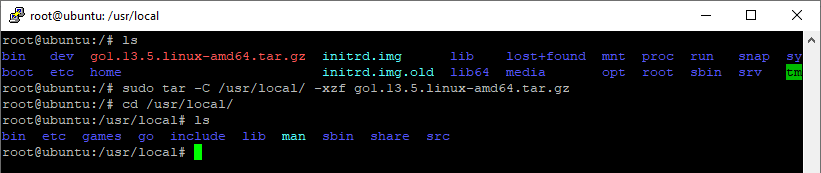
Check Tarball Extraction Result
3. Set the PATH for Go
Now let’s see what our current PATH variable is.
To check that simply type echo $PATH in the command line.

Go path Is Not Set
We can see that Go PATH is not set. So, we need to set that.
To set that we will open the .profile file in our home directory. Then we append the PATH modification to that file and save it.
So, let’s do that.
First, run the command to open the file for editing.
We will use nano an integrated text editor to edit the file.
Run the above command to edit the file inside the terminal window.

Edit Profile Script For Current User
The file will open inside the terminal window.
Now append the text as follows in that file.
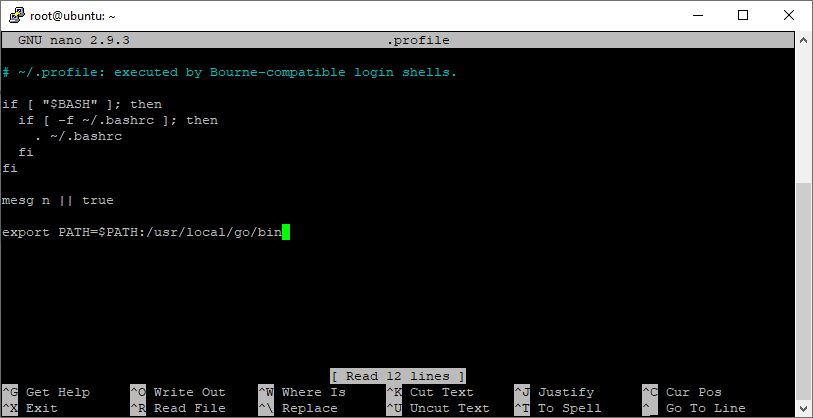
Append Go PATH in .profile script
Save the profile file and then run source .profile to apply the changes in the system.
Now, we can run go commands from the terminal.
But before that let’s see if we have saved the file correctly.
We simply cat the file content.
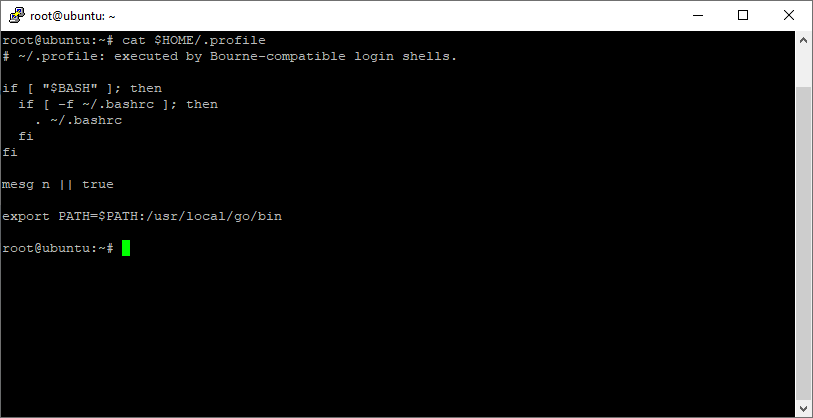
Changed script successfully
The PATH modification line is added to the file.
Now, we can test if we can run Go commands from the terminal.
4. Check installed Go version
Run the command go version to check the version installed. We tried installing go version 1.13.5.

Check Go Version
It works! Congratulations! You have successfully installed Go in your Linux.