Запуск программы из PowerShell
Задача запустить из PowerShell какой либо исполняемый файл (программу или утилиту командной строки) встречается достаточно часто. PowerShell предлагает для этого несколько различных способов, которые мы и рассмотрим далее в этой статье. Начнем с самого простого…
Прямой запуск
Самый простой способ запустить исполняемый файл в PowerShell — это перейти в директорию с файлом и стартовать его напрямую. Для примера возьмем простенькую программку, выводящую приветствие, и выполним ее командой:
Set-Location ″C:\Program Files″
.\Hello.exe

Обратите внимание, что даже находясь в нужном каталоге, требуется указывать относительный путь к исполняемому файлу. Исключение составляют файлы из директорий, перечисленных в переменной окружения (path). Например различные встроенные программы и утилиты (notepad, calc, ping и т.п.), находящиеся в директории Windows\System32, можно запускать без указания пути.

Оператор &
Если необходимо указать полный путь к исполняемому файлу, то можно воспользоваться оператором & (оператор вызова). Он позволяет выполнить строку текста, указанную в кавычках, как единую команду. Например:

Поскольку оператор & не анализирует передаваемую команду, то он не может интерпретировать ее параметры. Поэтому дополнительные параметры\аргументы передаются также в виде текста, в кавычках. Для примера возьмем предыдущую программу и немного изменим ее, так что она принимает нужный текст в виде аргумента:
& ′C:\Program Files\Hello.exe′ ′Hello, world′
При желании можно указать нескольких аргументов через запятую:
& ′C:\Program Files\Hello.exe′ ′Hello,′, ′ world′
Для удобства команду и аргументы можно поместить в переменные:
$exe = ′C:\Program Files\Hello.exe′
$arg1 = ′Hello′
$arg2 = ′world′
& $exe $arg1 $arg2

Ну и если аргументов много, то их можно объединить, воспользовавшись такой конструкцией:
$exe = ′C:\Program Files\Hello.exe′
$allargs = @(′Hello,′,′world′)
& $exe $allargs

Invoke-Expression
Командлет Invoke-Expression работает примерно так-же, как и оператор & — берет текстовую строку и выполняет ее в виде команды. Например:
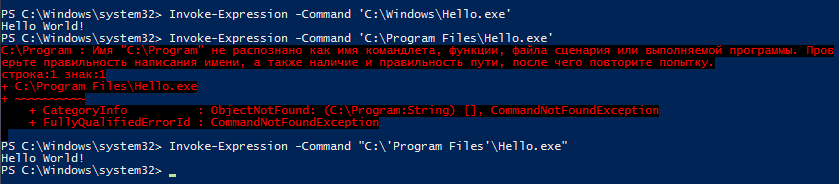
Invoke-Expression -Command ′C:\Windows\Hello.exe′
Однако у него есть один большой недостаток, а именно — неумение работать с пробелами. К примеру, следующая команда вызовет ошибку:
Invoke-Expression -Command ′C:\Program Files\Hello.exe′
Эта особенность делает применение командлета крайне неудобным. Хотя при необходимости подобных ошибок можно избежать с помощью дополнительных кавычек, например так:
Invoke-Expression -Command ″C:\′Program Files′\Hello.exe″
Start-Process
Командлет Start-Process запускает указанный файл в виде процесса, используя метод Start .NET класса Process. Например:
Start-Process -FilePath ′C:\Program Files\Hello.exe′
По умолчанию процесс выполняется в отдельном окне, которое закрывается по окончании процесса. Изменить такое поведение можно с помощью параметров, так следующая команда запустится в текущем окне:
Start-Process -FilePath ′C:\Program Files\Hello.exe′ -NoNewWindow -Wait
Также Start-Process позволяет передать в процесс дополнительные аргументы:
Start-Process -FilePath ′C:\Program Files\Hello.exe′ -ArgumentList ′Hello, world′ -NoNewWindow -Wait

По умолчанию командлет ничего не возвращает, но с помощью параметра -PassThru можно заставить его вернуть объект процесса. Этот объект очень удобно поместить в переменную:
$process = Start-Process -FilePath ′C:\Program Files\Hello.exe′ -Wait -PassThru
из которой можно затем можно узнать многие полезные вещи, такие как статус:
или код выполнения:

В принципе .NET классом Process можно воспользоваться напрямую, без командлета Start-Process. К примеру, запустить процесс можно командой:

Такой способ достаточно неудобен и громоздок (на мой взгляд), но чуть более гибок в использовании. Для примера запустим нашу программу в текущем окне, передадим в нее аргументы и заберем результат выполнения:
$process = New-Object -TypeName System.Diagnostics.Process
$process.StartInfo.FileName = ″C:\Program Files\Hello.exe″
$process.StartInfo.Arguments = ″Hello,world″
$process.StartInfo.RedirectStandardOutput = $true
$process.StartInfo.UseShellExecute = $false
$process.Start()
$process.WaitForExit()
$process.StandatdOutput.ReadToEnd()

С помощью WMI можно сделать практически все, в том числе и запустить программу. Для этого вполне подойдет метод Create WMI-класса Win32_Process. Этот метод запускает процесс на локальном или удаленном компьютере через RPC. Например, для выполнения программы на локальном компьютере можно воспользоваться такой командой:
А для выполнения на удаленном компьютере команда будет выглядеть так:

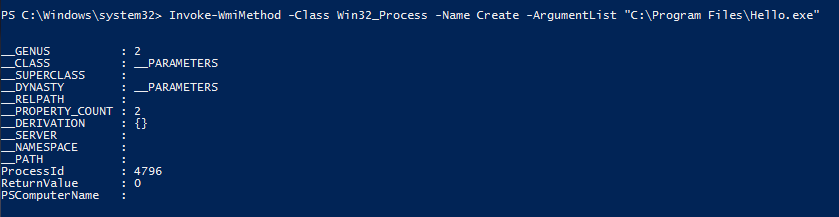
Как вариант, можно воспользоваться командлетом Invoke-WmiMethod:
Invoke-WmiMethod -Class Win32_Process -Name Create -ArgumentList ″C:\Program Files\Hello.exe″
Либо командлетом Invoke-CimMethod:
Invoke-CimMethod -ClassName Win32_Process -MethodName Create -Arguments @

WMI запускает процесс в отдельном окне и возвращает объект, содержащий идентификатор процесса (ProcessID) и результат выполнения (ReturnValue). ReturnValue может принимать следующие значения:
0 — Sucsessful Completiom
2 — Access Denied
3 — Insufficient Privilege
8 — Uncnown Failure
9 — Path Not Found
21 — Invalid Parameter
Invoke-Command
Командлет Invoke-Command умеет выполнять команды на локальном или удаленном компьютере, используя WinRM. Например, для запуска нашей программы на локальном компьютере используем команду:
При необходимости в программу можно передать аргументы:
Обратите внимание, что Invoke-Command не очень дружит с пробелами, поэтому во избежании ошибок приходится исхитряться с кавычками. Впрочем, подобных проблем можно избежать, например комбинируя использования командлета с оператором &:

В основном Invoke-Command применяется для удаленного управления, его главное достоинство — это возможность одновременного выполнения на нескольких компьютерах. Например:
Invoke-Command -ScriptBlock <″C:\′Program Files′\Hello.exe″>-ComputerName SRV1,SRV2,SRV3
$scriptblock = <″C:\′Program Files′\Hello.exe″>
$Computers = @(′SRV1′,′SRV2′,′SRV3′)
Invoke-Command -ScriptBlock $scriptblock -ComputerName $Computers
По умолчанию командлет возвращает результат выполнения программы, а если запустить его в фоновом режиме (параметр -AsJob), то возвращает объект Job:
Invoke-Command -ScriptBlock

Invoke-Item
Командлет Invoke-Item предназначен для применения к файлу действия по умолчанию. Так запустить исполняемый файл можно командой:
Invoke-Item -Path ″C:\Program Files\Hello.exe″
Однако наиболее удобно использовать Invoke-Item для открытия определенного типа файлов. Например так мы откроем текстовый файл:
Invoke-Item -Path ″C:\Files\test.txt″
А так все текстовые файлы в папке:
Invoke-Item -Path ″C:\Files\*.txt″

Ну и в завершение еще один способ запуска программы из PowerShell — с помощью оболочки cmd. Способ достаточно ″непрямой″, но тем не менее работающий. Следующая команда запускает новый экземпляр cmd, выполняет в нем указанную программу, завершает работу cmd и возвращает результат:
cmd /c ″C:\Program Files\Hello.exe″

Такое вот изобилие способов запустить программу предоставляет PoSh. И каждый из них хорош для определенных ситуаций.
Кстати, статья написана по мотивам PowerShell: Deep Dive and Best Practice. Рекомендую почитать, там еще много интересного.
PowerShell Open File

PowerShell open file commands are meant to open the file using the PowerShell cmdlet or using the .Net Namespace and once the file is opened it can be used for reading the contents from the file by reading a single line or the whole content, writing the content to the file and then close the file end the running process of the opened file and these files can be various types like TEXT, JSON, XML, etc.


Syntax:
Hadoop, Data Science, Statistics & others
Using Get-Content to open and read file.
[-ReadCount <Int64>] [-TotalCount <Int64>] [-Tail <Int32>] [-Path] <String[]>
[-Filter <String>] [-Include <String[]>] [-Exclude <String[]>] [-Force] [-Credential <PSCredential>] [-Delimiter <String>] [-Wait] [-Raw] [-Encoding <Encoding>] [-AsByteStream] [-Stream <String>] [<CommonParameters>]
[-ReadCount <Int64>] [-TotalCount <Int64>] [-Tail <Int32>] -LiteralPath <String[]>
[-Filter <String>] [-Include <String[]>] [-Exclude <String[]>] [-Force] [-Credential <PSCredential>] [-Delimiter <String>] [-Wait] [-Raw] [-Encoding <Encoding>] [-AsByteStream] [-Stream <String>] [<CommonParameters>]
Using File.Open method
a. Open(String, FileMode)
Opens the file from the specified path with the various FileModes, explained later.
b. Open(String, FileMode, FileAccess)
Opens the file from the specified path with the various file modes and file access method.
c. Open(String, FileMode, FileAccess, FileShare)
Opens the file from the path specified with the specified file mode, file access rights, and the specified sharing option.
Using File StreamReader class.
How does the open file command work in PowerShell?
When we use the Get-Content method, we can read the file from the path we specify, and when we read the file by default PowerShell command opens up a file and read the content of the file.
While using the System.IO namespace with PowerShell, we can use its class File and its methods Open() as shown in the syntax.
a. Open(String, FileMode)
String: It is the path of the file to open its content.
FileMode: Below is the file modes used by the File System.
- Append: Opens a file if exists or creates a new file. This requires to append permission FileMode.Append and can only be used with FileAccess.Write.
- Create: Specifies that the Operating system will create a new file and if exists it will overwrite the file and should be used with the FileMode.Create permission.
- CreateNew: Specifies that the Operating System will create a new file and if exists it will throw an exception.
- Open: Specifies that the Operating System will open a file if exist, otherwise it will throw an exception.
- OpenOrCreate: Specifies if the operating system should open a file. If the file exists, it will open a new file otherwise it will create a new file.
- Truncate: Specifies that the operating system should open an existing file. When the file is truncated so that its size should be zero bytes.
b. Open(String, FileMode, FileAccess)
String: Path of the file to open.
FileMode: As explained in the previous syntax.
FileAccess: Below are the FileAccess methods.
- Read: Read Access to the file. Data can be read from the file.
- ReadWrite: Read and write access to the file. Data can be written and read from the file.
- Write: Write access to the file. Data can be written to the file.
C . Open(String, FileMode, FileAccess, FileShare)
String, FileMode, and FileAccess is explained earlier. We will provide description about FileShare here.
Below are the supported fields.
- Delete: Allows deleting of a file.
- Inheritable: Makes the files are inheritable. This is not supported by Win32 system.
- None: Rejects the file sharing.
- Read: Allows the opening file for the reading until the file is closed.
- ReadWrite Allows the opening file for reading and writing until the file is closed.
- Write: Allows the opening file for the writing until the file is closed.
Examples
Example #1: Use the Get-Content to open and read the file.
Output:
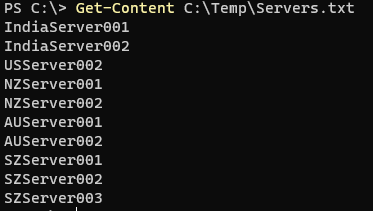
When you type this command, it opens the file for the reading and when file read is successful, it closes the file.
When you add the content to the file, the file is first opens and then data is written to the file. For example, if the Servers.txt file is in use the server name “AusServer001” can’t be added to the file.
«AUSServer001» | Add-Content -Path C:\Temp\Servers.txt -Force
Example #2: Open the file with System.IO namespace.
To open the file for the operation, we can use the below command. We have the file to open is Servers.txt from the C:\temp location.
Output:
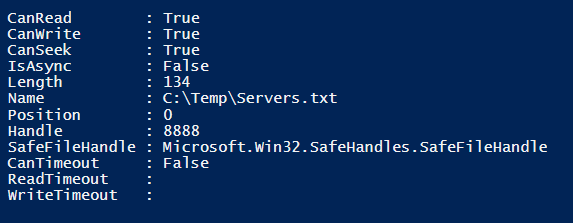
So when the file is open and when you try to open or edit the file it will show the below error message.
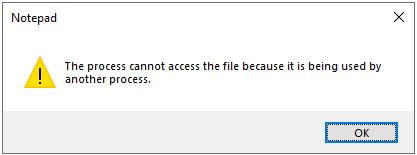
To close the open file once the operation completes, use the close() method.
$file = [System.IO.File]::Open(«C:\Temp\Servers.txt», [System.IO.FileMode]::Open)
$file.Close()
As shown in the above syntax, instead of Open, you can use various methods like Create, CreateNew, Truncate, etc.
For example, below command, will open Servers.txt if it is exist otherwise it will Create a new file.
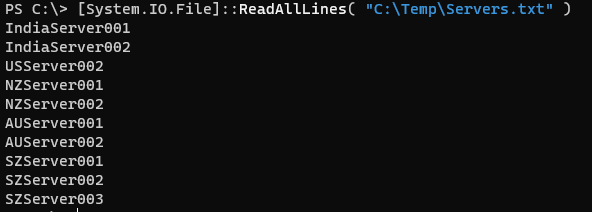
Another method to open and read file with the System.IO.File namespace is by using the ReadAllLines() command.
Output:
Example #3: Using File StreamRead to open and read the file.
Using the filestream method, we first need to create the FileStream .Net namespace as shown below.
$file = New-Object System.IO.StreamReader(«C:\Temp\Servers.txt»)
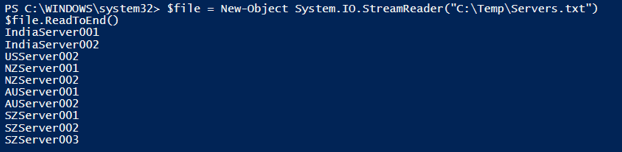
You can read the file with the method ReadToEnd() method.
Output:
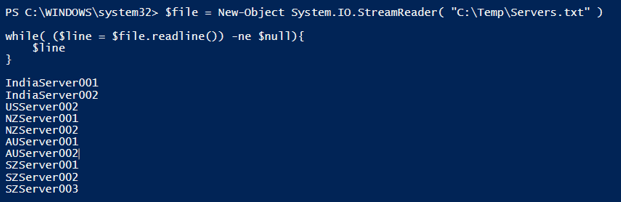
We can also use the ReadLine() method to read the file but this command read one line at a time so we need to use the loop to read the entire file as shown below.
$file = New-Object System.IO.StreamReader( «C:\Temp\Servers.txt» )
while( ($line = $file.readline()) -ne $null) <
$line
>
Output:
Conclusion
While writing a script sometimes we need to work with files. The above cmdlets and the .Net commands in PowerShell mentioned are useful in opening the file and reading and writing the content of the file using the script and this approach is helpful when we write a script to store logs or events.
Recommended Articles
This is a guide to PowerShell Open File. Here we discuss Introduction, syntax, parameters, How does the open file command work in PowerShell?. You may also have a look at the following articles to learn more –