Create a User Account
To create a regular (non-root) user account during the installation, click User Settings on the progress screen. The Create User screen appears, allowing you to set up the regular user account and configure its parameters. Though recommended to do during installation, this step is optional and can be performed after the installation is complete.
You must always set up at least one way to gain root privileges to the installed system: either using a root account, or by creating a user account with administrative privileges (member of the wheel group), or both.
To leave the user creation screen after you have entered it, without creating a user, leave all the fields empty and click Done.
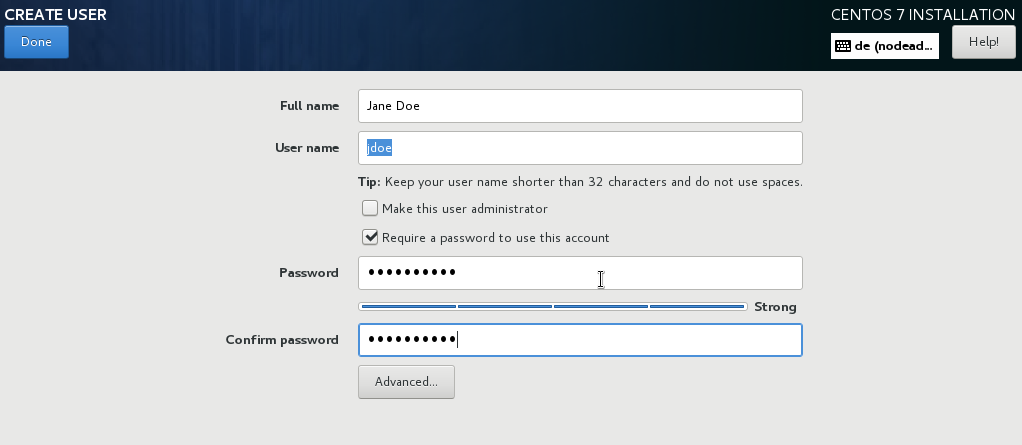
Enter the full name and the user name in their respective fields. Note that the system user name must be shorter than 32 characters and cannot contain spaces. It is highly recommended to set up a password for the new account.
When setting up a strong password even for a non-root user, follow the guidelines described in Set the Root Password (x86).
Click the Advanced button to open a new dialog with additional settings.
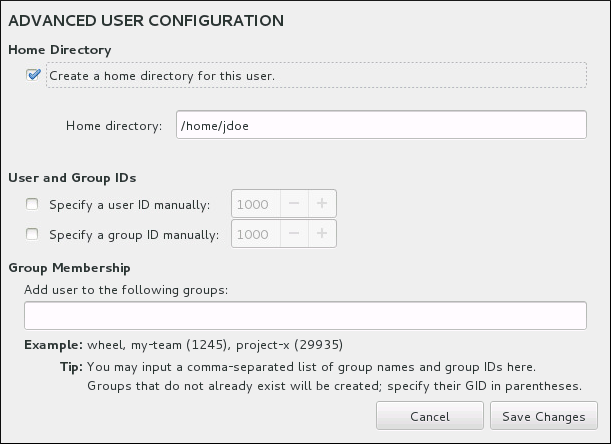
By default, each user gets a home directory corresponding to their user name. In most scenarios, there is no need to change this setting.
You can also manually define a system identification number for the new user and their default group by selecting the check boxes. The range for regular user IDs starts at the number 1000 . At the bottom of the dialog, you can enter the comma-separated list of additional groups, to which the new user shall belong. The new groups will be created in the system. To customize group IDs, specify the numbers in parenthesis.
Consider setting IDs of regular users and their default groups at range starting at 5000 instead of 1000 . That is because the range reserved for system users and groups, 0 — 999 , might increase in the future and thus overlap with IDs of regular users.
For creating users with custom IDs using kickstart, see user (optional).
For changing the minimum UID and GID limits after the installation, which ensures that your chosen UID and GID ranges are applied automatically on user creation, see the Users and Groups chapter of the System Administrator’s Guide.
Once you have customized the user account, click Save Changes to return to the User Settings screen.
All CentOS Documentation content available under CC-BY-SA 3.0.
This page was built using a modified version of the Antora default UI. The source code for this UI is licensed under the terms of the MPL-2.0 license.
How to create a user on CentOS
In this tutorial, you will learn how to create a user on CentOS using the useradd command. You also see several common and real world examples of user creation.
Instructions provided in this tutorial are compatible with the following versions of CentOS.
- CentOS 5
- CentOS 6
- CentOS 7
- CentOS 8
Creating a basic user
The most basic example of creating a new user in CentOS is to use the useradd command.
The useradd command on its own will not set a password for your newly created user. While the -p flag can be used to set the password, it is strongly recommended that you do not use it. Password’s set from the command-line remain visible in a user’s history.
Instead, to set a password for the new user use the passwd command. It is much more secure, as it does not leave a log in a user’s shell history.
The useradd command above did not use any arguments to customize the new user, meaning defaults were applied. The default behaviour of the useradd command is to:
- Create a new user
- Create a home directory in /home/<username>
- Create a user group with the name of the user
- Set the shell to default, which is bash
- Set the UID (User ID) to the next available ID, incrementing from 1000 for regular users.
Common Arguments
The following is a list of common arguments that can be used to further customize a new user.
System users will be created with no aging information in /etc/shadow , and their numerical identifiers are chosen in the `SYS_UID_MIN-SYS_UID_MAX range.
Creating a System User
System users are created for running system processes and tasks. These are not regular users, and should not be used as one.
As system user does not expire by default and it given a unique identifier from a range reserved for such accounts. Typical users are given an unique indentifer from 1000 onwards, while system users are given a 3 digit ID.
Also, a system user is not created with a home directory. This enforces the idea that the user is cannot have a login session, such as through SSH. A best practice to prevent someone from breaking into the system with a system user.
To create a system user you use the -r or —system flag.
Creating a User with Custom Home Directory
To set the home directory of user and overwrite the default value you use the -m or —home-dir flag.
The example below will create a new user named student and set their home directory to /home/students/student1 .
Creating a User and Adding Multiple Groups
In most environments, privileges to files, directories, and executables are assigned to groups rather than individual users. For the sake of securing resources by area of concern, each resource should be grouped and assigned group privileges.
This strategy involves the creation of multiple groups, each with its own privileges. In order to add a new user to multiple groups, you use the -G or —groups flag.
For example, to create a new user named sysadmin1 and add them to multiple groups, you would do the following.
Creating a User with an Expiry Date
Some users are only expected to exist for a specified period of time. Afterwhich, the user should be effectively disabled on the system. This can be done using the -e or —expiredate flags.
For example, to add an expiration date to a newly created user you would run the following useradd command.
The example above will expire the user account on May 30th, 2022.
Creating a User and Setting Their Shell
It’s not uncommon to run several different shells on a Linux server. While the default shell in CentOS is Bash, other popular shells are ZSH and Korn Shell, for example.
To create a new user with a specific shell you use the -s or —shell flag.
Setting a Password Expiration
The useradd command does not support setting limits for user passwords. Instead, the passwd command is used for such tasks.
The three main flags for setting time limits on user passwords are the following:
- -n, —minimum — Sets the minimum password lifetime, in days.
- -x, —maximum — Sets the maximum password lifetime, in days.
- -w, —warning — Sets the number of days before expirations to send a warning, in days.
In order to set these values and have them take affect the user’s account must support password lifetimes.
For example, to set a user’s password to expire in 90 days, with a minimum of 2 days, you would run the following command.
Deleting a User Account
Deleting users is often need to remove unnecessary users that naturally build up over time. To delete a user in CentOS you use the userdel command.
Create a Sudo User on CentOS
A sudo user is a super user in Linux. There are several ways to accomplish this task, but simplest is to add the user to the wheel group.
In the following example, the new user student1 is added to the wheel group, giving him sudo rights.
How to Create a New User in CentOS

In this article, we’re going to show you how you can create a new user in CentOS Cloud Servers. This is a task you will want to complete as soon as possible during your initial VPS setup phase, because you are advised against using the default “root” user account for your daily tasks. Below, we will also show you how to:
How to Create a New User in CentOS
Remember that we are currently assuming the root user when first logging into the VPS. Without a superuser account, these commands would require that you add “sudo” at the beginning of the command line in order to run properly.
Be sure to substitute your custom username in place of “username” as used below.
- Create the user with this command:
- Assign a secure password for this user:
- Add the user to the wheel group:
Now we have a new user who belongs to the “wheel” group. Being in the wheel group means that the user can assume root privileges when necessary by adding “sudo” before any command that requires elevated privileges.
Disallow Root Logins
As an extra security step after you create a new user, you can disallow root logins over SSH. In order to do this, you can log in again as the root user or stay logged in from the session above in order to edit your SSH configuration file.
- Edit the configuration file with your preferred text editor (Nano, Vim, Vi, etc.):
- Edit the line that begins with PermitRootLogin:
- Save and exit the file.
- Restart your SSH service:
How to Login with SSH Keys
This is very important to set up because your account automatically disables password authentication. This means you will need to log in with SSH keys in order to use your new user.
- Switch to your new user if still logged in as root:
- Change directory to home:
- Make an .ssh directory:
- Navigate into the new .ssh directory and create an authorized_keys file:
- Paste your public key into the authorized_keys file. This would be everything in the .pub file from your current SSH key.
- Change permissions for the .ssh directory:
- Change permissions for the authorized_keys file:
Next Steps
Make sure to test your new login in a separate terminal window before logging out of the root user. If there are any issues, you can resolve them in that terminal session. Once you’ve completed this task, consider taking additional steps to secure your Linux server. Change the default SSH port from 22 to uncommonly used port to defend against malicious port scans and SSH-based cyber attacks. Learn how to audit your web server logs or implement a security event management application to track SSH login attempts. Find some valuable CentOS hardening guides.
Learn more system administration tasks with our Cloud Server Hosting Product Guide.
Как добавить пользователя в CentOS 7

В сегодняшнем HowTo поговорим об одном моменте связанным с CentOS, с которым часто сталкиваются новички, а именно о том, как добавить в систему пользователя.
Даже если посмотреть со стороны простого пользователя, то установка CentOS 7, на самом деле очень проста. Вам нужно выбрать язык системы, разбить диск, указать имя компьютера и т.п. Также на этапе установки вы задаете пароль для рута и, при необходимости, создаете простого пользователя. Часто здесь и делают ошибку: указывают лишь пароль для суперпользователя, забывая при этом о создании обычного пользователя. В итоге, когда система установится, новичок начинает работать из под рута, что не есть хорошо, и уже тогда задается вопросом о добавлении нового пользователя в CentOS. Ну что же, поможем разобраться с этим.
Как добавить пользователя в CentOS
Для добавления пользователей в Linux используется команда useradd за которой следует имя пользователя, поэтому открываем терминал и вводим в нем следующее:
После того, как пользователь создастся, ему нужно будет задать пароль, что делается командой passwd:
Пароль нужно будет ввести дважды (второй раз для подтверждения).
Ну что, пользователь создан, теперь мы можем выйти из системы. Тем не менее, это не все. Зачастую данных действий недостаточно, ведь хоть пользователь нам нужен был и обычный, но все же, с возможностью администрирования системы (установка/удаление программ, настройка ОС), а это означает, что нам нужно разрешение использования sudo.
Настраиваем sudo в CentOS
Данный вариант работает как в CentOS, так и Fedora и RHL. Итак, заходим в систему под только что созданным пользователем, открываем терминал и логинемся под рутом командой su.
Дабы наш пользователь мог работать с sudo, его нужно добавить в группу wheel. Делается это такой конструкцией:
Вместо geek вы, естественно, подставляете имя своего пользователя.
Теперь перезайдите в систему и проверьте работоспособность выполненных манипуляций, например, попробуйте установить какую-нибудь программу.
Так же настроить sudo можно при помощи файла sudoers, который нужно будет отредактировать вручную, об этом на нашем сайте также есть статья (правда на примере Debian).
В завершение
Собственно, на этом и все. Надеюсь данная статья вам помогла и вы теперь знаете способ как добавить пользователя в CentOS, к тому же это означает, что вы стали на шаг ближе к познанию секретов Linux:) Да, и если у вас остались вопросы, задавайте их в комментариях.