Pane is dead в процессе установки CentOS
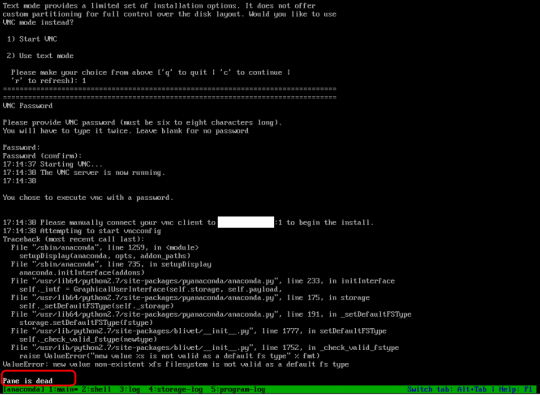
Вот такое неприятное зрелище однажды встретилось мне при попытке установить CentOS 7 на сервер Dell PowerEdge R430.
Помогло добавление вот этих двух опций ядра:
inst.text nomodeset
В самом начале работы установщика, там где пишет «Install CentOS», нужно нажать Tab и добавить их в конец строки. В результате установка пошла в текстовом режиме без попытки запуска GUI и далее удалось успешно завершить процесс.
CentOS 7 ISO Kickstart Installation — "Pane is dead"
EDIT: I retried this generically, and see the same problem. To reproduce, follow my steps below. I am starting to think that it might be a problem with the hardware, but I am not certain.
When installing a CentOS 7 ISO using kickstart, I get an error saying «Pane is dead» with no additional logs. Basically, I take the CentOS 7 ISO and added a kickstart file. When installing with this on VirtualBox, everything works fine. When I attempt to install it on real hardware with multiple interfaces, I get the «Pane is dead» error after all the packages are installed.

I am at a loss as to what could be the problem. Some things I’ve tried:
- There are no logs generated that indicate the problem. I’ve even added the logging —level=debug line to the kickstart, but there was nothing of value to see.
- There is no post-installation step (I removed that from the ks since that is last log before the problem is seen), so that cannot be the issue.
- I did see somewhere on the web that someone said there is a difference between CentOS 6 and 7 ISOs, but there was no additional information to indicate quantitatively what those differences might be.
Here are the complete instructions on how to reproduce. If you can see what I am doing wrong, I would greatly appreciate it.
Complete Instructions for How to Reproduce
My production machine is an up-to-date CentOS 7 server. If you are missing any applications, I am sure you can install them easily with yum.
The basic steps are:
- Create a working directory
- Create a kickstart file
- Update isolinux.cfg
- Download packages
- Create repository
- Create the ISO
Create Working Directory
I copied the CentOS 7 ISO to my temp directory and mounted it to get all the files:
I copied all the files out into a working directory.
Kickstart File
Add my kickstart file:
Note: If using these instructions and cutting and pasting, you may get «> » prefixing every line. Use the following to remove them.
I’ve tried to limit the number of packages installed, hence all the exclusions in the %packages section.
ISOLINUX.CFG
Next, edit my isolinux.cfg file and add inst.ks=cdrom:/dev/cdrom:/ks.cfg to each append line and make the non-test version the default.
Add Packages
I empirically determined that there are 240 packages to add for my minimal installation. I did this by performing a network installation on VirtualBox with the following changes to the kickstart file:
So I commented out the CDROM installation, and instead used the network repository. Installation took 10 minutes. Once complete, I logged in to get the list of installed packages:
I copied this file back to my production machine and obtained the locations for downloading these files:
CentOS
Trying to install centos 7 — getting pane is dead error
Trying to install centos 7 — getting pane is dead error
Post by homeomorphism » 2019/07/09 18:19:35
This is my very first installation of any Linux distribution. I have seen «pane is dead» questions and answers to them, but I don’t think they apply to me — for one thing, I’m not using Kickstart (whatever it is). Also no virtual machine, no Parallels, etc. This is a clean install on a just bought disk (on a newly bought computer, really).
Here’s what I did.
I downloaded 7.6.1810 DVD-ISO version from one of the mirrors given on the official CentOS site. Burned it to an USB stick using dd under Linux Mint. I made sure I burned it to USB as a whole (/dev/sdz), not to a partition (/dev/sdz1).
Now I plug the stick into the new computer. It is recognized and I’m greeted by «Install CentOS 7» screen. I choose «install», lines start running, most of which are ok-ed. Two lines are not ok-ed:
[ INFO ] dev-virtio\x2dports-com.redhat.spice.0.device is not active.
[ DEPEND ] Dependency failed for Activation socket for spice guest agent daemon.
Nevertheless, this run of lines successfully ends, after which I get «Starting installer, one moment. » and very quickly after that «Pane is dead».
When I alt-tab to log, I get the message saying something to the effect that log-file can’t be found. And that’s it.
How to Install Centos8 and fix the error “ pane is dead “ on VMware Workstation
How to Install Centos8 and fix the error “ pane is dead “ on VMware Workstation
To check installed version VMware 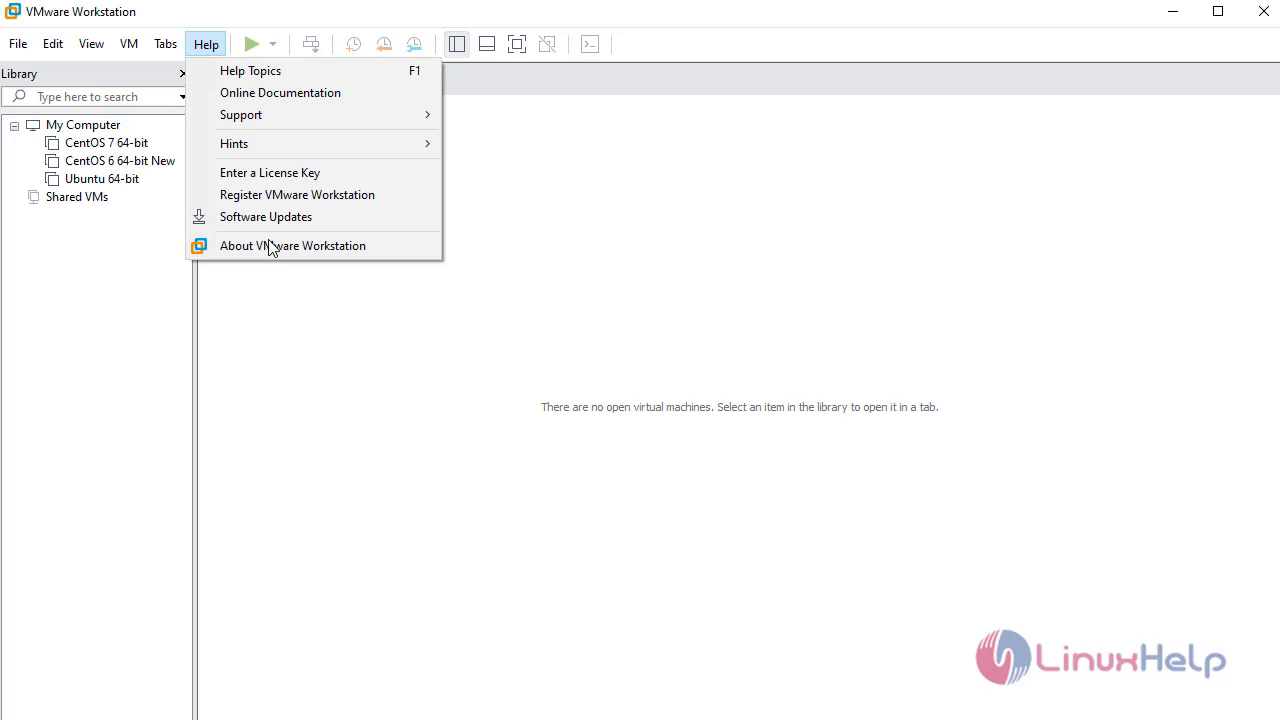
Click on File-New Virtual Machine to create new 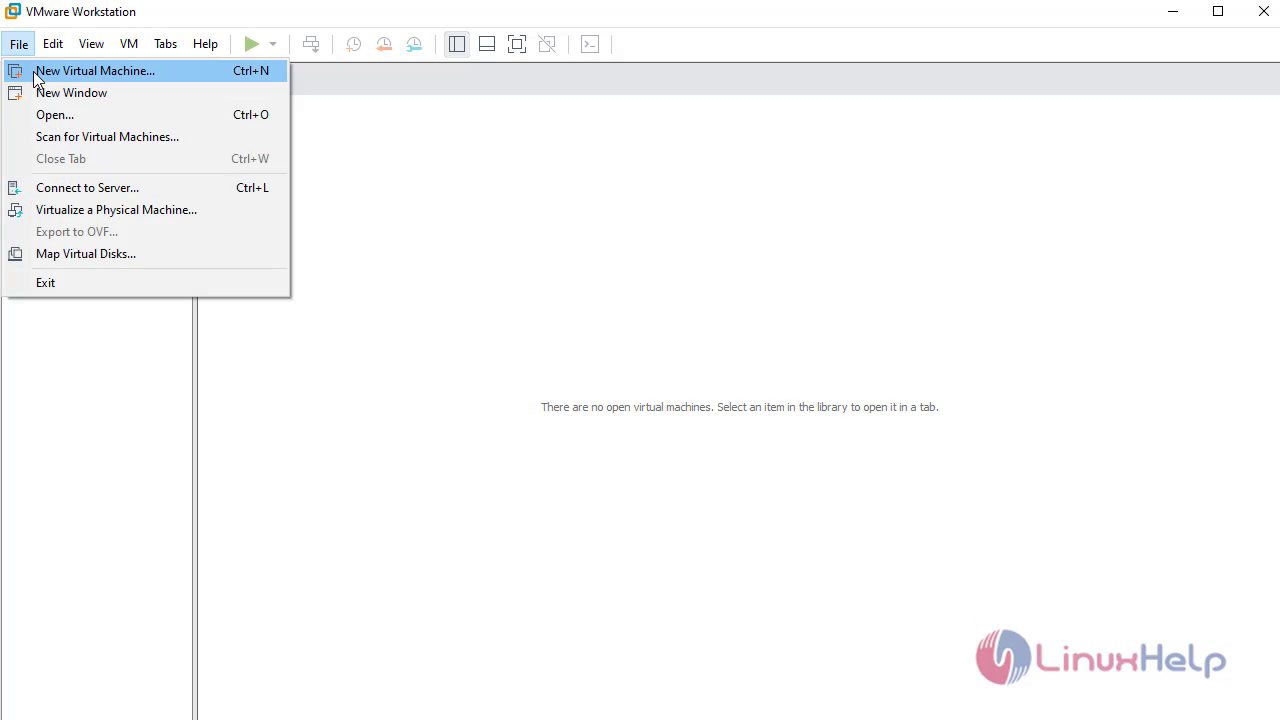
Select custom 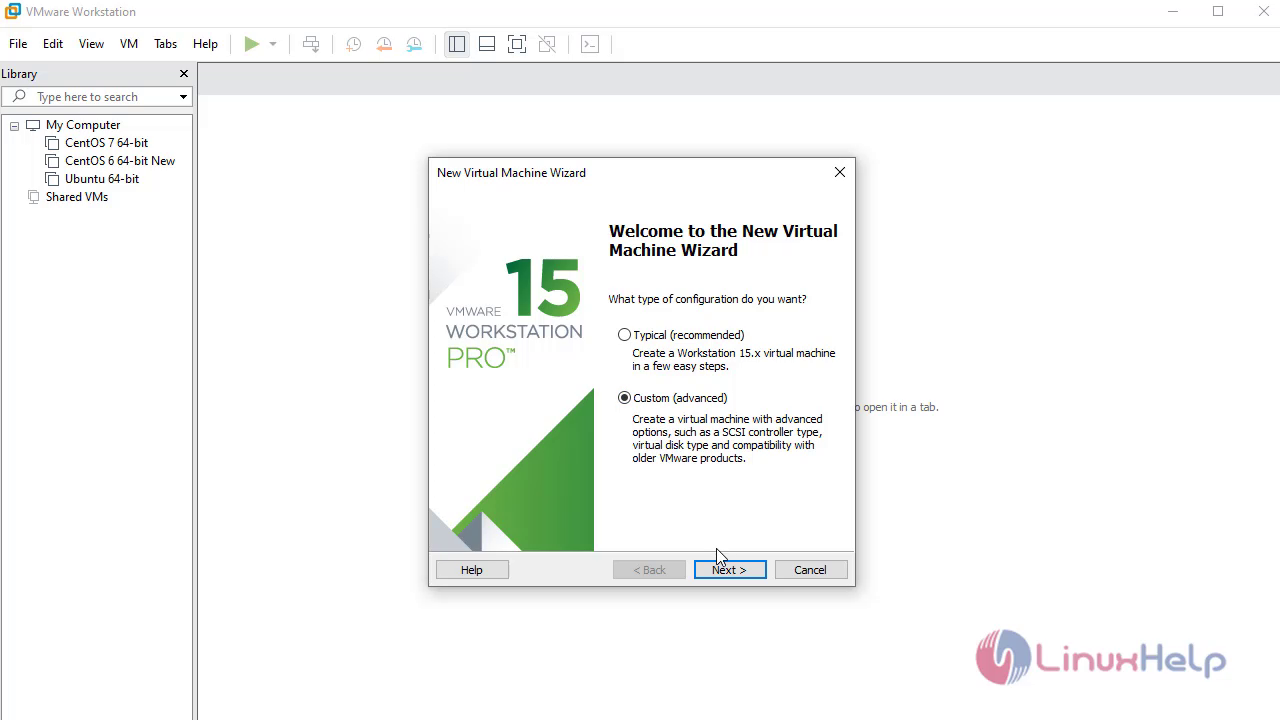
Click on Browse option to select the source os image 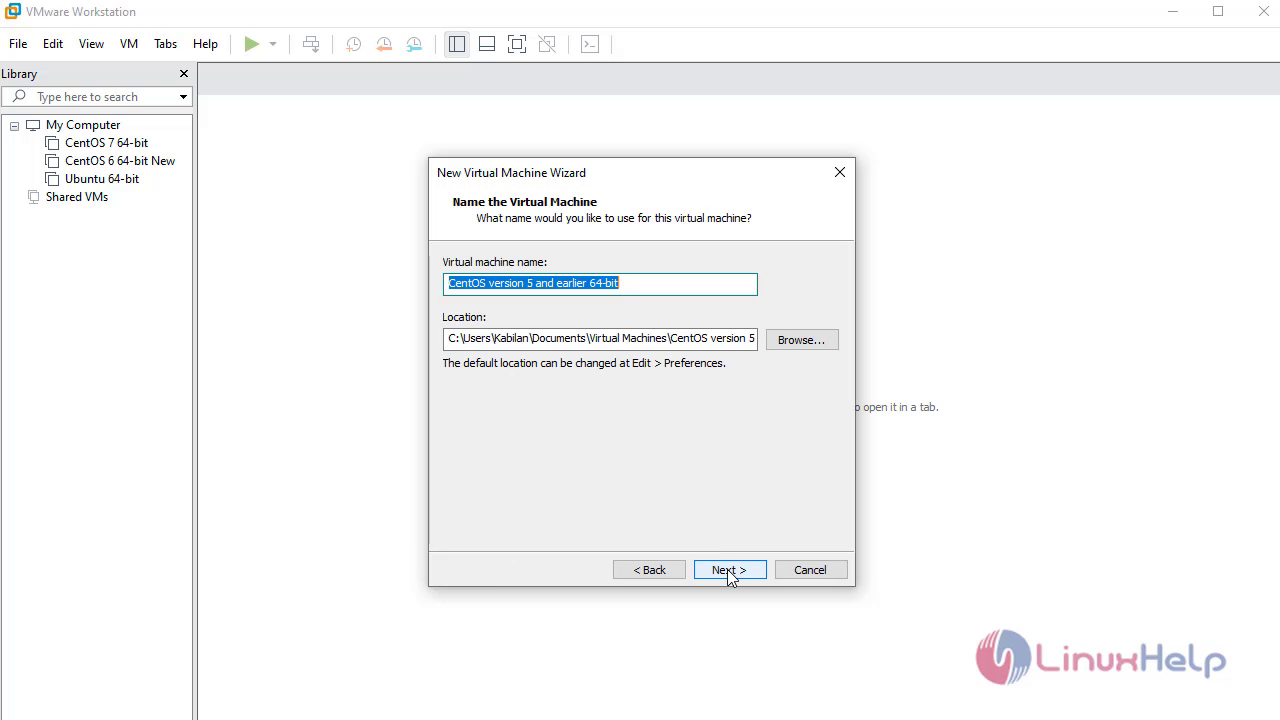
Create user credentials here 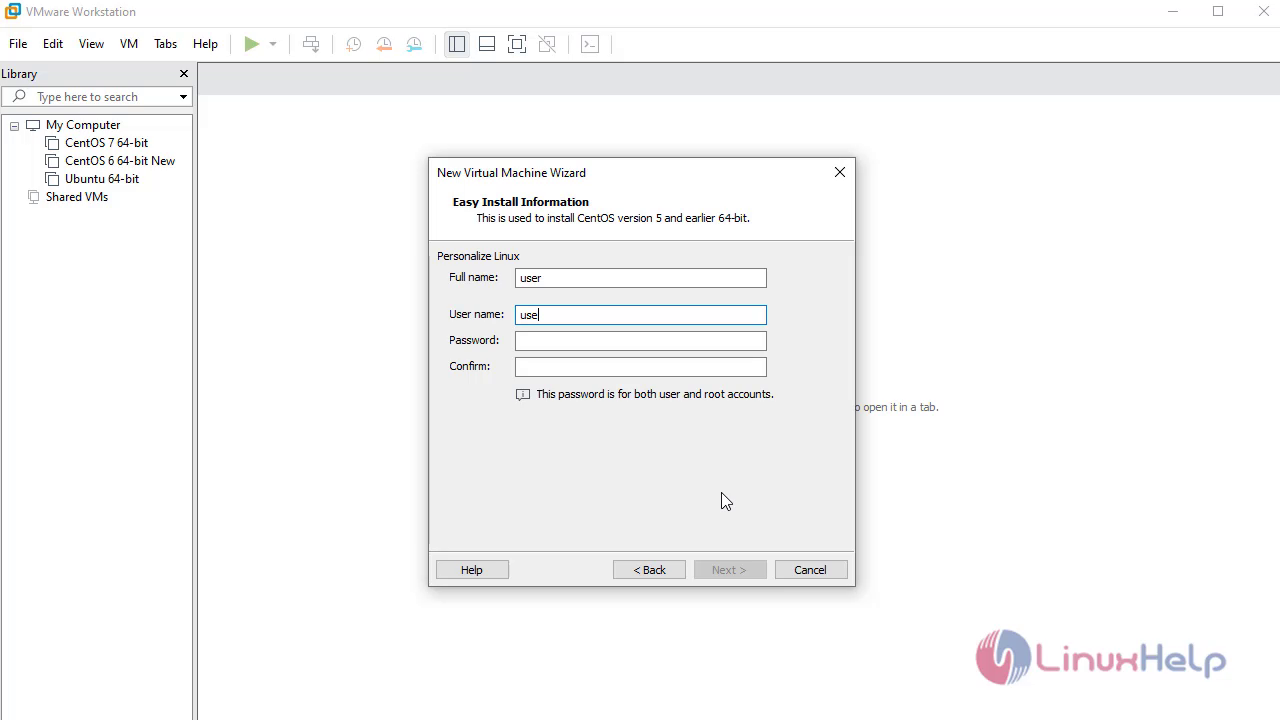
Select the number of processors 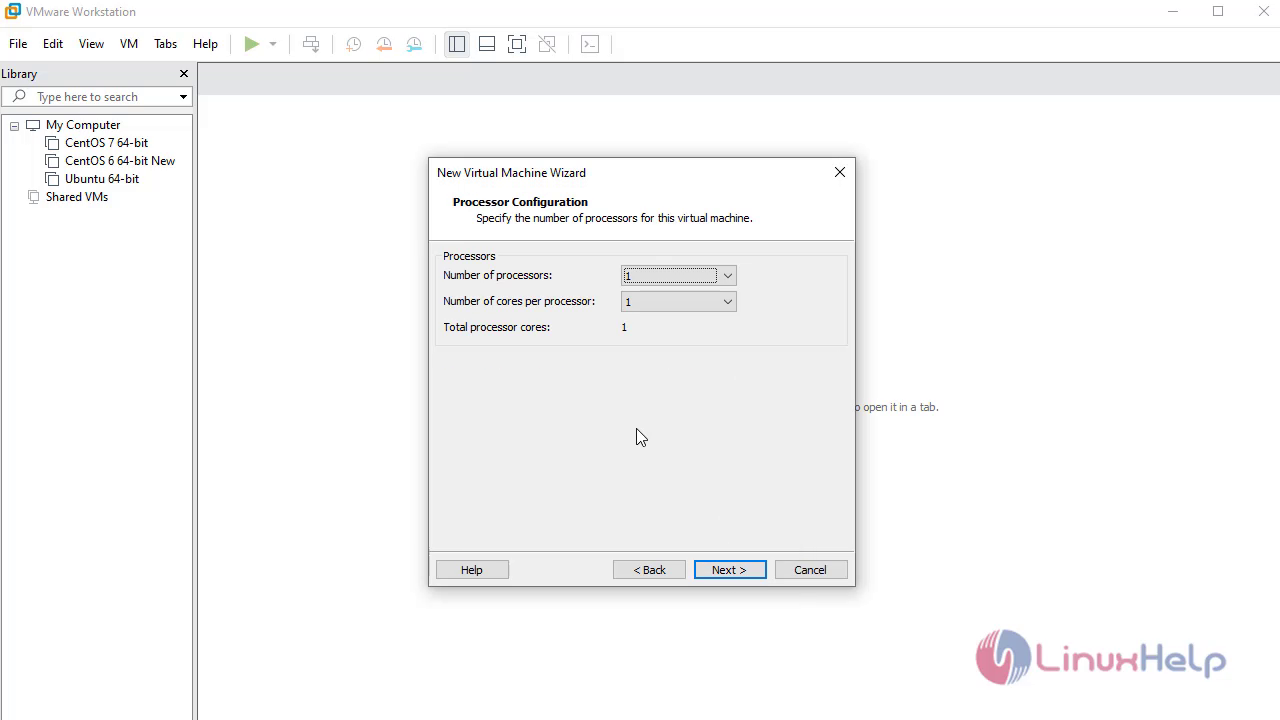
Select the Ram size for the vm 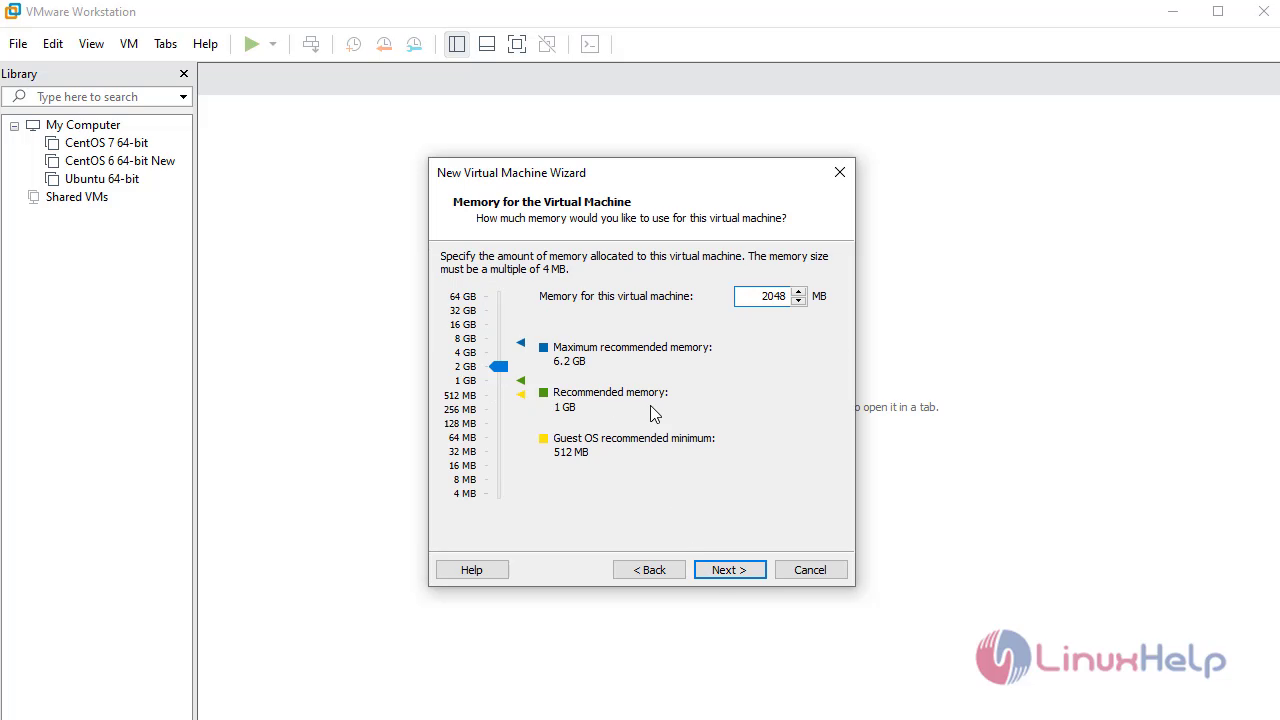
Choose Network Type 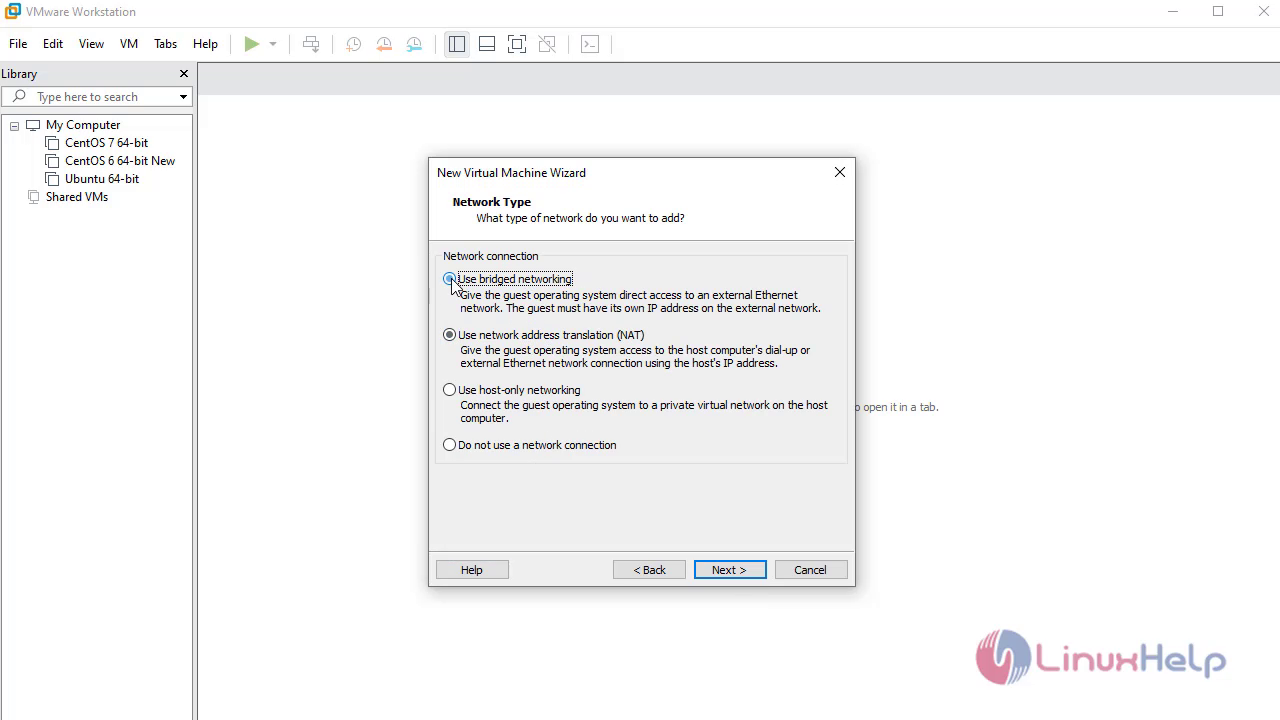
Specify the HDD capcity 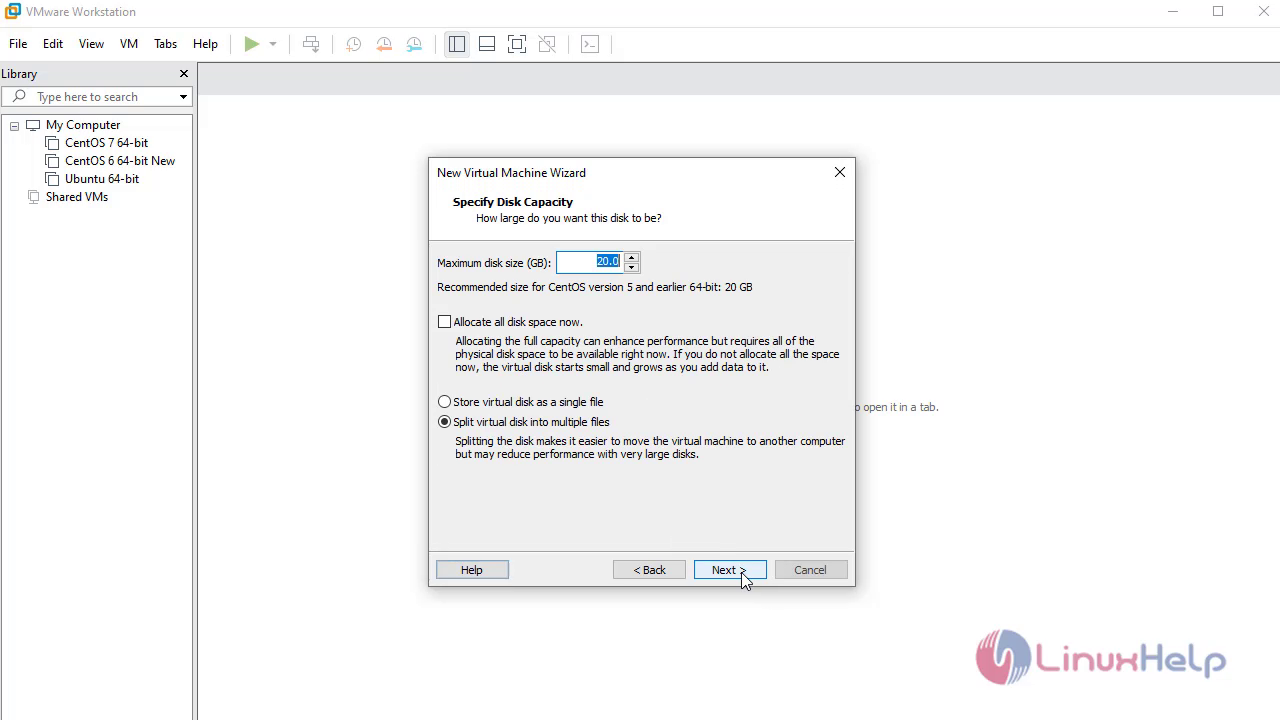
Click on finish to complete the setup 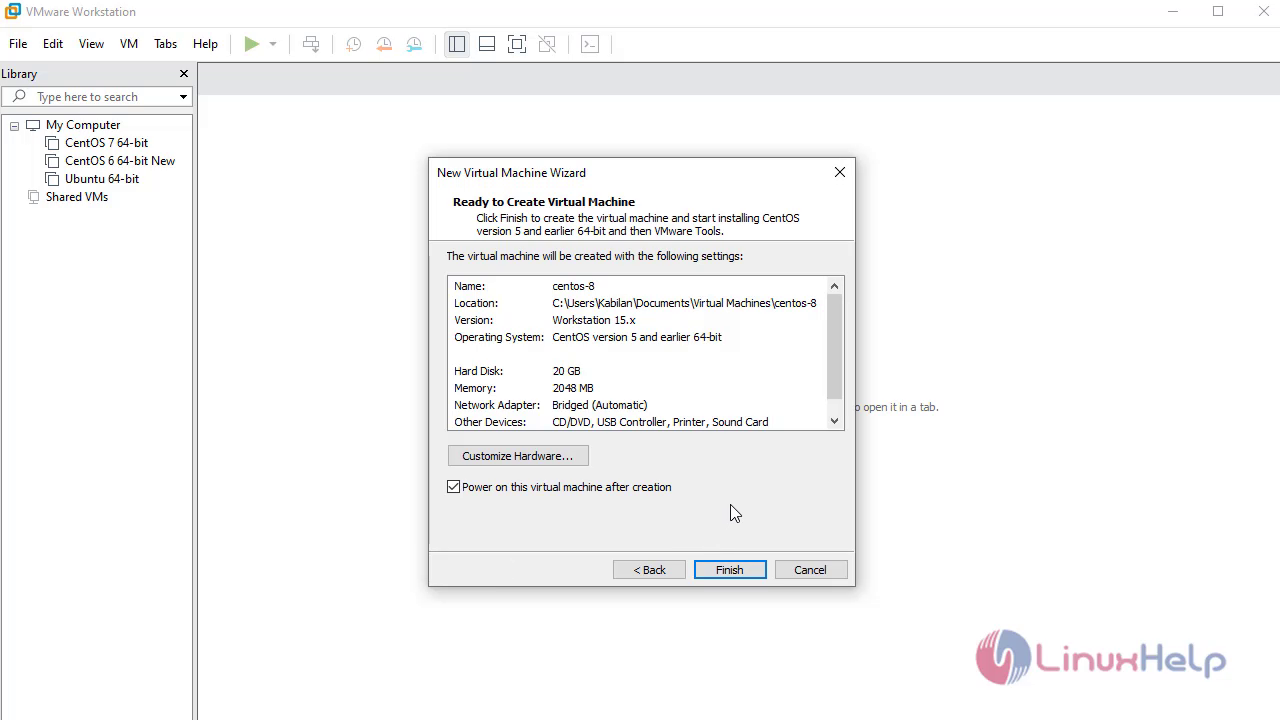
If you get the below error( Pane is dead ) 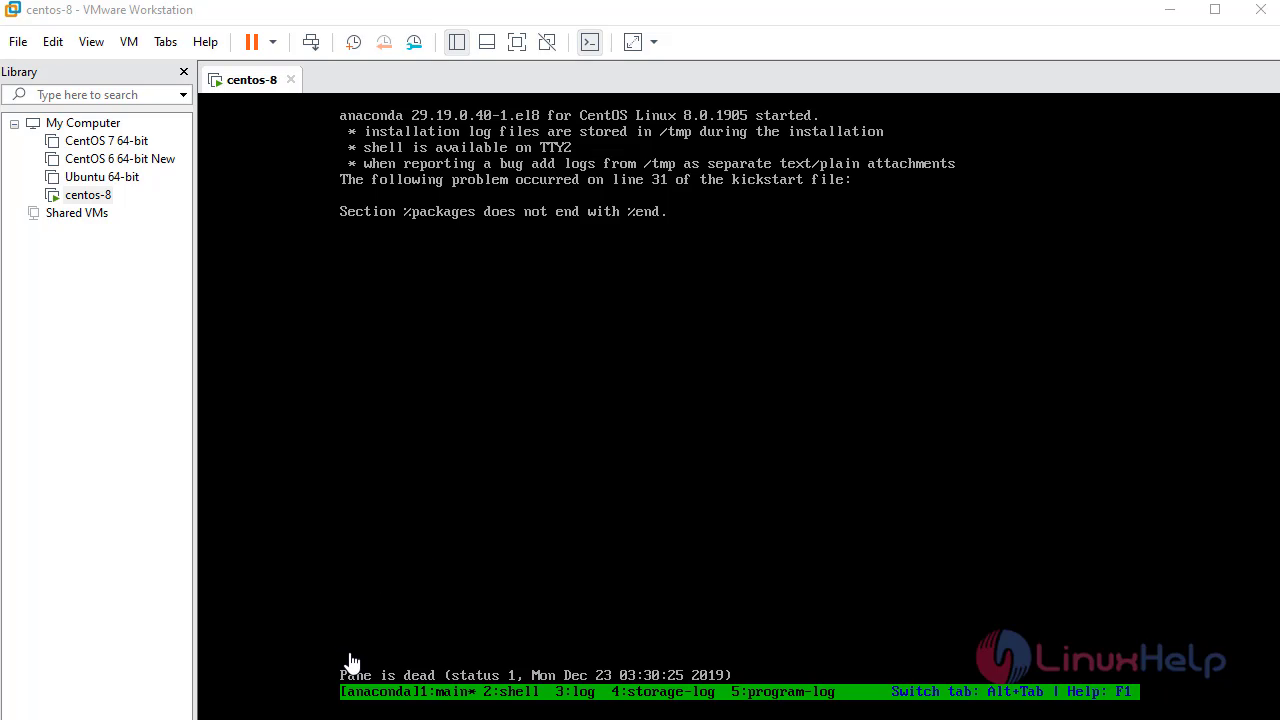
Power off the vm and edit the vm 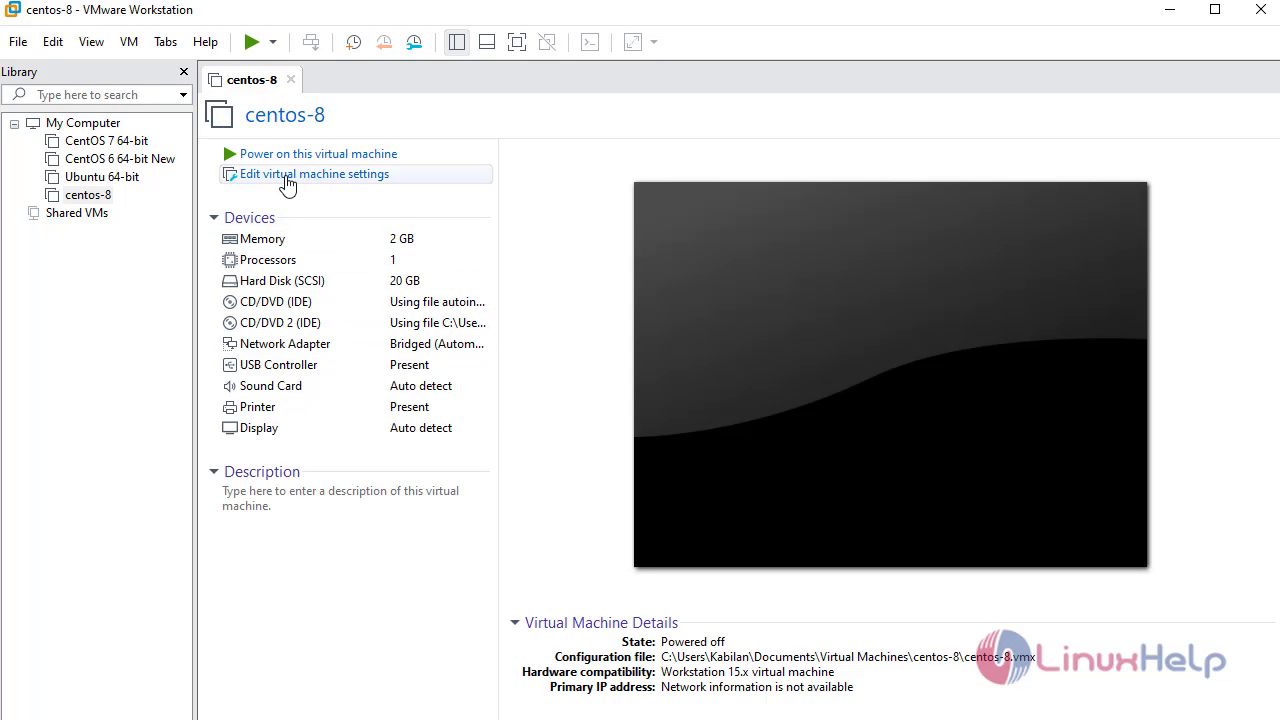
Remove the Unwanted CD drive 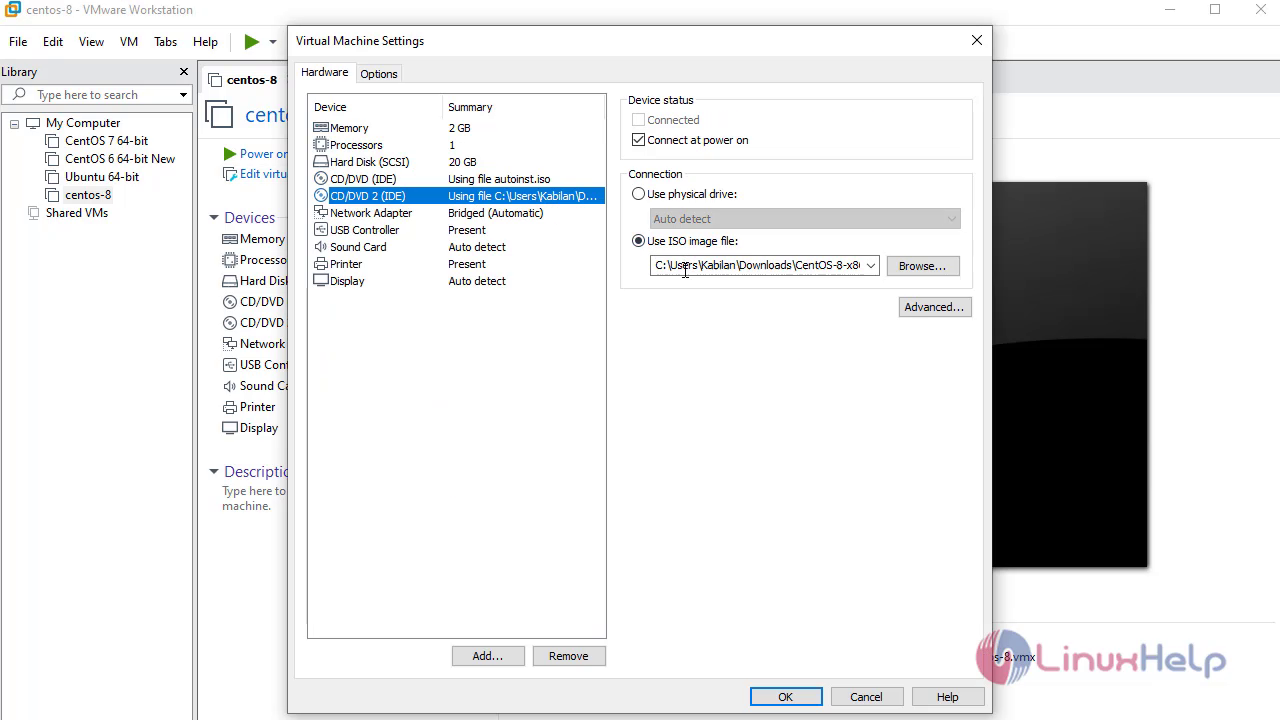
Select the first option to install centos8 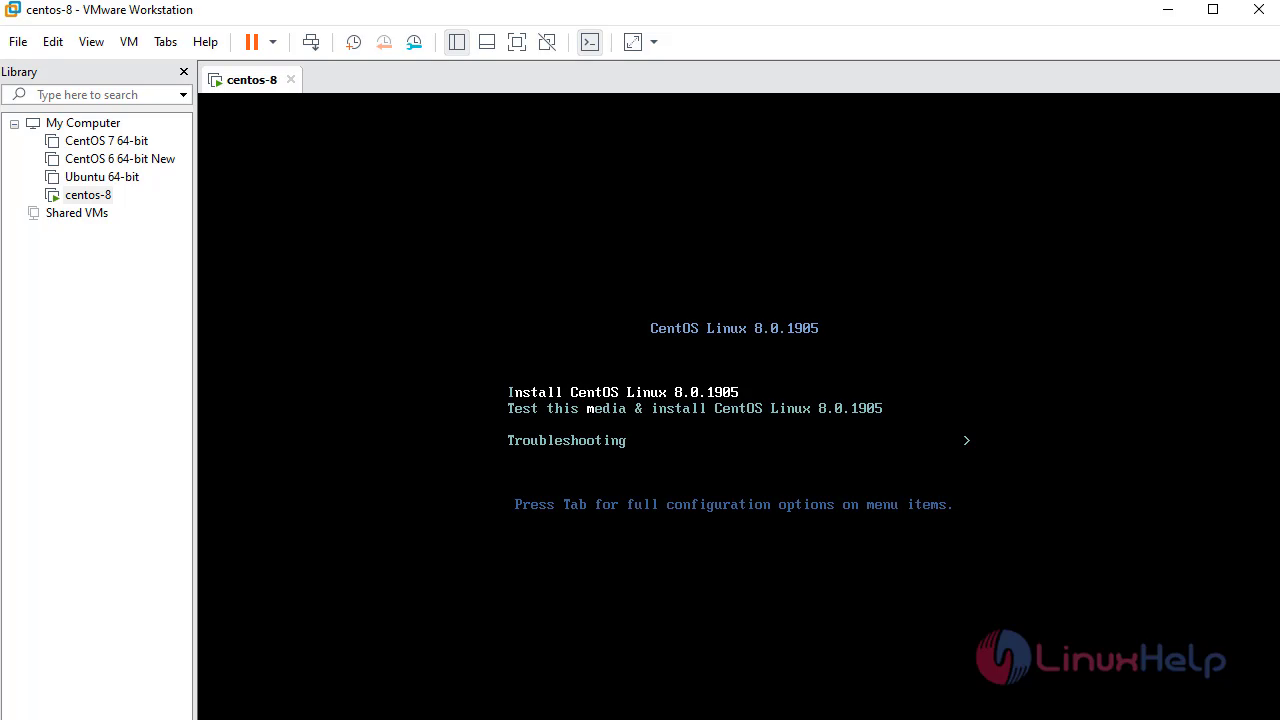
Select the software based on your requirement 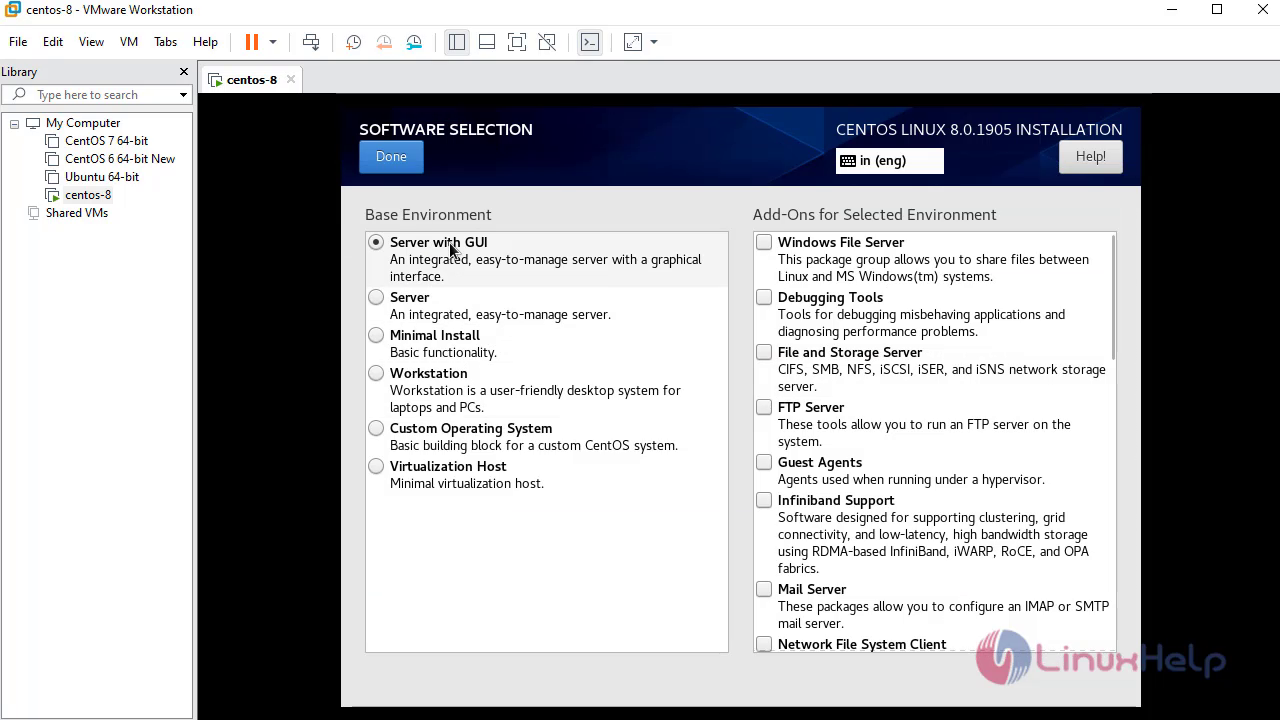
Click on Installation destination to configure partition 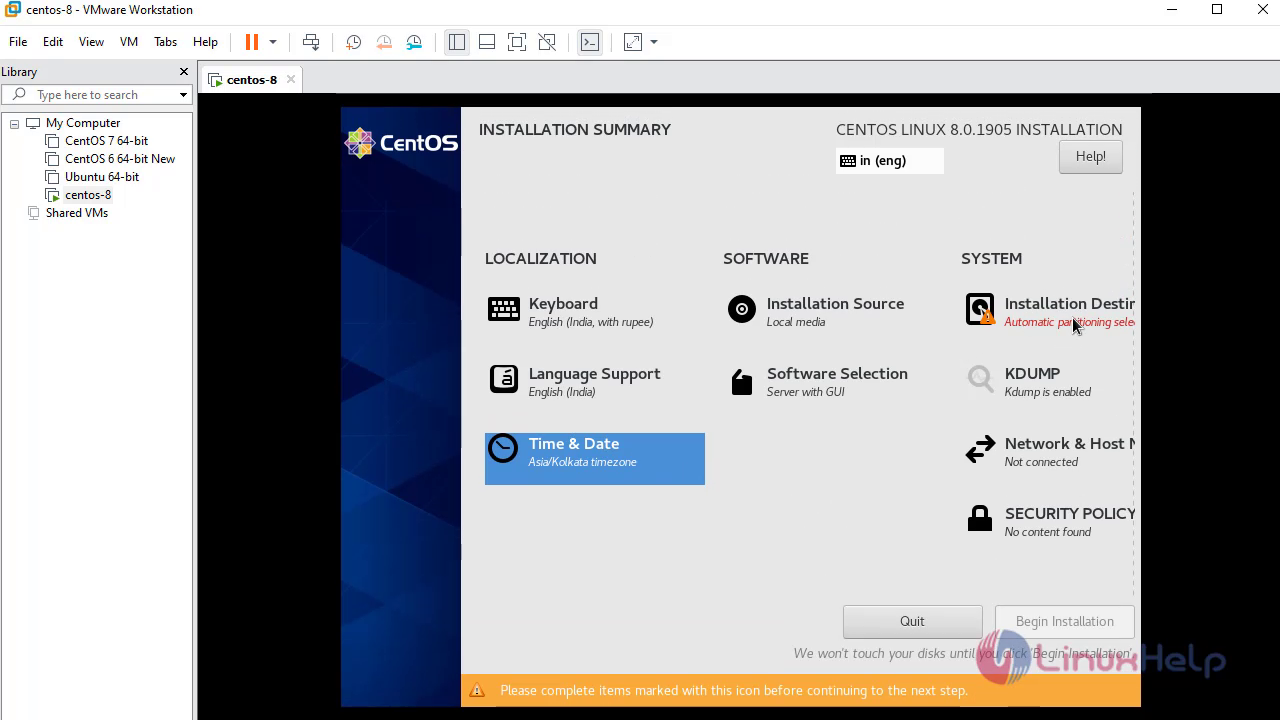
Click on Network to configure Network 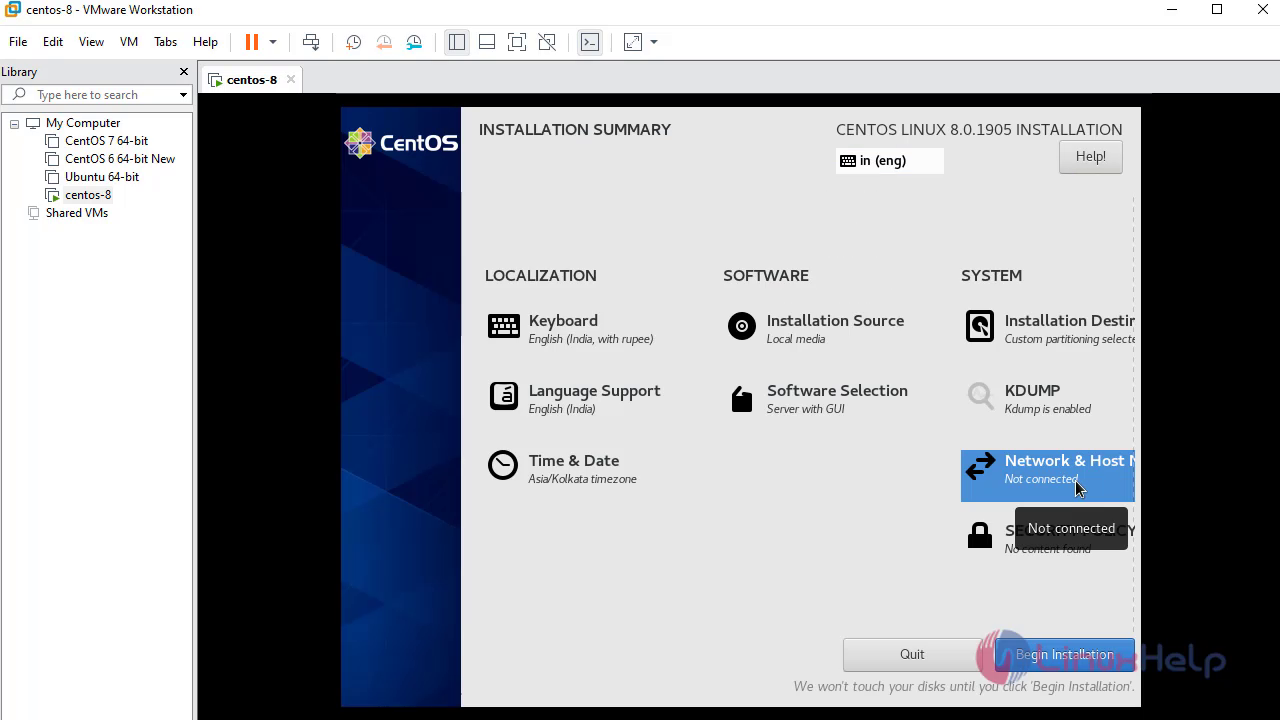
Click on Begin Installation to start the Installation 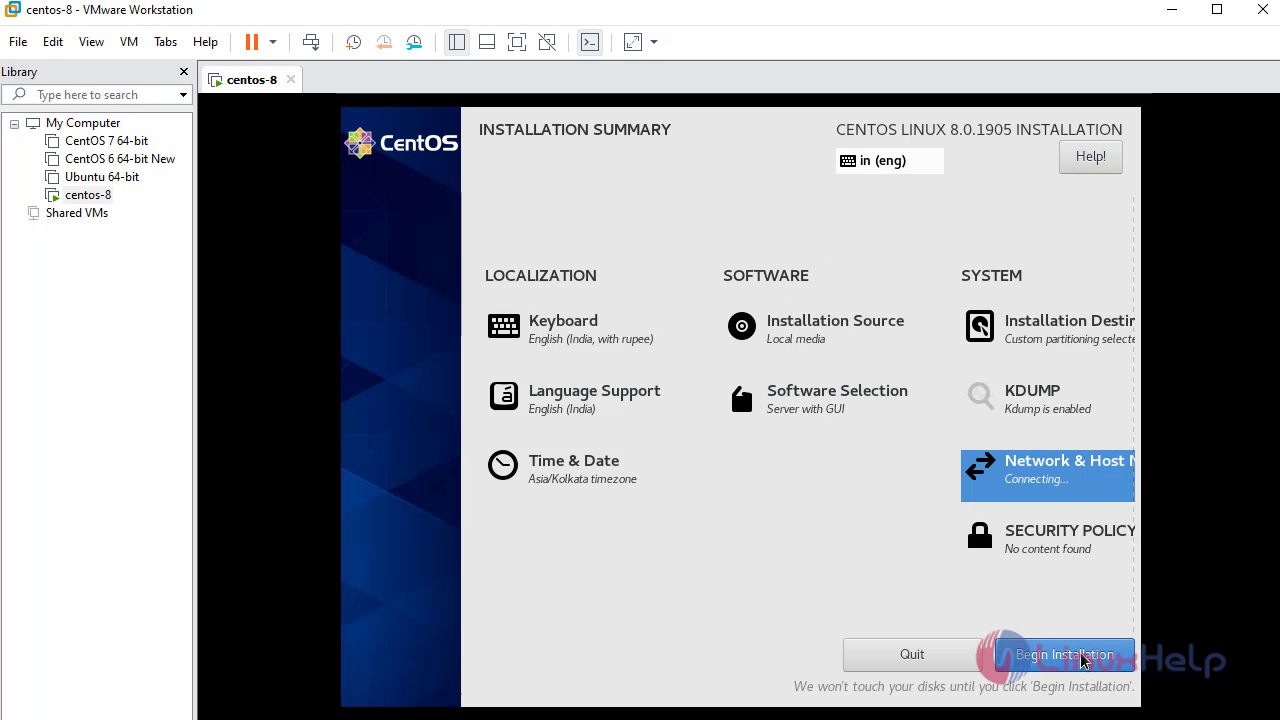
Click on Root Password option to set root password 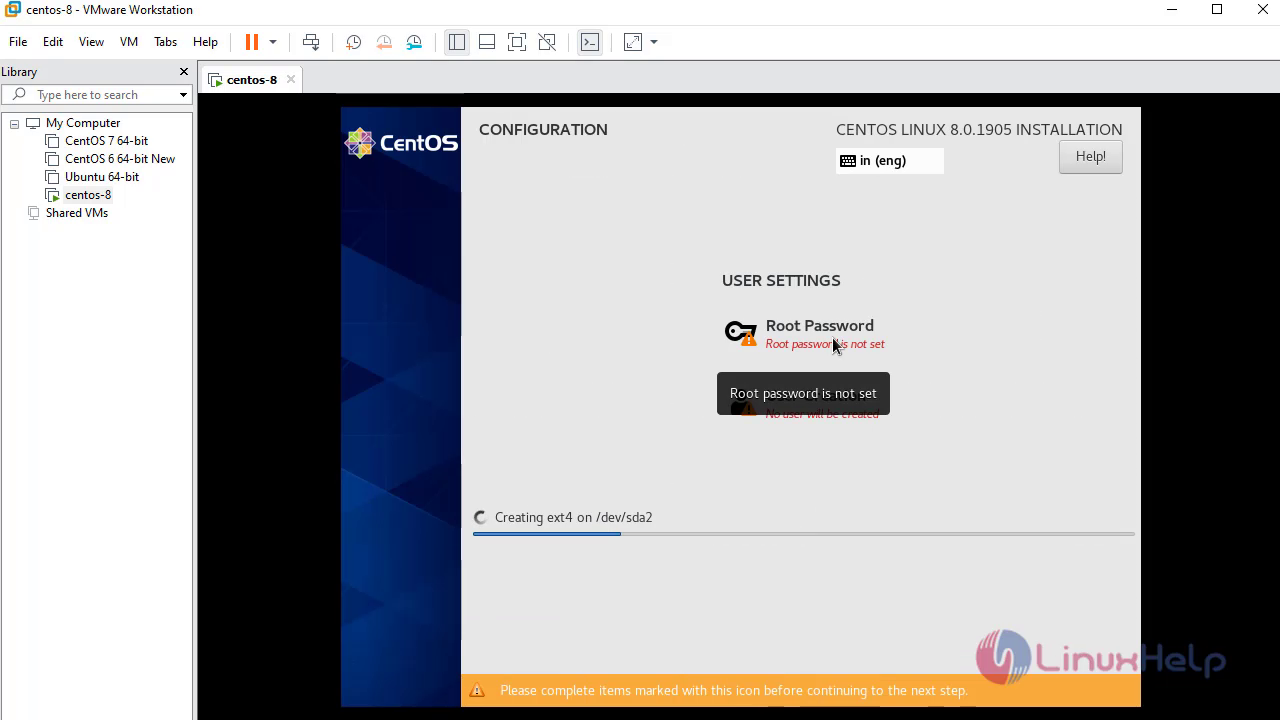
Accept the License 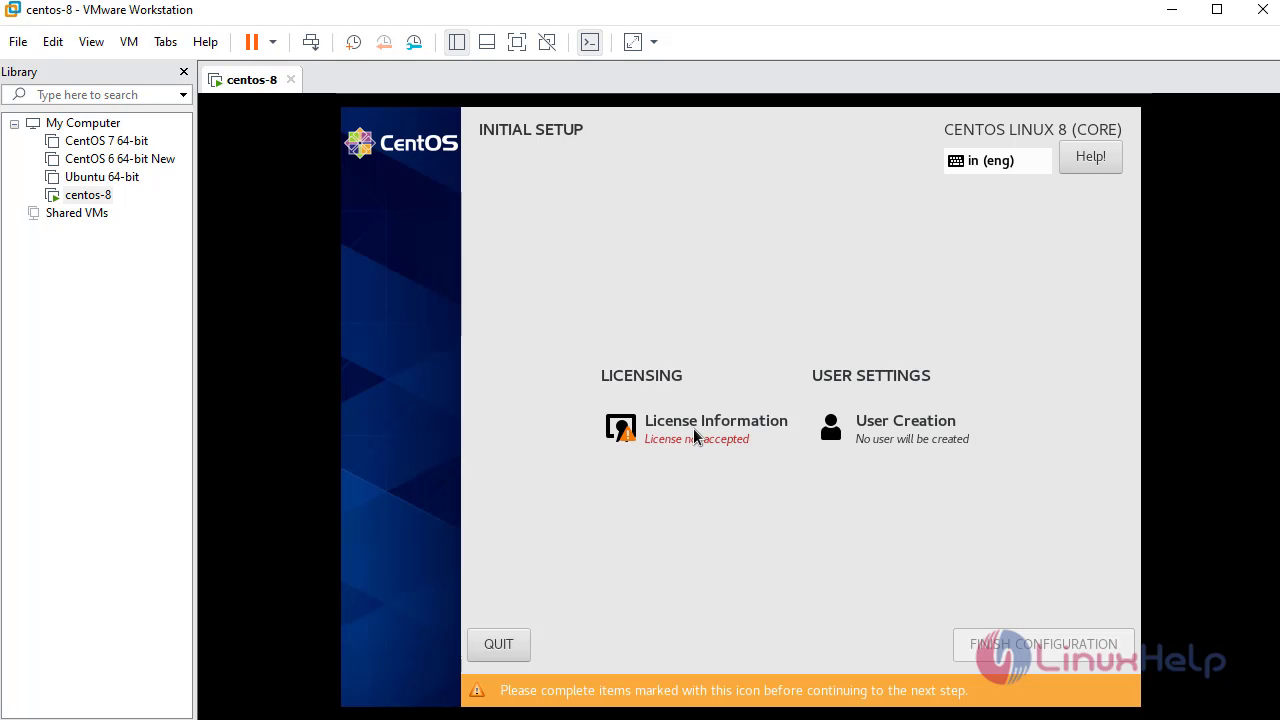
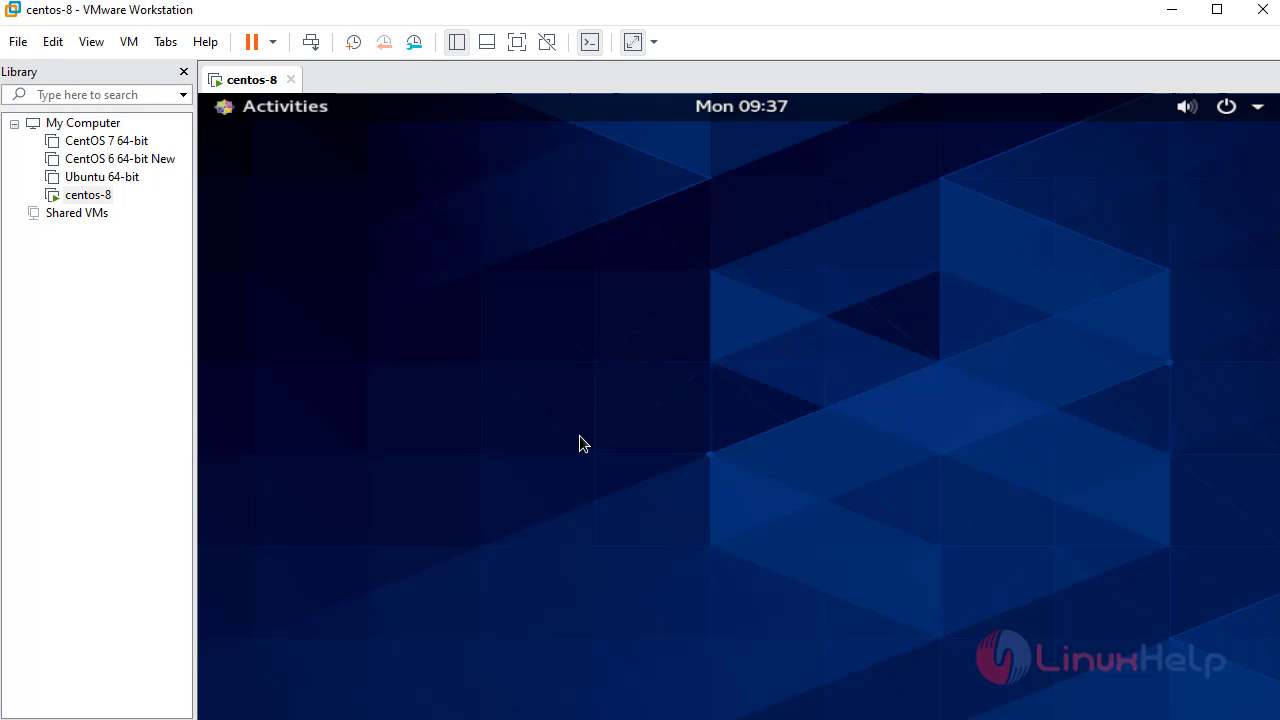
With, this the method to install Centos8 in VMware comes to end