How to Restart Network on Ubuntu 20.04
There are various situations where you may have to restart the network on Ubuntu. It may be because the network settings were changed. It may be because the network connection is acting weird. Generally, whenever there’s a problem with the system, a common treatment is performing a reboot. However, if it’s a problem related to the network, then it’s possible to just restart the network.In this guide, check out how to restart the network on Ubuntu 20.04. There are various methods you can follow to restart the network on Ubuntu. It can be performed directly from the GUI or through the terminal. Depending on your preference, follow the one that suits you.
Restart network from GUI
In this section, I’ll be assuming that you’re using Ubuntu 20.04 with the default GNOME desktop.
Restart network from the desktop
Click on the top-right network icon on the screen.
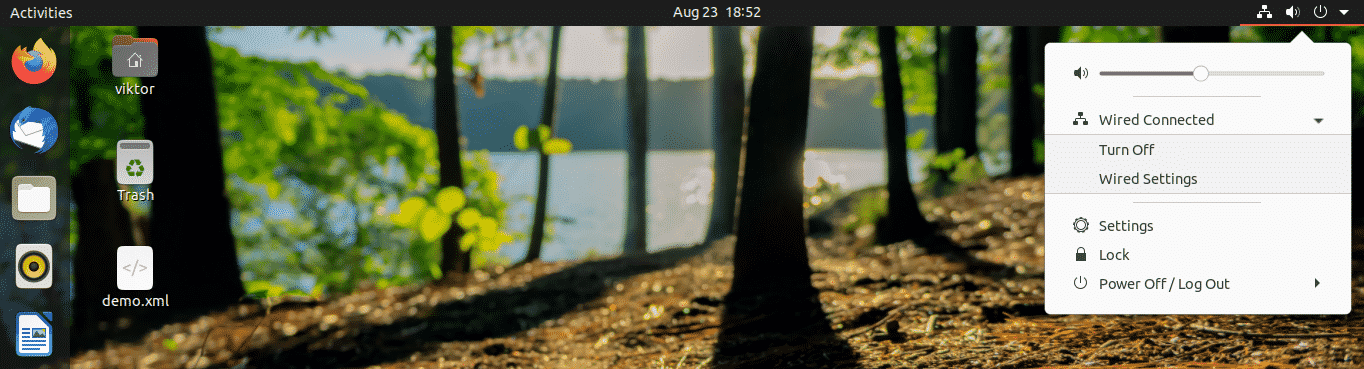
Select the network connection and press “Turn Off”. It will disable the network connection.
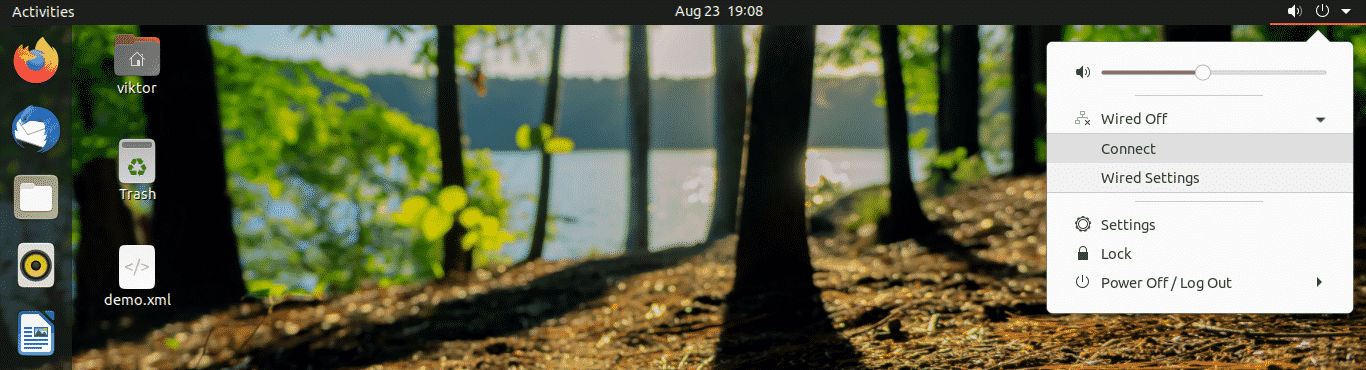
To enable it again, go through the same process. This time, there’ll be a different option “Connect”. Click “Connect” to re-establish the network connection.
Restart network from GNOME Settings
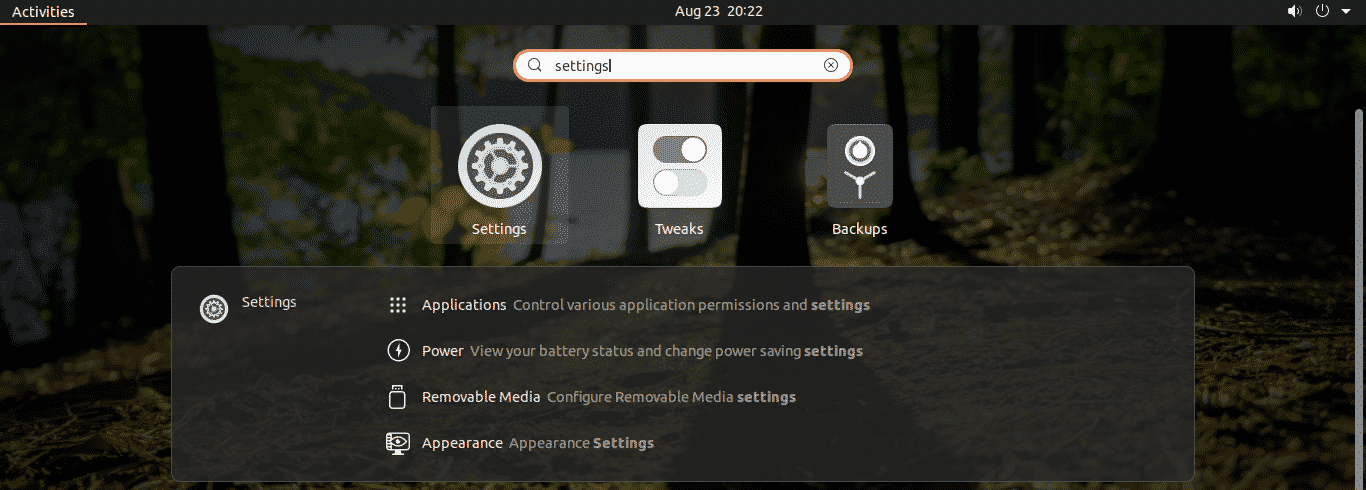
You can also do this directly from the GNOME “Settings”.
From the left panel, select “Network”.
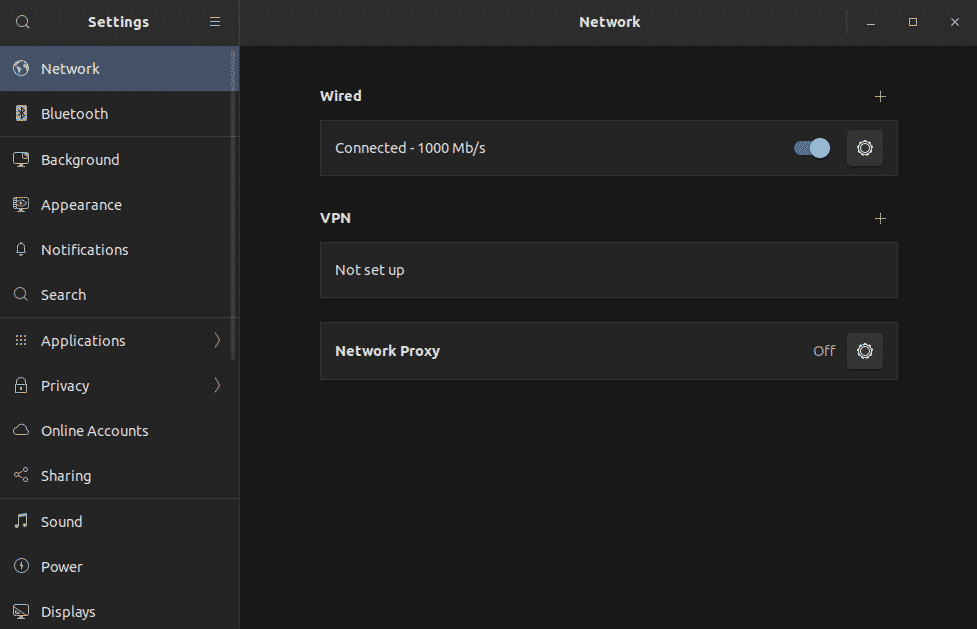
Disable and enable the connected network(s).
Restart network from CLI
When working with the CLI, there are multiple ways of taking action. We can take action on the network manager service or use other tools like nmcli, ifup, nmtui, etc.
Restart network manager service
This is one of the easiest ways of restarting the network service. It’s equivalent to the graphical method demonstrated above.
Fire up a terminal and run the following command.

Restart network service using systemd
Systemd offers an array of system components to the system. Part of it is handling the services. The previous method is only an alternative one of this method. Systemd is directly told to restart the service rather than going through any hoops.

Restart network using nmcli
The nmcli tool is a powerful tool for managing the network connection on Linux machines. It’s a popular one among system admins because of its ease of use.
First, turn off the network connection.

Then, turn it back on.

Restart network using ifup and ifdown
The ifup and ifdown commands handle a network interface directly. It’s one of the most basic networking commands on Linux. The ifdown command turns off all network interfaces and the ifup command turns them on.
The ifup and ifdown commands come with the ifupdown package. By default, it doesn’t come with Ubuntu. Thankfully, it’s directly available from the official Ubuntu repo. Install them right away.
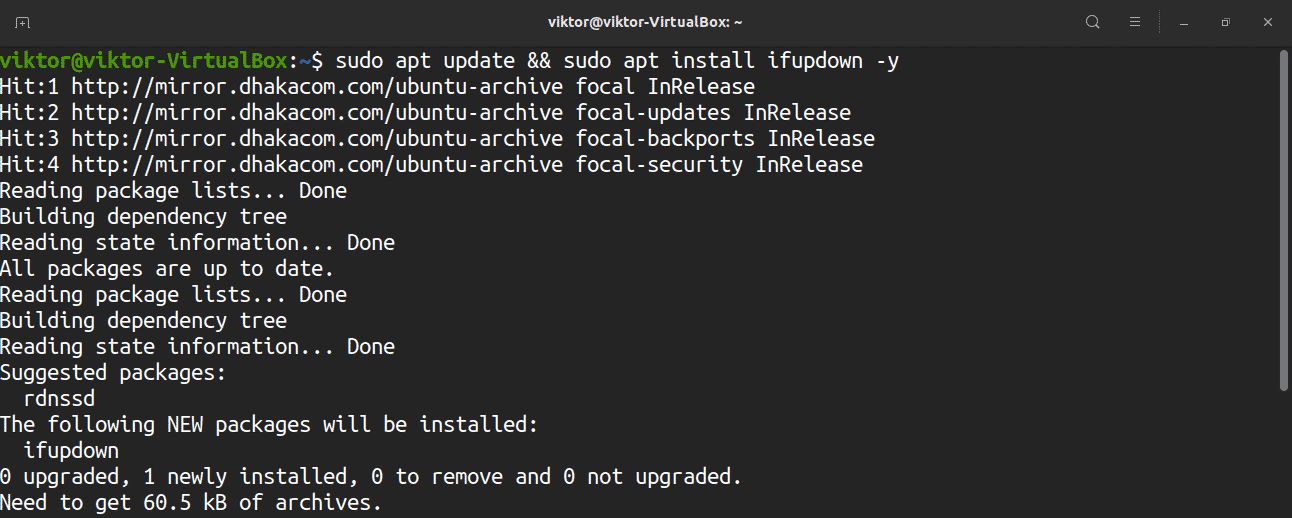
Once the installation is complete, perform the network restart.
It’s a good practice to combine both commands in a single line.
Restart network using nmtui
The nmtui tool is yet another network management tool that’s widely popular among system admins. Unlike the other CLI tools, it offers an interactive way of managing network connections that’s similar to the GUI method.
In the case of Ubuntu 20.04, it comes by default. Launch the tool.

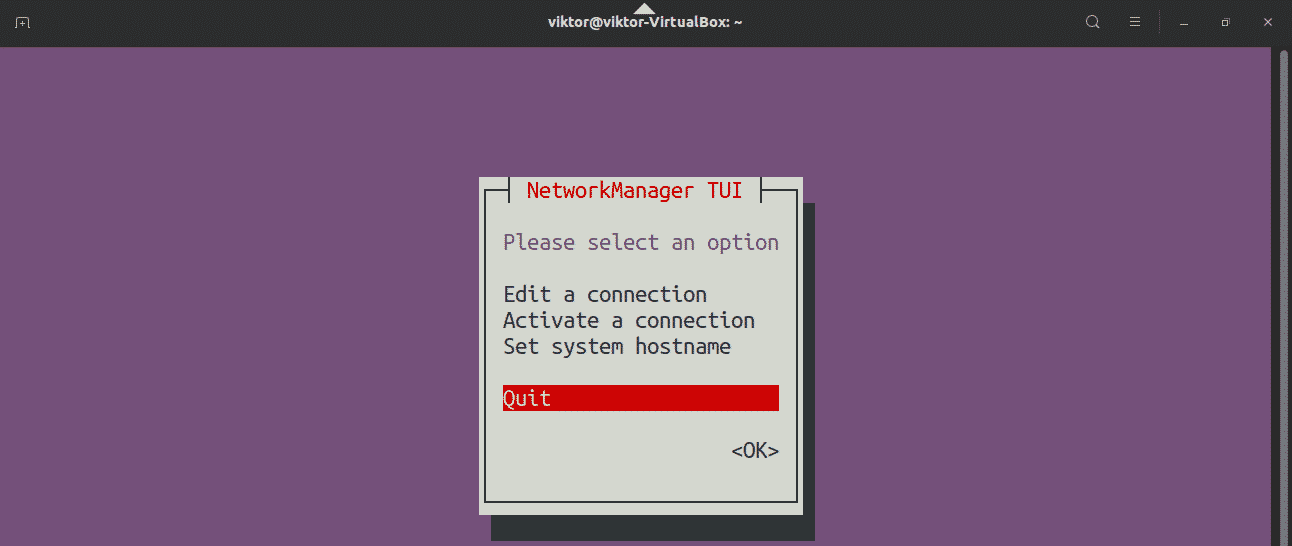
To navigate the tool, use the arrow keys. Select “Activate a connection”.
You’ll land on a screen with a list with all the network connections. Select the appropriate one and select “Deactivate”.

Once deactivated, activate the connection.
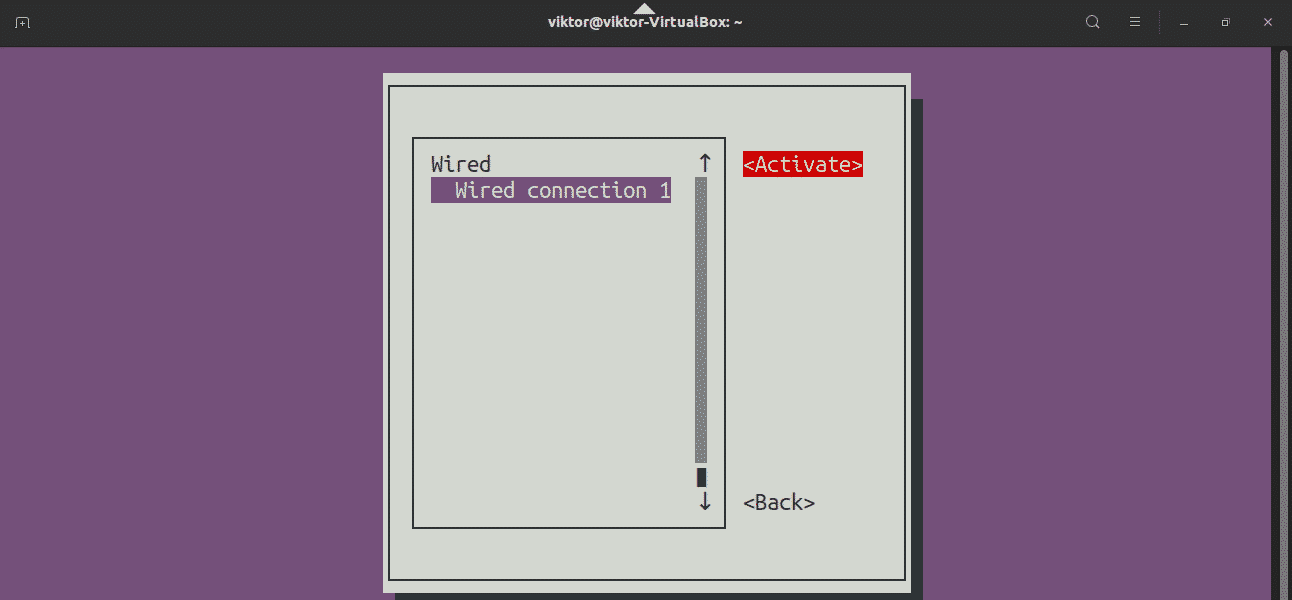
The network has been successfully restarted. Quit the application.
Restart network using IP command
The ip command is a powerful way of managing the network connections on Linux. It can be used for restarting the network connection. This method is applicable to any Linux distro.
To work with the ip command, first, we need to know the target network interface. Use the following command for the network interface.

In my case, the target network interface is enp0s3. Let’s restart the network.


Final thoughts
Restarting the network is a common solution to various network-related problems. If it didn’t yet solve the issue, then the next recommended action is restarting the system. If the problem persists, then it’s worth investigating further.
Interested in learning more about network configuration? Check out this guide on Ubuntu 20.04 network configuration.
About the author

Sidratul Muntaha
Student of CSE. I love Linux and playing with tech and gadgets. I use both Ubuntu and Linux Mint.
Перезапустить сетевой интерфейс в Linux, используя командную строку
Перезапуск сетевого интерфейса с помощью командной строки в Linux является довольно простой процедурой. Единственно, нужно принять во внимание тот факт, что графический интерфейс пользователя (GUI) для конфигурации сети Linus является очень насыщенным и визуально привлекательным, и это может несколько увеличить продолжительность перезапуска сетевого интерфейса.

Перезапуск сети в Ubuntu
В Ubuntu и Debian инициализацией сетевых интерфейсов и настройкой сети занимается специальная сетевая служба — networking. Информация о конфигурации сетевых интерфейсов хранится в файле /etc/network/interfaces.
Если вы что-либо измените в этом файле, нужно будет перезапустить сеть, чтобы применить изменения. В этой статье мы рассмотрим как выполнить перезапуск сети Ubuntu 16.04.
Перезагрузка сети в Ubuntu
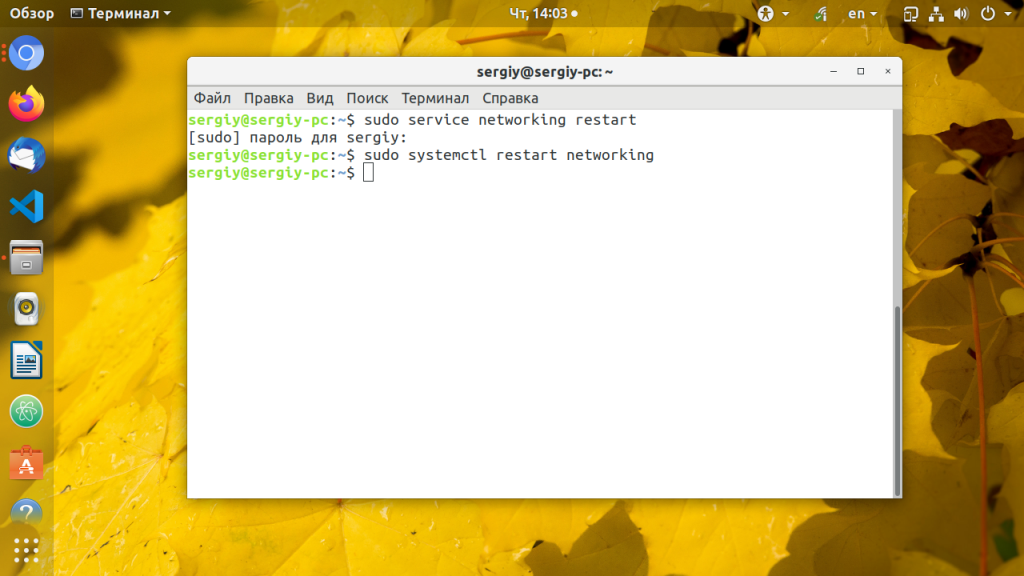
Можно, конечно, выполнить полную перезагрузку компьютера, но это не совсем удобно если можно просто перезапустить сеть Ubuntu. Для перезапуска сети используйте следующую команду:
sudo service networking restart
В современных дистрибутивах уже давным давно используется система инициализации Systemd, поэтому можно использовать команду systemctl вместо команды service:
sudo systemctl restart networking.service
Кроме того, можно перезапустить NetworkManager, это тоже помогает, если сеть настроена через него:
sudo systemctl restart NetworkManager
Перезапуск сети в NetworkManager
Чаще всего, для управления сетью в современных дистрибутивах используется программа Network Manager. Можно сразу же использовать ещё для наших целей. Просто отключите, а затем включите сеть обратно следующими командами:
sudo nmcli networking off
sudo nmcli networking on
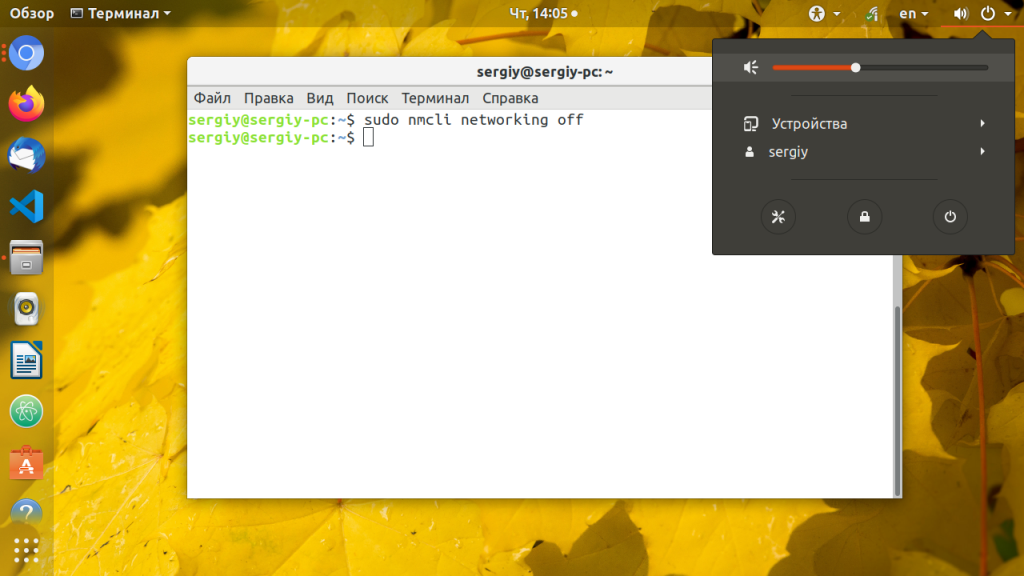
После отключения сети значок NetworkManager пропадёт с панели, а потом снова появится после включения. Аналогично, вы можете использовать NetworkManager в графическом интерфейсе. Кликните по его иконке, выберите нужное сетевое подключение и нажмите Выключить:
Затем включите его обратно.
Команды ifup и ifdown
Эти команды работают на более низком уровне, они управляют непосредственно самими сетевым интерфейсами. Для перезапуска сети мы можем отключить все интерфейсы, а затем включить обратно:
Вы не увидите никаких изменений в графическом интерфейсе, но когда сетевой интерфейс будет отключён, вы не будете иметь доступа к интернету.
Выводы
Как видите, не всегда обязательно перезагружать компьютер после изменений настроек, в большинстве случаев достаточно перезапустить только нужный сервис. Надеюсь, эта информация была вам полезной.
How to restart Network Interface / Network Adapter on Linux & Windows Cloud Servers
Once you make changes in the server network configuration file, then require to restart the server networking service in order to reflect the changes.
This guide will describe the steps to restart the network interface or network adapter in the Linux and Windows servers.
Restarting Network interface/adapter in Linux OS
Ubuntu / Debian
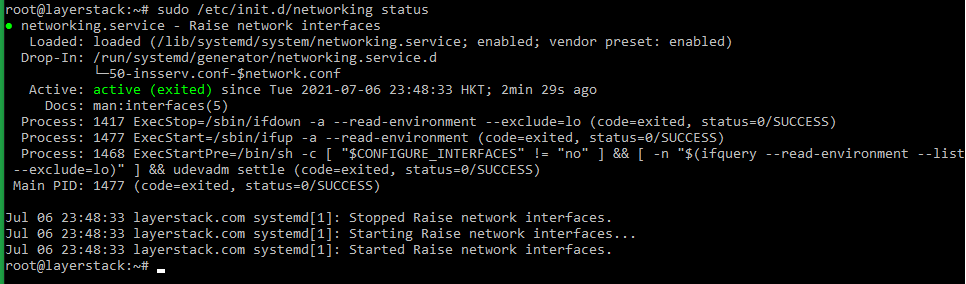
Use the following command to restart the server networking service.


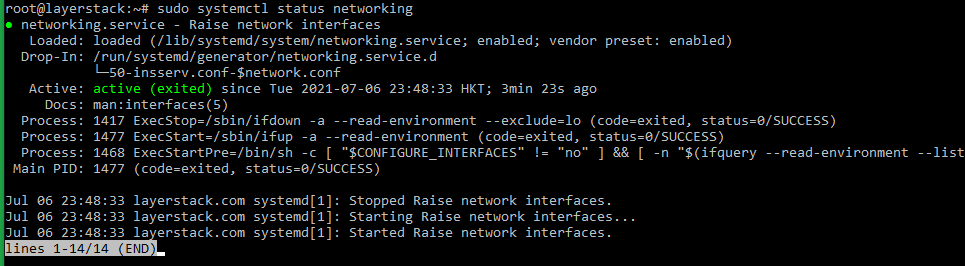
Once this is done, use the following command to check the server network status.
Ubuntu 17.10 and higher versions use NetPlan as the default network management tool and its configuration files are written in YAML syntax with a .yaml file extension .
Run the below command to update networking and then any changes that have been made to the network will take effect:

AlmaLinux
Use the following command to restart the server networking service.
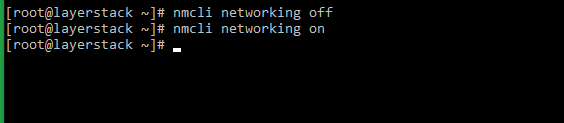
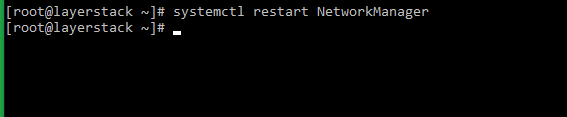
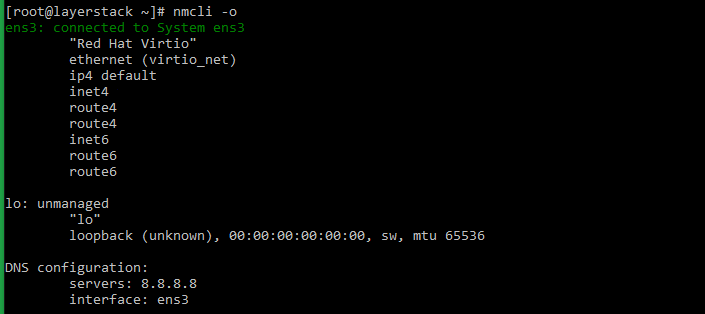
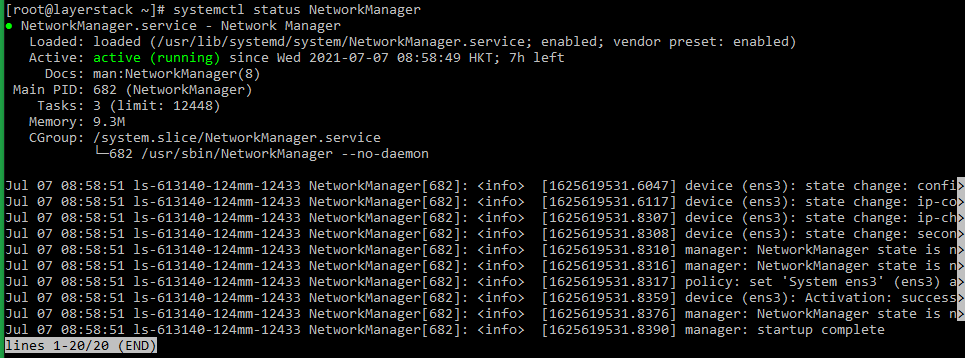
Once this is done, use the following command to check the server network status.
Rocky Linux
Use the following command to restart the server networking service.


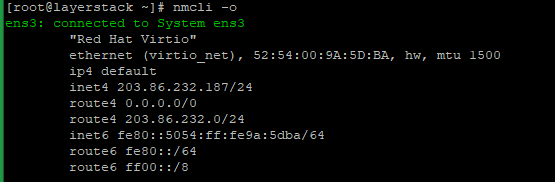
Either of the below commands can be executed to check the status of the networking service.
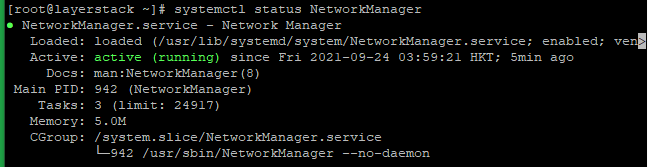
CentOS 8
Use the following command to restart the server networking service.

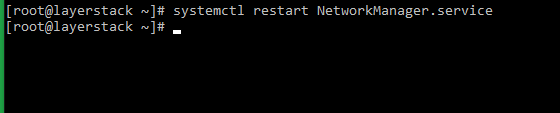
Either of the below commands can be executed to check the status of the networking service.
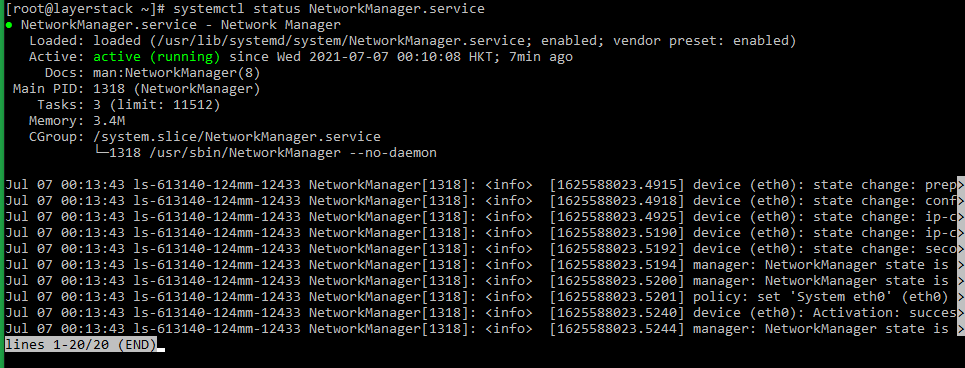
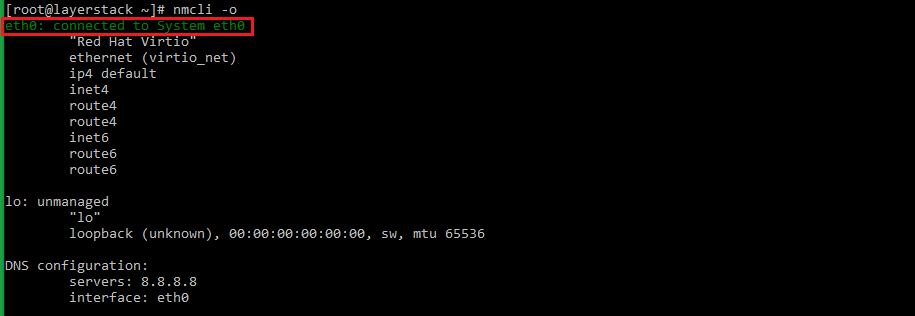
CentOS 7
Use the following command to restart the server networking service.
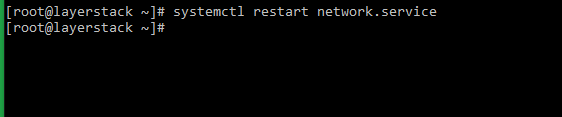
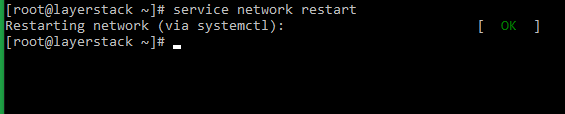
The status of the networking service can be checked by making use of any of the below commands.
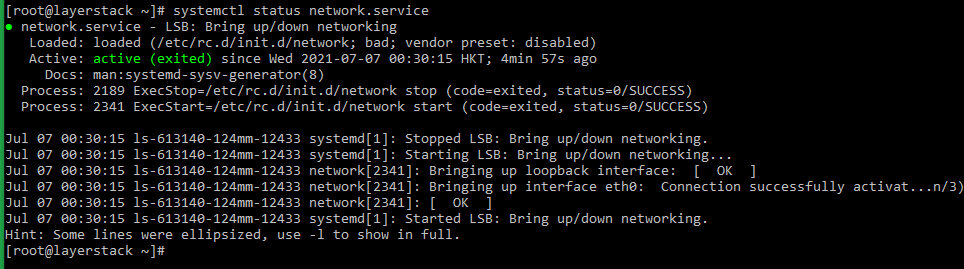
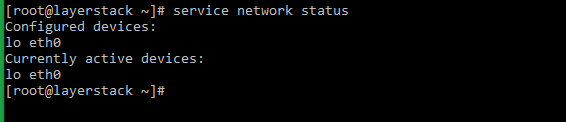
CentOS 6
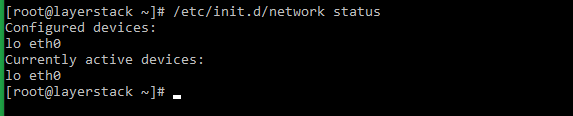
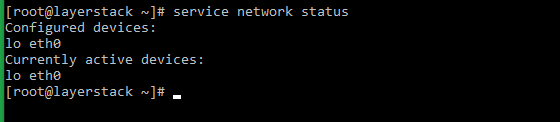
Use the following command to restart the server networking service.


Once this is done, use the following command to check the server network status.
Windows OS
Using the Enable/Disable mode of network adapter
Click on the Windows key to open start and search Settings and go to the Network and Internet then click on Change adapter option which is shown in the below image.
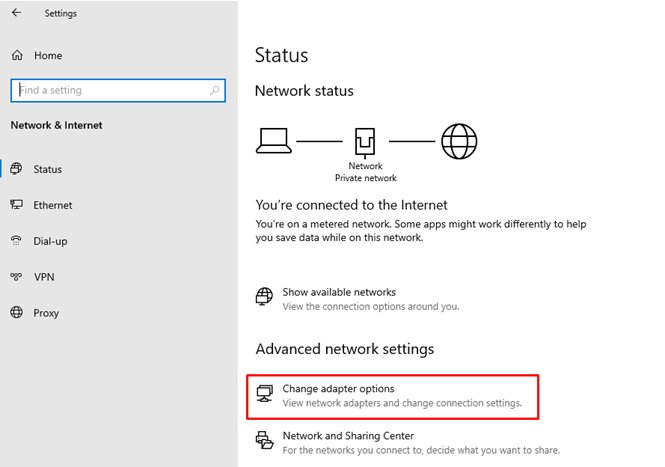
Then will get the below page:
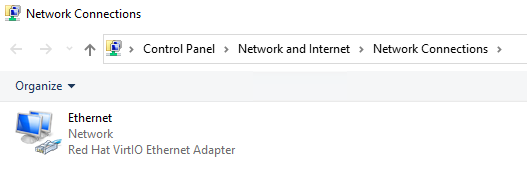
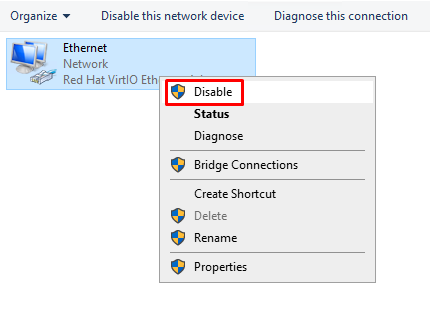
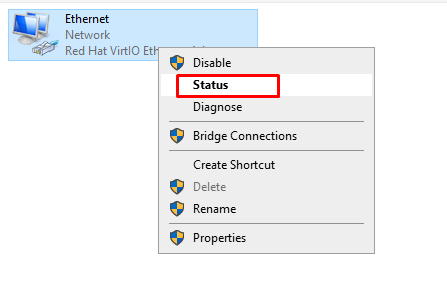
Right-click the Ethernet device and click on Disable option.
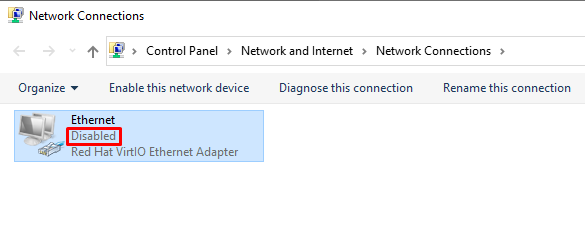
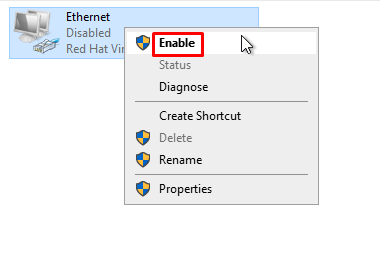
Again, Right-click the Ethernet device and click on enable option.
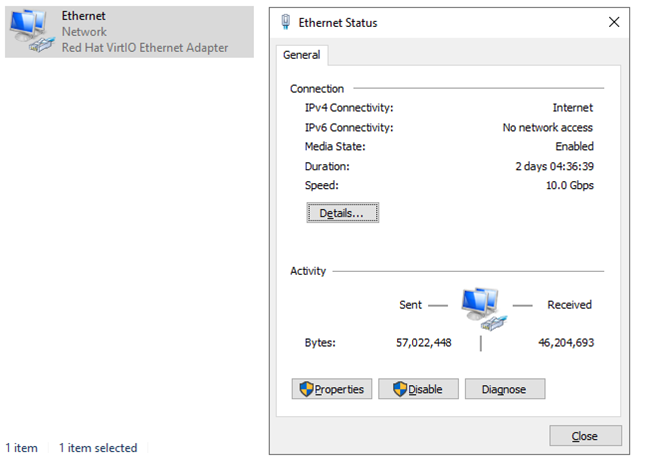
Once this is done, Right-click the Ethernet device and click on status .
Using the netsh command
In Windows OS, the command line method involves using the netsh command for resetting the network and TCP/IP stack.
Go to Start and type CMD in the search window.
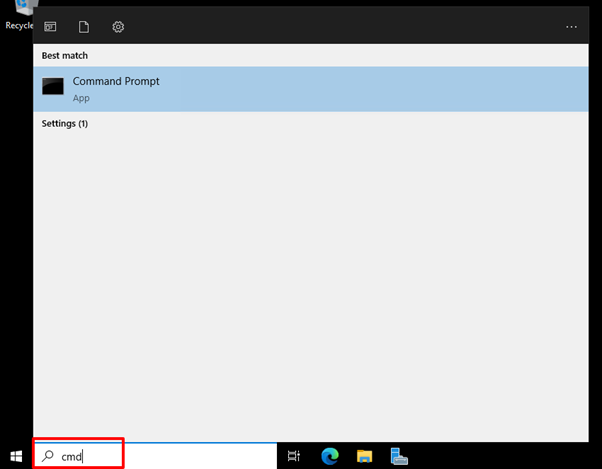
Once opened the Command Prompt , the command for restarting the network interface, as provided below, can be executed.
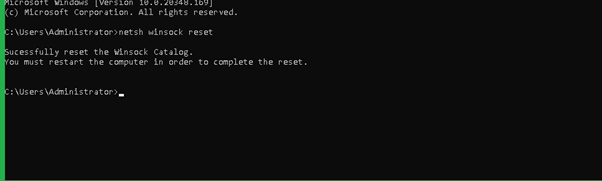
Regularize the networking process as indicated in the message after restarting the server.
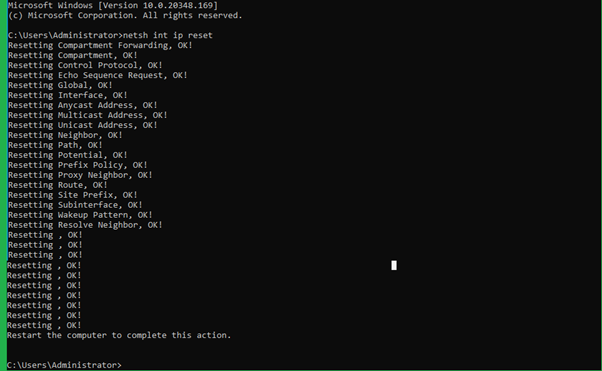
In addition to the above command, may also use the command which resets the TCP/IP stack. The command is as follows.
The output will be as follows:
Using the Network Reset option (Windows 10/11)
The reset button method can be used in Windows 10 & 11 versions by which the user can restart the Network interface. The steps for this are given below.
Click on Windows Start Menu button and then select Settings .
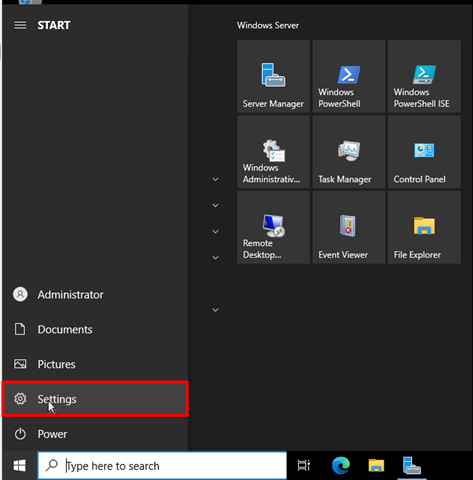
From the Settings option, select Network & Internet option.

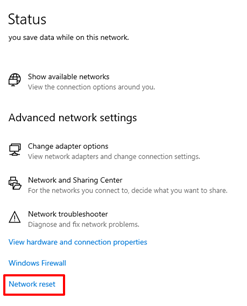
Here you would be able to see the adapter options i.e Advanced Network Settings , from which you can click on Network Reset option.
Click on the Reset Now button on the right side of Network reset option and you will be prompted for the confirmation. Choose Yes for proceeding with resetting the network settings.
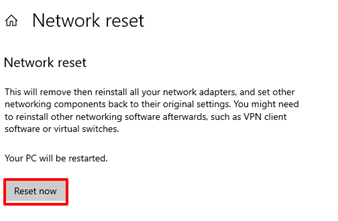
Once clicked on Yes , the network adapter will start to reset and you will be able to restart the network interface.