Инструменты AC (AC Tools)
AC Tools позволяют сделать различные виды анализа данных AC и представить данные в разных форматах. Выберите AC | Tools и затем строку с требуемым инструментом.
В настоящее время доступны следующие инструменты:
Histogram (гистограмма)
Smith chart (диаграмма Смита)
Nyquist chart (диаграмма Найквиста)
Nichols chart (диаграмма Николса)
Гистограмма представляет значения кривой и некоторые ее расчетные характеристики, полученные между курсорами (или на всем экране, если курсоры выключены), в графическом формате. Гистограмма может также показать «поперечное сечение» кривых или сохраненных данных.
Settings. Открывает диалог Settings :
NL5 circuit simulator
o Y values. Выберите переменные, отображаемые по оси Y. active — это выделенный в настоящий момент курсор (левый или правый). Другие значения – это то, что отображено в таблице данных AC.
o X . Выбирает режим гистограммы: что будет показано по оси X.
Traces . Показать «поперечное сечение» всех кривых, отображаемых сейчас на графике.
Storage . Показывает «поперечное сечение» Storage для всех кривых, отображаемых сейчас на графике.
o Type . Выбирает тип гистограммы для режима Storage :
o Y scale . По умолчанию шкала Y диаграммы имеют тот же масштаб, что и вертикальная шкала экрана AC. Снимите флажок Use AC scale и введите нужные Top и Bottom.
o Show vertical gridlines – показать вертикальные линии, разделяющие данные гистограммы.
o Show names – показать имена кривых или storage на оси X.
Fit the screen vertical.
Щелкните правой клавишей мышки по окну, чтобы увидеть доступные команды.
Дважды щелкните по окну, чтобы открыть диалоговое окно Settings .
NL5 circuit simulator
Режим Traces или «поперечное сечение кривых» могут использоваться для отображения «пространственного» распространения сигнала по схеме. Следующий пример показывает затухание на каждом звене RC фильтра на частоте 1 Гц.
NL5 circuit simulator
Режим Storage или «поперечное сечение Storage » может быть использован, чтобы показать, как значения кривых в какое-то время зависят от параметров схемы. Следующий пример показывает моделирование предыдущей схемы с сопротивлением, меняющимся от 0.125 до 16, с шагом X2 с помощью sweep AC. Каждый запуск запоминается в Storage . Ось X гистограммы — данные Storage (то есть сопротивление). Линии разного цвета показывают затухание на каждом звене RC фильтра на частоте 1 Гц (активный курсор), как функцию сопротивления.
Можно заметить, что «поперечное сечение» гистограммы Storage при R=1 то же, что и верхняя линия гистограммы Trace, показанной в предыдущем примере
ACTool 5.4.0 — Автокликер Lineage 2
Мощная программа автокликер. В Lineage 2 ее можно использовать для крафта, торговли, заточки и прочих однообразных действий, которые приходится делать так часто.
Программа довольно сложная, но спасает то, что в интернете есть мануалы по ее использованию. Так что при должном рвении у Вас все получится. Дерзайте!
0 Спам
0 Спам
0 Спам
0 Спам
Комментарии могут оставлять только зарегистрированные пользователи
Ac tools как пользоваться
Итак многих интересует программа для эмулирования нажатия клавиш. Есть много таких программ ниже я опишу работу из одной из них, а именно ACtool.
Скачать ACtool можна тут. Весит 4,3 Мб.
Устанавливаем программу и запускаем ее. У вас появится рабочее окно программы.
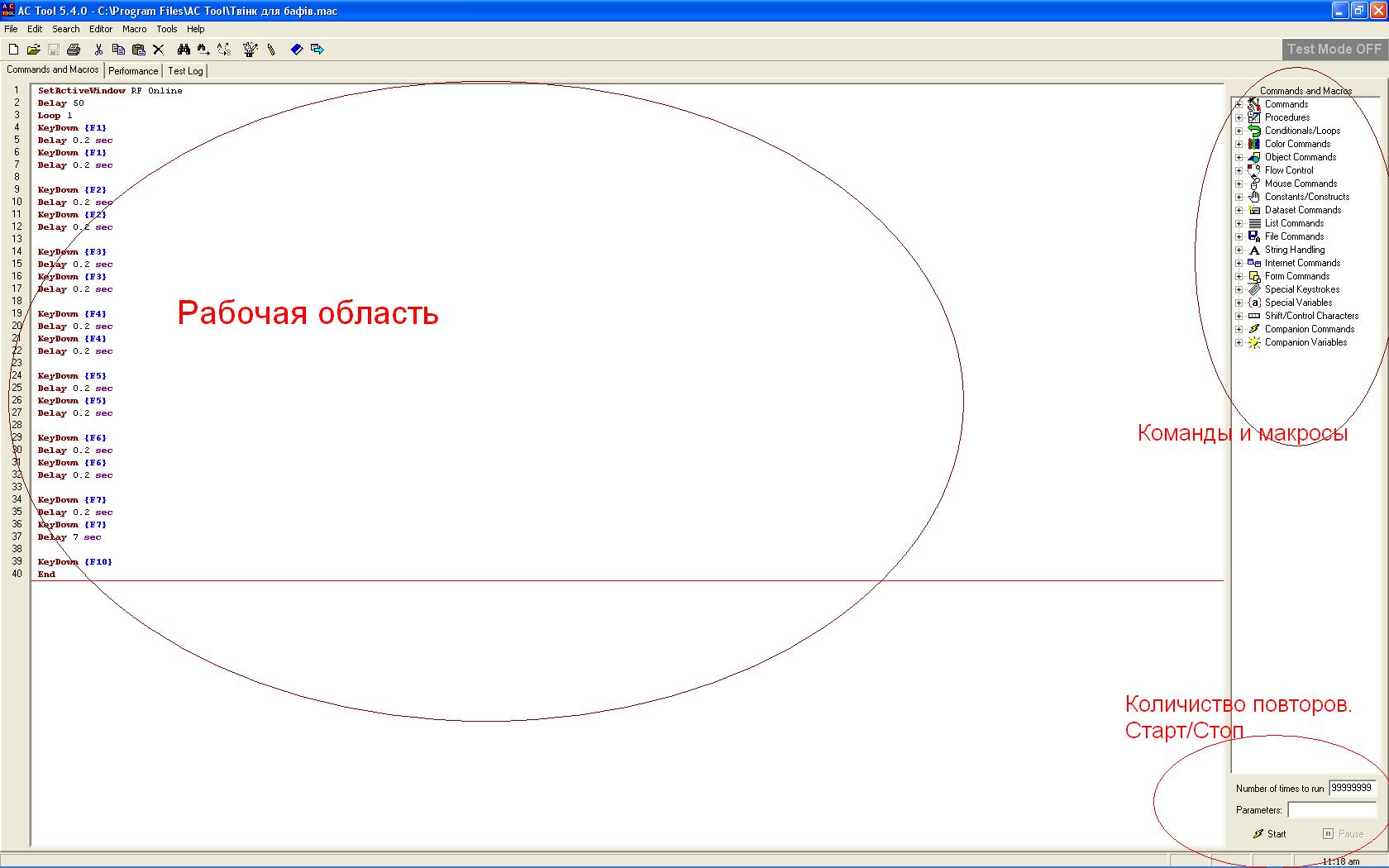
В рабочем окне есть «Рабочая область» в которую при помощи команд, из раздела «команды и макросы» (справа), вписывается сам макрос эмулирования нажатий клавиш. Также внизу справа есть поле «Повторы» в котором вписывается количество раз циклического повтора макроса. А также «Старт/Стоп», ясно для чего. (Макрос на скрине просто пример)
А теперь по командам.
Сначала пишем команду
SetActiveWindow RF Online
Она служит для автоматического перехода на окно РФ. Напомню что эта программа работает только при активном окне Игры.
Далее пишем
Delay 50
Это задержка на прогрузку вашего компа. Можно увеличить.
Потом команда
Loop 1000
Она служит для циклического повтора макроса. Но только самих нажатий кнопок, без автоматического перехода на окно РФ. Тута можно поставить 1 если у вас часто выбивает какие-то сообщения и окно РФ перестает быть активным. Но тогда в нижнем правом углу программы вам надо поставить побольше число чтоб повторять цикл. При каждом таком повторе цикла окно РФ будет снова активироваться, даже если вы потеряете активность окна в следующем цикле оно снова станет активным.
Дальше команды нажатия клавиш. К примеру нажатие клавиш F1 и F2 с задержкой в 2 секунды.
KeyDown
Delay 2 sec
KeyDown
Delay 2 sec
Вы можете построить любое количество нажатий клавиш, с любыми задержками в любом порядке. На ваше усмотрение. Если нужно прописать какой-то макрос, пишите мне я постараюсь вам помочь, но лучше попробуйте разобраться сами. Все очень просто.
Для примера выложу один макрос.
Все кто играл магом знают как сложно и долго качать магию света ученика.
Вот пример макроса который позволяет легко ее прокачать, но замечу что только ее и ничего более.
SetActiveWindow RF Online
Delay 50
Loop 100000
KeyDown
Delay 2 sec
KeyDown
Delay 2 sec
KeyDown
Delay 2 sec
KeyDown
Delay 2 sec
KeyDown
Delay 2 sec
KeyDown
Delay 2 sec
KeyDown
Delay 2 sec
KeyDown
Delay 2 sec
KeyDown
Delay 2 sec
KeyDown
Delay 2 sec
KeyDown
Delay 2 sec
KeyDown
Delay 2 sec
End
Поледовательность расположения на панельке:
F1 — Ярость
F2 — Сосредоточенность
F3 — Ожесточения
F4 — Перезерядка
F5 — Меткость
F6 — Душевная балада
F7 — Ускорение
F8 — Щит стихий
F9 — Душа Эйдана
F10 — Благословление
При старте макроса на вас не должно быть бафов.
Так сделано у меня. Вы можите настроить и разложить бафы так как вам удобно, но не забудьте поменять цыфры в макросе. Все выше описаное настроено под меня.
Ac tools как пользоваться
Introduction to AC Tool and Macroing
A macro is basically a sequence of commands that will enable you to repeat a certain task or tasks a set number of times. A macro is most of the times run unmonitored, so you can leave your macro running while your working, sleeping or doing something else. In Asheron’s Call, it is used to either gain experience points fast in able to increase your levels, increase your knowledge of a skill or skills in order to use that skill better or to produce trade goods items for selling in order to increase your cash reserves.
(Courtesy Slite)
What is AC Tool?
AC Tool is a utility that allows you to list a series of keystrokes and mouse clicks in advance and send them to Asheron’s Call at a later time. The list of keystrokes and mouse clicks is called a macro or a script.
AC Tool does not intercept data returned by Asheron’s Call. That means a macro cannot tell when you are attacked, if you have run out of something needed by the macro, etc, however there is a Decal Companion for AC Tool can be used to intercept data and perform other useful functions. See the CHANGE THIS section on AC Tool Companion.
Where do I get the macros?
Macros in progress (being written and tweaked) are often posted to the general discussion forum. Successful macros are frequently reposted to the Macro forum. Both are good places to look for a script.
I can’t find a macro that does what I want. Will someone write one for me?
You are welcome to adapt the macros you find here to suit your own purposes; however, it is extremely unlikely that anyone will write a macro for you. Most requests that someone write a macro go ignored.
You’ll have much better luck getting assistance if you at least attempt to write your own macros and then post narrowly defined questions (Not «How do I write a fletching macro?» but «I am using this code, but I can’t get the items to stack correctly. What am I doing wrong?» )
Also, adding a little incentive doesn’t hurt. Sometimes if you look around your server’s trade board or ebay you can find people willing to write macros for in-game goods or money.
How do I write my own macros?
First, get familiar with the default keymap for Asheron’s Call. You will be sending keystrokes, so you must know what keystrokes you may use. Most of the keys are listed in the manual which came with the game; however, some patches have changed a few of the keys. A good place to look is the Map of Default Keyboard Functions provided by Microsoft, links to which can be found on the Downloads page of the AC zone page.
Once you have done that, determine the conditions under which your macro will execute.
For example, assume that you want your macro to combine bloodseeker infusions with an aqua incanta to make bloodseeker oils.
Starting circumstances might include.
you have nothing in your hands.
you are in peace mode.
you have a stack of bloodseeker infusions in your hotkey slot 1.
you have a stack of aqua incanta in your hotkey slot 2.
your main back pack has room to hold 50 oils.
Now list the keystrokes in the order in which they should be sent to Asheron’s call. In our example, we’ll need to press 1 to select the bloodseeker infusion, then 2 to select the aqua incanta.
So far, the macro looks like:
// This line is necessary to select the proper window
SetActiveWindow Asheron’s Callkeys 1
keys 2
Now decide how much time should elapse between each keystroke. Delay times are written in thousands of a second. A delay of 2 seconds would be written as 2000. A delay of 1/4 second would be written as 250.
Enter a DELAY time in between each keystroke that allows time for the previous keystroke to be received and executed as well as allows for a little lag. For our example, a delay of .5 seconds is sufficient.
The macro now looks like:
// This line is necessary to select the proper window
SetActiveWindow Asheron’s Callkeys 1
delay 500
keys 2
delay 500
You decide that you want to make oils in sets of 50. To have the macro repeat an action many times, you use a loop. You must mark the start and end of the loop, and you must indicate how many times the macro should loop.
The macro now looks like:
// This line is necessary to select the proper window
SetActiveWindow Asheron’s Callloop 50
keys 1
delay 500
keys 2
delay 500
end
Now preface your macro with a delay long enough to let AC Tool bring Asheron’s Call to the foreground and begin execution. With the AC Tool Companion you need not do this because you can start the macro from within Asheron’s Call itself by pressing F2, however if you are not using the companion this delay is necessary.
// This line is necessary to select the proper window
SetActiveWindow Asheron’s Calldelay 10000
loop 50
keys 1
delay 500
keys 2
delay 500
end
You can comment your macro using //. Note to beginning programmers: Comments are good. Comments are your friend. Please comment so you don’t loose yourself in your own code and then come crying to the boards looking for help. 🙂
// This line is necessary to select the proper window
SetActiveWindow Asheron’s Call// Start in peace mode with hands empty.
// Place 50 bloodseeker infusions in hotkey slot 1.
// Place 50 aqua incanta in hotkey slot 2.
// Make sure there are 50 free slots in the main pack to receive the oils.delay 10000 // Get into the game
loop 50
keys 1 // Select bloodseeker infusion
delay 500
keys 2 // Combine with aqua incanta
delay 500
end
This has been a very simple macro. Macros can be much more complex, executing many tasks, but the building blocks of a macro are all the same.
Macro Safety Tips:
Before macroing, go into the character options menu and turn off :
Accept items from other players.
Accept fellowship requests.
And whatever the new one is for participating in secure trades.
(Courtesy Digger)
How do I earn experience with a macro?
In Asheron’s Call, you can earn experience by killing a creature or by exercising a skill. To earn experience with a macro, you must write a script that does one or both of these things.
Exercising a skill: Casting a spell, making a pie, or evading a creature all require checks against your character’s skills. When you perform an action which requires a check against a trained or specialized skill, you earn experience in that skill every once in a while.
Exactly when you earn experience is determined as follows:
Is the action you are performing more difficult (worth more experience) than the last action you performed using that same skill? If yes, you earn experience. If no, then.
Has it been at least 130 seconds since the last time you performed any action using that same skill? If yes, you earn a much smaller amount of experience. If no, you earn none.
Cast a level one life spell.
Wait five seconds and cast a level two life spell. Is casting a level two spell more difficult than casting a level one spell (the last action using life skill)? Yes — award experience.
Wait five seconds and cast a level two life spell. Is casting a level two spell harder than casting a level two spell (the last action using life skill)? No — Has it been at least 130 seconds since the last time the skill was used? No — do not award experience.
To earn this type of experience in a macro, you must set up your character to exercise her skill by performing actions ordered from lowest difficulty to highest difficulty, then waiting 130 seconds before beginning again.
You can perform other actions which use a different skill during the 130 second waiting period. For example, you may cast three creature spells, and during the 130 second waiting period before casting another creature spell, cast several life spells, ID a healing kit, and bake an apple pie.
How can I tell how difficult an action is (how much experience it is worth)? You can discover the relative difficulty of actions yourself by carefully observing how much experience you are awarded when performing an action. The more difficult the action, the more experience you are awarded.
Example: You carve a steak and notice that you received 5 xp awarded to your cooking skill. You make meat pie and receive 20 points of xp. Making a meat pie is more difficult than caring a steak.
To earn maximum experience in a macro, order your actions from least-experience-awarded to most-experience-awarded for the same skill, then wait at least 130 seconds before repeating.
While the difficulty of some actions is obvious (casting a level three spell vs a level one spell, for instance), others are not so obvious. Fortunately, a lot of research on difficulty/experience awarded has already been done and is available.
Fighting macros: Fighting macros have been completely revolutionized by the AC Tool Companion. We used to write blind macros in the vague hopes of managing to find a target and then blindly attack it. We were not able to strategize our attacks or cast spells very efficiently. New fighting macros are released daily and are a great deal more sophisticated and successful than the combat macros of old. Examples of fighting macros can be found on the macro forum, the beginnings of one can be found in the AC Tool Companion portion of this FAQ.
General Information on AC Tool and Macroing
Especially if you are writing a combat macro, making sure you are in combat mode is very important. We used to do something called a «bowdance,» a now archaic procedure that can still be found in this FAQ (as it actually does still have uses), however you will want to refer to the AC Tool plugin sections for the more «modern» methods of checking combat mode.
Applying to skill-based (non-combat) macros the most, this seems to be the biggest debate/unknown in macroing. From extensive testing by many people, the optimal cycle time for getting the most xp/hr is 130-160 seconds. Using a cycle time of 130-160 seconds, you will get ALL/FULL xp for a spell EXCEPT the first spell cast in that school. For the first spell cast in that school, you will get very little of the full xp, something like 2-11xp. But since it is a level II spell, you aren’t loosing much! For example, if my first cycle is II, III, IV, then my second cycle is, after a full 145 seconds, II, III, IV, then I would get less than 110 xp for the II, and FULL xp for III, and IV. I would rather have many 145 second cycles and get full xp on my III’s and up spells, than to have one veeeery long cycle just to get full xp on a level II spell.
How do I figure out the coordinates for MOUSEPOS?
The AC Tool Object Mapper is a very nice program was written by Paoda. Though the real purpose of this program is to map objects, a subject covered later in this FAQ, it can be used to very easily find mousepos coordinates. Simply press the ‘*’ key on the keypad while in Asheron’s Call, and then exit the game and copy the SS from the clipboard into the Object Mapper. Now click anywhere on that sized image and the program will tell you the coordinates! It’s that easy!
Keep separate packs for your «macro components» so when you want to actually play your character between macro sessions it doesn’t take hours to split out the extra components to reduce your 200% burden. You can simply mule off those packs. Also another good idea is to refer to the boards for the current «in-style» method of checking for component loss and pea splitting. At the time this is being written, most people check for the «out of components» message and then use another decal plugin called PeaGimp to automagically split peas, thus reducing the burden of the spell components.
Macroing from level 1-26:
Be cautioned when FULLY macroing a character from 1-26. A little more than 90% of all XP gained from macroing goes DIRECTLY into the skills being macroed with less than 10% going to spendable xp. So, for me, a four school mage from creation, my Life, Item and Creature would raise but not my War. If I had macroed from level 1 and not actually played at all, then my Life, Item and Creature would be great, but War would NEVER move. This just means that when I start playing my character that all the spendable XP from that point on will go into non-macroable attributes/skills like War, Focus, Strength etc. A level 26 fully macroed mage would not look like a played mage at the same level. If someone macroed from level 1 to 26, earning a total of 3,180,153, then they would only have less than 10% of that spendable or around 300,000 xp. That may not be enough xp to put into your other skills to bring that character up to what played level 26 would be. But, if you played from level 26-30, I bet both macroed and played mages would look the same. The point is that I much rather have an equally balanced character from the start than an out-of-balance player.
Macroing Spell Component List:
Use the latest version of SplitPea/RainPea, or another 3rd party utility to create a special spell list JUST for macroing. That way you can filter for known spells and print a list of just the components needed to macro. You can do this by just adding another character in SplitPea/Rainpea. Also, if you have a character that you only macro you can set the /fillcomps profile for your character to just hold your macro components.
Those new to macroing your mage, may not know what a Mana Pool is. There is a little blue pool every Meeting Hall that replenishes from 2-10 mana every 5 seconds or so. These greatly reduce macro cycle times, and will quickly become your best friend in a skill-developing macro.
No mana for casting your level V Life spell!:
Assuming you have about 120 health or so, cast Health to Mana II in your Life section of your macro. Then cast Heal Self V for your level V spell. The Health to Mana II makes up for the mana used in the Heal Self V!
(Courtesy Lifer)
Spell Bar Lists:
Keep a Combat spell bar setup list and Macro spell bar setup list so re-ordering your spell bar for actually playing between macro sessions is easier and quicker. Also, future versions of the AC Tool Plugin promise to offer spellbar-less casting. And there was much rejoicing! *yay*
Below lists the spell tab navigation commands with their default keyboard assignment:
Prev Tab Key (insert) = Prev tab
Next Tab Key (pageup) = Next tab
Prev Spell key (delete) = Prev spell
Next Spell key (pagedown) = Next spell
CTRL + Prev Tab key = First Tab
CTRL + Next Tab key = Last Tab
CTRL + Prev Spell key = First Spell in List
CTRL + Next Spell key = Last Spell in List
END = Cast spell
The newest and most convenient way of setting up your tabs is to use one spell tab for all your spells. So, in a typical macro you could use CTRL + Prev Tab at the beginning of your macro to make sure you are on the first tab. Then use CTRL + Prev Spell = First Spell in List to put you on the first spell in that tab. Then END to cast that spell. So a cycle may look like this:
One note however, you can only have a spell once on a spell bar. So, if your macro casts the same spell more than one time at different times in your loop, you will have to navigate back to that spell to cast it.
Stamina loss: If you are seriously overburdened (190%+ or so), you will loose stamina by just standing in combat mode thus eliminating the option of casting Stamina to Mana to get mana back unless you lay down and get back up again before casting stamina to mana. Off load all un-necessary items before macroing such as armor. Keep a mule in the meeting hall for this purpose.
Stuck Mana Pool: The mana pool CAN «get stuck» at random times. The other day while I was watching, it simply stopped infusing me with mana even though I didn’t have full mana! To solve this, I just go out of combat mode, lay down and go back into combat mode again. This seems to work just fine. Many people lay down anyway, but some people just put enough time between spells for the mana pool to refill them. I’ve even seen characters that jump during their macro. This probably works also. If you do the “Bow Dance”, this will kill 2 birds with one stone. It will insure that you are in combat mode AND “unstick” the mana pool. If your having a problem with wandering out of the mana pool when your standing and laying down a lot this is an easy fix:
The delays are not needed, but I like putting them in there for good measure. This will cause you to turn very slightly to the left every cycle. If your doing *ALOT* of laying and standing you might want to add it a few times. This will cause you to rotate therefore your not going forward in the same direction. I ran my macro with this for 12 hours and I was still in the middle of the mana pool. Before I had long left the mana pool in the morning.
(Courtesy Jaerin)
What is a Bow Dance and How do I use it?:
As I mentioned earlier in this FAQ, the AC Tool plugin renders the bow dance pretty archaic, however for good measure I still include the explanation of the «old-school» bow dance.
The point of the bow dance is that if you accidentally get out of sync (i.e. in peace mode when you should be in war mode) you want to recover from it.
Follow these two scenarios:
You go into combat mode successfully so you are standing there with the wand in your hand in combat mode. You do the bow dance and this is what happens: ^1 to arm your bow. Since you are in combat mode already and have no ammo, then your bow is put into your hand, you attempt to string a bow and drop out of combat mode. Then 2 to put your wand back in your hand, then ` for combat mode — all set to go!
Lag STILL can mess you up if it hits during the bow dance though.
There are 3 ways (so far) to do the bow dance:
This way is a little different in that you do it while laying down. Under normal circumstances, you will be in peace mode lying down when you equip the bow and then re-equip the wand. However, if you are actually in war mode (out of sync) and try to equip the bow, it will switch to the bow and then try to switch back to war mode — since you’re out of ammo you’ll wind up back in peace mode, with your bow equipped. Then equip the wand, and you’re golden. Your next cycle will hit, you’ll go into war mode and start casting — just as you want.