Umount Target is Busy
“In Linux, we use the umount command to unmount a device or partition as specified by its path. However, in some scenarios, you may encounter the “target is busy” error when attempting to unmount a device.
In this tutorial, we will attempt to break down the cause of this error, why it occurs, and how you can resolve it.”
Cause of “Target is Busy” Error
Once you mount a device in your system, any process with sufficient permission can access its filesystem. When the “target is busy” error occurs, it means that an active process is currently accessing a file or directory within the device.
Therefore, to prevent data loss, the Linux kernel will prevent you from unmounting the device when it’s being accessed.
But there are some instances where you need to remove the device. Let us discuss the various techniques you can use to do this.
Fix 1: Terminate the Running Process
We have established that the main cause of this error is an active process that is accessing a file within the device.
Therefore, to resolve this error, we can terminate the process, and the device will be free to be mounted.
Luckily, Linux has a command that allows you to show all the view the open files and the processes that are accessing that file.
You can learn more about about the lsof command here:
We can use the lsof command followed by the path to the disk. For example, if we are getting the error in device /dev/sda1, we can view the open files and the associated processes using the command:
The command should return the processes accessing the files are their IDs.
We can then take the PIDs and use them to kill the process.
Once the process is terminated, you can unmount your device.
Keep in mind that there may be more than one process accessing a file. Hence, ensure to terminate all of them.
Fix 2: Force Unmount
Another solution for unmounting a busy device is to force it. This can be useful if the error is caused by an unreachable resource such as a network resource.
Keep in mind that force unmounting a device can lead to data loss.
To do this, use the -f option as:
Fix 3: Lazy Unmount
The third and safer alternative to the force unmount is a lazy unmount. A lazy unmount allows the system to detach the specified mount point in a hierarchical manner. It works by removing any references to the filesystem as soon as it’s not busy.
And once no process is accessing the fs, the system runs the unmount command successfully and removes the device.
This is a safe option as you do not forcibly close any running processes. Instead, you allow the system to monitor once the operations are complete and then unmount the device.
To use a lazy unmount, use the -l flag in the umount command:
Conclusion
That’s it for this one. In this tutorial, we covered the cause of the “target is busy” error when unmounting devices in a Linux system. We also provided three solutions for unmounting the device appropriately.
As always, thanks for reading!!
About the author

John Otieno
My name is John and am a fellow geek like you. I am passionate about all things computers from Hardware, Operating systems to Programming. My dream is to share my knowledge with the world and help out fellow geeks. Follow my content by subscribing to LinuxHint mailing list
How to Fix umount target is busy in Linux

Sometimes when you unmount a filesystem or drive, the system shows "unmount target is busy" message. Unless you release the busy system, you won't be able to unmount.
In this guide, we learn how to fix umount target is busy in Linux.
Table of Contents
What is unmount target busy
A mounted filesystem can be accessed by any process running on the Linux operating system. When such a filesystem or a directory which is being accessed by some process is unmounted, the system may issue the target as busy (“device is busy”). One of the reasons the system doesn't allow unmount is to prevent data loss.
This problem generally occurs in the following scenarios:
- The current working directory accessed by the terminal is on the path of the mount point
- A process is accessing the files on the filesystem hierarchy being unmounted
- A process is accessing a file which relies (reads/writes) on the file inside the filesystem which is being unmounted.
- Remote mount point unreachable

Force unmount
Force unmount is one solution to detach the busy device.
Usually, you see a busy device message when you try to unmount an NFS filesystem. This happens often when the NFS server has some issues (mainly unreachable) and you have a soft NFS mount.
Force unmount will detach the server mount point by disrupting some running processes.
CAUTION: This may cause data loss or corrupt files or programs accessing file throw errors.

You can verify if it is successfully unmounted using the df command.
Using lsof — Find and Kill the processes using the file
The lsof (list open files) command displays a list of all open files and the processes associated with them on a specific file system, directory, or device. By default, it lists all files, shared libraries, and directories that are currently open and provides as much information as possible about each of them.
We can use lsof command to find PID (process id) corresponding to our mount point and then kill that process.
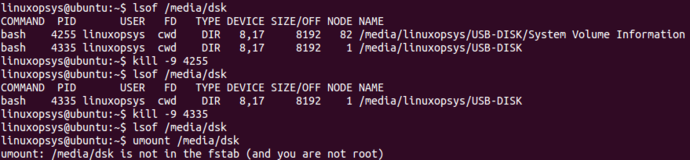
Use the following lsof command to list processes using the mount point.

The output shows that the user linuxopsys has two bash processes with PIDs 4255 and 4335 using /media/dsk.
Once these two programs are stopped the device is no longer busy.
Once you make sure its safe to kill the process, run the following kill command:
If no more processes tide to the mount point, you initiate umount command.
Using fuser — Kill processes accessing the file
fuser command in Linux helps to identify the processes which are accessing sockets or files on filesystems.
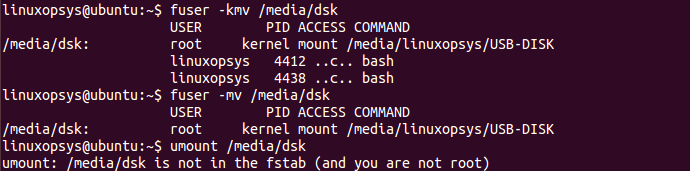
Use fuser command with -m option which lists all the processes accessing the files or mount point on the file system. You can add -v option for verbose.
The following example displays all the processes accessing the file system /media/dsk along with their process ids arranged in a tabular format.

Now you found the processes which are using the file on the mounted filesystem. You can use kill command to terminate those processes.
You can add -k option to kill processes in a single command, so you can avoid one step.
Lazy unmount
Lazy unmounting is used to unmount the mount point from the Linux filesystem hierarchy. The command removes all references to the detached file system as soon as it is no longer busy. Once no processes are accessing the unmounted file system, the umount command executes and actually detaches the file system.
Lazy unmounting a mount point is beneficial when we don't want to unexpectedly kill the process which are accessing the file systems as this may lead to loss of data or may corrupt the file systems.
For example, when you are copying a file from the mounted flash drive to linux machine and need to unmount the mounted device at the same time so that you don't need to actively check the status of the file transfer, you can execute a lazy unmount on the flash drive so that once the operation to copy the file is complete, the system automatically detaches the mount point of the flash drive.
To lazy unmount use -l option followed by the mount path:

Conclusion
In this guide, we learned how to fix when you encounter umount target is busy in Linux. We have explained solutions using force unmount, detaching busy device by finding and kill the processes, and finally lazy mount.
Thanks for reading, please leave your feedback and suggestions in the comment section.
If this resource helped you, let us know your care by a Thanks Tweet. Tweet a thanks
Не могу Umount target занят Linux?
Это означает, что у некоторого процесса есть рабочий каталог или дескриптор открытого файла под точкой монтирования. Лучше всего завершить вызывающий нарушение процесс, изменить его рабочий каталог или закрыть дескриптор файла перед размонтированием. Однако в Linux есть альтернатива.
Как я узнаю, что цель Umount занята?
6 ответов. Способ проверки fuser -vm / mnt / dir , который должен запускаться от имени пользователя root. Он сообщит вам, какие процессы обращаются к точке монтирования. Альтернативой является lsof / mnt / dir, который покажет каждый открытый файл при монтировании.
Как заставить Umount?
Вы можете использовать umount -f -l / mnt / myfolder, и это решит проблему.
- -f — принудительно размонтировать (в случае недоступности системы NFS). (Требуется ядро 2.1.…
- -l — Ленивое отключение. Отсоедините файловую систему от иерархии файловой системы сейчас и очистите все ссылки на файловую систему, как только она больше не будет занята.
Как принудительно отключить диск?
Команда Linux fuser для принудительного отключения раздела диска
- -k: убить процессы, обращающиеся к файлу.
- -m: Имя указывает файл в смонтированной файловой системе или подключенное блочное устройство. В приведенном выше примере вы используете / mnt.
Как исправить занятость цели?
Если возможно, позвольте нам найти / идентифицировать занятый процесс, убить этот процесс и затем отключить общий ресурс / диск samba, чтобы минимизировать ущерб: lsof | grep ‘ ‘(или любое другое подключенное устройство) pkill target_process (убивает занятую процедуру по имени | kill PID | killall target_process)
Можем ли мы размонтировать VAR?
Размонтирование удалит раздел жесткого диска / var из иерархии файловой системы. Пространство освобождено не будет. Все зависит от того, над каким встраиваемым устройством вы работаете. -> Система не чувствительна к безопасности. / var также содержит все подключения к плате.
Что такое ленивый Umount?
Ленивое отключение монтирования nfs вызывает несколько задач, заблокированных вводом-выводом NFS, а также блокирует процесс перезагрузки. Детали vmcore указывают на это поведение.
Установлено, что запускать Badblocks небезопасно?
Категорически безопасно запускать на устройстве, которое использует смонтированную файловую систему. Что касается возможных ложных срабатываний, блочный ввод-вывод не является «управляемым», т. Е. Нет блокировок чтения / записи. Так нет взаимодействия между плохими блоками и слой файловой системы.
Что такое Lsblk?
lsblk перечисляет информацию обо всех доступных или указанных блочных устройствах. Команда lsblk читает файловую систему sysfs и udev db для сбора информации. … Команда по умолчанию распечатывает все блочные устройства (кроме RAM-дисков) в древовидном формате. Используйте lsblk –help, чтобы получить список всех доступных столбцов.
Как принудительно отключить компонент React?
Отвечать. Да, РеактДОМ предоставляет способ вручную удалить компонент из модели DOM с помощью кода. Вы можете использовать метод ReactDOM. unmountComponentAtNode (контейнер), который удалит смонтированный компонент React из DOM в указанном контейнере и очистит все его обработчики событий и состояние.
Что такое Fusermount в Linux?
FUSE (файловая система в пользовательском пространстве) простой интерфейс для программ пользовательского пространства для экспорта виртуальной файловой системы в ядро Linux. FUSE также стремится предоставить непривилегированным пользователям безопасный метод создания и монтирования собственных реализаций файловой системы.
Как размонтировать sda1?
2 ответа. Вы не можете, если хотите продолжать использовать ubuntu. / dev / sda1 — это ваш основной раздел, и его нельзя изменить на другую файловую систему без переформатирования. Вам нужно использовать live cd или другую ОС, установленную на жестком диске, вы ее переформатируете, но не можете сделать это изнутри Ubuntu.
Как отключить корневой раздел в Linux?
Если вы хотите отключить корневой раздел и изменить параметры файловой системы, получить спасательную программу для Linux. Используйте программу аварийного восстановления, а затем используйте tune2fs для внесения изменений. Чтобы отсоединить ранее смонтированную файловую систему, используйте любой из следующих вариантов команды umount: umount directory.
Как размонтировать домашний раздел в Linux?
Вы можете увидеть, какие процессы все еще используют ваш старый домашний каталог (или что-либо еще в домашней файловой системе), запустив термоэлемент / главная или lsof / home. Как только вы убьете эти процессы, вы сможете размонтировать / home. Вы можете использовать fuser -k / home, чтобы убить их всех (внимательно проверьте, что они собой представляют, прежде чем делать это!).
Umount: Force – Target | Device is Busy
An umount command is used to unmount a device/partition by specifying the path to the directory where it has been mounted.
Sometimes, when you run the umount command you may receive the “target is busy” or “device is busy” errors indicating that there is some process that is using the mounted filesystem or the remote file server is not responding for some reason.
Luckily, it is possible to run the umount command forcefully and this short note shows how to do this safely.
Cool Tip: Have added a new drive to /etc/fstab ? No need to reboot! Mount it with one command! Read more →
Force Umount if Target | Device is Busy
If you try to unmount a filesystem using the umount command you may get an error like one of the errors below:
This usually happens when the resource is used by another process.
To identify the process that locks the filesystem and prevents it from being unmounted you can use the lsof command:
Once identified you can kill the process and try to umount the filesystem one more time.
Alternatively you can force the unmount by running the umount command with the following options:
| Option | Description |
|---|---|
| -f , —force | Force an unmount. |
| -l , —lazy | Lazy unmount (after the disk operations are done). |
Cool Tip: How to mount an ISO image in Linux! Read more →