GIGABYTE APP Center — что это за программа и нужна ли она?

Другими словами это магазин, где можно скачать все для вашей материнки, а также некоторые популярные программы.
Предназначено для материнских плат фирмы Gigabyte.
Приложение не только устанавливает софт и драйвера, но и может проверить наличие новой версии.
Вот примерно так выглядит приложение, видим здесь три раздела — Update (те программы, которые можно обновить), Not Installed (которые не установлены) и All (все вместе):
 Там где Update Title, там показывается описание программы, а также указывается версия. Напротив справа можно поставить галочку. Внизу еще вижу New Drivers — это драйвера, тоже можно поставить галочку напротив. В итоге поставили галочки — нажали Update и утилиты/дрова установились на ПК.
Судя по этой картинке — у приложения есть некая боковая панель, которая возможно используется для быстрого запуска функций:
 Это пример трех панелей APP Center, на которых разные функции. Возможно набор отображаемых функций — можно указать в настройках.
Вид панели может быть и такой:
 В принципе думаю удобно сделано, правда много функций на панели — вряд ли они все нужны. Да и если панель постоянно висит на рабочем столе — то тоже думаю мало хорошего.
Очень хорошо, что в GIGABYTE APP Center есть русский язык:
 Что могу отметить — хороший интерфейс, удобно все написано: название программы, потом размер, версия, а что важно — напротив описание. Все эти программы можно отметить галочкой и нажать обновить, после чего они установятся. Плюс еще можно скачать и новую версию BIOS.
Также в приложении может быть вкладка Gigabyte APPs, где вы можете загрузить фирменное ПО:

Количество функций, оформление, количество разделов, настройки и возможности — все это зависит от версии приложения.
Как удалить GIGABYTE APP Center?
Если вам приложение оказалось ненужным, его логично будет удалить. Простой способ штатного удаления:
- Зажимаете кнопки Win + R > вставляете команду appwiz.cpl, нажимаете ОК.
- Появится окно со списком установленного софта.
- Находим GIGABYTE APP Center, нажимаем правой кнопкой и выбираем Удалить.
- Далее запустится мастер удаления или программа сразу удалится без уведомлений.
При желании удалить приложение можно используя удаляторы Revo Uninstaller или Uninstall Tool. Плюс удалятора в том, что он не только удалит программу, но и почистит систему от следов/остатков.
Надеюсь информация оказалась полезной. Удачи и добра, до новых встреч друзья!
Как удалить gservice
Подлинный файл является одним из компонентов программного обеспечения Gizmo Central, разработанного Arainia Solutions .
Gservice.exe — это исполняемый файл (программа) для Windows. Расширение имени файла .exe — это аббревиатура от англ. слова executable — исполнимый. Необходимо запускать исполняемые файлы от проверенных производителей программ, потому что исполняемые файлы могут потенциально изменить настройки компьютера или нанести вред вашему компьютеру. Бесплатный форум с информацией о файлах может помочь вам разобраться является ли gservice.exe вирусом, трояном, программой-шпионом, рекламой, которую вы можете удалить, или файл принадлежит системе Windows или приложению, которому можно доверять.
Вот так, вы сможете исправить ошибки, связанные с gservice.exe
- Используйте программу Настройщик Windows, чтобы найти причину проблем, в том числе и медленной работы компьютера.
- Обновите программу Gizmo Central Service. Обновление можно найти на сайте производителя (ссылка приведена ниже).
- В следующих пунктах предоставлено описание работы gservice.exe.
Информация о файле gservice.exe
Описание: gservice.exe не является необходимым для Windows. Файл gservice.exe находится в подпапках «C:\Program Files». Размер файла для Windows 10/11/7 составляет 34,728 байт.
Это не системный процесс Windows. Это файл, подписанный Verisign. Сертифицировано надежной компанией. Приложение не видно пользователям. Gservice.exe способен мониторить приложения. Поэтому технический рейтинг надежности 25% опасности.
Разработчик Arainia предоставляет сайт поддержки для помощи, и деинсталлятор (Панель управления ⇒ Установка и удаление программ ⇒ Gizmo Central).
Важно: Некоторые вредоносные программы маскируют себя как gservice.exe, особенно, если они расположены в каталоге c:\windows или c:\windows\system32. Таким образом, вы должны проверить файл gservice.exe на вашем ПК, чтобы убедиться, что это угроза. Мы рекомендуем Security Task Manager для проверки безопасности вашего компьютера.
Комментарий пользователя
Лучшие практики для исправления проблем с gservice
Аккуратный и опрятный компьютер — это главное требование для избежания проблем с gservice. Для этого требуется регулярная проверка компьютера на вирусы, очистка жесткого диска, используя cleanmgr и sfc /scannow, удаление программ, которые больше не нужны, проверка программ, которые запускаются при старте Windows (используя msconfig) и активация Автоматическое обновление Windows. Всегда помните о создании периодических бэкапов, или в крайнем случае о создании точек восстановления.
Если у вас актуальные проблемы, попробуйте вспомнить, что вы делали в последнее время, или последнюю программу, которую вы устанавливали перед тем, как появилась впервые проблема. Используйте команду resmon, чтобы определить процесс, который вызывает проблемы. Даже если у вас серьезные проблемы с компьютером, прежде чем переустанавливать Windows, лучше попробуйте восстановить целостность установки ОС или для Windows 8 и более поздних версий Windows выполнить команду DISM.exe /Online /Cleanup-image /Restorehealth. Это позволит восстановить операционную систему без потери данных.
Следующие программы могут вам помочь для анализа процесса gservice.exe на вашем компьютере: Security Task Manager отображает все запущенные задания Windows, включая встроенные скрытые процессы, такие как мониторинг клавиатуры и браузера или записей автозагрузки. Уникальная оценка рисков безопасности указывает на вероятность процесса быть потенциально опасным — шпионской программой, вирусом или трояном. Malwarebytes Anti-Malware определяет и удаляет бездействующие программы-шпионы, рекламное ПО, трояны, кейлоггеры, вредоносные программы и трекеры с вашего жесткого диска.
gservice сканер

Security Task Manager показывает все запущенные сервисы Windows, включая внедренные скрытые приложения (например, мониторинг клавиатуры или браузера, авто вход). Уникальный рейтинг надежности указывает на вероятность того, что процесс потенциально может быть вредоносной программой-шпионом, кейлоггером или трояном.
Бесплатный aнтивирус находит и удаляет неактивные программы-шпионы, рекламу, трояны, кейлоггеры, вредоносные и следящие программы с вашего жесткого диска. Идеальное дополнение к Security Task Manager.
Reimage бесплатное сканирование, очистка, восстановление и оптимизация вашей системы.
What is gservice.exe?
The genuine file is a software component of Gizmo Central by Arainia Solutions .
Gservice.exe is an executable file that is part of Gizmo Central, a utility program that features five separate programs that enhance Windows functionality. This file is not a critical Windows file and can be removed if known to create problems.
Gizmo Central is a suite of freeware programs that cover everything from burning optical discs, mouting ISOs as virtual drives and synchronizing files over multiple computers to programming in C++. It provides a group of five programs — Gizmo Drive, Gizmo Database, Gizmo Hasher, Gizmo Script and Gizmo Editor. Gizmo Central automatically updates itself at regular times and provides themes for customization through the Theme Manager.
Arainia Solutions is an American company that develops utility software for the Windows platform.
The .exe extension on a filename indicates an exe cutable file. Executable files may, in some cases, harm your computer. Therefore, please read below to decide for yourself whether the gservice.exe on your computer is a Trojan that you should remove, or whether it is a file belonging to the Windows operating system or to a trusted application.
Gservice.exe file information

Gservice.exe process in Windows Task Manager
Description: Gservice.exe is not essential for the Windows OS and causes relatively few problems. The gservice.exe file is located in a subfolder of «C:\Program Files (x86)» (primarily C:\Program Files (x86)\Gizmo\). Known file sizes on Windows 10/11/7 are 34,728 bytes (93% of all occurrences) or 31,856 bytes.
The program has no visible window. It is not a Windows system file. Gservice.exe is a Verisign signed file. The file has a digital signature. Gservice.exe is able to monitor applications. Therefore the technical security rating is 26% dangerous, but you should also take into account the user reviews.
Important: Some malware camouflages itself as gservice.exe, particularly when located in the C:\Windows or C:\Windows\System32 folder. Therefore, you should check the gservice.exe process on your PC to see if it is a threat. We recommend Security Task Manager for verifying your computer’s security. This was one of the Top Download Picks of The Washington Post and PC World.
Score
User Comments
Summary: Average user rating of gservice.exe: based on 3 votes with 4 user comments. 2 users think gservice.exe is essential for Windows or an installed application. One user thinks it’s neither essential nor dangerous. One user is not sure about it.
Best practices for resolving gservice issues
A clean and tidy computer is the key requirement for avoiding problems with gservice. This means running a scan for malware, cleaning your hard drive using 1 cleanmgr and 2 sfc /scannow, 3 uninstalling programs that you no longer need, checking for Autostart programs (using 4 msconfig) and enabling Windows’ 5 Automatic Update. Always remember to perform periodic backups, or at least to set restore points.
GService
GService is a software application. This page is comprised of details on how to remove it from your computer. It is written by GIGABYTE . Go over here for more info on GIGABYTE. More details about GService can be found at http://www.GIGABYTE.com. The program is usually installed in the C:\Program Files (x86)\GIGABYTE\GService folder. Take into account that this location can vary depending on the user’s preference. The entire uninstall command line for GService is MsiExec.exe /I
The executable files below are installed along with GService. They occupy about 33.84 KB ( 34656 bytes) on disk.
- GCloud.exe (19.42 KB)
- Uninstall.exe (14.42 KB)
The information on this page is only about version 1.16.1202.1 of GService. You can find below a few links to other GService versions:
- C:\Program Files (x86)\GIGABYTE\GService
- C:\Users\%user%\AppData\Local\Temp\GService
- C:\Program Files (x86)\GIGABYTE\GService\GCloud.exe
- C:\Program Files (x86)\GIGABYTE\GService\JWT.dll
- C:\Program Files (x86)\GIGABYTE\GService\NETWORK_LIB.dll
- C:\Program Files (x86)\GIGABYTE\GService\Service_Lib.dll
- C:\Program Files (x86)\GIGABYTE\GService\Uninstall.exe
- C:\Program Files (x86)\GIGABYTE\GService\Upfail.xml
- C:\Program Files (x86)\GIGABYTE\GService\UpOK.xml
- C:\Users\%user%\AppData\Local\Downloaded Installations\
\GService.msi - C:\Users\%user%\AppData\Local\Temp\GService\ver.ini
- C:\Windows\Installer\
\ARPPRODUCTICON.exe
- HKEY_CLASSES_ROOT\Installer\Assemblies\C:|Program Files (x86)|GIGABYTE|GService|GCloud.exe
- HKEY_CLASSES_ROOT\Installer\Assemblies\C:|Program Files (x86)|GIGABYTE|GService|JWT.dll
- HKEY_CLASSES_ROOT\Installer\Assemblies\C:|Program Files (x86)|GIGABYTE|GService|NETWORK_LIB.dll
- HKEY_CLASSES_ROOT\Installer\Assemblies\C:|Program Files (x86)|GIGABYTE|GService|Service_Lib.dll
- HKEY_CLASSES_ROOT\Installer\Assemblies\C:|Program Files (x86)|GIGABYTE|GService|Uninstall.exe
- HKEY_LOCAL_MACHINE\SOFTWARE\Classes\Installer\Products\2824BC9DA2B70484DAD1D97AB279D39D
- HKEY_LOCAL_MACHINE\Software\Gigabyte\AppCenter\ApInfo\GService
- HKEY_LOCAL_MACHINE\Software\Microsoft\Windows\CurrentVersion\Uninstall\
- HKEY_LOCAL_MACHINE\System\CurrentControlSet\Services\Gservice
- HKEY_LOCAL_MACHINE\SOFTWARE\Classes\Installer\Products\2824BC9DA2B70484DAD1D97AB279D39D\ProductName
- HKEY_LOCAL_MACHINE\System\CurrentControlSet\Services\Gservice\DisplayName
- HKEY_LOCAL_MACHINE\System\CurrentControlSet\Services\Gservice\ImagePath
How to delete GService from your PC with the help of Advanced Uninstaller PRO
GService is a program offered by the software company GIGABYTE. Sometimes, users choose to uninstall this program. Sometimes this is troublesome because doing this manually takes some skill regarding Windows internal functioning. The best QUICK practice to uninstall GService is to use Advanced Uninstaller PRO. Take the following steps on how to do this:
1. If you don’t have Advanced Uninstaller PRO already installed on your Windows system, add it. This is good because Advanced Uninstaller PRO is a very useful uninstaller and all around tool to take care of your Windows computer.
- navigate to Download Link
- download the setup by clicking on the DOWNLOAD NOW button
- install Advanced Uninstaller PRO
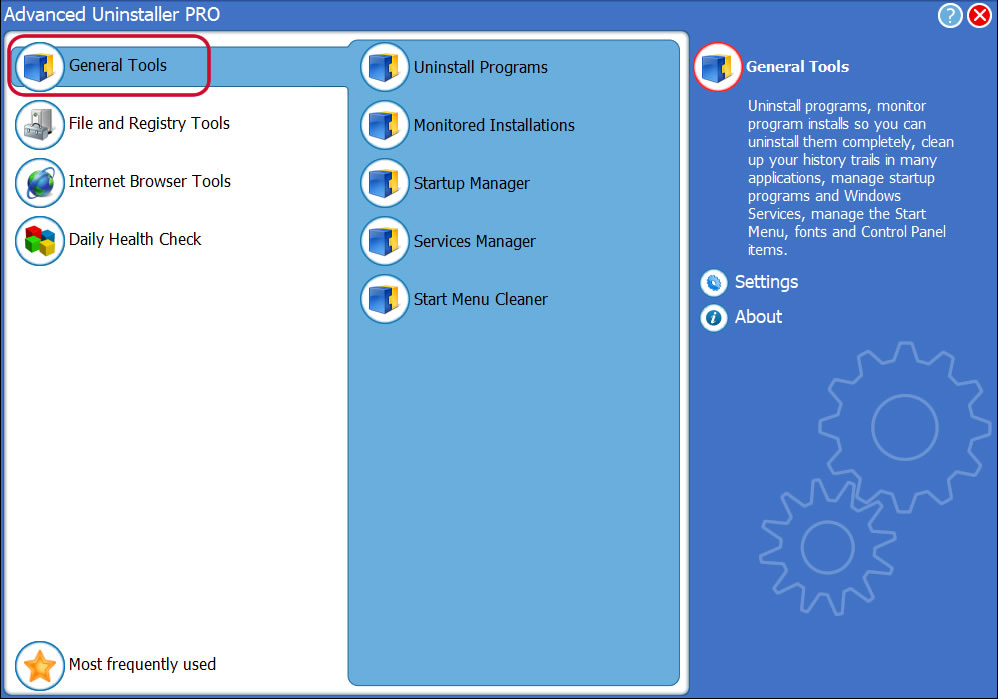
3. Press the General Tools button
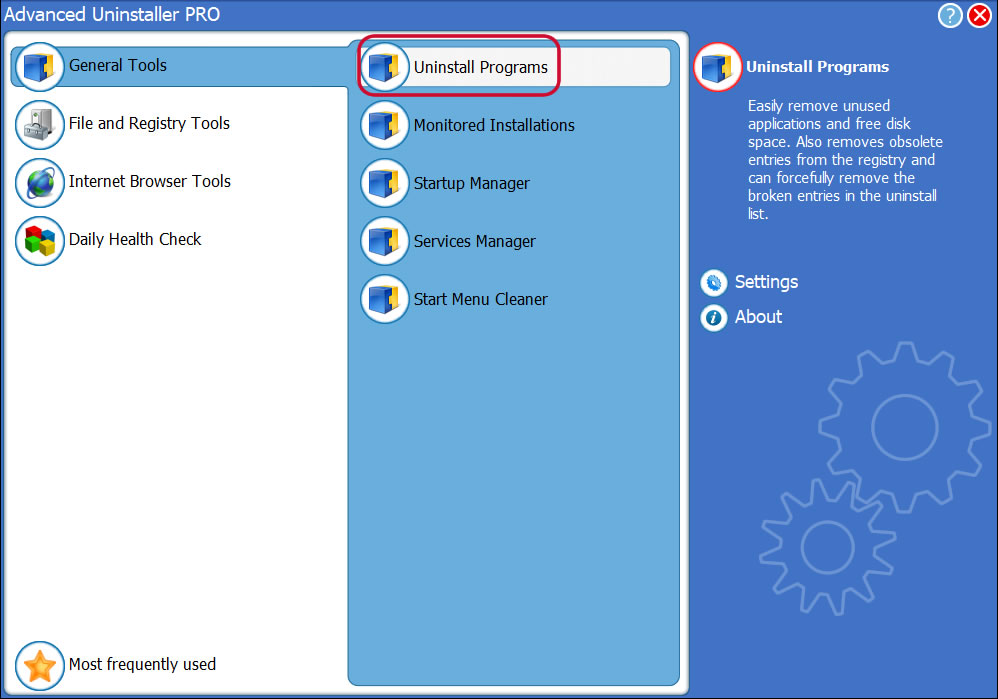
4. Click on the Uninstall Programs button
5. A list of the programs existing on your computer will be shown to you
6. Navigate the list of programs until you find GService or simply click the Search field and type in «GService». The GService application will be found very quickly. Notice that after you select GService in the list of apps, the following information regarding the program is shown to you:
- Safety rating (in the left lower corner). This tells you the opinion other people have regarding GService, from «Highly recommended» to «Very dangerous».
- Reviews by other people — Press the Read reviews button.
- Details regarding the program you want to remove, by clicking on the Properties button.
- The publisher is: http://www.GIGABYTE.com
- The uninstall string is: MsiExec.exe /I
8. After removing GService, Advanced Uninstaller PRO will ask you to run an additional cleanup. Press Next to start the cleanup. All the items that belong GService that have been left behind will be detected and you will be asked if you want to delete them. By uninstalling GService using Advanced Uninstaller PRO, you can be sure that no registry entries, files or directories are left behind on your disk.
Your computer will remain clean, speedy and able to run without errors or problems.
Disclaimer
This page is not a recommendation to remove GService by GIGABYTE from your computer, we are not saying that GService by GIGABYTE is not a good application for your computer. This page simply contains detailed info on how to remove GService in case you decide this is what you want to do. Here you can find registry and disk entries that our application Advanced Uninstaller PRO stumbled upon and classified as «leftovers» on other users’ computers.