Force Delete vSAN Datastore from ESXi Host
VMware vSAN provides an incredible technology that allows combining local storage from multiple ESXi hosts to form logical storage for both virtual machines and modern technologies such as containers. With VMware vSAN 7.0 Update 2, VMware has continued to push the envelope of what the technology can do with improvements across the board. In a home lab environment or even in production, you may find the need to evacuate an ESXi host and get rid of the vSAN partitions on the local disks. I ran into an issue the other day with a disk failure on a lab host that did not allow getting rid of the disk group, etc. I wanted to walk through how you can *easily* force delete vSAN datastore from ESXi host which allows either reclaiming the disks for traditional VMFS datastores or re-adding the host back to the vSAN cluster. again if you had issues with the disk group in general.
vSAN Disk Group architecture
VMware vSAN architecture has two tiers of storage – a cache tier and a capacity tier. The caching tier is used for read caching and write buffering. The capacity tier is persistent storage, housing your virtual machine objects. This layout offers tremendous performance advantages and still maintains a resilient and robust storage infrastructure for your VMs.
One of the logical components to understand with VMware vSAN architecture is the concept of the disk group. The disk group’s purpose is to manage the logical link between the capacity and cache tiers. Understanding the various components of the disk group helps to understand the way vSAN storage and accesses the data. Consider the following:
- Every ESXi host in a vSAN-enabled vSphere cluster will contain at least 1 disk group
- Disk groups have 1 cache device and up to 7 capacity drives.
- vSAN hosts can have up to 5 disk groups with 7 capacity drives each which equals 35 capacity drives.
- In either the all-flash or hybrid configurations, the cache device must be a flash disk
- Hybrid configurations use the cache disk in a (70% read cache and 30% write cache allocation). In all-flash configurations, the cache disk is a dedicated 100% write buffer.
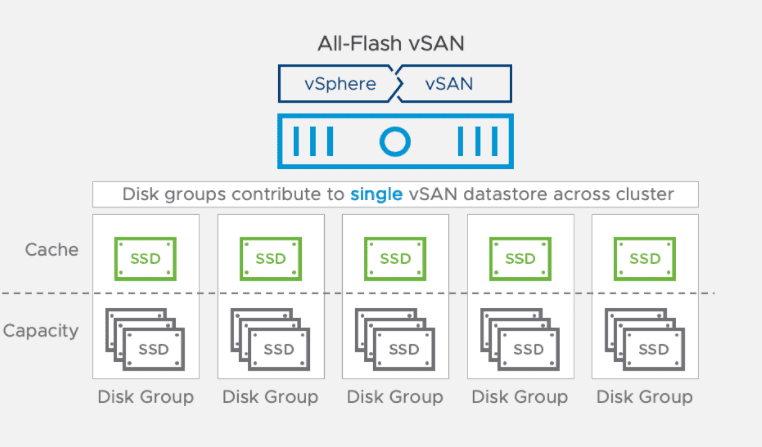
Architecture overview of the vsan disk group with cache drives
Below is a look at an ESXi host in a vSAN-enabled vSphere cluster and the Storage Devices installed.
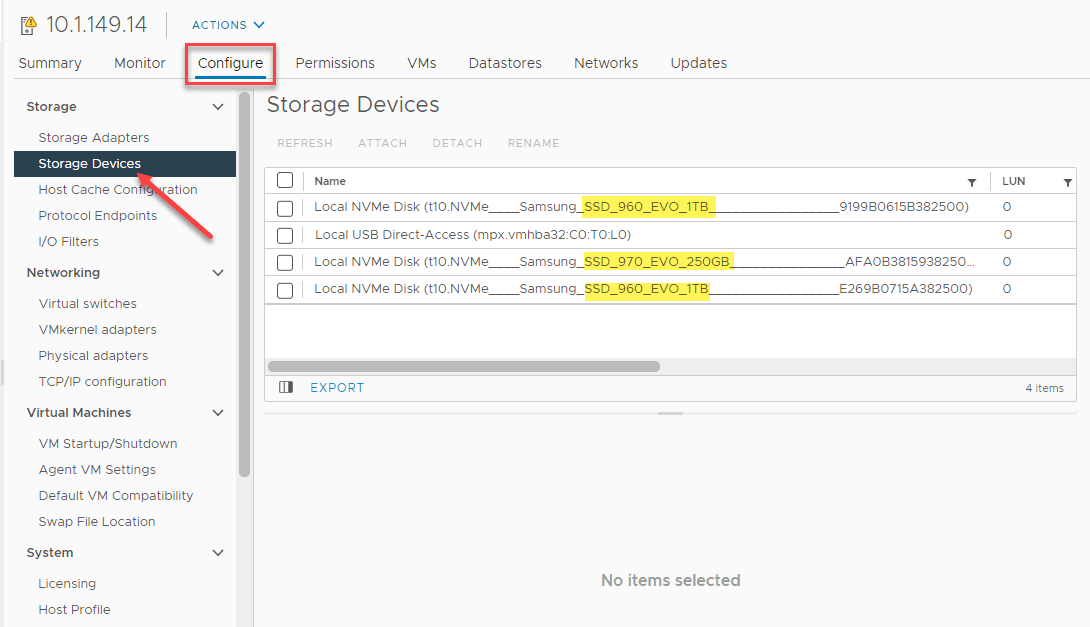
Individual drives making up a vsan esxi host disk group
To view the disk group configuration, you can navigate to the properties of the vSAN cluster > Configure > vSAN > Disk Management. Then, click on the disk group for the particular vSAN ESXi host you want to look at. The Disk Group properties does a good job of detailing and showing which disks are used for which purpose.
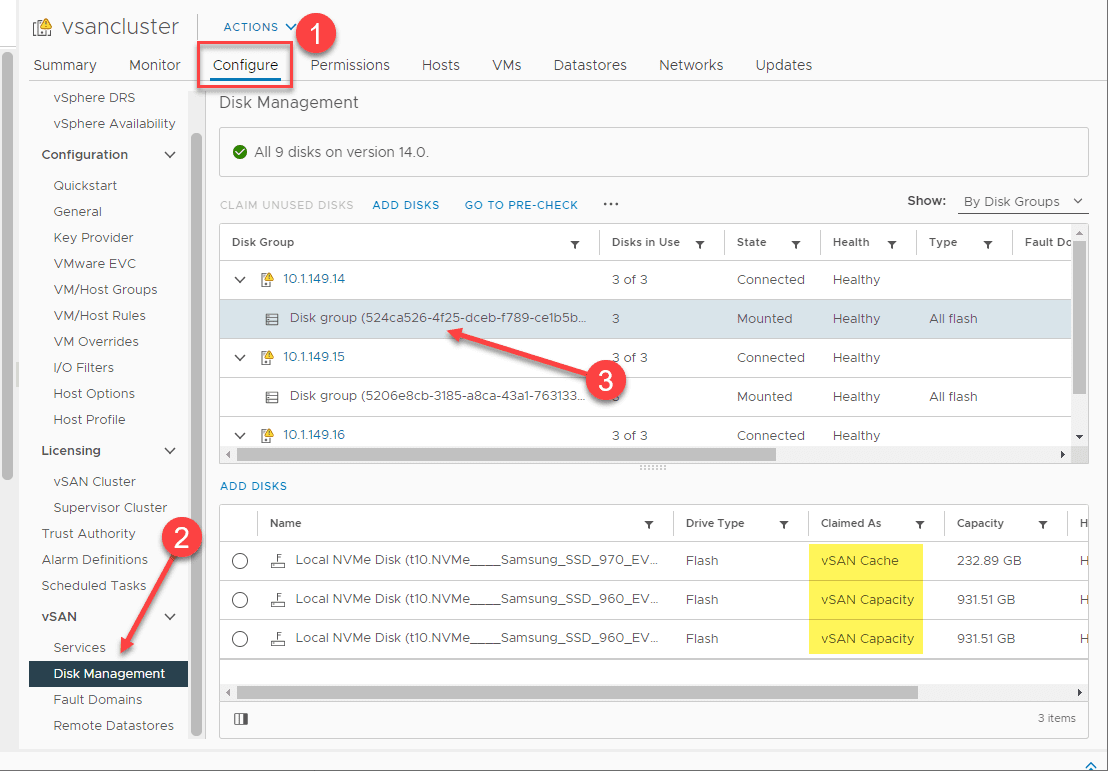
Viewing the disk group configuration in a vsan cluster
Delete vSAN Datastore from ESXi Host
You might think that it would be super easy to delete a vSAN datastore from an ESXi host. However, VMware has put safeguards in place that doesn’t make it super straightforward to just simply “right-click, delete” kind of operation. To demonstrate this. I have put a lab host into maintenance mode. I first went in and tried to erase partitions from the disks.
After placing a host into maintenance mode, I went to the host > configure > storage devices > erase partitions.
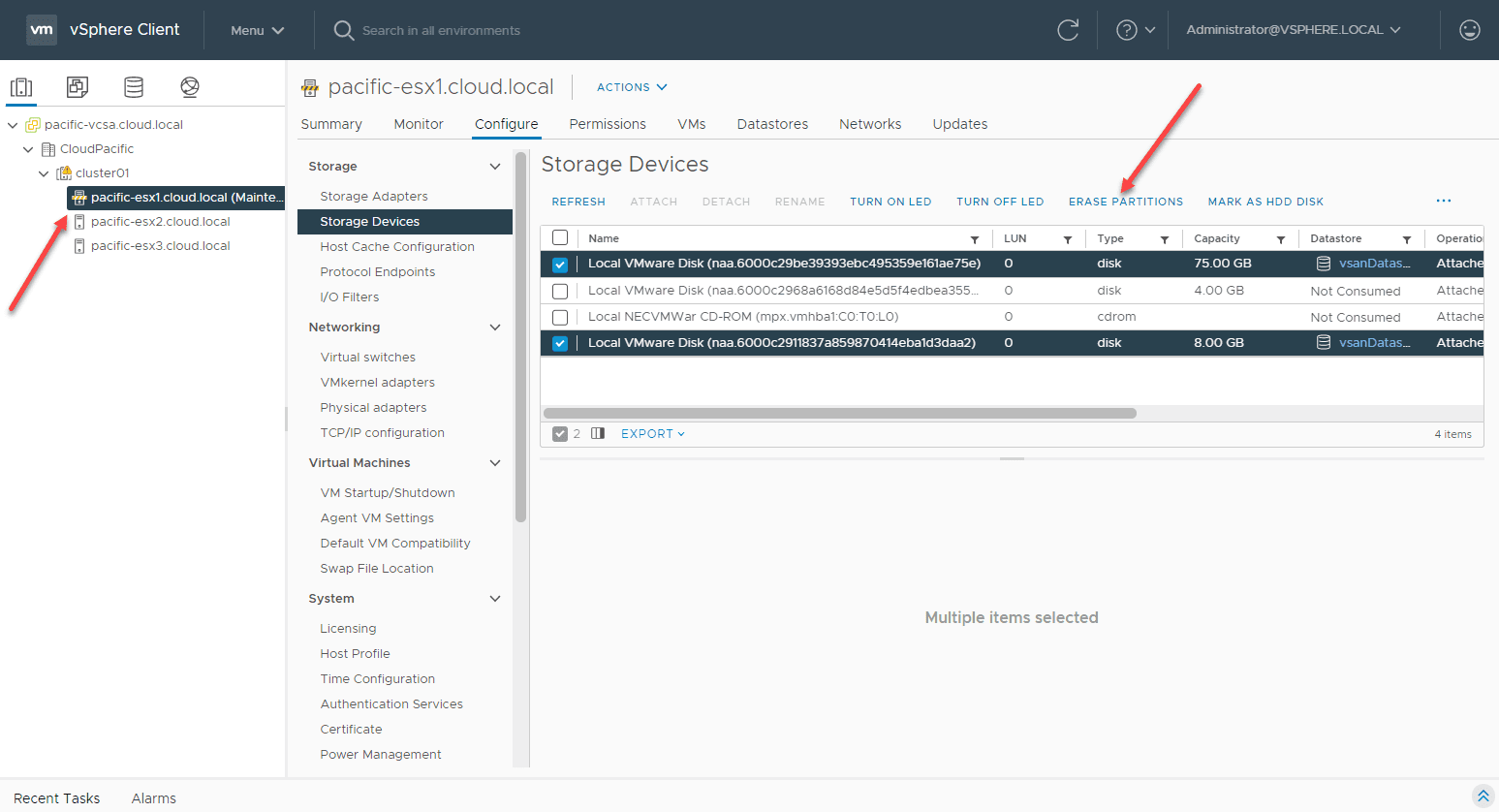
After placing a vsan host into maintenance mode and trying to erase vsan partitions
It asks to confirm the partitions erase.
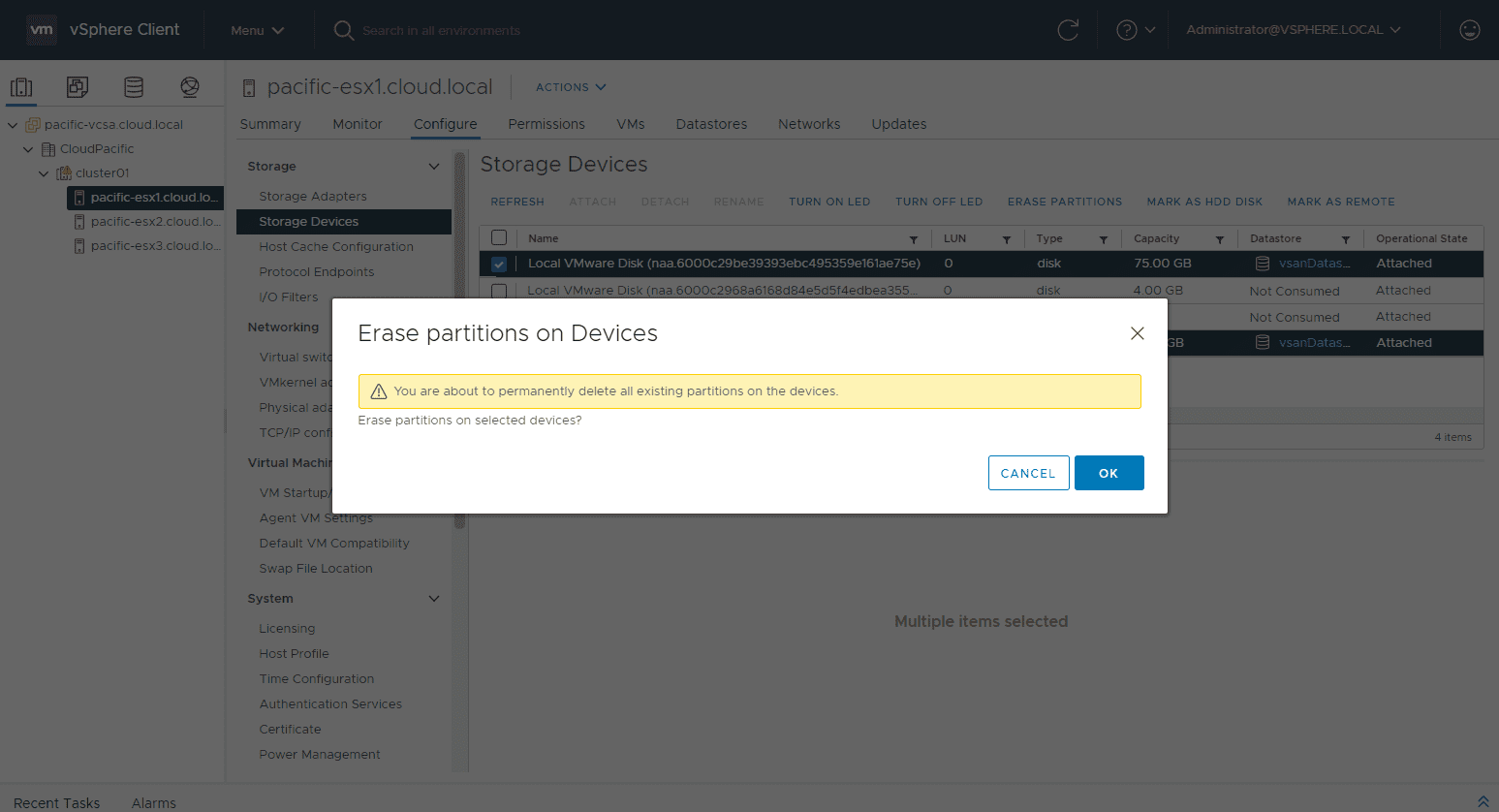
Confirming to erase vsan partitions
Even in maintenance mode, the process errors out.
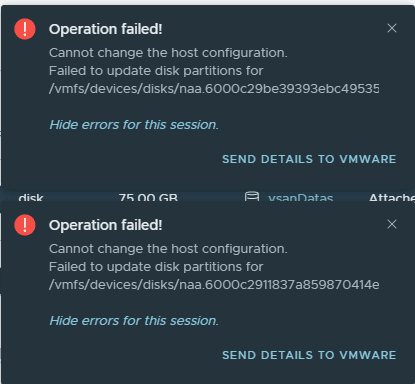
Error trying to erase vsan partitions even in maintenance mode
I didn’t grab screenshots of this, but trying to delete the disk group for the particular host shows the disk group/host is in use with a similar error to above. Let’s see if we can remove the host from the vSAN cluster if it is in maintenance mode.
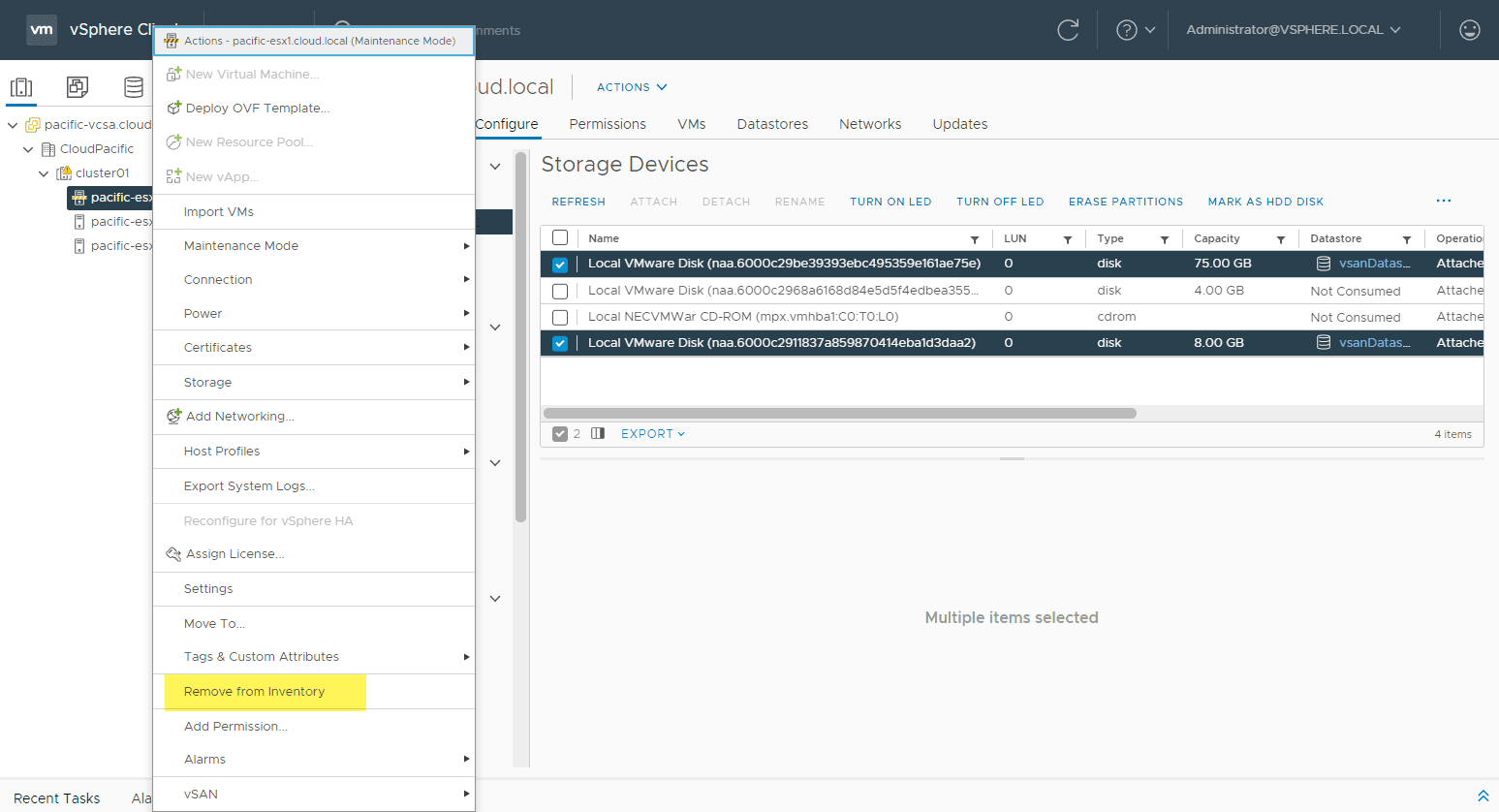
Trying to remove the host from inventory does not work
This operation fails as well.
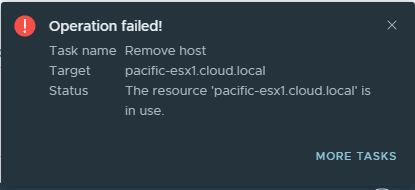
Removal from vsphere inventory fails
After rebooting the host, I was able to Remove from inventory.
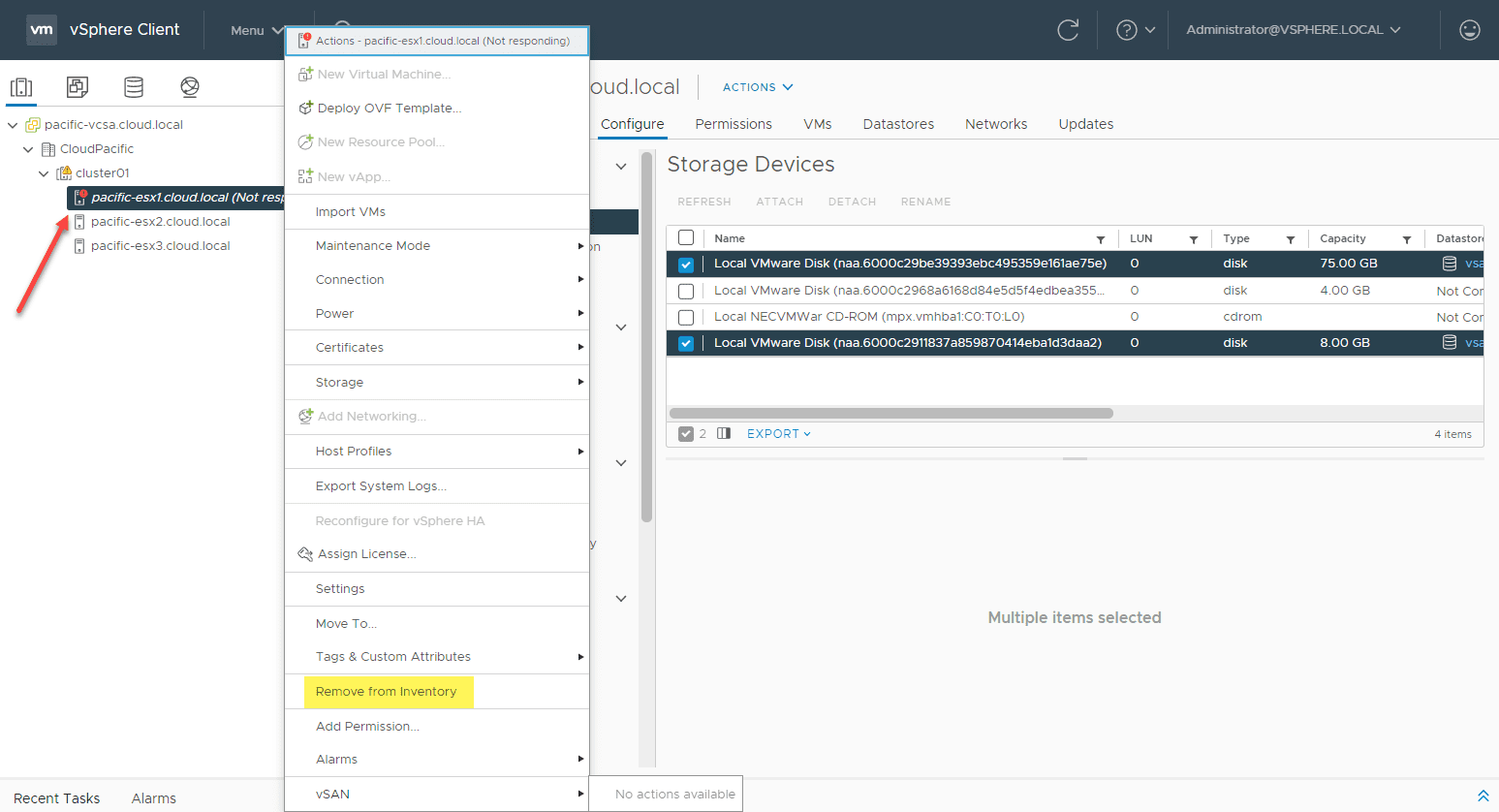
You can only remove the host if it is not responding
Now, the vSAN ESXi host is removed from the cluster. I now only have the remaining two ESXi hosts in the cluster.
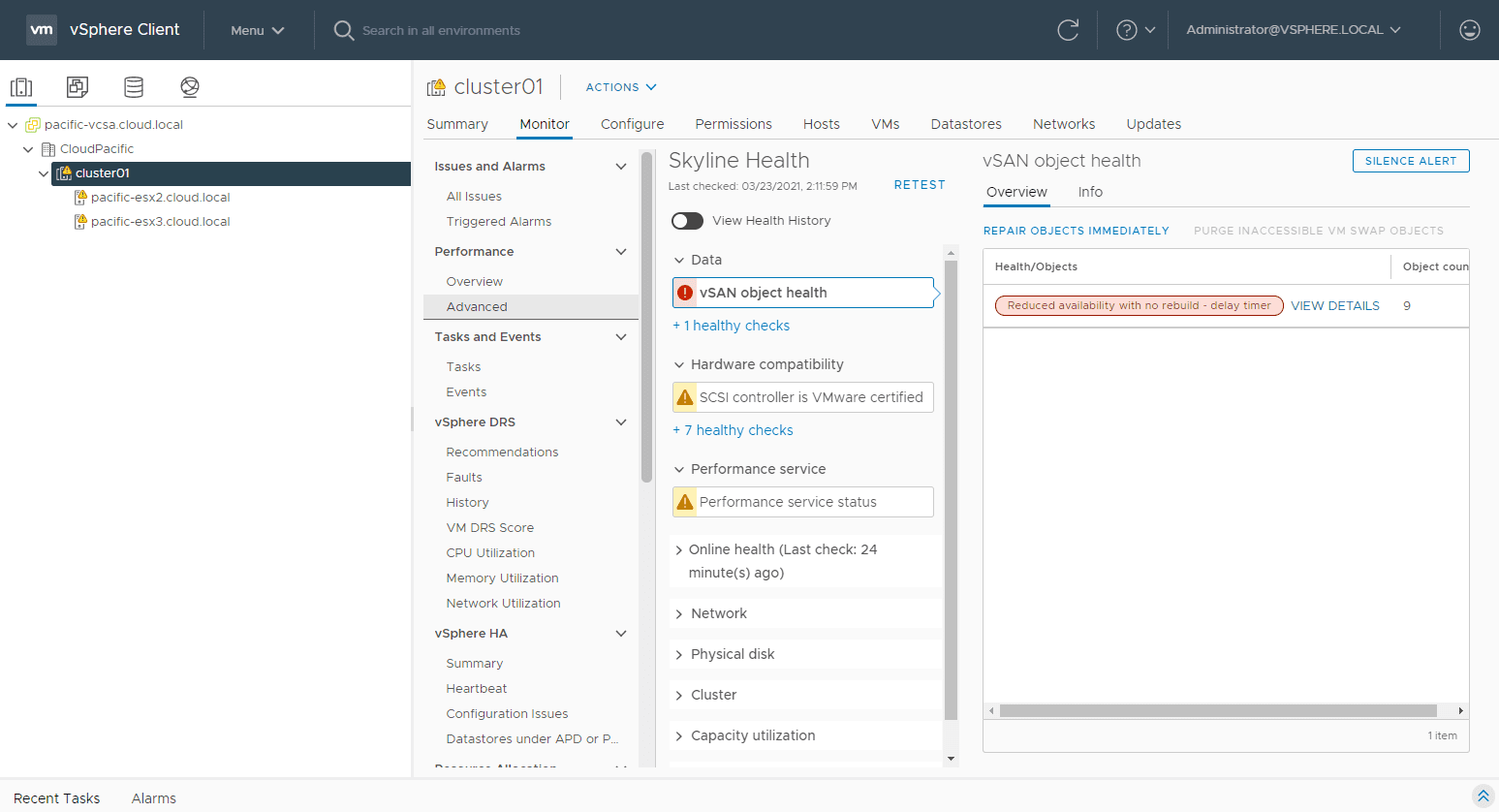
Host is successfully removed
Now that we have the host removed from the vSAN cluster from vCenter, let’s see if we can simply erase the partitions on the vSAN disks. This is logged in directly to the ESXi host via the host UI. Click Storage > Actions > Clear partition table.
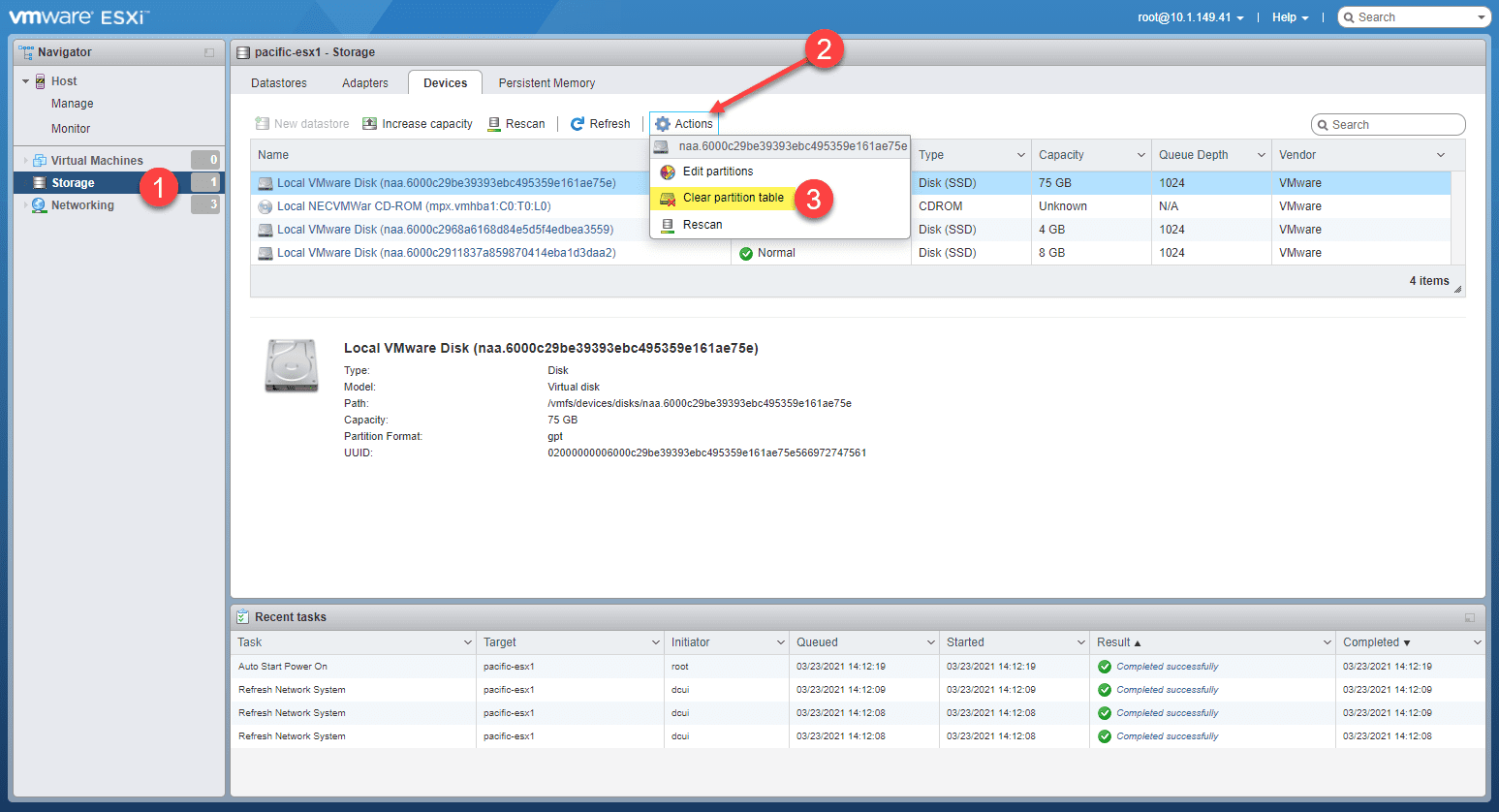
Attempting to clear partitions after host is removed from the host ui
You will get the confirmation for erasing the partitions.
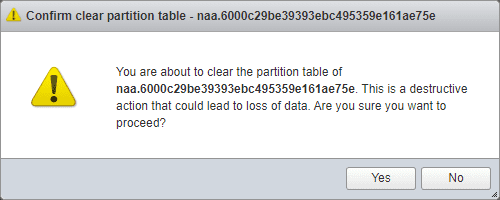
Confirm deleting the vsan partitions from the host ui
The operation fails to remove the partitions even in the host UI.
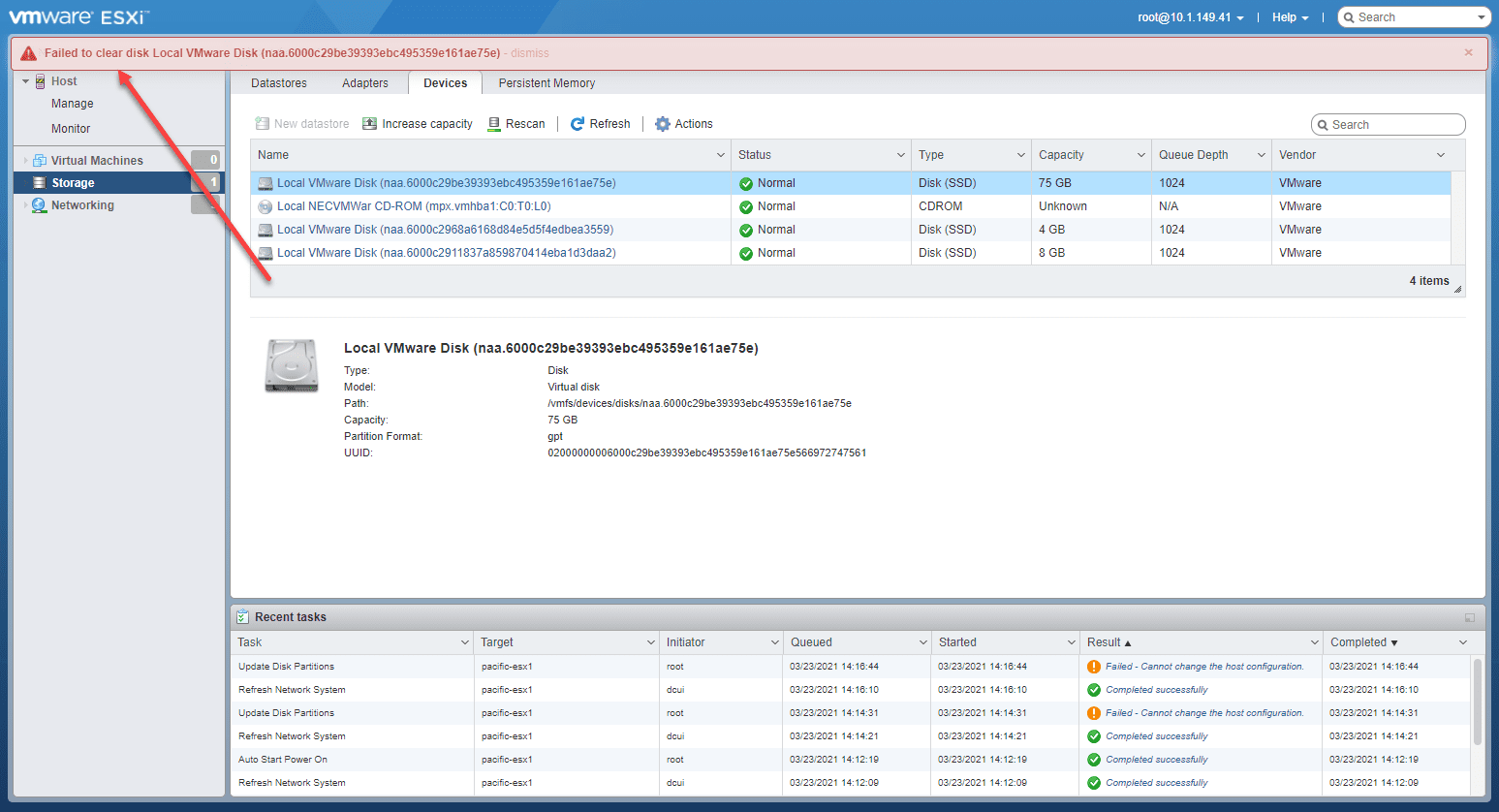
Failed to delete the partitions from the host ui
OK, let’s get serious and get down to the command line. Even though we removed the ESXi host from vCenter, it still thinks it is joined to the vSAN cluster. The first thing I did was use the command:
This will remove the host from thinking it is part of the vSAN cluster. The get command simply validates it is no longer a part of a vSAN cluster.
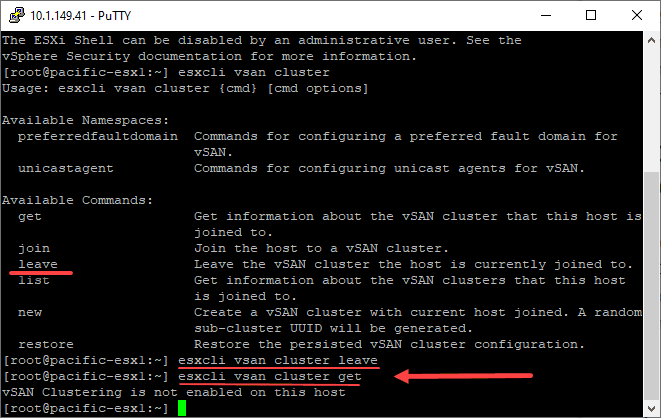
Leaving the vsan cluster from the command line
However, after trying to delete the partitions after simply leaving the vSAN cluster through the esxcli command, erasing the partitions still fails. Let’s remove the storage from the vSAN host. To see which storage is a part of the vSAN allocated storage on the host, you can use:
This shows the disks that are allocated to vSAN storage and the disk group they belong to.
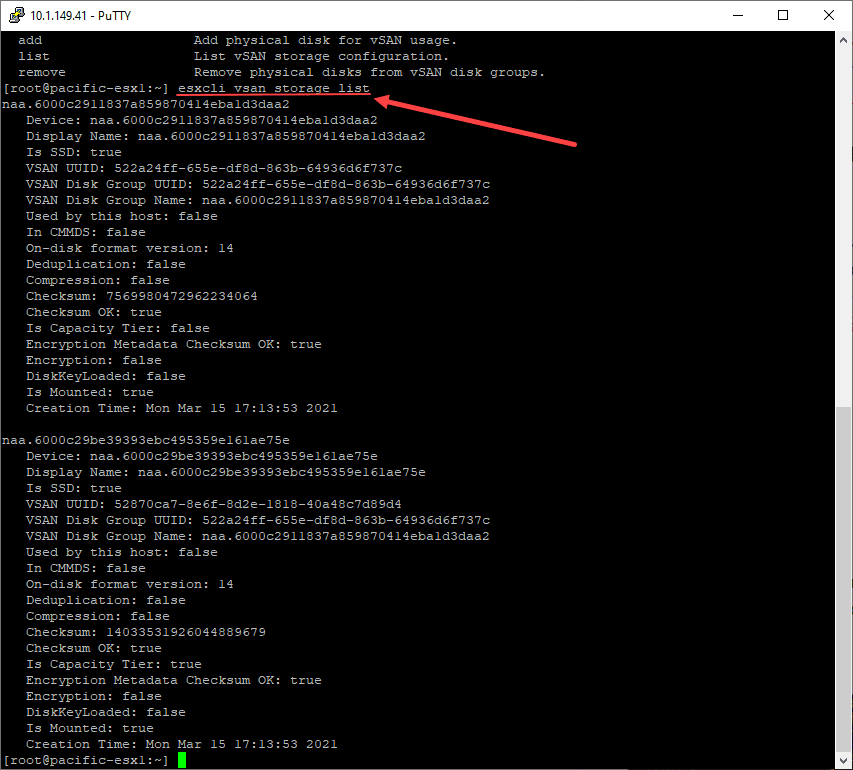
Viewing storage allocated to vsan
Ok, you can remove vSAN storage by disk, ssd, or UUID. I chose to use the UUID of the disk group. Just use the command:
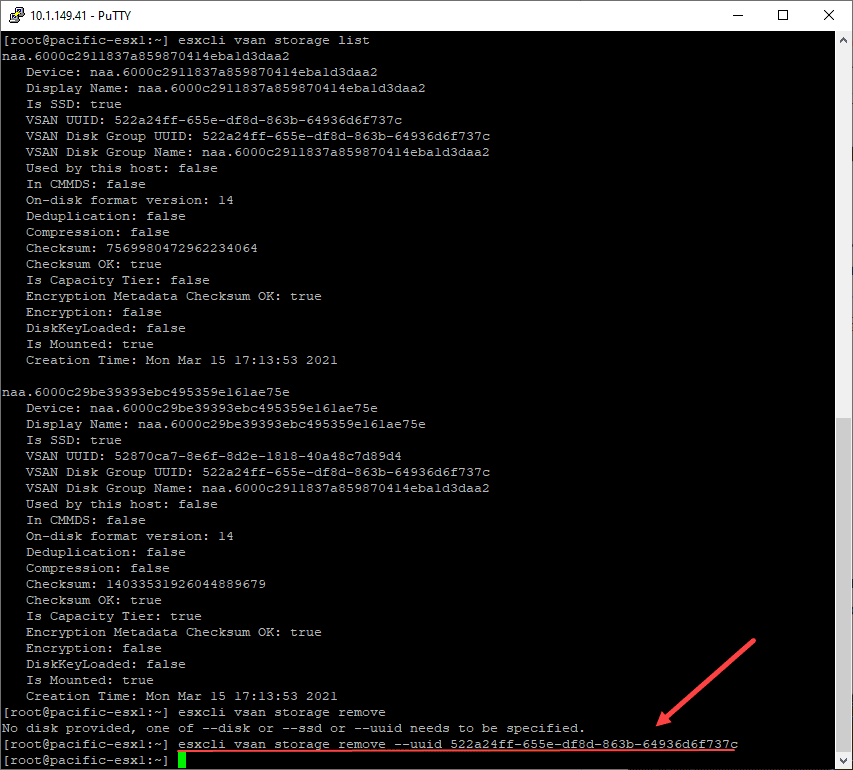
Removing storage allocated to vsan using the esxcli command line utility
Once the storage is deleted, I tried to erase vSAN partitions. Success! The Force Delete vSAN Datastore from ESXi Host is successful. The partitions delete successfully.
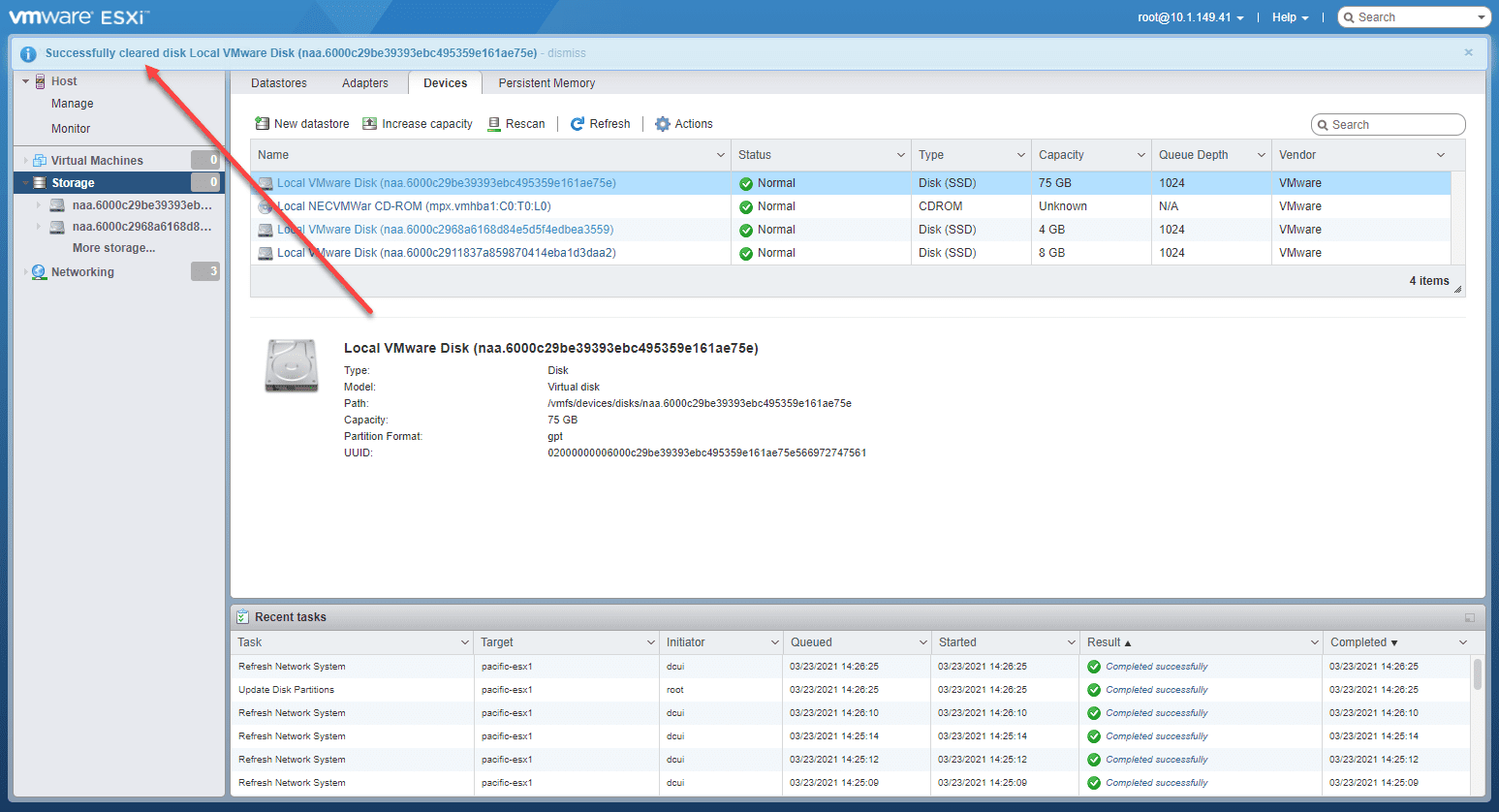
Clearing the partitions on the esxi host is now successful
Now, when looking at the storage from the host UI, there are no datastores appearing. Before the vsandatastore was showing.
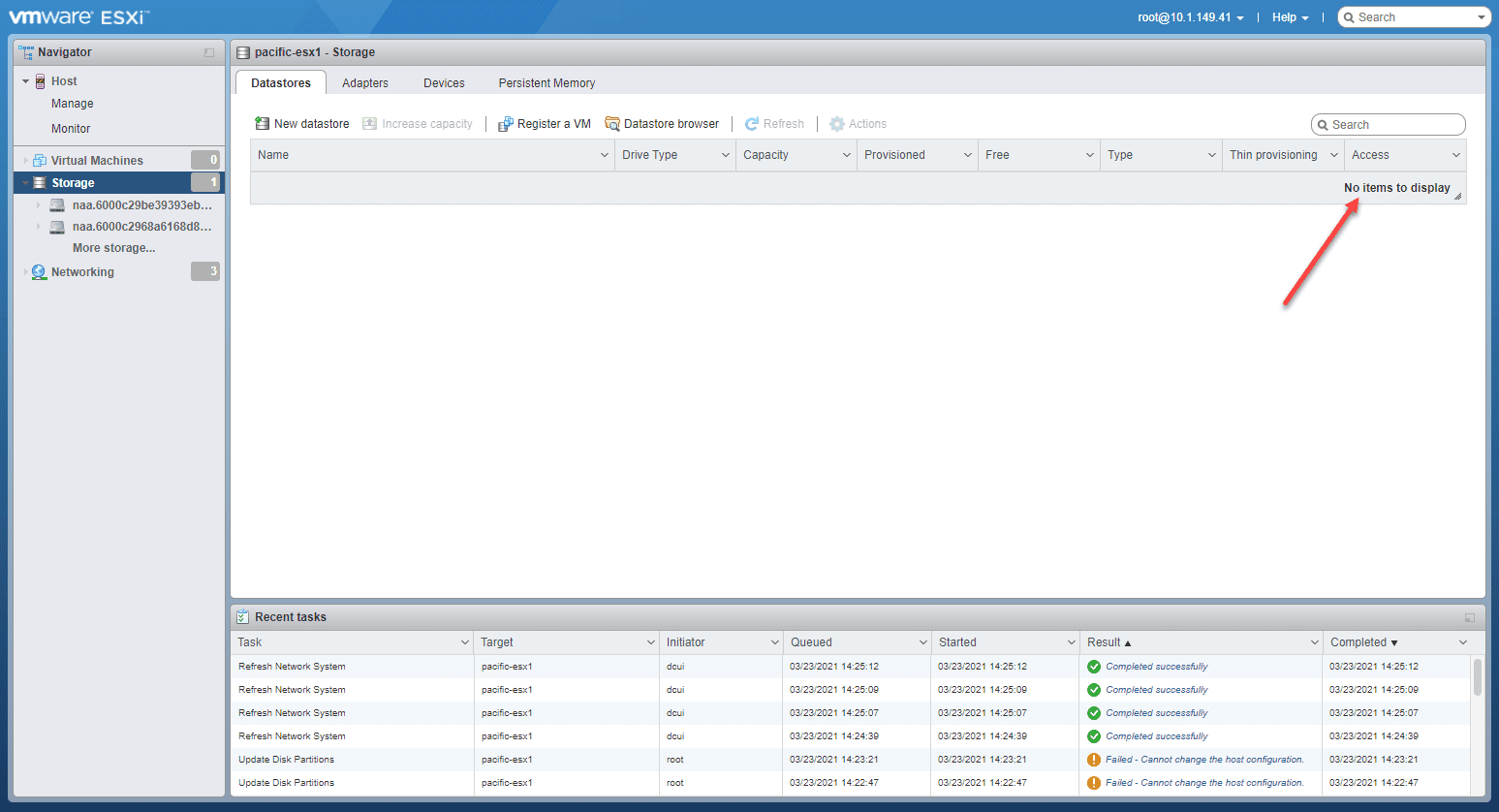
No vsan datastores are now listed on the host
Adding the ESXi host back to the vSAN Cluster
If you run into trouble trying to delete the vSAN datastore from an ESXi host that was part of a vSAN cluster, the ESXCLI command-line tool is your friend in this case. There are many safeguards in place that keep you from simply deleting a host from vSAN or deleting the disk group, or even erasing partitions on a vSAN claimed disk. However, using esxcli vsan storage remove, you can Force Delete vSAN Datastore from ESXi Host and reclaim the host for other purposes.
How to Remove a Datastore
I figured I’d write up a quick little help guide on removing a Datastore. Now this isn’t new and likely to be buried on the internet because of it. However in my searches I have found the following sources to be great reads. I highly recommend you check them out.
Now let’s go through the checklist from the official source one by one.
Check List
- If the LUN is being used as a VMFS datastore, all objects (for example, virtual machines, templates, and Snapshots) stored on the VMFS datastore must be unregistered or moved to another datastore.-This one is pretty easy navigate to the datastore files and check. You may find some remanence from the following though.
- All CD/DVD images located on the VMFS datastore must also be unmounted/unregistered from the virtual machines.-This shouldn’t even be the case if you did check one.
- The datastore is not used for vSphere HA heartbeat.-This setting will use a folder labeled “.vSphere-HA”
For a Quick overview of Datastore Heart beating See here
To “remove” aka change them See here - The datastore is not part of a datastore cluster.-You can find useless help on this process from VMware here. I’m assuming it’s an easy task via the WebUI
- The datastore is not managed by Storage DRS.-If you removed it from the datastore cluster, how could this be an issue?
- The datastore is not configured as a diagnostic coredump Partition/File and Scratch Partition. For more information, see the following: -This is very important, glad the official guide covers it. Neither Mike or Sam seemed to have covered this part. I was able to notice this simply from again verifying the first item in the Checklist. You’ll notice this stuff if you are actually validating the files that reside on the datastore to ensure nothing is there.
Datastore Removal Steps
Step 1) Follow the Checklist above.
Make sure no files reside on the Datastore.
Step 2) Unmount Datastore from all ESXi hosts.
As noted by SAM blog post even in vSphere 5.x using the C# phat client, this was possible to do via a wizard against all hosts that have the datastore mounted. Even on the newer HTML5 WebUI this is still possible (I think everyone wants to fully forget that VMware chose flash for a short time).
At this point the Datastore will show up as inaccessible to vSphere. As noted by both Mike and Sam. This will be the same anywhere from 5.x-7.x (As noted by Mike it might be slightly more important to follow procedures with earlier versions of ESXi 3 or 4). If the Check list was followed, there should be no issues unmounting the datastore.
If you need to do this via esxcli (Source):
Unmount the datastore by running the command:
For example, use one of these commands to unmount the LUN01 datastore:
Step 3) Detach the LUN from all hosts.
As noted by Sam, if you are on 5.x you might want to automate this via PowerCLI. Then noted by Mike, newer 7.x can now do this in bulk via the Management WebUI.
6/7 WebUI -> Hosts n Clusters -> Hosts -> Cluster -> Host -> Configure Tab -> Storage Device (left side tree) -> Highlight Device -> Detach
Obtaining the NAA ID of the LUN to be removed
To detach the device/LUN, run the command:
6. To verify that the device is offline, run the command:
The output, which shows that the Status of the disk is off.
Step 4) Rescan HBAs
At this point, if you rescan all HBAs on all hosts the inaccessible datastore should be gone from the WebUI.
At this point you can remove the LUN from being seen (disc from showing up under devices) this will either be iSCSI based configurations (remove static and dynamic IPs from the iSCSI initiator settings on each host.) Mostly likely for a shared VMFS datastore.
It could be a local disc over a local storage controller (such as a logical drive created in RAID) such as behind a Pxxx storage controller.
Removing the source device will always be dependent on how it was configured in the first place.
Summary
So today we covered removing a Datastore. The important thing to remember is removing a Datastore takes a lot more steps than removing one, cause so many different VM’s and services can be applied to a datastore once it has started being used.
In many cases, the SysLog and Scratch partition are big hang ups, and should be looked at closely. Which, however, as stated if you are actually checking for files on the datastore this stuff will be pretty evident.
In most cases, ensure you follow the check list and the process should be pretty smooth. Hope this helps someone.
*Note* I often provide screen shots to provide some context, in this case I decided to leave it more generic to span multiple versions of vSphere.
How to Delete vSAN Datastore Correctly
A simple note to delete vSAN datastore from ESXi host while it’s not parts of the cluster. The error “Found host(s) esxi.mydomain.lab participating in the vSAN service which is not a member of this host’s vCenter cluster“, indicates that the host is still a member of vCenter cluster.
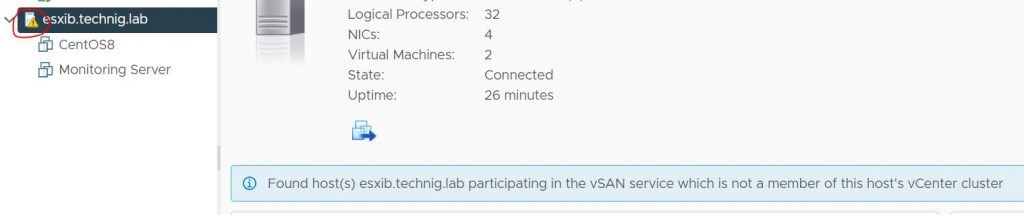
The issue comes out when I was playing with vSAN configuration on vShpere 7. I’ve deleted the cluster without removing the cluster hosts properly.
Delete vSAN Datastore in ESXi Host
It’s not possible to delete a vSAN datastore from Datastore section of ESXi host. I’ve tried but the Delete button was false.
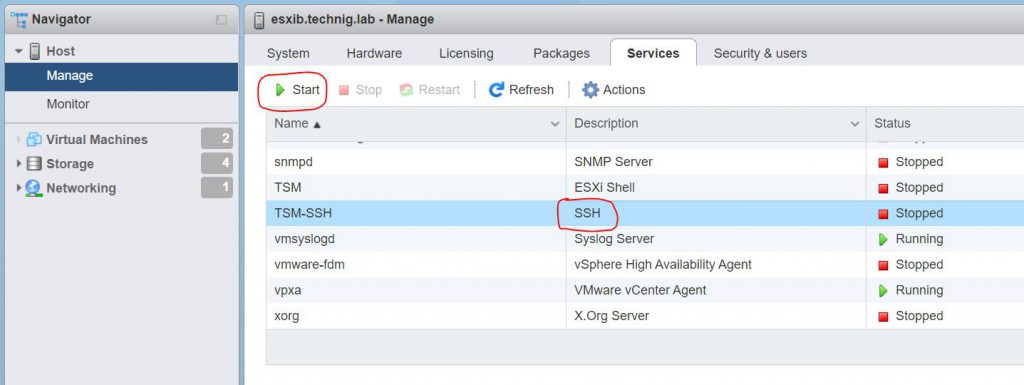
Make sure the SSH is enabled and you are able to connect to ESXi host via SSH.
You can enable ESXi SSH through vCenter as well.
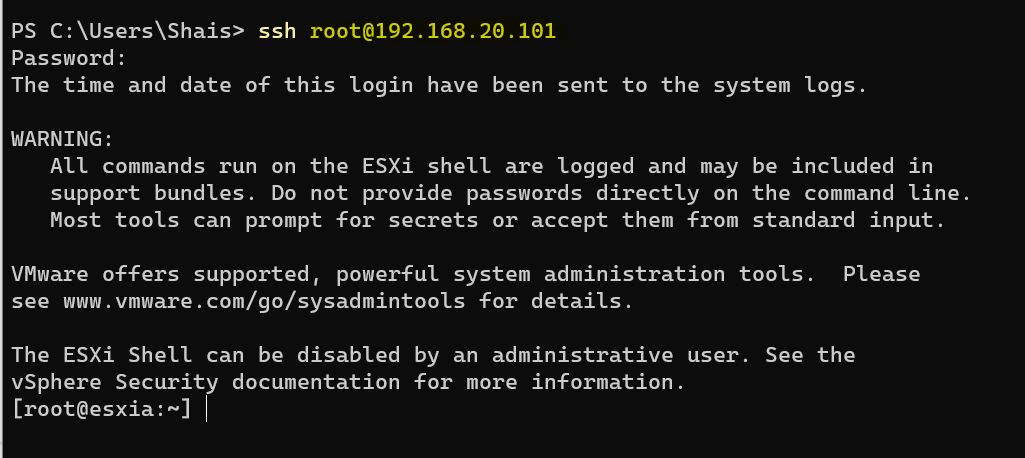
Now, type the following command to check out the vSAN Datastore.
If you have any storage linked to vSAN, delete it with the following command. Make sure you select the right UUID of the vSAN Datastore.
The command will list all the vSAN mounted storage on ESXi host. If you don’t have any mounted datastore like my lab, just type the following command to remove the host from vSAN cluster.

Remove ESXi Host from vSAN Cluster – Delete vSAN Datastore
The task has been completed. Now you should have a healthy ESXi host with any notifications or the “Found host(s) esxi.mydomain.lab participating in the vSAN service which is not a member of this host’s vCenter cluster” error.
I hope this has been informative and solved the issue you have with your VMWare vSphere Lab. If you want more about vSAN Datastore and Disk group.
How to remove inactive datastore from vSphere 6.0?
I followed this vmware guide to remove a storage device and replace with another. Everything worked fine apart from the fact the the datastore still show on the list as inactive. During the procedure I’m supposed to:
- unmount the datastore
- detach storage device
- make sure it detached with esxcli storage core device detached list
- permanently remove device config with esxcli storage core device detached remove -d naa.xxxx
I had another one to remove and managed to figure out how to do it correctly by adding another step after 2
2.1 Click inactive datastore -> Actions -> Delete Datastore
Does anybody know how to remove this inactive ghost datastore? I actually want to use the same name for the new datastore so can’t really turn my blind eye on it.