VMware Tools
VMware Tools — это набор утилит, который повышает производительность гостевой операционной системы виртуальной машины и улучшает управление виртуальной машиной [1] . Если в виртуальной машине не установлен данный набор утилит, то в гостевой операционной системе отсутствуют некоторые важные функции и возможности.
Содержание
[править] Для чего нужно устанавливать VMware Tools
Установка VMware Tools устраняет или улучшает следующие проблемы гостевых систем:
- Расширенная поддержка управлением памятью (например, ballooning)
- Низкое разрешение видео
- Недостаточная глубина цвета
- Неправильное отображение скорости сети
- Ограниченное движение мыши
- Невозможность выполнить копирование и перенос методом drag’n’drop
- Отсутствие звука
[править] Компоненты VMware Tools
VMware Tools включает в себя следующие компоненты:
- VMware Tools service
- VMware device drivers
- VMware user process
- VMware Tools control panel
Набор утилит VMware Tools поставляется в следующих форматах:
- ISO-образ — предоставляет собой файл ISO для каждого типа поддерживаемых гостевой операционной системы: Windows, Linux, NetWare, Solaris и FreeBSD.
- Operating System Specific Packages (OSPs) — загружаются и устанавливаются из командной строки на сервере ESX. Доступно в качестве отдельного загружаемого пакета, который являются специфическими для каждой поддерживаемой операционной системы. OSPs являются альтернативой существующим механизмом для установки VMware Tools и поддерживается только в Linux системах, работающих на ESX.
[править] Как устанавливать VMware Tools?
В разных дистрибутивах GNU/Linux необходмо установить (если их нет) следующие пакеты:
Установка VMware Tools в дистрибутивах семества Debian
Установка VMware Tools в Gentoo
Наиболее оптимальный вариант — установка Open Source версии гостевых утилит с помощью системы портежей:
Установка VMware Tools в Oracle Linux
Добавляем резпозитории (если их нет), для Oracle Linux 4, Update 6
Для Oracle Linux 5
Для Oracle Linux 6
Для Oracle VM 2
Устанавливаем необходимые пакеты (если их нет):
Иногда инсталятор не находит путь к заголовкам ядра, путь можно указать вручную (для RHEL и его клонов)
После того как все нужные пакеты установлены, подключаем к виртуальной машине образ с установочными файлами (Guest — Install/Upgrade VMware Tools)

Монтируем CD-ROM, распаковываем содержимое архива с установочными файлами во временную директорию и запускаем мастер установки:
What Is VMware Tools, and Why Is It Needed?
If you have worked with virtual machines, then you are familiar with the VMware icon that lives in your system tray. That little icon represents something called VMware tools. VMware tools can be downloaded from VMware’s website, or they may already reside on your VMware vSphere ESXi host, depending on which ISO you used to instal VMware vSphere ESXi. You may not have thought much about the VMware tools icon, since it lives on every VMware virtual machine, but VMware tools are essential for virtual machines.
We are going to talk about how two install VMware tools for Windows based machines, as well as how to install VMware tools for Linux, but before we do, let’s take a look at why VMware tools is so important.
Want to learn all about VMware vSphere? Check out the VMware Basics page!
What Is VMware Tools?
This small software package developed by VMware is installed on virtual machines running on the ESXi hypervisor. Have you ever deployed a virtual machine from an ISO image to find it just is not acting correctly?
Perhaps you have encountered issues with your mouse, or resolution issues in the virtual machine. Chances are you then installed VMware tools and your problems went away.
In the physical world, with servers or even laptops, we often must install specific hardware drives provided by the equipment vendor. Since VMware abstracts the physical hardware underneath the hypervisor, or virtual machines do not care what hardware is underneath them, even if it is changed.
Hardware specific drivers are usually related to the annoyances we just talked about, like choppy video or sound, so we still need some sort of replacement for them. VMware tools is that replacement. Think of VMware tools as the replacement for the hardware drivers provided by hardware vendors.
Sure, those things are annoying, and VMware tools makes our life easier by fixing those problems, but they are for more than just that.
Why Is VMware Tools Needed?
Besides the annoyances we just talked about, VMware tools also provides additional functionality. Remember, hardware abstraction is just one benefit of virtualization. There are many many benefits, another which is the ability to take a snapshot of a virtual machine.
When we take a snapshot, we are taking a point in time picture of our virtual machine. We can revert to the original and discard the snapshot if something goes wrong, like a bad patch or failed application upgrade. However, how do we make sure that picture does not come out cloudy, or is not overexposed?
This is another place VMware tools comes in. According to the VMware tools KB, another key feature of VMware tools is “the ability to take quiesced snapshots of the guest OS”. Quiescing is a fancy way of saying VMware tools makes sure no one is moving in the picture and it doesn’t come out fuzzy.
To really make sure our picture is not fuzzy, we do need more a bit more pausing than this. While VMware tools’ quiescing will take care of many things, it will not take care of the application specific things it cannot sense. Never fear, there are other ways to do this, and you can find a great overview of how to make sure your virtual machine is in a consistent state for snapshots and backups here.
For more information on what VMware tools can do, be sure to check out VMware’s official KB on VMware Tools.
How to Install VMware Tools
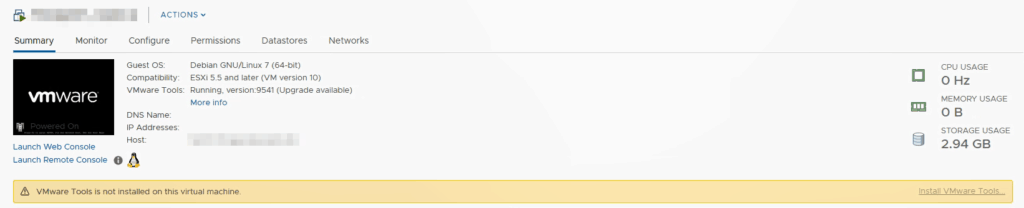
Installing VMware tools could not be easier. When you use the VMware vSphere Client, VMware vCenter server is nice enough to tell you VMware tools is not installed as follows:
Similarly, vCenter will also tell you when there is a VMware tools upgrade available.
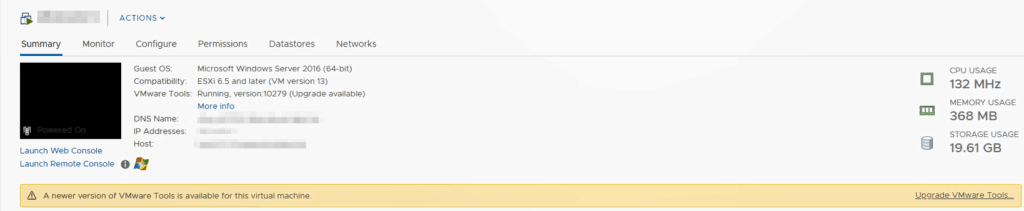
You can upgrade by clicking the Upgrade VMware Tools… button or by using VMware vSphere Update Manager.
After you click install or upgrade, you can continue the installation in the Guest OS. It is a good idea to always make sure you have installed VMware tools on any virtual machine templates you are deploying so you do not have to continue to do this process every time you create a new virtual machine.
How to Install VMware Tools for Linux
As you can see by extracting the VMware tools ISO, VMware has not forgotten the linux virtual machines.
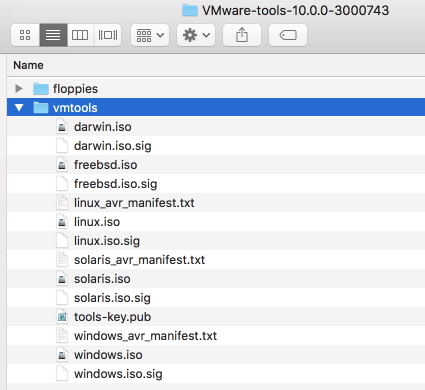
Installing VMware tools for Linux is as easy as it is for Windows, in the past, this was not always the case. You can use the above process, or another method if you prefer.
If you want to install VMware tools on linux, and you are cringing at the methods above, have no fear, VMware has something very special for you, especially if you are not a linux GUI person.
Open-vm-tools, also referred to as openvmtools and open vm tools, is just that, VMware tools ready for you to deploy into your favorite open source linux product. While the name of open my make you wonder where it is coming from since it is such an important part of a virtual machine, you can find it on VMware’s GitHub Repo.
You can also find an official article about open-vm-tools on the VMware KB here, however the great news for linux users it is distributed with many linux distributions since linux servers are so commonly deployed as virtual machines these days.
For example, if you are looking to install VMWare tools on Ubtuntu, it has been included in the main repository since version 14.04. To install VMware tools in Ubuntu, you just need the following command:
sudo apt-get install open-vm-tools
You can find more information about VMware tools for Ubuntu on the Ubuntu site.
More on VMware Tools for Linux – Yum Install VMware Tools
If you are familiar with yum, you may be asking yourself how you can use it to install VMware tools. Yum is the go-tool tool for installing packages with RPM – that’s RPM Package Manager (which used to be called RedHat Package Manager).
This is the tool to use if you are using RHEL, RedHat Enterprise Linux. You can also use this method to install VMware tools on CentOS.
You will need the VMware package repository, which is located at http://packages.vmware.com/tools. You can browse this directory to find the exact version of VMware tools you are seeking, then install it using the yum command.
Updating VMware Tools
New VMware tools versions are released with new versions of ESXi for one. Additionally, they may be offered as a standalone patch when the new version of VMware tools offers new features or bug fixes.
The simplest way to update VMware tools is to use VMware vSphere Update Manager. With vSphere Update Manager, you can schedule your VMware tools upgrade for the Virtual Machine’s next reboot, to avoid disruption and down time.
To learn how to do this, be sure to take a look at the article Updating VMware tools with vSphere Update Manager 6.7 U1.
The Importance of VMware Tools
VMware tools is an often overlooked but very important component to any VMware vSphere infrastructures. VMware tools is what allows our virtual machines to do what they do best – work for us! If you do not have VMware tools installed on a virtual machine, you are likely to see issues with resolution, keyboard, and mouse usage. If that is not annoying enough, you will also be missing out on great VMware tools features such as quiescing your virtual machines for snapshots. For more information on VMware tools, be sure to take a look at the official vSphere 6.7 documentation.

Melissa is an Independent Technology Analyst & Content Creator, focused on IT infrastructure and information security. She is a VMware Certified Design Expert (VCDX-236) and has spent her career focused on the full IT infrastructure stack.
Vmware tools что это
You are using an outdated browser. Please upgrade your browser to improve your experience.
VMware Tools is a set of services and modules that enable several features in VMware products for better management of guests operating systems and seamless user interactions with them.
VMware Tools has the ability to:
- Pass messages from the host operating system to the guest operating system.
- Customize guest operating systems as a part of the vCenter Server and other VMware products.
- Run scripts that help automate guest operating system operations. The scripts run when the power state of the virtual machine changes.
- Synchronize the time in the guest operating system with the time on the host operating system
VMware Tools Lifecycle Management provides a simplified and scalable approach for installation and upgrade of VMware Tools. It includes a number of feature enhancements, driver-related enhancements, and support for new guest operating systems.
You must run the latest version of VMware Tools or use open-vm-tools distributed with the Linux OS distribution. Although a guest operating system can run without VMware Tools, you must always run the latest version of VMware Tools in your guest operating systems to access the latest features and updates.
You can configure your virtual machine to automatically check and apply VMware Tools upgrades each time you power on your virtual machines.
For information about enabling automatic upgrade of VMware Tools on your virtual machines, see vSphere Virtual Machine Administration Guide
Installing VMware Tools
Although you can use guest operating systems without VMware Tools, many VMware features are not available unless you install VMware Tools. VMware Tools enhances the performance of the guest operating system of your virtual machines.
Installing VMware Tools is part of the process of creating new virtual machines. It is important to upgrade VMware Tools as updates become available. For information about creating virtual machines, see the VMware Tools User Guide .
The installers for VMware Tools are ISO image files. An ISO image file looks like a CD-ROM to your guest operating system. Each type of guest operating system, including Windows, Linux, Solaris, FreeBSD, and NetWare, has an ISO image file. When you install or upgrade VMware Tools, the first virtual CD-ROM disk drive of the virtual machine temporarily connects to the VMware Tools ISO file of your guest operating system.
For information about installing or upgrading VMware Tools in Windows virtual machines, Linux virtual machines, Mac OS X virtual machines, Solaris virtual machines, NetWare virtual machines, or FreeBSD virtual machines, see the VMware Tools User Guide .
Install VMware Tools from the VMware Host Client
VMware Tools is a suite of utilities that you install in the operating system of a virtual machine. VMware Tools enhances the performance and management of the virtual machine.
Procedure
- Click Virtual Machines in the VMware Host Client inventory.
- Select a virtual machine from the list.
Upgrading VMware Tools
You can upgrade VMware Tools manually or you can configure virtual machines to check for newer versions of VMware Tools and install them.
The guest operating system checks the version of VMware Tools when you power on a virtual machine. The status bar of your virtual machine displays a message when a new version is available.
In Windows virtual machines, you can set VMware Tools to notify you when an upgrade is available. If this notification option is enabled, the VMware Tools icon in the Windows taskbar includes a yellow caution icon when a VMware Tools upgrade is available.
To install a VMware Tools upgrade, you can use the same procedure that you used for installing VMware Tools the first time. Upgrading VMware Tools means installing a new version.
For Windows and Linux guest operating systems, you can configure the virtual machine to automatically upgrade VMware Tools. Although the version check is performed when you power on the virtual machine, in case of Windows guest operating systems, the automatic upgrade occurs when you power off or restart the virtual machine. The status bar displays the message Installing VMware Tools . when an upgrade is in progress. The procedure is mentioned below.
Upgrading VMware Tools on Windows guest operation systems automatically installs the WDDM graphics drivers. The WDDM graphics driver allows the sleep mode available in guest OS power settings to adjust the sleep options. For example, you can use the sleep mode setting Change when the computer sleeps to configure your guest OS to automatically go to sleep mode after a certain time or prevent your guest OS from automatically switching to sleep mode after being idle for some time.
For vSphere virtual machines, you can use one of the following processes to upgrade multiple virtual machines at the same time.
You can use one of the following processes to upgrade multiple virtual machines at the same time.
- Log in to vCenter Server, select a host or cluster, and on the Virtual Machines tab specify the virtual machines on which to perform a VMware Tools upgrade.
- Use vSphere Lifecycle Manager to perform an orchestrated upgrade of virtual machines at the folder or data center level.
Some features in a particular release of a VMware product might depend on installing or upgrading to the version of VMware Tools included in that release. Upgrading to the latest version of VMware Tools is not always necessary, however, VMware highly recommends that you upgrade to the most updated version of the VMware Tools. Newer versions of VMware Tools are compatible with several ESXi host versions. To avoid unnecessary upgrades, evaluate whether the added features and capabilities are necessary for your environment. See Hardware Features Available with Virtual Machine Compatibility Settings. However, VMware highly recommends installing and using the latest version of VMware Tools.
Some features in a particular release of a VMware product might depend on installing or upgrading to the version of VMware Tools included in that release. Upgrading to the latest version of VMware Tools is not always necessary. Newer versions of VMware Tools are compatible with several host versions. To avoid unnecessary upgrades, evaluate whether the added features and capabilities are necessary for your environment.
| Compatibility | Description |
|---|---|
| ESXi 8.0 and later | This virtual machine (hardware version 20) is compatible with ESXi 8.0 and later. |
| ESXi 7.0 Update 3 and later | This virtual machine (hardware version 19) is compatible with ESXi 7.0 Update 3 and ESXi 8.0. |
| ESXi 7.0 Update 2 and later | This virtual machine (hardware version 19) is compatible with ESXi 7.0 Update 2, ESXi 7.0 Update 3, and ESXi 8.0. |
| ESXi 7.0 Update 1 and later | This virtual machine (hardware version 18) is compatible with ESXi 7.0 Update 1, ESXi 7.0 Update 2, ESXi 7.0 Update 3, and ESXi 8.0. |
| ESXi 7.0 and later | This virtual machine (hardware version 17) is compatible with ESXi 7.0, ESXi 7.0 Update 1, ESXi 7.0 Update 2, ESXi 7.0 Update 3, and ESXi 8.0. |
| ESXi 6.7 Update 2 and later | This virtual machine (hardware version 15) is compatible with ESXi 6.7 Update 2, ESXi 6.7 Update 3, ESXi 7.0, ESXi 7.0 Update 1, ESXi 7.0 Update 2, ESXi 7.0 Update 3, and ESXi 8.0. |
| ESXi 6.7 and later | This virtual machine (hardware version 14) is compatible with ESXi 6.7, ESXi 6.7 Update 2, ESXi 6.7 Update 3, ESXi 7.0, ESXi 7.0 Update 1, ESXi 7.0 Update 2, ESXi 7.0 Update 3, and ESXi 8.0. |
| ESXi 6.5 and later | This virtual machine (hardware version 13) is compatible with ESXi 6.5, ESXi 6.7, ESXi 6.7 Update 2, ESXi 6.7 Update 3, ESXi 7.0, ESXi 7.0 Update 1, ESXi 7.0 Update 2, ESXi 7.0 Update 3, and ESXi 8.0. |
For more information, see the VMware Compatibility Guide at http://www.vmware.com/resources/compatibility.
Upgrade VMware Tools in the VMware Host Client
You can upgrade VMware Tools on a virtual machine by using the VMware Host Client .
Что такое VMware Tools?
 VMware Tools – это набор утилит, который улучшает взаимодействие виртуальной машины и облачной платформы, увеличивает производительность операционной системы в виртуальной машине, а также улучшает функции управления виртуальной машиной.
Облачный сервер может работать и без VMWare Tools, но тогда вы теряете важный функционал и удобство. Если VMware Tools не установлен в вашей виртуальной машине, то в гостевой операционной системе отсутствуют некоторые важные функции и возможности по интеграции с гипервизором, выполняющим данную виртуальную машину, также отсутствуют оптимизированные драйвера для виртуальных устройств (одним из таких примеров является сетевой драйвер vmxnet3).
Кроме этого, вы не сможете использовать опции Shutdown или Restart из панели инструментов, вы сможете использовать только опцию Power. Чтобы корректно выключить виртуальную машину, вам потребуется выключать ОС через консоль ВМ.
Некоторые метрики производительности (например, CPU), встроенные в операционную систему, не верно отображают потребление ресурсов в среде виртуализации.
Ниже перечислены некоторые возможности, которые становятся доступными для Облачного Сервера после установки VMware Tools:
- Более новые и оптимизированные драйвера для OS
- Улучшенное быстродействие видеоадаптера и мыши
- Расширенное управление памятью
- Синхронизация времени
Cм. также 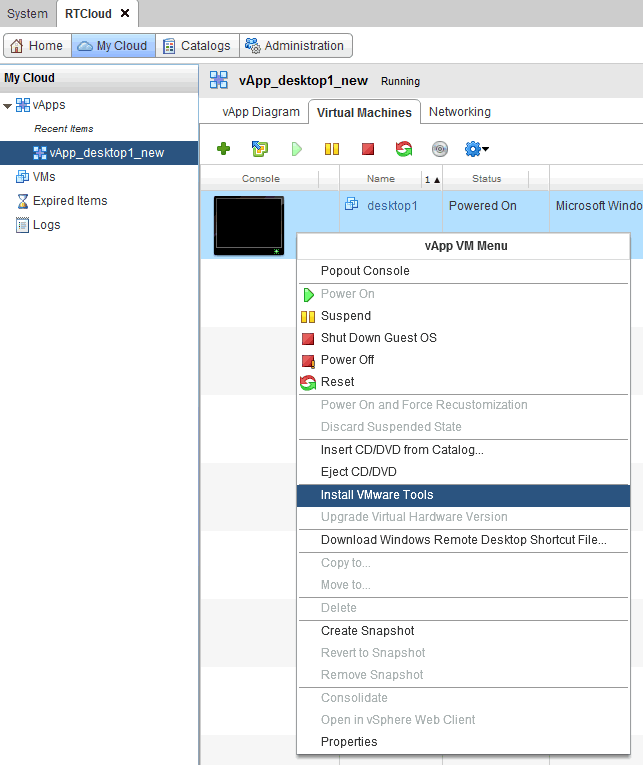
При выполнении данной операции к виртуальной машине монтируется образ с установочными файлами, и дальнейшие действия производятся изнутри ОС.
В операционных системах Microsoft Windows, через проводник заходим на примонтированный диск:
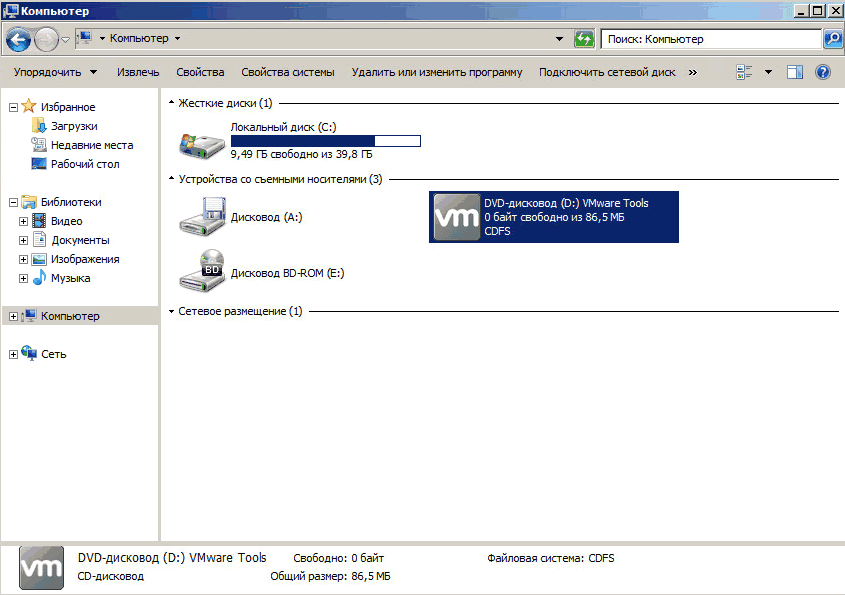
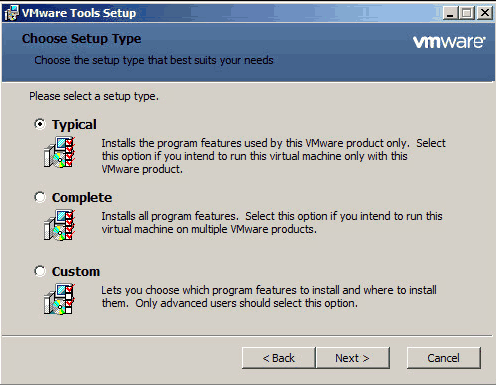
Запускаем установщик, выбираем вариант установки Typical:
Процесс установки занимает пару минут. После сообщения об успешной установке необходимо отсоединить образ VMWare Tools от виртуальной машины через пункт Eject CD/DVD в контекстном меню:
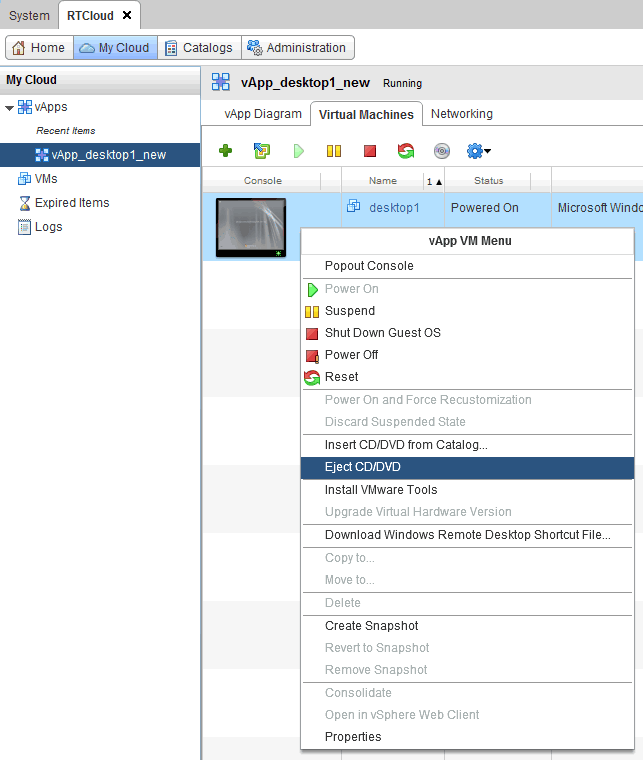
После чего потребуется выполнить перезагрузку операционной системы.
Для linux-операционных систем описанный способ установки VMware Tools потребует наличия в системе определенного набора пакетов (в первую очередь, PERL). Если Вы бы не хотели увеличивать количество установленных пакетов в вашей ОС, рекомендуем ставить open-vm-tools, он есть в репозиториях практически всех современных дистрибутивов.