Записки IT специалиста
Настраиваем работу с беспроводными сетями (Wi-Fi) в Windows Server
- Автор: Уваров А.С.
- 30.05.2016
 Время от времени возникает необходимость подключения серверной операционной системы Windows к беспроводной сети. На первый взгляд задача элементарная: подключил адаптер, поставил драйвер. Однако ее практическая реализация способна вызвать нешуточные сложности. Мы уже готовы услышать привычные сетования в адрес компании Microsoft, но на самом деле все довольно просто и логично, единственное, что можно поставить в упрек разработчику, так это неинформативное поведение системы в данной ситуации, на наш взгляд вполне можно было бы добавить подсказки или отразить событие в логах.
Научиться настраивать MikroTik с нуля или систематизировать уже имеющиеся знания можно на углубленном курсе по администрированию MikroTik. Автор курса, сертифицированный тренер MikroTik Дмитрий Скоромнов, лично проверяет лабораторные работы и контролирует прогресс каждого своего студента. В три раза больше информации, чем в вендорской программе MTCNA, более 20 часов практики и доступ навсегда.
Начнем с того, что обозначенная в заголовке задача для серверных систем довольно нетипична, но иногда такая потребность все-таки появляется. Решается она тоже просто, покупкой нужного беспроводного адаптера. В общем все идет достаточно привычно, до тех пор, пока вы не попытаетесь подключиться к беспроводной сети. В этот момент выяснится, что сервер не видит не одной сети, а сам адаптер находится в состоянии Отключено.
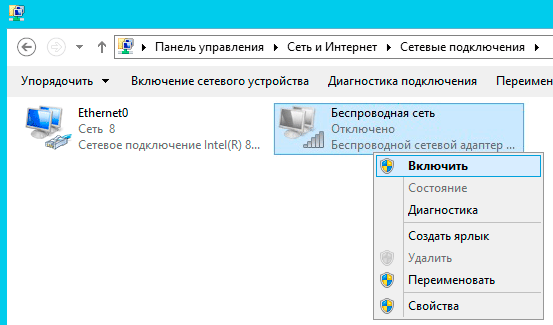
Попытка включить его не приводит к успеху, адаптер делает попытку включиться, но тут же снова переходит в отключенное состояние. При этом система не выдает никаких сообщений и не делает никаких записей в журналах событий.
Внешне ситуация выглядит как некая несовместимость и на поиск «подходящего» драйвера можно потратить достаточно много времени или, решив, что проблема с адаптером, даже купить новый, с таким же эффектом. Поэтому не спешите тратить время и деньги, давайте лучше разберемся в ситуации.
Как мы уже говорили, данная задача для серверного применения нетипична, поэтому, следуя общей тенденции развития серверных операционных систем Microsoft, данная возможность была оформлена в виде отдельной компоненты, которая по умолчанию не установлена.
В целом такое решение разработчиков логично и правильно, меньше неиспользуемых служб — меньше потребляемых ресурсов, меньше возможных уязвимостей. С другой стороны, добавить какие-либо подсказки или записывать в журнал событие с ошибкой все-таки стоило бы, иначе для неподготовленного пользователя ситуация выглядит достаточно неоднозначно.
Для того, чтобы Windows Server мог работать с беспроводными сетями следует установить компоненту Служба беспроводной локальной сети, после чего сервер потребуется перезагрузить.
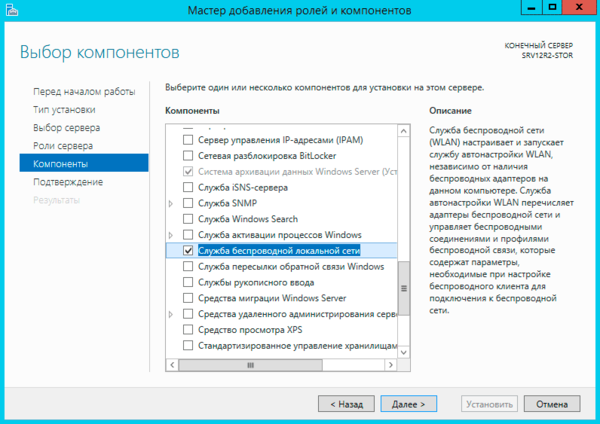
Казалось бы, проблема решена, но не стоит спешить. После перезагрузки Служба автонастройки WLAN автоматически не запускается, хотя в ее настройках установлен автоматический запуск.
Эта ситуация не является ошибкой и описана в документации, хотя такое поведение службы непонятно. Вам потребуется запустить службу вручную или еще раз перезагрузить сервер. После этого можно включить беспроводной адаптер и подключиться к нужной сети.
Интересно, что если после первой перезагрузки вы вставите новый адаптер, то по завершению установки драйвера служба автоматически запустится. Возможно в связи с этим в некоторых руководствах в сети присутствует рекомендация после добавления компоненты удалить и заново установить драйвер адаптера.
Такой же самый результат можно получить гораздо быстрее используя PowerShell, для этого выполните всего одну простую команду:
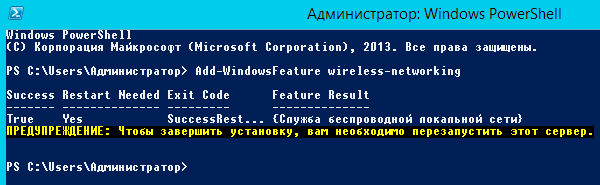
После чего точно также потребуется перезагрузить сервер и запустить службу вручную. Быстро это сделать можно еще одной командой:
Как видим, для успешного администрирования Windows Server, вопреки расхожему мнению, что в нем все делается интуитивно понятно и мышкой, все-таки желательно знать структуру и базовые принципы устройства системы, что избавит вас от возможных трат впустую времени и денег.
Научиться настраивать MikroTik с нуля или систематизировать уже имеющиеся знания можно на углубленном курсе по администрированию MikroTik. Автор курса, сертифицированный тренер MikroTik Дмитрий Скоромнов, лично проверяет лабораторные работы и контролирует прогресс каждого своего студента. В три раза больше информации, чем в вендорской программе MTCNA, более 20 часов практики и доступ навсегда.
Помогла статья? Поддержи автора и новые статьи будут выходить чаще:

Или подпишись на наш Телеграм-канал: 
How to Enable Wireless (Wi-Fi) on Windows Server 2019/2016?
By default, wireless (Wi-Fi) support is disabled in all Windows Server 2022/2019/2016/2012R2 versions. If you plug a Wi-Fi network adapter (USB or PCI) into a host running Windows Server, you cannot enable it in the Control Panel. I will show how to enable wireless support on Windows Server in this short note.
Connect a physical Wi-Fi adapter to a Windows Server host and install the drivers. Make sure that the new adapter has appeared in the Network Adapters section of the Device Manager ( devmgmt.msc ).
Open the PowerShell console as administrator and make sure that the Wireless LAN Service is not installed.

You can use the Install-WindowsFeature PowerShell cmdlet to install a feature or role on Windows Server.
Install-WindowsFeature -Name Wireless-Networking

Or install the Wireless LAN Service using the Server Manager (Add Roles and Features -> Features).
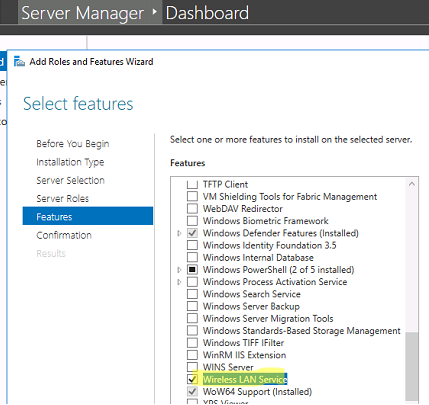
After the installation is complete, reboot the host:
After the restart, the Wireless LAN Service (WLAN AutoConfig) appears in Windows, but it is disabled by default. Start the service and change its startup type to automatic:
Set-Service WlanSvc –startuptype automatic –passthru
Start-Service WlanSvc –PassThru
How To Enable WiFi In Windows Server 2019
If you’re using Windows Server 2019 and want to add wireless capabilities to it, this article is for you. Well, when you install the Windows Server, you might only see ethernet (wired) capabilities. It seems the wireless card is disabled by the server. Following that, if you open Device Manager and expand Network adapters, you’ll find that wireless drivers are not recognized by system. They usually have exclamation mark on their entry or moved into Other devices section instead of Network adapters section.
Then the question is how to enable wireless on Windows Server? Well, the answer is quite simple, if you know it! You basically need to enable wireless capabilities using Server Manager. Those abilities are not enabled by default and this is cause of missing WiFi. Try the below mentioned steps and this should help you to enable WiFi.
How To Enable WiFi In Windows Server 2019
1. Open Server Manager. Under Dashboard, click on Add roles and features.
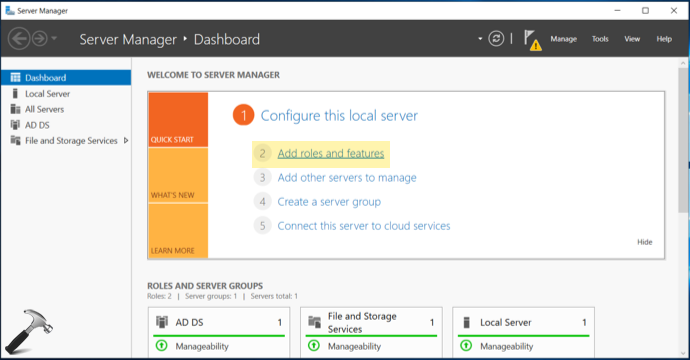
2. In Add Roles and Features Wizard window, click on Next for Before You Begin section.
3. Then select Installation Type as Role-based or feature-based installation and hit Next.
4. Now under Server Selection, select your target server in next screen and move on.
5. Under Server Roles, simply click on Next without any selection. Then you’ll be on Features tab. Scroll down, find out and then check Wireless LAN Service.
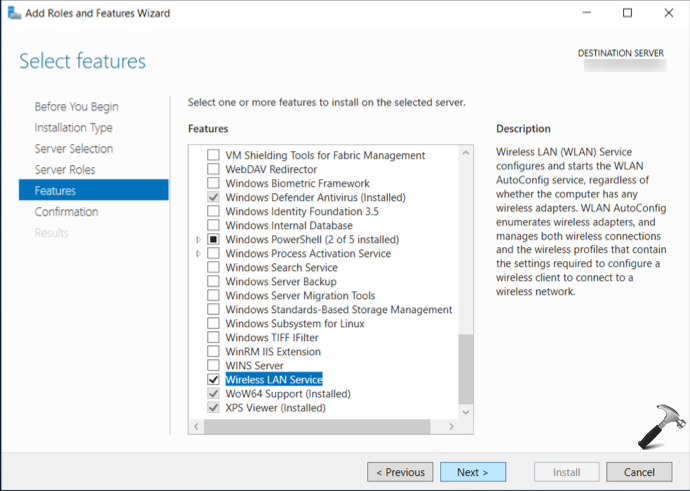
6. Then under Confirmation, click on Install button.
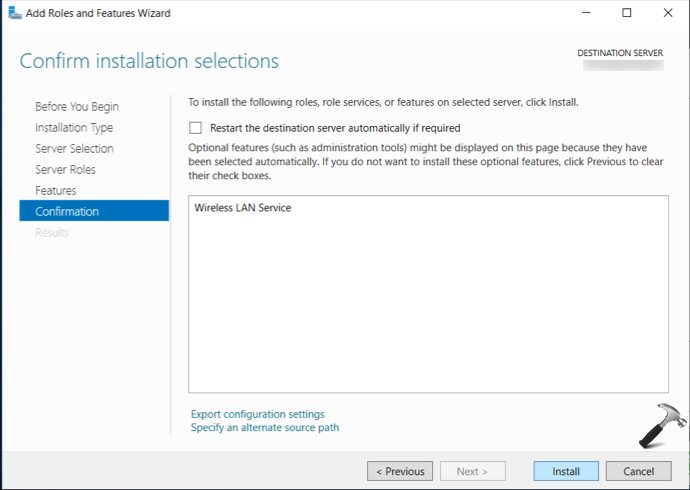
7. On the Results tab, you’ll see that feature is installed within few seconds. Click on Close button and then restart your Windows Server.
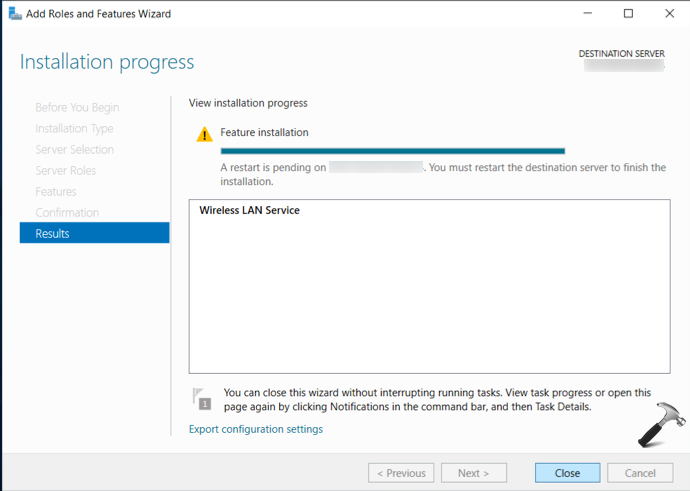
8. Once your restart Windows Server, you should have WiFi available. If you see WiFi on login screen but missing it after login, then you need to perform Network Reset once.
9. Simply open Settings app and click Network > Status > Network reset > Reset now. After doing the Network Reset, you should have WiFi for sure.
How to activate Wi-Fi on Windows Server 2019/2016

Hello! It is well known that Windows Server has been developed for the comfort of system administrators. Indeed, it has many configuration options, thanks to the different roles and features that can be installed. For this, it is necessary to have a LAN connection and to configure a static IP address. For this reason, the Wi-Fi configuration of Windows Server is blocked by default. However, at some point, it is likely that you will have to connect to the server via this device. This is not recommended because of the security risks of these connections and the threat factors. But it can be used circumstantially. Consequently, today we will show you how to activate Wi-Fi on Windows Server 2019/2016.
How to enable Wi-Fi connection on Windows Server
As mentioned, this connection is disabled by default. For that reason, we are going to enable it from the Server Manager. Once there, please click on Add Roles and Features:

Just click on Add Roles and Features
In the next menu, please click on Next:

Please click on Next
Now click on Roles based installation.

Select the installation based on Roles.
Then, select the server where the installation will be done.

Please choose the server.
The list of available roles is shown below. At this time, we will not be installing roles. Therefore, press next to go to the other screen.

In the screen corresponding to features, please check the box of Wireless LAN Service.

Check the box for Wireless LAN service
Now it is time to confirm the installation of the feature. Please press Install.

Press Install
Installation will begin immediately.

After the installation is completed, it is necessary to restart the server to set the changes.

Activating the WLAN service.
After the server is restarted, it is necessary to start the service. With this intention, from the PowerShell run the following command:

From here, you just have to check the available Wi-Fi connections. And consequently, make the connection.

Finally, we have seen how to activate Wi-Fi in Windows Server 2019/2016. This way, you can enable this type of connection on the server. Despite the security risks, it can work as an emergency connection. The idea is to have as much control as possible over the system connections. Okay, that’s it for today. See you soon!