Где я могу найти файл scanpst.exe в Windows 10?
Большинство пользователей Outlook не знают, где найти scanpst.exe и не могут найти путь scanpst.exe. Поэтому здесь, в этом блоге, я расскажу вам, где найти программу восстановления папки «Входящие» scanpst.exe в Outlook 2016, 2013, 2010, 2007, 2003 и 2002. Легко найдите путь по умолчанию для scanpst.exe для вашей версии Outlook, даже если вы используете 64-битную версию Windows.
Scanpst.exe или Outlook Inbox Repair — это бесплатная встроенная утилита Microsoft. Это программное обеспечение предварительно установлено в MS Outlook и используется для устранения и восстановления проблем с файлами Outlook PST. С помощью этого бесплатного инструмента Scanpst.exe пользователь может восстанавливать поврежденные элементы в своем почтовом ящике Outlook, такие как контакты, календарь, задачи, журналы, заметки и т. Д. Утилита Scanpst.exe — это бесплатный инструмент, который позволяет пользователю восстанавливать поврежденные элементы в его почтовый ящик Outlook.
Теперь, как пользователь может загрузить Scanpst.exe (Inbox Repair Tool Outlook 2016, 2013, 2010 и 2007) для восстановления поврежденных файлов Outlook PST — это первый вопрос, который приходит на ум. Поэтому в этой статье мы обсудим использование, расположение и работу инструмента Scanpst.exe.
Расположение scanpst.exe отличается для каждой установленной версии Outlook и Windows. Чтобы запустить утилиту scanpst.exe, просто выполните следующие действия: Для этого необходимо закрыть Microsoft Outlook. Лучше всего сделать копию файла PST. Хотя инструмент восстановления папки «Входящие» создает резервную копию исходного файла данных PST перед его восстановлением, рекомендуется сохранить дополнительную резервную копию.
Scanpst.exe Расположение
Outlook 97 / Outlook 98
C: \ Program files \ Common files \ Windows Messaging \ scanpst.exe
Outlook для 2000
C: \ Program files \ Common files \ System \ MAPI \\ NT \ scanpst.exe
Outlook 2002 / XP
C: \ Program files \ Common files \ System \ MAPI \\ scanpst.exe
Outlook 2003-32 Бит Windows
C: \ Program files \ Common files \ System \ MSMAPI \
Outlook 2003-64 Бит Windows
C: \ Программные файлы (x86) \ Общие файлы \ System \ MSMAPI \ Local_ID
Outlook 2007-32 Бит Windows
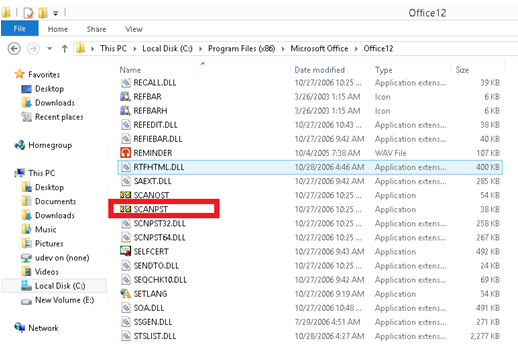
C: \ Program Files \ Microsoft Office \ Office12
Outlook 2007-64 Бит Windows
C: \ Программные файлы (x86) \ Microsoft Office \ Office12
Outlook 2013-32 Бит Windows
C: \ Program Files \ Microsoft Office \ Office15
Outlook 2013-64 Бит Windows
C: \ Программные файлы (x86) \ Microsoft Office \ Office15
Окно Outlook бит 2016-32
C: \ Program Files \ Microsoft Office \ root \ Office16
Outlook 2016-64 Windows Bit
C: \ Программные файлы (x86) \ Microsoft Office \ root \ Office16

Если вы не можете найти SCANPST в расположении по умолчанию, возможно, вы отключили эту опцию: «Показывать скрытые файлы и папки». Поэтому вы должны убедиться, что эта опция включена в вашей системе.
Как использовать Outlook PST Repair от SoftCity
Из-за некоторых ограничений утилита scanpst.exe не работает должным образом. В этом состоянии вы должны попробовать профессиональный метод. Мы хорошо знакомы с несколькими онлайн-продуктами, доступными на цифровом рынке.
Если SCANPST.EXE плохо реагирует на восстановление поврежденных файлов PST после сканирования, ваш файл данных Outlook может быть серьезно поврежден. Эта утилита восстанавливает только незначительные повреждения файлов PST. В Интернете нет бесплатной утилиты, которая может восстановить сильно поврежденные файлы PST. В таком случае вы должны переключиться на сторонний источник, способный восстанавливать поврежденные файлы Outlook PST.
Исключительные особенности инструмента:
- Легко извлекает все элементы из файлов Outlook в почтовом ящике, такие как электронные письма, черновики, календари, контакты, журналы, задачи, заметки и т. Д.
- Восстанавливает потерянные и удаленные элементы Outlook PST.
- Сохраните восстановленные файлы PST в различных форматах вывода, таких как PST, MSG, MBOX, EML, TXT, HTML.
Outlook PST Repair — чрезвычайно продвинутый инструмент, который помогает восстановить поврежденный файл PST и восстановить потерянные электронные письма, контакты, задачи, календарь и т. Д. С абсолютной точностью. Программное обеспечение способен восстанавливать все типы файлов PST, т. е. если PST имеет символьный формат UNICODE или ANSI, программа может исправить его правильно. Чтобы восстановить поврежденный файл PST, программа тщательно сканирует файл PST, извлекает все папки электронной почты, отображает их в иерархическом формате и позволяет сохранять их в формате .pst, .dbx, .eml или .msg. Как только вы сохранили элементы в выбранном формате, вы можете получить к ним доступ с помощью MS Outlook или MS Outlook Express. Например, если элементы сохраняются в формате .pst или .msg, они доступны из MS Outlook, а если они сохраняются в формате .dbx или .eml, MS Outlook Express можно использовать для их открытия.
Действия по восстановлению PST-файла Outlook 2007 в Windows 10:
-
к вашей системе Windows 10.
- Установите и используйте инструмент в соответствии с инструкциями.
- Главный экран предлагает три варианта: «Открыть PST», «Найти PST» и «Выбрать профиль Outlook».
Мы надеемся, что это руководство было для вас полезным и что вы смогли решить проблему с Microsoft Outlook. Выше приведены решения наиболее распространенных проблем открытия Outlook. Если вам известны другие решения этой проблемы, которые не включены в наше руководство, сообщите нам об этом, оставив комментарий в разделе ниже.
CCNA, веб-разработчик, ПК для устранения неполадок
Я компьютерный энтузиаст и практикующий ИТ-специалист. У меня за плечами многолетний опыт работы в области компьютерного программирования, устранения неисправностей и ремонта оборудования. Я специализируюсь на веб-разработке и дизайне баз данных. У меня также есть сертификат CCNA для проектирования сетей и устранения неполадок.
Restoring a PST File With Outlook 2016 Tools
In this article, we will focus on the main causes of why .pst personal folder files get damaged and will show you a simple way to restore them. Microsoft Outlook, an absolute leader in the segment of corporate email clients for desktops, stores user data in OST and PST files. An OST file is a cached copy of the user’s mailbox stored at MS Exchange server. A PST file is a personal folders file, containing the user’s email messages and it is stored locally on the computer.
This and other articles on the subject you can also read in our official blog: https://hetmanrecovery.com/recovery_news/restoring-pst-file-with-outlook-tools.htm
There is quite a number of Outlook users who faced, to a certain extent, problems with opening .pst files because they were damaged. The impossibility to open a user’s archive with email messages results in real headache for administrators and tech support services.
There are various causes of damage to archive files of personal folders in Outlook: damage may result from file system errors (in this case, it is worth starting from checking the file system), and from damaged structure of .pst files caused by an emergency shutdown of the Outlook client (these happen quite often), from a power failure, from virus attacks, from storing .pst files in a shared network folder (Microsoft doesn’t support such configuration) and so on.
You should also remember about the maximal .pst file size restriction in different versions of Outlook. If the maximal file size is exceeded or a large file is opened in an older version of the mail client, Outlook may work with errors. Here are the .pst file size limits:
- Outlook 2002 and earlier versions — .pst files are in ANSI format and limited to 2 Gb.
- Outlook 2003 and Outlook 2007 — a limit of 20 Gb.
- Outlook 2010, Outlook 2013 and Outlook 2016 — .pst/.ost files are in Unicode format and limited to a maximal size of 50 Gb.
Besides, you should bear in mind that the larger the file the higher are the chances of errors, and that is why the recommended .pst file size is 2–8 Gb.
When a .pst file is damaged, the Outlook client can no longer open it, partially or completely, and shows an error message, for example like this:
Availability of such errors suggests that the .pst data file is damaged and needs recovery of its logical structure.
First of all, let us find out where exactly Outlook stores its .pst files. By default *.pst files (personal folders) and *.ost files (local cached copies of Exchange server folders) are stored in the following directories depending on the version of your operating system:
- Windows 2000, 2003, XP:
C:\Documents and Settings\%username%\Local Settings\Application Data\Microsoft\Outlook. - Windows Vista, Windows 7, Windows 8 and Windows 10:
C:\users\%username%\AppData\Local\Microsoft\Outlook.
However, a user can create/move a personal folders file to another location, if necessary.
Important note! Before you start recovering a .pst file make sure you have backed it up; by doing so you will prevent possible further damage to the file that may be caused by a recovery utility or by Outlook.
To recover Outlook archive folders after being damaged, Microsoft has included a special utility Microsoft Outlook Inbox Repair Tool (scanpst.exe) into the Office package. This small utility is not a cure-all solution to recover a .pst file after any kind of damage but it can help in solving typical issues with personal folders files.
You can find this utility in the directory: C:\Program Files\Microsoft Office\OFFICE .
For example, here is the path to the directory containing the utility scanpst.exe for Office 2016: C:\Program Files\Microsoft Office\OFFICE16.
Let us try recovering the damaged elements in a .pst file in an automatic mode. To do it, we should launch the utility scanpst.exe and specify the path to the .pst file.
Important note! Before launching the utility make sure you close Outlook and other processes that may use the .pst file to be recovered.
Press Start to begin scanning the file for errors.
The process of analyzing and checking the file structure consists of 8 stages. The time needed for checking depends on the .pst file size and the number of errors it may contain.
In our case, the utility reports that the personal folders file contain errors, and suggests launching the recovery procedure (Repair button). If you have not created a backup copy of the .pst file, you can do it now by clicking the checkbox and specifying the file name.
After you click Repair, the process of restoring a .pst is launched; it also consists of 8 stages. In our example, it took us about 15 minutes to restore an archive of 1 Gbyte.
If all goes well, a Repair complete message appears when the utility finishes its work, and then you can try opening a .pst file in Outlook.
So, as we have said before, the scanpst.exe utility should help you in most of the cases (about 90% ) when you encounter errors or damaged .pst personal folders files. Yet this utility cannot help you if:
- the heading of a .pst file is damaged;
- the personal folders file is protected with a password;
- you need to restore accidentally deleted emails or folders;
- the .pst file maximal size is exceeded;
- the logical and physical structure of a .pst file is damaged seriously.
Accidentally deleted messages and folders can be restored from OST file. Detailed description of this case you can read in our article «Restoring data from an OST file with Outlook 2010».
In case of loss of complete .pst file, accidental deletion or loss in result of one of many possible reasons, in this case it can be recovered by data recovery software. With this task perfectly cope Hetman Partition Recovery.
4 способа восстановления поврежденной базы писем Microsoft Outlook
Если Вы не можете запустить Outlook из-за специфических ошибок в *.pst файлах хранилища Microsoft Outlook, то ошибки в файле можно исправить с помощью специальных утилит или сервисов.
Вот примеры ошибок, после которых необходимо воспользоваться утилитой восстановления файлов Outlook:
- Файл pst не является файлом данных Outlook.
- Были обнаружены ошибки в файлеpst. Закройте Outlook и другие приложения электронной почты, и используйте приложение Scanpst.exe для восстановления, диагностирования и восстановления ошибок в файле. Для большей информации об утилите см. Помощь.
- Утилитаexe не распознает файл outlook.pst. Никакая информация не может быть восстановлена.

Pic.1 – пример ошибки некорректного PST файла Microsoft Outlook
Утилиты и сервисы, которые могут исправить поврежденный PST файл:
- Inboxrepairtool — ScanPST – поставляется вместе с MicrosoftOffice
- TruncateOversizedPSTandOSTTool – утилита коррекции старых версий PST файлов: https://support.microsoft.com/en-us/help/296088/oversized-pst-and-ost-crop-tool
- RecoveryToolboxforOutlook – платная утилита восстановления файлов: https://outlook.recoverytoolbox.com/ru/
- Онлайн сервис восстановления PST / OST файлов: https://outlook.recoverytoolbox.com/online/ru/
Inbox repair tool – exe
Inbox repair tool (ScanPST.exe) это специальная утилита, поставляемая вместе с пакетом Microsoft Office/Outlook. Утилита ScanPST.exe поставляется с первых версий Microsoft Outlook. Расположение ScanPST.exe различается и в зависимости от версии Outlook.
В ранних версиях, до Outlook 2003, ее можно найти в папке:
В последних версиях Outlook файл ScanPST.exe располагается в папке
где XX это версия Microsoft Outlook:
| Versus | XX |
|---|---|
| Outlook 2007 | 12 |
| Outlook 2010 | 14 |
| Outlook 2013 | 15 |
| Outlook 2016 | 16 |
Запустите утилиту ScanPST.exe и далее выполните следующие действия:
- Нажмите кнопку “Browse”
- Выберите нужный PST файл на диске
- Нажмите кнопку “Start”
- Дождитесь окончания анализа файла
- Обязательно оставьте галочку в “Makebackupofscannedfilebeforerepairing” и укажите место для сохранения резервной копии PST файла
- Нажмите кнопку “Repair”

Pic.2 – Утилита Inbox repair tool. Запуск восстановления.
По окончании работы Inbox repair tool вы увидите сообщение «Восстановление завершено».
Примечания:
- Файлы базы данных Outlook (*.pst файлы) можно найти поиском на диске или в следующих папках, в зависимости от версии Outlook:
- Обязательно дождитесь окончания восстановления файла. Этот процесс может занимать в Inboxrepairtool несколько часов или даже дней. Утилита Inboxrepairtool делает несколько разных проверок исходного файла. Поэтому создание резервной копии файла перед восстановлением является обязательным действием.
- По завершению операции сканирования утилита ScanPST сообщит об ошибках в исходном файле. Если нажать на кнопку «Details…», то можно узнать больше о найденных и исправленных ошибках.
Далее данную операцию можно проделывать с другими поврежденными PST файлами.
Теперь можно открыть Outlook и использовать исправленной базой писем, контактов, встреч и прочим. Иногда, когда структура папок была повреждена, ScanPST создает отдельную папку « Lost and Found» и добавляет в нее все найденные письма.
Однако бывают случаи, когда ScanPST не может исправить *.pst файл.
Truncate Oversized PST and OST Tool
Если вы используете старую версию Microsoft Outlook (версии 97-2003), использующие *.pst файлы формата ASCII размером до 2Гб, то можно воспользоваться специальной утилитой «Truncate Oversized PST and OST Tool».
Recovery Toolbox for Outlook
Recovery Toolbox for Outlook разработана специально для восстановления PST файлов.

Pic.3.1. – Recovery Toolbox for Outlook. Выбор поврежденного PST файла.
Recovery Toolbox for Outlook проста и понятна в использовании для большинства пользователей.
- Нет ограничений на количество и объем восстанавливаемых данных.
- Сохранение восстановленных данных в виде PST, MSG, EML, VCF файлов.
- Возможность выборочного сохранения восстановленных данных. Можно выбрать отдельную папку, отдельное или группу писем, или контактов для сохранения.
- Дополнительная функция конвертирования OST в PST файлы
- Дополнительный режим: восстановления удаленных писем, контактов и прочих объектов (Forensic Mode) из PST или OST файла
- Интегрированный поиск файлов на диске
- Онлайн-подсказка с описанием работы программы
- Многоязычный интерфейс (14 основных языков)
- Можно использовать только в OS Windows
- Обязательное наличие установленного Microsoft Outlook (не путать с Office 365)

Pic.3.2. – Выбор данных для сохранения.
Онлайн сервис восстановления PST / OST файлов
Это очень простой и удобный сервис. Может работать на всех устройствах, где есть только браузер.
Нужно только указать поврежденный PST файл и ввести email и captcha. Все остальное будет сделано автоматически.

Pic.4.1. – Outlook repair service. Ввод данных поврежденного PST файла.
Далее поврежденный PST файл будет загружен на сервис и восстановлен.

Pic.4.2. – Outlook repair service. Процесс восстановления, поврежденного PST файла.
По окончании процесса восстановления PST файла сервис предоставит данные о количестве восстановленных писем, контактов, встреч, напоминаний и количестве прочих восстановленных объектов.

Pic.4.3. – Outlook repair service. Информация о восстановленных данных из PST файла.
Также можно посмотреть структуру папок в восстановленном PST файле:

Pic.4.4. – Outlook repair service. Информация о структуре папок восстановленного PST файла.
После оплаты (стоимость составляет $10 за каждый 1Гб исходного файла) пользователь получит ссылку для скачивания, восстановленного PST файла. Далее необходимо скачать PST файл и открыть его как новый PST файл в Outlook.
Поврежденный PST файл необходимо убрать из Профиля Outlook, а новый файл сделать файлом по умолчанию, если это необходимо.
How to Find Scanpst Location in Outlook 2021, 2019, 2016, 2013, 2010 & 2007?

Summary: ScanPST.EXE (Inbox Repair Tool) is a Microsoft Outlook built-in PST file repair tool located in the Outlook installation directory. However, the ScanPST location may vary based on the Outlook and Windows version. In this guide, you will learn how to locate or find the ScanPST location in Outlook 2021, 2019, 2016, 2013, 2010, and 2007. We have also mentioned a PST repair tool that you can use when ScanPST fails to repair a corrupt or damaged PST file.

Microsoft Outlook recommends using its built-in Inbox Repair tool, also known as ScanPST, to repair damaged or corrupt Personal Folder (.pst) files. The tool works by checking the data integrity errors in the Outlook PST file. If errors are found, ScanPST.exe or Inbox Repair Tool removes them and provides you with an error-free PST Outlook data file. However, to use the tool, you need to find its location.
TIP: If ScanPST.exe is missing or fails to recover lost or corrupt Outlook mailbox items, try the free demo version of Outlook PST Repair Tool to resolve the issue.
How to Find ScanPST Location?
The ScanPST location is fixed by default. It can be found in the Outlook installation directory. But, keep in mind, the location of the installation directory may vary based on the Outlook and Windows version you’ve installed on your computer.
For instance, 32-bit Outlook is installed in the Program Files (x86) directory while 64-bit Outlook client is installed in the Program Files directory on your Windows PC. This may further vary if you use 32-bit or 64-bit Windows OS.

Based on the Outlook and Windows version, browse the following locations to find ScanPST.
ScanPST.exe Location for Outlook 2021, 2019, 2016, and Office 365
Below are the paths where you can find ScanPST for Outlook 2021, 2019, 2016, and Microsoft 365 on Windows (both 32-bit and 64-bit versions):
- 32-bit Outlook (MSI-based version): C:\Program Files (x86)\Microsoft Office\root\Office16
- 64-bit Outlook (MSI-based version): C:\Program Files\Microsoft Office\root\Office16
- 32-bit Outlook (Click-to-Run version): C:\Program Files(x86)\Microsoft Office\root\Office16
- 64-bit Outlook (Click-to-Run version): C:\Program Files\Microsoft Office\root\Office16
- 32-bit Windows (For MSI-based version): C:\Program Files(x86)\Microsoft Office\Office16
- 64-bit Windows (For MSI-based version): C:\Program Files\Microsoft Office\Office16
- 64-bit Windows and 32-bit Outlook (MSI-based version): C:\Program Files (x86)\Microsoft Office\root\Office16
- 64-bit Windows and 32-bit Outlook version (Click-to-Run version): C:\Program Files(x86)\Microsoft Office\root\Office16
ScanPST Location for Outlook 2013
You can find the ScanPST at the following locations for Outlook 2013 on Windows.
- 32-bit Windows and 32-bit Outlook (For Click-to-Run installation): C:\Program Files(x86)\Microsoft Office 15\root\office15
- 64-bit Windows and 32-bit Outlook (For Click-to-Run installation): C:\Program Files(x86)\Microsoft Office 15\root\office15
- 64-bit Windows and 64-bit Outlook (For Click-to-Run installation): C:\Program Files\Microsoft Office 15\root\office15
- 32-bit Windows and 32-bit Outlook (For MSI-based installation): C:\Program Files(x86)\Microsoft Office\Office15
- 64-bit Windows and 32-bit Outlook (For MSI-based installation): C:\Program Files(x86)\Microsoft Office\Office15
- 64-bit Windows and 64-bit Outlook (For MSI-based installation): C:\Program Files\Microsoft Office\Office15
ScanPST File Location for Outlook 2010
Below are the paths where you can find ScanPST for Outlook 2010:
- On 32-bit edition of Windows: C:\Program Files\Microsoft Office(x86)\Office14
- On 64-bit edition of Windows: C:\Program Files\Microsoft Office\Office14
ScanPST Location for Outlook 2007
Below are the paths to find ScanPST in Outlook 2007:
- On the 32-bit release of Windows: C:\Program Files(x86)\Microsoft Office\Office12
- On the 64-bit release of Windows: C:\Program Files\Microsoft Office\Office12
Note: Here, ‘C’ is the disk drive. The destination path, as stated above, should be followed to know the ScanPST location.
Steps to Repair Corrupt PST File using Outlook ScanPST
Once you have located the ScanPST, follow these steps to repair the corrupt Personal Folders file (.PST):
Note: Before using the tool, close Outlook, and other applications.
Step 1: Double-click on SCANPST.exe.
Step 2: In the Microsoft Outlook Inbox Repair Tool window, click Browse to select the PST file you want to scan for errors.

Step 3: Once the file is selected, click Start to initiate the scanning process.
Step 4: If any errors are found, click Repair to fix those errors.
The repair process may take a while to complete. Wait for the tool to finish the repair. ScanPST.exe may freeze or stop responding. You must wait for the tool to respond. However, if it does not respond after a while or crashes, it indicates that the tool can’t repair the PST or the PST is either large or severely damaged. In such cases, you don’t have any option but to use an advanced PST repair software, such as Stellar Repair for Outlook.
Note: ScanPST.exe can only fix minor corruption and integrity errors. Also, it does not support an encrypted or PST file larger than 2 GB.
What If ScanPST Is Missing or Doesn’t Work?
If the ScanPST tool doesn’t work or you can’t find the location of ScanPST for Office 365 or any other Outlook version, use Stellar Repair for Outlook. This software is recommended by MS Outlook experts to fix PST file corruption and integrity errors.
The free version of the software provides a preview of emails, calendars, attachments, folders, etc. The feature-rich PST repair tool supports all MS Outlook versions and enables you to save the repaired mail items in EML, MSG, RTF, HTML, PDF, DBX, and MBOX formats.
The PST file repair software also offers ‘Find’ functionality to search and scan PST location in the selected volume. Plus, the software also provides an option to export the repaired mailbox items to Microsoft 365 directly.
See the detailed working of Stellar Repair for Outlook (MVP Recommended alternative to ScanPST).
Recommended For You:
About The Author
Eric Simson is an Email Platform Consultant and is associated with Stellar Data Recovery from last 6 years. He writes about the latest technology tips and provides custom solutions related to MS Outlook, MS Exchange Server, Office 365, and many other Email Clients & Servers.
Best Selling Products

Stellar Outlook PST Recovery Tool
Stellar Outlook PST recovery software is

Stellar Advanced Repair Tool for Outlook
Advanced software, trusted and recommend

Stellar Toolkit to Manage Outlook Data Files (OST/PST)
Advanced “8-in-1” software package f

Stellar Convert, Compact and Split OST File & Save as PST
Advanced tool, recommended by Microsoft
41 comments
I have Office 2021, but it seems to be using the root > Office 16 folder, where I found scanpst.exe. I previously had Office 2019, but I don’t have folders greater than Office 16.
What’s the “/root/” part of the locations? On a regular Outlook installation there’s no “root” folder in the path. Maybe you mixed something up? Like /OfficeXY/? I doubt this article was checked by an experienced person.