Error 404: 4 Ways to Fix It

Error 404 not found is one of the most common issues you may encounter while browsing. This HTTP status code means the requested page can’t be found on the website server. It may indicate a flaw with a hosting service or your domain name system (DNS) configuration settings.
Encountering this error may leave a negative impression on your website visitors. It can also negatively impact search engine optimization (SEO) and your website’s ranking. The dead-end page hinders search engines’ ability to crawl your website properly.
Fortunately, since it is mainly a client-side issue, it is relatively easy for website owners to fix the 404 error. This article will explain the possible causes of error 404 and show four effective methods to resolve it.

Mozilla Firefox shows a straightforward message by displaying a 404 Not Found page with a description saying, “The resource requested could not be found on this server!”.
Google Chrome
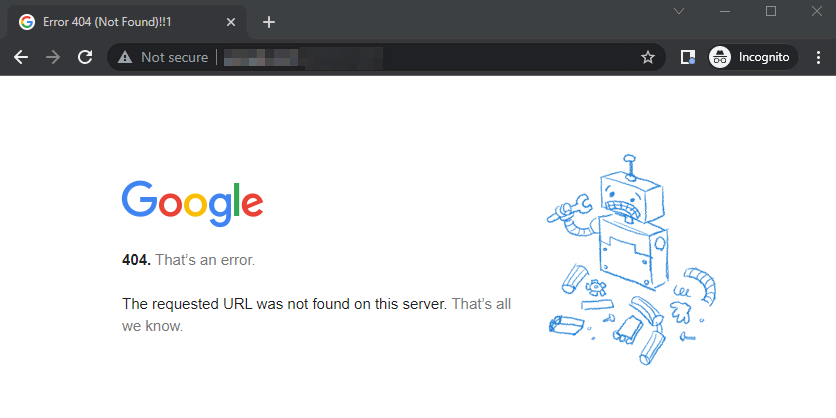
If you come across a 404 error page on Chrome, the browser shows a descriptive message under the HTTP status code.
Opera
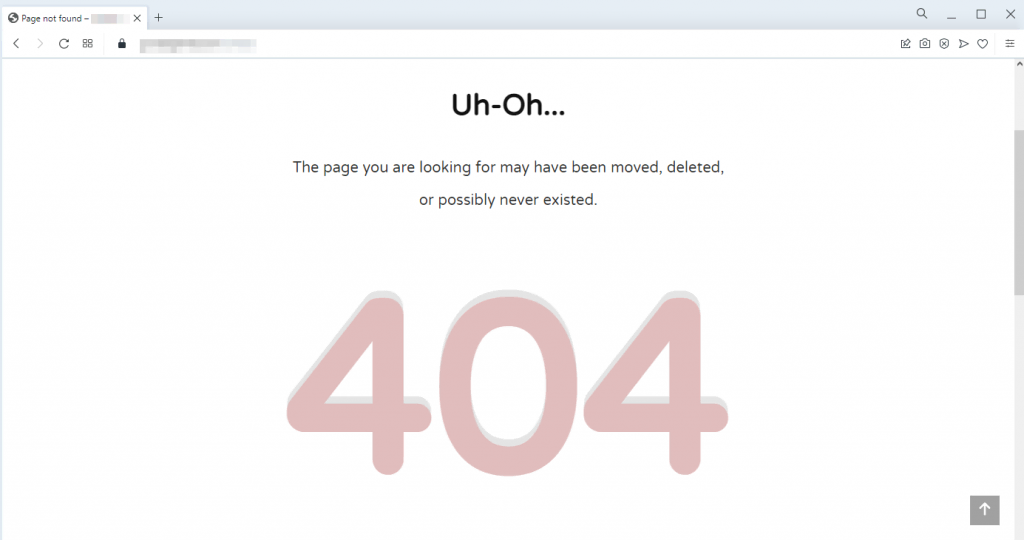
When a 404 error occurs on Opera, the browser displays the description of the status page on the upper part of the page.
Microsoft Edge
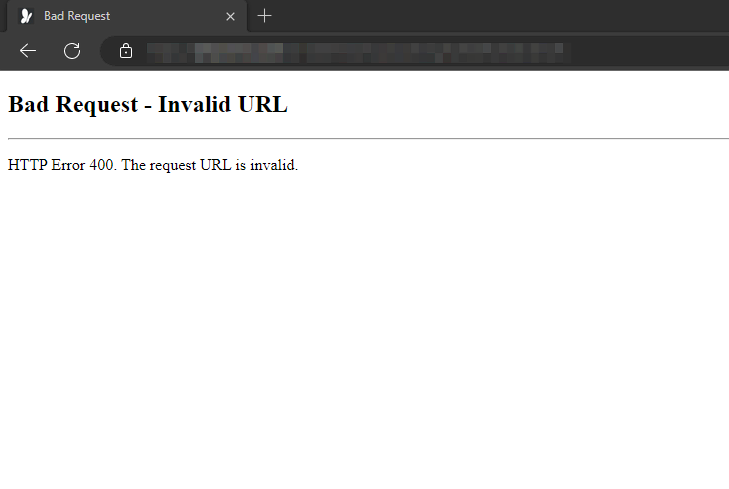
Microsoft Edge shows the HTTP Error 400 message and a description saying, “The request URL is invalid.”
Many websites display custom 404 not found errors. While it isn’t strictly necessary, it helps explain to the visitors that the website works, but the page they’re looking for cannot be found.
4 Ways to Resolve 404 Errors
Sometimes, it only takes a quick fix to solve error 404 not found. Therefore, we recommend trying these simple steps before exploring other methods to troubleshoot the issue:
- Restart your browser. Try closing the current window and opening a new one. It is as simple as that. . Remove your browser data and history. Check whether the error persists.
- Double-check for mistyped characters. Recheck the URL to ensure you entered the correct website address in the search bar.
- Use another device. Access the website using another web browser or machine. If it works, try clearing the previous device’s cache and cookies one more time.
- Switch to the Incognito window. This mode doesn’t retain cache and cookies, so it will display a renewed web page version.
We also recommend performing the following actions:
- Check external links regularly. Ensure there are no broken links on your website.
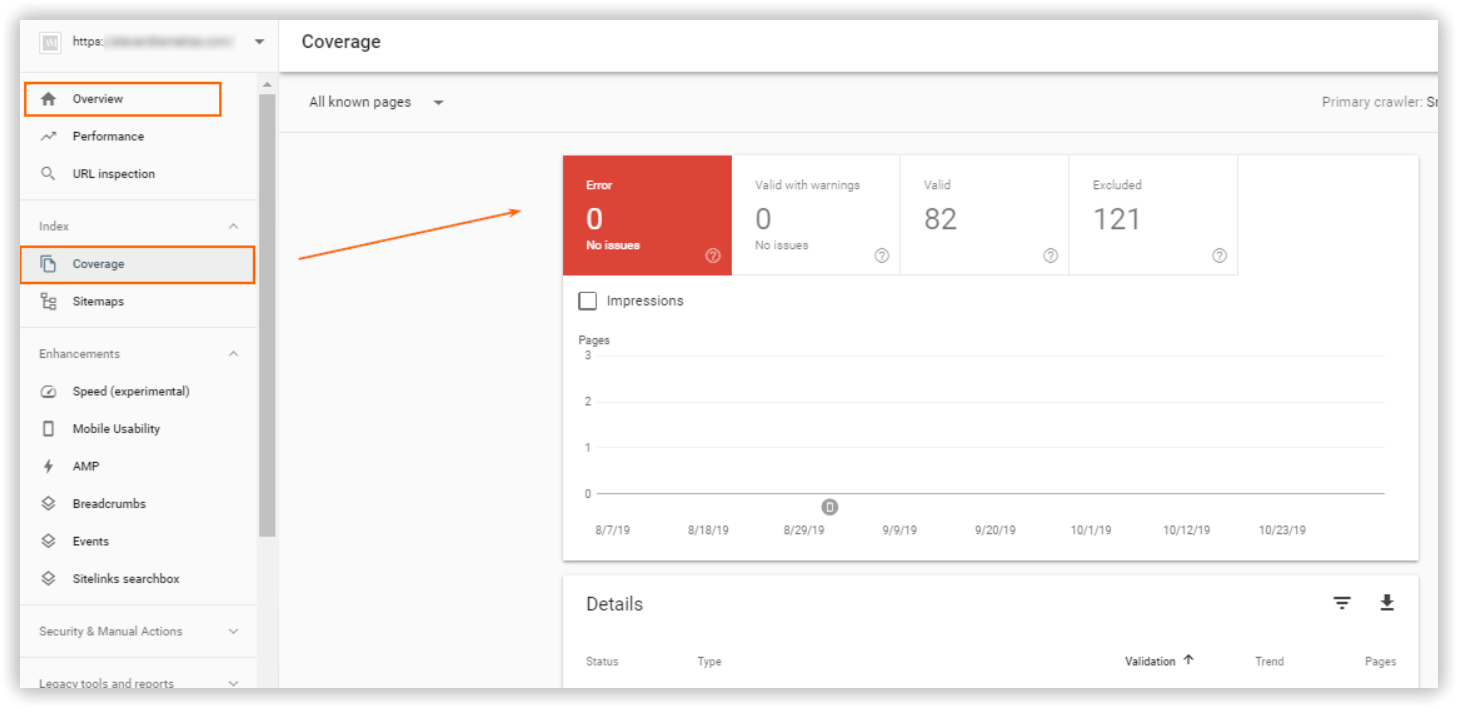
- Regular 404 error audit. Scan for dead-end pages using the Google Search Console.
If the 404 error persists, your website may have an underlying issue. The following section will explain four methods to fix the error message – checking the DNS settings, updating file permissions, disabling the .htaccess code, and restoring a backup file.
1. Make Sure the Domain Is Pointing To Your Hosting
If the domain is still propagating, you may encounter a 404 error page. To solve it, you will need to wait until the propagation is complete. Usually, it takes a maximum of 24 hours until the DNS resolves.
Additionally, the 404 error can be caused by misconfigured DNS settings. You may have pointed the domain to an incorrect nameserver or a wrong IP address through an A record. Therefore, you need to check if the domain is pointed correctly to solve this issue.
There are two methods to connect a domain to your hosting – using nameservers or the IP address via an A record.
Here’s how to check your Hostinger nameservers and IP address:
- Log in to your Hostinger account.
- On hPanel, go to the Hosting tab.
- Choose the hosting plan and click Manage.
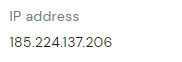
- On your Hosting Account panel, you will find the Hostinger nameservers and your IP address on the left sidebar.
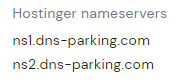
There are plenty of online tools to check which DNS server your domain is pointed to, such as DNS Checker, DNSMap, and whatsmydns.net.
2. Fix File Permissions
If error 404 still occurs, we recommend fixing file permissions.
When you use web hosting, the server manages your files and sends them to the browser so it can load the site.
File and folder permissions let the server know who can run, read, or edit the data on the hosting account. However, if the values are misconfigured, the web page may show a 404 error.
Therefore, you will need to modify the file permissions to solve this issue. If you’re a Hostinger user, the default values are 644 for files and 755 for folders.
Here’s how to fix file permissions on hPanel:
- Log in to your Hostinger account.
- On hPanel, go to the Hosting tab.
- Select the hosting plan and click Manage.
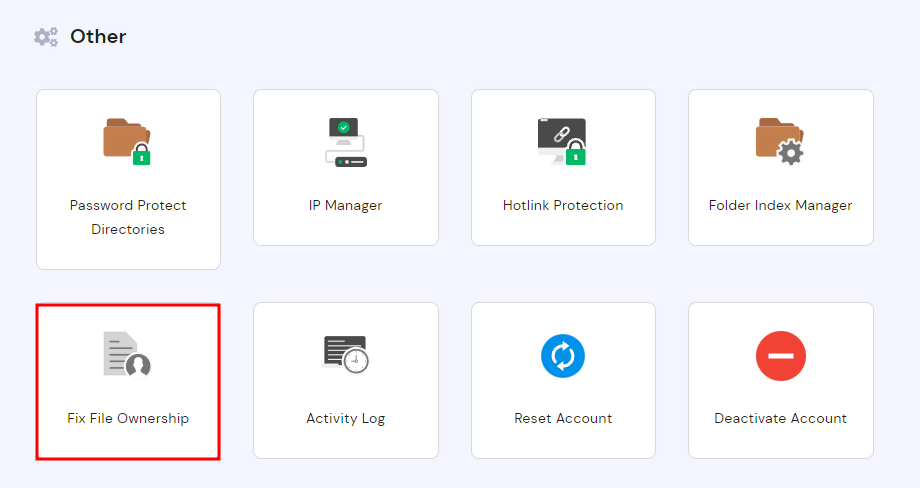
- On the Hosting Account panel, scroll down to Other and choose Fix File Ownership.
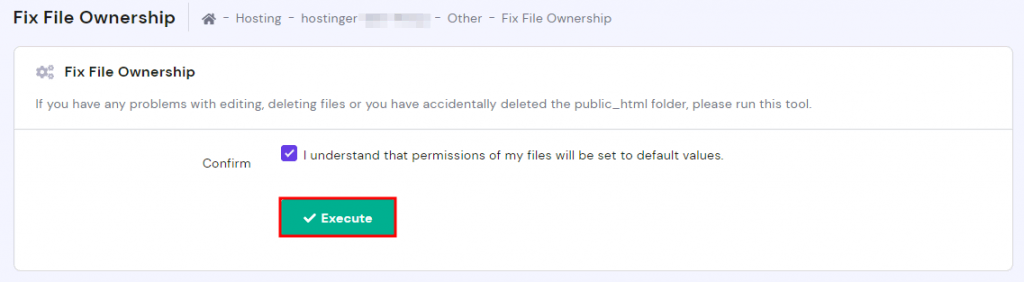
- Tick the box to confirm that you want to set the file permissions to default. Click Execute.
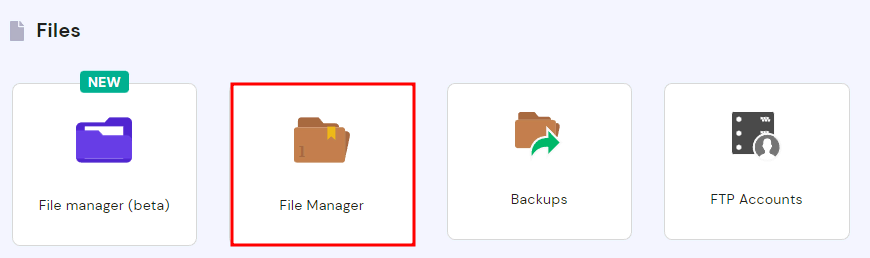
- If you want to set the file permissions to specific values, go to the File Manager menu.
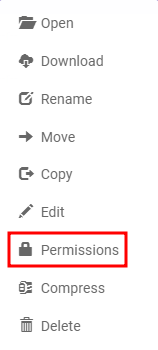
- Right-click on the file or folder you want to modify and select Permissions.
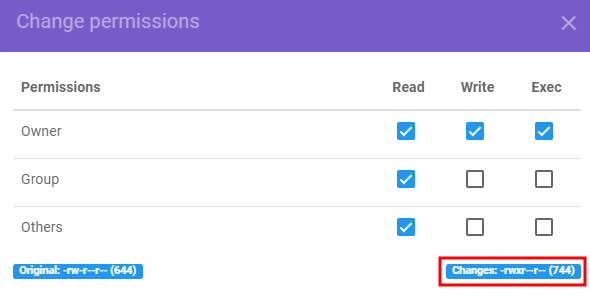
- Tick the boxes to modify accesses. The values will automatically update upon choosing the permissions.
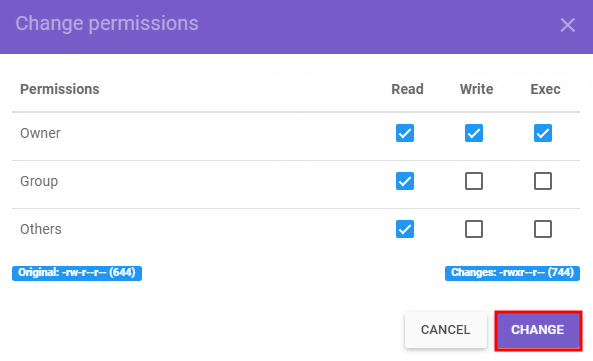
- Click Change to apply the changes.
In most cases, this should solve the 404 page not found error. However, if you still encounter the issue, proceed to the following step.
3. Disable the .htaccess File
URL redirections, access control, website security, and performance are managed by a directory-level configuration file called .htaccess or Hypertext Access.
As an essential part of a website, .htaccess is located inside the public_html directory alongside other critical data. However, it can become corrupt for several reasons, such as incompatible plugins and wrong configuration.
A broken .htaccess may disrupt a website’s appearance and cause a 404 error page. To fix this problem, disable and replace it with a new one.
Here’s how to disable .htaccess:
- Log in to the Hostinger account.
- On hPanel, click the Hosting tab.
- Choose the hosting plan and select Manage.
- In the Hosting Account panel, click File Manager.
- Double-click the public_html folder to enter the directory.

- Right-click on .htaccess and choose Rename.
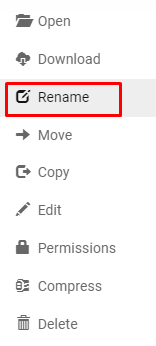
- Simply add any additional character to the file name to disable the file. Click Rename to save the changes.
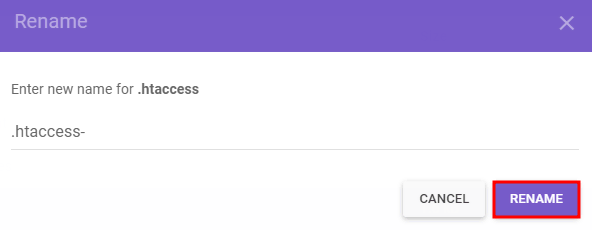
Next, here’s how to create a new .htaccess:
- In File Manager, click New File in the upper menu.
- Enter .htaccess as the file name.
- Copy and paste the following code within the file. Alternatively, generate the proper code using a .htaccess generator.
- Click Create to save your changes.
If you can access the website after disabling and creating a new .htaccess file, it was probably causing the 404 page not found error.
4. Restore Backup
404 error messages may occur when internet users come from external links from other sites that redirect them to deleted web pages. To solve this issue, restore the site backup.
Note that this method only works if certain website pages are broken or show a 404 error.
Here’s how to restore a website backup in Hostinger:
- Log in to your Hostinger account.
- On hPanel, go to the Hosting tab.
- Select the hosting plan and choose Manage.
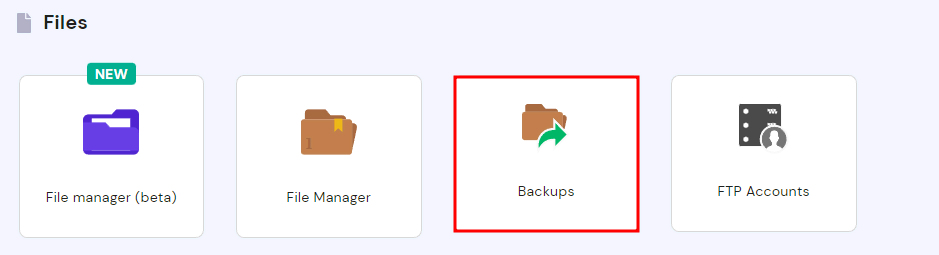
- In the Hosting Account panel, click Backups.
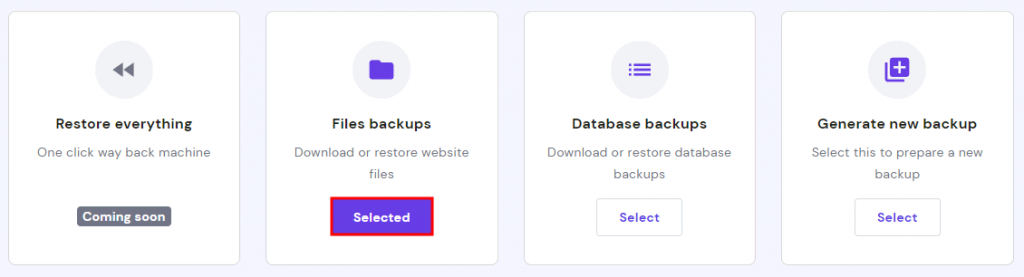
- Under the Files backups option, click Select.
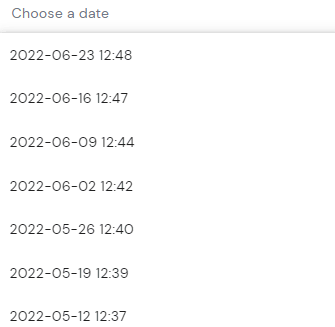
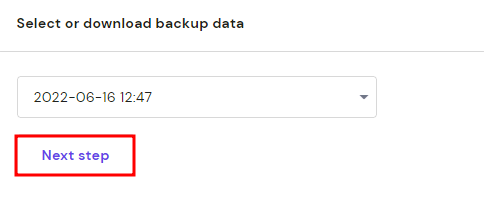
- Choose a preferred backup date.
- Click the Next Step button to prepare the backup file.
- Choose the domain you want to back up.
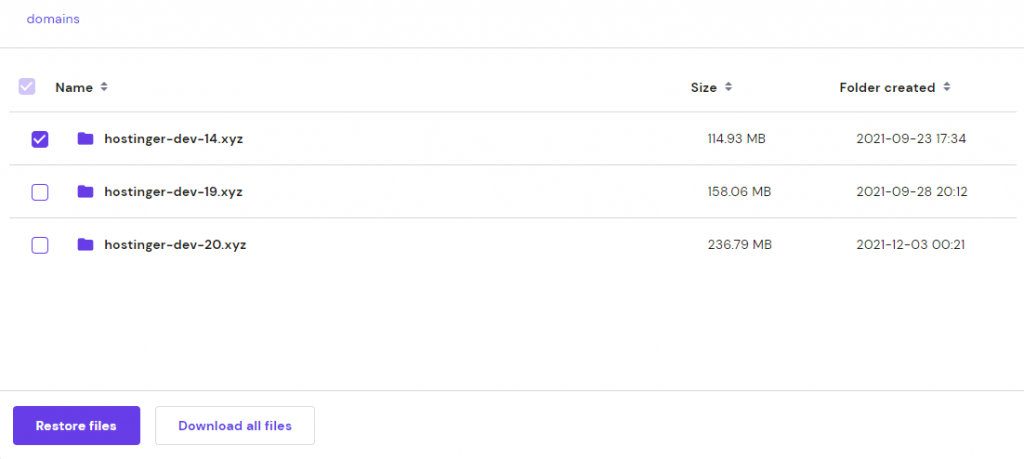
- If you want to restore the backup directly, click Restore files.
- If you want to download the backup and restore manually, select Download all files.
Learn How to Solve Other Error Messages
Conclusion
404 not found is a HTTP status code error that indicates the specific page you are trying to visit is non-existent.
Usually, it occurs when the domain points to an incorrect DNS address, files or folders have misconfigured permissions, or the system runs a corrupt .htaccess file.
When the 404 error appears, it is critical to solve the issue immediately. This article has compiled four effective ways to fix it:
- Ensure the domain points to the web host
- Fix file permissions
- Disable the broken .htaccess file
- Restore the website backup file
We hope this article has helped you fix the 404 not found error. If you have questions or suggestions, feel free to leave them in the comments section below.
Will Morris is a staff writer at WordCandy. When he’s not writing about WordPress, he likes to gig his stand-up comedy routine on the local circuit.
Как исправить 404 not found


Anyone with Internet access has most likely seen the ‘404 Not Found’ caption when trying to visit a web page. The 404 error means that the requested page couldn’t be found because it doesn’t exist. Usually, this error hampers your website optimization.
In this post, we’re going to help you understand what threat 404 pages pose, how to find and fix them.
- Why 404 Error Pages Are Dangerous for Your Site
- How to Find 404 Pages
- How to Fix Broken Pages
Each website has pages returning the 404 status code. Just mistype the page address, and you will land on one of them.
However, if the 404 error occurred due to the page removal or typos in the link on a site, it may negatively affect search engine optimization. Why?
The most widespread reasons for 404 pages are:
-
Incorrectly typed in URL (e.g., typos in the address or missing ‘/’ in the end).
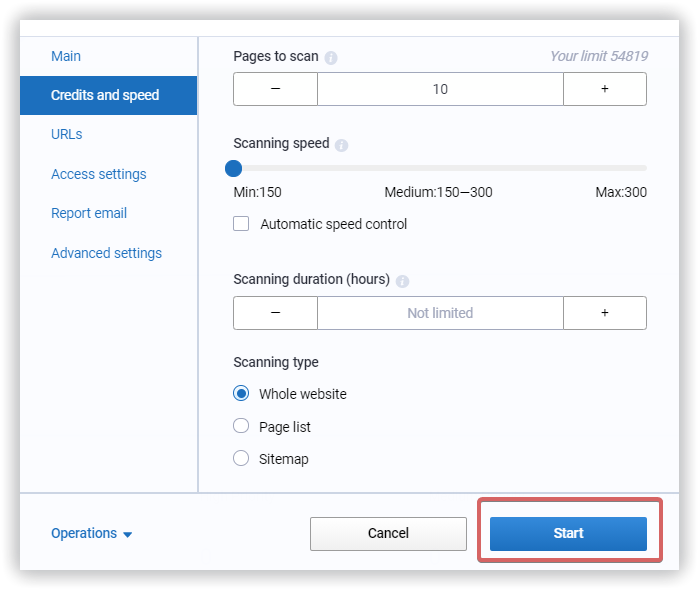
In the opened window, enter the domain name, project name and group, and click ‘Create’.
Once the site is added to the project list, you will see the ‘Site Audit’ column on the left side. Hit the ‘Start audit’ button.
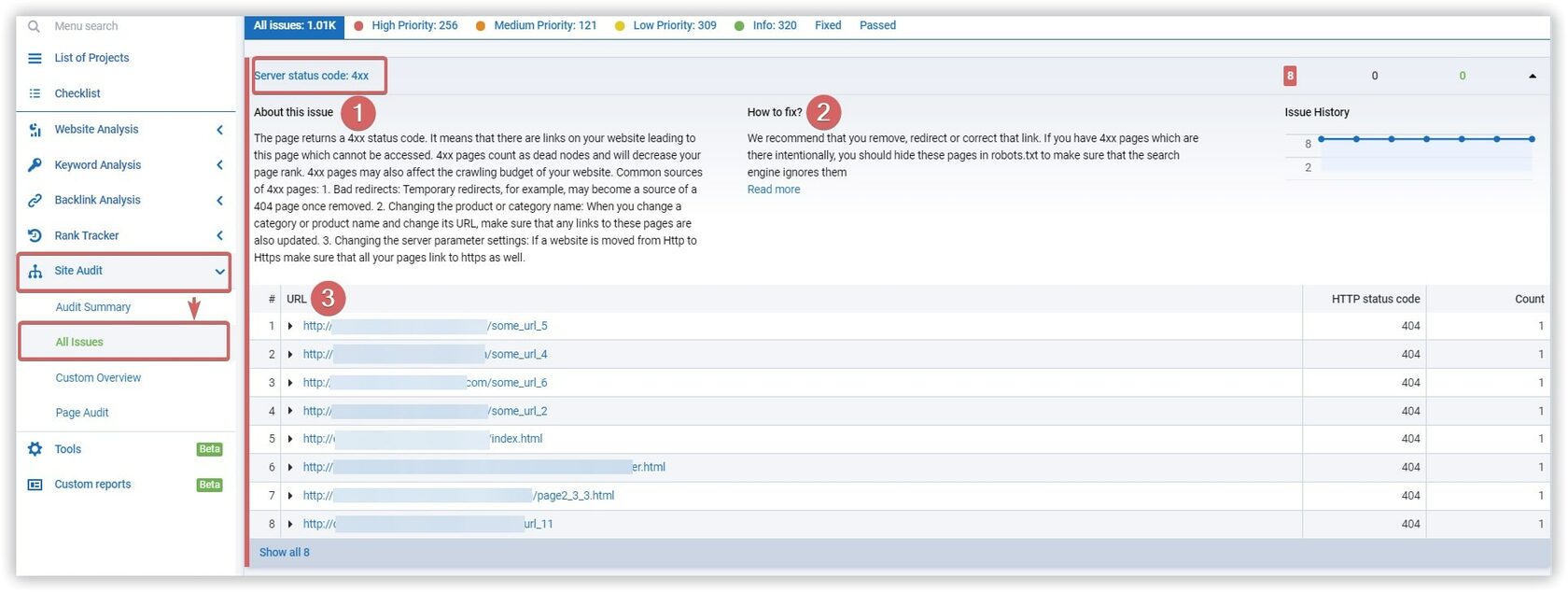

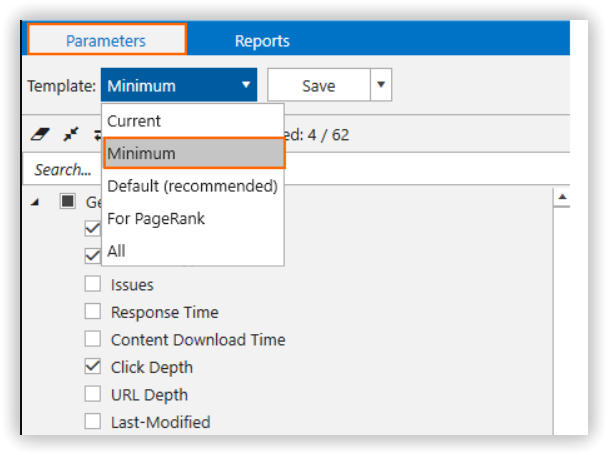
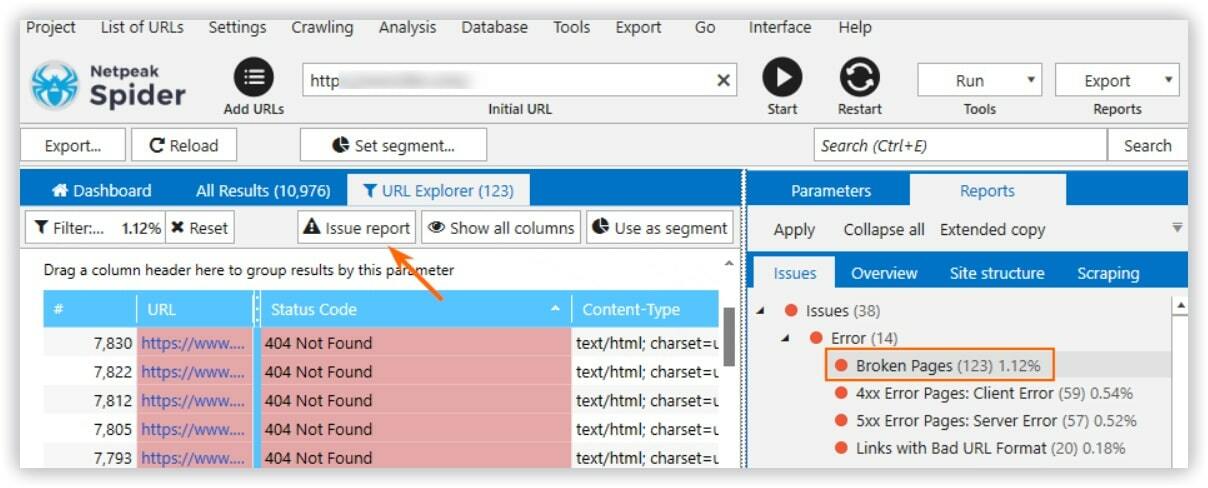
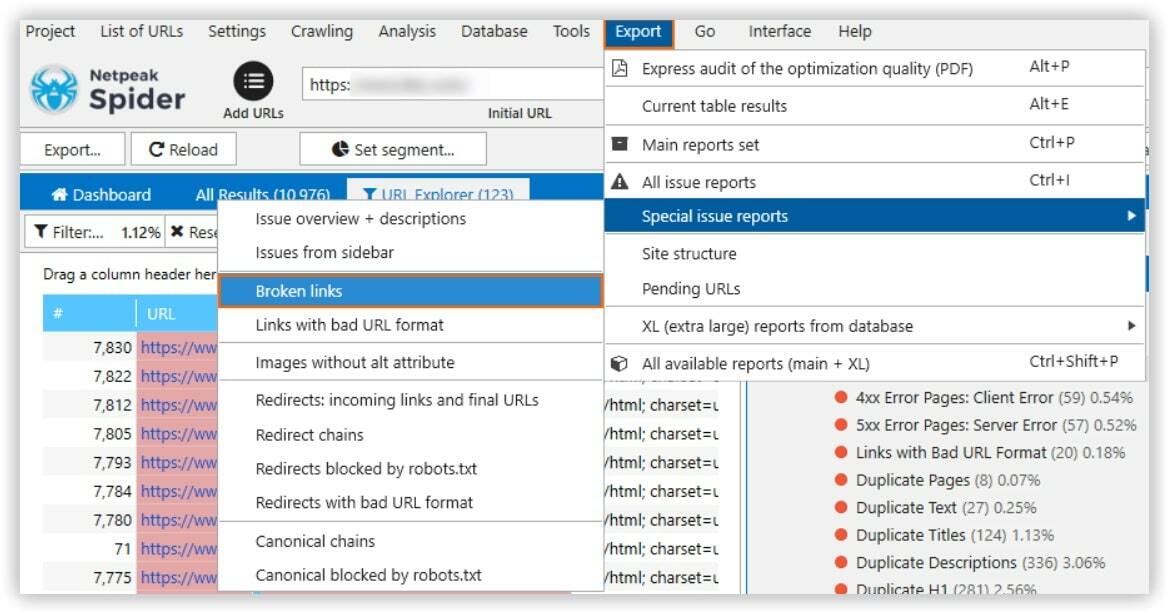
Once you have detected 404 pages and broken links on your site, you need to fix them as soon as possible. There are several ways to do it:
-
Replace incorrect links with the working ones.
The «404 Not found» error is one of the standard server response codes. It reports that the user has connected to the server, but the requested object was not found. 404 pages are needed, If you want to notify users about the following:
-
Incorrectly entered URL address in the browser line.
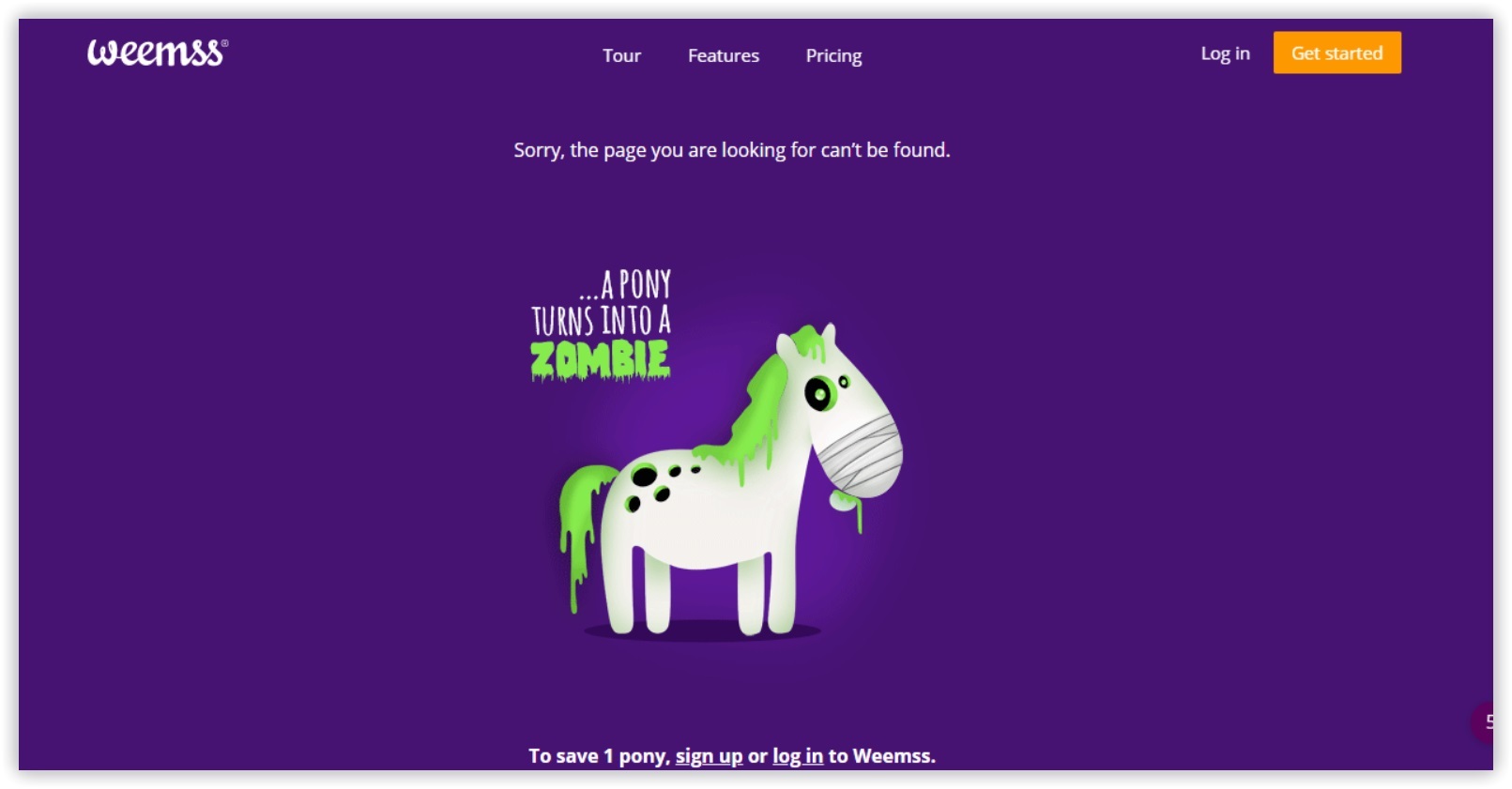
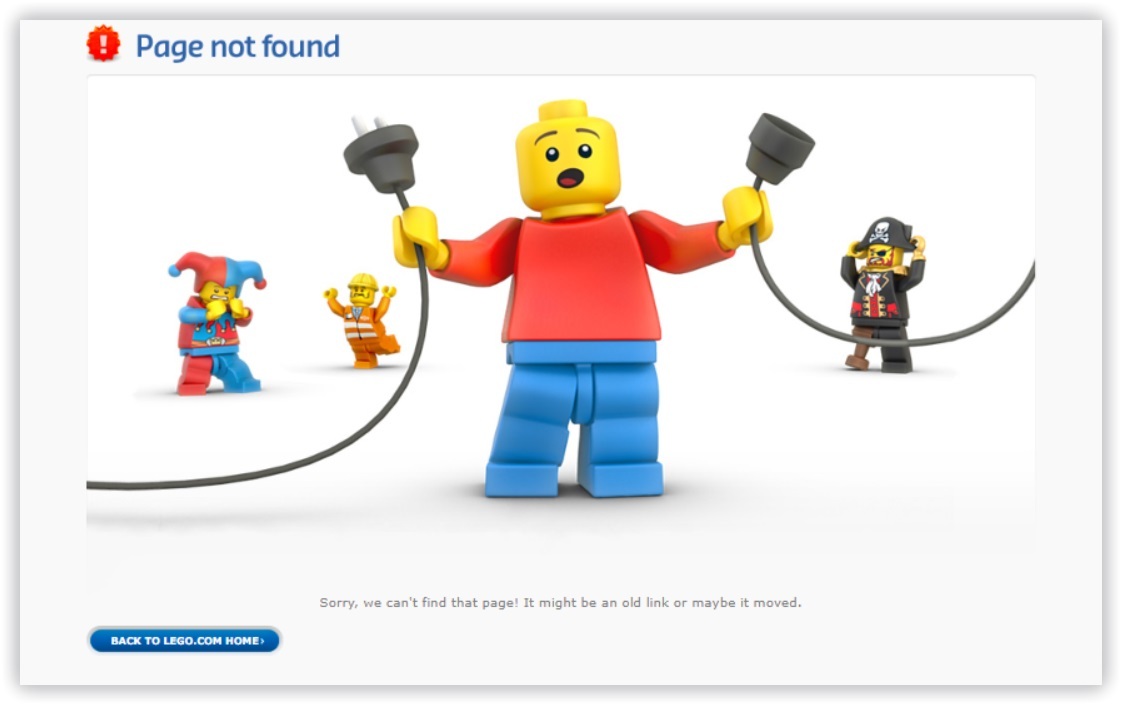
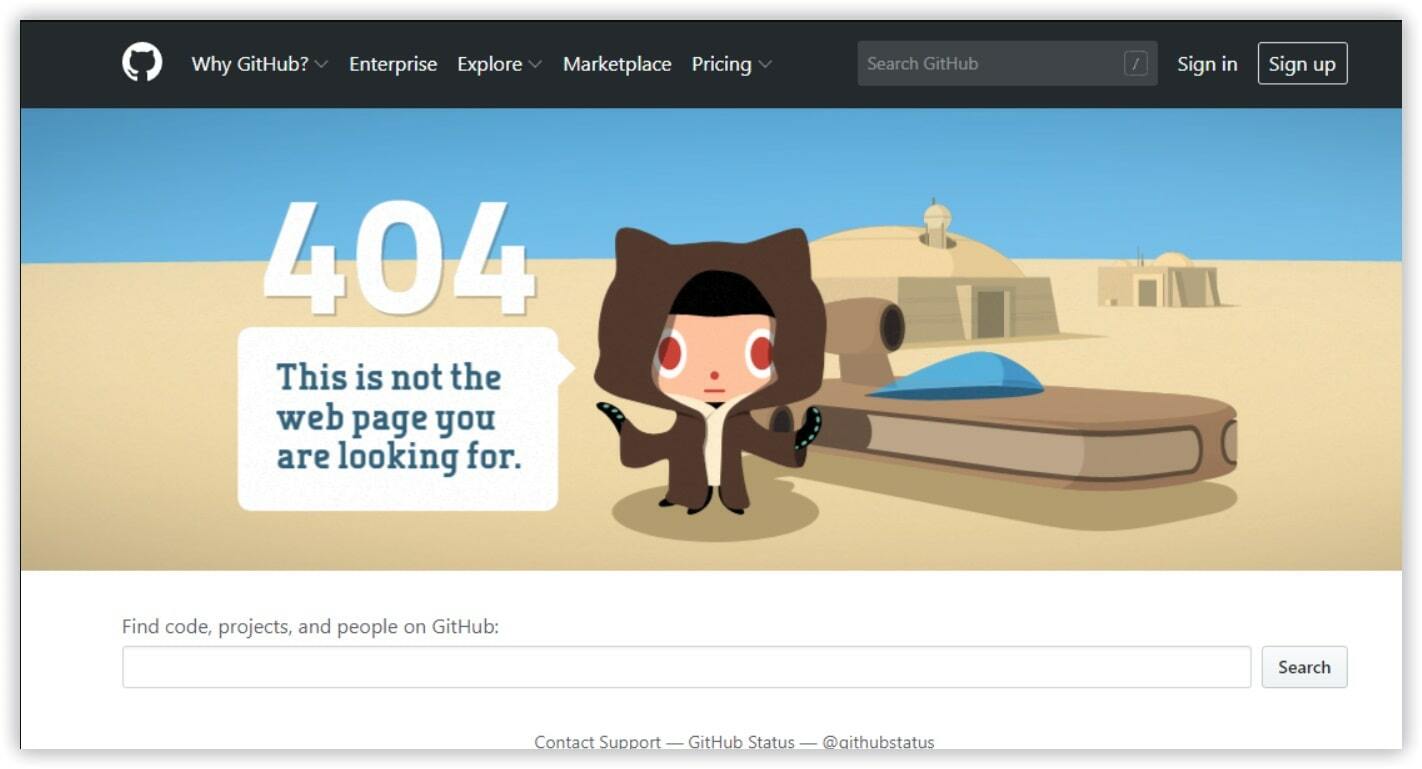
Sometimes your 404 Page Not Found can be used against you by your competitors.
How come, you may ask? They may come in handy in building relevant backlinks.
Once competitors used tools to crawl your website, including the rankings, they will reveal all your 404 pages. Successfully finding 404 errors, and with link opportunities in hand, competitors can create content that’s relevant for their brands.
Each and every site has 404 errors. However, if you don’t control them, they might worsen your behavioral factors, decrease rankings and traffic. The most common reasons of 404 pages are page removal, changes in URL, and relocation.
Conduct regular technical site audit to minimize the negative effect for 404 pages on your site. Another essential step is to create a custom 404 page, so users don’t leave your site straight away.
Do 404 errors hurt SEO?
Alhough 404 error pages don’t really affect your SEO directly, not fixing them might lead to other issues you wouldn’t want to have. If your website has backlinks referring to sites that return a 404 error, make sure to fix those backlinks and redirect your broken URLs to more appropriate pages. If you have broken links on your site, put effort into fixing them as quickly as possible, that way you will maximize user experience and link equity flow. And your visitors’ positive behavioural factors actually tend to have a positive impact on your website’s rankings in search results.
How do I remove 404 pages from Google index?
If you want to remove 404 pages from Google index, make sure your site has been added to and verified by Google Search Console. Follow next steps: Log in to Google Search Console Under “Index” in the sidebar, select “Removals” Click “New request” and enter your URL This will block the URL from Google Search. Make sure there are no old links to the missing page, or it could be indexed again.
What is the difference between 404 Not Found and Soft 404 errors?
The status code is the main distinction between a «404 Not Found» error and a soft 404 error. The former has a 404 or 410 status code, indicating that the page cannot be found. With a soft 404 error the page is still not found Instead of the 404 or 410 error code, a «200 OK» error code is returned. Search engines do not index 404 pages, meaning they do not appear in search engine results. Soft 404 pages, on the other hand, are indexed by search engines and may appear in search results.
Error 404 — что значит, как найти и исправить ошибку
 116
116
В этой статье мы разберём, что такое 404 ошибка, когда и каким образом она может навредить и как её отследить, а также приведём перечень рекомендаций по созданию собственной несуществующей страницы.
404 ошибка: страница не найдена
“Ошибка 404” (или “Page Not Found”) – стандартный код статуса HTTP для случаев, когда сервер не может найти запрашиваемый пользователем документ. Проще говоря, вы попали на несуществующую страницу.

Причины появления ошибки:
- страница удалена с сайта;
- пользователь неправильно ввёл URL;
- страница переехала и редирект настроен неверно;
- сервер работает неправильно (случается крайне редко).
В идеальной ситуации ссылок, отдающих 404 ошибку сервера, на сайте (или внешних ссылках) не должно быть вообще. Будем реалистами: если у сайта более тысячи страниц, их появления чаще всего не избежать. Немного удивляет, когда в работе сталкиваешься с сайтом, у которого небольшое количество страниц (то есть отследить все неработающие ссылки можно вручную), а в рубрике “Свежие новости” на главной – три битые ссылки на статьи.

Резкий рост количества 404 ошибок
Одно дело, когда при обходе сайта поисковые роботы сообщают, что обнаружили несколько десятков ошибок, а если каждый день количество увеличивается на сотни или даже тысячи? Оперативное вмешательство и решение проблемы стоит начинать, если количество 404 ошибок превысило 10% от общего числа страниц на сайте.
Причины появления большого количества несуществующих страниц могут быть самые разные, но в основном они связаны с ошибками в коде (например, такие страницы могут создаваться скриптом и стилями, если стили находятся в коде шаблона, а не в отдельном файле).
Ещё одна причина, по которой роботы обходят страницы, которых никогда не было на сайте — последствия вирусной атаки (например, размещение дорвеев на сайте). Даже после её предотвращения и удаления дора, некоторое время роботы по-прежнему будут пытаться обходить созданные страницы. Это может создать огромное количество ошибок 404.
Благодаря различным инструментам можно без особого труда отслеживать переходы по таким ссылкам.
Как найти?
1. GTM, Google Analytics и Яндекс.Метрика
Отслеживать переходы пользователей на 404 страницу можно с помощью следующих сервисов:
Для отслеживания переходов пользователей по битым ссылкам следует использовать “Параметры визитов” в Яндекс.Метрике. Для это нужно разместить в код счётчика строку “params:window.yaParams||< >>);”.
На самой странице 404 в любом месте нужно разместить следующий JS-код:
В этом коде: url — текущий адрес страницы 404, а url_referrer — адрес с которого на него попали. Так вы сможете отследить не только все битые ссылки, но и страницы, на которых они размещены.
Чтобы отслеживать переходы, нужно установить на 404 страницу следующий код:
, где document.location.pathname + document.location.search – URL отсутствующей на сайте страницы;
document.referrer – URL страницы, с которой пользователь перешёл на 404 страницу.
Google Tag Manager
Об отслеживании ошибок с помощью GTM вы можете ознакомиться в статье: “Настройка отслеживания 404 ошибок с помощью Google Tag Manager”.
2. Яндекс.Вебмастер и Google Search Console
Ознакомится с 404 ошибками, с которыми сталкиваются поисковые роботы, можно в сервисах для вебмастеров.
Яндекс.Вебмастер
Для просмотра страниц нужно перейти в раздел “Индексирование” — “Страницы в поиске” — “Исключенные страницы”. Выделить только страницы с нужной ошибкой можно с помощью фильтра по статусу “Ошибка HTTP: 404”.
Google Search Console
Обнаружить ошибки в Гугл Вебмастер можно через: “Сканирование” — “Ошибки сканирования” — “Ошибка 404”.
3. Инструменты для сканирования сайта на наличие битых ссылок
С помощью следующих инструментов можно просканировать сайт и проанализировать его на наличие неработающих ссылок:
- Screaming Frog SEO Spider Tool
После того как программа спарсила весь сайт, во вкладке “Response Code” отображаются страницы с 4хх и 5хх ошибками, а также документы с размещёнными на них ссылками. Единственный минус — приложение платное.
Проверить сайт на наличие страниц можно с помощью таких бесплатных инструментов, как:
- Netpeak Spider
- Xenu’s Link Sleuth
- Siteliner
- WildShark SEO Spider
- Webbee SEO Spider Tool
Проверить ответ сервера страниц из карты сайта можно с помощью Map Broker XML Sitemap Validator.
Подробнее: Как найти битые ссылки на сайте: обзор 4 удобных инструментов.
Или можно сделать так:

Чем опасна 404 ошибка?
Бытует мнение, что наличие 404 ошибок напрямую негативно влияет на индексирование сайта или на его позиции в поисковой выдаче. В большинстве случаев это не так.
Что происходит с такой страницей, когда робот находит её? Он удаляет её из индекса (если она уже там, если нет — просто не сканирует). Это естественно, ведь страница неинформативная и не полезна.
Но нужно помнить о существовании SOFT ошибок. “Мягкая” 404 — это не официальный ответ сервера, а скорее ярлык, который поисковые системы присваивают страницам после обхода.
Что не так с этими страницами и почему ПС так решили:
- На странице мало или вовсе нет контента (Google может определить как 404, Яндекс — как некачественную).
- Настроен редирект на страницу, которая не отвечает запросу пользователей.
- Несуществующая страница выдаёт ответ сервера не 404 или 410.
В моей практике был случай, когда во время диагностики была обнаружена 404 страница, закрытая от индексации в файле robots.txt. В силу неопытности, для меня это было чем-то странным и непонятным: зачем закрывать от индексации несуществующую страницу? На самом деле всё оказалось намного интересней. Все ссылки на несуществующие страницы (и URL с ошибками) перенаправляли с помощью 302 редиректа на специально созданную страницу.
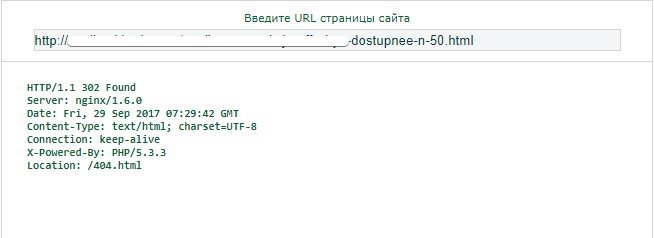
302 редирект говорит поисковым системам о том, что страница временно переехала. Поэтому из индекса такие страницы не удаляются. Таким образом, роботы тратят ваше драгоценное время, продолжая раз за разом их обходить. Плюс к этому, вы заставляете их чувствовать себя некомпетентными, ведь они ведут пользователей на нерелевантные страницы.
Что выбрать: 301 или 404?
После удаления страницы возникает вопрос, что с ней делать дальше: настроить 404 ответ сервера или 301 редирект?
Каждый случай нужно анализировать по отдельности. Например, метод, которым успешно пользовались для интернет-магазина, может не подойти сайту услуг или другому интернет-магазину.
Настраиваем 404 ответ сервера, если по каким-то причинам страница полностью удалена с сайта.
301 редирект более уместен, чем 404, если:
- изменился адрес страницы (например, при смене структуры);
- страница релевантна запросу пользователей;
- возможно перенаправление на другую страницу с похожим контентом (одной тематики или с карточки товара на каталог);
- есть внешние ссылки на страницу.
301 перенаправление на главную страницу будет не самым лучшим решением как для пользователей (вызовет у них недоумение), так и для SEO (например, Googlebot расценивает их как SOFT 404).
404 ошибка и поведенческие факторы
Вспомните ощущения, когда вы заходите на сайт, чтобы получить ответ, а вместо информации видите белый экран с надписью “404 Error. Page Not Found”. Что обычно делает пользователь? Закрывает вкладку и открывает другой сайт.
Естественно, чем больше страниц на сайте отдают 404 ответ сервера, чем чаще пользователи сталкиваются с этой ошибкой, тем меньше времени они будут проводить на сайте и тем больше будет отказов. Алгоритмы поисковых систем настроены таким образом, что поведенческим факторам уделяется особое внимание. Они играют немаловажную роль в ранжировании.
Чтобы избежать ухудшения поведенческих факторов, нужно мотивировать пользователей остаться на сайте. Для этого нужно грамотно и креативно подойти к созданию 404 страницы.
Несуществующая страница
Чтобы пользователь остался на сайте, нужно подумать над созданием собственной 404 страницы, которая будет отображаться при возникновении ошибки.
Часто веб-мастера вовсе не придают ей значения, и пользователь видит следующее:
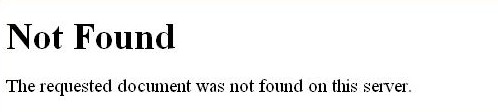
- привлечь внимание пользователей;
- объяснить что произошло;
- подсказать пути решения проблемы.
Поисковые системы касательно собственной страницы 404 рекомендуют следующее:
Яндекс:
- страница должна внешне отличаться от остальных страниц сайта;
- для создания страницы выберите другие цвета или не используйте графику.
Google:
- страница должна быть выполнена в том же стиле (включая навигацию), что и основной сайт;
- разместите на ней ссылки на самые популярные статьи или разделы комментариев;
- дайте пользователям возможность сообщать о неработающих ссылках.
Общие рекомендации:
- она должна содержать ссылку на главную страницу;
- в вежливой форме донесите пользователю что страница, на которую он хотел попасть, недоступна.
Вышеперечисленные рекомендации не являются безоговорочными правилами для 404 страницы. Всё зависит от тематики сайта и целевой аудитории. Например, для интернет-магазина было бы уместно добавить поисковую строку, а для сайта услуг — контактные данные. У более взрослого поколения вряд ли вызовет восторг такая страница, но для сайта, у которого основная часть посетителей — играющая в компьютерные игры молодёжь, она будет уместной.

Полная анимационная версия на сайте Blizzard.
Заключение
При условии правильной настройки ответа сервера и грамотно разработанной страницы 404, у сайта не должно возникать проблем даже при большом количестве страниц с 404 ошибкой. Не пытайтесь обмануть поисковые системы и пользователей, настраивая редиректы, которые ведут не на релевантные страницы. Выбрав удобный способ, вы всегда сможете отследить битые ссылки и понять, как их исправить.
P.S. В знак благодарности, что дочитали статью до конца, мы подготовили подборку интересных и забавных 404 страниц. Наслаждайтесь ��

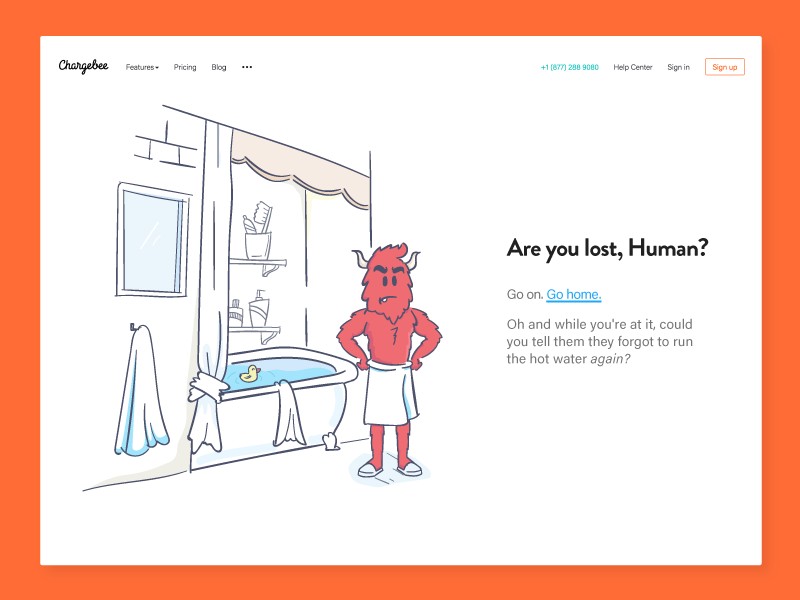
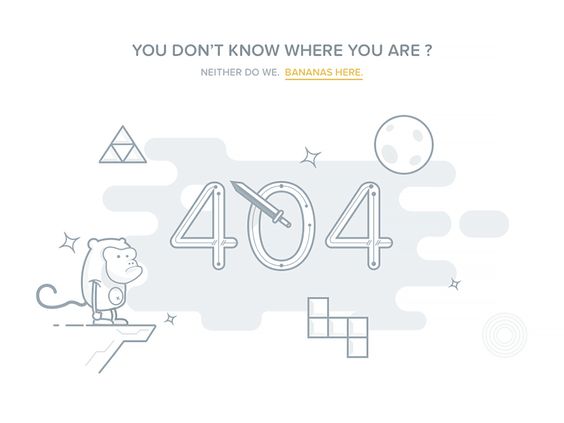
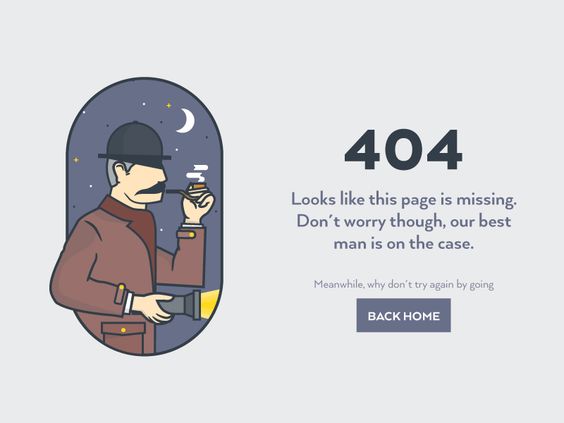




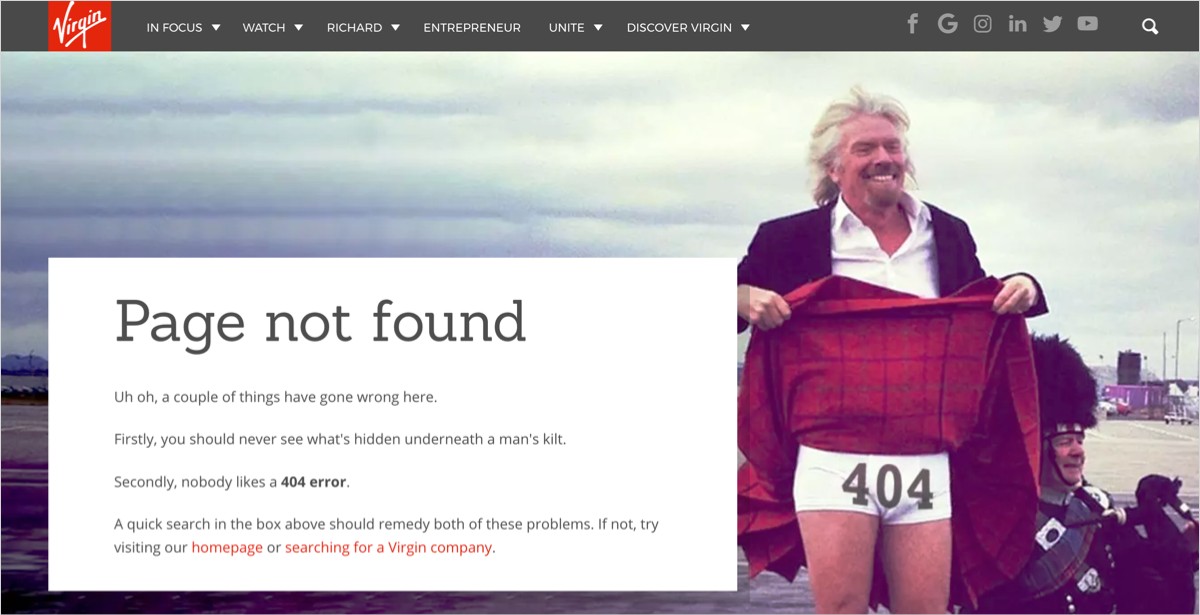

Если сомневаетесь насчёт отсутствия на сайте битых ссылок или других технических проблем, которые усложняют процесс его продвижения — отправьте нам запрос на лечение сайта, и мы постараемся помочь.
What 'Error 404' means and how to fix it
You know the page: you click on a link, but instead of getting the site you want, an error pops up indicating that the requested page is not available. Something along the lines of ‘404 Not Found’. A 404 error is the standardized HTTP status code. The message is sent from the webserver of an online presence, to the web browser (usually the client) that sent the HTTP request. The browser then displays this error code.
How does a '404 error' come about?
The typical trigger for an error 404 message is when website content has been removed or moved to another URL. There are also other reasons why an error message could appear. These include:
- The URL or its content (such as files or images) was either deleted or moved (without adjusting any internal links accordingly)
- The URL was written incorrectly (during the creation process or a redesign), linked incorrectly, or typed into the browser incorrectly
- The server responsible for the website is not running or the connection is broken
- The requested domain name can’t be converted to an IP by the domain name system (DNS)
- The entered domain name doesn’t exist (anymore)
Dead links are often left for long periods of time since operators have no idea that the linked content has been deleted or moved. Many websites still appear in the search engineresults pages (SERPs) even though they aren’t available online anymore (or at least not at the specified URL). Other linked websites such as blogs, news portals, etc. are often not informed that the site has been removed or can now be found under a new URL. Many website operators don’t check their external links regularly and therefore a functioning link could easily become a dead one.
Register great TLDs for less than $1 for the first year.
Why wait? Grab your favorite domain name today!
Matching email
SSL certificate
24/7/365 support
How to fix the error '404 Not Found'
A 404 error is rarely a reason to celebrate. At the end of the day, the website’s visitors have not found the content that they were looking for. However the appearance of a 404 page does not necessarily mean that the desired information is not available at all. In many cases, the solution to the original error is easily found and the visitor can be quickly directed to the web page that they were originally looking for. So how exactly can you go about achieving a 404 error fix? Our advice would be to try out these potential solutions (in the order that they are listed):
- Reload the page: It might be that the error 404 has appeared for the simple reason that the page did not load properly. This can be checked quite easily by clicking on the ‘Refresh’ button in your browser or also by pressing the F5 button.
- Check the URL: Regardless of whether you have entered the URL address manually or been directed via a link, could be that a mistake has been made. For this reason you should check the specified path of the website. It could be that either you, or the person who entered the link, has mistyped something. Apart from spelling mistakes, it could also be that forward slashes have been left out or misplaced. But bear in mind that this can only really be checked with ‘clean’ URLs, as they contain unreadable words instead of incomprehensible abbreviations, letters, numbers, and symbols.
- Go back through the directory levels: For example, if a URL of the following structure example.com/Directory1/Directory2/Directory3 causes a 404 error page, then you can always go back to the previous directory level (in this example: example.com/Directory1/Directory2) in order to check whether the desired page is linked there. All you need to do is clear the last directory in the URL. The link for the page you are looking for should be visible on the previous page. If it is not to be found on that page then you can also go back to the previous page and look for the correct link there. But if it so happens that this method is also successful and you eventually end up back on the homepage, then move onto the next tip.
- Use the website’s search function: Many websites offer a search function as part of their homepage. By entering one or several keywords, it can help you find the specific page that you are looking for.
- Use a search engine: You also have the possibility of using the website of your choice to find a website. As long as the desired site exists, you should be able to find it by entering the website domain and/or a keyword transcription of the subject matter.
- Delete the browser cache and cookies: Ifyou can access the website from another device, and the HTTP 404 error only seems to appear on a certain computer, then the problem could lie with your browser. Therefore you should delete the browser cache as well as all cookies for this site, and this may then finally allow you to access the page.
- Contact the website: If none of the abovementioned tips have been successful then the only remaining option may be to get in touch with the person/people responsible for the website. Contact information can usually be found in the website’s masthead or else on a specific ‘Contact Us’ page. The operators of the website should be able to provide information as to whether the page you are looking for actually exists. It might be the case that the page in question has been moved to a new URL, and in this scenario you will be doing the website operator a big favor. They can then carry out a 404 error fix by introducing a domain redirect, which will automatically direct users from the old web page to the current one.
HTTP 404 errors can damage a website’s ranking and reputation
Search engines, such as Google and Bing, will have a negative impression of a site if it has many 404 errors. Once the crawlers have established that many requests are being met with 404 codes, it presumes the site isn’t very well maintained. Dead links affect a site’s ranking and Google can decrease its placement in the SERPs or even stop indexing it if there are too many 404 error pages occurring. This may result in a considerable decrease in visitor numbers for the website.
The visitor loses trust in the site if it’s full of broken links or if the landing page (the page that is accessed from the search engine results) is dead. If the site is experiencing this problem regularly, many users won’t take the trouble to continue to search since they aren’t even sure if the desired content is still available.
Identifing 404 errors on your own website
It’s important for website operators to prevent HTTP 404 pages. This applies to internal 404 error pages on their own website as well as external 404 error pages on other sites. There are numerous free tools available to help you find these broken links more easily. Three of the best and most well-known are:
- Google Search Console (formerly known as ‘Google Webmaster Tools’): if you already have a Google account and have registered your website there, you should make use of the Google Search Console option. Any 404 errors found by the Google crawler are displayed in the web tool and can also be marked as corrected here too. Additional functions enable you to find errors in robots.txt files and use crawling statistics to work out how often your site has been crawled by Google crawlers.
- Dead Link Checker: one of the simplest and fastest tools for finding both internally and externally linked 404 pages is the Dead Link Checker. With this web app you simply enter the URL of the site you want to inspect and then start the check. Here you have the choice of checking a single web page or a whole site. The app lists all the tracked error pages with status codes and URL.
- W3C Link Checker: this online tool from World Wide Web Consortium (W3C) is particularly detailed when it comes to testing individual website pages, so the process takes longer to verify links than with other websites. The W3C Link Checker works just like the Dead Link Checker: you enter the URL and let the tool do the rest. It’s also possible to add further details
Creating a 404 error page
Some content management systems (CMS) like WordPress, Joomla and Drupal automatically generate a 404 error page when a website’s URL can’t be found. The HTTP 404 page is just a simple standard error message, but most of them can be personalized using special CMS extensions.
If your CMS doesn’t give you the option of creating or changing your 404 page, or if your website is solely based on HTML, PHP, etc., it will prove a bit more complicated. You can create an error page as follows:
- Create an error page (‘404.html‘ or ‘404.php‘) in the root directory (if there isn’t an existing one already).
- Open the .htaccess file (or create one if needed) in the root directory, enter this in ‘ErrorDocument 404 /404.html‘ and save the change. The error page will be generated with this code.
- To see if it’s worked, try to access an unavailable webpage and hopefully the error 404 message should appear in the browser.
Why should you personalize your 404 error page?
Having a standard 404 error page is better than having none at all, although a customized page is more preferred for several reasons. On the one hand, you can be sure that visitors receive an accurate HTTP status code: for example, if the requested content is no longer present on the site, this should be conveyed with the ‘410 Gone‘ message. The visitor then knows that this content has been permanently deleted.
On the other hand, you can provide a specially-designed error page containing related links (i.e. links to your homepage or subpages where the content overlaps that which the visitor originally requested). You could even add a search function for your website. By taking these extra measures and providing incentives, you might be able to prevent visitors from leaving your site straight after seeing the 404 code.
With a creative 404 message you may even find that visitors are more forgiving. Naturally they will be disappointed at not finding content they were promised, but an original or funny 404 page could make up for it. If done properly, error pages do have some potential.
Make sure that the design of the error message matches the style of your website and you already have the foundation for a good 404 error page. If you let visitors know in a funny and light-hearted way that your content isn’t available, you’ll hopefully get a smile out of them and they won’t hold a grudge. For inspiration, check out our article on cool and creative 404 pages.