Поиск IP адреса Raspberry Pi
По умолчанию в Raspberry Pi SSH включен, и для чтобы соединиться вам необходимо узнать IP адрес RPi.
Подключаем RPi с помощью патч-корда к роутеру и в зависимости от вашей ОС выполняем следующие инструкции:
- ping raspberrypi
Самый простой вариант, это использовать утилиту ping. Открываем терминал и вводим:
- ping raspberrypi
- 64 bytes from raspberrypi (192.168.1.121): icmp_seq=1 ttl=64 time=1.35 ms
- arp -a
- raspberrypi (192.168.1.121) в b8:27:eb:e5:dc:83 [ether] на wlan0
- sudo apt-get install nmap
- sudo nmap -sn 192.168.1.0/24
- Nmap scan report for raspberrypi (192.168.1.121) Host is up (0.0030s latency). MAC Address: B8:27:EB:E5:DC:83 (Raspberry Pi Foundation)
- ping raspberrypi.local
- arp -a
- brew install nmap
Подключение по SSH к Raspberry Pi
И так, IP адресс мы узнали, теперь необходимо подключится к нашей Raspberry Pi.
Windows
Качаем из интернета бесплатную программу Putty. Открываем. В разделе Translation выбираем кодировку UTF-8. Возвращаемся в раздел Session. Host Name (or IP adress) вводим IP Raspberry Pi. Connection Type выбираем SSH. Port указываем 22. Saved Session пишем имя соединения, например RPi. Сохраняем нажатием на кнопку save.
В списке выбираем Raspberry Pi. Жмем Open. Через мгновение откроется консоль, где вам надо будет ввести логин и пароль.
- ssh pi@192.168.1.121
Все, теперь можно легко и быстро подключиться к Raspberry Pi с помощью SSH.
How to Find the IP Address of your Raspberry Pi (3 Methods)
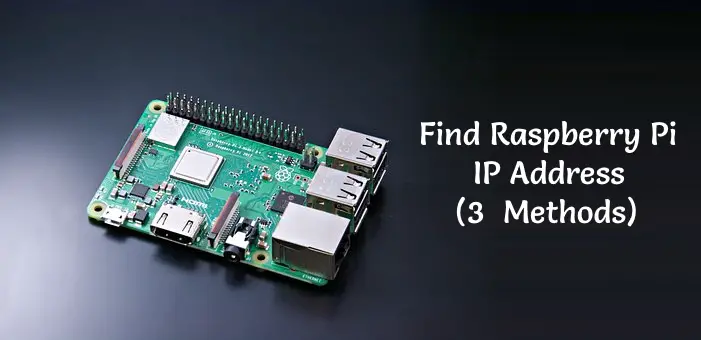
For doing any task on your Pi where you need remote access, you definitely need to know the IP address of your Raspberry Pi. For example, if you need to ssh into your Pi or in case you have to set up a remote desktop you need the IP address. So, in this article, I will show you some straightforward methods to find the Raspberry Pi IP address with and without a monitor.
Equipment List
Here is a list of equipment that I used to test this tutorial.
Recommended
-
(1 or above will work) or WiFi Dongle (Pi 3 & 4 has in-built WiFi)
Optional
How to Find Raspberry Pi IP Address with Monitor
In case you have physical access to your Pi with a dedicated monitor connected to it, then the process is very easy.
-
For finding the IP all you need to do is to run the following command.
Ensure that you typed the capital letter I to retrieve the IP address for all hostnames.
That’s it. Now you’ll be able to connect your Pi using this IP address.
How to Find Raspberry Pi IP Address without Monitor
Here I will show you how to find Raspberry Pi IP address without monitor – headless mode.
1. Using Router Devices List
- Usually, your router will be available on http://192.168.1.1/ so browse this address in your browser. If your router is not at the above address check the label of your router where the address is usually printed. Or do a simple google search to find out where your router should connect.
- Now login with your credentials and you will be taken to the router page.
- Here search for the list of devices connected to the router.
- On the list, you should see a device using raspberrypi as its hostname. This is what we are searching for. Now use the IP address listed for that device.
2. Using nmap (Network Mapper) Command
The network mapper checks the IP address by scanning devices within a particular subnet.
- At first, you have to install the nmap tool on your device. If you are on Windows or Mac OS you can download the tool binaries from their official website.
- Once you install it, you have to find out what subnet our router is currently using. To know this first you need to get the local IP address of your computer.
- For Windows , go to Windows settings > Network & Internet > Change connection Properties.
- Then Scroll down to the bottom and find the Properties section.
- Here you can see your device’s IP address next to IPv4 address.
For Linux , run the following command in the Terminal to retrieve the local IP address of your computer.
This will give you the local IP address.
For Mac Os , go to System Preferences > Network. Select the active network connection and click View status of this connection to find the IP address of your computer.
3. Now we have the current IP address to work with. If your IP address is 192.168.1.45 . For example, we know that the subnet range is 192.168.1.0/24 . Replace the last number with 0/24 to get the subnet range.
4. Now run the nmap command.
Make sure to swap the subnet range with your own value.
This will start showing the IP addresses of each device that respond to the ping. The output may look like this.
From the output, you can see that my Raspberry Pi is detected and the IP address is displayed. I’ve highlighted that in red color.
I hope you learned how to find the IP address of the Raspberry Pi. If you have any questions please don’t hesitate to ask us via comments.
Found an issue with this article? Report it here, so that I can resolve it.
Find Raspberry Pi’s IP on Network – Windows, MacOS, Linux
To connect to a Raspberry Pi using SSH or VNC, you need to know the Pi’s IP address.
If you use the Raspberry Pi with a monitor, you can check the Pi’s IP from the command line (terminal) by executing the hostname -I command.
Without a monitor and keyboard (headless) you can find the Raspberry Pi’s IP if you connect it to LAN (Local Area Network).
In this note i will show how to find the Raspberry Pi’s IP on network.
MAC Address Lookup: MAC addresses of the all devices of Raspberry Pi Foundation start with B8:27:EB:xx:xx:xx or DC:A6:32:xx:xx:xx .
Find Raspberry Pi’s IP on Network
Connect the Raspberry Pi to your local network and use one of the following commands, depending on your operating system, to find the Pi’s IP address.
Windows command prompt:
MacOS or Linux command line:
Alternatively, you can find the Raspberry Pi’s IP using nmap command, but the solution with arp is much faster and does’t require installation of additional software:
Subnet: Replace 192.168.1 with the subnet for your LAN if it’s different.
Ping all IP addresses on LAN
If you have connected a Raspberry Pi to the network recently, the ARP table may not contain the Raspberry Pi’s IP and MAC addresses, as to be recorded Raspberry Pi has to send at least one packet to your computer.
To force this we can simply ping all IP addresses on LAN.
Windows command prompt:
MacOS or Linux command line:
As only the computer receives a response from Raspberry Pi, it records IP and MAC addresses in the ARP table and you can run the arp commands above to find them out.
Что такое IP адрес? Как узнать IP адрес? На примере Raspberry PI (малинки)
Приветствую дорогой читатель, много вопросов возникло у начинающих пользователей и с сегодняшнего дня я запускаю цикл статей для начинающих. Этот материал именно для них. Сегодня разберём следующие вопросы:
Что такое IP адрес?
Как найти IP адрес, полученный Raspberry Pi (далее: малинка) в домашней сети, какими программами это делать. Разберем методы для разных платформ: Windows, Mac OS, iOS и Android.
1. Что такое IP адрес?
Для того, чтобы понять что же такое IP-адрес и для чего он нужен, предлагаю рассмотреть следующий пример.
Иван живет по адресу: Россия, г. Москва, ул. Тверская, дом.1, квартира 1. Он хочет послать письмо Петру, который живет по адресу: Россия, г. Санкт-Петербург, Невский проспект 1, кв.2.
Если Иван указал адрес на конверте верно, то письмо обязательно попадет Петру, так как местоположение Петра на Земном шаре указано однозначно.
В компьютерной сети происходит практически тоже самое. Каждый компьютер должен иметь свой уникальный адрес, чтобы информация с другого компьютера попала именно ему. Этот уникальный адрес и называется IP-адресом.
2. Поиск IP адреса Raspberry Pi. Вопрос очень простой но многие не могут его решить. Начнём с того что нужно понять какой платформой вы пользуетесь Windows, Mac OS, iOS или Android.
После того как определились с вашей платформой нам нужно выбрать программный продукт который подходит под вашу платформу. Я рассмотрю все программные продукты под все платформы, а выбор останется за вами.
По программам мы рассмотрим следующие этапы:
2. Разбор интерфейса
Все продукты которые я рассматриваю в данной статье, я использую в повседневной работе.
Mac OS X
Программа для сканирования сети для Mac OS: Network Radar. Есть платная и бесплатная версии. Мы будем использовать бесплатную версию, ее функционала вполне достаточно.
Скачиваем программу с сайта производителя и устанавливаем.
При первом запуске программы мы увидим приветственное окно.

Нажимаем кнопку Scan и ждем пока просканируется наша сеть.

В разделе Network Scan мы выбираем название нашей сети и поулчаем следующую картину:

Как мы видим на картинке в моем случае 192.168.1.218 это и есть моя малинка. Так же программа показывает какие порты отрыты и какие сервисы работают. Это просто круто.
Альтернативный вариант для Mac OS X
Альтернативным вариантом программы можно рассмотреть IP Scanner Pro. Программа платная, стоит 2290 рублей, но она того стоит. Функционал и стабильность работы — потрясающие.
Данным продуктом я пользуюсь уже достаточно давно, рекомендую к использованию.

После установки и запуска программы, она начнет работать и искать все ваши устройства в сети.

И мы находим IP адрес Raspberry Pi, так как обычно у нее имя raspberrypi. В данном случае он 192.168.1.85
Windows
Программа для поиска IP адреса на платформе Windows называется Advanced IP-Scanner, программа является бесплатной и очень проста в работе. Скачиваем ее с сайта разработчика и начинаем разбираться с интерфейсом программы.
Программу можно установить или запустить, все зависит от ваших потребностей. Процесс установки нет смысла описывать, 2 раза нажать «далее» и все готово.
После запуска программы нажимаем большую кнопку Сканировать.

После сканирования мы видим следующую картину, мы нашли ip адрес нашей Raspberry Pi, так как обычно у нее имя raspberrypi. В данном случае он 192.168.1.85
На этом поиск ip адреса закончен.
Для поиска Raspberry Pi в сети через iPhone или iPad мы можем воспользоваться программой Fing. Программа бесплатная и доступна в официальном AppStore.


Как мы видим, нам удалось довольно просто получить ip адрес нашей Raspberry Pi, в данном случае он 192.168.1.218. Напоминаю, что в вашем случае он будет другим. Все зависит от настроек вашей домашней сети.
Android
На смартфоне или планшете под управлением Android, в Google Play Market, также можно найти программу Fing, которой мы пользовались при поиске ip адреса на устройстве под управлением iOS. Интерфейс программы практически идентичен:


Как мы видим, нам удалось довольно просто получить ip адрес нашей Raspberry Pi, в данном случае он 192.168.1.85. Напоминаю, что в вашем случае он будет другим. Все зависит от настроек вашей домашней сети.
Всем кому нравятся мои работы и мои проекты подписывайтесь на меня, ставьте лайки, комментируйте, высказывайте свои пожелания. Мне никогда не помешает ваша поддержка. Не забывайте, что у меня еще есть личный канал на YouTube.