Windows Server Backup — Bare metal recovery
Для восстановления сервера на голое железо (Bare metal recovery — BMR) нужно иметь бекап. Бекап можно создать при помощи штатной фичи Windows server 2012, под названием Windows Server Backup.
Установка Windows Server Backup
Как установить Windows Server Backup описано тут. После установки нужно настроить резервное копирование.
Настойка Windows Server Backup
WBS может бэкапить на диск, на раздел диска и на шару. Для экономии места на хранилище, целесообразней использовать инкрементальные бэкапы, но инкрементальные бэкапы WSB может делать только на диск, при этом, когда диск назначается для бэкапов, все данные с него удаляются. Да и на каждый серве не напасешься дисков, поэтому будем использовать ISCSI диски. Для этого нужно настроить ISCSI Target на хранилище и ISCSI initiator на сервере. В моём примере ISCSI target на Windows 2012 сервере.
Настройка ISCSI Target на Windows Server
Настройка ISCSI Target и ISCSI initiator на Windows Server 2012 описана подробно тут и тут
После настройки таргета и иницаитора, в системе появится диск. Его нужно сделать “online”. За тем “зашедулерить” WSB. Тут и тут есть описание как это сделать. Скажу лишь, то что бэкап будем делать всего сервера целиком. В моём случае даже с виртуальными машинами Hyper-V
И так половину дела сделали. Бэкапы делаются, их можно доставать при необходимости через раздел Recovery того же WSB. Но что же делать если железо сервера полностью вышло из строя и восстановлению не подлежит. В этом случае понадобится Bare metal recovery т.е дословно «восстановление на голом железе». Но для восстановления на железе нужно что то загрузить на этом железе, что сможет получить доступ к бекапу.
Windows Recovery Environment — Winre 4.0
Windows Recovery Environment WinRE– Средство восстановления Windows основанное на Windows Preinstallation Environment . Это средство загружается автоматически при сбое Windows. Или его можно создать записать на диск флешку или WDS. Windows Deployment Services — WDS гораздо удобней в использовании. Сегвер загружает WinRE по сети и готов к восстановлению. Но не всё так просто. По умолчанию Winre не умеет работать с ISCSI дисками, нет файлового менеджера, нет Powershell и тд. этому мы его и научим.
Новые возможности службы развертывания ОС можно посмотреть тут. Подробней о его настройке сделана презентация.
Настрйка WinRE.wim версии 4.0
WinRE.win можно взять в каталоге ОС: c:\Windows\System32\Recovery\winre.wim Обращаю внимание, файл скрытый и просто так не виден.
— Создаём каталог d:\winre d:\WinRE_Mount
— Копируем c:\Windows\System32\Recovery\winre.wim в d:\winre
Делаем его видимым.
— Далее нужно примонтировать Wim образ. Для этого нужно выполнить:
dism /Mount-Wim /WimFile:d:\WinRE\WinRE.wim /index:1 /MountDir:d:\WinRE\WinRE_Mount
— Можно посмотреть информацию о установленных пакетах
Dism /image: d:\WinRE\WinRE_Mount /Get-Packages
— Как добавлять другие пакеты и их описание можно посмотреть тут.
dism /image:D:\Wim_Mount /Add-Package /PackagePath:»c:\Program Files (x86)\Windows Kits\8.0\Assessment and Deployment Kit\Windows Preinstallation Environment\amd64\WinPE_OCs\WinPE-WDS-tools.cab»
Dism /image:D:\Wim_Mount /Remove-Package /PackageName:Microsoft-Windows-WinPE-LanguagePack-Package
-Добавляем драйвера для Raid контроллера
Этот шаг необязателен, поскольку Windows PE содержит базовый набор драйверов, в том числе и для сетевых карт. Доступ к сети может вам понадобиться, например, для сохранения захваченного WIM-образа на сетевом диске.
Если возникла необходимость, с помощью DISM можно добавить:
-отдельный драйвер, указав путь к INF-файлу
-все драйверы из папки, указав путь к ней и ключ /recurse
Примеры этих команд:
dism /Image:d:\WinRE\WinRE_Mount /Add-Driver /Driver:C:\drivers\mydriver.INF
dism /Image:d:\WinRE\WinRE_Mount /Add-Driver /Driver:C:\drivers /recurse
— Добавление своих утилит и сценариев
Я скопиовал файменеджер TotalCMD в папку util и туду же утилиты sysinternals.
Так же добавил оснастку для GUI управления ISCSI инициатора
А в папку script положил скрипт который поднимает сеть и монтирует ISCSI а потом запускает bmrui утилиту восстановлния бекапа.
Write-host ========Recovery Windows server============
Write-host ========abelov@agava.com 27.03.2013========
write-host
Write-host «1 Step: — initialize network»
x:\windows\system32\wpeutil.exe initializenetwork
Write-host «Test network»
$hNAme = Read-Host «Type ISCSI host name. For example b1.vpsagava.ru»
ipconfig /all
ping $hNAme
Write-host «2 Step: — initialize ISCSI»
Write-host «Start Service msiscsi»
Start-Service msiscsi
Write-host «Connect to iscsi on $hNAme »
New-IscsiTargetPortal –TargetPortalAddress $hNAme
Get-IscsiTarget | Connect-IscsiTarget
Bare metal recovery что это
Home / Data Protection / Bare Metal Restore, Backup & Recovery: What You Need To Know
Many technology professional initially think of bare metal recovery as a tool for emergencies only.
A disaster that impacts your network can take any number of forms. A flood, storm or fire could wipe out your data center or systems; hackers could hold your network for ransom or a malicious insider could let cybercriminals in. In the end, it does not matter if you had a careless employee or faced the wrath of Mother Nature — the result is a catastrophic failure of your network and the total interruption of your organization’s ability to do business.
A backup recovery strategy is paramount. Most incidents allow for recovery.
Simple turn things over to an IT team or even a virtual program and wait for the restoration of your systems. But for those cases where you are unaware of the extent of damage or that destroy your systems beyond repair, bare metal disaster recovery may be needed.
What is Bare Metal Backup?
With traditional bare metal recovery methods, you move information from one physical machine to another.
Enterprise systems allow you to try a variety of bare metal backup combinations.
This can include moving a physical machine to a virtual server; a virtual server to a physical machine; or a virtual machine to another virtual server.
Some methods require converting your original system’s physical image into a virtual image. Utility tools for this include dd in Linux; ddr in IBM VM//370; WBadmin in Windows Server 2008; and Recovery Environment in Windows.
You can also use your original machine information to create multiple identical virtual or physical machines.
These can be useful if you’ve made an optimal machine or a server configuration you like. Backups of your original machine can be handy if you ever need more versions. For instance, you may want to increase space in a server volume.
Your virtual servers will be able to come online quickly from the backup. This is a better option than taking a long time to create something new from scratch each time.
Likewise, if one of your virtual servers appears to be crashing, you can make a quick identical copy.
What is Bare Metal Restore or Recovery?
Bare metal recovery or bare metal restoration is a type of disaster recovery planning for your network.
This is used after a catastrophic failure, breach or emergency; the “bare metal” part of the term refers to starting almost from scratch. When an IT expert performs this task, they are working from the very beginning and recovering, reinstalling and rebuilding your system from the ground (or bare metal) up.
This approach means starting with clean, working hardware and reinstalling operating systems and other software; this way you know your network is being restored on a new, error-free base without any lingering risk or problems.
Begin bare metal restore by saving an image of your existing machine or server onto an ISO file or placing it onto a thumb drive or a network server. Then load the image or file onto your ‘blank’ machine.
The term ‘bare metal’ describes how the second machine contains just a hard drive, a motherboard, processor and a few drivers.
If you perform the formatting correctly, you’ll be able to bring back your settings and data quickly. This can be done in a few hours, faster than a full rebuild. Re-installing all applications and drivers could take days.
A lot could go wrong if recovery takes place incorrectly. If the motherboards, processors or BIOS differ even slightly, the new machine may not boot. Data loss, corrupt or general data failure all could take place.
Newer tools improve the odds of data being adequately restored. Individual drivers can modify system settings on the second machine’s CPU. This can make sure an adequate boot-up occurs even if the hardware is different.
Bare metal restore is recommended as a smart disaster recovery method. Loading data onto a new machine takes place quickly. This can be useful for critical situations such as hardware failure or cyber attacks.
While this is a restore of last resort (no one wants to have to do it), it does provide you with peace of mind about the process and your network’s integrity.
If your disaster was a breach, managing security risk is an essential part of recovery resume your normal functions with confidence.

Benefits of Bare Metal Restoration
Bare metal restoration can be useful for emergencies, virtual environments and hybrid cloud/dedicated systems.
At the same time, a BMR shouldn’t be thought of as a continuous server backup.
Most standard system backup tools allow users to designate which items should be saved. This often includes documents, folders and application data, not the applications themselves. Creating a full backup also may allow you to choose when and how often it takes place.
Another type of backup is a system state, which allows you to recover your operating system files even with a lost registry.
A restoration, on the other hand, copies over an entire drive, including applications. It can be compared to a one-time snapshot of your machine or server at a specific time.
Bare metal restoration is similar to Windows System Restore. This tool restarts your system from a previous save point. A BMR does the same task but does so from within a different machine.
A bare metal restoration can also include a system state backup and disaster recovery.
Data Backup vs. Data Recovery
Bare metal recovery can go beyond emergencies or multiple virtual machines. It can also enhance cloud architecture, improve security and conserve resources. Another use has been found for bare metal recovery. It can be a way to create multiple copies along with backups of virtual machines easily.
You can also create a bare metal dedicated server. This can be useful for companies that use cloud services but have traffic spikes during peak times. For instance, a game server could demand varying cloud storage space and bandwidth throughout the day. These types of situations often require higher costs.
Off-loading data to a bare metal dedicated server instead of the cloud can offer:
- More customization. A dedicated server makes it easy to customize server settings instead of the standard options from a shared cloud.
- Higher performance. Bare metal servers remain separate from shared cloud resources, so there’s less processing demand or lag and no type 1 or 2 hypervisor required.
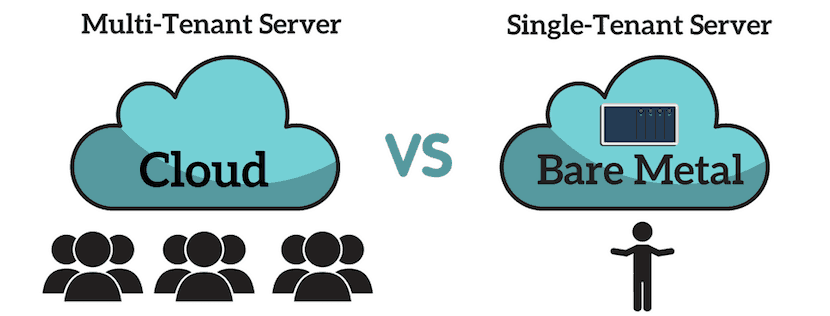
- Stronger security. A bare metal dedicated server stays private from other shared cloud backup services. The ‘single tenant’ won’t need to co-exist with other cloud businesses, so may be ideal for storing sensitive information.
- Cost Savings. Lower demand, bandwidth, and traffic can mean IT cost savings.

Need to perform a Bare Metal Backup Recovery?
If you have suffered a catastrophic failure and all other recovery measures have failed, it is likely time to consider bare metal recovery. In some cases, your internal team or external data recovery experts may be called in to review the incident and determine the extent of the damage.
Once other measures have been exhausted, bare metal disaster recovery is the final option. How swiftly you decide to proceed with this option will depend on:
- The extent of the damage to your systems
- Type of damage
- Overall possibility of recovery
- How long it takes to troubleshoot or try other, less intensive methods first
What to Expect with During Restoration
Once other avenues have been exhausted and your team makes the decision to go with this form of data recovery, your network will be rebuilt from the ground up:
- Physical location repair: If your emergency was weather-related, fire-related or otherwise resulted in physical damage. Then the first step for any recovery will be restoring and rebuilding the physical setting. Structural work, waterproofing, and HVAC work may be required to ensure that the space is not only safe for your team but that your servers, workstations and other pieces will operate at peak efficiency. This is also the time to add in any additional physical security or measures to prevent attacks in the future.
- New Hardware: This is the “bare metal” referred to in the name of this recovery process. You’ll add new, clean and bare hardware to your server area; by starting from the metal up, you can be sure your pieces are untainted and ready to use. Once these are installed, you’ll be able to recover and rebuild your system.
- Operating Systems: Your operating systems will be added to the hardware to create an optimal environment for the platforms, programs and processes your business relies on.
- Application Installation: The apps you use to run your business will be added to your system. The fresh application ensures that you are working with pristine equipment and creating a new network that won’t be affected by the recent emergency.
- Clean Data Restoration: Backup data that is unaffected by whatever happened to mess up your network in the first place can be added in at this time. Whether you have disks, cloud recovery or another backup, it can be restored into your new system.
- Add Users: Adding back in your team and allowing them to access your restored system is the next step. Ideally, you’ll have clarified your password requirements and ensure that any BYOD (Bring Your Own Device) programs are secure as well.
- Plan for next time: If you already have bare metal disaster recovery software in place, this process is far more simple. Once you have been through a recovery of this nature, it is a good idea to think ahead to next time. What process, material, backup or functionality would have made it easier for you to recover your data? Is there a solution that would complete the task more quickly, allowing you to resolve the issue without a lot of downtime rapidly? Learning from this experience can help you be better prepared for the future and ensure that you don’t have to worry about what comes next.
Why Disaster Recovery?
Every business needs a data recovery plan.
According to the United States Department of Homeland Security, every business that has or relies on a network should have an IT disaster plan.
A whopping 60% of small to mid-sized businesses close forever after a successful breach or failing to prevent a ransomware attack. They can’t afford the downtime and recovery process. Being prepared for any eventuality as part of a business continuity plan can help ensure that your organization avoids this fate.
The need to be prepared has grown in recent years. Criminals have gotten more sophisticated as organizations have begun relying on technology more than ever. The increased reliance on technology coupled with an ongoing and steady increase in risk means that any business with a network needs to be fully prepared for an emergency. This includes preparing for the worst case scenario with bare metal disaster recovery capabilities.
Planning Ahead With Bare Metal Backup and Recovery
Take steps now with server backup to ensure you can recover data later.
Just being aware that threats exist and the extensive damage they can cause is a step in the right direction. Understanding how bare metal disaster recovery differs from general recovery and what is needed for the process allows you to incorporate this into your emergency and business continuity planning.
You have a wide range of options to choose from when it comes to a bare metal disaster recovery system. Select one before you need it. This is the key to a swift and efficient recovery.
If you already have a disaster plan in place and have backed up data, the process will be fast, easy and effective.
If you have to learn about the recovery process after the fact, you’ll face a more complex and less user-friendly process. The resulting delays can have a significant impact on your business. Taking steps now to protect your network can save time, money and headache later.
How to Perform Bare Metal Recovery
To recover the entire computer system on new or existing hardware, you can use bare metal recovery. Bare metal recovery can be helpful in the following cases:
- You want to recover your computer from scratch after a hard failure.
- You want to recover data on a new computer without prior OS installation.
To perform bare metal recovery, you must have the following:
- Veeam Recovery Media — a bootable recovery image.
For information on how to create Veeam Recovery Media, see Creating Veeam Recovery Media .
- Backup of the computer whose data you want to restore.
For information on how to create a backup, see Creating Backup Jobs .
This scenario describes how to perform bare metal recovery on the computer without the OS and software installed. For bare metal recovery, we will use the USB bootable drive with the Veeam Recovery Media, and a backup stored in a network shared folder.
Bare-Metal Recovery Guide
Bare-Metal Recovery (or Bare-Metal Restore, or BMR) is a backup recovery technique that allows you to recover data on a computer with no installed operating system — also called a bare-metal machine. To achieve this, you will need a system image of the computer that you would like to recover. This saves time while installing and configuring a new machine.
Use Cases
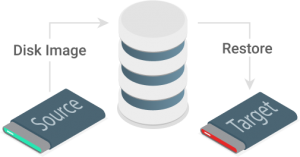
Bare-metal restore is helpful when you need to rebuild your computer infrastructure quickly:
-
- After ransomware attacks
- When hardware fails unexpectedly
- When disaster recovery is needed
You can also use the bare-metal restore technique to configure a number of machines in the same way using a so-called ‘master image’ to restore on all those machines.
All cases require a completely free storage media: without any data, software and operating system.

Advantages
 No need to install software or operating system, thus faster than manual recovery
 Less human interaction, thus less room for failure
 Ability to automate server migration to physical, virtual or cloud environments
The simplicity of bare-metal restore is unmatched, enabling you to restore the entire hardware infrastructure swiftly and conveniently.

How to Perform Bare-Metal Recovery
Typically the process of bare-metal restore includes recovery of a system image backup from an ISO image file or a USB flash drive that you boot on your machine to perform a restore.
Further reading Learn how to create a bootable USB for bare-metal restore using MSP360 Backup
6 Steps to Windows Bare-Metal Restore
Please note that MSP360 Backup doesn’t support native Windows bare-metal restore, instead, you can restore the image you have created with MSP360 image-based backup.
1 Plug the drive with your system image (prepared for bare-metal recovery) into the needed computer.
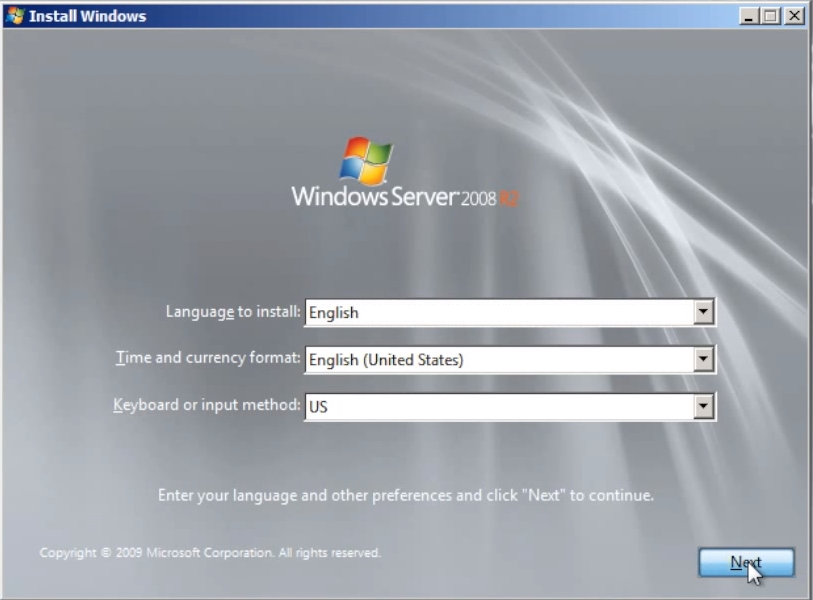
2 Select language, time and currency preferences:
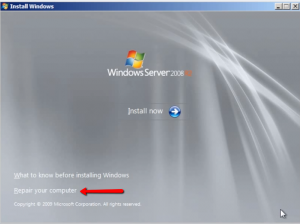
3 Click Repair your computer:
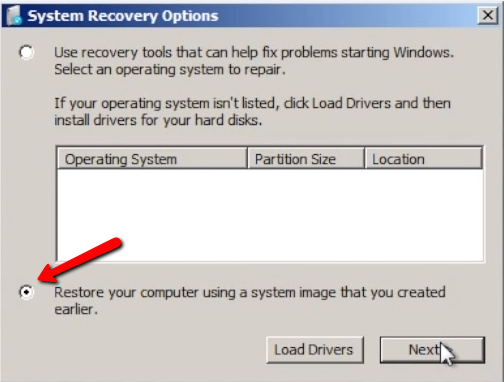
4 Check Restore your computer using a system image that you created earlier:
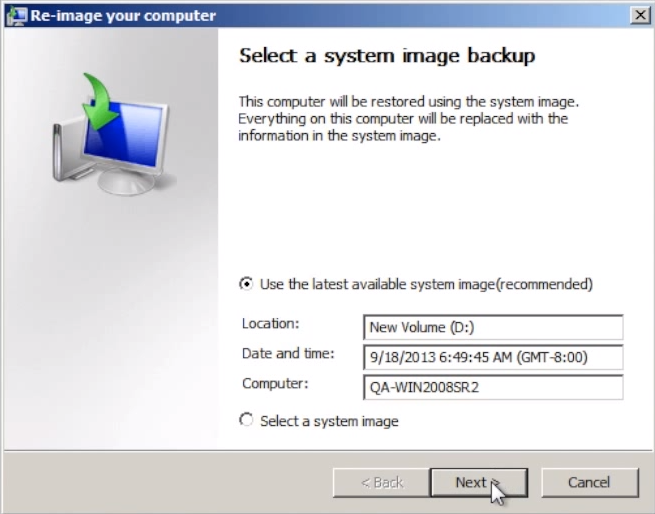
5 Check Use the latest available system image:
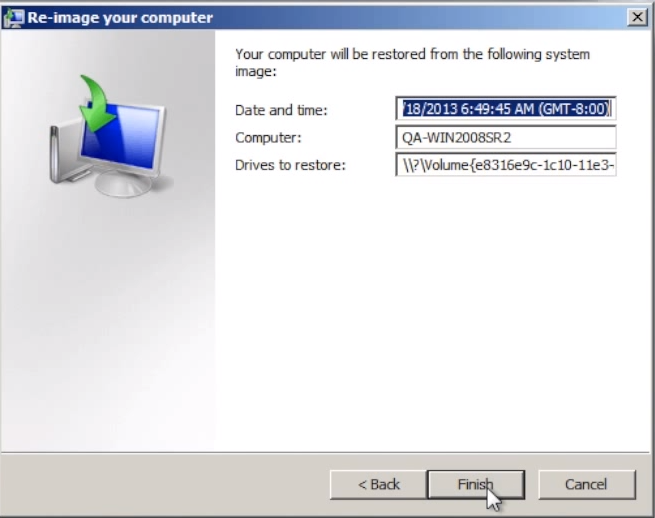
6 Click Finish:
After reboot, you’ll be ready to go.
Bare-Metal Restore to Dissimilar Hardware
Bare-metal restore can be an issue if you try to recover to dissimilar hardware. Your operating system may fail to boot in case your hardware, where you’re trying to perform a restore, has different boot-critical devices — as compared to the machine where you created a system image.
In order to boot, the operating system needs drivers of the following devices:
- CPU
- Motherboard
- HDD controller
So if your system image has drivers that do not match these boot-critical devices of another machine, an operating system on that machine will not be able to boot.
To prevent it, you can install additional drivers required for the hardware configuration where you will be performing bare-metal restore from your recovery disk.
Bare-Metal Recovery with MSP360
MSP360 Backup offers you a fast and simple bare-metal restore process. It allows you to perform image-based backups to any cloud or local backup destination, restoring image-based backups as VMware virtual machines or Azure virtual machines.
 Bootable USB for Bare-Metal Restore
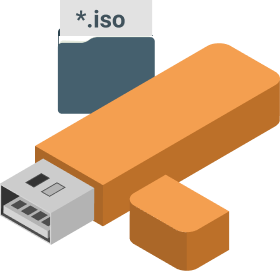
Easily create a recovery USB drive or bootable ISO file for emergency recovery in case of a system or hardware crash. Install additional drivers for a hardware configuration that is different from the current machine.
 Flexible Retention and Recovery
Why recover only the latest version? MSP360 Backup allows bare-metal restore to the point in time that you choose. Store as many versions as you need for as long as you need with flexible retention settings.

Compression and Encryption
Compression allows you to reduce storage (and thus save money) while improving backup time. With AES-256 encryption, you can be sure that all your files are protected.
 System State and System Image
MSP360 Backup provides:
- Restore from system state backup: recovers only the operating system and configuration
- Restore from image-based backup: recovers a full copy of the needed computer or server
 Cloud and Local
MSP360 Backup allows you to store your backups on local storage and any of more than 20 cloud storage providers, including Amazon S3 and Amazon Glacier, BackBlaze B2, Wasabi Hot Storage, and Microsoft Azure.