Исправлено: аудиоконсоль Realtek не может подключиться к службе RPC [решено] –

Люди, использующие Windows 10 и 11, сообщают, что Realtek Audio Console по какой-то причине не может подключиться к службам RPC. Из-за этого сбоя люди не могут изменить свои настройки звука. Есть несколько причин, по которым может произойти этот сбой. К ним относятся:
- Или драйверы Realtek High Definition Audio могут быть повреждены.
- Ваша звуковая карта или внутренний ЦАП могут работать странно.
- Вы можете отключили службы Realtek.
Теперь, когда мы знаем, что вызывает эту проблему, ниже приведены исправления для Realtek Audio Console, не подключающейся к проблеме со службой RPC.
Исправить # 1 – Запустите средство устранения неполадок со звуком
Простое устранение неполадок может решить проблему, когда Realtek Audio Console не подключается к службе RPC. Вы можете получить доступ к средству устранения неполадок со звуком, выполнив следующие действия:
- Откройте Настройки Windows.
- Нажмите кнопку Система. и выберите Устранение неполадок.
- Теперь выберите параметр Другие средства устранения неполадок и запустите параметр Воспроизведение аудио.
- Теперь перезапустите и посмотрите, устранена ли проблема.
Исправить № 2 – Удалите и переустановите аудиодрайверы
Есть вероятность, что вы столкнулись с этой проблемой, потому что ваши аудиодрайверы повреждены. Чтобы исправить это, лучший способ — переустановить аудиодрайверы. Вот как это сделать:
- Откройте Диспетчер устройств.
- Выберите Аудиовходы и выходы вариант. Это расширится, чтобы предоставить вам еще несколько вариантов.
- Теперь щелкните правой кнопкой мыши Драйвер Realtek и выберите вариант удаления.
- Перезагрузите компьютер.
- При перезагрузке последние версии драйверов должны установиться автоматически.
Исправление № 3 — Включение службы Realtek при запуске
Возможно, этот сбой возникает из-за того, что служба Realtek не загружается при запуске компьютера. Чтобы это исправить, вам нужно разрешить их запуск при включении компьютера. Вот как это сделать:
- Откройте Диспетчер задач.
- Теперь выберите вкладку “Автозагрузка”.
- Теперь щелкните правой кнопкой мыши Realtek Services и выберите параметр включения.
- Теперь перезагрузите компьютер и посмотрите, решена ли проблема.
Исправить# 4 – Включение универсальной службы Realtek Audio
Включение универсальной службы Realtek Audio может решить вашу проблему. Возможно, эта служба уже работает, поэтому вы можете проверить ее перед входом в систему. Для этого выполните следующие действия:
- Откройте диалоговое окно “Выполнить”.
- В текстовом поле напишите Services.msc и нажмите Enter.
- Теперь найдите Realtek Audio Universal Service.
- Щелкните правой кнопкой мыши и выберите Свойства.
- Если в статусе указано, что остановлено, нажмите кнопку запуска.
- Перезапустите, чтобы проверить, устранена ли проблема.
Это это все, что касается наших исправлений для Realtek Audio Console, не подключающейся к службе RPC. Кроме того, посетите наш хаб, чтобы узнать о часто встречающихся ошибках ПК и их исправлениях, если вы сталкиваетесь с другими ошибками на ПК или в видеоиграх.
[Solved] Realtek Audio Console “Cannot Connect to RPC Service”
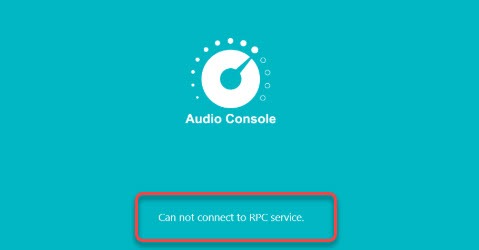
Realtek Audio Console is not opening and display the “Can not connect to RPC service” error? That can be frustrating. But don’t worry. There are possible solutions to fix this error.
To fix this error, you can try these methods.
Method 1: Ensure the Realtek HD Audio Universal Service is running
If the “Realtek HD Audio Universal Service” is disabled (it can be disabled by accident), the Realtek Audio Console cannot be opening and encounter the “Cannot Connect to RPC Service” error. So check and ensue the Realtek HD Universal Service is running.
1) Press Win+R keys to open the Run box.
2) Type ‘taskmgr’ into the box and click OK to open the Task Manager.

3) Select the Startup tab and scroll down to locate the Realtek HD Audio Universal Service.
In the Status column, check if it’s Disabled. If it’s Disabled, select it and click the Enable button. If it’s already enabled, skip this method and then try Method 2.
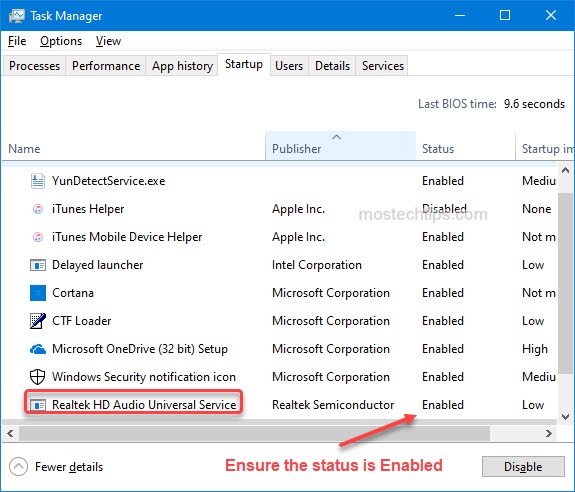
4) Close the Task Manager and check to see if you can start the Realtek Audio Console without the error.
Method 2: Enable the audio card device
The Realtek Audio Console “Can not connect to RPC service” error can occur due to the disabled audio device. If that’s the case, enabling the audio device can help fix the error.
Check if the audio device is enabled in Device Manager. Enable it if it’s disabled. Here’s how:
1) Press Win+R keys to open the Run box.
2) Type ‘devmgmt.msc’ into the Run box and click OK to open the Device Manager window.

3) Expand the category ‘Sound, video and game controllers’ and check if the audio card device is disabled.
If it’s disabled, you’ll see a black arrow next to the device (shown as the below screenshot).

Then right-click on the device and select Enable device. If it’s already Enabled, try Method 3.

4) Restart your computer and check to see if you can open the Realtek Audio Console.
Method 3: Uninstall and reinstall the audio driver
Realtek Audio Console only works with Realtek HD Audio (UAD) driver. If you have incompatible Realtek Audio driver installed, the Realtek audio console cannot be opening and causes errors like the “Can Not Connect to RPC Service” error.
To fix the problem, you can try uninstalling and reinstalling the audio driver. Here’s how:
First, uninstall the audio driver.
1) Press Win+R keys to open the Run box.
2) Type ‘devmgmt.msc’ into the box and click OK. Then the Device Manager will open.

3) Expand the category ‘Sound, video and game controllers’. Right-click on the audio device and select Uninstall device.
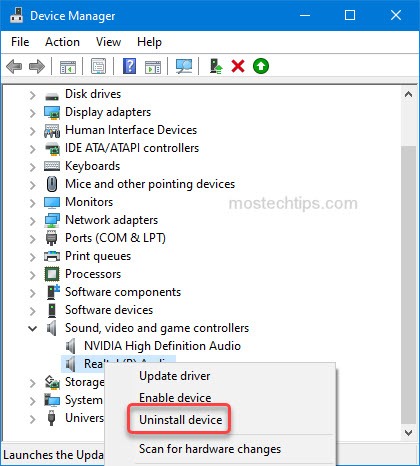
4) On the Confirm Device Removal dialogue, you’ll see a warning message that says “You are about to uninstall this device from your system”. Just check the box Delete the driver software for this device then click Uninstall to confirm the changes.

5) Restart your computer.
Second, reinstall the audio driver.
To fix the problem, you need to install the Realtek HD Audio (UAD) driver.
The best place to download the Realtek HD Audio (UAD) driver is from your computer manufacturer (Dell, Lenovo, Asus, HP, etc.) or motherboard manufacturer (Asus, MSI, Gigabyte, Asrock, etc.). Go to their official website and navigate to the Support page or Download page. Then download the latest Realtek audio driver there.
After updating the audio driver, check to see if you can open the Realtek Audio Console.
Hopefully you find this article helpful. If you have any questions, ideas or suggestions, feel free to leave a comment below. I’ll get back to you ASAP.
26 thoughts on “[Solved] Realtek Audio Console “Cannot Connect to RPC Service””
Camilla, thank you. I had to go through all three steps but it solved my problem. I appreciate you and what you do for folks like me in need of help.
Hi Basil Outhier,
I appreciate your feedback, and glad to know the methods helped you out.:-)
All the best
Camilla
What happens if the realtek files aren’t anywhere to be found and when I try to install it but it never appears?
Do you mean that you can’t find the Realtek driver on the manufacturer’s website?
I have followed all three steps, but it hasn’t fixed the issue. The issue seemed to arise initially when I tried to reinstall drivers, as I’ve been having an audio replication issue. Do you have any further suggestions? The driver I used was the one from the Dell website specifically for my device.
Have you tried the latest driver from Dell’s website? You can extract the driver and install it via Device Manager.
I struggled with many other solutions from a number of websites until I stumbled on yours. The first solution using taskmgr worked for me. In my paranoia to keep boot up as fast as possible I had disabled it. Thankyou for such a simple solution.
Thanks for your kind feedback. I’m glad to know it helped you out.
Thanks very much Dear
Third method worked for me. Thank u very much ❤️❤️❤️
Glad it worked for you.
I have a question, where can I find the Realtek Hd Audio Universal Service to download and install it? I only can find Realtek HD Audio Manager and it’s not working for me, also I already have my divers updated, I would really appreciate if you can help with this.
I also have to mention that I tried with the Realtek HD Audio Manager but it didn’t work. I don’t know what else to do and I need the console in order to use my headphones with microphone, help please.
I wonder if you could please help me with this, I had to reinstall my drivers and since then, the audio console stopped working, one of the issues is that in my task manager doesn’t appears the “Realtek HD Audio Universal Service” and I can’t find it anywhere to download and install, the only thing I could find is “Realtek HD Audio Manager” but with that one installed the audio console still didn’t work, also my drivers are updated according to the device manager and driver booster, but i need the audio console because my laptop is not detecting correctly the headphones I plug in the 3,5mm jack so it doesn`t recognize the headphones microphone.
I would really appreciate if you could help me with this, I’m desperate and don’t know what to do, I have tried so many things by now.
I’m sorry for the problem you’re having. What’s your PC model? I’m not sure if you did this. You can go to your pc’s manufacturer’s website to download the latest audio driver manually, then install it manually.
If the latest version of the driver doesn’t work, try an older version.
Yes, I had already tried that, in my case the solution was using the software driver easy in it’s pro version, it reinstalled the Realtek HD Audio Universal Service and other drivers that Driver booster wasn’t updating, after that everything is working as usual and I can open the Realtek Audio Console without any problem or error, so I would recommend Diver Easy Pro instead of Driver Booster, I’ve been using Driver Booster for a year now, but this time it disappointed me honestly.
Thank you so much for your time and the artickle, best lucks.
I have been facing this issue since a month ago and I have tried soo many solutions to fix it unfortunately nothing worked out. Have tried installing windows again it worked at first but somehow after using the PC for a half-day, the problem appears again. My PC is not detecting the headphones again have tried installing the Realtek Driver from the manufacturer’s website manually, have tried updating it too but nothing is working out. I’m using the (MSI B450 Tomahawk MAX) motherboard. Also, the Realtek driver isn’t showing up in Device Manager even though its installed.
It would be so nice of you if you could help me to fix the issue.
(What i
Hi Sameer Zulfiqar,
You can click View -> Show hidden devices in Device Manager, and then see if the Realtek driver shows up. Check to see if there are devices listed under the “Unknown device” category.
If yes, uninstall and reinstall the device.
невозможно подключиться к службе rpc windows 10 realtek audio console
Невозможно подключиться к службе RPC и 0x803fb005 в Realtek Audio Control
Когда вы скачиваете Realtek Audio Control для Windows 11 или Windows 10 из Microsoft Store, то столкнетесь с ошибкой «невозможно подключиться к службе RPC» при установке или 0x803fb005 при скачивании. Это заставляет вас не продолжать и думать, что приложение не рабочее, особенно почитав отзывы с негативными оценками, но это не так.
Причина данных ошибок в том, что нужен универсальный драйвер Upd Realtek от производителя материнской платы. Если их не будет, то вы получите ошибку 0x803fb005 при скачивании. Кроме того, если они были, а потом вы их удалили, то получите ошибку невозможно подключиться к службе RPC.
В данной инструкции разберем, как правильно скачать и установить Realtek Audio Control из Microsoft Store для Windows 11/10, чтобы не было ошибки невозможно подключиться к службе RPC при установке и кода 0x803fb005 при скачивании. Ниже, вы должны следовать алгоритму действий, не пропуская пункты.
Как без ошибок скачать и установить Realtek Audio Control
1. В Windows 11/10 зайдите в «Приложения и возможности» и удалите все программы связанные с Realtek. Если у вас там ничего такого нет, то пропустите данный шаг.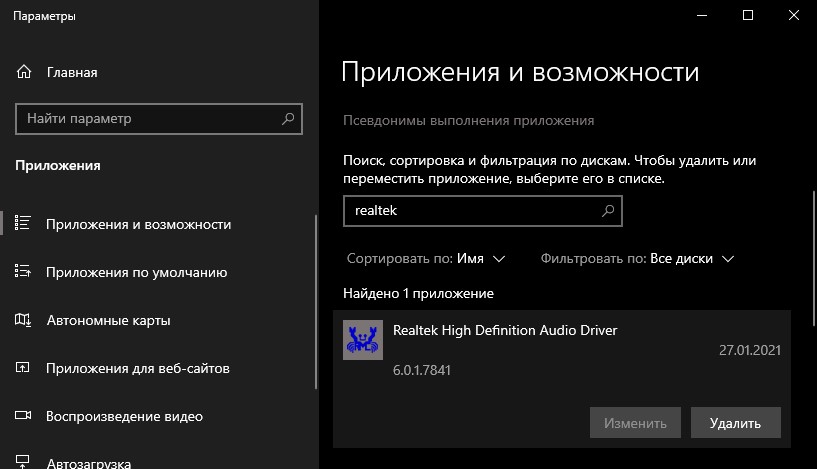
2. Скачайте программу DDU и удалите драйвера Realtek из системы. Данная программа позволяет удалять полностью все файлы.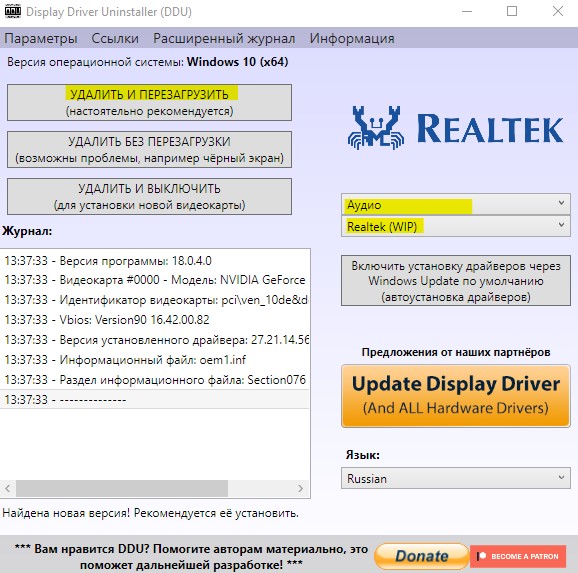
3. Установите драйвер аудио от материнской платы производителя. Вы должны перейти на сайт производителя своей материнской платы и скачать драйвер Audio. Вбейте в поиск Google или Яндекс производителя и модель, чтобы найти официальный сайт.
Узнать производителя и модель материнской платы можно нажав сочетание кнопок Win+R и вбив msinfo32.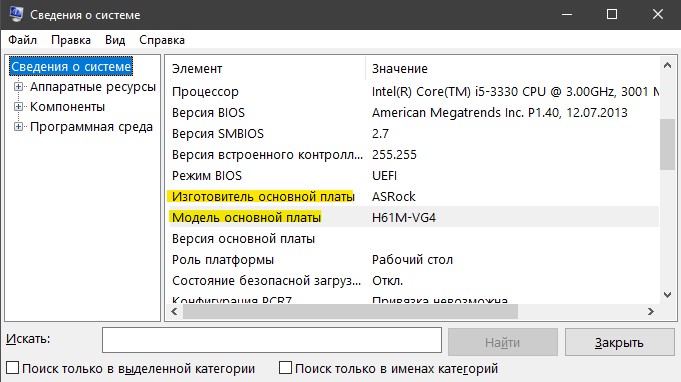
[2021 Fix] Realtek Audio Console Cannot Connect to RPC Service
If you can’t open Realtek Audio Console due to the “Can not connect to RPC service” error, do not worry. The problem can be easily fixed. Just try the methods below one by one.
Method 1: Ensure the Realtek HD Audio Universal Service is running
If the “Realtek HD Audio Universal Service” is disabled (it can be disabled by accident, the problem can cause. In this case, you can enable the service to fix the problem
Follow these steps:
1) On your keyboard, press Win+R (the Windows logo key and the R key) to invoke the Run box.
2) Type ‘taskmgr’ into the box and click OK to open the Task Manager.
3) Select the Startup tab and scroll down to locate the Realtek HD Audio Universal Service.
In the Status column, check if it’s Disabled. If it’s Disabled, select it and click the Enable button. If it’s already enabled, try Method 2.
4) Close the Task Manager and check to see if you can start the Realtek Audio Console.
Method 2: Enable the audio card device
Once the error “Can not connect to RPC service” occurs, the audio card device can be disabled. You can enable it in the Device Manager. To do so:
1) On your keyboard, press Win+R (the Windows logo key and the R key) to invoke the Run box.
2) Type ‘devmgmt.msc’ into the Run box and click OK to open the Device Manager window.
3) Expand the category ‘Sound, video and game controllers’ and check if the audio card device is disabled.
If it’s dsiabled, you’ll see a black arrow next to the device (see the below screenshot).
Then right-click on the device and select Enable device. If it’s already Enabled, try Method 3.
4) Restart your computer and check to see if you can open the Realtek Audio Console.
Method 3: Uninstall and update the audio driver
The problem can be fixed by uninstalling and reinstalling the audio driver. To do so:
Firstly, you can follow these steps to uninstall the audio driver.
1) On your keyboard, press the Win+R (the Windows logo key and the R key) at the same time to invoke the Run box.
2) Type ‘devmgmt.msc’ into the box and click OK.
3) Expand the category ‘Sound, video and game controllers’. Right-click on the audio device and select Uninstall device.
4) On the Confirm Device Removal dialogue, you’ll see a warning message that says “You are about to uninstall this device from your system”. Just check the box Delete the driver software for this device then click Uninstall to confirm the changes.
5) Restart your computer to allow Windows to reinstall the audio driver.
Secondly, update the audio driver.
You can go to the PC manufacturer’s website to download the latest audio driver. Before getting started, you need to find out what Windows 10 version you have (32-bit or 64-bit) and what audio card you have.
Manually updating drivers can take time, and can cause errors if incorrect drivers are installed. So if you don’t have much driver knowledge, you can use a driver update utility to help you.
Many driver update utilities allow you to update drivers with a few clicks. You just need to find a trustworthy one.
If you’re not sure which driver update utility is good to use, you can use Driver Easy. Download and install the latest version of the program, and update the Realtek audio driver now.

After updating the audio driver, check to see if you can open the Realtek Audio Console.
Hopefully you find this article helpful. If you have any questions, ideas or suggestions, feel free to leave a comment below.
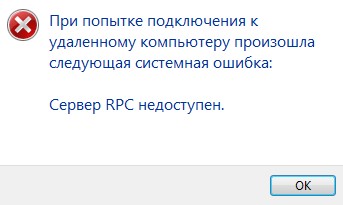
Причины ошибки, когда сервер RPC недоступен в Windows 10 могут быть разные, но в основном это: служба(ы) требуемые для RPC отключены, удаленный помощник отключен в брандмауэре, IPV6 или общий доступ к файлам и принтерам отключен, IP-адрес приводит к сбою сервера RPC или службы RPC отключены в реестре. Давайте разберем эти моменты, чтобы исправить ошибку, когда удаленный вызов процедур дает сбой и появляется ошибка, что сервер RPC недоступен в Windows 10.
1. Проверка служб RPC
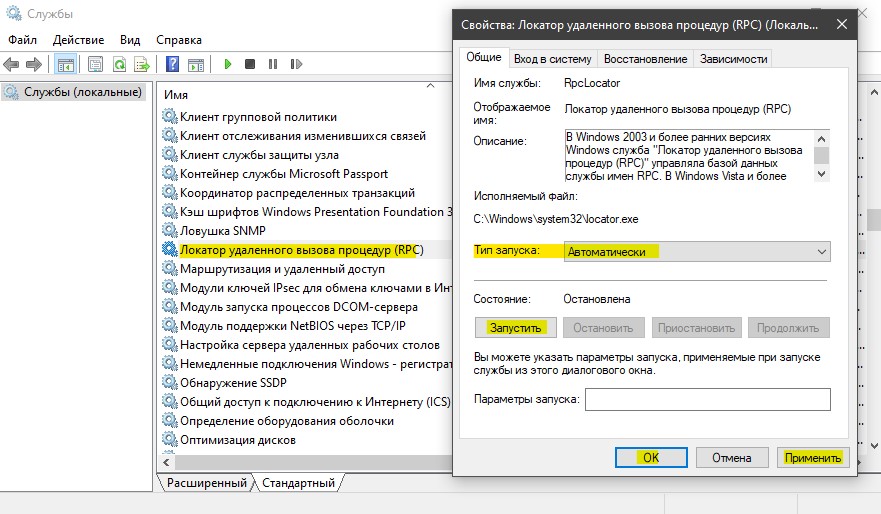
2. Удаленный помощник в брандмауэре
Нажмите Win+R и введите firewall.cpl, чтобы открыть параметры брандмауэра. Слева нажмите на «Разрешение взаимодействия с приложениями«.
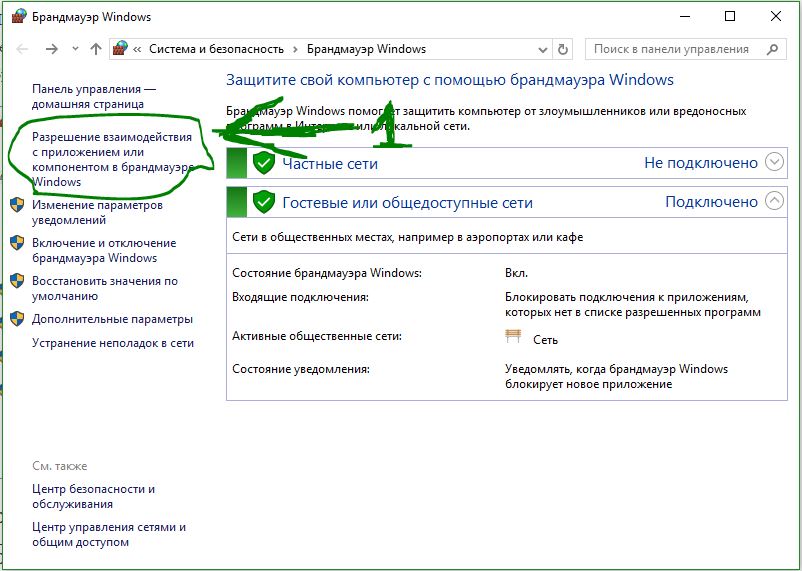
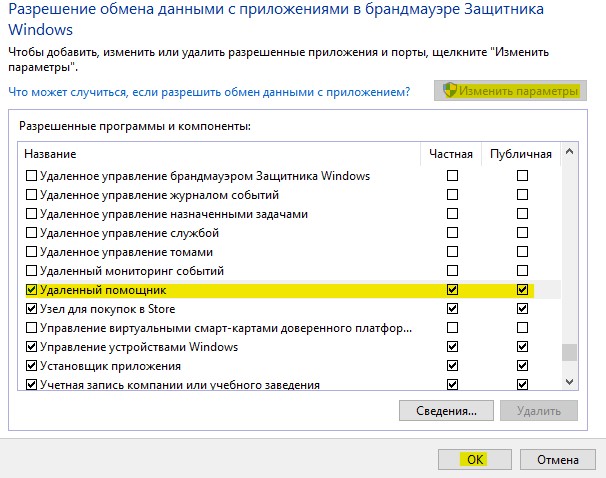
Найдите «Удаленный помощник» и удостоверьтесь, что параметры для сети, включены везде. Перезагрузите компьютер или ноутбук, и проверьте, исправлена ли ошибка, когда сервер RPC недоступен.
3. Включение IPV6 и общего доступа к файлам и принтерам
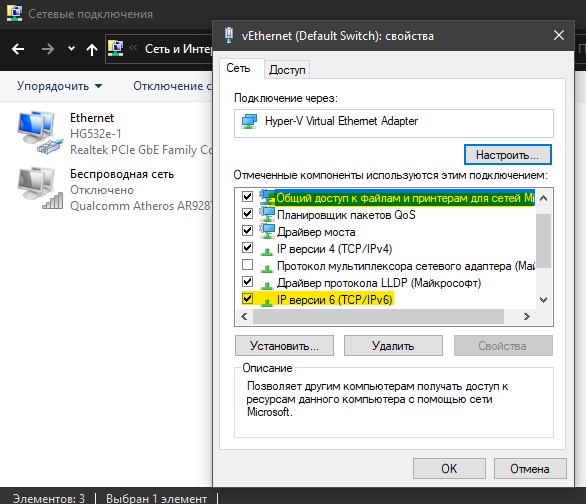
В некоторых случаях вы можете столкнуться с ошибкой 1722: RPC сервер недоступен, когда происходит сбой сетевого подключения, так как отключены сетевой доступ к принтерам для сетей Microsoft и протокол TCP/IPv6.
Нажмите Win+R и введите ncpa.cpl, чтобы открыть сетевые адаптеры. Нажмите на сетевом адаптеры, через которое идет сеть, и выберите «свойства». Далее в списке найдите два параметра и убедитесь что они включены (галочки установлены).
Если ошибка «сервер RPC недоступен» с кодом 1722 все еще появляется, то двигаемся ниже.
4. Очистить DNS
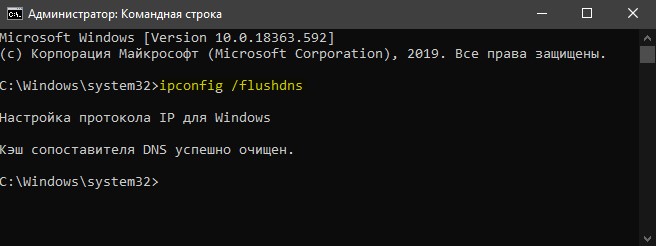
Очистка старых DNS может исправить код ошибки 1722 RPC. В первую очередь убедитесь, что службы, связанные с RPC, работают как в способе 1. Далее запускаем командную строку от имени администратора и введите следующие команды для очистки и сброса DNS:
Проверьте, исправлена ли ошибка 1722 RPC недоступен.
5. Редактор реестра для запуска RPC служб
Если вы не смогли запустить службы способом 1, то запустим их через реестр. Для полной эффективности, убедитесь, что вы проделали способ 3 и способ 4. Нажмите Win+R и введите regedit, чтобы открыть редактор реестра.
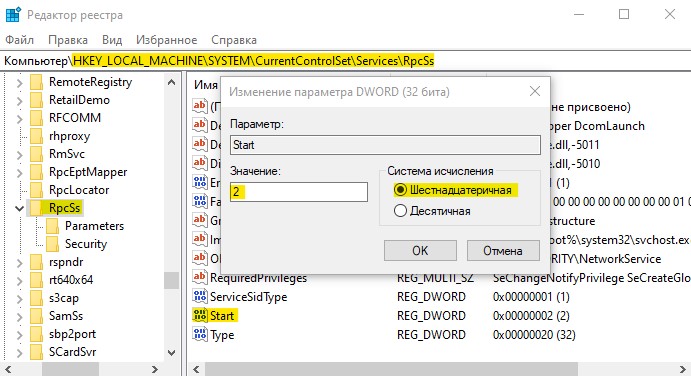
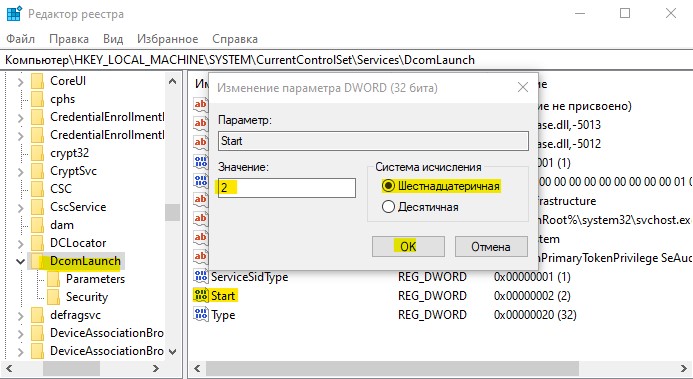
И еще по одному пути:
Перезагрузите ПК и проверьте, исправлена ли ошибка, когда RPC сервер недоступен в Windows 10.
Невозможно подключиться к службе rpc windows 10 realtek audio console
Добрый день! Уважаемые читатели и гости одного из крупнейших IT блогов в рунете Pyatilistnik.org. В прошлый раз мы с вами разобрали замечательную утилиту командной строки robocopy, и с ее помощью научились создавать точные копии папок, двигать их в нужное расположение и многое другое. В сегодняшней публикации я покажу вам, как устранять ошибку «Сервер RPC недоступен (The rpc server is unavailable)», покажу примеры, когда ее мониторинг очень важен в работе корпоративных сервисов.
Для чего нужна служба «Удаленный вызов процедур (RPC)»
Процедура сообщения RPC
Когда программные операторы, использующие структуру RPC, компилируются в исполняемую программу, в скомпилированный код включается заглушка, которая выступает в качестве представителя кода удаленной процедуры. Когда программа запускается и выполняется вызов процедуры, заглушка получает запрос и пересылает его клиентской программе и времени выполнения на локальном компьютере. При первом вызове клиентской заглушки она связывается с сервером имен, чтобы определить транспортный адрес, по которому находится сервер.
Программа среды выполнения клиента знает, как обращаться к удаленному компьютеру и серверному приложению, и отправляет сообщение по сети, которое запрашивает удаленную процедуру. Точно так же сервер включает исполняющую программу и заглушку, которая взаимодействует с самой удаленной процедурой. Протоколы ответа-запроса возвращаются таким же образом.
Данная служба есть в любой операционной системе Windows, начиная от Windows 7 и заканчивая Windows 11 и в любой из Windows Server редакции.
Как работает RPC?
Когда вызывается служба RPC (удаленный вызов процедуры), вызывающая среда приостанавливается, параметры процедуры передаются по сети в среду, в которой должна выполняться процедура, а затем процедура выполняется в этой среде. Когда процедура завершается, результаты передаются обратно в вызывающую среду, где выполнение возобновляется, как если бы оно возвращалось из обычного вызова процедуры.
Во время RPC выполняются следующие шаги:
Если вы видите ошибку «Сервер RPC недоступен” (The RPC server is unavailable)», то у вас точно недоступен порт 135. Это может быть критичным для ряда ситуации. Например вы не сможете сохранить настройки RDS фермы, если у одного из хостов RDSH есть проблемы с RPC, то вы будите видеть ошибку «Could not change the connection state for server», вы не сможете перевести его в режим обслуживания (Drain Mode)
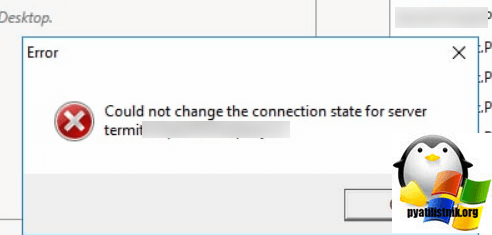
Или в приложении Terminal Services Manager будет ошибка при попытке получения данных «Сервер RPC недоступен«.
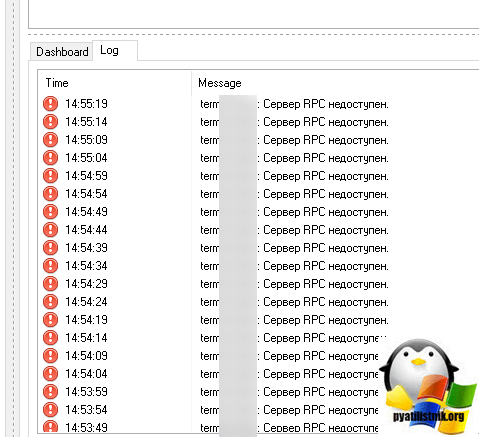
Так же RPC может быть причиной проблемы в репликации контроллеров домена, где в логах Windows будет фигурировать ошибка ID 1722. Это очень не приятный момент, который может привести к большим проблемам.
Типы RPC
Существует пять типов RPC:
Почему может не работать служба RPC
Преимущества удаленного вызова процедур
К преимуществам удаленного вызова процедур можно отнести следующее:
Недостатки RPC
Некоторые из недостатков RPC включают следующее:
Проверка доступности службы RPC
Если вдруг компьютер не ответил, то это не значит, что он не работает, может работать брандмауэр и просто блокировать ping пакеты.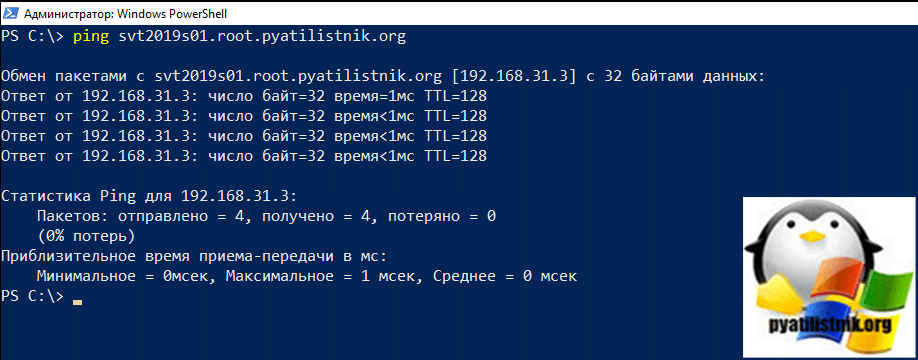
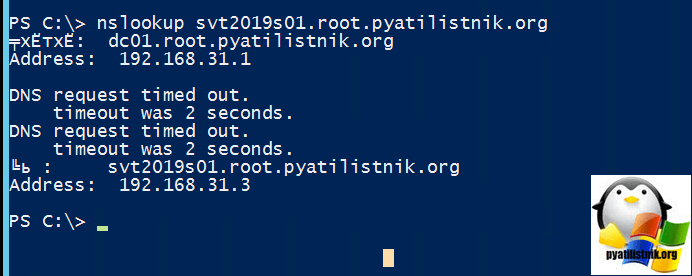
Небольшой пример из практики, предположим, что вы мигрировали сервер в другую подсеть, в итоге в DNS должна быть изменена соответствующая запись, но Windows это поймет не сразу, так как у нее есть свой локальный кэш, он живет 15 минут, поэтому если при проверке DNS имени вам выдается не тот IP-адрес, вам необходимо произвести очистку кэша DNS.
Если удаленный RPC порт доступен вы в в строке TcpTestSucceeded будет стоять статус «True».
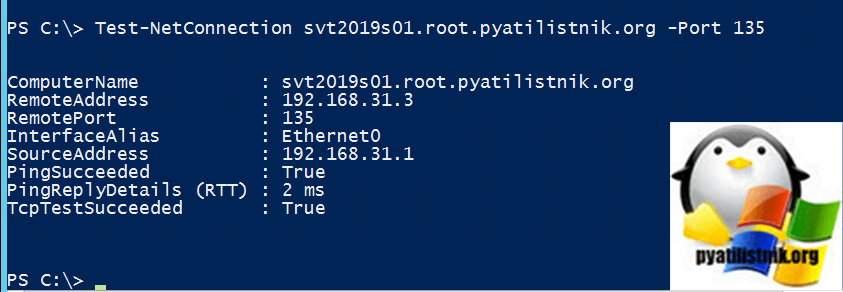
Если будет порт закрыт или блокируется, то ошибка «Сервер RPC недоступен (The rpc server is unavailable)» вам обеспечена. Поняв, что порт не отвечает, нужно удостовериться, что трафик от клиента до сервера не блокирует фаервол. По умолчанию в любой версии Windows есть встроенный брандмауэр. На время тестирования и поиска причины, я советую его выключить для всех профилей. Сделаем мы это через командную строку:
Данная команда выключит брандмауэр на всех трех профилях сетевой карты.
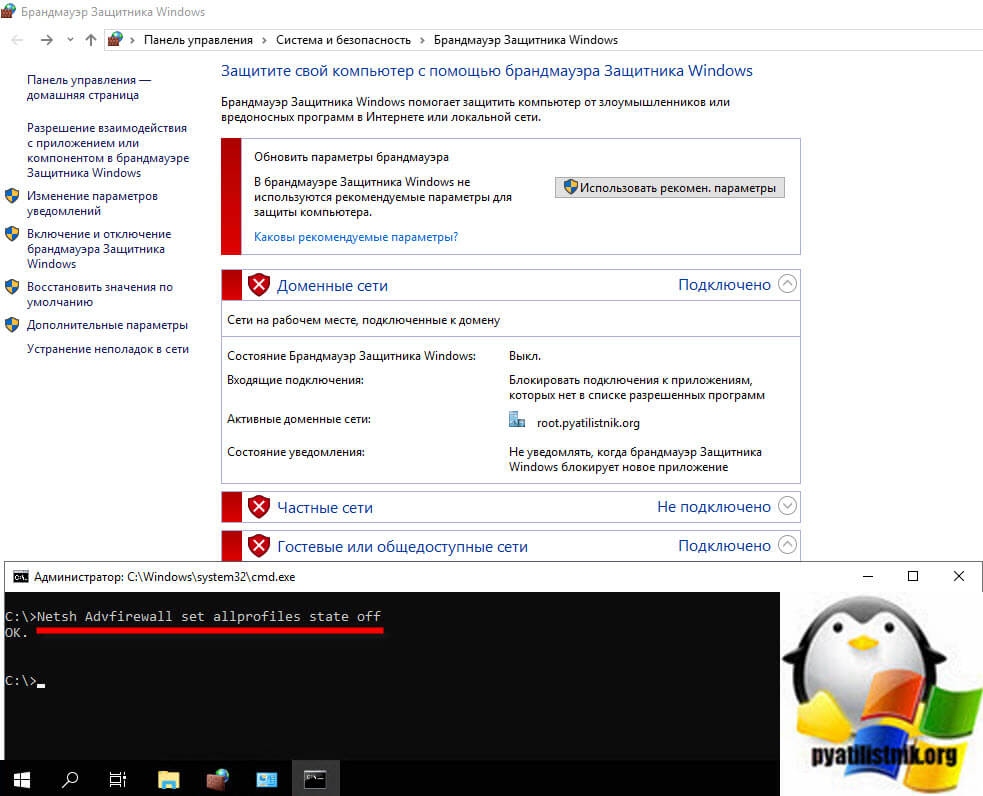
Далее если порт 135 стал доступен, то можно делать правила на удаленном сервере. Напоминаю, что нужно сделать правило для трех служб:
Еще хочу отметить, что если у вас есть сторонние антивирусные решения, например Касперский, то там так же есть встроенный сетевой экран, где так же нужно будет создать необходимые, разрешающие правила, которые корректно будут обрабатывать трафик динамических RPC портов.
Проверка работы служб RPC
Следующим шагом является проверка состояния службы на нужном вам сервере или компьютере. Проверять следует три службы:
В оболочке PowerShell выполните команду:
Для удаленного выполнения Enter-PSSession svt2019s01 далее Get-Service RpcSs,RpcEptMapper,DcomLaunch| Select DisplayName,Status,StartType
Напоминаю, что в команде svt2019s01, это имя удаленного сервера. Как видно из примера, все службы RPC запущены и имею автоматический тип запуска.
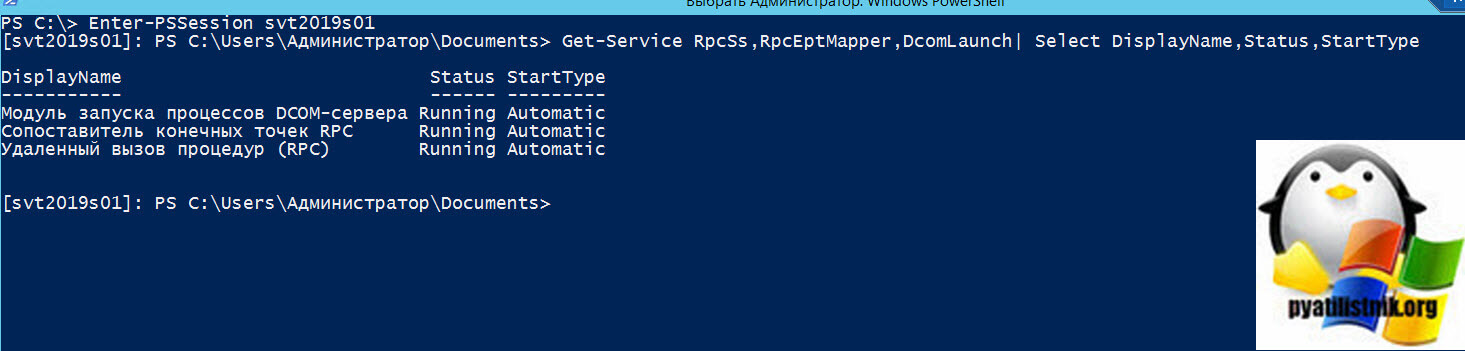
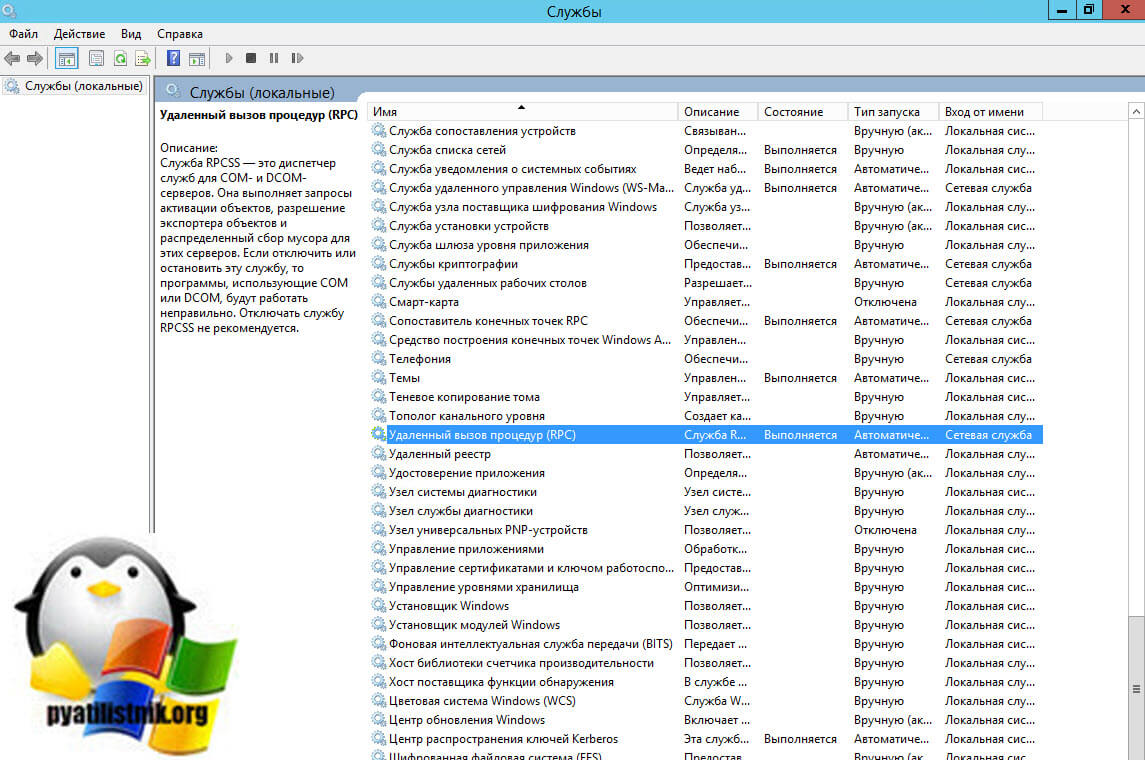
Если службы не запущены, то откройте оснастку «services.msc’, зайдите в свойства службы и выставите автозапуск и попробуйте запустить вручную.
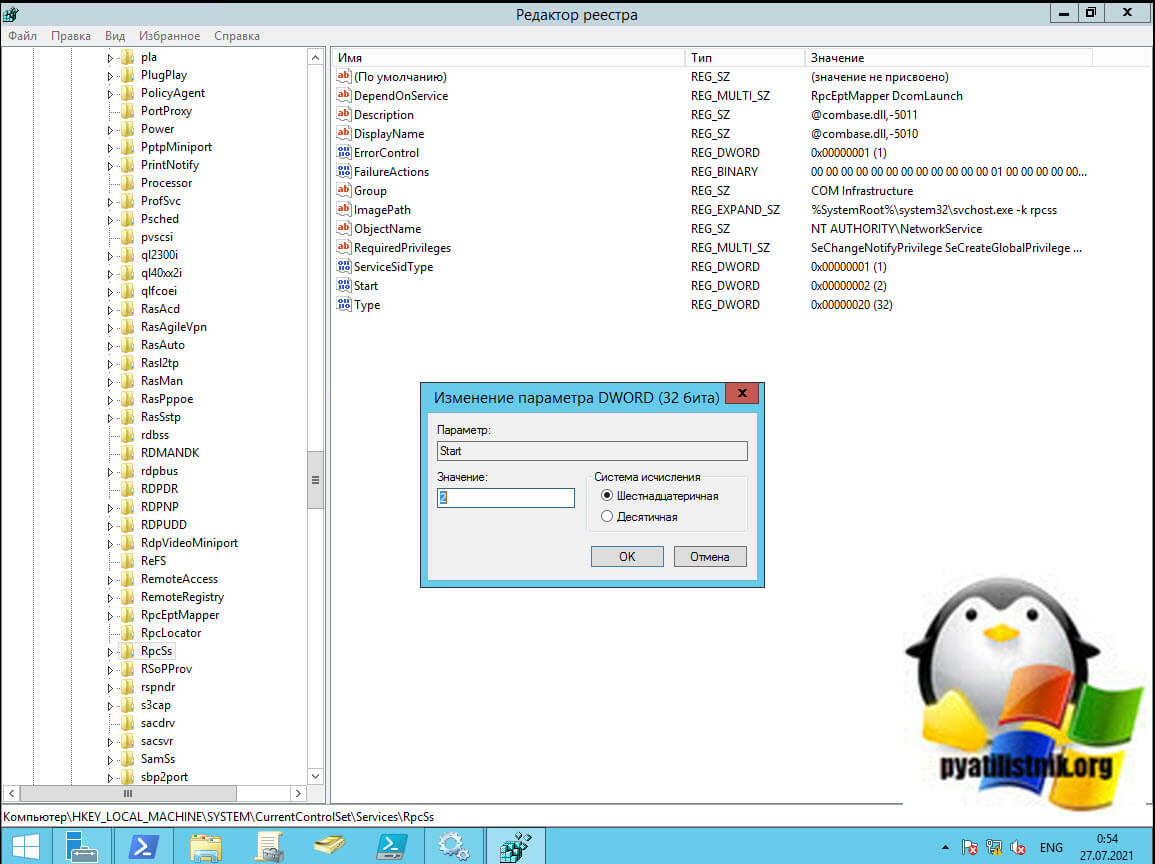
Если по каким, то причинам вы не можете запустить службу из оснастки, то можно это сделать через реестр (Кстати реестр можно править и удаленно). Для этого есть несколько веток, но для начала откройте окно «Выполнить» и введите regedit.
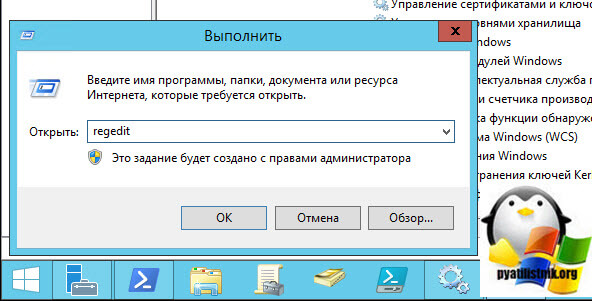
В каждом из этих расположений есть ключик «Start«, выставите ему значение «2«, это будет означать автоматический запуск службы.
Дополнительные сетевые проверки
В некоторых случаях причиной ошибок с доступностью RPC выступает сбой на сетевых адаптерах. Помогает сброс сетевых настроек и перезагрузка. В сети с Active Directory, старайтесь, чтобы на всех ваших сетевых адаптерах в свойствах были выставлены обе галки IPV4 и IPV6, особенно это актуально для контроллеров домена, где вы легко можете получать ошибку 1722. Еще может помочь отключение протокола Teredo у IPv6. В командной строке выполните:
Realtek Audio Console не поддерживает этот компьютер Windows 10
Программное обеспечение Realtek Audio Console может не поддерживать этот компьютер. С такой проблемой уже встречался. Недавно приобрёл себе материнку MSI B450 Gaming Plus Max под процессор AMD Ryzen 5 3600. С некоторыми драйверами мне пришлось ещё разбираться.
Эта статья расскажет, почему пишет: Realtek Audio Console не поддерживает этот компьютер под управлением Windows 10. На моей материнской плате используется кодек Realtek ALC892. Точно знаю, что он её поддерживает. Есть проблема в работе драйвера, нужно его переустановить.
Не запускается Realtek Audio Console
Как переустановить драйвера Realtek
Небольшая предыстория. У меня был установлен Realtek High Definition Audio Driver с модифицированным диспетчером Realtek HD (фирменный стиль MSI). При попытке установить Realtek Audio Console с Microsoft Store возникла непредвиденная проблема с кодом: 0x803FB005.
На сайте производителя материнской платы найдите свою модель. В моём случае нужно открыть страницу Поддержка > Драйверы и выбрать версию системы Windows. В разделе On-Board Audio Drivers загрузите именно Realtek HD Universal Driver (include Nahimic Driver).
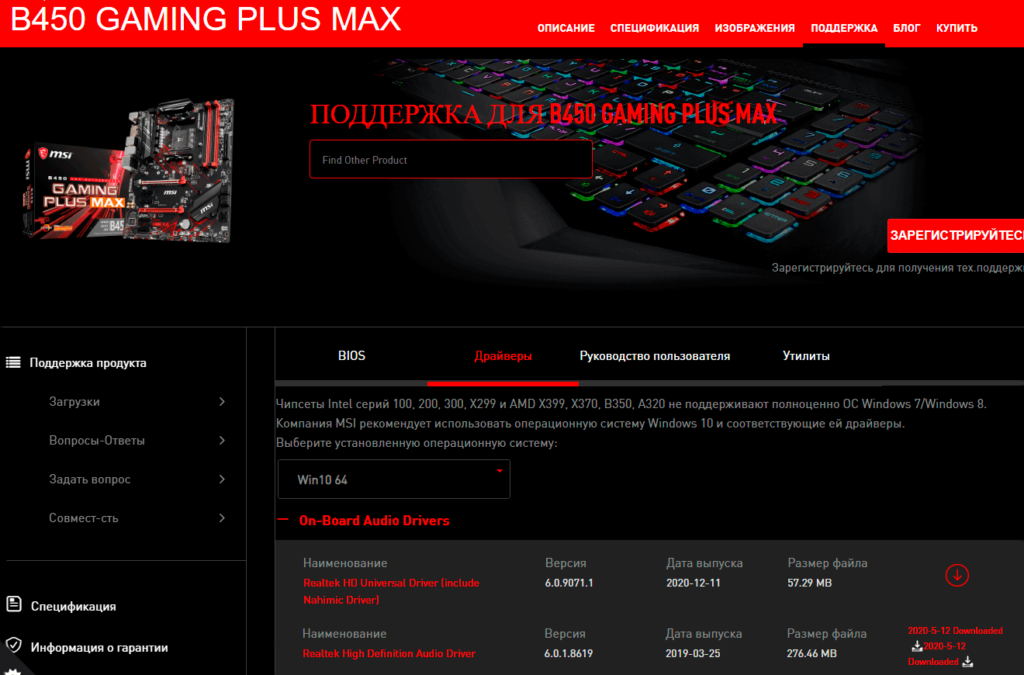
В разделе имеется два разных драйвера Realtek. А именно классический Realtek High Definition Audio и универсальный Realtek HD Universal. Что касается драйверов HDA, пакет включает в себя все чипсеты Realtek. А драйверы UAD уже подходят не ко всем звуковым картам Realtek.
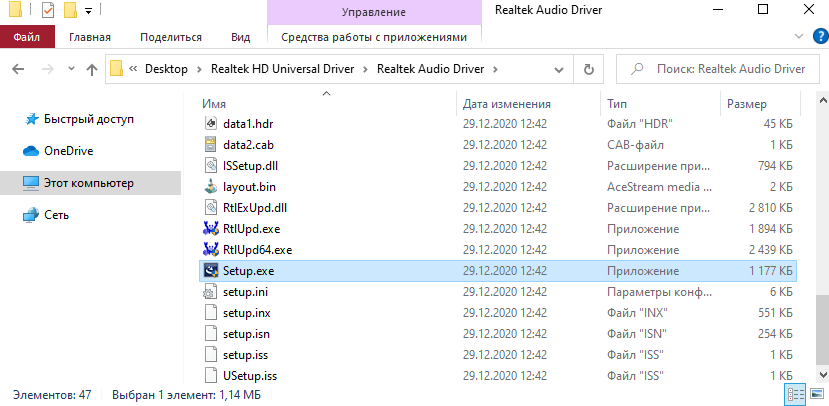
Распакуйте загруженный архив в удобное Вам место. И в разделе Realtek HD Universal Driver > Realtek Audio Driver запустите Setup.exe. Не будем останавливаться на процессе установки. Всё просто несколько раз Далее и отметив Да, перезагрузить сейчас жмите Готово.
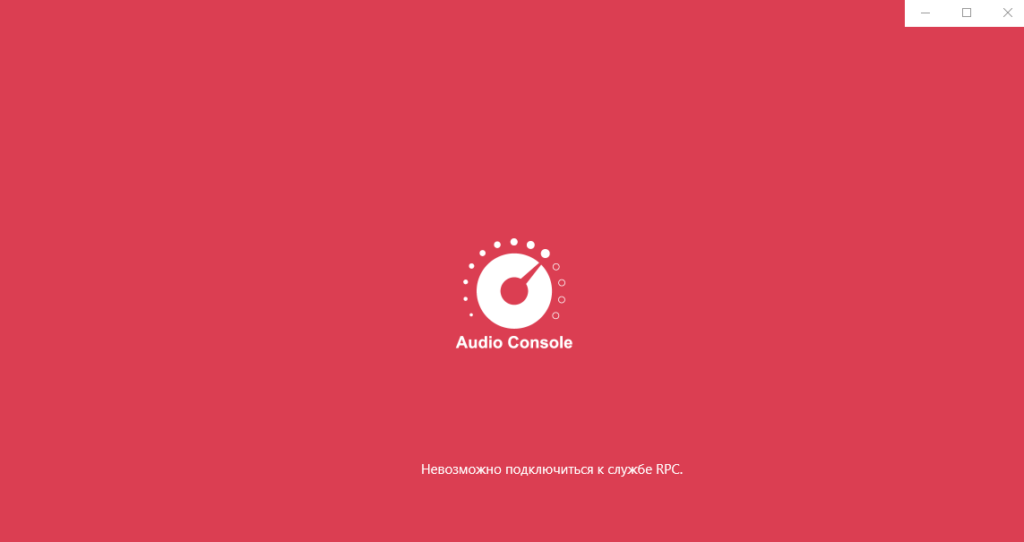
А например, установка драйвера Realtek с помощью MSI Dragon Center приводит к ошибке: невозможно подключиться к службе RPC. Чтобы её исправить, нужно удалить Realtek Audio Driver и после перезагрузки заново установить, загрузив его на сайте производителя материнки.
Как установить Realtek Audio Console
Самостоятельно в Microsoft Store найдите Realtek Audio Console. Или воспользуйтесь ссылкой ниже (кнопка Скачать), у Вас откроется Магазин Windows 10. Напротив приложения нажмите Установить. Не знаю почему, но сейчас в поиске не получается найти Realtek Audio Console.
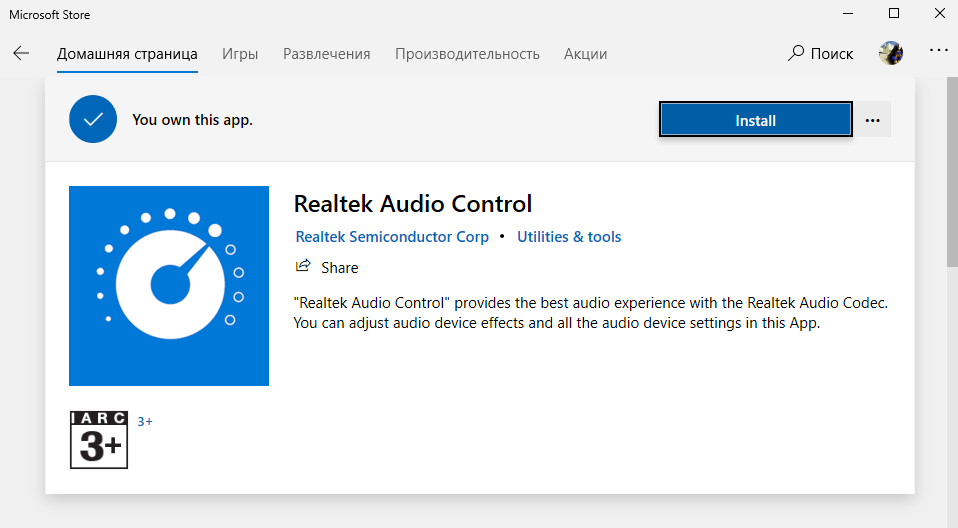
Ещё раз в двух словах разберёмся. Приложение Realtek Audio Console работает только с Realtek HD Universal Driver (include Nahimic Driver). Не все материнские платы его поддерживают. Если нужна функциональность Nahimic 3, тогда нужно установить именно универсальный драйвер.
Realtek Audio Cannot connect to RPC service
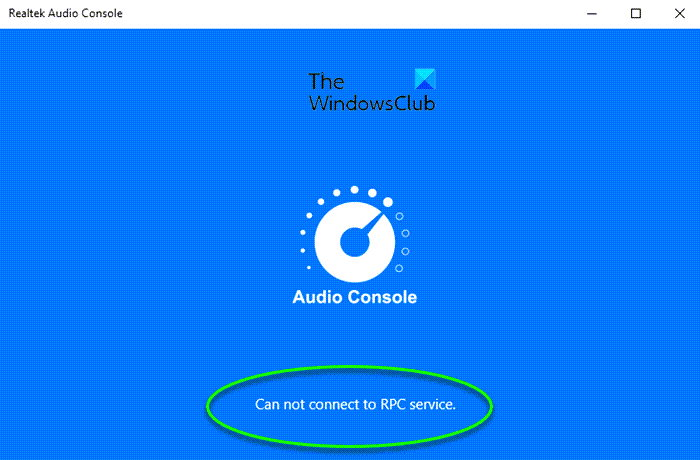
Many of us use Realtek Audio drivers and its console for audio management on our Windows 11/10 computers. We can adjust audio settings in Realtek Audio Console. Some users are reporting that they are unable to open Realtek Audio Console and see Can not connect to RPC service error. In the guide, we offer suggestions that will help you resolve the issue.
Realtek Audio Console not opening or connecting to RPC
What is Microsoft Remote Procedure Call (RPC)?
Microsoft Remote Procedure Call (RPC) is a protocol that aids the communication between Windows applications. It is designed as a communication protocol between applications either locally or over a network.
Realtek Audio Cannot connect to RPC service
- Run Audio Troubleshooter
- Update Realtek Audio drivers
- Uninstall and reinstall Realtek Audio drivers
- Install pending Windows Updates
Let’s get into the details and fix the issue.
1] Run Audio Troubleshooter
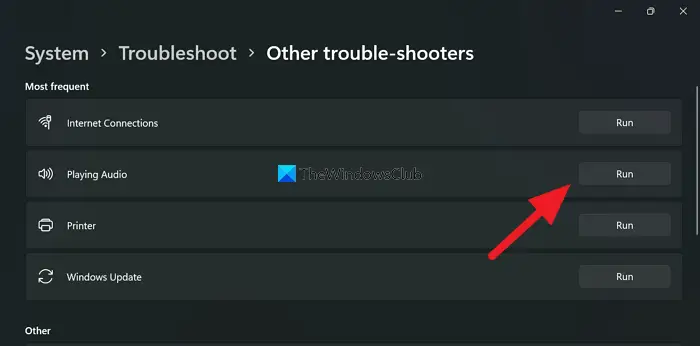
The good thing about Windows is there are built-in troubleshooters that can help you fix many issues. Likewise, there is a Playing Audio troubleshooter that can help you fix any issues with the audio devices. Try running Playing Audio troubleshooter and see if it finds and fixes any issues that are causing the can not connect to RPC service error.
- Open the Settings app using the Win+I keyboard shortcut
- Click on Troubleshoot
- Then, click on Other troubleshooters
- You will find Playing Audio troubleshooter. Click on Run beside it. It will automatically find and fixes the issues.
2] Update Realtek Audio drivers

If you are seeing can not connect to RPC service error, it might be due to outdated drivers or missing files. You should try is to update the audio drivers via the Device Manager.
To update Realtek High Definition Audio drivers,
- Open Run Command box using Win+R on keyboard
- Type devmgmt.msc and press Enter. This will launch the Device Manager.
- In the Device Manager, expand the Sound, video and game controllers.
- Right-click on the Realtek High Definition Audio drivers you find there and select the Update driver option and follow the on-screen wizard to complete updating the Realtek audio drivers.
Now launch Realtek Audio Console and see if it has fixed the issue.
3] Uninstall and reinstall Realtek Audio drivers
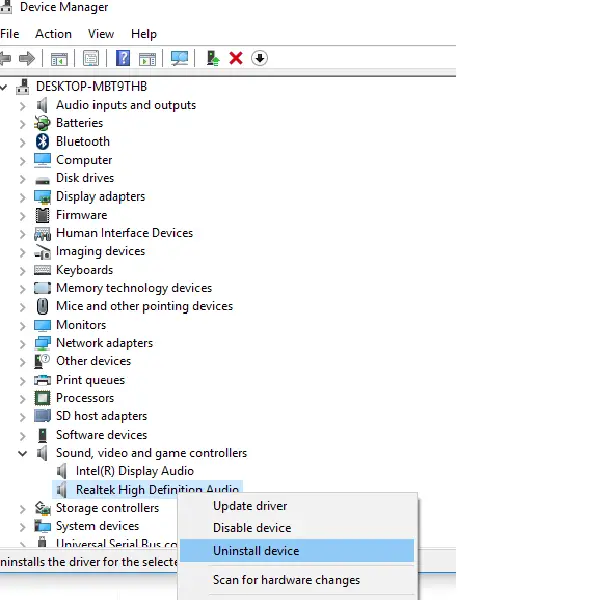
If the issue is not yet fixed, you have to uninstall Realtek audio drives and reinstall them by downloading the suitable audio drivers from the manufacturer’s website.
- Open Run Command box using Win+R on keyboard
- Type devmgmt.msc and press Enter. This will launch the Device Manager
- Expand Sound, video and game controllers from the list in Device Manager.
- Under this, locate the audio driver Realtek High Definition Audio.
- Right-click on it and select Uninstall device from the drop-down menu and follow the on-screen wizard to complete uninstallation.
Now, restart your PC.
Finally, go to realtek.com, download the executable or zip file of your Realtek Audio Driver, and install it on your computer.
4] Install pending Windows updates
If the issue is not fixed yet, it might be due to a glitch in the previous updates. You need to check if there are any pending updates including Driver and Optional Updates and install them on your PC.
- Open the Settings app using the Win+I shortcut
- Click on Windows updates on the left side panel
- Now, click on the Check for updates button. It will check for pending updates and install them.
After installing the pending updates, restart your PC and see if the error is fixed or not.
How to fix cannot connect to RPC service in Realtek audio Console?
When you see can not connect to RPC service error while opening the Realtek Audio console, it can be fixed by updating Realtek audio drivers, reinstalling them, running Playing Audio troubleshooter, or installing any pending Windows updates.
Why can’t I open Realtek audio Console?
There might be many reasons for you not being able to open Realtek Audio Console. The Realtek audio drivers might be corrupted, or any program might be interfering with it, or the drivers are not properly installed. You can use the above solutions to fix it.
Date: May 31, 2022 Tags: Errors
Related Posts

Xbox app can’t choose Drive in Windows 11
Fix Error 0xC004C032 while installing the trial version of Microsoft Office

Fix Adobe Acrobat Error 110, The document could not be saved
 report this ad
[email protected]
Guru is a Communications graduate with hands-on experience with computers, cameras, and editing tools. A tech enthusiast and a movie buff who loves writing about computers, he dreams of living a life devoid of all tech and modern-day advancements in a forest.