Dism Host Servicing Process что это за программа и почему грузит процессор?
 Dism Host Servicing Process — системный процесс, который что-то делает, но что — непонятно. Информации в интернете очень мало. Но кажется мне удалось узнать — если Dism Host Servicing Process грузит процессор, то все дело может быть в том.. что идет подготовка Windows для крупного или важного обновления. Эту информацию я нашел на официальном сайте Microsoft.
В общем все что я находил в интернете, указывает на связь Dism Host Servicing Process с обновлениями.
Также нашел информацию, что для решения проблемы нагрузки, можно попробовать выполнить эти команды:
dism /online /cleanup-image /restorehealth
Команды нужно выполнять в командной строке, запущенной от администратора.
Запуск командной строки от администратора


Dism Host Servicing Process грузит — возможно на ПК есть вирусы?
Еще нашел информацию, что Dism Host Servicing Process может грузить ПК когда в системе произошла ошибка или когда присутствуют вирусы. Проверить ПК на вирусы никогда не будет лишним, уж поверьте. Проверить советую двумя утилитами:
- Dr.Web CureIt! — утилита для обнаружения опасных вирусов, таких как троян, черви всякие, ботнеты. Одна из лучших утилит. Работает быстро, скачивается уже вместе с актуальными антивирусными базами.
- AdwCleaner — утилита попроще, но зато ищет в прямом смысле вредные и надоедливые вирусы — рекламные. Они не крадут ваши личные данные, но зато могут показывать рекламу на рабочем столе, на сайтах, и все для этого делают. И в ярлыках прописывают вирусные сайты и создают левые задания в планировщике, устанавливаюсь странные расширения в браузерах. Со всем этим утилита прекрасно справляется.
Не знаю поможет или нет, но все же — попробуйте восстановить работу Windows до того времени, когда еще не было проблемы. Для этого зажмите Win + R, вставьте команду control sysdm.cpl, потом нажмите ОК. Перейдите на вкладку Защита системы, выберите системный диск и нажмите кнопку Восстановить. Попробуйте вернуть состояние ПК до возникновения проблемы.
На форуме Microsoft также нашел ссылку — Исправление ошибок в центре обновлений. Одному человеку данное руководство помогло, поэтому советую и вам глянуть:
Один юзер написал, что нужно остановить службу центра обновлений.
- Чтобы зайти в список служб — зажмите Win + R, и укажите команду services.msc, далее нажмите ОК, в списке найдите Центр Обновления или Windows Update и попробуйте остановить.
- Сделайте перезагрузку.
- И посмотрите — будет ли снова грузить процессор?
Еще пользователи пишут — после обновления проблема с Dism Host Servicing Process исчезает.
Появилась мысль — а может просто стоит.. оставить ПК на ночь, пусть он подготавливается, может хватит столько времени виндовсу и она все сделает что ей там нужно?
Еще может быть и ошибка такая:

На этом все ребята. Информации в интернете почти нет, поэтому сори, что не особо то и помог вам информационно. Удачи.
DISM Host Servicing Process (DismHost.exe) High CPU, Disk, Memory usage
Some users are reporting that they are seeing DISM Host servicing process high CPU, disk, and memory usage which is impacting other processes. In this guide, we have a few fixes that can help you get rid of this.
What is Dism Host Servicing Process?
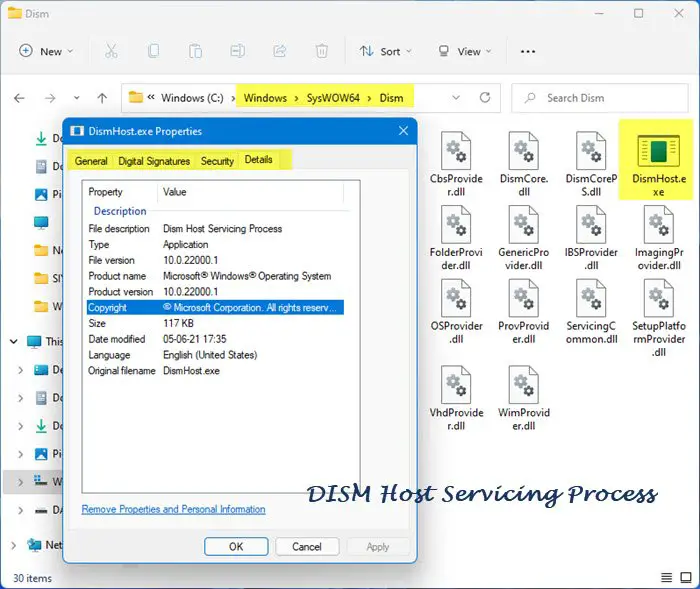
The Deployment Image Servicing and Management (DISM) process is a command-line tool that is used to service a Windows image and fix various errors related to the image files of Windows. It generally is located in C:\Windows\System32\dism or C:\Windows\SysWoW64\dism. If it is located anywhere other than any of those folders, you should be aware of it and scan with antivirus or antimalware tools and get rid of it.
Many Dynamic Link Libray (DLL) files run through the Dism Host Servicing Process (DismHost.exe) as it executes their command-line parameters. That is why we see it running in the background in the Task Manager.
- Check Location and Properties
- Right-click the file and scan it with your security software
- Get it scanned with an Online Malware Scanner
- Check for Verified Publisher
- Verify File Integrity with Hash Value
- Use the Windows Sandbox feature.
DISM Host Servicing Process (DismHost.exe) High CPU, Disk, Memory usage
- Run SFC Scan
- Disable Superfetch Service
- Run Antivirus or Malware Scan
- Run DISM with a Repair Source
- Cloud Reset PC
Let’s see each detail in the method of these fixes.
1] Run SFC Scan
System File Checker (SFC) scan is run to restore missed or corrupted system files on Windows. There are chances that DismHost.exe is using a high CPU, disk, and memory due to a corrupted or missing system file. You need to run an SFC scan on your PC to fix it.
2] Disable Superfetch Service
Superfetch service is a built-in windows service that preloads the frequently used programs and files to speed up your PC. Sometimes, it may lead to high CPU usage by DismHost.exe. You need to disable it for the time being to free up some CPU usage. Disabling Superfetch service also stopped high CPU, disk, and memory usage by DismHost.exe for many users. Try this and see if it has fixed the issue.
3] Run Antivirus or Malware Scan
When you are seeing high CPU, disk, and memory usage by DismHost.exe, first run an antivirus or malware scan which would take care of the malware that is resulting in this. After the scan is done, restart your PC and check if the same problem persists.
4] Run DISM with a Repair Source
The other way to fix the issue is to run DISM using Windows installation as the repair source or use a Windows side-by-side folder from a network share, as the source of the files. To do this, run the following command:
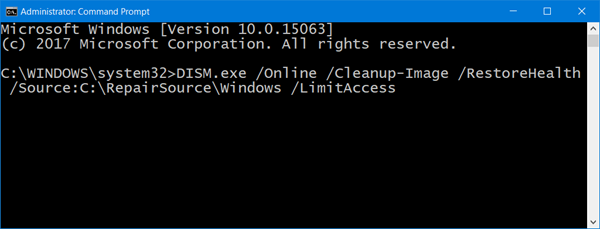
Here you have to replace the C:\RepairSource\Windows placeholder with the location of your repair source.
Once the process is complete, DISM will create a log file in %windir%/Logs/CBS/CBS.log and capture any issues that the tool finds or fixes.
5] Cloud Reset PC
The last option to fix the issue is to Cloud Reset your PC. It can be done from the Settings app. It downloads a fresh Windows version from the cloud onto your PC and uses it to reset or reinstall the PC. It should fix the issue as it uses new files downloaded from the cloud.
These are the ways using which you can resolve the issue with DismHost.exe.
Is it safe to end the DISM host servicing process?
No, it is not. DISM host servicing process is an important command-line tool that is used to make repairs and services to Windows Image files and also to prepare Windows Pre-Installation environment. It is a safe process which you can see in the Task Manager.
Can I delete DismHost?
No, you cannot. It has very important functions related to Windows image files and their repairs. You will break that chain if you delete DismHost and it might break the normal functioning of your PC.
Date: October 7, 2021 Tags: Process
Related Posts
Fix Windows Error Reporting (WerFault.exe) high CPU, Disk. Memory usage in Windows 11/10
Desktop Window Manager stopped working and was closed in Windows 11/10
What is ETD Control Center and can I disable it?
 report this ad
[email protected]
Guru is a Communications graduate with hands-on experience with computers, cameras, and editing tools. A tech enthusiast and a movie buff who loves writing about computers, he dreams of living a life devoid of all tech and modern-day advancements in a forest.
How to Fix DISM Host Servicing Process High CPU Usage

For Windows users, issues like Blue Screen of Death, Black Screen with cursor after an update, and other performance issues are prevalent. And they believe computer virus; malware infections are responsible for it. But trust me, it’s not always true.
DISM host servicing process or DISM.exe, also known as Deployment Image Servicing, can also be responsible for it.
What is the DISM host servicing process?
Deployment image servicing and management popularly known as DISM is a command-line tool. The service is used to create a Windows Preinstallation Environment a.k.a. Windows PE in the background.
In addition to this, DISM can be used to count packages, enable, and disable Windows services. The dangerous thing about DISM.exe is that it can self-replicate in temp folders. Due to this, the system slows down, and high disk usage is caused.
This is not a standard behavior of a file; therefore; we need to learn how to troubleshoot this problem and fix the DISM host servicing process high CPU usage.
Additional Information:
According to Windows 10 experts, based on the location where DISM is stored it can be dangerous. Generally, DISM Host Servicing Processes is 27% dangerous for Windows.
When saved under C:\Windows it is 34% risky.
When found under C:\ Programs Files, it can be up to 19% dangerous.
And when in the user’s folder, it can be 28% dangerous.
So, in this post, we discuss how to fix DISM host servicing process high disk usage errors on Windows.
Common Problems Caused by DismHost.exe
- “ dismhost.exe high disk usage.”
- “ dismhost.exe is not responding.”
- “ dismhost.exe Access denied.”
- “ dismhost.exe could not be found.”
- “ dismhost.exe failed.”
- “Faulting Application Path: dismhost.exe. ”
- “ dismhost.exe has encountered a problem and needs to close. We are sorry for the inconvenience.”
- “Faulty application path: dismhost.exe. ”
Besides these error messages, Network Restricted Problem and other performance issues can also be caused by the DISM file.
Fortunately, there are several ways to fix this. To learn how to do it, follow the steps below and fix the High Disk Usage problem.
Solution 1 – Check DismHost.exe for Malware Infections
To check if DismHost.exe is infected or not, look for the following symptoms:
- Head to C:\Windows\Temp, here check how many DismHost.exe you can see. If you see multiple DismHost.exe, it is infected.
- Check for CPU Usage. For this open Task Manager by pressing Ctrl+Shift+Esc and see CPU usage. It is 100% it is infected.
- If you find hundreds of unknown files in \Users\<username>\appdata\local\temp then too.
- Lag in computer performance
- Programs run automatically, and you are unable to close them.
If you notice any of the issues, certainly there’s a malware disguising as DismHost.exe. This needs to be taken care of urgently. For this using a complete system optimization tool that offers malware scanning, junk file cleaning is required. To perform all these tasks, we suggest using Advanced System Optimizer.
It is an all in one tool to clean and optimize PCs. Using it, you can quickly get rid of rouge files and fix issues that cause problems on your Windows 10 machine. To know in detail, read our review.
Solution 2: Deactivate the Superfetch service
To restore system performance issues, the first thing you need to do is disable Superfetch service.
This is recommended to boost system speed as Superfetch uses high CPU processes that slow down the PC.
To do so, follow the steps below:
1. Press the Windows logo key + R key from the keyboard.
2. In the Run window enter services.msc > Ok.

3. Next, under the Windows Services window look for Superfetch service.

4. Right-click > Properties > Stop.
5. Now click the down arrow next to Startup type > Disabled > Apply > Ok.

You will now feel a difference in system performance.
 Additional Tip
Junk files, temp files, unwanted data also slows down Windows systems. Therefore, to keep it running at its best, we recommend using the best system optimizer – Advanced System Optimizer.
Solution 3: Disable the Background Intelligence Transfer (BIT) Service
One more way to fix the DISM host servicing process is to disable the BITS service. A service used to transfer files online. To deactivate it, follow the steps below:
1. Type Services in Windows search bar and hit enter.
2. Now look for Background Intelligent Transfer Service > right-click Properties.

3. If the service is running, click the Stop button.
4. Next, select Disabled from the Startup type > Apply > Ok
5. Reboot Windows.

This should fix the problem. However, if the problem persists, move to the next step.
Solution 4: Delete DismHost.exe from Windows 10
If you see 100% CPU usage due to DismHost.exe, you need to uninstall it immediately. For this follow the steps below:
2. Click Uninstall a program under Programs.

3. From here uninstall all unknown applications.
4. This will help restore CPU usage.
5. To confirm DismHost.exe is removed head to C:/Program Files and search for the file.
6. In addition to this, open Windows Registry Editor by pressing Windows + R keys and typing Regedit in it.
7. Here click HKEY_LOCAL_MACHINE key > Software.

8. Look for the DISM Host Servicing Process if you find the folder and delete it.
That’s it, DismHost.exe is now successfully removed.
Additional Tip
To avoid facing DISM host servicing process issues, you need to keep the following things in mind:
- Windows 10 should always be updated. This will ensure you have the updated version of DismHost.exe
- Always keep a watch on system directories. If any unknown file, folder, or program is detected remove it. For this, you can use the top system optimizer – Advanced System Optimizer because doing so manually will be time-consuming.
With this, we conclude our post on how to fix the DISM HOST Servicing process high CPU usage. We hope the guide was helpful. If you have any suggestions or questions, do let us know in the comments section.
People Who Read This Post Also Like
7 Fixes Can’t Resize Window On Windows 11/10
How To Fix Windows Is Unable To Run Automatic Maintenance Error
How To Fix Missing Battery Time Estimate In Windows 11
Leave a Reply Cancel reply
Recent Posts
7 Fixes Can’t Resize Window On Windows 11/10
How To Fix Windows Is Unable To Run Automatic Maintenance Error
Apple Blocks BlueMail Email App Updates That Include ChatGPT Tech
How To Fix Missing Battery Time Estimate In Windows 11
8 Best Time Tracking Apps For Mac
Subscribe & be the first to know!
Signup for your newsletter and never miss out on any tech update.
Platforms
Latest
Roundup
Quick links
Follow Us
All product names, trademarks and registered trademarks are property of their respective owners. All company, product and service names used in this website are for identification purposes only. Use of these names, trademarks and brands does not imply endorsement. WeTheGeek does not imply any relationship with any of the companies, products and service names in any form.
WeTheGeek is an independent website and has not been authorized, sponsored, or otherwise approved by Apple Inc.
WeTheGeek is not affiliated with Microsoft Corporation, nor claim any such implied or direct affiliation.
What is DISM host servicing process? How to fix high CPU usage?

Windows relies upon hundreds if not thousands of background processes running behind the screens to keep itself operational. However, it’s not uncommon to see these processes go rogue, use too many system resources or malware pose as these processes.
In this article, we’re going to talk about the DISM host services process, what it does, and how you can prevent it from using too much of your CPU.
What is DISM host servicing process?
DISM or Deployment Image Servicing and Management is a command-line tool in Windows used to create a Windows preinstallation environment in the background.
DISM can also be used to count packages and enable or disable Windows services. However, DISM is a recursive process that can self-replicate in temporary folders, causing system slowdowns and using too much storage or CPU.
How to prevent high CPU usage by DISM host servicing process?
Here are a few solutions you can try out if the process is causing headaches for you.
Run a malware scan
Since the process usually runs pretty quietly in the background, the chances are that this is malware or virus posing as one instead of being a Windows process. In such cases, run a full, in-depth system scan using your antivirus or antimalware of choice, and if you find anything suspicious, remove it from your PC.
Deactivate the SysMain service
SysMain, formerly known as SuperFetch, is a legitimate Windows 10 background service. It analyses the user’s system usage patterns and efficiently manages the system accordingly, and can speed up app loading times and, in some cases, even boot times. You can try disabling this service to see if that resolves the problem.
Disable the BIT (Background Intelligence Transfer) service
BIT is a service used to transfer files online and works closes with the DISM host process; try disabling it to see if that resolves your issue.
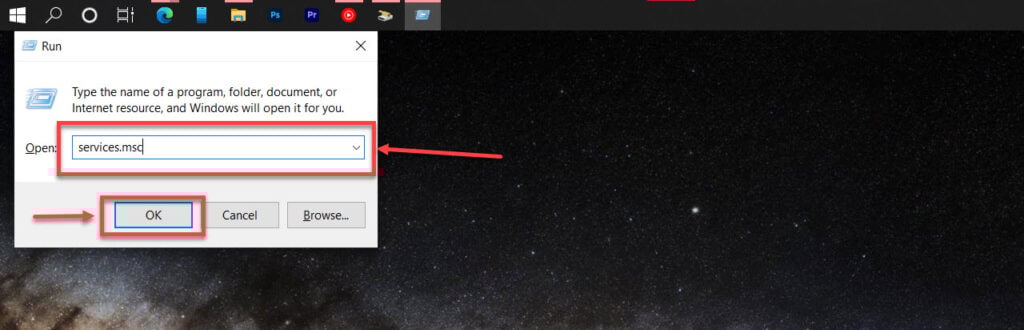
Step 1: Press Windows key + R to open the Run prompt. Type services.msc and hit enter.
Step 2: Look for the Background Intelligent Transfer Service, select it and use the stop button to disable the service.
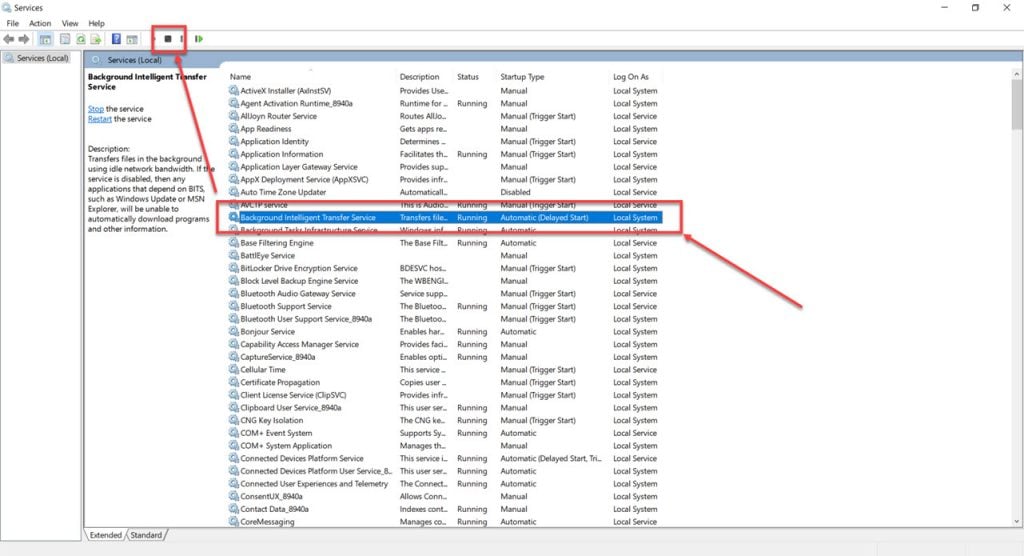
Now restart your PC and try again.
Remove the DISM Host from your PC
If you suspect that the DISM Host causing problems for you is a virus, try removing the process altogether to see if that helps.
Step 1: Press Windows Key + R to open the Run prompt. Type regedit and hit enter. 
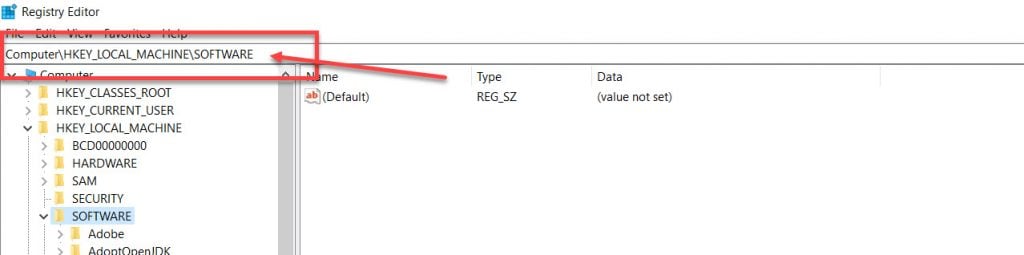
Step 2: Navigate to the following directory.
Step 3: Check for a DISM Host key. If it’s present, delete the key and restart your PC.
Someone who writes/edits/shoots/hosts all things tech and when he’s not, streams himself racing virtual cars.