How to Convert a (Batch File) BAT to EXE [Step-by-Step]
Download a free trial of Veeam Backup for Microsoft 365 and eliminate the risk of losing access and control over your data!
Table of Contents
Are you wondering how to compile your old batch scripts into a single package? Why not convert your .bat files to .exe? Converting .bat files to a .exe also lets you secure your script code as it won’t be visible to the naked eye.
In this tutorial, you’ll learn how to convert batch files to executables via built-in and third-party tools.
Let’s start converting!
Converting BAT file to EXE via IExpress
IExpress is a tool that comes with your Windows OS installation to create stand-alone executables from any script file. But first, let’s create a short batch script to demonstrate how IExpress works to convert a bat script file.
1. Open your favorite text editor, copy/paste the code below and save the file as HelloWorld.bat.
The code below prints the text Hello world, ATA . The double colons ( :: ) lets you add a comment in a batch script file.
2. Next, click on the Start button and search for iexpress. Right click on iexpress.exe and choose Run as administrator as you need admin rights to create a system-level executable.
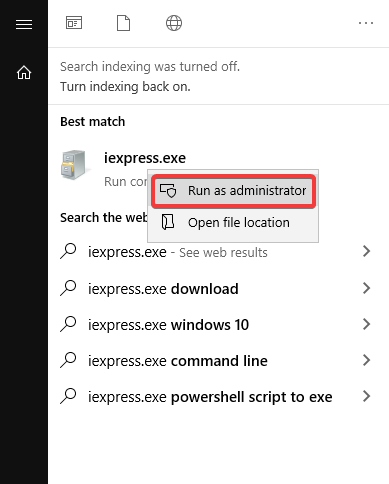
Searching and Launching IExpress
3. On IExpress’ initial page, choose the Create New Self Extraction Directive (SED) option, and click on Next.
A SED instructs Windows to extract a cabinet file or executable ( .DLL or .EXE file) and write it directly to the disk without user intervention.
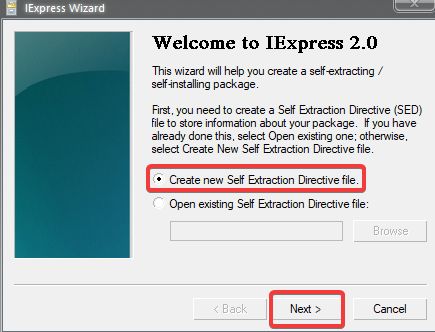
Creating a SED File
4. Now, choose the Extract files and run an installation command option on the Package Purpose screen. This option lets Windows extract the contents of the EXE file and run the command inside the EXE file when you run the EXE file.
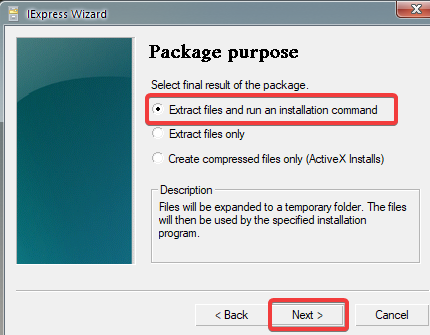
Choosing Package Purpose
5. Enter a preferred title for the package and click on the Next button. For this example, the package title is HelloWorld. The package title appears on all prompts the user will see during the installation or execution of the EXE file.
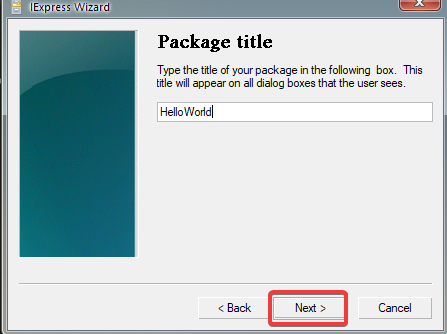
Naming the Package
6. Keep the defaults and click on Next on both the Confirmation prompt and the License agreement pages. These options will not affect the installation at all.
When you set a confirmation prompt, Windows asks the user whether to continue with the EXE installation or not. While setting up a license agreement prompts the user to accept the agreement or not upon running the EXE file.
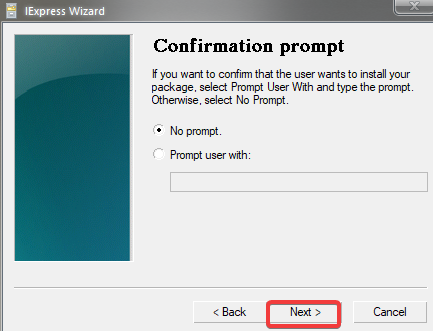
Adding Confirmation Prompt
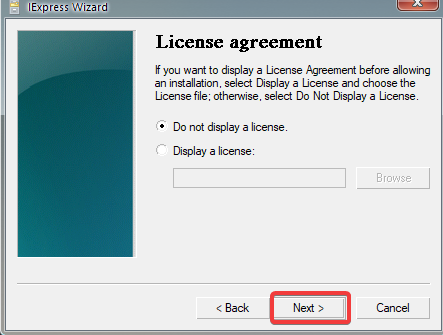
Setting up a License Agreement
7. Now, click on the Add button in the Packaged files page to select the file you wish to convert and click on Next.
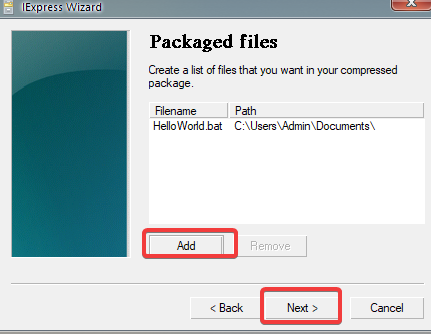
Choosing a batch file to convert to executable
8. Enter the command below to the Install Program field. The /c argument tells cmd to run the batch file and then terminate.
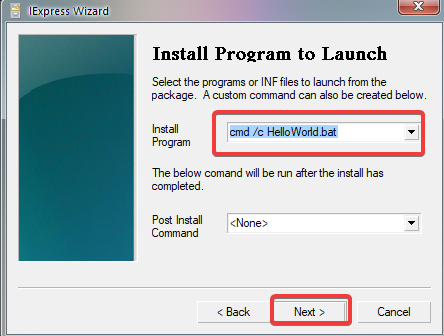
Adding Custom Command to Extract Files without Installing
9. Keep the defaults in the following steps until you get to the Package Name and Options page.
10. Now, click on the Browse button to select a target path, name the EXE file anything you prefer, then click Next. For this example, the EXE file is named HelloWorld.exe.
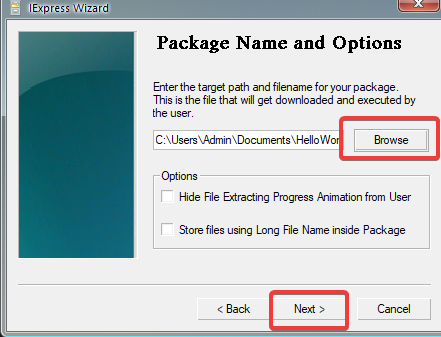
Naming the EXE File
11. Keep the defaults in the next few steps until you reach the Create package page.
12. Click the Next button on the Create package page to create the EXE file.
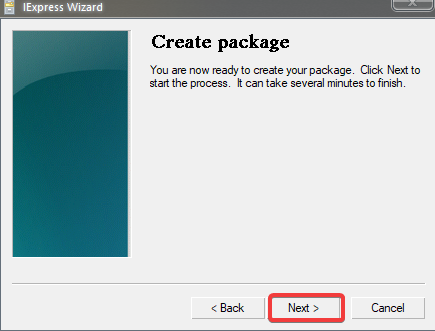
Creating the EXE file
13. Finally, navigate to the target you selected in step 10 and run the EXE file (HelloWorld.exe) to see if it works.
Below, you can see the EXE file (HelloWorld.exe) opened a terminal session and printed the Hello world, ATA text.

Running the EXE File
Converting BAT Scripts to EXE with Bat To Exe Converter
If you’re not into performing tedious steps like IExpress, a popular third-party tool converts .bat to .exe file and is more effective and convenient. Bat To Exe Converter is a free yet handy tool that quickly converts one or several .bat files in a few steps.
1. Open your favorite web browser, download Bat To Exe Converter, and install it.
2. Next, launch the Bat To Exe Converter and click on the Open toolbar button at the window’s top-left corner, and locate the batch file you want to convert (HelloWorld.bat).
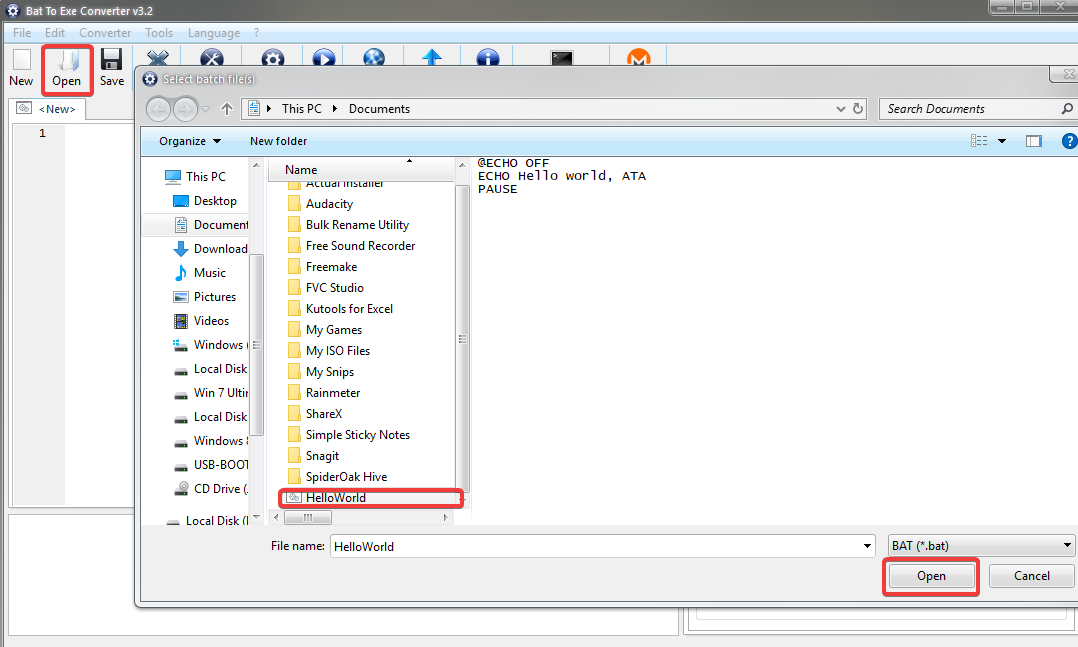
Opening Batch File to Convert to EXE File
3. Click on Convert to provide a name and target location for the EXE file, then click Save to convert your batch file to an EXE file.
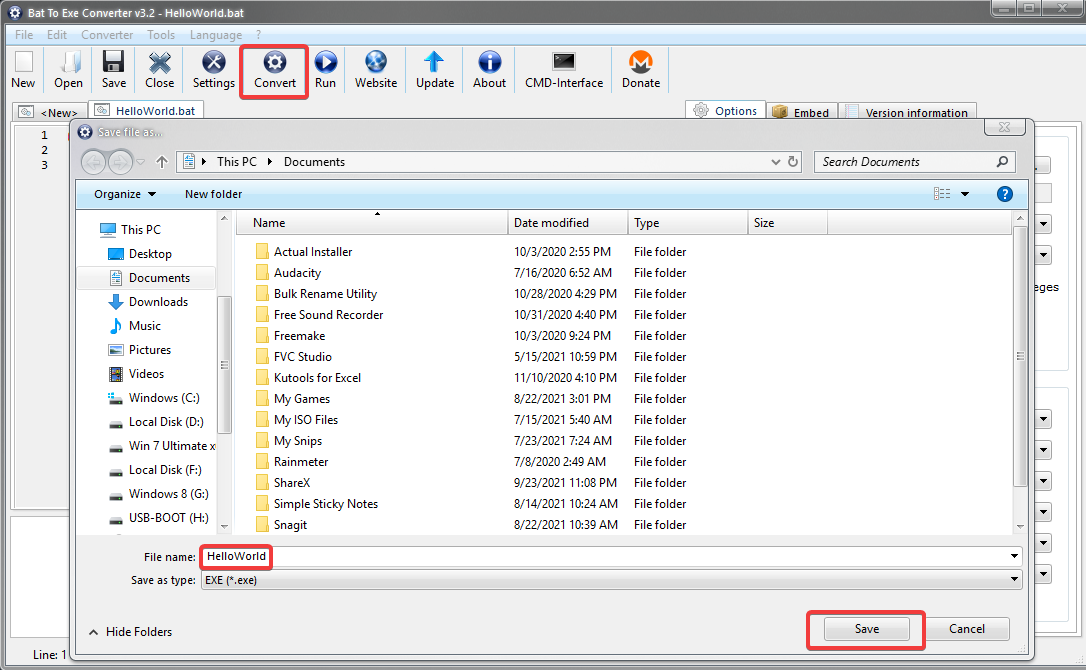
Converting Batch File to EXE
4. Finally, run the EXE file and see if it works.
Converting BAT Scripts to EXE via Advanced BAT to EXE Converter
As the name suggests, the Advanced BAT to EXE Converter is the best all-inclusive BAT converter, and it’s free! This tool converts batch scripts to EXE files and batch scripts to MSI, DLL, and VBS files.
2. Next, launch Advanced BAT to EXE Converter and click on the File menu → Open to select the script file to convert to EXE.
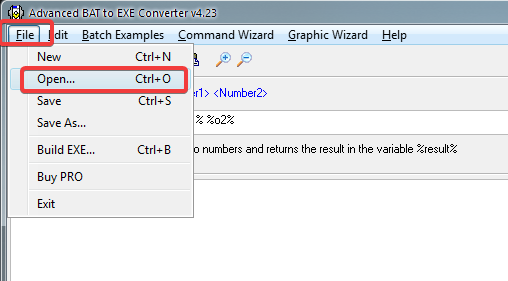
Opening the file menu
3. Now, click on the Build EXE button on the top left. In the Select EXE Options window, click on the Build EXE button, as shown below, to build the EXE file based on the settings you selected.
Perhaps you have dependencies you want to embed on the EXE file. If so, click on the Embed Files tab in the Select EXE Options window and add files to embed.
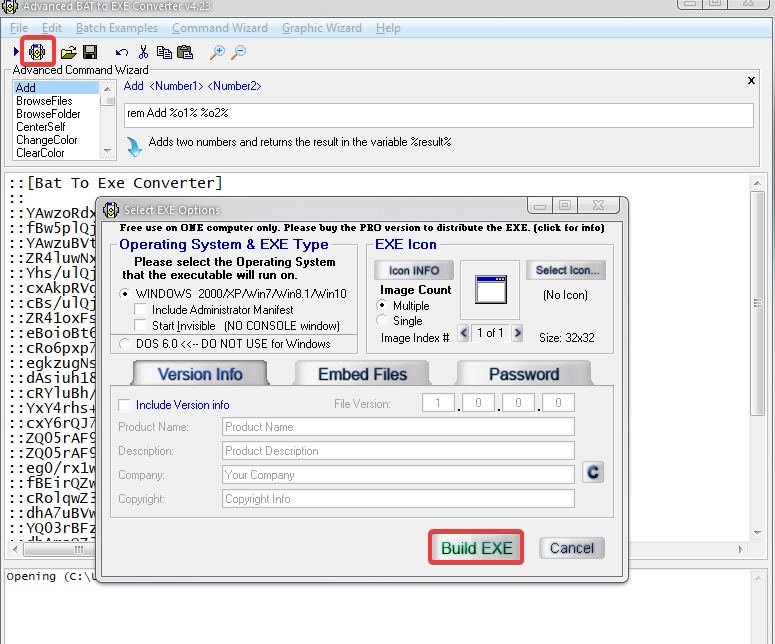
Converting Batch Files to EXE
Now, set a target path and provide a name for your EXE file. Click Save to start converting your batch file to EXE. Below, you can see the conversion progress at the bottom of the window.
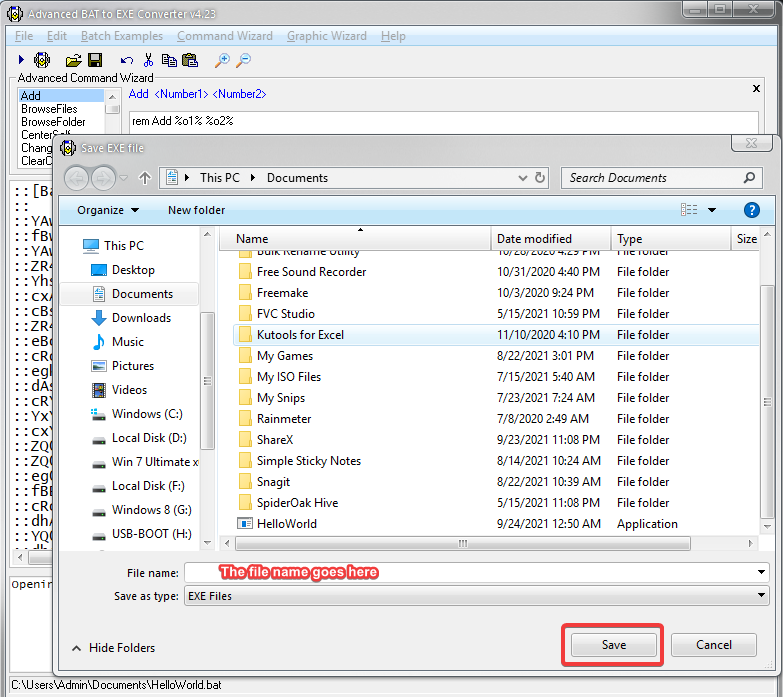
Selecting Save Location for the EXE File
Below, you can see the conversion progress at the bottom of the window.

Converting batch file
Finally, run the EXE file and see if it works.
Conclusion
In this guide, you’ve discovered that conversion of the batch script to EXE is possible. You’ve learned how to convert a batch script to an EXE file with built-in and third-party tools.
Now would you choose any of the tools in building your project and convert your scripts into executable? Perhaps try embedding multiple dependencies (script files) to your executable file?
Hate ads? Want to support the writer? Get many of our tutorials packaged as an ATA Guidebook.
More from ATA Learning & Partners
Recommended Resources!
Recommended Resources for Training, Information Security, Automation, and more!
Get Paid to Write!
ATA Learning is always seeking instructors of all experience levels. Regardless if you’re a junior admin or system architect, you have something to share. Why not write on a platform with an existing audience and share your knowledge with the world?
ATA Learning Guidebooks
ATA Learning is known for its high-quality written tutorials in the form of blog posts. Support ATA Learning with ATA Guidebook PDF eBooks available offline and with no ads!
How can I convert a Windows batch script to a .exe?
I have a fairly simple batch script that I would like to execute using a macro on my fancy gaming keyboard. However, SteelSeries Engine only supports opening a .exe file with the macro buttons. Is there any way to convert the script into a simple executable?
5 Answers 5
Yes, actually. It’s not pretty, but it’s clean (nothing to clean up afterwards) and it’s actually built-in to your system!
In your C:\Windows\System32\ folder, there is a file called iexpress.exe .
- Right-click it an Run as administrator .
- Create a new SED and select «Extract files and run an installation command.»
- Add the script you want, and make sure that on the next screen, you set the install program to cmd /c [your_script.bat] where [your_script.bat] is the script file you want to execute. If you don’t do this, windows will try to use Command.com (the old version of Command Prompt) which hasn’t been in use for quite a while.
- Select preferences (you might need to select «Store files using Long File Name inside Package), set an output path (to the .exe file you want to create), and select «No restart».
- Click next and you should have your .exe!
Just a note, this file actually only acts as a wrapper for your script, and the script itself actually gets executed in a temp folder created on execution (and deleted afterwards), so make sure you don’t use any relative paths.
Here are 2 free programs that I highly recommend for creating EXE’s out of batch files
You can use both programs with simple GUI.
Bat To Exe Converter supports also CLI commands ( \? flag for help). Basic example from documentation:
If your keyboard software supports the passing of arguments to the executable (which is not improbable) you don’t have to.
would run the batch file, and give you a valid executable to name for the keyboard software. No conversion needed means you can always easily make changes to your bat without additional steps required.
I found this article which shows you how to convert a .bat to .exe file using a batch-scipt:

Different versions of Windows has different effects for same batch file commands, and some commands are limited to some Windows systems eg. findstr and shutdown .
BTW, Win 10 CMD doesn’t allow changes to SETLOCAL on command line. OK for batch files.
See this link for different commands for restarting different versions of windows: https://www.computerhope.com/issues/ch000321.htm
So if you were to compile a script on Win 98, and run on Win 8.1, you’d get unexpected results or scripts may not even work. See list of commands here: https://www.ionos.com/digitalguide/server/know-how/windows-cmd-commands/
For this reason, one would need a different compiler on each version of Windows, preferably which would spit out binary code (generic) that can be run on as many CPU chips as possible, with same instruction sets. A workaround offered by most programs is to wrap the script in an exe file that would unwrap and execute the script when opened/run eg. Bat_To_Exe_Converter, Bat2Exe, BatchCompiler or Winzip: https://support.winzip.com/hc/en-us/articles/115011794948-What-is-a-Self-Extracting-Zip-File-
To solve this issue of portability, virtual machines have become more popular and hence the rise of Java & related scripts.
This however, would still be intepreted code, and not as fast as compiled code. Even byte code (intermediate code) from virtual machines still need to be compiled, even if it’s (JIT): https://aboullaite.me/understanding-jit-compiler-just-in-time-compiler/
In short, you can get an exe file which would contain a script that would be intepreted by the command processor, but it won’t be a native executable file, meaning it won’t run without a host by the Windows operating system.
Converting Batch Files .BAT to Executables .EXE
Batch scripts are the series of commands stored in a plain text file that can be executed by the command-line interpreter. Whereas executable files are used to perform various operations and tasks on a computer. Some users are wondering if there is a way of converting the batch script (BAT) to an executable file (EXE). In this article, you can find the methods that will tell you how to convert the batch scripts to executable files.
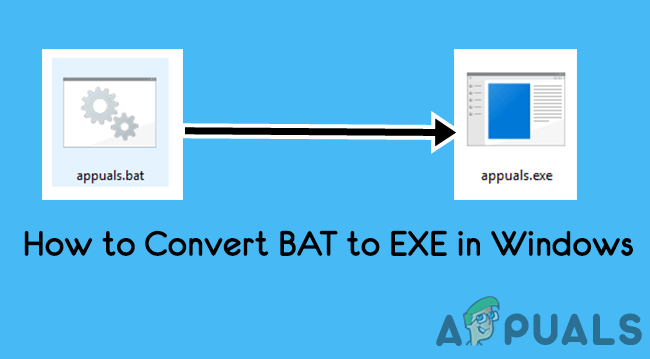 Converting to a batch script (BAT) to Executable (EXE) in Windows
There are different methods that include the using of third-party software or using the Windows self-extracting package wizard. We are going to show you the simple converting of batch scripts to executable files. However, there can be some complications if the batch scripts have errors or complexity. We are using the batch script of ping checking as an example in this article. Some of the methods below will look like repeated, but all of the converting software has almost similar names.
Using the iexpress.exe to Convert BAT to EXE
Iexpress.exe is the setup creation wizard that is available in the Windows operating system. This tool is made from a bunch of commands that help the users to create a single self-extracting package from a set of files. This executable file is part of the Windows Internet Explorer. However, by using this executable file, the user can convert the batch script (BAT) to the executable file (EXE). Follow the below steps to get an EXE file through iexpress.exe:
- Hold the Windows key and press S to open the search feature. Type ‘iexpress.exe‘ in the search, right-click on it and choose Run as administrator.
Note: After typing the name, you can also hold CTRL + Shift and press the Enter button to open it as an administrator.
Note: appuals.exe is the batch script name that you choose in the Install Program menu.
Using the BAT to EXE Converter
If the first method is confusing for you, then you can download one of the third-party applications. Most third-party tools are specially designed for this specific conversion of two files. BAT to EXE converter is one of the famous tools that most users use to convert batch scripts. Follow the below steps to try BAT to EXE converter:
- Open your browser and download the BAT to EXE Converter installer. Install the tool by running the installer.
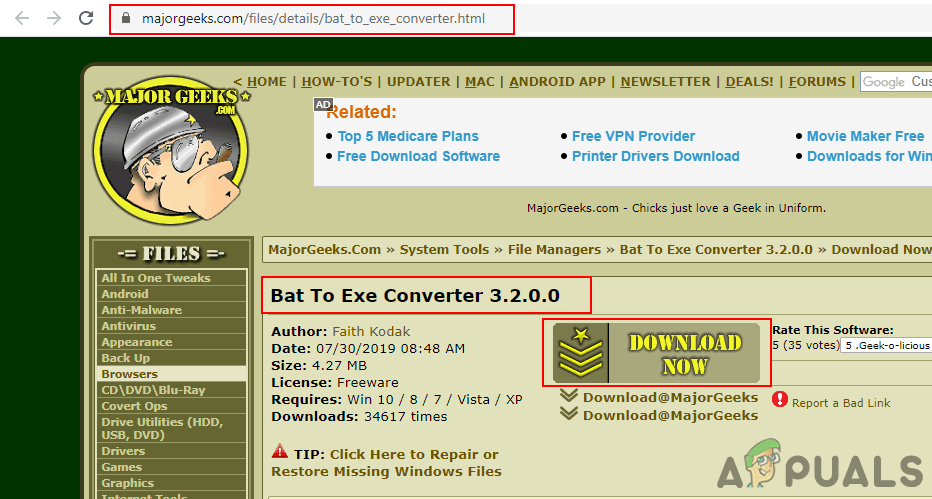 Downloading BAT to EXE Converter
 - Double-click on the BAT to EXE Convertershortcut to open it. Click on the Open button icon at the top. Choose the batch script file and click on the Open button.
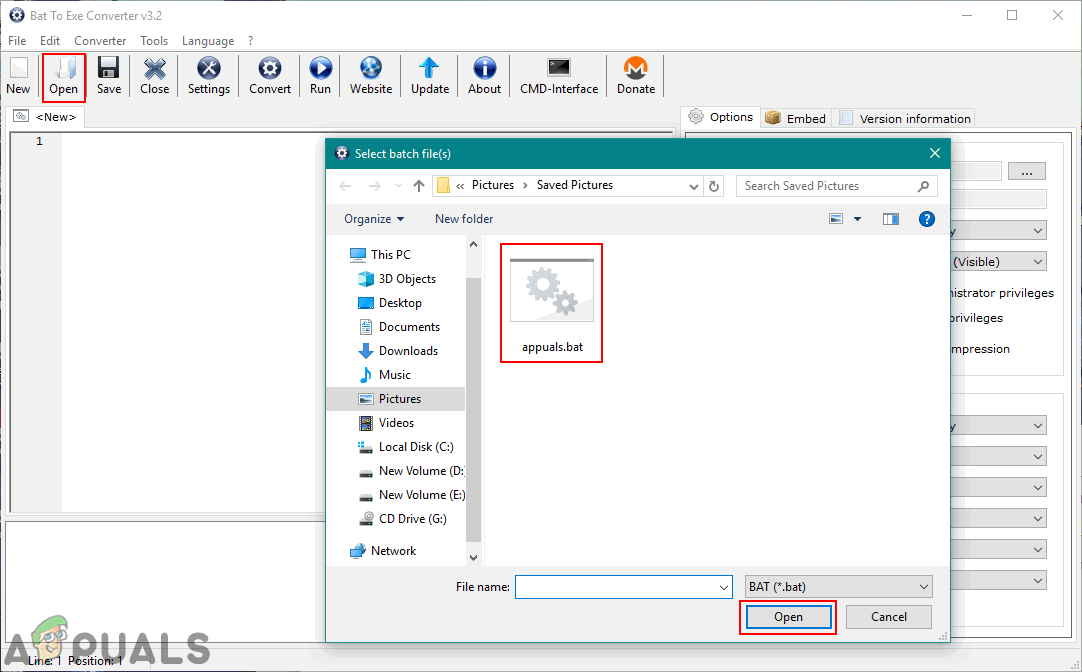 Opening the batch script in BAT to EXE Converter
 - Now click on the Convert button icon at the top and choose the name and location to save the converted file.
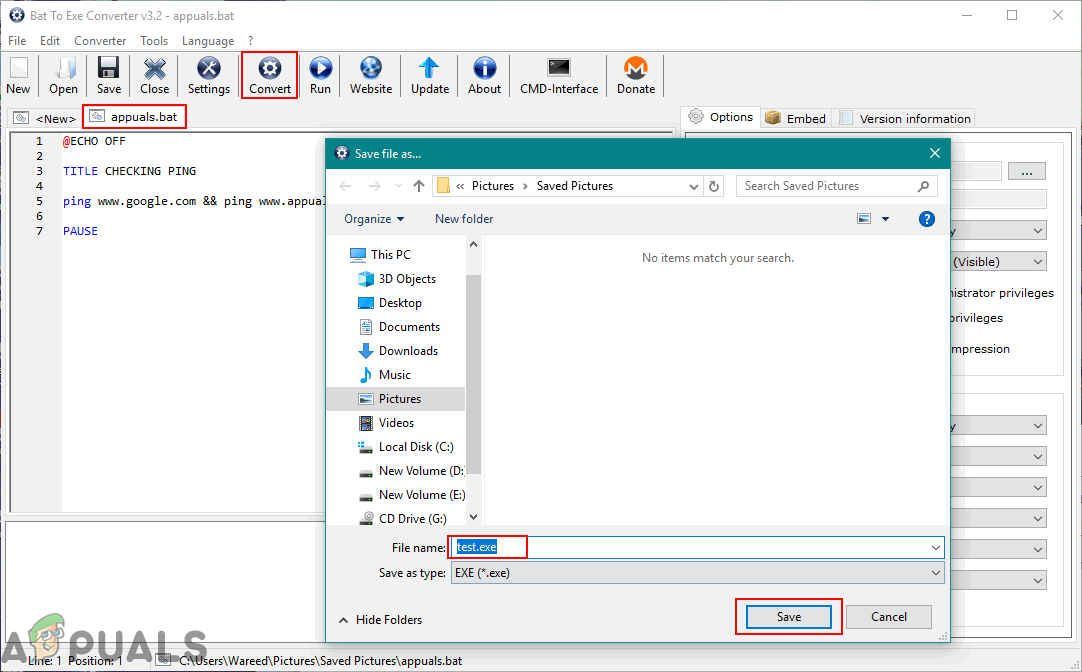 Converting and saving the EXE file
 - The executable file for the batch script will be created.
Using the Advanced BAT to EXE Converter
This tool is different from the above one. Most of the tools have similar names but they are published by different developers. This will have some of the extra features that users can use according to their needs. However, converting the batch scripts is simple with this tool. Follow the below steps to convert the batch script to executable file by using the Advanced BAT to EXE converter:
- Open your browser and download the Advanced BAT to EXE Converter software. Then Install it on your computer.
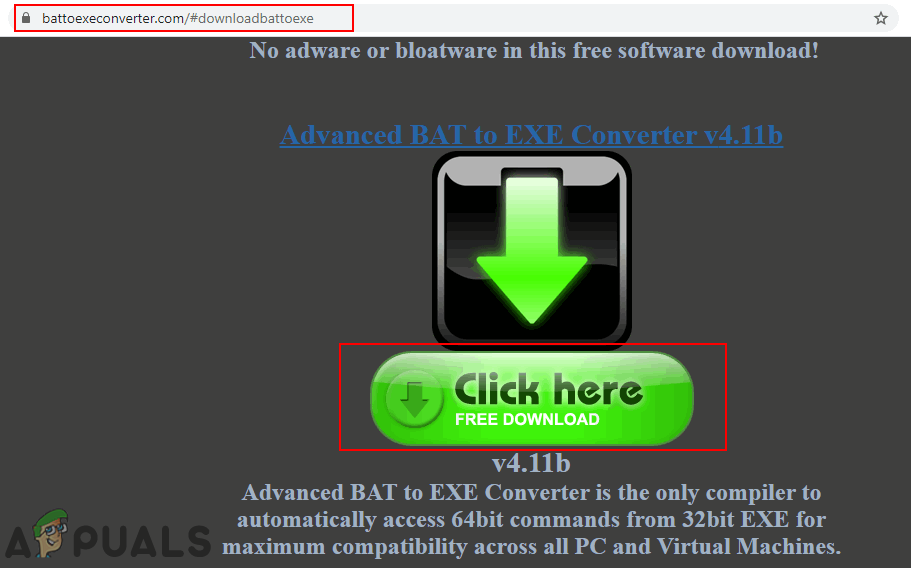 Downloading Advanced BAT to EXE Converter
 - Hold the Windows key and press S to open the Windows search feature. Search for Advanced BAT to EXE and open the application.
- Click on the File menu in the menu bar and choose the Open option. Select the batch script and click on the Open button.
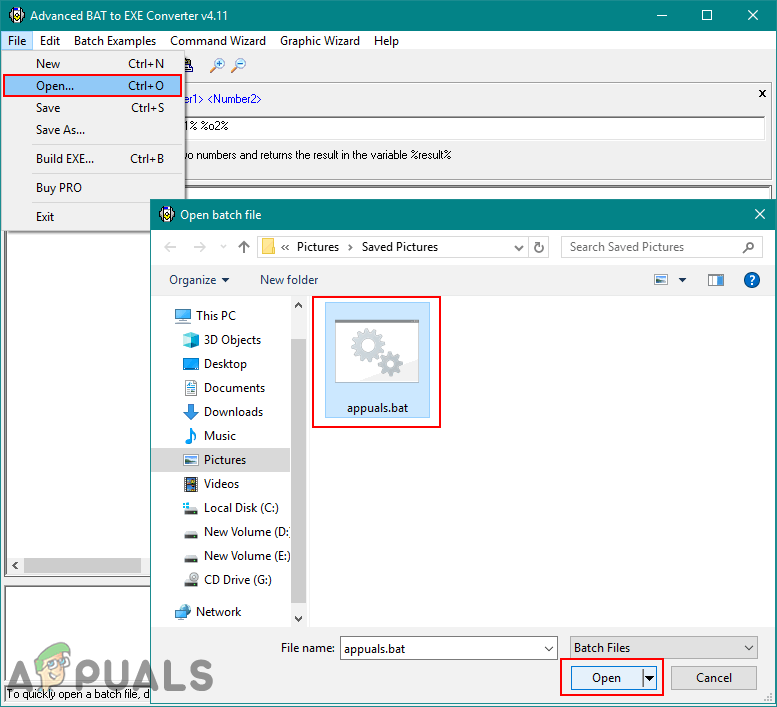 Opening the batch script in Advanced BAT to EXE Converter
 - Now click on the Build EXE icon under the menu bar. A new window will appear and click on the Build EXE button in that.
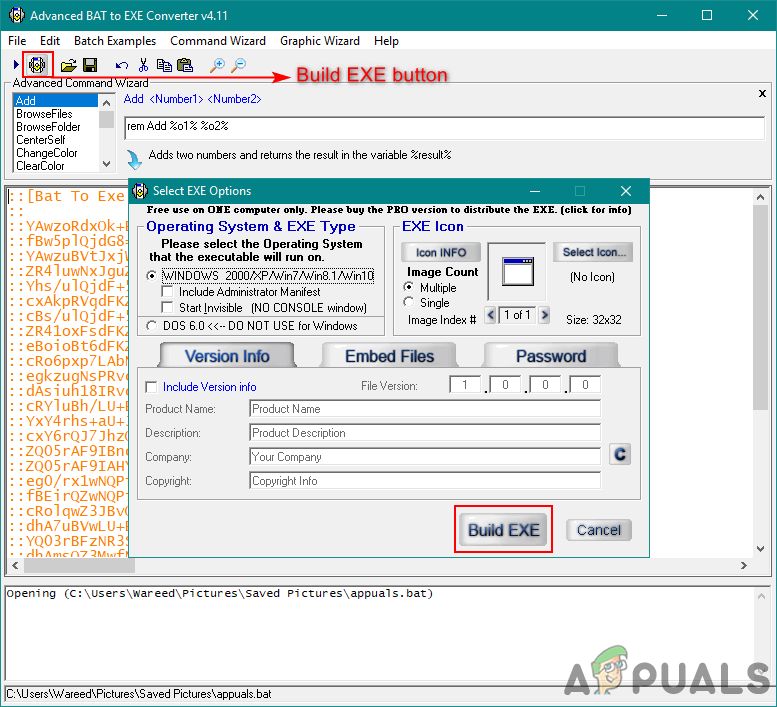 Build EXE for the opened batch script
 - Type the saving EXE file name and click on the Save button.
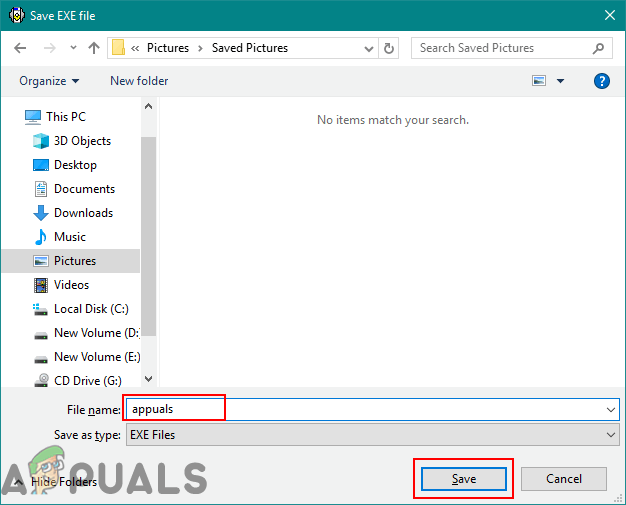 Saving the EXE file
 - Your file will be ready as an Executable file. Open it by double-clicking the file and check it will work successfully.
There are many other tools that can help users to convert the BAT file to EXE. BAT 2 EXE is another good tool that you can check. It can convert all the available batch scripts that are available in the folder by just selecting the folder. BAT 2 EXE tool also allows you to add the Administrator manifest.