You can Surf Internet in Linux Terminal With These Command Line Browsers
I’m guessing that you are probably using Firefox or a Chrome-based browser like Brave to read this article. Or, maybe, Google Chrome or Chromium or other web browsers available for Linux.
In other words, you are utilizing a GUI-based approach to browse the web. However, back in the days, people used the terminal to fetch resources and browse the web because everything was mostly text-based information.
Even though you cannot get every information from a terminal now, you can still try the command line browsers for some text-based information and open a web page from the Linux terminal.
Not just limited to that, but if you are accessing a remote server or stuck in a terminal without a GUI, a terminal web browser can prove to be useful as well.
So, in this article, I will be mentioning some terminal based web browsers that you can try on Linux.
Best Terminal-based Web Browsers for Linux Users
Note: The list is in no particular order of ranking.
1. W3M
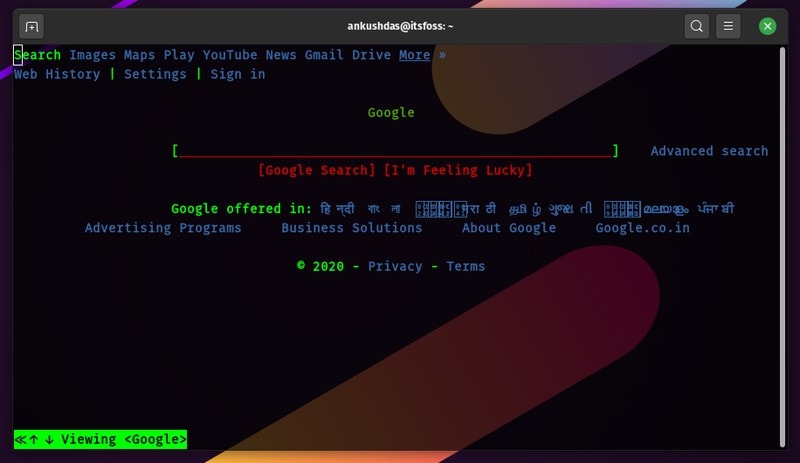
w3m is a popular open-source text-based web browser for the terminal. Even though the original project is no longer active, an active version of it is being maintained by a different developer Tatsuya Kinoshita.
w3m is quite simple, supports SSL connections, colors, and in-line images as well. Of course, depending on what resource you are trying to access, things might look different on your end. As per my quick test, it didn’t seem to load up DuckDuckGo but I could use Google in terminal just fine.
You can simply type w3m in the terminal to get help after installation. If you’re curious, you can also check out the repository at GitHub.
How to install and use w3m?
W3M is available on most of the default repositories for any Debian-based Linux distribution. If you have an Arch-based distro, you might want to check AUR if it’s not available directly.
For Ubuntu, you can install it by typing in:
Here, we are installing the w3m package along with image extension for in-line image support. Next, to get started, you have to simply follow the command below:
Of course, you need to replace xyz.com to any website that you want to browse/test. Finally, you should know that you can use the keyboard arrow keys to navigate and press enter when you want to take an action.
To quit, you can press SHIFT+Q, and to go back to the previous page — SHIFT+B. Additional shortcuts include SHIFT + T to open a new tab and SHIFT + U to open a new URL.
You can explore more about it by heading to its man page as well.
2. Lynx
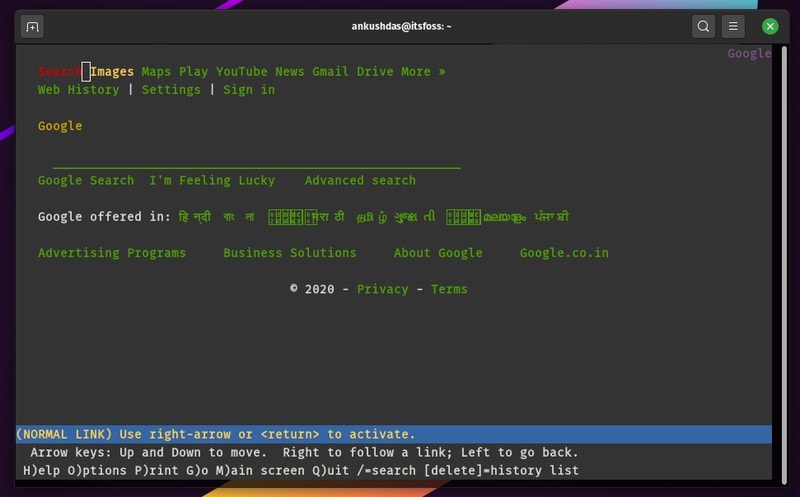
Lynx is yet another open source command line browser which you can try. Fortunately, more websites tend to work when using Lynx, so I’d say it is definitely better in that aspect. I was able to load up DuckDuckGo and make it work.
In addition to that, I also noticed that it lets you accept/deny cookies when visiting various web resources. You can set it to always accept or deny as well. So, that’s a good thing.
On the other hand, the window does not re-size well while using it from the terminal. I haven’t looked for any solutions to that, so if you’re trying this out, you might want to do that. In either case, it works great and you get all the instructions for the keyboard shortcuts right when you launch it in the terminal.
Note that it does not match the system terminal theme, so it will look different no matter how your terminal looks like.
How to install Lynx?
Unlike w3m, you do get some Win32 installers if you’re interested to try. But, on Linux, it is available on the most of the default repositories.
For Ubuntu, you just need to type in:
To get started, you just have to follow the command below:
Here, you just need to replace the example website with the resource you want to visit.
If you want to explore the packages for other Linux distros, you can check out their official website resources.
3. Links2
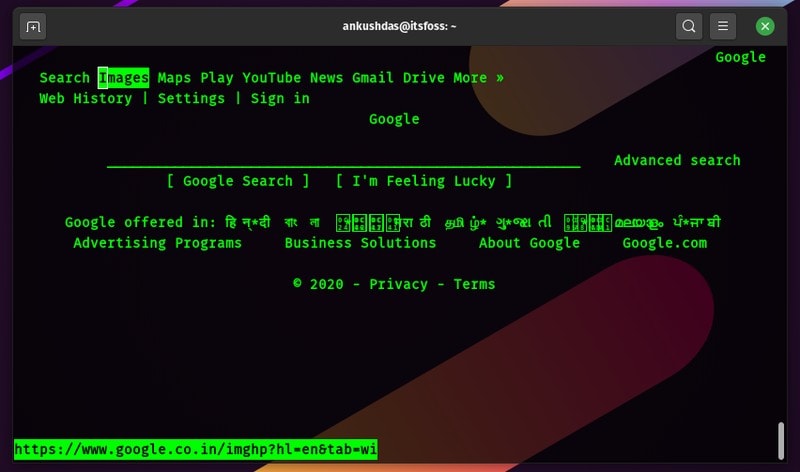
Links2 is an interesting text-based browser that you can easily utilize on your terminal with a good user experience. It gives you a nice interface to type in the URL and then proceed as soon as you launch it.
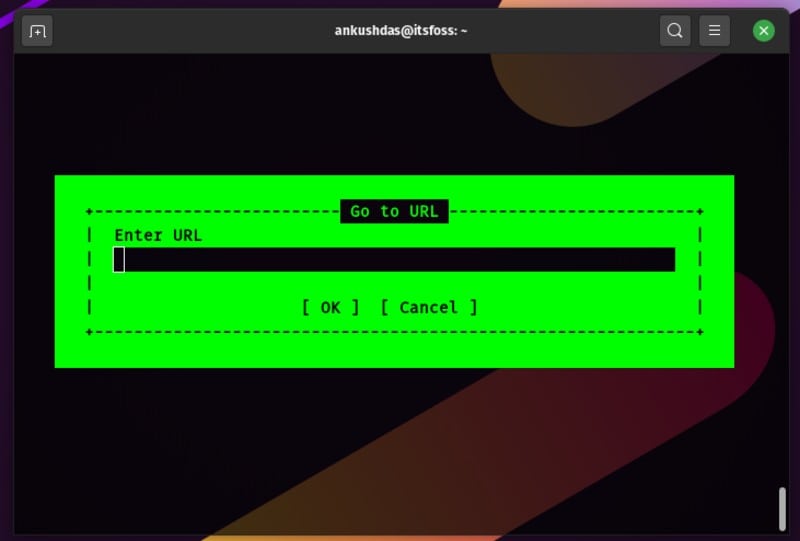
It is worth noting that the theme will depend on your terminal settings, I have it set as “black-green”, hence this is what you see. Once you launch it as a command line browser, you just need to press any key to bring the URL prompt or Q to quit it. It works good enough and renders text from most of the sites.
Unlike Lynx, you do not get the ability to accept/reject cookies. Other than that, it seems to work just fine.
How to install Links2?
As you’d expect, you will find it available in the most of the default repositories. For Ubuntu, you can install it by typing the following command in the terminal:
You can refer to its official website for packages or documentations if you want to install it on any other Linux distribution.
4. eLinks
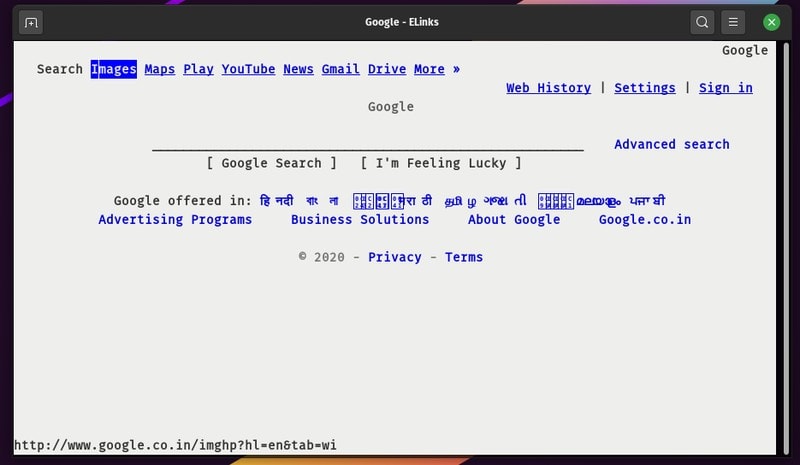
eLinks is similar to Links2 — but it is no longer maintained. You will still find it in the default repositories of various distributions, hence, I kept it in this list.
It does not blend in with your system terminal theme. So, this may not be a pretty experience as a text-based browser without a “dark” mode if you needed that.
How to install eLinks?
On Ubuntu, it is easy to install it. You just have to type in the following in the terminal:
For other Linux distributions, you should find it available on the standard repositories. But, you can refer to the official installation instructions if you do not find it in the repository.
Wrapping Up
It’s no surprise that there aren’t a lot of text-based web browsers to run on the terminal. Some projects like Browsh have tried to present a modern Linux command-line browser but it did not work in my case.
While tools like curl and wget allow you to download files from the Linux command line, these terminal-based web browsers provide additional features.
In addition to command-line browsers, you may also like to try some command line games for Linux, if you want to play around in the terminal.
Browsing web in the Linux terminal or using the Linux terminal in a web browser, you can do it all.
What do you think about the text-based web browsers for Linux terminal? Feel free to let me know your thoughts in the comments below.
Лучшие консольные браузеры для Linux
Смартфон есть практически у каждого современного человека, поэтому найти информацию не так сложно. Но что делать, если вам надо скачать файл на удалённом сервере с помощью терминал? Вы можете найти ссылку и скачать его с помощью утилиты wget. А что если она длинная и набрать её не так просто? Выход есть – консольный браузер.
В этой статье мы собрали лучшие консольные браузеры для Linux. С их помощью вы можете не только найти и скачать файлы, но и оставить закладки для быстрого доступа к нужным страницам. Но использовать консольные браузеры на постоянной основе у вас не получится.
Лучшие консольные браузеры для Linux
1. Lynx
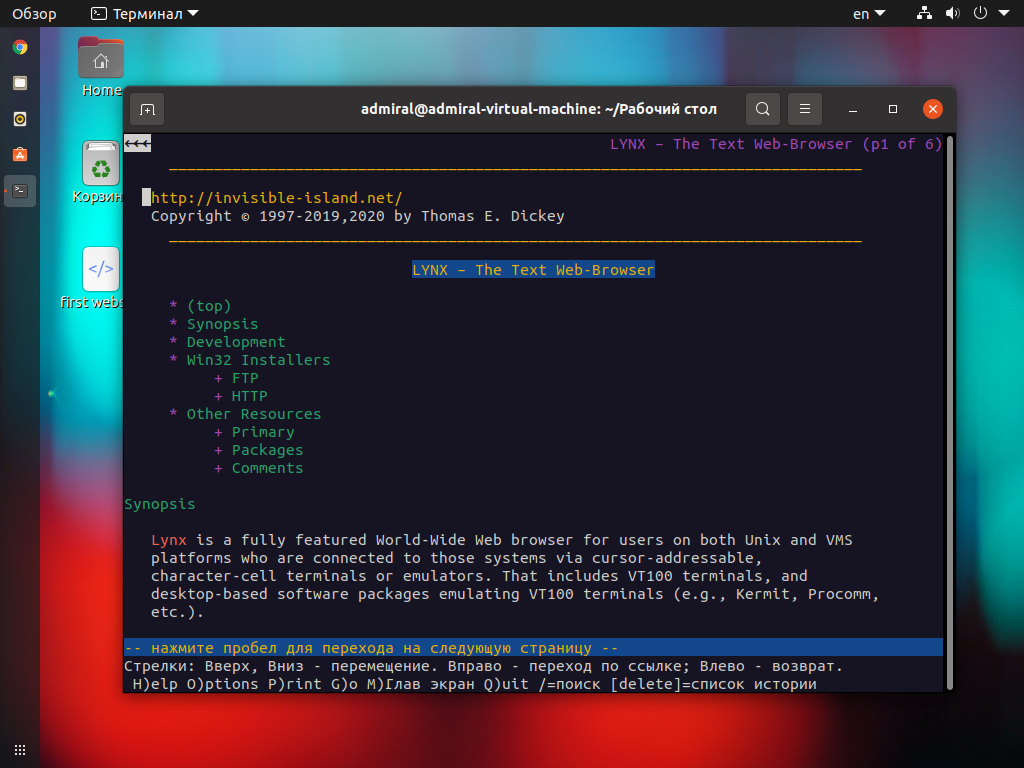
Lynx – это один из первых веб-браузеров. Он появился в далёком 1992 году и, что удивительно, разрабатывается по сей день. Он не может похвастать удобством использования и поддержкой JavaScript, но всё же с его помощью можно получить базовую функциональность. Подсказки по управлению находятся в нижней части.
Команды для установки Lynx с помощью менеджера пакетов apt:
sudo apt install lynx
С помощью менеджера пакетов RPM:
sudo yum install lynx
2. Links (Links2)
Links – это, пожалуй, лучший консольный браузер. Lynx-подобный, именно так называют свой браузер разработчики. Но это утверждение верно лишь отчасти. На деле же их роднит только одно – текстовый режим. Одно время существовало две версии браузера, но установив Links2 вы получите всё тот же Links, версия программы одна и та же – 2.2x.
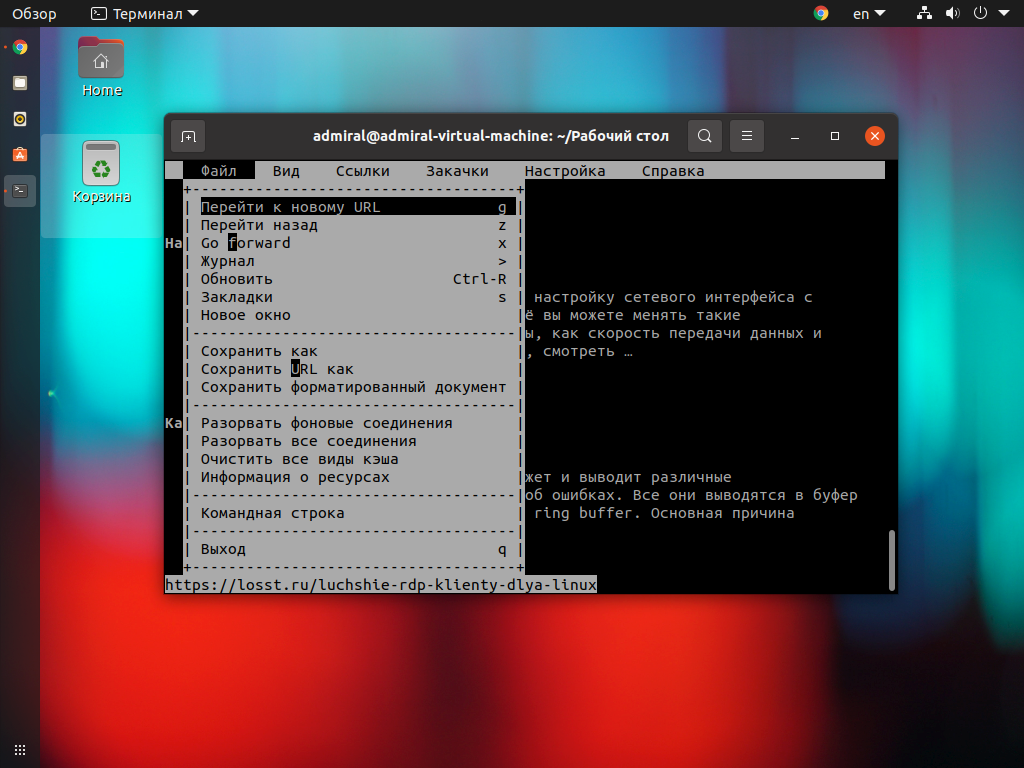
Управление сделано удобно. Запоминать комбинации клавиш не требуется, всё необходимое есть в панели инструментов (вызывается клавишей Esc). Курсор также работает, панель можно вызвать, кликнув по первой строке. Заявлена поддержка скриптов, но на деле это не сильно улучшает отображаемые страницы. Стоит отметить наличие графического режима (у Links2), который по сути представляет то же самое, но с возможностью отображения картинок. При скачивании файлов они сохраняются в той же директории, из которой был вызван браузер. Искать скачанные программы, скрипты и конфигурационные файлы не придётся.
Команды для установки Links для apt:
sudo apt install links
sudo yum install links
3. Elinks
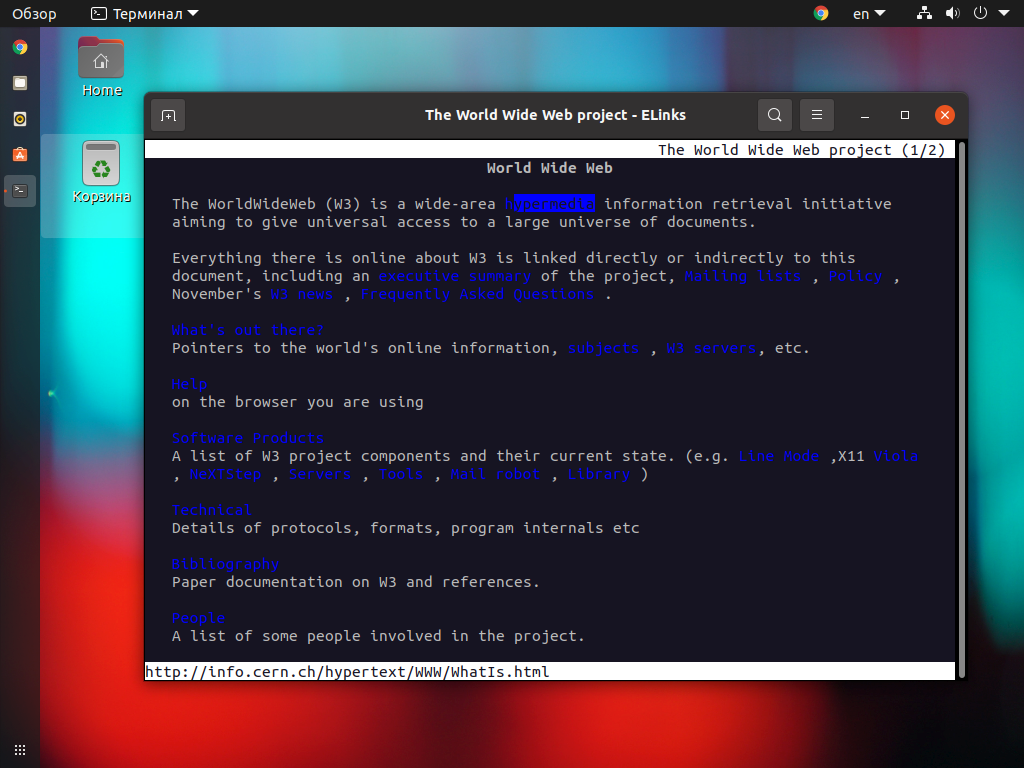
Elinks – это ответвление Links. Этот браузер лучше работает с цветом, что улучшает восприятие страницы. Однако, из-за ограниченной поддержки скриптов и таблиц стилей, результат может оказаться противоположным. Используйте команду Shift+5 для переключения режимов.
Управление осуществляется схожим образом, но в Elinks элементы расположены несколько иначе. Да и в целом организация меню более интуитивна. Последняя версия вышла в 2012 году. Но даже она во многом превосходит Links, который обновляется до сих пор.
Команды для установки Elinks в Ubuntu или Debian:
sudo apt install elinks
В CentOS, Fedora или RedHat:
sudo yum install elinks
4. w3m
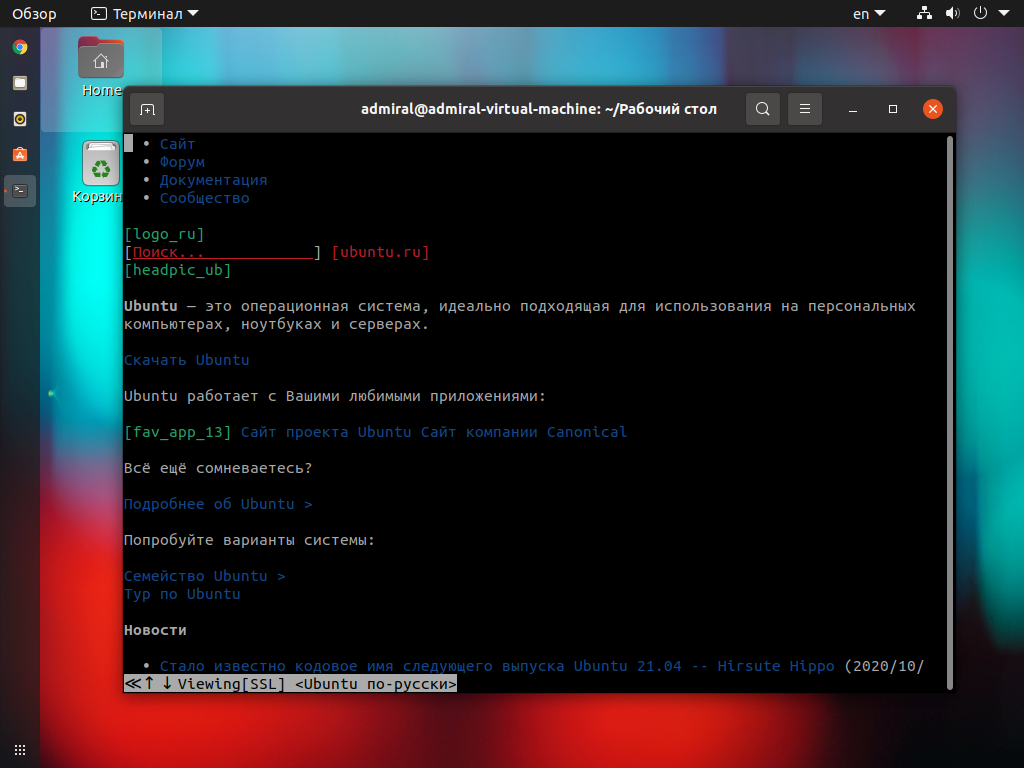
w3m, в отличие от предыдущих браузеров, вышел уже во время повсеместного использования интернета, в 2011 году. Если терминал поддерживает курсор, то можно получить доступ к элементам управления через контекстное меню (правая кнопка мыши). Если же возможности использовать мышь нет, обратитесь к подсказке (H), чтобы узнать горячие клавиши.
Скрипты поддерживаются частично, но опять же, текстовый браузер в принципе не способен иметь полноценную поддержку JavaScript. Нельзя не упомянуть то, что браузер доступен в виде плагина для Emacs.
Команды для установки w3m в apt:
sudo apt install w3m
sudo yum install w3m
5. Browsh
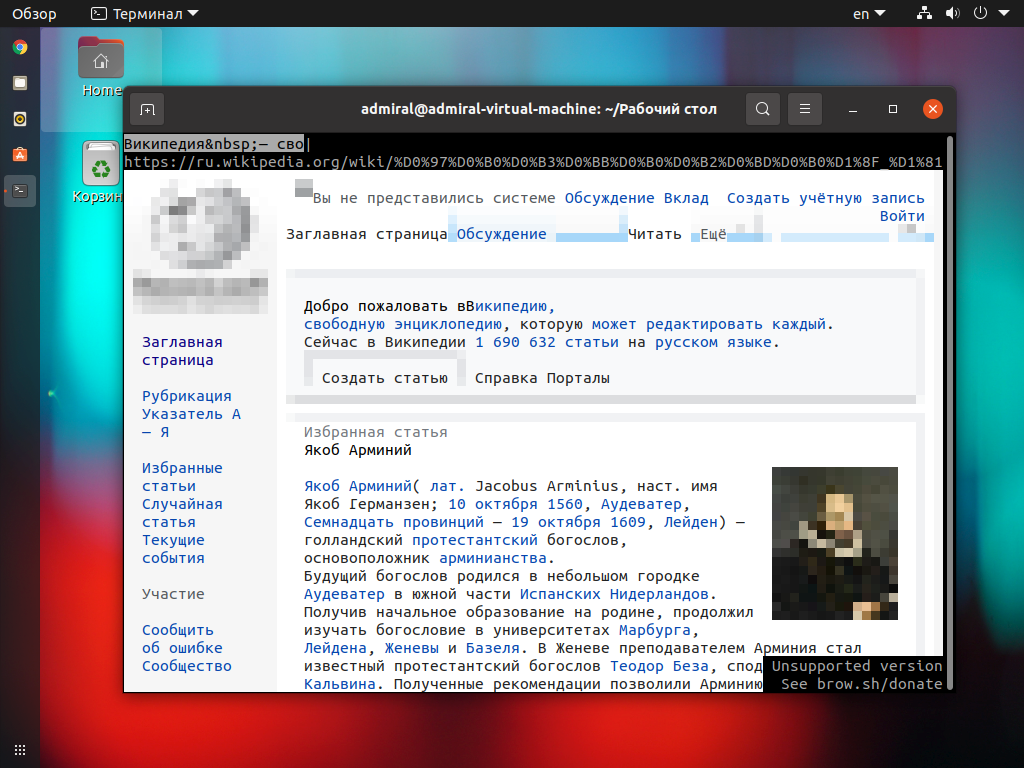
Браузер Browsh интересен в первую очередь тем, что способен наиболее полно отобразить страницу. Нет, это не самостоятельный браузер. Он базируется на Firefox, который работает в фоне. Иными словами, изображение рендерится полноценным браузером, а затем переводится в текст.
Страницы могут отображаться по-разному, в зависимости от того, какой терминал используется. Но в любом случае потребуется поддержка цвета и правильная кодировка. К сожалению, проект Browsh разрабатывается всего одним человеком и далёк до завершения. Из самых значимых недостатков стоит отметить сложность в управлении и нехватку документации.
Выводы
Это все лучшие консольные браузеры для Linux. Самым удобным и функциональным из них бесспорно является Links и его ответвление Elinks. Он не только имеет самый простой интерфейс, но и способен хоть как-то, но отображать современные сайты. С его помощью вы без особых проблем скачаете файлы по прямым ссылкам. В противном случае можете скачать файлы на смартфон и запустить на нём сервер FTP, чтобы получить доступ к ним извне.
Браузер Browsh выглядит перспективно, но пока что находится на ранней стадии разработки и малопригоден для использования. Но сам факт того, что отображается практически все содержимое страницы впечатляет. А приходится ли вам использовать консольный браузер? Как отображает страницы ваш терминал? Делитесь своим мнением в комментариях.
Четыре веб-браузера для командной строки Linux
Вспомните времена, когда веб был прост как текст с возможностью поиска. Терминалов и маломощных персональных компьютеров было достаточно, чтобы получить доступ к текстовой сети через быстродействующее интернет-соединение. Конечно, тогда люди использовали веб-браузеры командной строки для работы в Интернете; в их число входил и знаменитый браузер Lynx. Сейчас времена изменились, технология браузеров перешла к графическим и более мощным веб-браузерам, таким как Chrome, Firefox и Safari.
Тем не менее, есть люди, которые более подкованы в терминалах и предпочитают получать актуальную информацию из Интернета через браузеры на базе терминалов. Существуют даже компьютеры с терминалами, и для них браузеры командной строки иногда являются единственным способом подключения к Интернету. Как же установить и использовать эти текстовые браузеры через командную строку Linux, Терминал?
В этой статье мы расскажем вам о четырех способах использования Интернета через терминал Linux, объяснив, как установить и использовать терминал в качестве веб-браузера.
Если вы уже знакомы с терминалом, вам не составит труда открыть терминал. Вы можете открыть его через Dash или нажав сочетание клавиш Ctrl+Alt+T. Затем вы можете установить один из следующих популярных инструментов для просмотра Интернета через командную строку:
- Инструмент w3m
- Инструмент Lynx
- Инструмент Links2
- Инструмент Elinks
Веб-браузер w3m
Установка
Введите следующую команду в терминале для установки утилиты w3m:
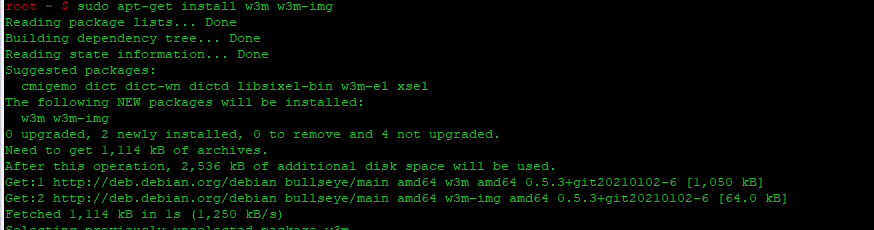
Введите Y, когда система предложит вам продолжить установку. Браузер командной строки w3m будет успешно установлен в вашу систему.
Проверка установки
Вы можете проверить правильность установки, проверив номер версии w3m следующим образом:

Использование w3m
Вы можете просматривать веб-сайты через утилиту w3m, следуя следующему синтаксису:
Когда вы введете эту команду в Терминале, на выходе вы получите следующее изображение:

Вы можете получить доступ к ссылке или перейти к строке поиска, просто дважды щелкнув по ней. В этом примере я искал сайт g-soft.info й щелчок по ссылке Google Search вывел результаты поиска следующим образом:
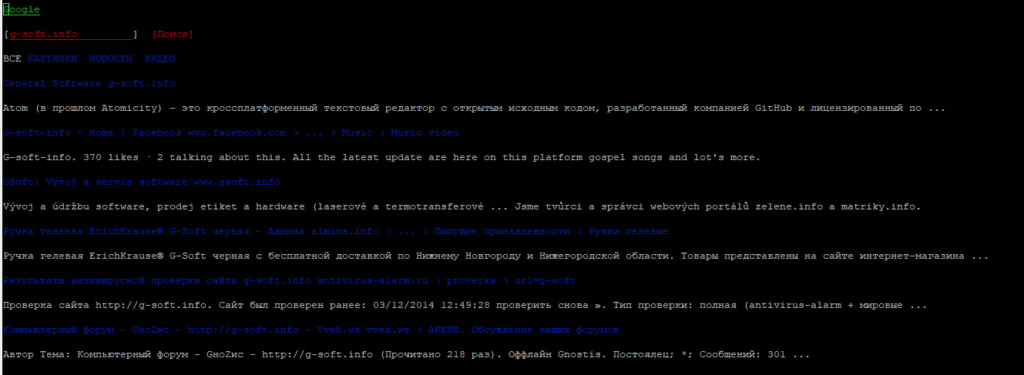
Вот несколько основных операций, которые можно выполнить с помощью этой утилиты:
- Выйти из программы: Shift+Q
- Открыть новую вкладку: Shift+T
- Открыть новый URL: Shift+U
- Вернуться на одну страницу назад: Shift+B
Веб-браузер Lynx
Установка
Введите следующую команду от имени root в Терминале, чтобы установить утилиту Lynx:
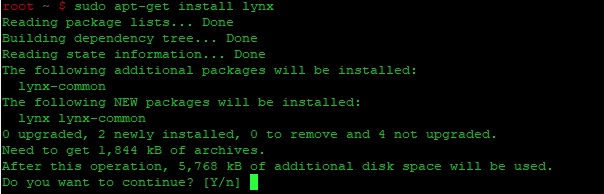
Введите Y, когда система предложит вам продолжить установку. Браузер командной строки Lynx будет успешно установлен в вашей системе.
Проверка установки
Вы можете проверить установку, проверив номер версии Lynx следующим образом:
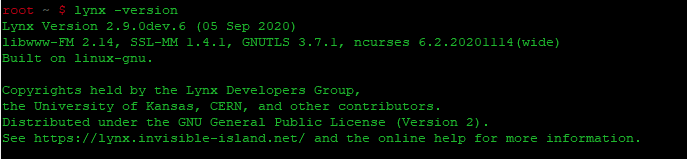
Использование веб-браузера Lynx
Вы можете просматривать Интернет с помощью утилиты Lynx, следуя следующему синтаксису:
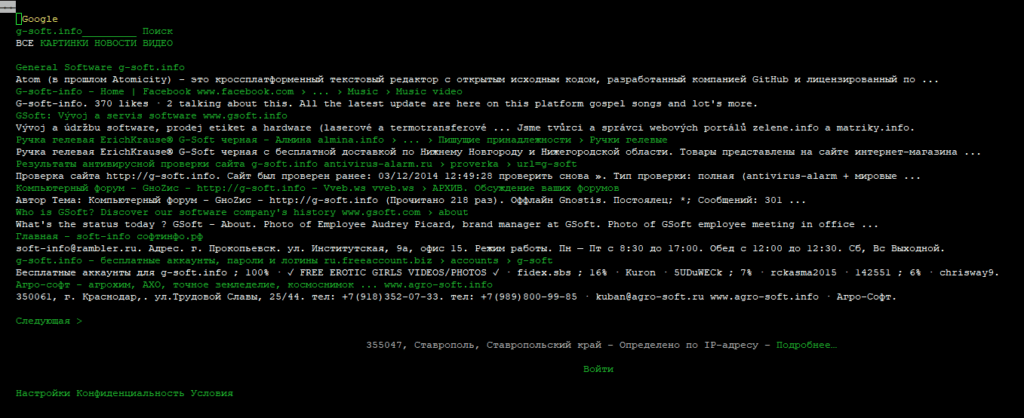
Когда вы введете эту команду в терминале, на выходе вы получите следующее изображение;
Вы можете использовать клавиши со стрелками для перемещения по различным ссылкам на странице.

В этом примере я так же искал g-soft.info. Результаты поиска отображаются, когда я нажимаю кнопку return.
Веб-браузер Links2
Установка
Введите следующую команду в Терминале от имени root для установки утилиты Links2:

Введите Y, когда система предложит вам продолжить установку. Браузер командной строки Links2 будет успешно установлен в вашей системе.
Проверка установки
Вы можете проверить установку, проверив номер версии Links2 следующим образом:

Использование браузера Links2
Вы можете просматривать Интернет через утилиту Links2, следуя следующему синтаксису:
Когда вы введете эту команду в терминале, на выходе вы получите следующее изображение:

Вы можете получить доступ к ссылке или перейти к строке поиска, просто дважды щелкнув по ней.
Веб-браузер eLinks
Установка
Введите следующую команду в терминале от имени root для установки утилиты eLinks:

Введите Y, когда система предложит вам продолжить установку. Браузер командной строки eLinks будет успешно установлен в вашей системе.
Проверка установки
Вы можете проверить установку, проверив номер версии elinks следующим образом:

Использование eLinks
Вы можете просматривать Интернет через утилиту eLinks, следуя следующему синтаксису:
Когда вы введете эту команду в терминале, на выходе вы получите следующее изображение:

После этого вы можете искать ключевое слово или строку через эту поисковую систему.
Заключение
С помощью четырех инструментов командной строки, упомянутых в этой статье, вы можете легко просматривать Интернет без использования графических веб-браузеров на вашей системе Ubuntu. Теперь вы можете наслаждаться более быстрым просмотром текстовых страниц, не беспокоясь о рекламе, javascript и нежелательных изображениях. Установите любой подходящий вам браузер из списка и наслаждайтесь беззаботной работой в Интернете!
9 Command Line Tools for Browsing Websites and Downloading Files in Linux
In the last article, we have covered few useful tools like ‘rTorrent‘, ‘wget‘, ‘cURL‘, ‘w3m‘, and ‘Elinks‘. We got lots of responses to cover few other tools of the same genre, if you’ve missed the first part you can go through it.
This article aims to make you aware of several other Linux command Line browsing and downloading applications, which will help you browse and download files within the Linux shell.
1. links
Links is an open-source web browser written in C programming Language. It is available for all major platforms viz., Linux, Windows, OS X, and OS/2.
This browser is text-based as well as graphical. The text-based links web browser is shipped by most of the standard Linux distributions by default. If links not installed in your system by default you may install it from the repo. Elinks is a fork of links.
After installing links, you can browse any websites within the terminal as shown below in the screencast.
Use UP and DOWN arrow keys to navigate. The right arrow Key on a link will redirect you to that link and the Left arrow key will bring you back to the last page. To QUIT press q.
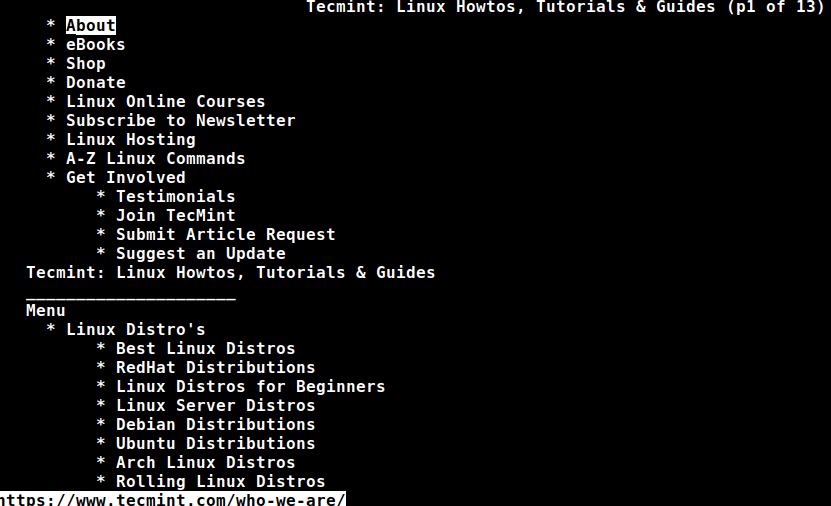
Here is how it seems to access Tecmint using the links tool.
If you are interested in installing the GUI of links, you may need to download the latest source tarball (i.e. version 2.22) from http://links.twibright.com/download/.
Alternatively, you may use the following wget command to download and install as suggested below.
Note: You need to install packages (libpng, libjpeg, TIFF library, SVGAlib, XFree86, C Compiler and make), if not already installed to successfully compile the package.
2. links2
Links2 is a graphical web browser version of Twibright Labs Links web browser. This browser has support for mouse and clicks. Designed especially for speed without any CSS support, fairly good HTML and JavaScript support with limitations.
To install links2 on Linux.
To start links2 in command-line or graphical mode, you need to use the -g an option that displays the images.
3. lynx
A text-based web browser released under GNU GPLv2 license and written in ISO C. lynx is a highly configurable web browser and Savior for many sysadmins. It has the reputation of being the oldest web browser that is being used and still actively developed.
To install lynx on Linux.
After installing lynx, type the following command to browse the website as shown below in the screencast.
If you are interested in knowing a bit more about links and lynx web browser, you may like to visit the below link:
4. youtube-dl
youtube-dl is a platform-independent application that can be used to download videos from youtube and a few other sites. Written primarily in python and released under GNU GPL License, the application works out of the box. (Since youtube doesn’t allow you to download videos, it may be illegal to use it. Check the laws before you start using this.)
To install youtube-dl in Linux.
After installing, try to download files from the Youtube site, as shown in the below screencast.
If you are interested in knowing more about youtube-dl you may like to visit the below link:
5. fetch
fetch is a command-line utility for a Unix-like operating system that is used for URL retrieval. It supports a lot of options like fetching ipv4 only address, ipv6 only address, no redirect, exit after successful file retrieval request, retry, etc.
Fetch can be Downloaded and installed from the link below
But before you compile and run it, you should install HTTP Fetcher. Download HTTP Fetcher from the link below.
6. Axel
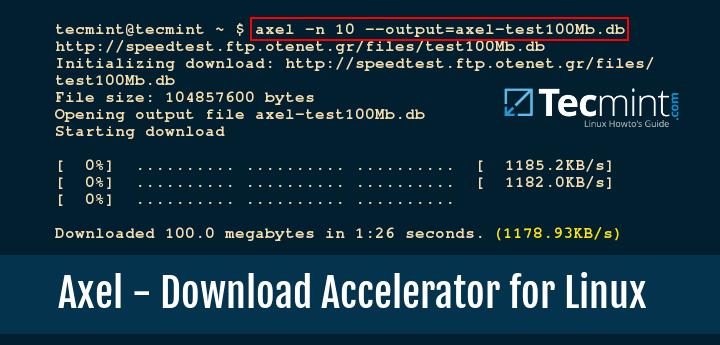
Axel is a command-line-based download accelerator for Linux. Axel makes it possible to download a file at a much faster speed through a single connection request for multiple copies of files in small chunks through multiple http and FTP connections.
To install Axel in Linux.
After axel installed, you may use the following command to download any given file, as shown in the screencast.
7. aria2
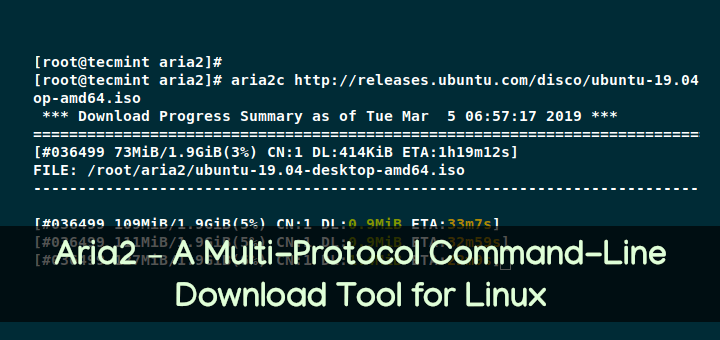
aria2 is a command-line-based download utility that is lightweight and supports multi-protocol (HTTP, HTTPS, FTP, BitTorrent, and Metalink). It can use meta link files to simultaneously download ISO files from more than one server. It can serve as a Bit torrent client as well.
To install aria2 in Linux.
Once aria2 installed, you can fire up the following command to download any given file…
If you’re interested to know more about aria2 and its switches, read the following article.
8. w3m
w3m is another open-source text-based web browser very similar to lynx, which runs on a terminal. It uses emacs-w3m an Emacs interface for w3m to browse websites within the emacs interface.
To install w3m in Linux.
After installing w3m, fire up the following command to browse the website as shown below.
9. Browsh
Browsh is a modern text-based browser that shows anything like a modern browser does such as HTML5, CSS3, JS, video, and even WebGL. Its major role is to be run on a remote server via SSH or Mosh and browse the web pages as text from the terminal by significantly reducing bandwidth and increase browsing speed.
It means the server downloads the web pages and utilizes the minimum bandwidth of an SSH connection to show the web page results. However, standard text-based browsers lack JS and all other HTML5 support.
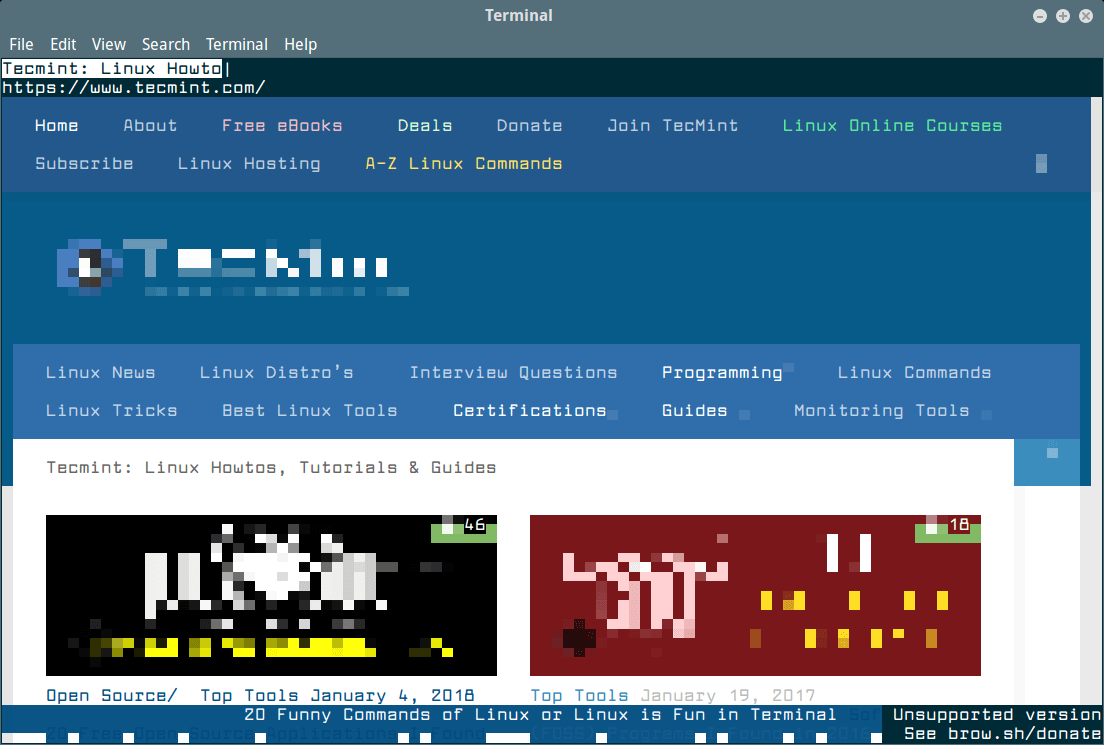
To install Browsh on Linux, you need to download a binary package and install it using the package manager.
That’s all for now. I’ll be here again with another interesting topic you people will love to read. Till then stay tuned and connected to Tecmint. Don’t forget to provide us with your valuable feedback in the comments below. Like and share us and help us get spread.
Tutorial Feedback.
If You Appreciate What We Do Here On TecMint, You Should Consider:
TecMint is the fastest growing and most trusted community site for any kind of Linux Articles, Guides and Books on the web. Millions of people visit TecMint! to search or browse the thousands of published articles available FREELY to all.
If you like what you are reading, please consider buying us a coffee ( or 2 ) as a token of appreciation.

We are thankful for your never ending support.
Related Posts



9 thoughts on “9 Command Line Tools for Browsing Websites and Downloading Files in Linux”
Browsh is one more terminal browser that is able to display images and videos (poor ASCII quality). Also, wget and curl for downloading files.
I have added the Browsh text browser to the list as suggested by you. About wget and curl, we already covered in part 2 of this article here – https://www.tecmint.com/linux-command-line-tools-for-downloading-files/
links2 is wonderful for simpler webpages in GUI mode. RAM usage is practically zilch and it handles some JS to boot. Was playing around with it for about 1/2 an hour just now. You can get some decent color (text, link, background) combos too and it does local file navigation very nicely (input url: “file://”)
between, was looking for a simple terminal-based markdown viewer and came across ‘Terminal Markdown Viewer’ (mdv at github). It’s one of the few that’s python-based (pip install) and does a really nice job rendering MD locally. I suppose this makes it a subClass of the more able full-fledged browsers.
Lynx works well too because it at least colorizes certain tags – so the output looks nice:
Also… finding that w3m does MD locally pretty well via pandoc, though the output is blander but the html support is actually stronger than I expected:
Anyway, thought I’d share a specific use-case.
I love the way that the different tools are showcased in the text itself. Thank you for making such a well designed site
Lynx is a good cli web browser. In fact I am using lynx right now.
Great article. Can any of these tools be used over ssh? I am looking for a tool that can resume downloads over ssh if interrupted other than rsync (not supported on the system)
Unfortunately, there isn’t any tool that can able to resume interrupted downloads over ssh…
Could you use screen? Might work for some aspects, of this scenario…..
Thanks a lot, very useful tutorial,
I am using “youtube-dl” for downloading playlist and videos Very nice tool, following will give you max quality with HD [22]
youtube-dl -i –playlist-start 1 –max-quality 22 “URL”