What is GPSVC? 2 Best Solutions to Fix GPSVC Connection Failed

GPSVC is the short form for Group Policy Client Service. It is a DLL type of file. This Windows service application file comes in handy for configuring the settings which have been modified by the administrator or by some other user and the configured settings need to be applied in the system. It can be disabled or stopped later on.
How to download GPSVC file
- Open the below link:
- Click on the Download gpsvc.dll Button.
- It may prompt you to check the Captcha verification button.
- After this, you can choose the required version of the official Microsoft release of this file.
- If your system is of 64 bit, then extract or copy the both files downloaded in this location: C:\Windows\System64\ folder.
- If your system is of 32 bit, then use “32” inplace of “64”.
How to Update the GPSVC file
- You can use the above method to download a latest version of the DLL file.
- After downloading it, extract the new dll file in the location: C:\Windows\System32\folder
- Next, choose to “Select Folder” and proceed as usual.
- When it asks to replace the previous existing file or to skip the extraction, choose to replace the previous existing file.
Fix the GPSVC connection failed issue
The below methods can be implemented in resolving the nuisance of GPSVC-connection failed:
Using the Registry Editor
- Open the Run Command by searching in the Search bar of the task bar.
- The shortcut to open the Run Command is: Windows Key + R.
- Type “regedit” on it and hit Enter button.
- If a window pops up and asks for providing the permissions to make changes to this computer, select YES.
- Navigate through the following path in the Register Editor:
- Computer\HKEY_LOCAL_MACHINE\SOFTWARE\Microsoft\Windows NT\CurrentVersion\Svchost
- Right click on an empty white space, which will open a menu. Select NEW from it.
- From the new list, choose Multi-String Value.
- Rename this newly created Value as “GPSvcGroup”.
- Double click on this file.
- A new window named as Edit Multi String will appear on your screen.
- For Value data, Type the below text in the given white space.
- GPSvc . When done, click OK.
- The Edit Multi String window will disapper. At the left side panel, right click on the Svchost folder.
- Select New -> key
- The newly created folder will be named as “New Key #1”. Rename it to “GPSvcGroup”.
- Double click on that folder. It will be an empty one.
- Right click on the blank white area, from New, move to “DWORD (32-bit) Value”.
- Rename the New Value as AuthenticationCapabilities.
- Double click on it and change the Value data to 3020. Note to keep the base as Hexadecimal. Choose OK then.
- Now, right click again on the blank space, choose New, then “DWORD (32-bit) Value”. Rename it as CoInitializeSecurityParam.
- Double click on this newly created to open the Edit DWORD (32-bit) Value window, where you can modify the values and numbers.
- Change the “Value data” to 1. Be sure to keep the Hexadecimal radio checked. Hit Ok button.
- Close the Register Editor by using the exit button available at the top right corner.
- Restart or reboot your system.
- Check if the error is rectified or not.
Perform an SFC scan using Command Prompt
Open the Command Prompt with administrative privileges.
Type the below code to perform a full system scan:
Hit Enter, wait for the scan to complete.
Can I delete the gpsvc.log file?
As the file just provides information on where the Group Policy Services are needed to be applied, it may not create much harm in your system.
If it creates any errors, you can restore it from the recycle bin.
How to fix-GPSVC service failed to sign in access is denied?
- Go to the Recycle Bin and restore the gpsvc.dll file.
- Open the Command Prompt and do an SFC scan.
- Scan your system for malwares or virus.
- Use the Device Manager to update the drivers.
GPSVC file high CPU usage
It happens when the Network Share Mapping script is unable to execute its task well and it executes alongside the Group Policy Client file.
Try disabling the Network Share Mapping script in your domain accounts.
How long does “gpsvc please wait” take?
It takes nearly 15 to 25 minutes to show you the home screen from the blue screen of death.
Please wait for gpsvc что это
I am using hyperv with windows server 2016 x64
I have installed a fresh image, promoted the server to a domain controller and on reboot it gets stuck at please wait for gpsvc
Doesn’t make any sense — Its a fresh image I have tested it in vmware, works fine? Official Microsoft Image.
I tried disabling gpsvc, rebooted after promoting but its a blank blue screen — any ideas?
Answers
- Marked as answer by RedGunner Wednesday, June 7, 2017 6:53 PM
All replies
Run this on elevated command prompt: gpresult /h C:\output.htm
Open output file and see which component of GPO is taking time to load.
Also, the DC you are promoting, is it additional domain controller or first DC in the environment?
Run this command and check the output if there is any failure for any of the tests:
DCDIAG /V >>output.txt
It is the first DC in the environment — I have tried several times and it just seems to never work.
It’s a fresh image, why would it work ok on vmware and not hyperv? I tried disabling the time sync between hyperv and windows.
I left it on for over 30mins and came back on but the active directory failed, should I run those commands after it fails?
- Marked as answer by RedGunner Wednesday, June 7, 2017 6:53 PM
Good to know that issue is resolved. Gen 2 has PXE boot enabled by default and also boots from SCSI, instead of IDE in Gen 1 VM’s.
I think AD does not like to be PXE enabled.
Regards
Anurag
www.apps4rent.com
I am using the evaluation copy of Server 2016 15063.0.170317-1834.RS2_RELEASE_CLIENTENTERPRISEEVAL_OEMRET_X64FRE_EN-US and I have tested Generation2 on two seperate desktops today and I can confirm its Generation2 doing it, Generation1 is fine. I am using Hyper V Manager Version: 10.0.14393.0
I have installed the Server2016 onto VMWare and have no issues so I am going to assume its a Hyper V bug? Maybe this could be use of to someone else if they come across it.
- Proposed as answer by Luc Geurts Thursday, October 31, 2019 1:45 PM
- Unproposed as answer by Luc Geurts Thursday, October 31, 2019 1:46 PM
- Proposed as answer by RJ4500 Thursday, December 5, 2019 3:51 AM
I did "quick create" and pointed to ISO for Server 2016 from Microsoft eval centre. Is there anywhere to check Hyper-V-generation 1 or 2?
Please wait for gpsvc что это
GPSVC.dll errors are achieved by conditions that lead to the ejection or degradation of the GPSVC DLL record, a report related to the Group Policy Client in Windows.
Around here at ARZHOST , GPSVC.dll mix-ups could show a vault issue, a disease or malware issue, or even a hardware frustration.
The GPSVC.dll error message could apply to any program or system that might utilize the record on any of Microsoft’s functioning structures. “How Do I Resolve GPSVC Service Failed the Sign in?”, Including Windows 10, Windows 8, Windows 7, Windows Vista, Windows XP, and Windows 2000.
Table of Contents
Please Wait for the GPSVC
Group Policy Service is abbreviated as GPSVC. It’s an account management program that runs in the background of Windows.

GPSVC creates policies such as terms of service and interactions between user accounts in groups such as administrators, standard, limited, and guest. It keeps these organizations active in the policy.
Let’s have a look at the options:
Fix 1: ctrl+alt+delete
If you get caught on a prompting message, the first thing you should do is press the ctrl, alt, and delete keys simultaneously. As a result, the shutdown option will appear at the right bottom of the screen. Select it by clicking on it.
Most of the time, the issue will be resolved. In the unlikely event that the keys do not work, go to the next step.
Fix 2: Press and hold the Power Button
If your computer is still stuck on the screen and no keyboard buttons work, press and hold the power button for a few seconds to switch it off or restart it.
After you’ve done that, the message should no longer appear.
Fix 3: Reset Your Computer
If the notification persists on the screen and you are unable to act, your computer system may have been restored. You may do it by taking each step one at a time.
- 1st step: Hold down the shift key for a few seconds. The ‘Choose an option’ section will appear as a result. Then choose ‘Troubleshoot’ from the drop-down menu.
- 2nd Step: The ‘Advanced choices’ will appear after that. Select it by clicking on it.
- 3rd step: The ‘System Restore’ option will appear when you click.
- 4th step: Now you must identify a time in the past when the problem was not present. Finally, reboot the computer. Hopefully, this will not be a recurring issue.
In most cases, the message appears on the screen only for a short while. If the problem persists, you can easily resolve it by following the steps outlined above. Even if the issue persists, you must alter the gpsvc logon settings, account, or network.
The GPSVC service failed the sign in
The GPSVC (Group Policy Client service) connection problem on one of the PCs running Windows 10 prevents the user from logging in. The following issue happens while attempting to log on with a domain user account:
- The gpsvc service could not be opened by Windows.
- Please contact your system administrator for assistance.
- The Group Policy Client service could not be accessed by Windows.
Simultaneously, if you try to log on using a local account with local administrator capabilities, you will be authorized and the Desktop will appear, but you will see the following pop-up notice in the Windows 10 notification bar:
- An attempt to connect to a Windows Service failed.
- The Group Policy Client service could not be accessed by Windows. Standard users are unable to sign in due to this issue.
Because the Group Policy Client service (GPSVC) is not operating on the computer, the issue emerges. The following error may display if you open a command prompt and manually start gpsvc using the net start gpsvc command:
- There has been a system error number five.
- Access has been revoked.
Group Policy Client Service Failed the sign-in
You can see this problem when attempting to log into Windows. “The logon failed due to a problem with the Group Policy Client service. “You are not permitted to enter.”
The system will return to the login screen when you click OK. This is a permissions issue in the registry; you can either erase the corrupted user profile or follow the instructions below to acquire access. Before you begin, I recommend backing up the register, especially if you are comfortable with registry editing.
The problem will be resolved by restarting these services:
- To open Run, press Windows Key + R.
- Search for Group Policy Client by typing ‘services’ and pressing enter. Right-click on the services and select properties.
- Change the Startup type to Automatic, then click the Start button and Apply > OK.
- Select Command Prompt (Admin) or PowerShell from the Start menu by right-clicking the Start button (Admin)
- Hit enter after typing the following command.
- reset Winsock netsh
- To quit the command prompt, type exit and press enter.
- Restart your computer.
Typical GPSVC.dll Errors
There are various ways that GPSVC.dll error messages might be communicated depending upon the justification behind the issue. “ How Do I Resolve GPSVC Service Failed the Sign in? ”, but the following are a part of the more typical GPSVC.dll errors we’ve seen:
- DLL Not Found
- The archive GPSVC.dll is missing
- This application forgot to start because GPSVC.dll was not found. Once again introducing the application may fix this issue
- Can’t find [PATH]\GPSVC.dll
- Can’t start [APPLICATION]. A vital part is missing: GPSVC.dll. Assuming no, one minds, present [APPLICATION] again
GPSVC.dll error messages might appear while using or presenting explicit undertakings, when Windows starts or shuts down, or conceivably during a Windows foundation.
Observing when your GPSVC.dll error shows up is a critical bit of information that will be valuable during research.
Guidelines to Fix GPSVC.dll Errors
Do whatever it takes not to download GPSVC.dll from one of those “DLL download” objections. Numerous inspirations are driving why downloading a DLL record is an unfeasible thought. Accepting you need a copy of GPSVC.dll, it’s ideal to get it from its special, genuine source.

Start Windows in Safe Mode to complete any of the going with signs of progress accepting you can’t get to Windows usually due to the GPSVC.dll error.
1: Restore GPSVC.dll from the Recycle Bin.
The least difficult justification for a “missing” GPSVC.dll archive is that you’ve mistakenly deleted it.
On the off chance that you theorize that you’ve coincidentally eradicated GPSVC.dll anyway you’ve adequately depleted the Recycle Bin, you may have the choice to recover GPSVC.dll with a free record recovery program.
Recovering an eradicated copy of GPSVC.dll with a record recovery program is a splendid idea given that. “How Do I Resolve GPSVC Service Failed the Sign in?”, you’re sure you’ve deleted the archive yourself and that it was working suitably before you did that.
2: Channel your entire PC for diseases and other malware.
Some GPSVC.dll slip-ups could be related to some kind of malware infection on your PC that has hurt the DLL record. It’s even possible that the GPSVC.dll error you’re seeing is related to an undermining project that is assuming the presence of the record.
- Execute the SFC/scannow request to override a missing or savage copy of the GPSVC.dll record.
Fortunately, the GPSVC.dll record is given by Microsoft in at least a couple of versions of Windows, so the System File Checker device (the SFC request) should restore it to its fitting region in the System32 coordinator.
This is the most plausible response for a missing or not found GPSVC.dll error. Generously twist around in reverse. “How Do I Resolve GPSVC Service Failed the Sign in?”, you can complete this movement right after guaranteeing your PC isn’t tainted with malware.
3: Use System Restore to fix late structure changes.
Expecting you hypothesize that the GPSVC.dll error was achieved by a change made to a critical record or game plan, and System File Checker didn’t help, a System Restore should handle the issue.
Reinstall the program that uses the GPSVC.dll record. If the GPSVC.dll DLL error happens when you use a particular program, reinstalling the program should supersede the archive.
This movement is by and large significant for superseding DLL records that are not given by Microsoft anyway it could help with your GPSVC.dll issue if this program in like manner gives a copy of the archive and the previous exploring musings weren’t productive.
Update the drivers for hardware devices that might be related to GPSVC.dll. If, for example, for sure “The record GPSVC.dll is missing” error when you play a 3D PC game. “How Do I Resolve GPSVC Service Failed the Sign in?”, have a go at invigorating the drivers for your video card.
4: The GPSVC.dll record may potentially be related to video cards.
this was just a model. The key here is to give incredibly close thought to the setting of the error and research as required.
Rollback a driver to a once in the past presented transformation if GPSVC.dll errors began following reviving a particular hardware contraption’s driver.
5: Present any open Windows revives.
Numerous help packs and various patches supersede or update a part of the numerous Microsoft passed-on DLL reports on your PC. The GPSVC.dll record could be associated with one of those updates.
6: Fix your foundation of Windows.
If the individual GPSVC.dll record examining urging above is ineffectual, playing out a Refresh, Startup Repair, or Repair Installation (dependent upon your variation of Windows) should restore all Windows DLL reports to their working structures.
Use a free vault cleaner to fix GPSVC.dll related issues in the library. “How Do I Resolve GPSVC Service Failed the Sign in?”, A free vault cleaner program may have the choice to help by killing invalid GPSVC.dll library entries that might be causing the DLL error.
7: We only occasionally propose the use of vault cleaners.
They’re joined here in the occasion it winds up being valuable, in which case you could avoid more inconvenient testing and last retreat decisions underneath.
Test your memory and a while later test your hard drive. I’ve left a large portion of hardware researching to the last development, yet your PC’s memory and hard drive are for the most part easy to test and are the most likely parts to cause GPSVC.dll errors as they misfire.
Expecting the gear bombs on any of your tests. “How Do I Resolve GPSVC Service Failed the Sign in?”, displace the memory or supersede the hard drive at the most punctual chance.
8: Play out a clean present of Windows.
A clean present will kill everything and present another copy of Windows. On the off chance that none of the means above right the GPSVC.dll screw-up, this should be your next approach.
Taking everything into account, all of the data on the drive you have Windows presented on will be deleted during a clean acquaint so make sure to support huge archives if you’re prepared to. Guarantee you’ve made all undertakings possible to fix the GPSVC.dll error using an examining adventure going before this one going before you take on a clean presentation.
Explore for a dark gear issue if any GPSVC.dll errors bear. “How Do I Resolve GPSVC Service Failed the Sign in?”, A clean present of Windows is a fresh start on the item side of the research. Unfortunately, expecting that didn’t work, your DLL issue ought to be gear-related.
People Also Ask
Question # 1: How do I fix Gpsvc Service failed the sign-in?
Answer: To fix the issue, sign on under a nearby director record and change the GPSVC library keys: Run the Registry Editor ( regedit.exe ) and ensure that there are sections for gpsvc in the vault. To do it, go to the reg key
- HKEY_LOCAL_MACHINE\SYSTEM\CurrentControlSet\Services.
Question # 2: How do I fix group policy client service failed the logon Windows 10?
Answer: Hold down the shift key on your console while tapping the Power button on the screen. Keep on holding down the shift key while clicking Restart. Keep on holding down the shift key until the Advanced Recovery Options menu shows up. Click Startup fix the adhere to the on-screen guidelines.
Question # 3: What is the group policy client service failed?
Answer: At the point when you attempt to log in to Windows, you may experience this mistake. “The Group Policy Client administration fizzled the logon. At the point when you click OK, the framework will get back to the login screen. This is a vault consents issue; you can erase the debased client profile, or follow the beneath steps to get entrance.
What To Do When Your PC Displays “Please Wait For GPSVC” [Fixed!]
If your laptop or personal computer runs on the Microsoft OS, then you must have encountered the “please wait for gpsvc ” error screen when you turned the device on. The error usually doesn’t look like much, but it should not be taken lightly as it reveals an internal system flaw due to the corruption of the device’s gpsvc.dll files. To understand this error code better and why it occurs, you should know what GPSVC represents.
The acronym stands for Group Policy Client Service, which essentially refers to an account management utility featured in the Windows operating system. GPSVC is one of the crucial background processes which starts running once you open the Windows OS. Also, GPSVC controls policies like terms of use and user account interactions in several groups. In addition, it maintains the groups’ activities according to the policy.
This article will shed more light on what the “please wait for gpsvc” error code means when it displays on your screen. We will also discuss some things that can cause it and how to resolve it once it pops up on your laptop.
Don’t want to dig into this issue? Get it fixed with Restoro. This software is used on our PCs and laptops to regularly scan for errors, repair corrupted files and optimize the system for its top speed.
What Does This Error Screen Mean?
Usually, the “, please wait for gpsvc” error message pops up when you turn off or switch on your computer. The message also displays when you try switching accounts on your Windows. Essentially, it means that your computer cannot detect the gpsvc files for it to run efficiently.
- Failed installation of software
Once you have tried installing software at some point and the process is not successful, this may lead to the corruption of files, thus resulting in this error message.
- Malware
- Careless or incomplete system shut down
- Unintentional deletion of gpvsc.dll files
When your screen freezes and displays “please wait for gpsvc,” it could be as a result of missing gpsvc files which you might have accidentally or unconsciously deleted from the device.
How To Resolve This Error Screen?
Different error codes have various ways of resolving them; this particular error screen is not left out. The following are ways to resolve this error message:
Solution #1 – Using the power button or other buttons
The power button gives you a simple solution when your laptop freezes and displays the “, please wait for gpsvc” message. By simply pressing and holding it down for about ten seconds or more, you will force your computer to either launch a hard reboot or shut down completely. Also, you can use a combination of the Ctrl, Alt, and Del keys as an alternative to the power button.
Once you press the three keys, an option to shut your device down immediately appears at the bottom of your screen. Clicking this option turns your system off entirely.
Solution #2 – Downloading a new gpsvc file
- Go to any host site with gpsvc.ll files for download. Here’s an example. Or just Google “gpsvc.ll download”.
- Next, choose the Windows version of your computer and then download the file.
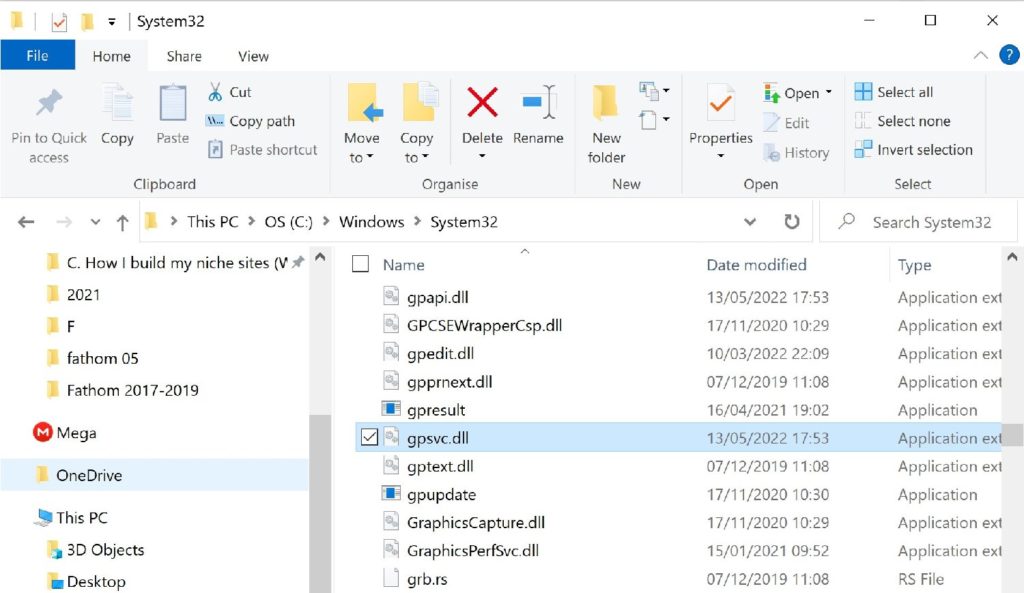
- After downloading, extract the files to the windows system folder (C:\Windows\System32 or C:\Windows\System64) and replace the already existing file.
Solution #3 – Using system restore
- The first step is to locate the Start menu on your device’s Windows and click on the power icon.
- After this, press the Shift key down and click on restart. Once you do this, the Advanced Startup Options menu opens up.
- In this menu, you will find the System Restore option. Click on it to complete the process, and once it is over, you have successfully resolved the error message.
Solution #4 – Using the SFC/scan now option
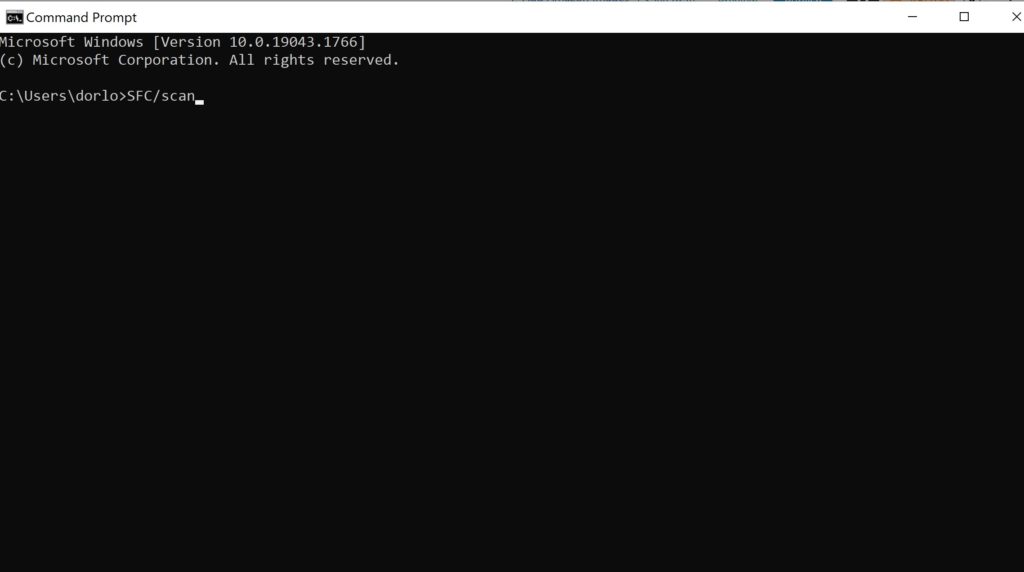
With this command, you can restore some corrupted files, including gpsvc files. Carry out this process with the following simple steps:
1. Go to the Command Prompt and open it.
2. Once it is open, type in SFC/scan now and press Enter.
3. Wait for the scan to be over, after which your gpsvc files will be restored. Once they are restored, the error screen will disappear.
Solution #5 – Restore old gpsvc files
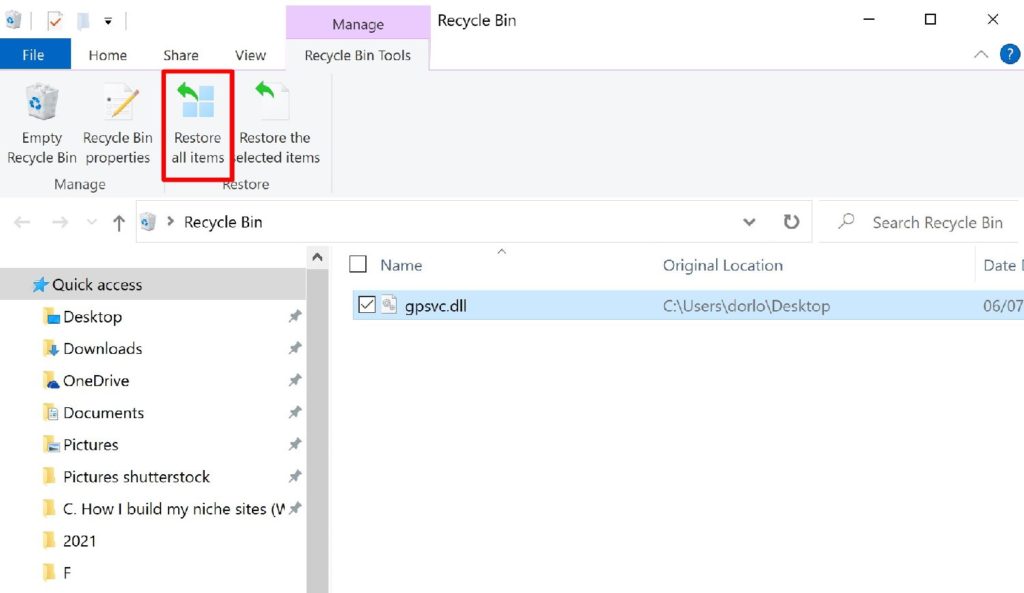
In the event of accidental deletion of gpsvc files, you can restore the deleted gpsvc.dll files. Wait through the error screen for about an hour, then check your computer’s Recycle Bin. You will find the deleted files there, so restore them. If you have already cleared your Recycle Bin, you can still retrieve the files through some recovery programs.
Final Words
When you see the “please wait for gpsvc.” error screen, try not to panic. The error message can result from a failed software installation, accidental deletion of gpsvc files, premature shutdown, or even malware.
Fixing this error screen is not entirely complicated, as there are several ways to get it done. You can use your device’s power button, download new gpsvc files, restore the old ones or use the system restore. However, we recommend fixing and optimizing your PC with Restoro. You will not have to worry about other errors or lagging system.
Frequently Asked Questions
The length of this error screen depends on how corrupt the gpsvc files are or the severe nature of the error. Usually, the error screen stays on for fifteen to twenty-five minutes on most computers. It, however, would last longer in a computer with a more severe error.
Once you download gpsvc files, they automatically save them in your Windows system folder, from which you can restore them.