What is TTL in ping / traceroute?
If you’ve run the essential diagnostic program “ping”, you may have noticed as part of the output, it tells you the “TTL” for each test result. You may have wondered, what does TTL mean? Should I be concerned about it? What does TTL actually do? We will explore that question in today’s blog.
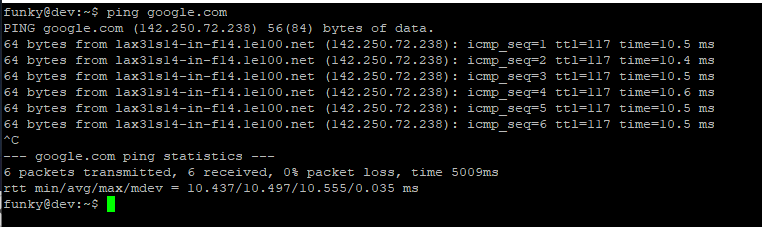 Example ping output, showing ttl=117
So first off, what is TTL shown in ping? First some background on why TTL was invented. Every bit of data on IP networks is sent using packets, and there are almost always one or more routers in between two computers speaking to each other on the internet. It is the router’s job to move these packets closer to their destination. However, sometimes things can go wrong, and routers can end up forwarding packets back and forth to one another forever. This is called a routing loop, and, there need to be protections in place to prevent these packets from being forever passed back and forth in the network.
Enter “TTL”, or “time to live”. TTL is a bit of data kept with every packet, indicating how many more routers, or hops, it is allowed to pass between before expiring. For every router a packet passes through, this TTL value will be decreased by 1. When the value reaches zero, the router handling that packet will drop the packet and will send a warning message back to the sender, letting them know the TTL expired.
Because the TTL to reach specific destinations can be useful for diagnosing problems, and because ping is a diagnostic tool, this is why ping provides the TTL alongside the better known data of ping times. However, TTL is really a lot more interesting when used with a related tool, traceroute.
Traceroute gives you detailed information about the path a packet takes, and the performance at each hop / router along that path. Traceroute would not exist without TTL. This is because traceroute exploits the expiration of TTL to get routers to give us information about where the packet is. With a TTL set to 1, the first router in a path will report back that the packet has expired. This expiration notice includes the IP address of the router. By measuring the time it takes to receive this notification, we can measure the time to reach the first hop. Send another carefully crafted packet with TTL of 2, and now we can get the same information for the second router / hop. This goes on with increasing TTL values until we have all of the information we need, or the packet reaches its final destination.
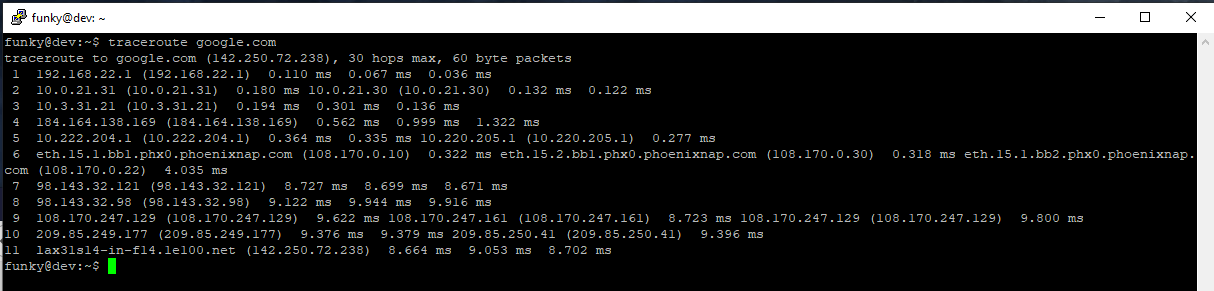 example traceroute showing each hop in the path between the local computer and google.com
By default, in Windows and many other OS’s, the TTL will be 128 — that means that after a packet passes through 128 routers, if it hasn’t reached it’s final destination yet, the packet will expire and will be removed from the network. From the ping screenshot above, you can see a TTL reported of 117 reaching google.com. If the TTL started at 128, you would expect this to occur if google.com is 11 hops away from us. From the traceroute screenshot above, you can see that is exactly correct — the destination was 11 hops away from us.
Traceroute is a very useful diagnostic tool, as you can see what path a packet takes through the internet to reach it’s destination. If the path is “bad”, such as, going from Phoenix to Los Angeles before going on to Dallas, instead of going directly from Phoenix to Dallas, traceroute will help you notice this sub-optimal routing, giving you an opportunity to investigate and fix the cause of it. As well, if the network performance is very poor, traceroute can often help you determine which router or internet provider is to blame. This can be done by looking for increases in latency from one hop to another that is greatly more than expected for the physical distance between the two routers.
I hope this provides you a useful background on what TTL is, how it is used on the internet, and why it’s important for both normal internet traffic and for diagnostic purposes.
Что такое время жизни пакета (TTL)
 Вероятно, многие из нас обращали внимание на параметр TTL в запущенной команде ping. Расшифровывается TTL как Time to live.
Время жизни пакета это предельное число итераций, которое пакет данных может совершить до своего исчезновения. Выражаясь не так официально, TTL — это число «прыжков» от устройства к устройству, которое может совершить пакет.

Строго говоря, TTL это не только про пакеты данных. Время жизни имеют и другие вещи, например, DNS-записи на серверах. Поэтому не связывайте понятие TTL только с пакетами данных.
Возвращаясь к теме статьи, объясним предназначение времени жизни пакета. Дело в том, что данные в сети имеют свойство зацикливаться, что создаёт своего рода «мусорный» трафик. Поскольку количество «прыжков» между узлами у пакетов ограничено, они не смогут «бродить» по сети вечно.
На самом деле, изначально предполагалось, что TTL пакетов будет измеряться в секундах. Так что это должно было быть время в буквальном смысле слова. Однако позже от этой концепции отказались в пользу простого числа «прыжков» или хопов (hop). На каждом промежуточном узле это число уменьшается на единицу (по умолчанию, хотя настройки можно выставить иначе). Если число «прыжков» у пакета истекло, а адресата он так и не достиг, этот пакет уничтожается, а адресату направляется сообщение о необходимости повторной отправки данных (Time Exceeded). Учтите, что коммутаторы оставшееся число «прыжков» не изменяют, так как действуют на канальном уровне (более низком) модели OSI, а не сетевом.
Время жизни пакета задаётся в соответствующем поле в заголовке IPv4-пакета. В стандарте IPv6 используется уже другое поле Hop Limit. Максимально возможное значение TTL равно 255. В большинстве популярных операционных систем (macOS, Linux, Android, iOS и т.д.) TTL=64. В Windows по умолчанию TTL=128.
TTL и интернет-провайдеры
Достаточно интересно используют TTL пакетов интернет провайдеры для обнаружения несанкционированного подключения устройств. Способ массово стал использоваться со временем распространения мобильного интернета и устройств, которые могут этот интернет не только потреблять, но и раздавать другим (смартфоны, планшеты).
Как это выглядит на практике? Если Вы пользуетесь мобильным интернетом со смартфона, то тот отправляет TTL=64, но, если раздать с него Wi-Fi, то TTL подключенных устройств будет изменяться на единицу. Нагляднее это можно проследить на схеме ниже.

Изменение TTL при раздаче Wi-Fi со смартфона.
Таким образом, оператор видит, что TTL «прыгает» с 64 до 63, а то и до 127 (если это ноутбук с Windows), и делает вывод, что в сеть выходит не одно устройство, а больше. В зависимости от условий предоставления связи, это может привести к блокировке.
Мы не будем в этой статье рассматривать способы обхода блокировок. Скажем лишь, что значение TTL по умолчанию можно изменить. Возьмём для примера Windows. Если вы запустите ping localhost, то увидите, что, как и говорилось ранее, TTL=128.

Для изменения установленного по умолчанию значения TTL нам нужно открыть редактор реестра, пройти в ветку HKEY_LOCAL_MACHINE\SYSTEM\CurrentControlSet\services\Tcpip\Parameters и отредактировать (или создать, если его нет) параметр DefaultTTL. Если у вас 64-битная версия ОС, то тип параметра будет QWORD (64 бита), если 32-битная версия ОС, то тип DWORD (32 бита). Система исчисления — десятичная, а значение можете задать от 1 до 255. Например, 65. Тогда пакеты данных, пройдя через раздающий Wi-Fi смартфон, будут выдавать TTL=64.

Изменение значения TTL в Windows.
После этого перезагрузите компьютер. Снова запустив ping localhost, можно увидеть, что значение TTL изменилось.

Отдельно стоит упомянуть протокол IPv6. Если вы его используете, то нужная вам в реестре ветка: HKEY_LOCAL_MACHINE\SYSTEM\CurrentControlSet\services\TCPIP6\Parameters.
О том, как провернуть подобную настройку в Ubuntu, читайте в статье по этой ссылке.