Set NTP Server Windows 2016 or Windows 2019
There is no question about it, having accurate time in your environment set in critical infrastructure systems is a must. Many business-critical applications and infrastructure systems rely on accurate time synchronized between them to ensure the system functions as expected. Time skew can cause all kinds of weirdness when it is misconfigured or out of sync between different servers/systems. This is especially true in a Windows Server Active Directory domain. Having accurate time between a client computer and domain controllers is essential. Let’s take a look at how to set ntp server Windows 2016 or Windows 2019 to see how this can be easily carried out.
What is NTP?
Wen it comes to synchronizing time in most enviornments, Network Time Protocol (NTP) is the protocol that is used to ensure accurate time across your environent. In most environments, NTP servers, special time servers, are configured that provide an external time source for which your internal servers can synchronize with.
There are several widely known NTP IP addresses on the Internet that provide reliable time sources for your network. The NTP.org servers are one such set of time servers that provide an NTP source for configuration.
There are a few NTP values to be aware of:
- NTP Server – This is a specialized server that is able to detremine the precise time from an external timing reference such as GPS and passes these precise time values on to your network
- Offset – This is the difference in time between the external time server and the time on a local client computer. The larger the offset, the more inaccurate the timing source is.
- Delay – This is the value of the round-trip time (latency) of the timing message between the client to the server and back again.
How Time is synchronized in a Windows Server domain
In a Windows domain, Microsoft has default configuration in place that takes care of a good portion of the NTP configuration. Starting with Windows 2000 Server, Windows clients are configured as NTP Clients. When configured as an NTP client, Windows computers only attempt to contact the domain controller for NTP synchronization or a manually specified NTP server.

Microsoft has made the domain controller the default in a Windows domain since it makes sense that clients already have a secure channel established with DCs for other types of communications. Additionally, accurate and synchronized time between domain controllers and clients is especially important for all kinds of things such as logins, group policy synchronization and other tasks/operations.
The order of operations or hierarchy in a Windows domain is as follows:
- Domain members attempt to synchronize time with any domain controller located in the domain synchronize with a more authoritative domain controller
- The first domain controller that is installed in the environment is automatically configured to be a reliable time source.
- Other than the first domain controller installed, the PDC emulator (if role has been moved from the first DC installed) generally holds the position of best time source.
An important point to consider and that comes into play when thinking about why we set ntp server in Windows 2016 or Windows 2019 is the authoritative domain controller must have a reliable source to synchronize with as well. This is generally an external time server outside of the domain hierarchy.
Now that we know how the domain hierarchy for time is configured, how is the external time source configured on your domain controller that is configured as the reliable source of time?
Configuring Windows Time Service with W32tm.exe
When it comes to Windows Server environments like Windows Server 2016 or Windows Server 2019, there is a special Windows service that controls the time synchronization of your Windows hosts. This is the Windows Time Service.
Microsoft provides a command line tool to interact with the Windows Time Service called W32tm.exe. This has been included in Windows operating systems since Windows XP/Windows 2003 and later. It can be used to configure Windows Time service parameters as well as diagnose time service problems. This is generally the tool of choice when it comes to configuring, monitoring, and administering Windows Time.
Using the W32tm.exe utility is fairly straightforward. It can be used from a normal command prompt as well as from a PowerShell prompt. There are several command parameters included that allow not only configuring the NTP servers you want to query, but also parameters that allow viewing the low level registry configuration as well as the synchronization status.
You can read the official Microsoft KB on the Windows Time service and the W32tm.exe utility here:
However, there are a few commands I would like to show you for the purposes of configuring your Domain controller that is to be the reliable time source (PDC Emulator) for your domain.
The first command is the command line entry to specify your NTP servers, which in this case I am using the NTP.org servers to set as the source of my NTP synchronization.
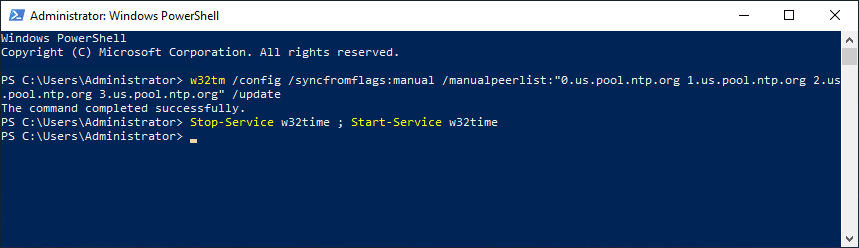
Configuring the time source for your domain with the w32tm utility
If you want to view the status of the NTP synchronization on your server after you have configured the values and restarted the w32time service, you can use the following command:
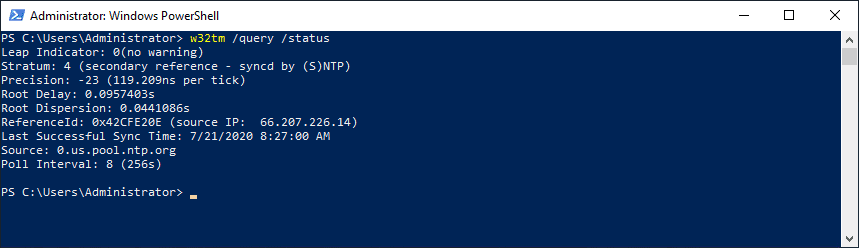
Querying the NTP synchronization status of your Windows Server 2016 or 2019 domain controller
You can also check the values configured in your registry key hkey local machine system currentcontrolset services w32time config using the commands below. You can drill into the configuration parameters using the /dumpreg /subkey command.
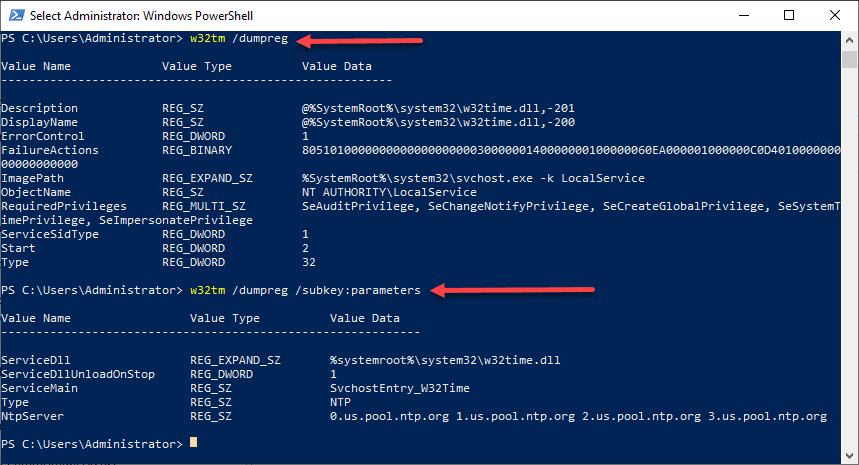
Viewing the NTP registry values that are configured for your Windows Server
Final Thoughts
As shown, you can easily set NTP Server Windows 2016 or Windows 2019 using the w32tm command utility that allows interacting with the time service in Windows Server.
In a Windows domain, you want to configure your authoritative time source domain controller, which by default is the PDC Emulator, to pull time information from an authoritative source like NTP.org or some other reliable NTP time server.
After configuring the time source, the other domain controllers will synchronize with this server and then the Windows clients joined to the domain will synchronize with the domain controllers that have the corrected time from the authoritative server.
Настройка NTP сервера Windows server 2016 в домене групповыми политиками
Мы рассмотрим как настроить NTP сервер в сети предприятия, где компьютеры пользователей получают точное время от DC с ролью эмулятора PDC (главный контроллер домена – Primary Domain Controller), в свою очередь DC синхронизирует свое время с внешним источником времени. В данном примере мы будем получать время с серверов pool.ntp.org.
Начиная с Windows 2000 все операционные системы Windows включают в себя службу времени W32Time. Эта служба предназначена для синхронизации времени в пределах организации и отвечает за работу как клиентской, так и серверной части, причем один и тот же компьютер может быть одновременно и клиентом и сервером NTP (Network Time Protocol). По умолчанию клиенты в домене синхронизируют время с помощью службы времени Windows (Windows Time), а не с помощью протокола NTP.
Настройка сервера времени под Hyper-V
Для тех у кого контролер домена виртуализирован и поднят на Hyper-V, прежде необходимо отключить Time Synchronization, иначе виртуальная машина будет синхронизирована с Hyper-V сервером.
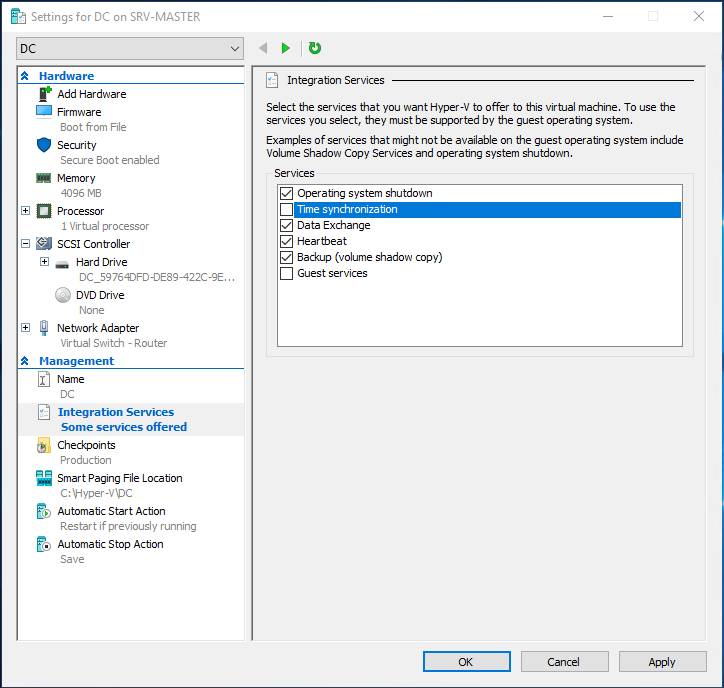 В настройках виртуальной машины, в разделе Management -> Integration Services отключаем Time Synchronization
Создание GPO для контроллера домена с ролью эмулятора PDC (главный контроллер домена – Primary Domain Controller)
1 . Создание фильтра WMI
Нам необходимо настроить групповую политику для синхронизации NTP для контролера домена PDC, в связи с тем что роль PDC может перемещаться между контроллерами домена, нам необходимо применить политику к текущему владельцу роли PDC. Для этого мы создадим WMI фильтр, чтобы политика была применена для сервера с ролью PDC.
Для этого в консоли управления Group Policy Management Console (GPMC.msc), в разделе WMI Filters создадим новый WMI фильтр с именем PDC selected и запросом: Select * from Win32_ComputerSystem where DomainRole = 5
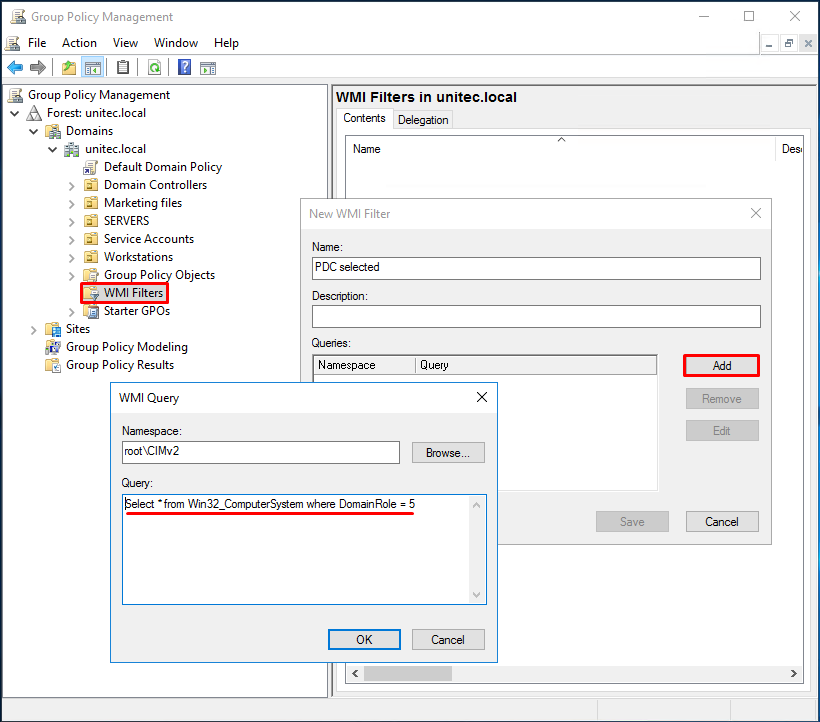 Добавляем новый WMI фильтр с именем PDC selected и запросом:
Select * from Win32_ComputerSystem where DomainRole = 5
2 . Создаем и редактируем новую GPO
2.1 Для контейнера Domain Controllers создаем групповую политику, в нашем случае это PDC Time Synchronization.
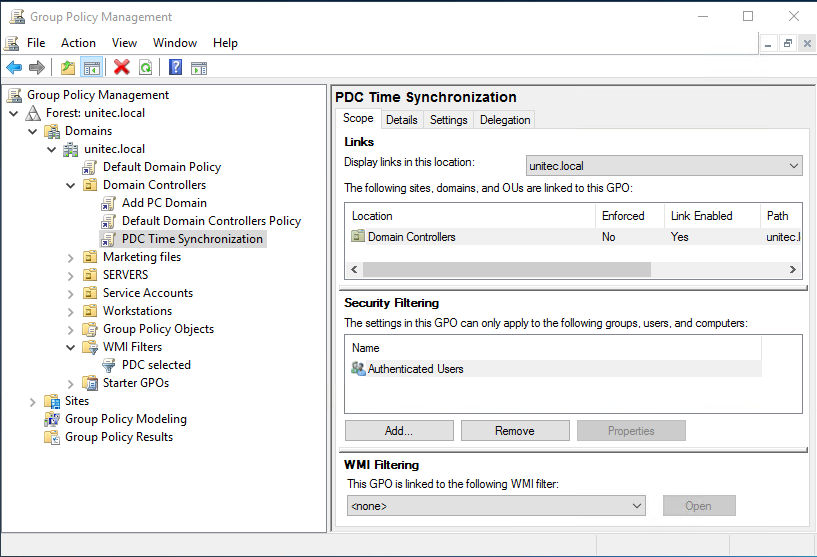 В пункте 2.1 ошибка. на картинке созданный фильтр не привязан к политике
2.2 Редактируем политику PDC Time Synchronization, разворачиваем Computer Configuration -> Policies -> Administrative Templates -> System -> Windows Time Service -> Time Providers и включаем следующие политики:
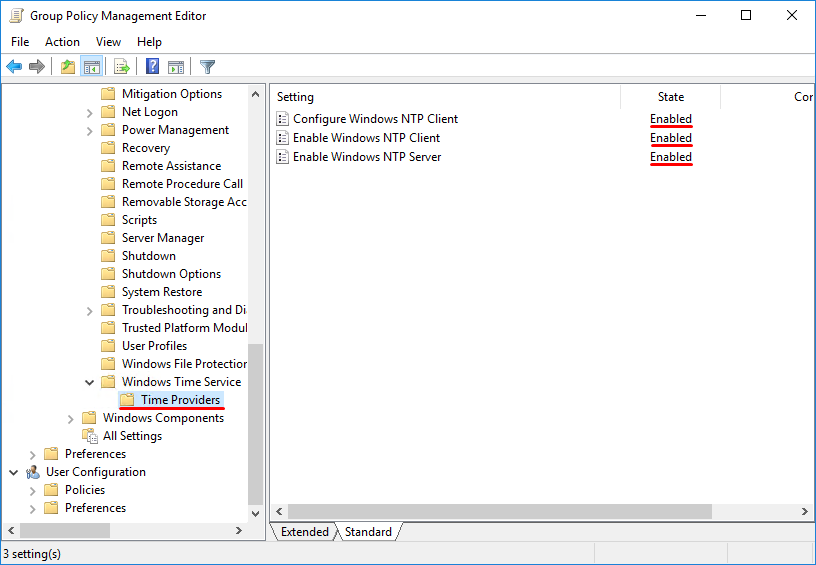
2.3 В настройках политики Enable Windows NTP Server, задаем:
Как настроить ntp сервер windows server 2016
We will use PowerShell to change the NTP Server and we will validate if it worked afterwards.
Configure the NTP Server on Windows Server 2016
On your Windows Server 2016 hit the Windows Button and type: PowerShell and right-click it and select Run as Administrator
Type the following commands
- w32tm /config /manualpeerlist:pool.ntp.org /syncfromflags:MANUAL
- Stop-Service w32time
- Start-Service w32time
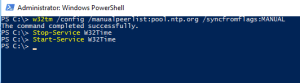
Of course, you can take any NTP Server that you want.
Now verify if the time-server was set correctly on your Server 2016 by typing:
- w32tm /query /status
You should get a reply like this:
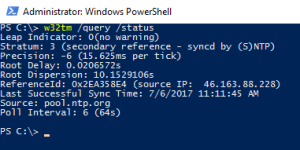
Now we will go ahead and verify if our clients sync properly.
Verifying if the Time Server was correctly set on our Clients
On a client computer open a PowerShell with right-click and Run as Administrator….
- w32tm /query /status
Check the time-server and type:
- w32tm /resync
- w32tm /query /status
Then you are able to see that the time-server actually changed like in the example below.
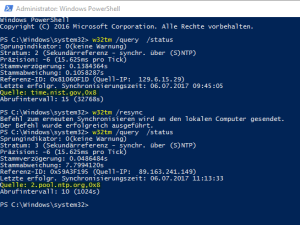
And that’s it! Easy, right?
Always make sure that you use the same time-server in your network and that all your clients are syncing from it. If you have time differences inside of your Active Directory Domain you will run into major issues.
How to Configure NTP Server on Windows Server 2016
In this article, I will show you how to configure NTP Server on Windows Server 2016 in just a few steps.
We will use PowerShell to change the NTP Server and we will validate if it worked afterward.
Configure the NTP Server on Windows Server 2016
On your Windows Server, 2016 hit the Windows Button and type: PowerShell and right-click it and select Run as Administrator
Type the following commands
Of course, you can take any NTP Server that you want.
Now verify if the time-server was set correctly on your Server 2016 by typing:
You should get a reply like this:
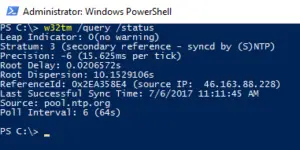
Now we will go ahead and verify if our clients sync properly.
Verifying if the Time Server was correctly set on our Clients
On a client computer open a PowerShell with right-click and Run as Administrator….
Check the time-server and type:
Then you are able to see that the time-server actually changed like in the example below.
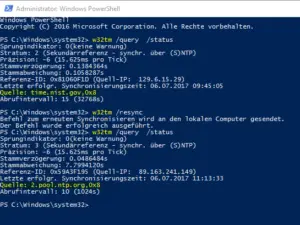
And that’s it! Easy, right?
Please enable JavaScript
Always make sure that you use the same time-server in your network and that all your clients are syncing with it. If you have time differences inside of your Active Directory Domain you will run into major issues.
10 thoughts on “How to Configure NTP Server on Windows Server 2016”
How do i verify NTP version 4 is being used for time synchronization? thank you for your guidance.
What NTP version is this synchronizing to?
It is not working for them because they did not do a resync that’s why
The commands provided only configure one machine to point to the (external) NTP source.. you have not provided the relevant commands to make the clients point to it, so I can only assume that the first machine you used is a DC, and you already set the command “w32tm /config /reliable:yes” on it, which makes any DC a reliable NTP source. All clients that are members of the domain would then automatically use it as an ntp time source (due to default domain policies).
Note – as per w32tm /? the command “w32tm /config /reliable:yes” is ONLY applicable to DC’s. There are alternative settings that need to be enabled (including registry hacking) to enable a non-DC system as an NTP source.
Hey Wes, thanks for leaving a comment. Yes, indeed the Server is a DC. Thank you for pointing that out.
Microsoft Windows [Version 6.2.9200]
(c) 2012 Microsoft Corporation. All rights reserved.
C:\Users\Administrator>w32tm /query /status
Leap Indicator: 0(no warning)
Stratum: 1 (primary reference – syncd by radio clock)
Precision: -6 (15.625ms per tick)
Root Delay: 0.0000000s
Root Dispersion: 10.0000000s
ReferenceId: 0x4C4F434C (source name: „LOCL“)
Last Successful Sync Time: 10/19/2018 12:43:34 PM
Source: Local CMOS Clock
Poll Interval: 6 (64s)
Nope.. After doing those steps it still says the source is local cmos clock. I am an Enterprise admin:
PS C:\Windows\system32> w32tm /query /status
Leap Indicator: 0(no warning)
Stratum: 1 (primary reference – syncd by radio clock)
Precision: -6 (15.625ms per tick)
Root Delay: 0.0000000s
Root Dispersion: 10.0000000s
ReferenceId: 0x4C4F434C (source name: “LOCL”)
Last Successful Sync Time: 11/14/2017 2:53:29 PM
Source: Local CMOS Clock
Poll Interval: 6 (64s)
i found the same output as well. the commands mentioned in this „tutorial“ doesn’t work at all, or it’s missing something crucial.
I just tried it again and it worked. Are you running an elevated cmd shell?
Leave a Comment Cancel reply
This site uses Akismet to reduce spam. Learn how your comment data is processed.