Thomson TCW770 router setup & security
And no need to get your breathing rates high in case you have changed the username / password of Thomson TCW770 and forgot them, as you can just reset the Thomson TCW770 router by press-and-hold the reset button with a clip for about 15 seconds.
Thomson TCW770 Quick links:
| http://192.168.0.1 | Open link |
| Default username for Thomson TCW770: | blank | |
| Default password for Thomson TCW770: | password | COPY |
Is this not your router model ? Search your router
2.Change Thomson TCW770 Default Login and Password
Since, security of a network is vital, the first and foremost task is to change the Thomson TCW770 router Default Login and Password to something more personal and secure.
Thomson TCW770 Router Password Tips:
Choose a complex and hard-to-guess password for your Thomson which only you can remember
It should be something personal, like &ilostmyvirginity@30, so that you’ll never forget it. Ever
Protect it
The amount of protection directly depends on the password complexity, and the effort taken to protect that password on your Thomson TCW770 router.
Usability first
Give Password for your Thomson TCW770 router that you can remember (usability first). Of course, you can build a strong hash password with special characters, numbers, Greek, and Latin. But ultimately you’ll end up writing it on a sticky and putting it on the router, which defeats the purpose. Here is an example $lasttriptovegas0916
You did good so far. Now consider ⭐ Bookmarking this page. It always helps.
3.Change Thomson TCW770 Default WiFi name (SSID) and WiFi Password and enable Network Encryption
Another small suggestion (as it has no impact on security), is to change the Thomson TCW770 Default WiFi name (SSID) as it will make it more obvious for others to know which network they are connecting to.
- Look for — Wireless (found in the menu bar at the top of the page) , and click on it
- Look for — Primary Network (found in the left hand side menu bar), and click on it
Look for Network Name (SSID), this is the WiFi name of your Thomson TCW770 Router. Do not use your name, home address, or other personal information (since this isn’t a Facebook status!) in the SSID name. (No Mr.Paul&Princy) A few funny WiFi name suggestions: I’m cheating on my WiFi!, FBI Surveillance Van #594 (scares away stupid criminals), Lord of the Pings .
Once you enter the name for your network, you have to enable WPA2-PSK encryption on your Thomson TCW770 router. That’s the strongest encryption standard available for home networks.
Enter a new WPA Pre-Shared Key / WiFi Password – this is the password that you will use to connect to your home WiFi. Keep it to 16-20 characters (please!) don’t use the same password that you used for Thomson TCW770 router login!
�� Geek out your guests. Print a Free WiFi QR Code Sticker for your fridge now
4.Update router firmware in Thomson TCW770 and turn on Automatic Updates
Router software often contains critical bugs and security vulnerabilities; Check if your router has known vulnerabilities
Its important that you turn on Automatic Firmware updates and always keep your Thomson TCW770 router up-to-date. To turn on Automatic updates, Login to your Thomson TCW770 router and look for the section which contains Automatic updates and turn it «ON»
And even if the router has auto-update, check every now and then to make sure it is actually working, and the router firmware is up-to-date. If your router manufacturer hasn’t released any updates to the firmware in the past 3-5 years, consider upgrading to a «newer» router
5.Security is a continuous process
Just keep in mind to change the passwords often or at least once in every 6 months! on your Thomson TCW770 You don’t want the safety you have worked so hard for to fail just because of ignorance, negligence, or casual laziness! Time for a bulletin on the fridge, folks! We can remind you though? Enter your email below! Nope, we are not spammers!
Thomson TCW770 Router Reset instructions
How to Reset the Thomson TCW770 Router To Factory Default
To reset Thomson TCW770 router,
- Turn on the Thomson TCW770 router
- Look for the reset button. Few routers have a tiny hole and few others have a reset button.
- Press the Factory reset button with a straightened paperclip pin or something that gets through the tiny hole, and hold it for about 15 seconds! (till you see all the lights flashing)
- The Thomson TCW770 router will reboot automatically. the unit has been reset and is ready to use. You can start from Step 1 in this guide to set it up.
Thomson TCW770 Password Does not Work
Passwords find a way to not work! Or, in most cases, users find a way to forget them! In either case, look up the How to Reset the Thomson TCW770 Router To Default Settings section
Forgot Password for Thomson TCW770 Router
Incase if you have changed the default username and password of Thomson TCW770 and forgot it, please see How to Reset the Thomson TCW770 Router To Default Settings section
How to boost Thomson TCW770 WiFi and overcome connectivity issues
1.Place the Thomson TCW770 in a perfect spot
The perfect spot does it all; be it romance or your router! To avail the best signal and network connectivity, make sure you keep your Thomson TCW770 router visible and not facing the wall or behind the curtains
2.Find a Good Wireless Channel Instead of Auto on your Thomson TCW770 router
Auto-channels might fail you once in a while; believe that you’re smarter than the Thomson router! Find a seamless wireless channel instead of what the router finds automatically. This would ensure that your signal doesn’t interfere with that of your neighbors.
If you’re running a Windows-based PC, you can see what channels neighboring Wi-Fi networks are using.
- Press Start > type “cmd”. Open Command prompt
- In command prompt type netsh wlan show all
You will see a list of all wireless networks and the channels being used in your vicinity. instead of using “Auto” for the control channel, Pick the channel that has the lowest interference
3.Check the frequency of Thomson TCW770
Check if Thomson TCW770 has dual-band, the most commonly used band would be 2.4GHz; however, switching to 5GHz would bring out better results! It depends on your device though; if you’re running an old lad, you might have to switch back to the conventional
4.Hardwire gaming consoles / media streamers into your Thomson TCW770 instead of WiFi
Gaming consoles/media streamers work better when connected through Ethernet cable of Thomson TCW770; in fact, as you might not be moving your TV all over the house, why connect it to the Wi-Fi at all? The Gaming consoles / video streaming devices flood the network with data. This means that if possible, you should consider hardwire (using Ethernet cable) the devices that tend to consume a lot of bandwidth. Although this can sort of defeat the purpose of having wireless networks, it can actually help your overall network speed of Thomson TCW770 if you can hardwire the bandwidth hogs.
5. Reboot Thomson TCW770 on schedule
Here’s something important to note! On schedule, folks, reboot your Thomson TCW770 router! Though routers are built to constantly be running at all times, simple tweaks like regular power cycling (a fancy way of saying, unplugging the power cord and shoving it back up) helps with most issues. Rebooting your Thomson TCW770 can fix Internet connection problems, improve slow moving connections, and resolve wireless issues altogether. Try unplugging your Thomson modem on a quarterly basis to stay proactive (Never reset; always reboot router)
Безупречный роутер
Вы задумались над созданием собственной локальной сети? Хотите иметь надежность работы и хорошие скоростные показатели? Для этого нужно выбрать самый главный элемент сети – это роутер.
Сейчас рынок может предложить широчайший выбор различных маршрутизаторов на любой вкус и кошелек. Но в этой статье хотелось бы поговорить о таком устройстве для создания сети, как thomson роутер. И остановить ваше внимание на интересной модели – THOMSON-UM-TCW770. Данная модель подойдет тем людям, у кого доступ к интернет осуществляется по телевизионному кабелю.
Немного об устройстве
Основные особенности роутера THOMSON-UM-TCW770:
- Поддержка сертификации CableLabs DOCSIS/EuroDOCSIS 1.0/1.1/2.0/3.0 .
- Наличие 4-х портов RJ-45 с возможностью автоматического согласования и поддержкой функции MDIX.
- Наличие Wi-Fi стандарта 802.11n, с возможность работы на частотах 2,4 ГГц или 5 ГГц.
- Вход USB.
- Поддержка алгоритмов шифрования RSA и 56-битного DES.
- Управление сетью через протокол SNMP.
- Возможность загрузки микропрограммного обеспечения в рамках удаленного доступа.
- Работа с журналом сервера удаленного доступа.
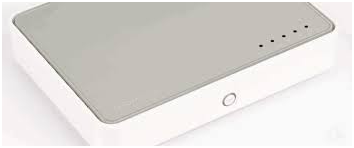
Описание начала процесса настройки
Данный роутер предлагает возможности по локальному управлению при помощи встроенного HTTP-сервера и удобный веб-интерфейс для проведения диагностики и настройки. Вы можете настроить параметры на веб-странице и применить их на устройство.
Получение доступа к веб-конфигурации
Для начала работы подсоединяем ваш роутер к компьютеру при помощи Ethernet-кабеля.
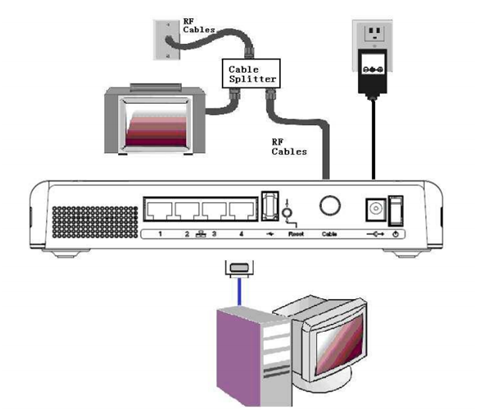
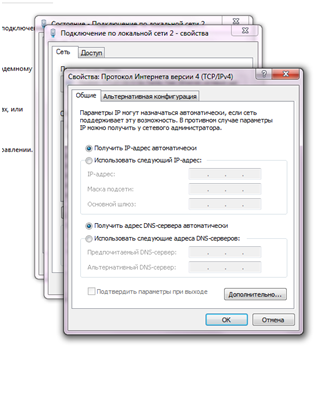
Теперь, когда ваш хост-компьютер настроен, выполняем следующие действия:
- Запускаем веб-браузер и заходим на адрес – 192.168.0.1
- Проходим авторизацию: имя пользователя оставляем пусто, а пароль – admin.
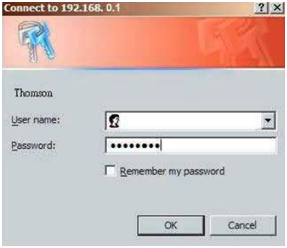
- После успешной авторизации должна появиться главная страница.
Схема веб-менеджера
Основной экран должен выглядеть следующим образом:

Рассмотрим возможности группы Status (информационный раздел):
- В разделе Software (Состояние) можно посмотреть время работы роутера с последнего включения, а также состояние подключения к интернет.
- Connection – эта страничка сообщает о текущем состоянии подключения, включая процедуру запуска, состояние получения и отправки данных, онлайн информацию о кабельном модеме и др.
- Password – здесь можно поменять пароль для доступа к веб-страницам роутера.
- Diagnostics – эта страница предлагает основные средства диагностики для случая, когда возникнут проблемы подключения.
- Event Log – журнал событий протокола SNMP.
- Initial Scan – страничка для ускорения первого подключения через модем.
- Backup/Restore здесь можно сохранить текущее настройки или восстановить ранее сохраненные настройки.
Основные настройки роутера
Network
Зайдите в подменю LAN, здесь можно активировать функцию DHCP-сервера для вашей локальной сети. Для этого в строке «IP-адрес» введите адрес, предоставленный вашим провайдером, и тогда ваш роутер предоставит адреса, для всех компьютеров вашей сети автоматически начиная с введенного вами адреса.
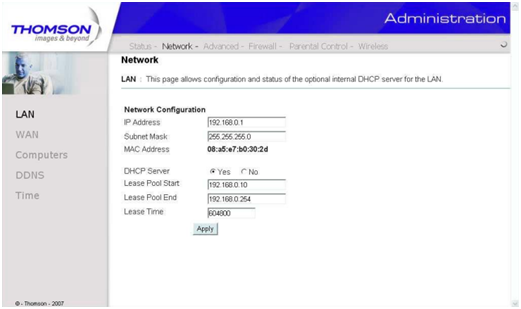
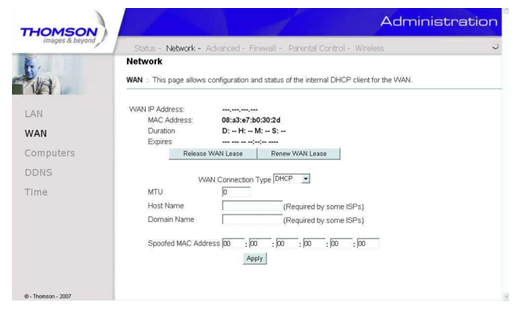
Для любителей «пошалить» на этой странице можно ввести ложный МАС-адрес. И тогда сетевой стек вашего роутера будет использовать этот МАС-адрес для установления соединения.
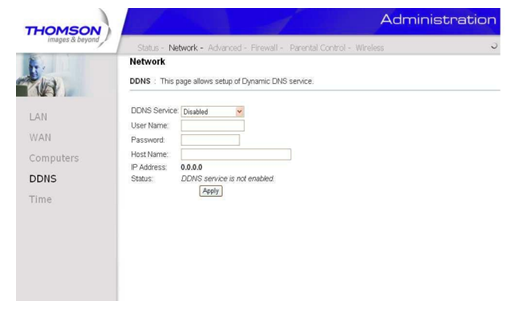
В общем, в этом подменю можно ничего не менять.
Advanced
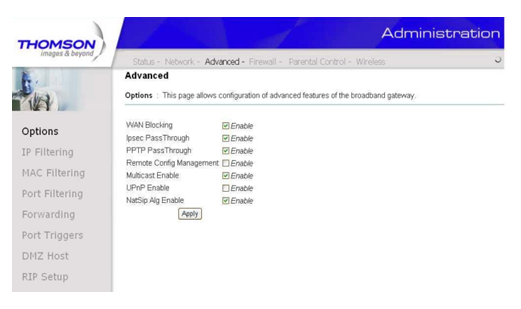
В этом меню выполняются расширенные настройки вашей сети. Рассмотрим основные возможности. В подменю Options выполняются отключение/включение некоторых функций беспроводного маршрутизатора (возможность «пингования», разрешение к удаленному доступу в настройки роутера и др.)
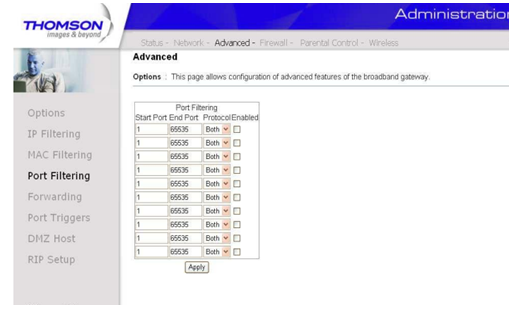
Firewall
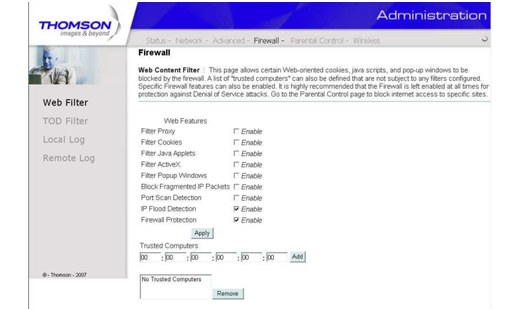
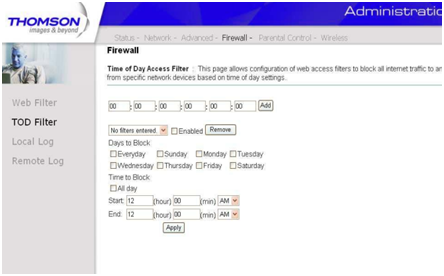
В подменю Web Filter вы можете включить, отключить или настроить различные функции брандмауэра, связанные с веб-браузером. Все разрешения включаются путем установки галочки напротив нужной функции.
Parental Control
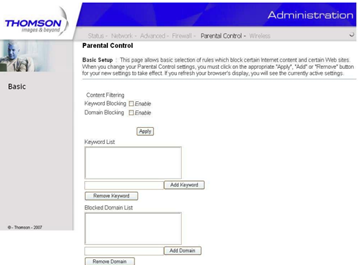
В этом меню осуществляются настройки «родительского контроля». Например, если вы не хотите чтобы ваш ребенок заходил на сайты, где встречаются непристойные выражения, то вы их просто вводите в окошке настроек и если они окажутся на сайте, то роутер заблокирует к нему доступ. Также здесь можно осуществить блокировку по имени домена – просто перечисляете имена неугодных вам доменов, и роутер их блокирует.
Wireless
Группа страниц «Беспроводная связь» позволяет использовать целый ряд параметров, которые обеспечивают безопасную и надежную беспроводную связь даже для самых требовательных и технически подкованных пользователей. Рассмотрим лишь основные.
Thomson tcw770 как коммутатор
Если что- стучись в асю. Не обещаю ответить быстро, но эффективно. 🙂
В ближайших покупках ноутбук, соответственно хочу сделать Wi-Fi сеть.
ББ выключать буду, значит необходим роутер, чтобы был доступен интернет.
Интернет у меня идет по ADSL. Кабель телефонный, RJ-11 если не ошибаюсь.
Модем в данный момент подключается по USB.
Имеется и сетевая карта.
Значит, что хочу: купить роутер.
Чтобы в нем был Wi-Fi, разъем для телефонного кабеля (RJ-11), DSL-модем (чтобы выкинуть старый d-link), ну и все собственно. Как я понимаю, везде есть RJ-45, ну по нему подключу роутер к ББ.
Что посоветуете? Какие модели оптимальны? Какие модели крайне не желательны?
Буду рад любому совету.
Я настроился на него, спасибо n0v0
Я дома пользуюсь D-Link DSL-G604T. Честно говоря, доволен очень. Это ADSL-модем и Wi-Fi/Ethernet роутер в одном флаконе. Обошелся мне в довольно скромные 80$. С помощью него объединил в беспроводную локальную сеть стационарный домашний ПК, свой ноутбук, а также Dell X51v. Ну и, конечно же, все три устройства спокойно кушают интернет по Wi-Fi, причем абсолютно независимо, т.е., например, достаточно включить роутер (и не включать ни один из ББ), и можно свободно пользоваться интернетом на КПК. Очень удобно.
Это да. Но, с другой стороны, последняя прошивка вышла в конце марта сего года. WPA2 добавили, в частности. Так что устарел он разве что в том плане, что поддерживает только стандарт IEEE 802.11g (скорость ограничена 54 Мбит/с). Да и ошибки из прошивки к этому времени практически все вычистили. По крайней мере, все нужные мне функции работают ровно так, как от них и ожидаешь.
Сообщение отредактировал MissAlenka — 29.10.09, 00:42
В смысле, не в домене?
А мне нужно, чтобы и eMule работал.
Какой прокси лучше: usergate или wingate? Или ещё какой-то?
PS: надо срочно, потому что скоро уезжаю на лето в другой город, где не будет инета, и надо скачать много файлов из инета, а траффик и деньги кончились. Может мне в аську кто-нибудь стукнет и объяснит? 261651981 С меня +1 к репутации. Или хоть +5.
Fastest Thomson TCW770 Router Open Port Guide
Thomson TCW770 routers include a very basic firewall that helps protect your home network form unwanted access from the internet. Since this firewall blocks incoming connections you may need open a port through it for certain games and applications. This process of opening a port is frequently called a port forward, since you are forwarding a port from the internet to your home network.
The basic process to open a port is:
- Setup a static IP address on either your computer or device that you want to forward a port to.
- Login to your Thomson TCW770 router.
- Navigate to the port forwarding section.
- Click the Advanced link.
- Click on Forwarding.
- Create a port forward entry.
While these steps might seem difficult at first, we will walk you through each step for your Thomson TCW770 router.
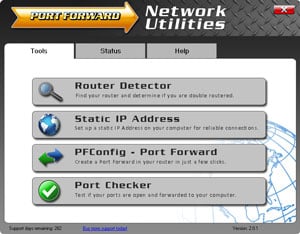
We think that forwarding a port should be easy. That’s why we created Network Utilities. Our software does everything that you need to forward a port.
When you use Network Utilities you get your port forwarded right now!
Step 1
It is important to setup a static ip address in the device that you are forwarding a port to. This ensures that your ports will remain open even after your device reboots.
- Recommended — Our free Static IP Setter will set up a static IP address for you.
- Another way to get a permanent IP address is to set up a DHCP reservation.
- Or, manually create a static ip address with our Static IP Guides.
This step is important because you want a permanent IP address in your device. If you do not set up a permanent IP address in your device, then when you device reboots it may get a new IP address.
Step 2
Now we are going to login to your Thomson TCW770 router. Your router has a web interface, so you will login to it using your web browser. This can be either Chrome, Firefox, Internet Explorer, or Edge. It usually does not matter which browser you choose to use.
Open up your web browser and find the address bar. It should look something like this:
Browser address bar
Above is an example of what a web browser address bar looks like. Find the address bar in your router and type in your router’s IP address.
The default Thomson TCW770 IP Address is: 192.168.0.1
After entering the IP address of your router you can simply press enter. If all goes well you will see the following screen:
Screenshot of Thomson TCW770.
You should see a box prompting you for your username and password.
- The Default Thomson TCW770 Router Username is: none
- The Default Thomson TCW770 Router Password is: password
Enter your username and password, and then click the Login button to log in to your Thomson TCW770 router.
Thomson Usernames and Passwords
If your username and password do not work then please visit our Default Thomson Router Passwords page.
If you still can’t login to your router because you forgot your Thomson TCW770 router username and password, use our How to Reset a Router Password guide to set your Thomson TCW770 router back to its factory settings.
Step 3
Now we need to find the port forwarding section in your router. Here’s how you do it. Starting from the first page in your router:
Screenshot of Thomson TCW770.
Click the Advanced link near the top of the page.
Screenshot of Thomson TCW770.
The menu on the left should change. In this new menu, click Forwarding.
Screenshot of Thomson TCW770 port forward.
Step 4
- TCP Ports: 3074
- UDP Ports: 3074
- Browsing our List of Games
- Check out our our List of Games by Genre
- See our List of all Applications
Enter the IP address that you want to forward these ports to in the Local IP Address box. You can enter either the IP address of your computer or the IP address of another computer or device on your network.
If you are forwarding a range of ports then you need to enter the lowest number of the range into the Local Start Port and External Start Port boxes and the highest number of the range into the Local End Port and External End Port boxes. If you are only forwarding a single port then you can enter that same port number into the Local Start Port, Local End Port, External Start Port and External End Port boxes.
From the Protocol box select the protocol for the ports that you want to forward.
Create a name for this forward and put it in the Description box. The name is only used as a reminder and has no effect on the port forward.
From the Enabled dropdown box choose On.
When you are finished, click the Apply button.
Your ports should now be open. It is time to test them.
Test if Your Ports are Open
Now that you have forwarded ports on the Thomson TCW770 you should test to see if your ports are forwarded correctly.
To test if your port has been properly forwarded, you can use our Network Utilities tool, which includes a free Open Port Checker. Our Open Port Check tool is the only online port checking tool with Guaranteed Results.
Thomson TCW770 Router Screenshots
We also have the Internets largest collection of Router Screenshots.
More From Portforward
Creating a Port Forward in Your Router for AO Tennis 2
Make it easier to connect with more players and help improve online connections in AO Tennis 2 by forwarding some ports.
Forwarding Ports for Knockout City on Your Router.
Help improve your online connections in Knockout City and connect with more players by forwarding some ports.
How to Port Forward Hyper Scape in Your Router
Forwarding some ports in your router for Hyper Scape can help you establish an Open NAT for your connection with the game.
How To Open Ports in Your Router for Pokémon Unite
Help improve your online connections in Pokémon Unite by forwarding some ports for it in your router.
Opening Ports for Call of Duty: Black Ops Cold War using Your Router
Forwarding ports for Call of Duty: Black Ops Cold War can help improve your online multiplayer connections.
Sniper Elite 4 Multiplayer
You can’t snipe with lag. Elimitate lag with our guide. Sniper Elite plays better with an open port.
Port Forwarding for eFootball
Forwarding some ports for eFootball in your router can enable you to connect with more players and help improve connections.
Creating a Port Forward in Your Router for ARMA Reforger
Forwarding some ports can help improve your online connections in ARMA Reforger and enable you to more easily play with others.