How to Change your Ubuntu Terminal’s Font and Font size
Linux users who need to use the terminal regularly want it to be more than just a black rectangle where you type commands. They want the area to be as comfortable and customized as possible so that it doesn’t strain their eyes or nerves. If you’re worried that the default font size will hurt your eyesight in the long run, or the font itself isn’t comfortable for your eyes, there are ways to change that. The Terminal interface is more customizable than you think. In fact, adjusting the font size is just one of the many settings you can make for your command line experience.
In this article, we will explain how you can change the font size of the text in Ubuntu Terminal through the Terminal itself. This includes changing the Terminal preferences in Ubuntu, which we will learn in this article.
We have tested the commands and procedures mentioned in this article on a Ubuntu 20.04 system and also on Ubuntu 22.04.
Please follow these steps in order to customize your Terminal’s text font:
Step 1: Open the Terminal
Open the Terminal application either by using the Ctrl+Alt+T shortcut or by accessing it through the application launcher search as follows:

Step 2: Access Terminal preferences
The Terminal preferences let you make several customizations to your overall Terminal experience. This also includes changing the font and font size of the Terminal text. There are two ways through which you can access the Preferences view:
1. Click on the Edit menu and then select the Preferences option as follows:

2. Right-click in the Terminal window and then select Preferences from the menu as follows:

The Preferences view opens in the following view.

It opens in an Unnamed profile view by default. Preferences let you create custom profiles that you can apply to your Terminal according to your needs. However, we will use this default Unnamed profile to edit the Font settings.
Step 3: Edit the Preferences
In the Preferences view, try locating the “Custom font” option that is unchecked by default. Now that you want to enable a custom font, check this option and then click on the Font type and size button against it. By default, this button will have Monospace Regular 12 as the selected font. The following “Choose a Terminal Font” dialog will open when you click on this button:

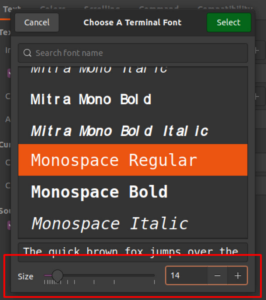
This dialog lets you search for a font, scroll through a list of fonts, and gives you a preview of the selected font. Select the font you want from here and then enter a text size either through the slider or through the input field.
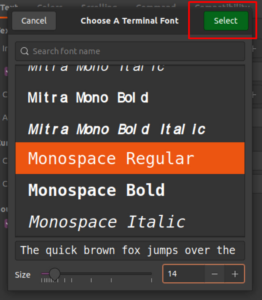
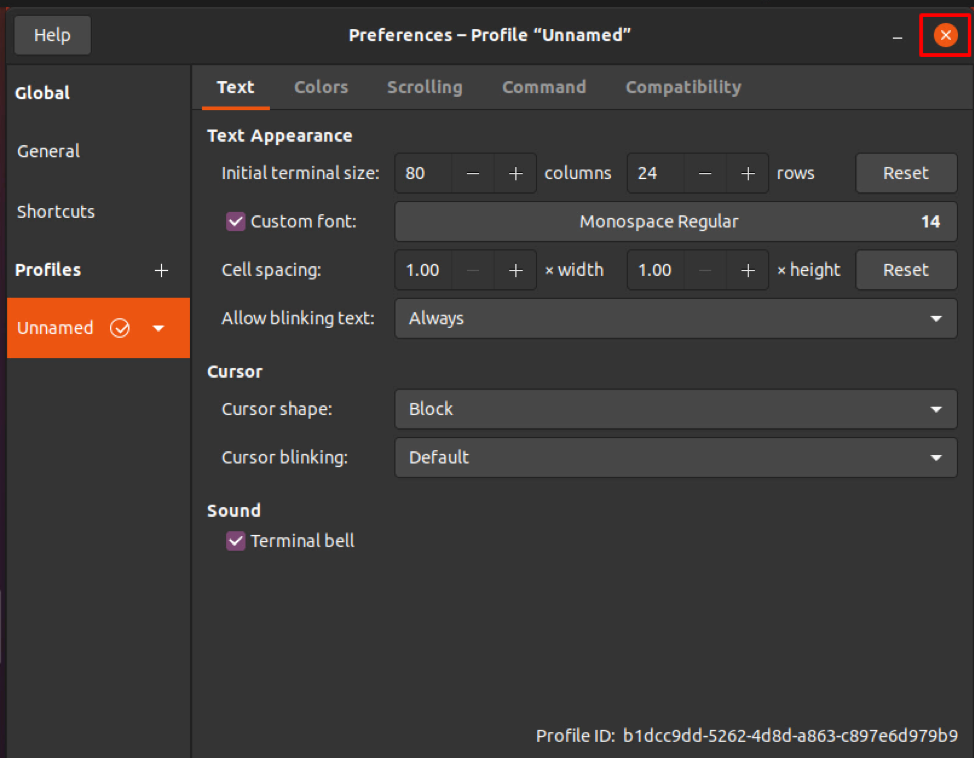
Then click on the Select button located at the top-right corner of the dialog to confirm your selection. This will take you back to the Preferences view:

Click on the Close button and you will see the newly selected font and font size enabled in your Terminal:

Through this easy method, you can customize your Terminal text and font size right according to what is comfortable and pleasing to your eyes.
Can I change the font of the text-mode console?
I have a Unix-like OS installed without a windowing environment; i.e., just a text-mode console and no GUI.
Is it possible to change the font used by the console?
To be clear, I am not talking about the terminal emulator that comes with a desktop environment like KDE or GNOME.
7 Answers 7
If you use the Linux console, the best way I found is:
put, for example
Another way is to use setfont from the kbd package:
This works for my Debian; it may be different for you.
In Debian, you can also run dpkg-reconfigure -plow console-setup to be prompted for the various console settings and pick them from menus.
Edit — I put together a small page how to setup the font colors. The section that is relevant for this post has the header «the Linux VTs» (= ttys, or «console»).

/etc/default/console-setup et al. have been superseded on systemd operating systems, although you will find that some operating systems such as Debian try to maintain the older configuration system.
How to Change the Terminal Font Size in Ubuntu
In this post, we will go through a step-by-step guide on changing the terminal font size, and along with that, we will also learn how to change some other preferences of a terminal to customize it according to our taste. The steps for customizing the font of the terminal are as follows.
Step 1: Open Up the Terminal
The first step is to open the terminal of the Ubuntu 20.04 LTS system. You can do so either by going to the applications menu of Ubuntu and searching for the “terminal”. From the search results, click on the “Terminal” icon as shown in the picture provided below:
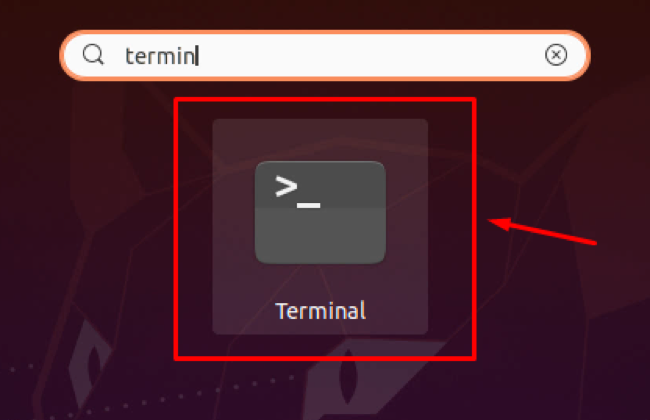
Or you can also use the keyboard shortcut keys CTRL+ALT+T to directly open the terminal in the Ubuntu Operating system.
Step 2: Open Terminal Preferences
After opening the terminal of Ubuntu, we need to open the terminal’s preferences to alter the terminal’s font size.
Either you can open the preferences by clicking the hamburger option in the top right corner of the terminal window and clicking on the preferences option.
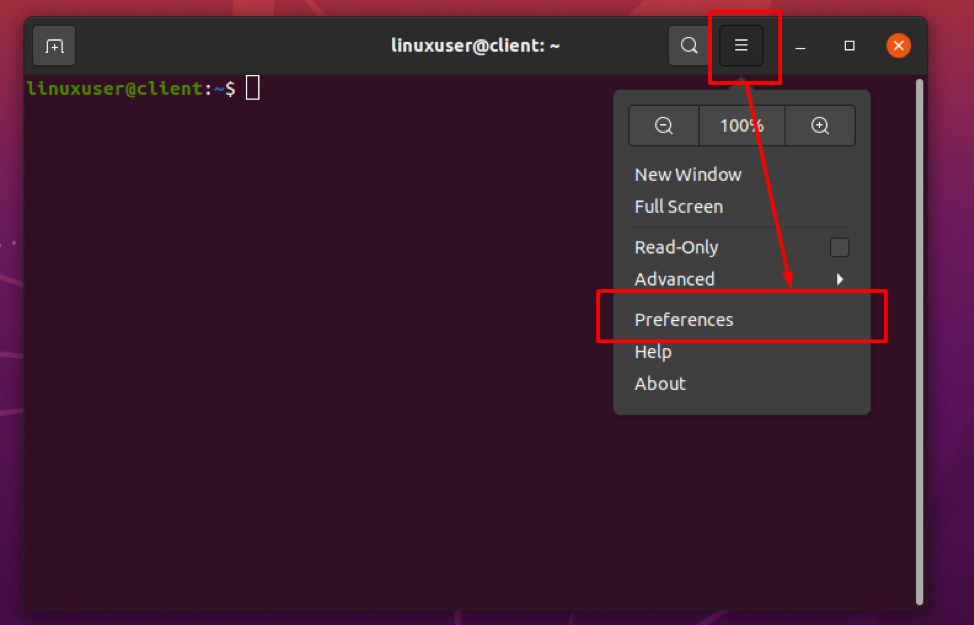
Or you can just right-click anywhere in between the terminal and click the preferences option from the context menu.
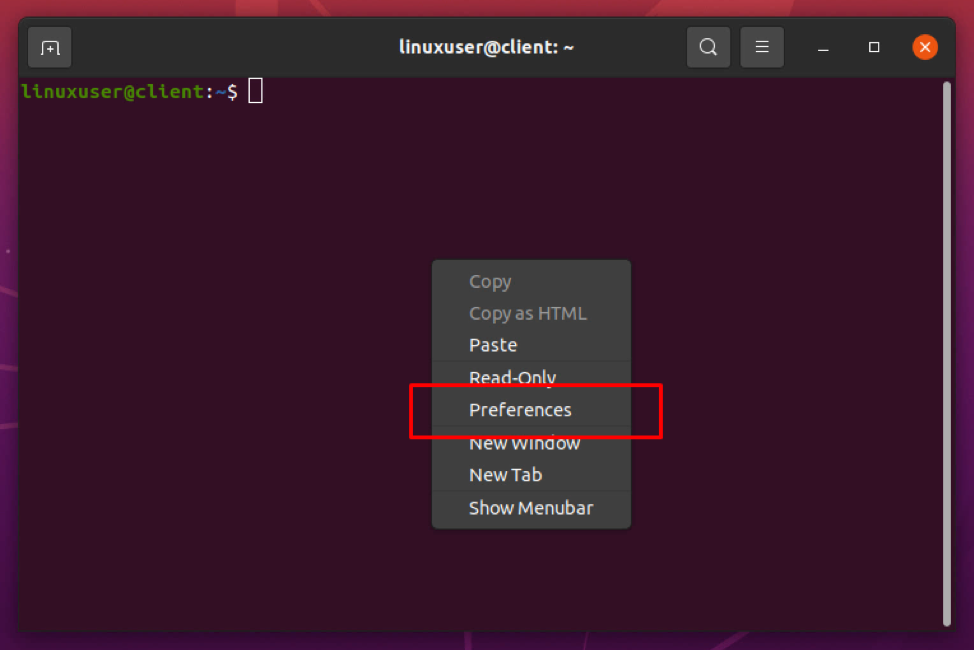
You will have a preference window like this.
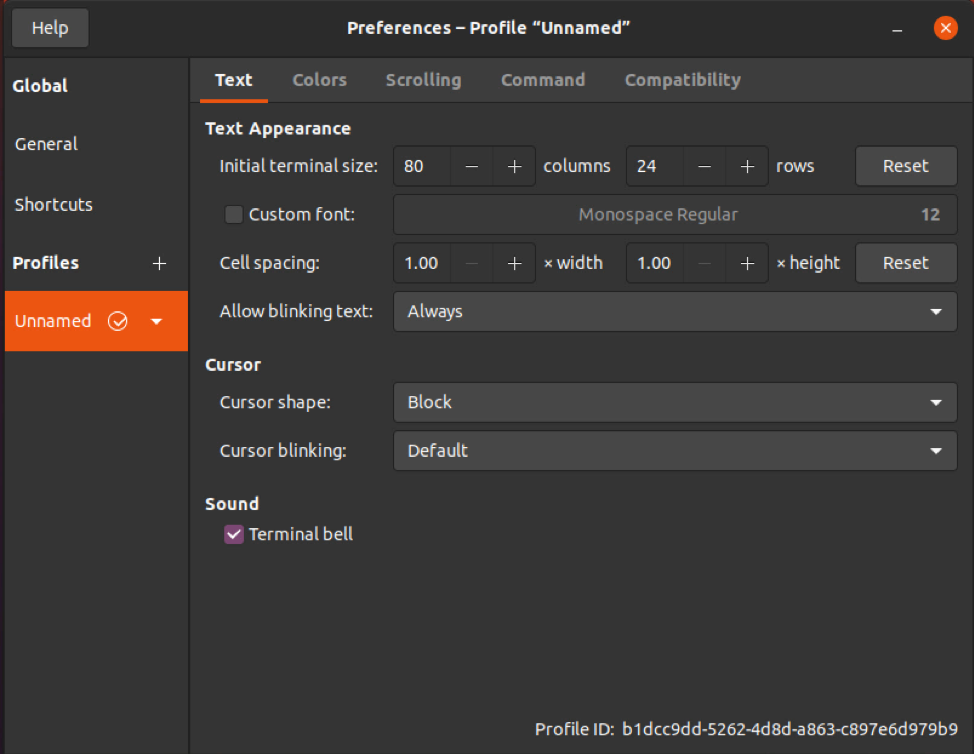
The preference window allows us to have customized preferences and save them. For this reason, you see the default “unnamed” profile name at the top bar of the preference window.
Step 3: Enable Font Customization
Once you have opened the terminal’s preferences window, ensure that you are in the text tab as shown in the picture provided below:
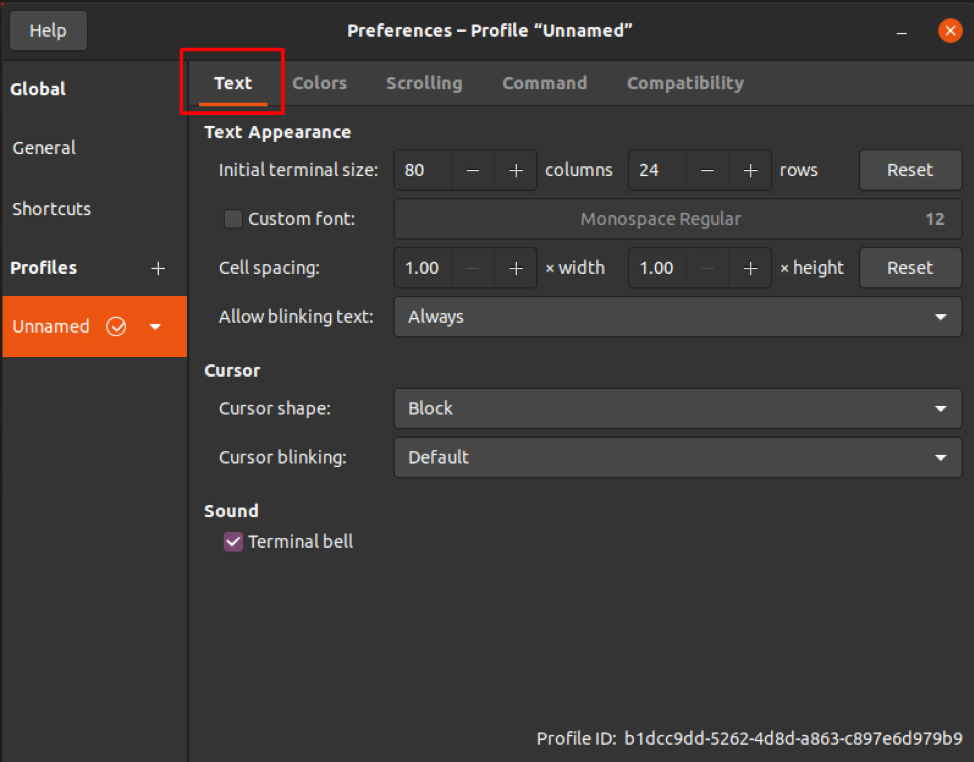
In the text tab, click on the “custom font” check box to enable the font customization and alter the font style and font size.
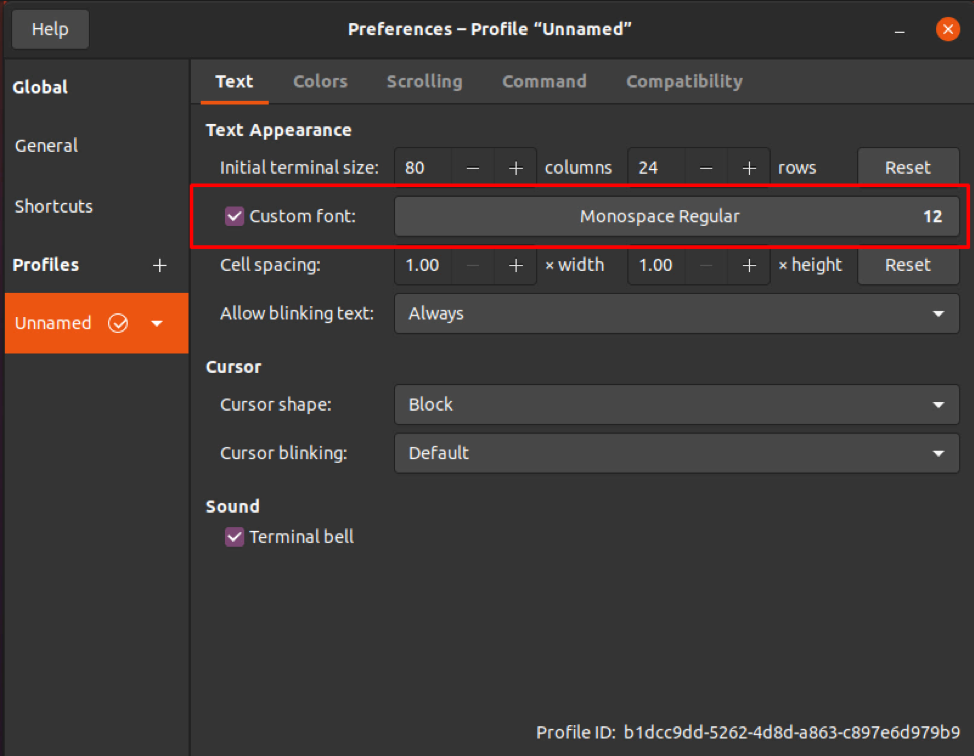
Step 4: Change Terminal Font
Now, you can see the font name and font size option have become editable. Just click on the “font-size” input field and a small window will pop up.
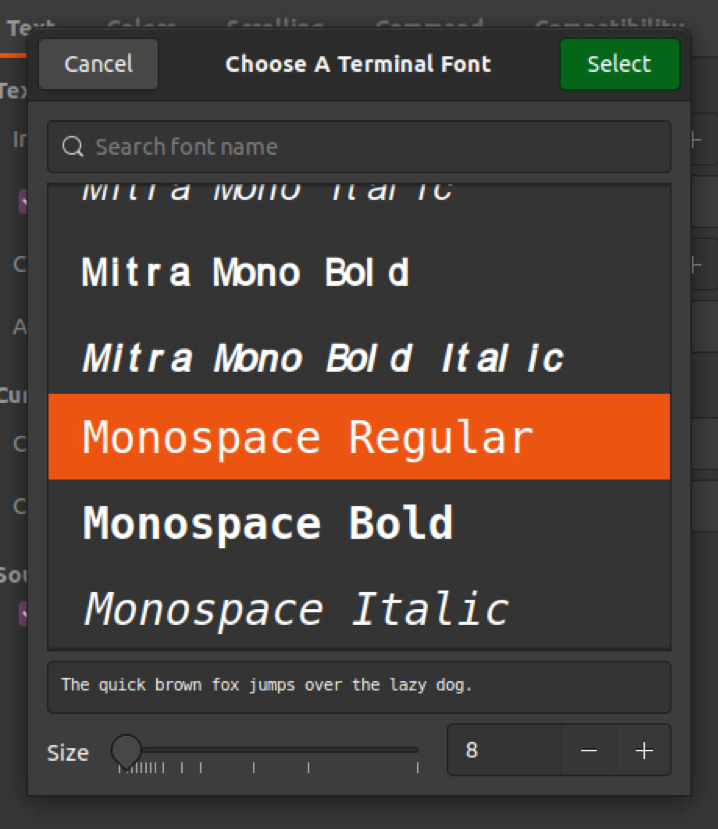
In this small window appeared, you can search for the font of your choice and make it the font of your terminal.
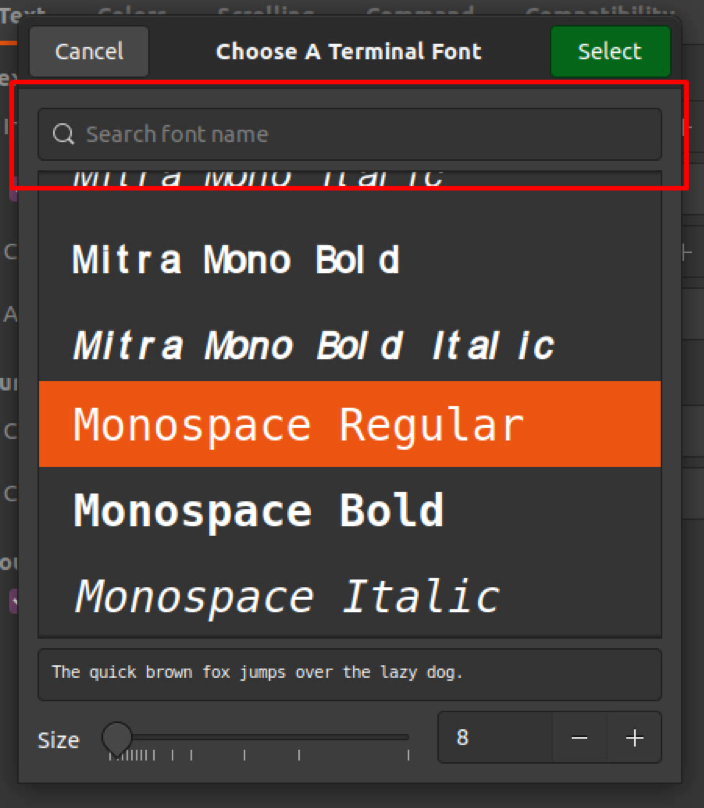
While in the bottom section of the window, you have a slider to change the font size, or you can also directly provide the font of your choice in the input field next to the slider.
Step 5: Save the Settings
After choosing the right font and font size, do not forget to click on the Select button in the window’s top right corner.
Once you are back in the preference window, simply close the preferences window to save the settings.
When you get back to the terminal, you would have the changed font and font size of your choice.

Conclusion
This is how easy and simple it is to change the terminal font and font size in Ubuntu 20.04 LTS system. By just following the simple steps provided in this post, any Linux beginner can change the terminal font size in Ubuntu.