How to get Ookla’s Speedtest CLI on Windows/Ubuntu/macOS?
Anyone using an Internet Service at your home or office may have gone to Ookla’s Speedtest website to check the internet speed or you might have accidentally stumbled upon it while you were browsing for speed test websites.
Ookla’s Speedtest is the definitive way to test the speed and performance of your internet connection. Every day, over ten million unique tests are actively initiated by users in the locations and at the times when their connectivity matters to them. Since their founding in 2006, an unparalleled total of more than 25 billion tests has been taken with Speedtest.
Ookla’s Speedtest has dedicated mobile apps, desktop apps, a browser extension, and a TV app as well for Apple TVs. But, did you know they also had a CLI version to check your internet speed?
The idea of having a simple command to run from your Command Prompt is amazing. You can get to check your connectivity when you feel it is not working as expected or maybe you just wanted to check the speed without requiring to open the browser or a dedicated app for it. No doubt, the browser animation is 100x better than the CLI animation consisting of [=/] only. But, you got to appreciate the effort put on adding a CLI edition to their Application Suite. Their effort should not go in vain and unheard.
That’s what we are here for today. We are going to learn how to board the Speedtest CLI on to our PCs. We are going to be covering how to install it on 3 different Operating Systems:
- Windows 7/8/10
- Ubuntu
- macOS
LET’S JUMP RIGHT INTO IT, SHALL WE…
1. WINDOWS 7/8/10
The windows installation might be the trickiest when comparing to Ubuntu and macOS. We need to set an environment variable for Speedtest to make it work from a Command Prompt from any directory otherwise it just works from the directory where the file is placed.
Don’t worry if you can’t understand. I divide the process into 2 parts to make it simple. The first part includes downloading the file, creating a directory and placing the file. The second part includes setting an environment variable for the directory. This helps in running the command from the CommandLine.
PART 1: DOWNLOADING
- Head over to https://www.speedtest.net/apps/cli
- Scroll down to find Download for Windows button & click on the button to download the file.
- The file is a .zip file that gets downloaded.
- Open the folder which contains the file.
- If you have WinRAR, well and good else we can manage with the default Windows Extraction tool.
- You need to extract the zip file downloaded by right-clicking the file and extract it.
- There will be 2 files from the zip when extracted, speedtest.exe & speedtest.md.
- speedtest.md is a ReadMe file that contains all the information about Speedtest CLI for windows. We are only interested in speedtest.exe.
- Create a directory anywhere on your system with a name related to Speedtest and place the speedtest.exe in the folder.
- It’s preferable to extract the zip directly in some directory where you usually install applications. But then, the choice is yours. If this much is done, we have completed Part 1 of the process successfully.
PART 2: SETTING UP
- Open up your Windows Start Menu and search env & click on Edit the system environment variables.
- A new System Properties window opens up. Click on Environment Variables Button.
- You might be able to see 2 sections, namely User Variables, and System Variables.
- Under User Variables, there will be an entry as Path. Double click it or click it and press on Edit.
- Another window should pop up right now, here you need to click on New to enter a new entry.
- The new entry is nothing but the directory path in which you placed speedtest.exe.
- The entry should be something similar to my last entry. If you have finished all the steps, that marks the successful completion of Part 2 of the process. All we got to do now is to test it on CLI.
Alright, to test it out. Fire up your Command Prompt or the latest Windows Terminal(Preview). Type in:
speedtest
You will be asked to accept the license. Accept it and it should show the Speedtest results in a minute. The animation is the showstopper of the Ookla’s Speedtest CLI Tool.
You can achieve some variations and other functionalities by adding a flag to the command. Some useful flags are:
(Open in the gif in a new tab to view it properly)
Oops, did you get Rick Roll’D? Nah, not exactly!! But, it’s cool right, having a custom gif background for your command prompt. All thanks to the Windows Terminal(Preview) you can make it possible. Check my article on it:
Speedtest® CLI

Speedtest CLI brings the trusted technology and global server network behind Speedtest to the command line. Built for software developers, system administrators and computer enthusiasts alike, Speedtest CLI is the first official Linux-native Speedtest application backed by Ookla®.
With Speedtest CLI, you can easily:
- Measure internet connection performance metrics like download, upload, latency and packet loss natively without relying on a web browser
- Test the internet connection of your Linux desktop, a remote server or even lower-powered devices such as the Raspberry Pi® with the Speedtest Server Network™
- Set up automated scripts to collect connection performance data, including trends over time
- Use Speedtest in your programs by wrapping it in the programming language of your choice
- View test results via CSV, JSONL or JSON
Install Options
Download Speedtest CLI
Speedtest CLI is maintained by the Ookla team. For assistance, please direct all inquiries to support@ookla.com.
macOS
Installing via brew will ensure you are always running the most up-to-date version of Speedtest CLI. You should update brew as frequently as possible.
Установка speedtest-cli для проверки скорости интернета в Unix/Linux
Утилита speedtest-cli — это скрипт, который написан на Python. Он измеряет скорость интернет-трафика в двух направлениях (аплоад и даунлоад) используя инфраструктуру speedtest.net для измерения скорости. Для данной программы необходимо установить Python 2.4-3.4 или выше.
Установка speedtest-cli для проверки скорости интернета в Unix/Linux
Есть несколько способов установить speedtest-cli:
- Первый способ — предполагает использование пакета python-pip.
- Второй способ — загрузить сценарий Python, сделать его исполняемым и запустить.
- Третий способ — использовать пакетный менеджер.
- Четвертый способ — скачать speedtest-cli используя Github.
Все команды я буду выполнять от суперпользователя, по этому — я залогинюсь под ним:
Вводим пароль от пользователя root и получаем его права.
-=1=- Установка speedtest-cli используя pythin-pip
И так, для начала выполняем установку python-pip, если не знаете как это сделать — вот статья:
И, выполняем установку speedtest-cli пакета:
Для обновления speedtest-cli, используйте:
-=2=- Установка speedtest-cli используя Python скрипт
Сначала загрузите скрипт python из github с помощью команды wget, распакуйте загруженный файл (master.zip):
После извлечения архива, перейдите в speedtest-cli-master папку и сделайте исполняемый файл:
Затем переместите исполняемый файл в /usr/bin директорию:
Вот еще один вариант:
-=3=- Установка speedtest-cli используя пакетный менеджер.
Если вы используйте Debian/Ubuntu ОС, выполните:
Если вы используйте CentOS/Fedora/RHEL ОС, выполните:
Если вы используйте Mac OS X, выполните:
Для начала, устанавливаем HomeBrew:
И выполняем установку:
-=4=- Установка speedtest-cli используя Github
И выполняем установку:
Или можно запустить следующую команду:
Использование speedtest-cli для проверки скорости интернета в Unix/Linux
В зависимости каким методом установки вы воспользовались, будет зависеть запуск speedtest-cli утилиты:
- speedtest-cli
- speedtest_cli.py
1. Чтобы проверить скорость загрузки и выгрузки своего интернет-соединения, запустите команду speedtest-cli без каких-либо аргументов, как показано ниже:
2. Для вывода информации в байтах (вместо битов), используйте:
3. Поделитесь своей пропускной способностью с друзьями или семьей. Вам предоставляется ссылка по завершению проверки:
Конечно, вы можете комбинировать оба варианта:
4. Вам не нужна дополнительная информация (кроме Ping, Download и upload), то для этого используйте:
5. Посмотреть сервера которые использует speedtest.net на основе физического расстояния ( км ):
6. На последнем этапе сформирован огромный список серверов, отсортированных по расстоянию. Как получить желаемый результат? Скажем, я хочу видеть только сервер speedtest.net, расположенный в Мумбаи (Индия):
7. Проверьте скорость подключения к определенному серверу. Используйте идентификатор сервера, сгенерированный в примере 5 и в примере 6:
Как указать идентификатор сервера для тестирования?
Во-первых, возьмите список серверов, введите:
Чтобы просмотреть идентификатор сервера, введите:
Чтобы выполнить поиск идентификатора сервера, введите:
Так же, можно показать только ID сервера(ов):
Далее используйте идентификатор сервера 6088:
8. Создание лога с помощью speedtest-cli
Speedtest-cli можно запустить как cronjob, чтобы получить лог-файл с тестом скорости интернет-соединения. Откройте crontab с помощью следующей команды:
И добавьте эту строку (я предполагаю, что speedtest_cli.py установлен в /usr/local/bin) в crontab:
Сохраните изменения и выйдите из редактора crontab. Это проведет тест скорости в 0:30 каждый день и добавит результат в файл /tmp/speedlog.txt.
9. Чтобы проверить версию утилиты, используйте:
10. Для дополнительной информации ( помощи), используйте:
На этом у меня все, статья «Установка speedtest-cli для проверки скорости интернета в Unix/Linux» завершена.
Добавить комментарий Отменить ответ
Этот сайт использует Akismet для борьбы со спамом. Узнайте, как обрабатываются ваши данные комментариев.
Use Speedtest CLI to Test Internet Speed on Ubuntu 20.04
Speedtest is a very useful utility for testing your Internet speed in real-time. However, while working with Linux based systems, most of the users prefer such tools that can be used via the terminal. Therefore, the Speedtest utility also comes in a CLI version that can conveniently be used with the Linux terminal. Today, we will be installing and using the Speedtest CLI to test our Internet speed on Ubuntu 20.04.
Method of Installing and Using the Speedtest CLI for Testing the Internet Speed on Ubuntu 20.04:
For installing and using the Speedtest CLI for testing the Internet speed on your Ubuntu 20.04 system, you have to perform the following steps:
Step # 1: Update your Ubuntu 20.04 System:
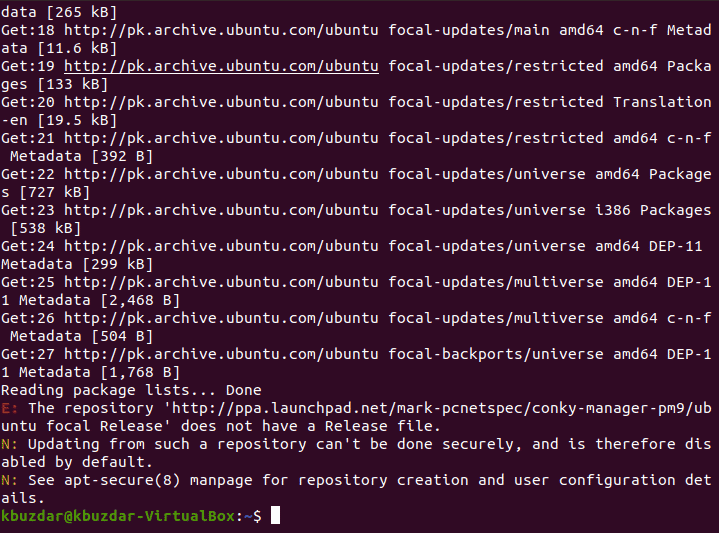
Since we will be installing some new packages in the upcoming steps, therefore, it is highly advisable that we update our system first with the command shown below:

Once your Ubuntu 20.04 system is fully updated, its terminal will look something like this:
Step # 2: Install Python on Ubuntu 20.04 System:
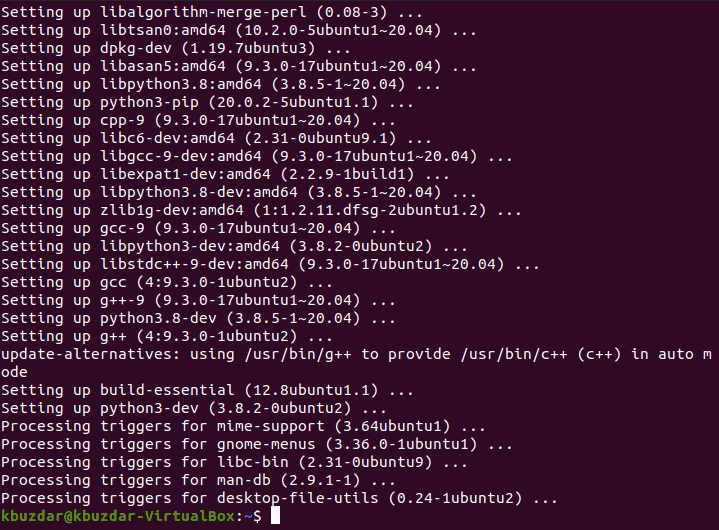
Now, we need to install Python on our Ubuntu 20.04 system. This step is mandatory for the successful installation of the Speedtest CLI utility on our Ubuntu 20.04 system. Python can be installed with the following command:

It will take around two to three minutes for the Python installation to complete on your Ubuntu 20.04 system after which you will be able to see the messages shown in the image below on your screen:
Step # 3: Install the Speedtest CLI Utility on your Ubuntu 20.04 System:
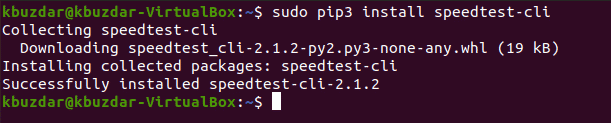
After the successful installation of Python, we can conveniently install the Speedtest CLI utility on our Ubuntu 20.04 system with the following command:

The successful installation of the Speedtest CLI utility on your Ubuntu 20.04 system will display messages similar to the ones shown in the image below on your terminal:
Step # 4: Use the Speedtest CLI Utility for Testing the Internet Speed on your Ubuntu 20.04:
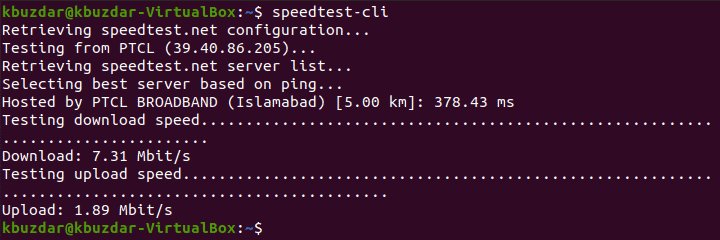
Now, we can easily use the Speedtest CLI utility for testing the Internet speed of our Ubuntu 20.04 system with the following command:

It will take a few seconds for this utility to fetch real-time data from the Internet after which you will be able to see a full-fledged report on your Ubuntu 20.04 terminal as shown in the image below:
Bonus Tip:
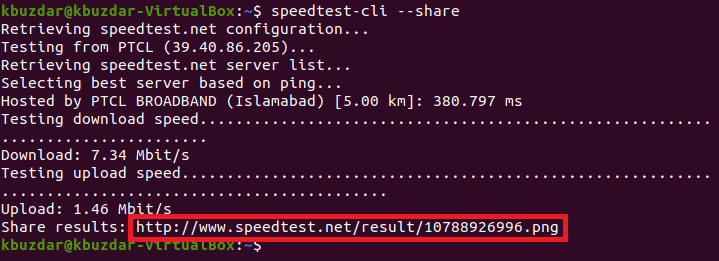
If you want to share your Internet speed with someone, you can easily generate a shareable link for that which anyone can open in his/her browser to view your Internet speed. The shareable link can be generated by running the following command:

The shareable link for our current Internet speed is highlighted in the image shown below:
Now, we will attempt to copy and paste this link in our browser as shown in the following image:
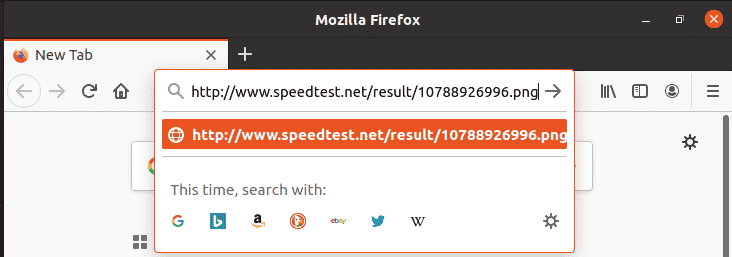
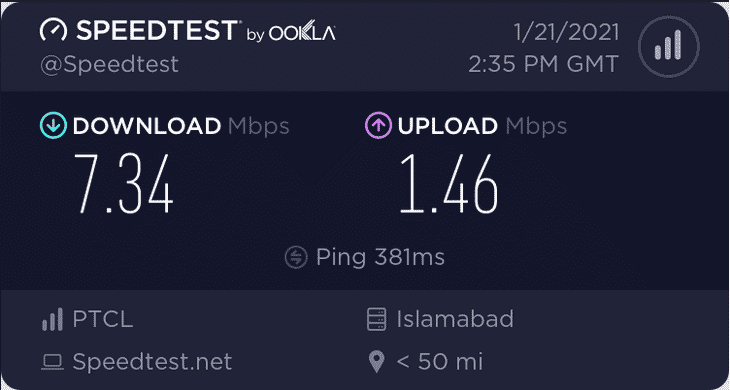
When we will press the Enter key, we will be able to see an image of our Internet speed report within our browser as shown in the image below:
Method Uninstalling the Speedtest CLI from Ubuntu 20.04:
The uninstallation method of the Speedtest CLI utility is a bit tricky as you have to remove the packages in the reverse order of installation. We have explained all the steps below:
Step # 1: Remove the Speedtest CLI Utility from your Ubuntu 20.04 System:
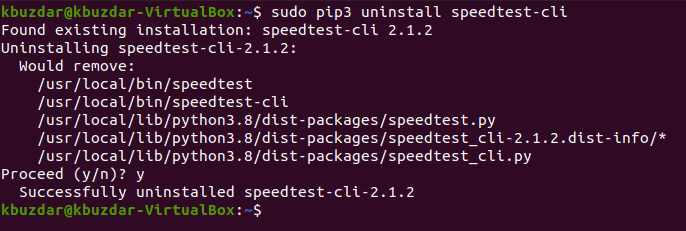
First, you have to remove the Speedtest CLI utility from your Ubuntu 20.04 system with the following command:

After running this command, you will receive a success message on your terminal as shown in the image below:
Step # 2: Remove Python from your Ubuntu 20.04 System:
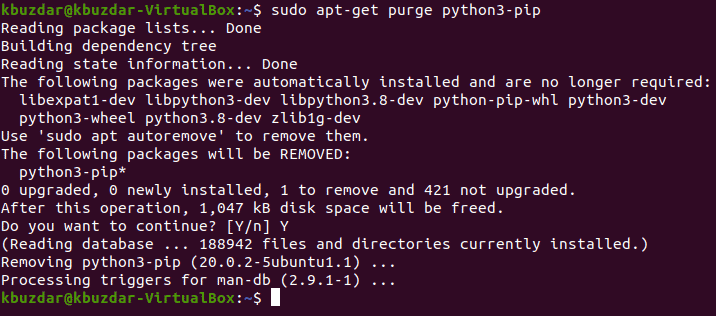
Now, you need to remove Python from your Ubuntu 20.04 system with the following command:

This command will ensure that Python gets removed along with all of its configuration files after which you will see these messages on your terminal:
Step # 3: Remove all the Additional Packages and Dependencies that are no longer needed on your Ubuntu 20.04 System:
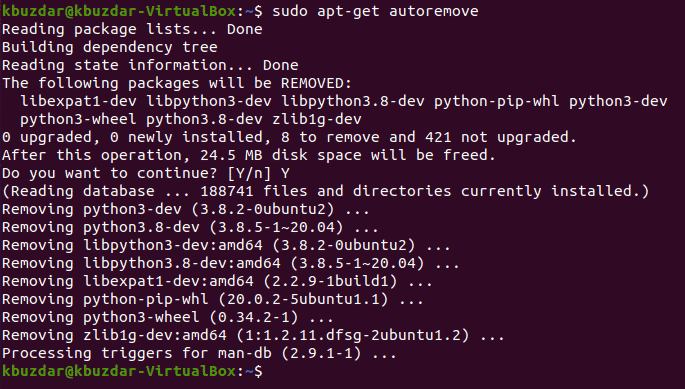
Finally, we can also remove all those packages and dependencies that are no longer needed after uninstalling the above two packages. This can be done by executing the command shown below:

Once the goal of this command will be accomplished, it will display these messages on the terminal:
Conclusion:
By going through today’s article, you will easily be able to install and use the Speedtest CLI utility to test your Internet speed while using Ubuntu 20.04. Finally, when you no longer want to use this utility, then you can conveniently uninstall it with the method prescribed in this article.

Ayesha Sajid has secured a Bachelors degree in Computer Sciences and currently, she is doing her Masters in Information Security. She is a technical content writer by profession who has experience in working with Windows and the different flavours of Linux operating system.