Как узнать версию CentOS 7
Вам может понадобиться версия установленной операционной системы, когда нужно решить какую-нибудь проблему с дистрибутивом или когда вы оставляете на форуме вопрос о том, как что-то настроить.
В этой статье мы рассмотрим, как узнать версию CentOS 7, посмотреть уровень обновлений, а также узнать версию ядра, которая сейчас используется. Инструкция написана для CentOS 7, однако она подойдёт и для более ранних версий дистрибутива, так как файлы, содержащие основную информацию, одинаковы во многих версиях.
Как узнать версию CentOS 7
Основная информация о дистрибутиве и его версии хранится в этих четырёх файлах:
- /etc/centos-release
- /etc/os-release
- /etc/redhat-release
- /etc/system-release
В моём случае это CentOS 7.6.1810:
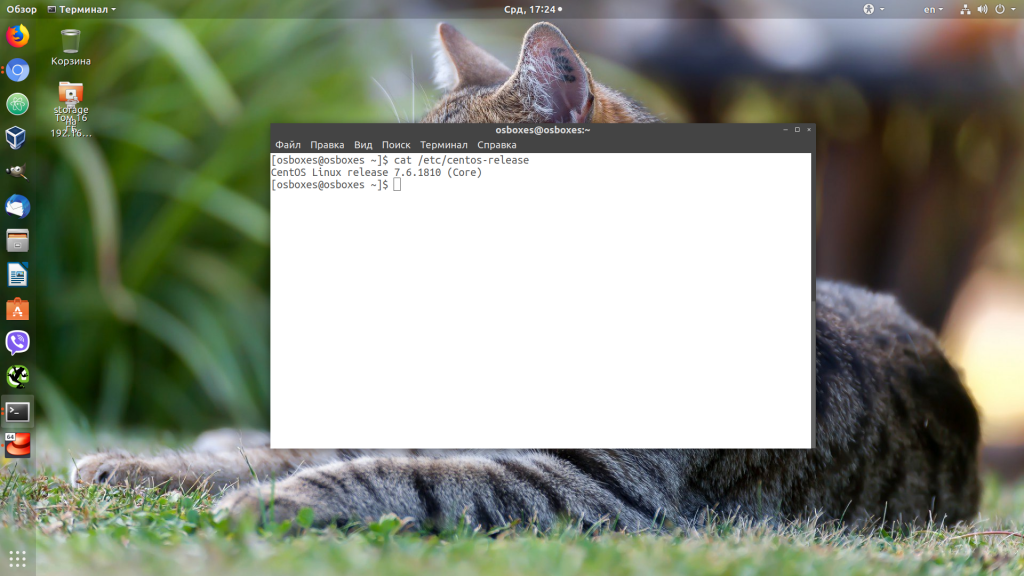
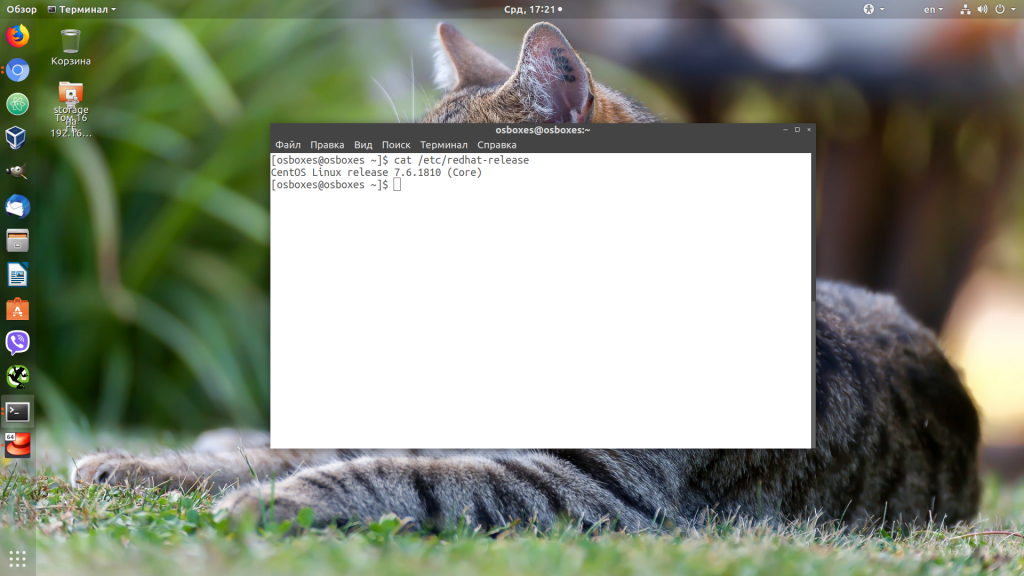
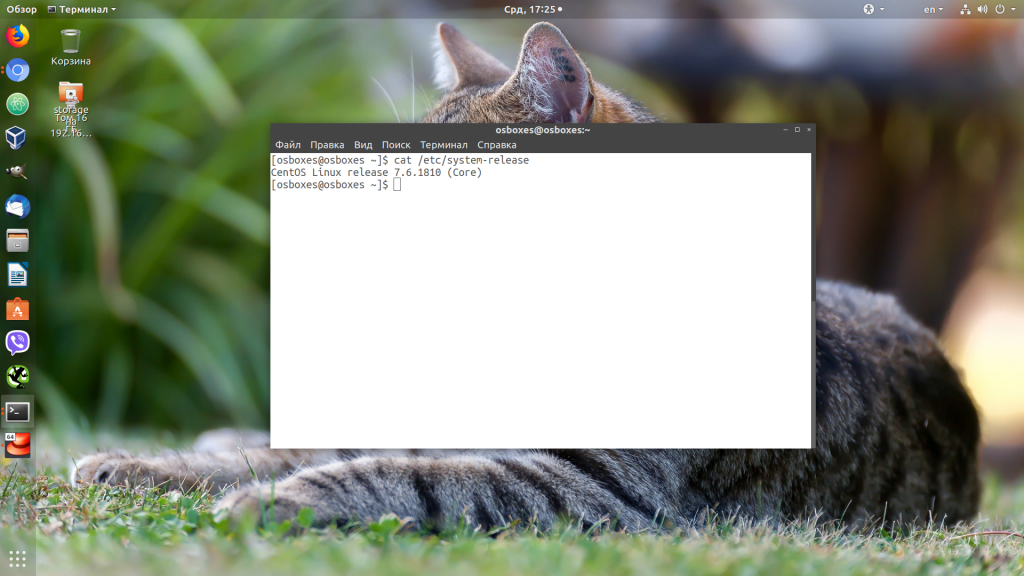
У CentOS 7 на данный момент используется rolling-система обновления, это значит, что при выходе новой версии вам не нужно переустанавливать систему, а достаточно только обновить её штатной утилитой yum. Но это только в рамках седьмой версии. Поэтому важно не только то, что это CentOS 7, но и остальные цифры имеют значение. В остальных файлах тоже находится подобная информация:
cat /etc/redhat-release cat /etc/system-release
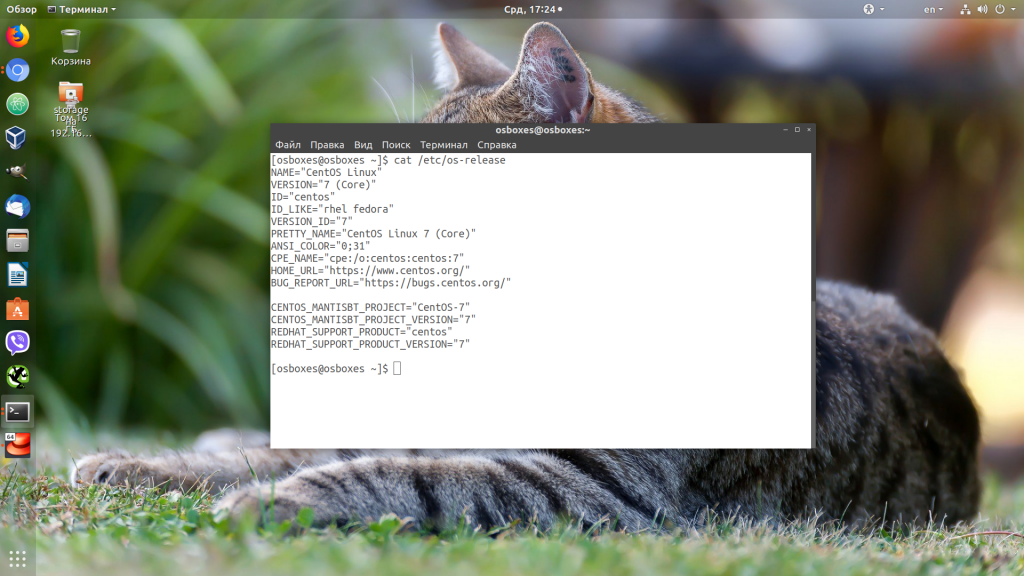
В файле /etc/os-release хранится только информация о том, что это седьмая версия CentOS 7:
Все эти четыре файла принадлежат к пакету centos-release. Поэтому вы можете узнать версию дистрибутива, ещё и посмотрев версию этого пакета:
rpm -qf /etc/redhat-release
Версию CentOS и версию ядра можно посмотреть с помощью утилиты hostnamectl:
Ещё один способ посмотреть версию CentOS — это утилита lsb_release. Она находится в пакете redhat-lsb и по умолчанию не установлена. Для её установки выполните:
yum install redhat-lsb
Затем можно выполнить команду:
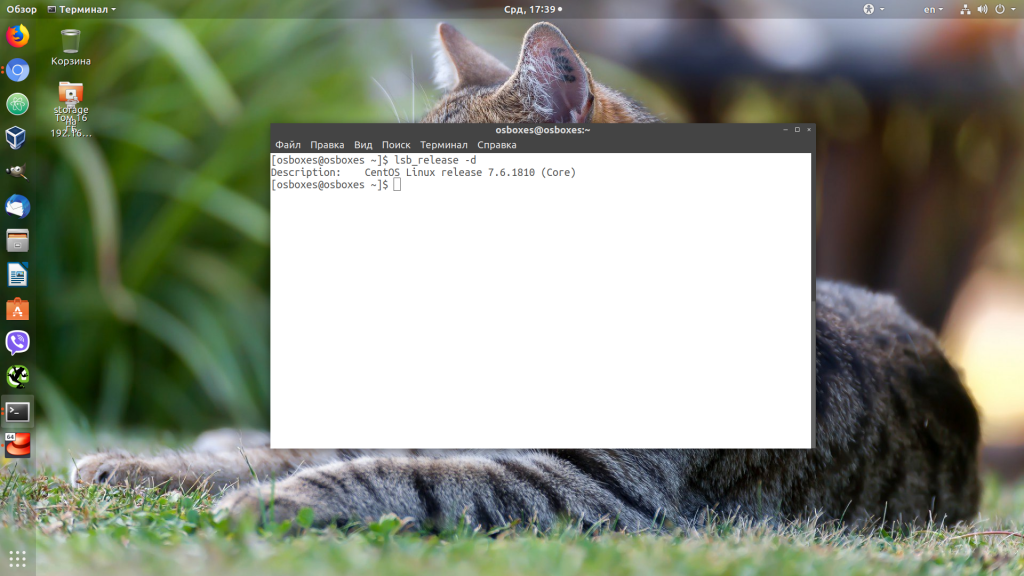
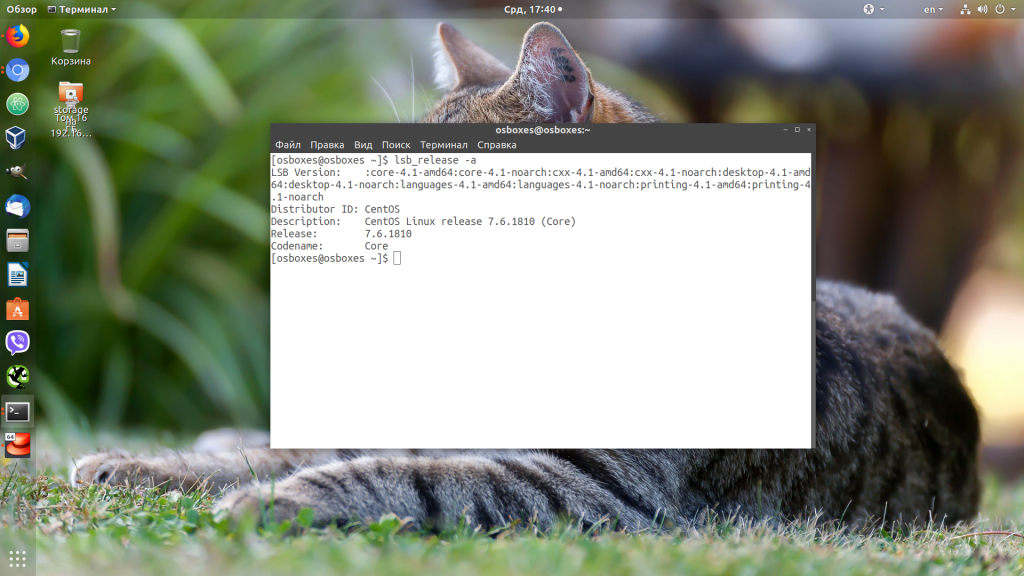
Для просмотра полной информации используйте опцию -a:
Как посмотреть версию ядра в CentOS 7
Как и в других дистрибутивах, в CentOS для просмотра информации о ядре используется утилита uname. Для просмотра всей доступной информации используйте опцию -a:
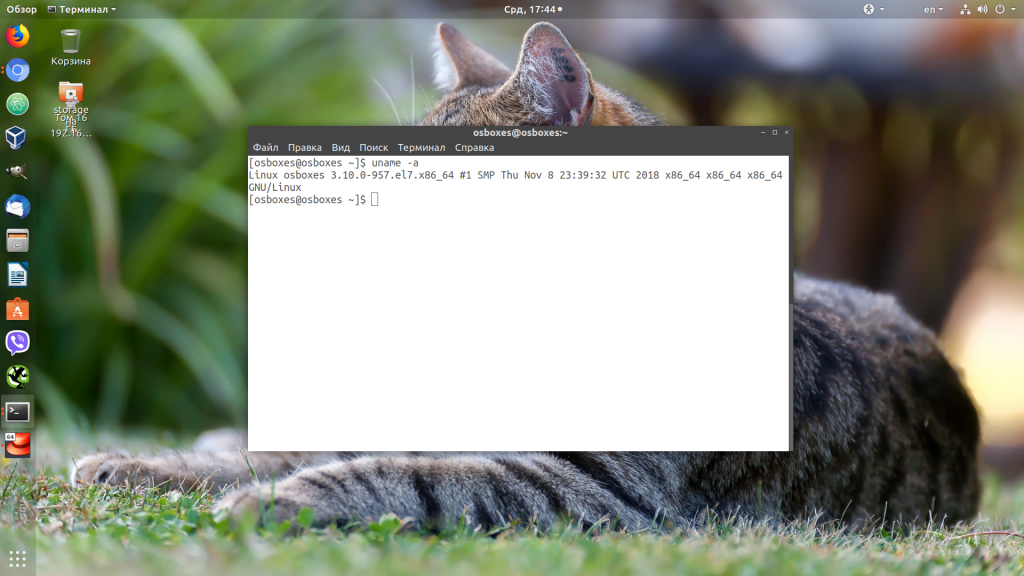
Для просмотра только версии ядра укажите опцию -r:
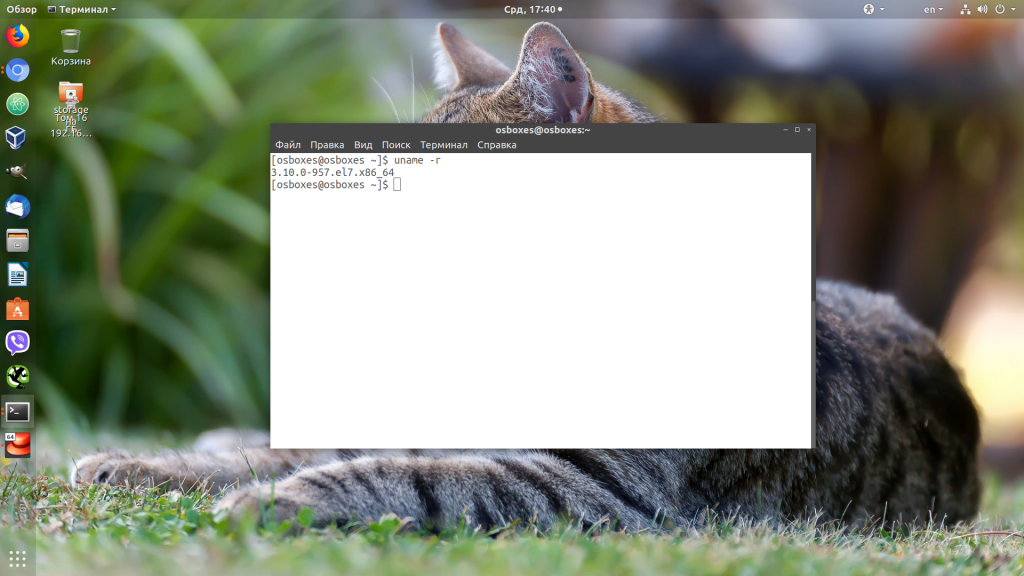
А чтобы узнать дату и время компиляции ядра, выполните:
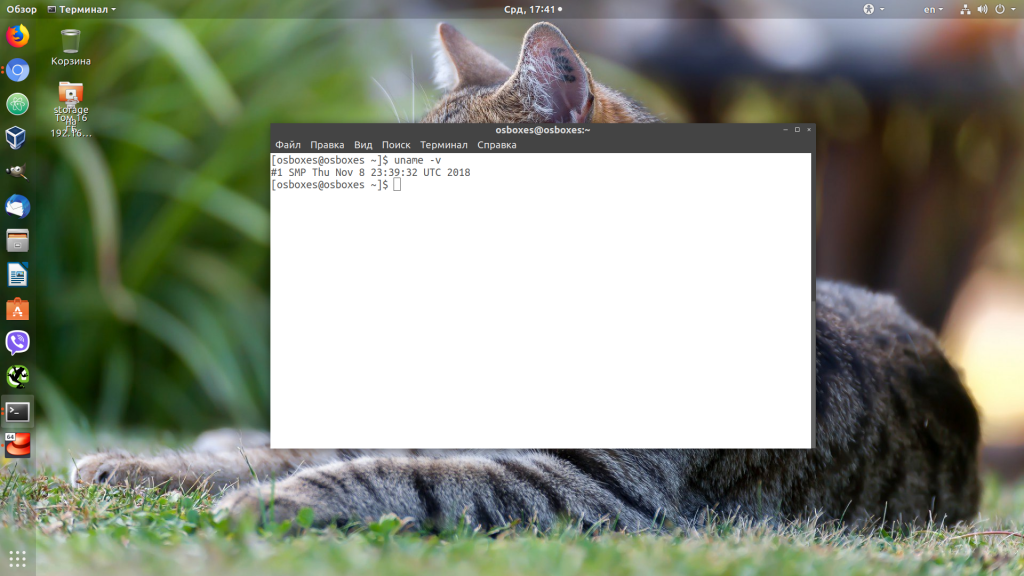
Выводы
В этой небольшой статье мы разобрали, как посмотреть версию CentOS 7 различными способами. А какие ещё способы вы знаете для просмотра версии дистрибутива? Напишите в комментариях!
Как узнать версию ядра Linux

Существует несколько способов узнать, какая версия ядра установлена на текущий момент. Самый простой способ – использовать команду uname. Она выводит информацию о системе. Чтобы узнать информацию о версии, добавляем ключ -а
Получаем вывод, где указывается информация о ядре Linux, имя компьютера, дата сборки ядра, название дистрибутива и версия ядра.
Для того, чтобы получить информацию только о версии ядра, указываем опцию –r
Или откраем строку запуска Grub при помощи команды
После параметра BOOT_IMAGE указывается полный путь к образу ядра.
Можно также прописать путь к файлу version, который хранится в файловой системе /proc
Та же самая информация имеется в логе dmesg
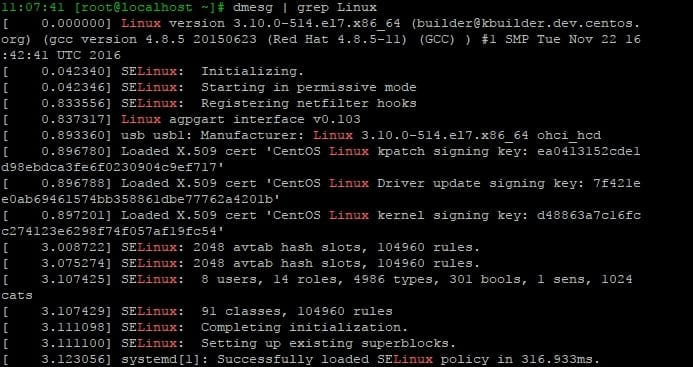
Данные о версии ядра отображаются в самом начале.
В Red Hat / CentOS для просмотра версии ядра можно использовать утилиту rpm
Хотите разобраться в Linux от А до Я? Записывайтесь на наши авторские курсы!
6 ways to check Linux kernel version

This post aims at checking your Linux kernel version using commands. We will be discussing different ways to fetch this data from your system. Below is a list of commands which can be used to get Linux kernel version details.
You can use below 7 ways to gather info about your distribution like kernel version in CentOS, RHEL, SUSE, OEL, Ubuntu, Debian Linux. All the below outputs are from my test machine running CentOS 7.
1. By reading version process file.
This gives you running kernel version.
3.10.0-693.5.2.el7.x86_64 is your current kernel distribution version.
2. By reading Distro release file in /etc
Almost all distributions of Linux come with a release file in /etc which contains the kernel version, release details in it. Its a text file hence cat can be used to read its content.
OR simple use wildcard so that you can list the release file of any distro. All distro keeps diff filenames so using wildcard will be wise. In some distro, you will see /etc/os-release or /etc/system-release files as well. All these files will be covered when using wild cards.
3. By listing release package
This command works for RPM-based systems like RHEL, SUSE, OEL, CentOS, etc. Search and grep for release which will show you release package. This package name convention includes release number in it.
4. Using uname command
This command works on all flavors of Linux. You can use it on RHEL, SUSE, OEL, Debian, Ubuntu, etc.
This value indicates your current kernel version.
5. Using lsb_release command
lsb_release command is provided by redhat-lsb package. You need to install redhat-lsb package in order to use this command on RHEL, CentOS or Fedora systems.
6. Using hostnamectl command
In newer kernels, hostnamectl command is introduced. Using this command without any argument will show you all details about your kernel. You can use it to set your hostname as well.
How to Check CentOS Version
Knowing the exact kernel version or OS version is sometimes necessary while troubleshooting an issue or providing information to the support team. This post will assist you to determine the OS and kernel version of the CentOS or RHEL system you are running.
There are 2 major things to check when it comes to finding the version of any Linux system. They are
1. Check the OS Update Level
2. Check the running kernel version
1. Check the CentOS/RHEL OS Update Level
The 4 files shown below provides the update version of the CentOS/Redhat OS.
- /etc/centos-release
- /etc/os-release
- /etc/redhat-release
- /etc/system-release
The content of each of the above files from a CentOS 7.4 system is shown below.
The above 4 files are provided by the package centos-release.
You can find out release information by checking the versioning reported the rpm database. For example:
2. Check the Running Kernel version
You can find out which CentOS kernel version and architecture you are using with the uname command. Do “man uname” for details of the uname command.
Check kernel compile time (uname -v) and compare with known value:
You can also Verify the kernel package using the rpm command. The command would produce an output only if there is any issue with the installed kernel.
Checking CentOS 7 version
Apart from all the above commands, you can also use the command “hostnamectl” to find OS version information in CentOS 7 systems. For example:
Checking the LSB version
Another way to check the centOS version is using the “lsb_release” command. The lsb_release command is provided by the package “redhat-lsb”. This package may not be present by default on the system and you may need to install it first.
Examples of lsb_release command:
Check OS version with GRUB configuration files
Using the GRUB configuration file is not a recommended way of checking the OS version, but I would still like to mention this method here for your information. Search for the “menuentry” (For CentOS 7) and “title” (For CentOS 6) in the GRUB configuration file to find the OS version.
CentOS 7 Example
In case of CentOS 7, you can also get the current kerel version from the file /boot/grub2/grubenv. For example: