Как установить среду рабочего стола XFCE на Debian 11
В этом руководстве мы покажем вам, как установить среду рабочего стола XFCE на Debian 11. Для тех из вас, кто не знал, Xfce — это облегченная среда рабочего стола для UNIX-подобных операционных систем. Он нацелен на быстрое и легкое использование системных ресурсов, при этом оставаясь визуально привлекательным и удобным для пользователя. В отличие от рабочих столов GNOME и KDE, которые тяжелее, но XFCE использует меньше системных ресурсов.
В этой статье предполагается, что у вас есть хотя бы базовые знания Linux, вы знаете, как использовать оболочку, и, что наиболее важно, вы размещаете свой сайт на собственном VPS. Установка довольно проста и предполагает, что вы работаете с учетной записью root, в противном случае вам может потребоваться добавить ‘ sudo ‘ к командам для получения привилегий root. Я покажу вам пошаговую установку XFCE на Debian 11 (Bullseye).
Установите среду рабочего стола XFCE на Debian 11 Bullseye
Шаг 1. Перед установкой любого программного обеспечения важно убедиться, что ваша система обновлена, выполнив следующие apt команды в терминале:
Шаг 2. Установка среды рабочего стола XFCE в Debian 11.
Просто веселое видео для отвлечения и расслабления в течение 2 минут
По умолчанию XFCE доступен в базовом репозитории Debian 11. Теперь выполните следующую команду, чтобы установить XFCE в вашу систему Debian:
Во время установки вам будет предложено выбрать диспетчер отображения по умолчанию, здесь мы переходим lightdm и нажимаем клавишу TAP, чтобы выбрать ОК.
После успешной установки перезагрузите / перезапустите систему Debian:
Шаг 3. Доступ к среде рабочего стола XFCE в Debian.
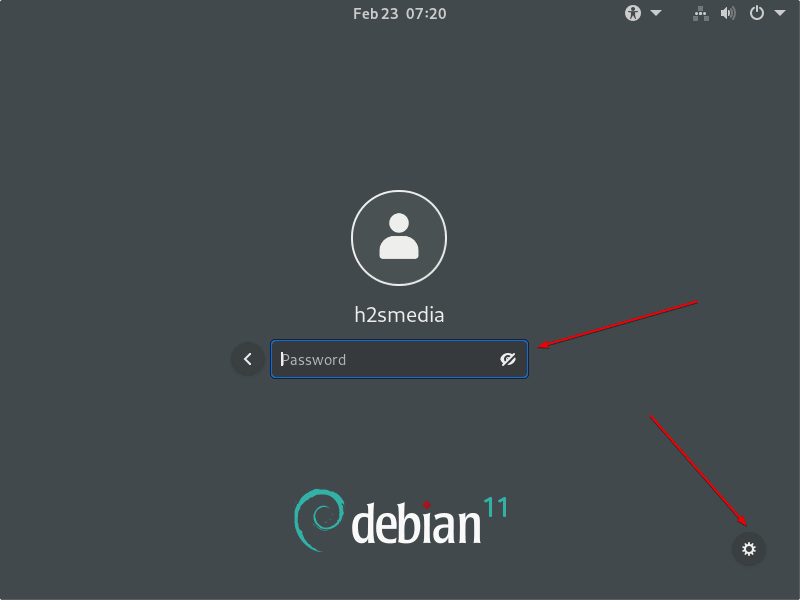
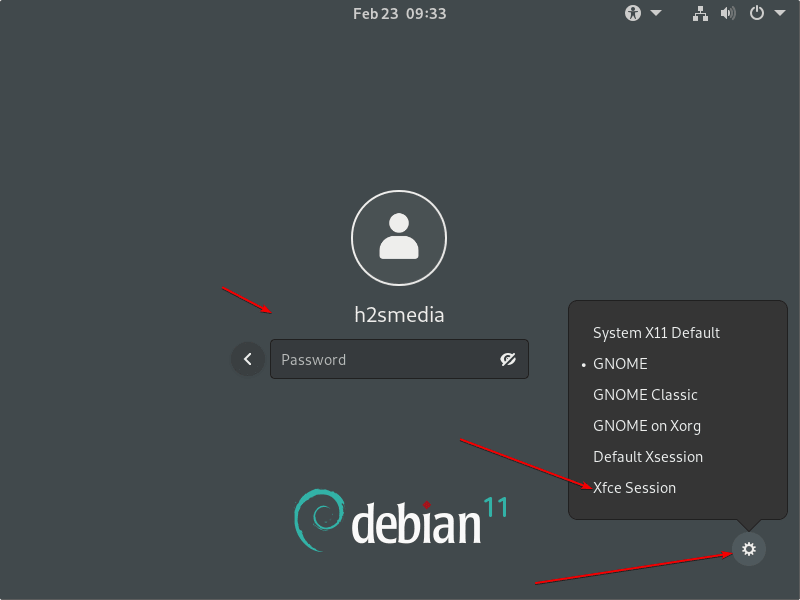
После перезагрузки компьютера выберите пользователя для входа в систему, затем щелкните значок в правом нижнем углу и выберите [Xfce Session] следующим образом:

Поздравляю! Вы успешно установили XFCE . Благодарим за использование этого руководства для установки последней версии XFCE Desktop Environment на Debian 11 Bullseye. Для получения дополнительной помощи или полезной информации мы рекомендуем вам посетить официальный сайт XFCE .
2 ways to install XFCE Desktop on Debian 11 Bullseye
Xfce is designed to run easily on slightly less powerful computers, mainly because of the somewhat lower system requirements. This lightweight desktop environment is very easy to use with the mouse and can be used to run all GNOME and KDE programs. Friends of Compiz can use Xfce too.
Ubuntu has been available with Xfce as the desktop environment in its official version – Xubuntu. However, since it is no longer a “pure” Xfce (various GNOME components have been integrated to increase comfort). Nevertheless – if you are a Debian Linux user with a command-line interface or graphical user interface with Gnome or any other, still we can install XFCE directly using the official Debian package source repository.
Steps to install XFCE Desktop environment on Debian 11 Bullseye
#1st Method
1. Requirements
To install XFCE Desktop on Linux, we need the following things:
• Debian 11
• A Non-root sudo user
• Internet connection
• CPU: 1.0Ghz+
• RAM: 512MiB+
• Hard drive space: 7.5GB
• Display of 800×600 resolution
2. Run APT system update
The packages we require to install is XFCE4 on Debian 11 are already available from the system’s official source repository. Hence, before going further, let’s first run the system update command to make sure our system is up to date.
3. Install Tasksel
Once the system is up to date, let’s use the APT package manager to install tasksel. It is a tool that can be used to download and install various desktop environments including Server software stacks such as Web servers.
4. Install XFCE Desktop on Debian 11
Let’s now use the tasksel to easily install and configure the XFCE desktop environment on Debian 11 Bullseye Linux. For that run:
Wait for some time, the new Desktop user interface will be on your system.
5. Reboot
Once the process of installing the XFCE desktop is done, just reboot your system:
6. Select XFCE Desktop
The users who are using the command-line interface on their Debian 11 Bullseye Linux will get the login interface. Whereas, those who are already using Gnome or any other Linux desktop environment need to select the user and then click on the Gear icon to select XFCE. After that select the user and log in.
#2nd method:
7. Install XFCE using APT
Well, if you don’t want to use Tasksel to automate the installation process, we can use the APT package manager to install this desktop environment on your system.
How to install XFCE on Debian 10/11

On this post we are going showcase the steps on how to install XFCE on Debian. XFCE is a lightweight desktop environment for UNIX-like operating systems and it’s good choice for PCs/Laptops that don’t have powerful hardware. We are going to show two ways how to install XFCE on Debian… one method is with the tool called tasksel, other is with the apt package manager using the terminal. We’ll be installing the XFCE 4 version of the desktop environment.
Install XFCE on Debian with tasksel
Tasksel is a tool available for Debian and Ubuntu. It’s a tool that has software list with all packages included for each software. Essentially, it automates the entire installation process. Tasksel also has all major desktop environments(Gnome, KDE, XFCE, MATE, Cinnamon ) ready to install. If you don’t have tasksel, you can install it using the command bellow:
Taskel is a terminal based software, so it runs within the terminal once you start it. Also, tasksel requires sudo to install some of the software, such as the desktop environments.
When you run the tasksel, first a software selection will show up. Here you need to choose which desktop environment to install.
In the selection screen, the first option – Debian desktop environment must be selected, otherwise tasksel won’t work. Then select the XFCE and navigate to OK to run the installation.

The installation process will take couple of minutes to install and during the installation process, you may get a prompt where it will ask you to choose which display manager to choose to run and manage the XFCE desktop on Debian if you have multiple desktop managers installed. I have that case and I choose the “lightdm“.

Select the display manager to finish the installation. Once the installation is complete, the tasksel will close and return to the regular terminal. When you see that, that means that the installation is done and after that you need to restart your PC/Laptop.
On the next boot and when you reach the login screen/lock screen, you choose which desktop you want to run. And that is it.
Install XFCE on Debian using apt package manager
The installation process for XFCE on Debian from terminal is pretty simple. We just need to run one command:

During the installation process, the same display manager prompt from above will appear here as well if you have more than one display manager installed. Choose the display manager you want and after the installation is complete, restart the PC/Laptop and on login screen select which desktop to run.
Summary
We covered two methods how to install XFCE on Debian 10 and on Debian 11. Both methods are pretty simple and easy to use in order to install XFCE on Debian. In the end, you choose which method you prefer and more familiar with.
One note to take in – Debian will not have/install the latest version of XFCE desktop. At the moment, Debian runs the XFCE version 4.12.
Install XFCE Desktop on Debian 11
This section enlists the importance of Xfce desktop environment over others: Xfce is lightweight desktop environment and is supported by lot of Linux distributions: For instance, there are few Linux distributions that comes with default Xfce desktop environment such as Zorin OSlite, MX Linux, Xubuntu, Manjaro Linux. Xfce desktop consumes very less memory (less than 200MB RAM) and it utilizes a minimum amount of CPU memory (300MHz). It is observed that every tool/package has some advantages and disadvantages as well, few dominant pros and cons of XFC:
Pros
- Lightweight which makes it suitable for older machines
- Modern and visually appearing
- Interface like windows
Cons
- Does not provide advanced level customization
How to install Xfce desktop environment on Debian 11
Firstly, update the packages list by issuing the command written below:
At this point, you are ready to install Xfce: the command mentioned below will install Xfce environment with all its packages: the task-xfce-desktop
Note: Below mentioned command contains task package, that is used to install Debian desktop with Xfce environment; this meta package consists of several packages that will be installed alongside Xfce for better experience:


The installation will take a few minutes depending upon the internet speed ; moreover, during installation a prompt window will be displayed that contains two famous display managers “GNOME display manager (gdm)” and “Light Display Manager (LightDM)”. You can install any of them; however, it is recommended to go with “LightDM” as it is supposed to be light and fast as compared to “gdm”.
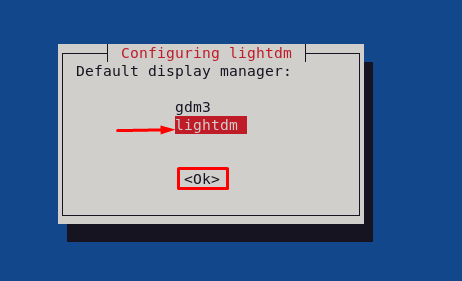
Once the environment is installed; check the default boot target by using the command mentioned below:

And if the boot target is not set to graphical; you can set it by using the command mentioned below:
Note: In our case, it is already set to graphical target:
Now reboot your Debian system to see the changes: once the system is on lock screen after rebooting; You have to select the “Xfce session” from available sessions: you can do so by clicking on setting icon placed on top right corner as shown below:
After changing the session, enter your username and password to log in:
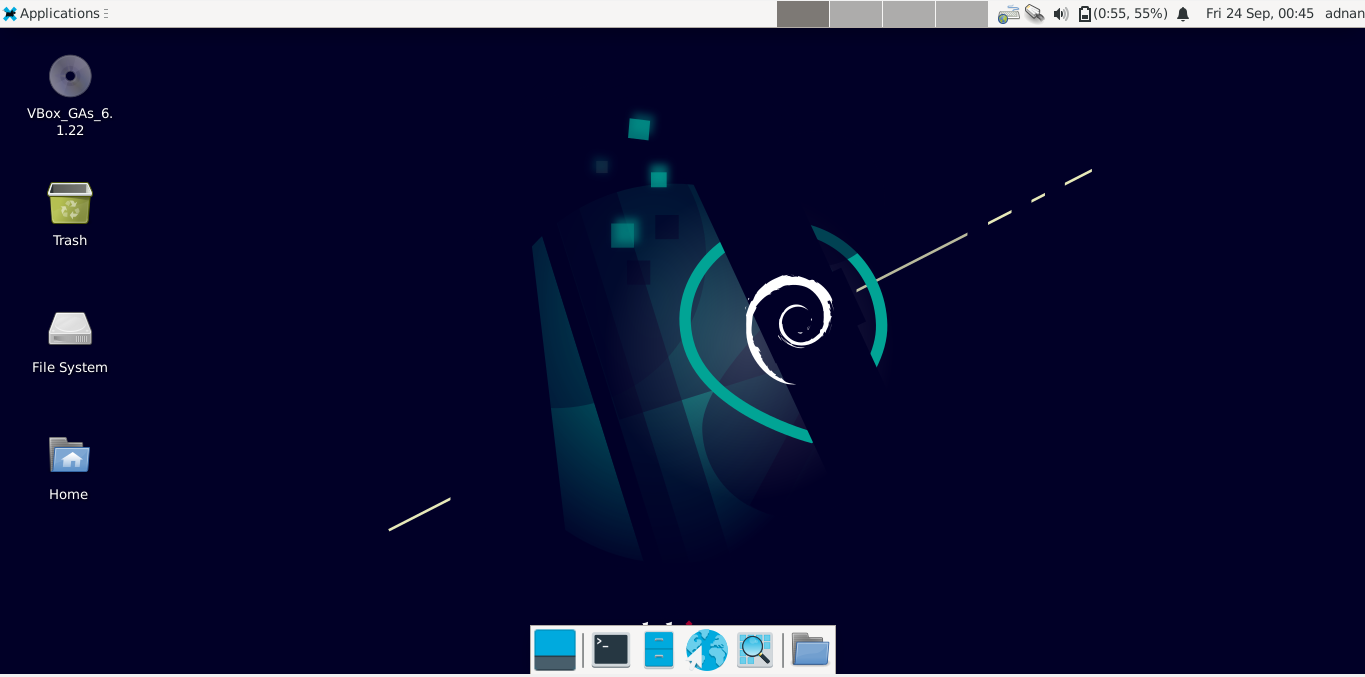
If we navigate to applications and open them; you will observe a completely different interface as compared to GNOME desktop environment of Debian 11:
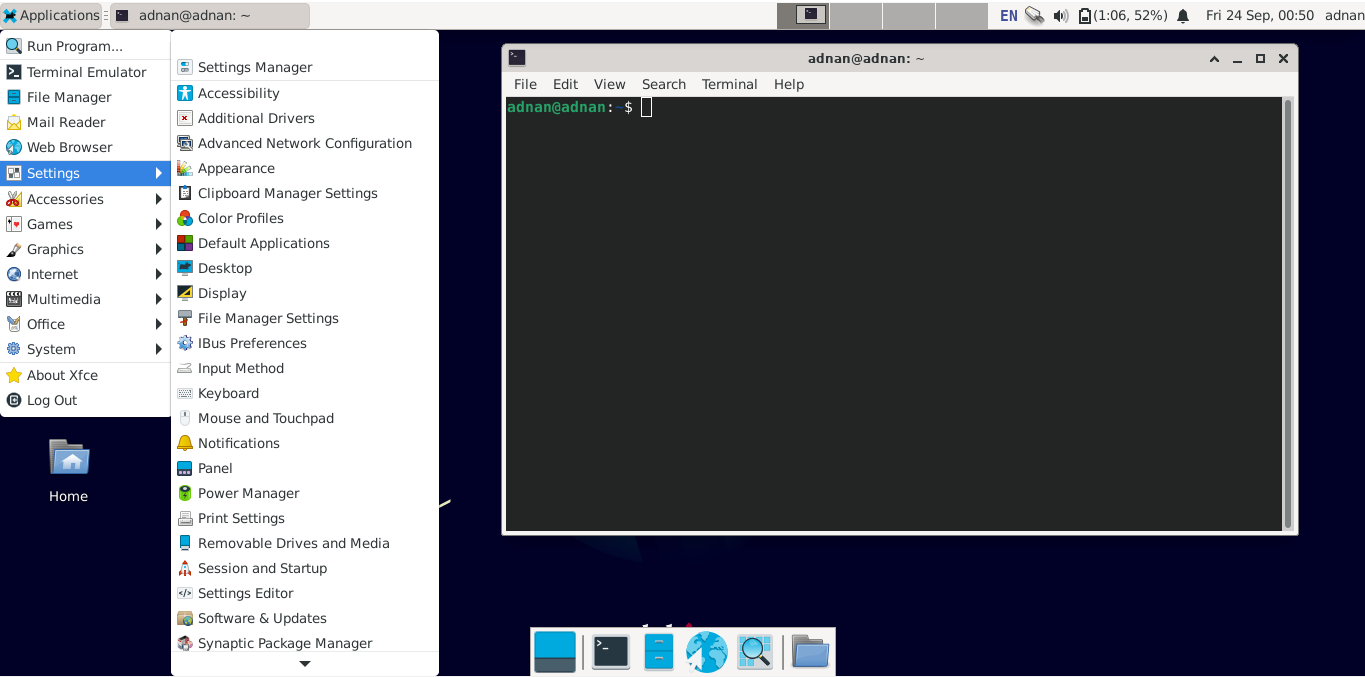
Conclusion
Linux has a long list of supported desktop environments that attracts users as other operating systems do not provide such support. Varying desktop interfaces are satisfying for users who have to spend a long time in front of the screen, but it can be source consuming as well so you have to choose wisely. In this post, the detailed installation guide of Xfce desktop environment on Debian 11: it is noticed that Xfce has an interactive interface as well as it consumes less resources than few other environments. Although the Xfce environment does have a graphical interface; but GNOME environment is very rich in graphical representation of Debian 11.