How to Rename Files in Linux
A command-line terminal is an essential tool for administrating Linux servers. It provides Linux users some of the best productivity tools while saving your machine’s resources.
To effectively use the potential of your OS, you will need to have strong knowledge of the fundamentals – simple Linux commands, like renaming existing files and folders. In this tutorial, you’ll learn how to rename folders in Linux.

How to Rename Files in Linux with the mv Command
Shortened from “move,” the mv command is one of the easiest commands to use. It can do two basic but essential tasks when handling files on Linux. One is moving files from one location to another, and the other is renaming one or more files through the terminal.
First, let’s see how renaming files with mv works on Linux.
To begin, we access our server through the command line using SSH. If you are unsure about SSH and would like to learn more, here’s a helpful tutorial.
To access our server, type the following into your terminal:
If we are using a local computer, instead of a server, then we will have to open the terminal from the main menu.
Afterward, it is important to know how the mv command works. To do this, we run the following:
As we can see in the previous image, the basic use of the mv command is as follows:
Here are some of the most popular mv options:
- -f – shows no message before overwriting a file.
- -i – displays warning messages before overwriting a file.
- -u – only move a file if it is new or if it does not exist in the destination.
- -v – show what the command does.
And the parameters are:
[SOURCE] – the source destination of the file
[DESTINATION] – the destination directory.
Rename File on Linux Using the mv Command
If we want to rename a file, we can do it like this:
Assuming we are located in the directory, and there is a file called file1.txt, and we want to change the name to file2.txt. We will need to type the following:
As simple as that. However, if you are not in the directory, you will need to type a bit more. For example:
Rename Multiple Files With the mv Command
The mv command can only rename one file, but it can be used with other commands to rename multiple files.
Let’s take the commands, find, for, or while loops and renaming multiple files.
For example, when trying to change all files in your current directory from .txt extension to .pdf extension, you will use the following command:
This will create a loop (for) looking through the list of files with the extension .txt. It will then replace each .txt extension with .pdf. Finally, it will end the loop (done).
If you want more advanced features, you’ll need to use the rename command, we’re about to cover.
Rename Files on Linux Using the Rename Command
With the rename command, you will have a bit more control. Many Linux configurations include it by default. But, if you don’t have it installed, you can do it in just a minute with a simple command.
In the case of Debian, Ubuntu, Linux Mint, and derivatives:
On the other hand, if you are using CentOS 7 or RHEL:
And, if you are using Arch Linux:
Now, we can start using the rename command. In general, the basic syntax of the rename command looks like this:
It may seem complex at first, but it’s a lot simpler than it might seem.
In this example, we will create a new folder called filetorename, and using the touch command, we will create 5 files.
With the last ls command, you can view the files that you created.
If we want to rename a single file called file1.txt, the sentence would be like this:
If we wanted to change the extension to all files, for example, to .php. We could do it this way:
We can also specify another directory where the files you want to rename are.
We’d like to mention that rename uses a regular expression of Perl, meaning this command has extensive possibilities.
Finally, it is a good idea to check all the command options. You can view them in the terminal by executing:
Some common examples of how to use the rename command are:
- Convert filenames to uppercase:
- Convert filenames to lowercase:
- Replace spaces in filenames with underscores:
Remove Rename Command
If you no longer wish to have rename installed on your system, remove it using the software manager. Or from the terminal.
For Debian, Ubuntu, Linux Mint and derivatives:
And for CentOS and RHEL:
That’s it, rename is removed from your Linux machine.
Conclusion
Renaming files in Linux using the terminal is a simple and practical task but sometimes very important. Knowing how to do it is something every server manager should know.
As we have seen, there are two commands that can do it. One is simpler than the other, but both accomplish the task.
We encourage you to continue researching these commands and improving the quality of your everyday workflow.
Learn More Linux Commands for File Management
How to Rename Files In Linux FAQ
What Linux Command Lets You Rename Files?
Use the move (mv) command on Linux to rename files and folders. The system understands renaming files as moving the file or folder from one name to another, hence why the mv command can be used for renaming purposes, too.
How Do You Rename Multiple Files In Linux?
You can rename multiple files in Linux in many ways. You can batch rename by using mmv, bulk rename files with the rename utility, use renameutils or vimv, or use Emacs or Thunar file manager to execute the task.
Edward is a content editor with years of experience in IT writing, marketing, and Linux system administration. His goal is to encourage readers to establish an impactful online presence. He also really loves dogs, guitars, and everything related to space.
How to Rename Files in Linux
Linux provides several options for renaming files, including using the GUI and multiple dedicated terminal commands. This makes it relatively easy to rename individual files, but it can be challenging to rename multiple files at once.
In this tutorial, we will go over different commands you can use in the Linux terminal to rename files in Linux.
- A system running a Linux distribution
- An account with sudo privileges
- Access to the terminal window/command line
- Access to a text editor, such as Vim or Nano
Rename Files with the mv Command
The Linux mv (move) command is used to move files and directories from the terminal. It uses the following syntax:
If you specify a directory as the destination when using the mv command, the source file moves to that directory. If the destination is another file name, the mv command renames the source file to that name instead.
Note: Learn more about using the mv command in our guide to moving directories in Linux.
Rename a Single File with the mv Command
Using the mv command with its default syntax allows you to rename a single file:
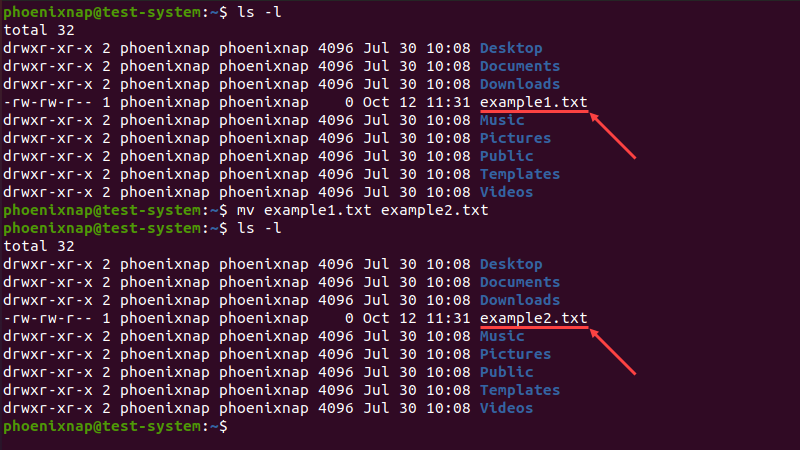
For example, if we want to rename example1.txt into example2.txt, we would use:
Since there is no output if the command is successful, we are using the ls command to check if the name is changed:
Rename Multiple Files with the mv Command
On its own, the mv command renames a single file. However, combining it with other commands allows you to rename multiple files at the same time.
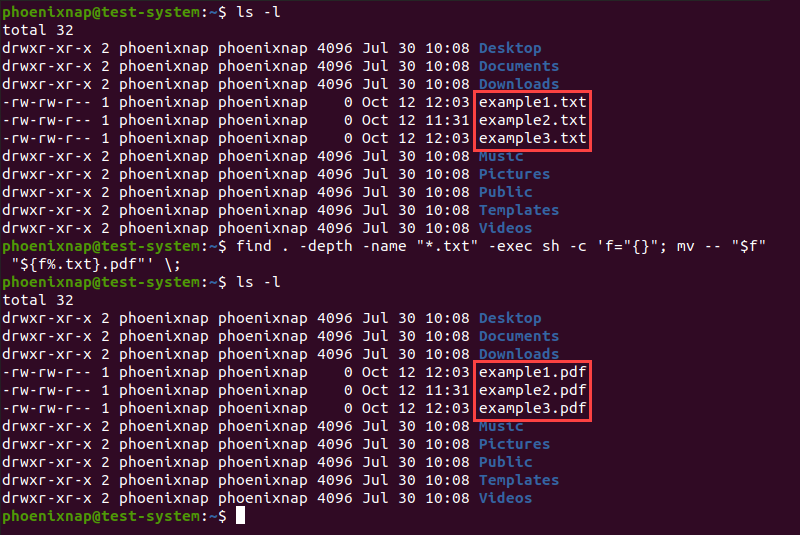
One method is to use the find command to select multiple files with a similar name, then use the mv command to rename them:
Using this syntax, the find command defines an element of the current file name as the search parameter. Next, -exec executes the mv command on any files that match the search, changing their current filenames to the new one.
For instance, if we have example1.txt, example2.txt, and example3.txt and want to change the extension to .pdf:
Another method is to use the mv command as a part of a <strong>for</strong> loop in a bash script.
Using the same example, start by creating and opening a bash script file using a text editor such as Nano:
Add the following lines to the script:
In the script above:
- The first line instructs the script to search for all the files in the current directory ending with .txt.
- The second line uses the mv command on each file found to replace the .txt extension with .pdf.
- The third line ends the loop segment.
Press Ctrl+X, then type Y and press Enter to save the changes to the script and exit.
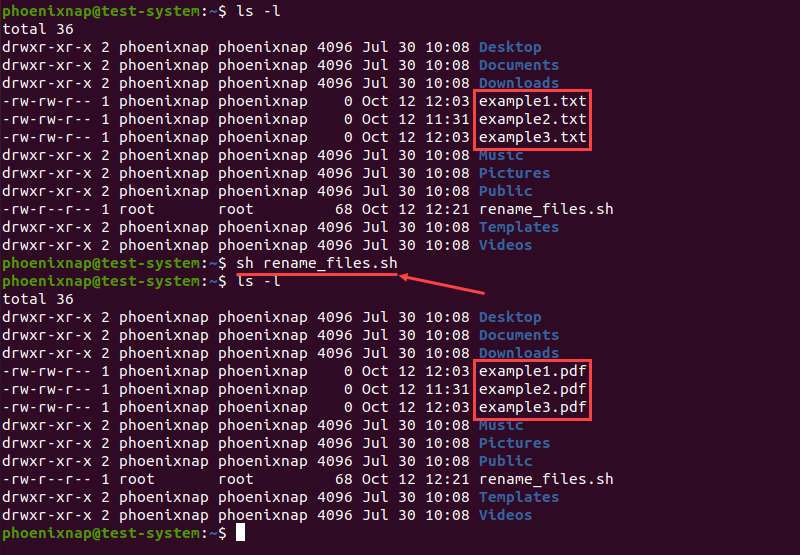
Use the sh command to execute the script:
Note: Learn how to compare two files using the diff command.
Rename File with the rename Command
The rename command is used to rename multiple files or directories in Linux. It offers more features than the mv command but can be more challenging to use since it requires basic knowledge of Perl expressions.
How to Install the rename Command
On many Linux distributions, the rename command is not available by default. If your system is missing the rename command, install it with:
- For Ubuntu and Debian, use sudo apt install rename
- For CentOS and Fedora, use sudo yum install prename
- For Arch Linux, use sudo pacman -S rename
rename Command Syntax and Options
There are three types of Perl regular expressions: match, substitute and translate. The rename command uses substitute and translate expressions to change file and directory names.
Substitute expressions replace a part of the filename with a different string. They use the following syntax:
With this syntax, the command renames the file by replacing the first occurrence of the filename element with the replacement. In the command above:
- rename : Invokes the rename command.
- [options] : Provides an optional argument that changes the way the command executes.
- s : Indicates a substitute expression.
- [filename element] : Specifies the part of the filename you want to replace.
- [replacement] : Specifies a replacement for the part of the current filename.
- [filename] : Defines the file you want to rename.
A translate expression translates one string of characters into another, character for character. This type of expression uses the following syntax:
An example of a rename command using a translate expression:
In this example, every a character in the filename is replaced by an x, every b by a y, and every c by a z.
The rename command uses the following options:
- -a : Replaces all the occurrences of the filename element instead of just the first one.
- -f : Forces an overwrite of existing files.
- -h : Displays the help text.
- -i : Displays a prompt before overwriting existing files.
- -l : Replaces the last occurrence of the filename element instead of the first one.
- -n : Performs a dry run, making no permanent changes. Best combined with the verbose output ( -v ).
- -s : Renames the target instead of the symlink.
- -v : Shows a verbose version of the output.
- -V : Displays the command version.
rename Command Examples
1. Change File Extension
Returning to our last example, to change the file extension from .txt to .pdf, use:

2. Replacing a Part of a Filename
Replacing a different part of the filename follows the same syntax. To rename example1.txt, example2.txt, and example3.txt to test1.txt, test2.txt, and text3.txt, use:

3. Delete a Part of a Filename
The rename option also allows you to delete a part of the filename by omitting the replacement part of the expression. For instance, if we want to shorten example into ex:

4. Rename Files with Similar Names
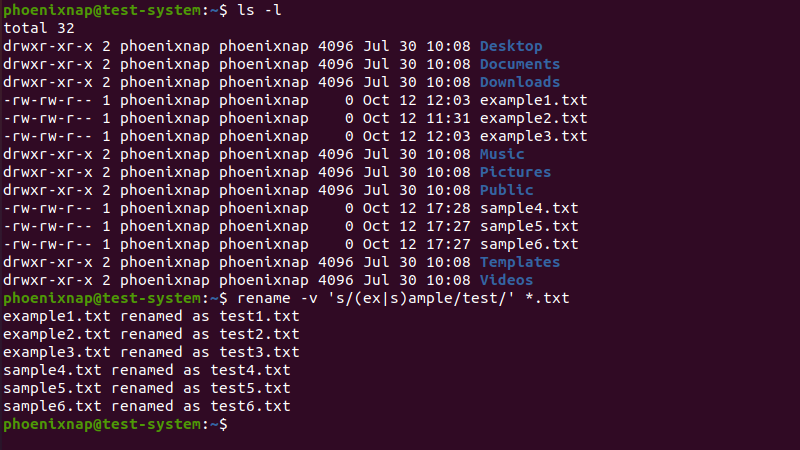
Another use for the rename option is to rename files with similar names. For instance, if we want to rename files with example and sample in their name to test:
5. Rename Files Character-by-Character
The rename command also allows you to use translate expressions to rename files on a character-by-character basis. For instance, if you want to rename multiple files named example file by replacing the blank space with an underscore (_):

6. Convert Lowercase Characters
To convert lowercase characters in filenames into uppercase characters, use:

7. Convert Uppercase Characters
The reverse also works if we switch the order of the uppercase and lowercase characters in the expression:

Note: Be careful when changing the character case, as this also changes the file extension.
After reading this tutorial, you should be able to rename files using the mv and rename commands in Linux.
Rename a File in Linux – Bash Terminal Command

Zaira Hira

Renaming files is a very common operation whether you are using the command line or the GUI.
Compared to the GUI (or Graphical User Interface), the CLI is especially powerful. This is in part because you can rename files in bulk or even schedule the scripts to rename files at a certain point in time.
In this tutorial, you will see how you can rename files in the Linux command line using the built-in mv command.
How to Use the Linux mv Command
You can use the built-in Linux command mv to rename files.
The mv command follows this syntax:
Here are some of the options that can come in handy with the mv command:
- -v , —verbose : Explains what is being done.
- -i , —interactive : Prompts before renaming the file.
Let’s say you want to rename index.html to web_page.html . You use the mv command as follows:
Let’s list the files and see if the file has been renamed:
How to Name Files in Bulk Using mv
Let’s discuss a script where you can rename files in a bulk using a loop and the mv command.
Here we have a list of files with the extension .js .
Next, you want to convert them to .html .
You can use the command below to rename all the files in the folder:
Let’s break down this long string to see what’s happening under the hood:
- The first part [ for f in *.js ] tells the for loop to process each “.js” file in the directory.
- The next part [ do mv — «$f» «$
- The last part [ done ] simply ends the loop once all the files have been processed.
Conclusion
As you can see, renaming files is quite easy using the CLI. It can be really powerful when deployed in a script.
Как переименовать файл Linux
Переименование файла linux — очень простая операция, но для новичков в Linux эта задача может оказаться сложной. Также здесь есть несколько нюансов и возможностей, которые желательно знать уже опытным пользователям, например, массовое переименование. В графическом интерфейсе все делается очень просто, но настоящую гибкость дает терминал.
В этой статье мы рассмотрим как переименовать файл в Linux с помощью терминала, рассмотрим такие возможности, как массовое пакетное переименование файлов, а также регулярные выражения.
Как переименовать файл в Linux с помощью mv
В Linux существует замечательная стандартная утилита mv, которая предназначена для перемещения файлов. Но по своей сути перемещение — это то же самое, что и переименование файла linux, если выполняется в одной папке. Давайте сначала рассмотрим синтаксис этой команды:
$ mv опции файл-источник файл-приемник
Теперь рассмотрим основные опции утилиты, которые могут вам понадобиться:
- -f — заменять файл, если он уже существует;
- -i — спрашивать, нужно ли заменять существующие файлы;
- -n — не заменять существующие файлы;
- -u — заменять файл только если он был изменен;
- -v — вывести список обработанных файлов;
Чтобы переименовать файл linux достаточно вызвать утилиту без дополнительных опций. Просто передав ей имя нужного файла и новое имя:
mv file newfile
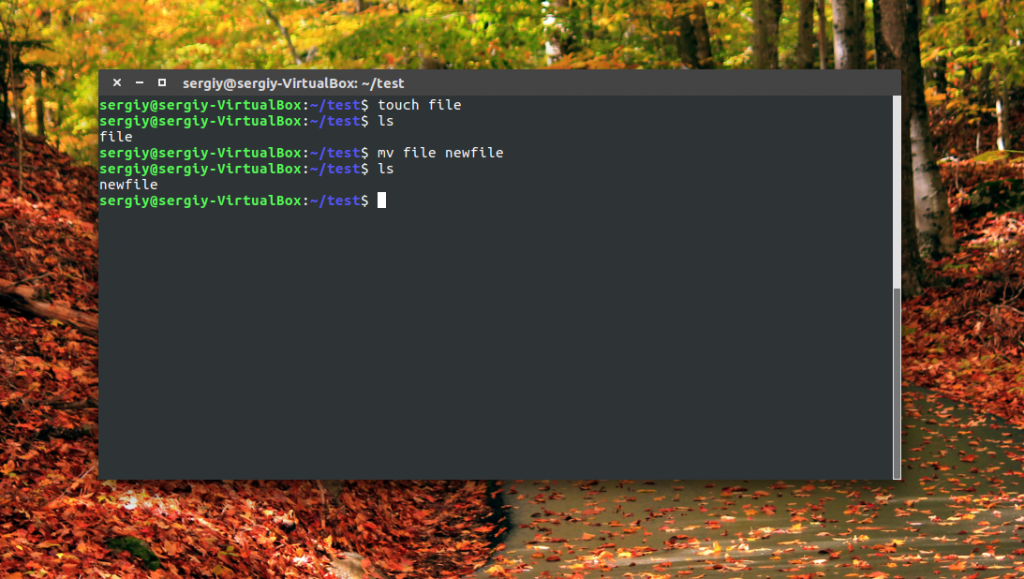
Как видите, файл был переименован. Вы также можете использовать полный путь к файлу или переместить его в другую папку:
mv /home/sergiy/test/newfile /home/sergiy/test/file1
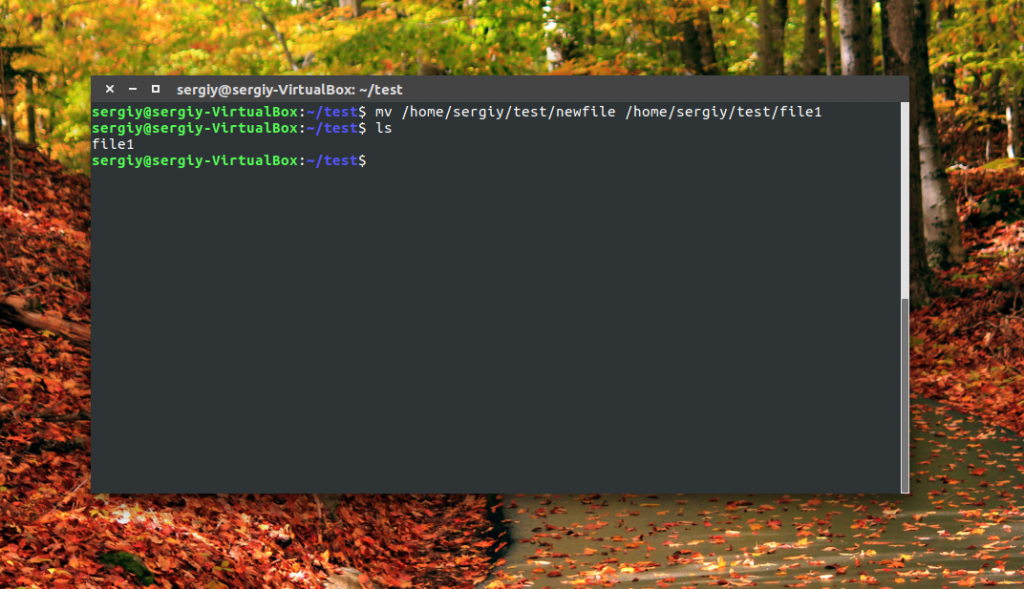
Обратите внимание, что у вас должны быть права на запись в ту папку, в которой вы собираетесь переименовывать файлы. Если папка принадлежит другому пользователю, возможно, нужно будет запускать программу через sudo. Но в таком случае лучше запускать с опцией -i, чтобы случайно ничего не удалить.
Переименование файлов Linux с помощью rename
В Linux есть еще одна команда, которая позволяет переименовать файл. Это rename. Она специально разработана для этой задачи, поэтому поддерживает такие вещи, как массовое переименование файлов linux и использование регулярных выражений. Синтаксис утилиты тоже сложнее:
$ rename опции ‘s/ старое_имя / новое_имя ‘ файлы
$ rename опции старое_имя новое_имя файлы
В качестве старого имени указывается регулярное выражение или часть имени которую нужно изменить, новое имя указывает на что нужно заменить. Файлы — те, которые нужно обработать, для выбора файлов можно использовать символы подставки, такие как * или ?.
Рассмотрим опции утилиты:
- -v — вывести список обработанных файлов;
- -n — тестовый режим, на самом деле никакие действия выполнены не будут;
- -f — принудительно перезаписывать существующие файлы;
Например, переименуем все htm файлы из текущей папки в .html:
rename ‘s\.htm/\.html/’ *.htm
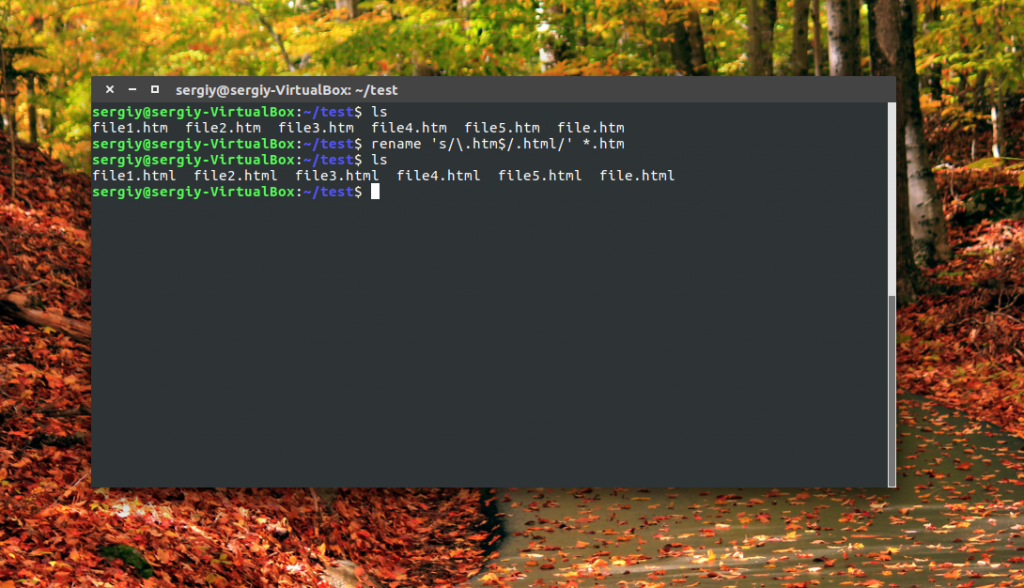
Или для изображений:
Символ звездочки означает, что переименование файлов linux будет выполнено для всех файлов в папке. В регулярных выражениях могут применяться дополнительные модификаторы:
- g (Global) — применять ко всем найденным вхождениям;
- i (Case Censitive) — не учитывать регистр.
Модификаторы размещаются в конце регулярного выражения, перед закрывающей кавычкой. Перед тем, как использовать такую конструкцию, желательно ее проверить, чтобы убедиться, что вы не допустили нигде ошибок, тут на помощь приходит опция -n. Заменим все вхождения DSC на photo в именах наших фотографий:
rename -n ‘s/DSC/photo/gi’ *.jpeg
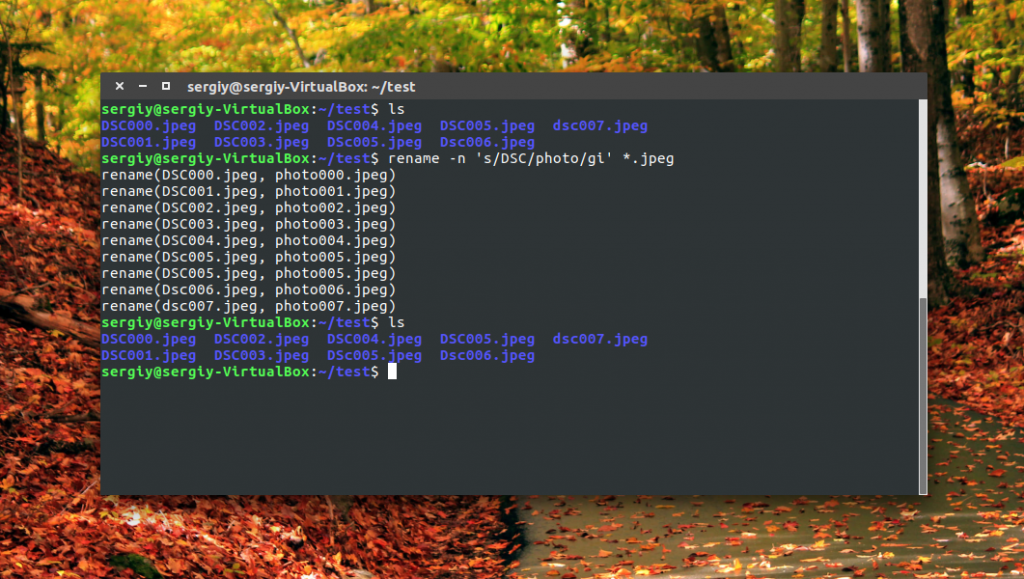
Будут обработаны DSC, DsC и даже dsc, все варианты. Поскольку использовалась опция -n, то утилита только выведет имена изображений, которые будут изменены.
Можно использовать не только обычную замену, но и полноценные регулярные выражения чтобы выполнить пакетное переименование файлов linux, например, переделаем все имена в нижний регистр:
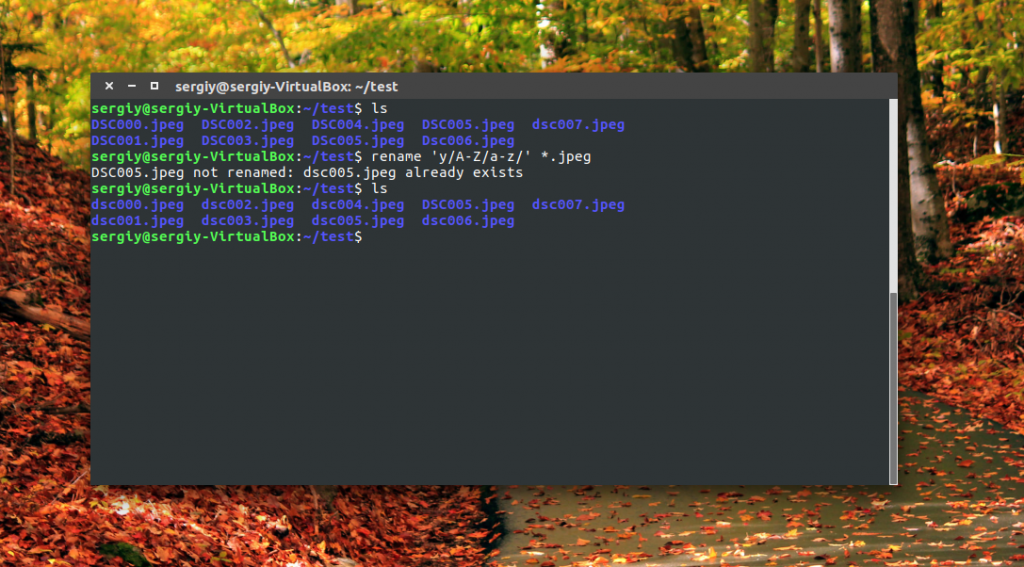
Из этого примера мы видим, что даже если такой файл уже существует, то он перезаписан по умолчанию не будет. Не забывайте использовать опцию -n чтобы ничего случайно не повредить.
Переименование файлов в pyRenamer
Если вы не любите использовать терминал, но вам нужно массовое переименование файлов Linux, то вам понравится утилита pyrenamer. Это графическая программа и все действия здесь выполняются в несколько щелчков мыши. Вы можете установить ее из официальных репозиториев:
sudo apt install pyrenamer
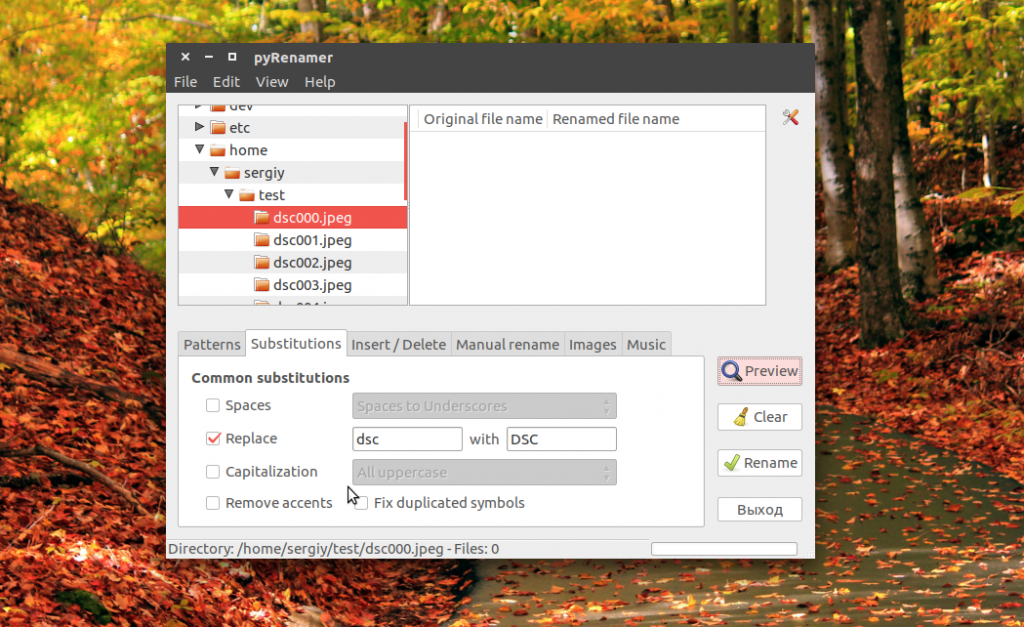
В окне программы вы можете видеть дерево файловой системы, центральную часть окна, где отображаются файлы, которые будут изменены, а также панель для указания параметров переименования.
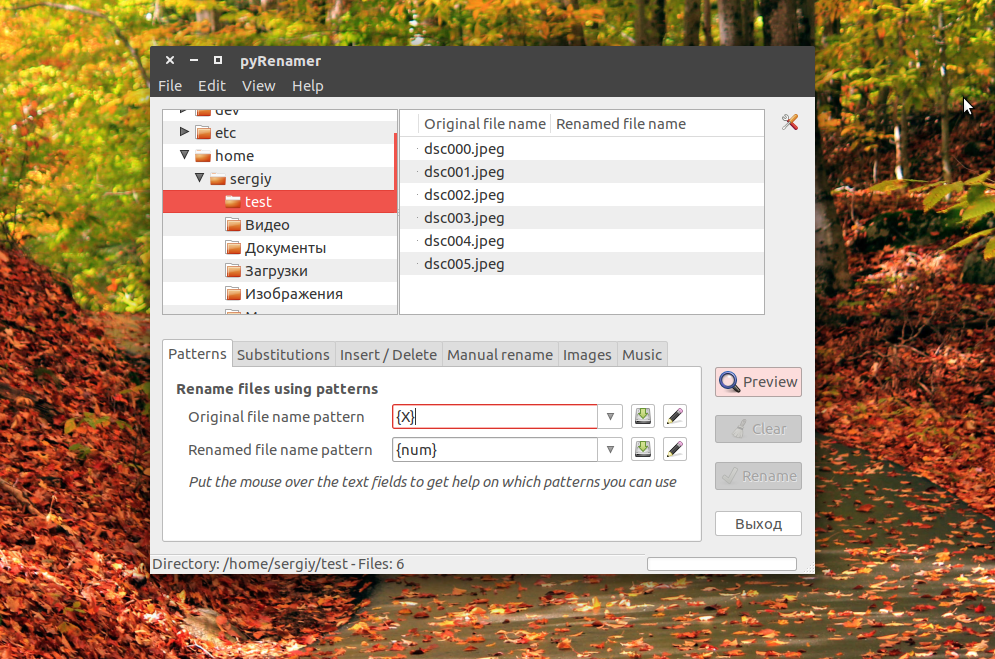
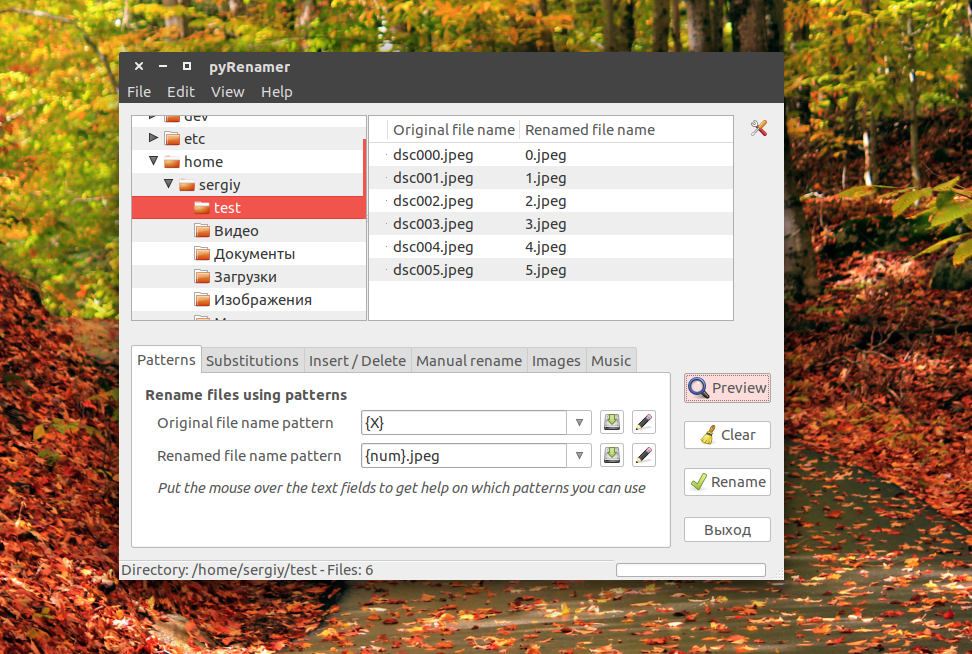
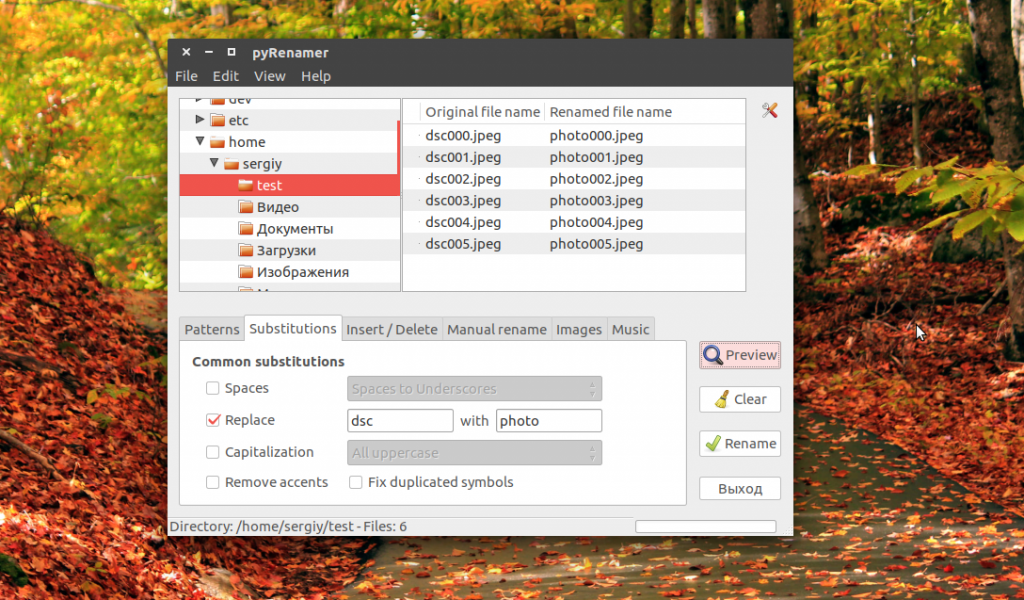
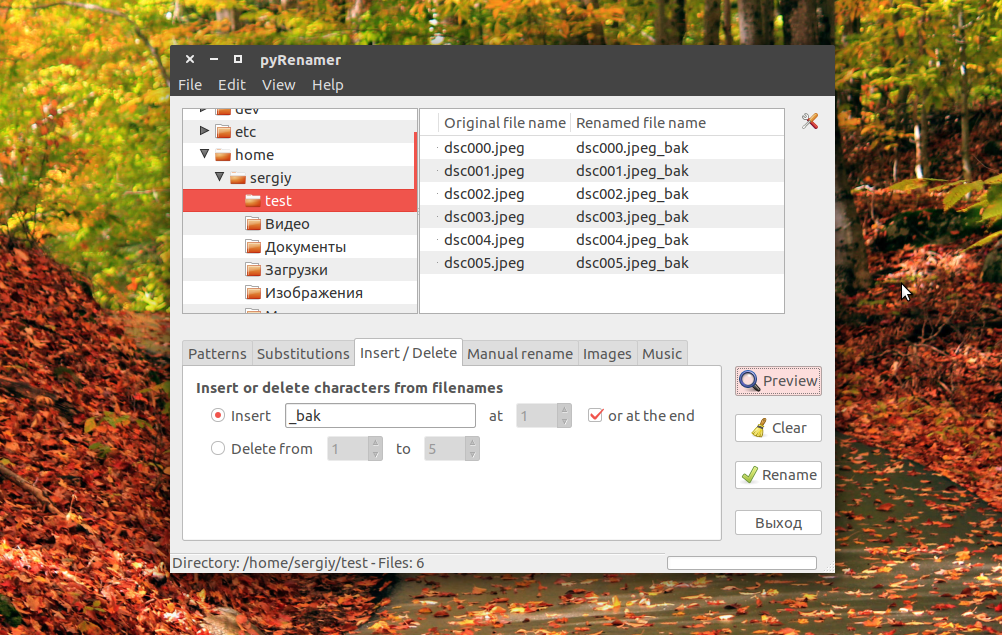
Вы можете удалять или добавлять символы, переводить регистр, автоматически удалять пробелы и подчеркивания. У программы есть подсказки, чтобы сделать ее еще проще:
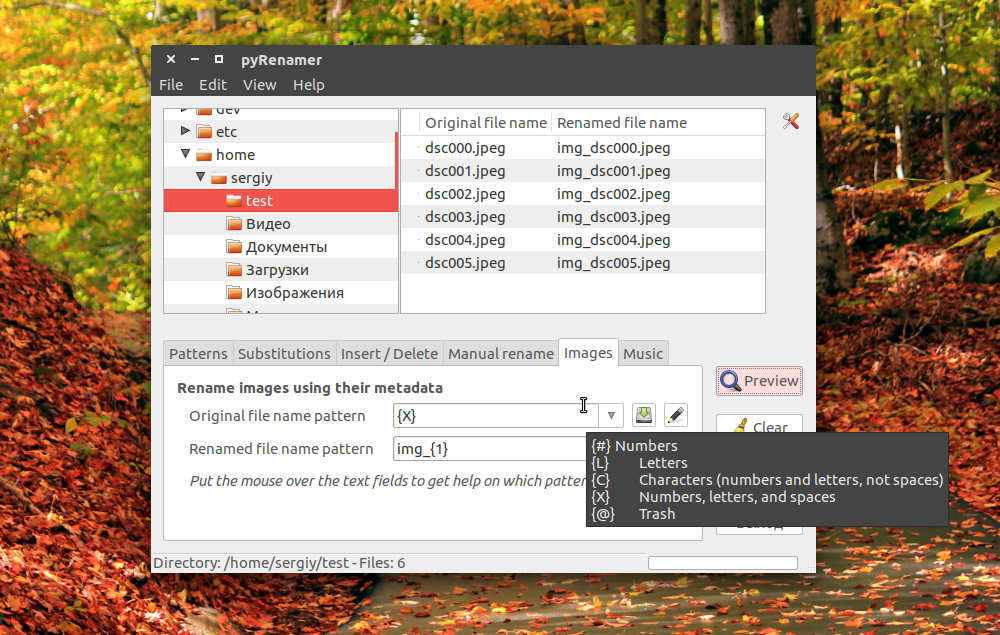
Опытным пользователям понравится возможность pyRenamer для переименования мультимедийных файлов из их метаданных. Кроме того, вы можете переименовать один файл если это нужно. Эта утилита полностью реализует функциональность mv и remove в графическом интерфейсе.
Выводы
В этой статье мы рассмотрели как переименовать файл в консоли linux. Конечно, есть и другие способы, например, написать скрипт, или использовать файловые менеджеры. А как вы выполняете сложные операции по переименованию? Напишите в комментариях!