Release and Renew IP Address (2021 How-To Guide)
Release and Renew IP address and fix network connectivity problems
Release/Renew IP address is a procedure meant to solve network connectivity issues related to cached IP information. It can be done via Command Line on Windows or System Preferences on Mac OS. Release and Renew IP address means giving up the lease of DHCP IP address of the host computer and making a request for a new IP address. First of all, the ipconfig /release command is used to give up current IP lease and send the server a DHCP alert to mark the old IP address as available. The second command – ipconfig /renew requests a new IP address.
These commands help to solve network connectivity problems that arise due to expired IP addresses or other minor computer bugs. It can help to solve IP-related issues and restore fully-functioning network connection instantly.

Related: How to Flush DNS Cache on Windows, Mac, Linux?
Follow the guide below to release and renew ip address on Windows 10, 8, 8.1, 7, Vista, XP, Mac and Linux. Make sure that your network adapter needs to be configured to Obtain IP address automatically, otherwise these commands won’t work.
How to Release and Renew IP Address on Windows, Mac, Linux
Windows 10, 8.1 and 8
To release and renew IP address on Windows 10, 8.1 or 8, follow the steps given below.
- In Windows 10, 8 or 8.1, use Windows search to find Command Prompt .
- Right-click on Command Prompt and select Run as Administrator option.
 ipconfig /release and press Enter.
 - Next, type ipconfig /renew and press Enter.
 Windows 7 and Vista
Follow these steps to use ipconfig /release and ipconfig/renew commands on Windows 7 or Vista.
- Click on Windows menu, then type cmd in Windows search bar.
- Right-click the Command Prompt result and choose Run as Administrator from the menu.
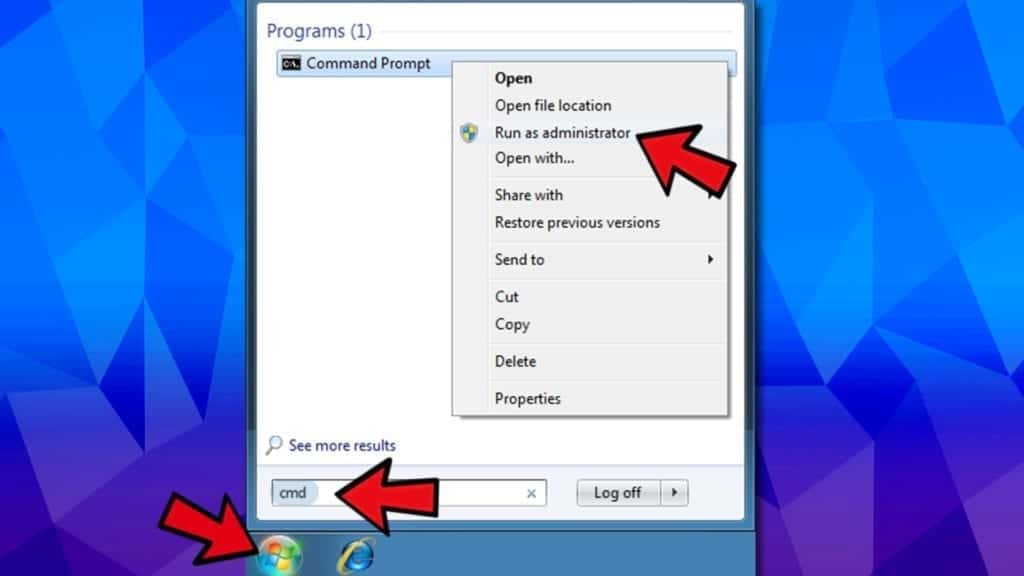 ipconfig /release and press Enter.
 - Type ipconfig /renew and press Enter.Windows XP
- Press START>All Programs>Accessories. Right-click Command Prompt and choose Run As…. Choose Administrator‘s account and enter password for it. Press OK.
 ipconfig /release and press Enter.
 - Now, type ipconfig /renew and press Enter to finish.Mac OS
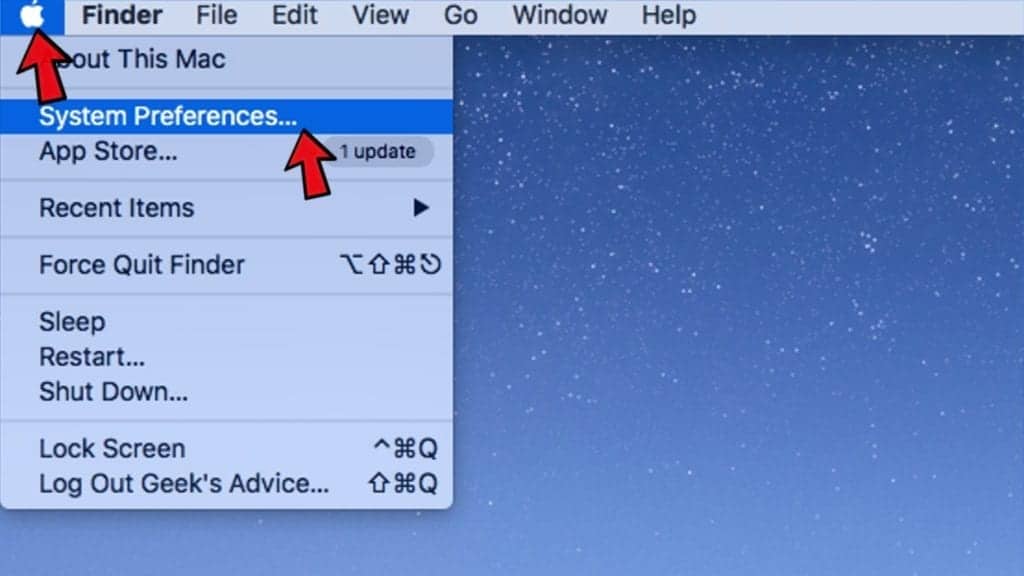
- Click the Apple logo in the top-left corner of the screen and select System Preferences.Linux/Ubuntu
The guide below provides an equivalent of ipconfig /release and ipconfig /renew commands on Linux. Use these steps to force DHCP Client to Renew IP Address.

- Press CTRL+ALT+T to launch Terminal on Linux.
- In Terminal, type sudo dhclient – r and press Enter to release current IP.
- Then type sudo dhclient and press Enter to get a new IP address from DHCP server.
Useful DNS Resolver Commands for Windows
In addition to Renew and Release IP commands, you might want or need to use some of the commands listed below.
- ipconfig /flushdns. This command helps to clear the DNS Resolver cache so that the new IP information would be fetched instantly.
- ipconfig /registerdns. This command refreshes all DHCP leases and registers DNS names from scratch.
- ipconfig /displaydns. Shows current contents stored in DNS Resolver Cache.
Fix IPconfig release renew not working
IPConfig /Release and /Renew commands work only if your network adapter is set to fetch the IP address automatically. In other words, you need to have DHCP enabled. You can configure these settings via Windows Network and Sharing Center.
1. Go to Network and Sharing Center, then select Change adapter settings.
2. Right-click your network adapter and open Properties.
3. Find Internet Protocol Version 4 ( TCP /IPv4) and click Properties.
4. Select Obtain IP Address automatically and click OK to save.
 Norbert Webb
Norbert Webb is the head of Geek’s Advice team. He is the chief editor of the website who controls the quality of content published. The man also loves reading cybersecurity news, testing new software and sharing his insights on them. Norbert says that following his passion for information technology was one of the best decisions he has ever made. “I don’t feel like working while I’m doing something I love.” However, the geek has other interests, such as snowboarding and traveling.
How do I renew the IP address of my computer (Windows XP, Vista, 7, 8,10, Mac)


We appreciate your feedback.
Click here to contact TP-Link technical support.
Subscribe TP-Link takes your privacy seriously. For further details on TP-Link’s privacy practices, see TP-Link’s Privacy Policy.
Be The First To Get Exclusive Deals & News
- www.facebook.com
- www.youtube.com
- www.linkedin.com
- twitter.com
- Corporate Profile
- Contact Us
- Careers at TP-Link
- Privacy Policy
- News
- Blog
- Security Advisory
- Awards
- Partner Program
- Training & Certifications
- Deal Registration
- tp-link
- kasa
- tapo
Get products, events and services for your region.
To provide a better experience, we use cookies and similar tracking technologies to analyze traffic, personalize content and ads. By continuing to browse this website, you agree to our use of cookies and such technologies. Learn more Don’t show again
To provide a better experience, we use cookies and similar tracking technologies to analyze traffic, personalize content and ads. By continuing to browse this website, you agree to our use of cookies and such technologies. Learn more Don’t show again
These cookies are necessary for the website to function and cannot be deactivated in your systems.
accepted_local_switcher, tp_privacy_base, tp_privacy_marketing, tp_smb-select-product_scence, tp_smb-select-product_scenceSimple, tp_smb-select-product_userChoice, tp_smb-select-product_userChoiceSimple, tp_smb-select-product_userInfo, tp_smb-select-product_userInfoSimple, tp_top-banner, tp_popup-right-middle, tp_popup-right-bottom
__livechat, __lc2_cid, __lc2_cst, __lc_cid, __lc_cst, CASID
VISITOR_INFO1_LIVE, YSC, LOGIN_INFO, PREF, CONSENT, __Secure-3PSID, __Secure-3PAPISID, __Secure-3PSIDCC
Analysis and Marketing Cookies
Analysis cookies enable us to analyze your activities on our website in order to improve and adapt the functionality of our website.
The marketing cookies can be set through our website by our advertising partners in order to create a profile of your interests and to show you relevant advertisements on other websites.
Google Analytics & Google Tag Manager & Google Optimize
_gid, _gat, _gat_global, _ga, _gaexp
Google Ads & DoubleClick
NID, IDE, test_cookie, id, 1P_JAR
fr, spin, xs, datr, c_user, sb, _fbp
_ce.s, _CEFT, _gid, cean, _fbp, ceac, _drip_client_9574608, cean_asoc
_hjKB, _fbp, ajs_user_id, _BEAMER_LAST_UPDATE_zeKLgqli17986, _hjid, _gcl_au, _ga, ajs_anonymous_id, _BEAMER_USER_ID_zeKLgqli17986, _hjAbsoluteSessionInProgress, _hjFirstSeen, _hjIncludedInPageviewSample, _hjTLDTest
Release and Renew IP Address (2023 Tutorial)
Release and Renew IP address to repair connectivity issues
Every computer connected to a network has its Internet Protocol address (IP address) to identify and communicate with other computers. While most computers automatically obtain an IP address assigned by a server running a service called Dynamic Host Configuration Protocol (DHCP), some IP addresses require manual configuration (each computer is set manually, including its IP address on a given network). Usually, this process of obtaining/assigning an address is automatic. However, there may be cases where it does not work as it should.
Releasing/updating the IP address is an action that can solve some connectivity problems. You can do this regardless of your OS. So in Windows, you can do it through the command line, while MacOS offers a graphical interface. Removing the old IP address can quickly solve connectivity problems. The first command for Windows, which we will explain in the text, is ipconfig /release. It makes the system forget your “old” IP and mark it as free on the DHCP server. The second, ipconfig /renew, ask the DHCP server for a new IP address for your device.
“Any workarounds to logging into Fortnite right now? Been trying non-stop, but haven’t been able to login since the event. Still really looking forward to trying out those lightsabers!!”, — writes Twitter user @NickEh30.
These commands are used widely for fixing networking issues since they are working despite all changes in Windows done since Windows XP was released.
Release/Renew IP commands are usually finalized by the Flush DNS command, which releases the DNS cache and submits requests to apply new IP address data.
Refer to the tutorial below for releasing and renewing the IP address on Windows 11, 10, 8, 8.1, 7, Vista, XP, Mac, and Linux. Also, ensure your network adapter is tuned correctly to obtain an IP address automatically. Otherwise, the above-said commands won’t function well.
It is better to prevent, than repair and repent!
 Subscribe to our Telegram channel to be the first to know about news and our exclusive materials on information security.
Guidelines to Release and Renew IP Address on Windows, Mac, Linux
Windows 11, 10, 8.1 and 8
You can refer to the steps reviewed below for releasing and renewing the IP address on Windows 8, 8.1, 10, and 11.
- In Windows 11, 10, 8 or 8.1, apply Windows search to locate Command Prompt.
- Right-click on Command Prompt and choose Run as Administrator mode.
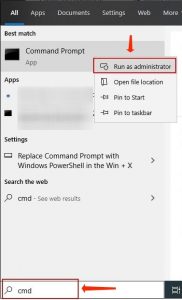
- In User Account Control alert, select Yes.
- In CMD, type ipconfig /release and hit Enter.
- Then, specify ipconfig /renew and hit Enter.
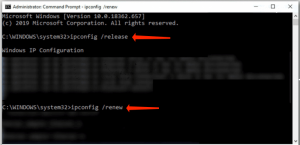
- Take time until the DHCP server sets a new IP address to you.
Windows 7 and Vista
Refer to these steps to apply ipconfig /release and ipconfig/renew commands on Windows 7 or Vista.
- Click on Windows menu, then specify cmd in Windows search bar.
- Right-click the Command Prompt option and select Run as Administrator via the menu.
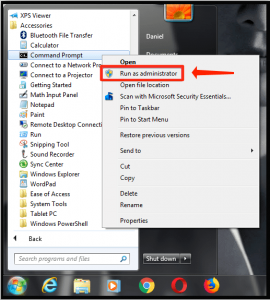
- In User Account Window, select Yes.
- Then, specify the following command in the Command Prompt: ipconfig /release and hit Enter.
- Indicate ipconfig /renew and hit Enter.
Mac OS
- Refer to the Apple logo in the top-left area of the display and choose System Preferences.
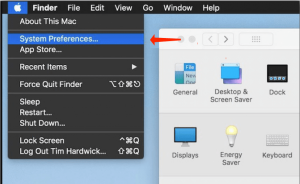
- Proceed to Network.
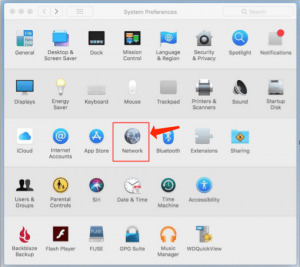
- In the left section, choose Wi-Fi or Ethernet (based on which one you use by default). Next, select the Advanced… button on the right of the Network menu.
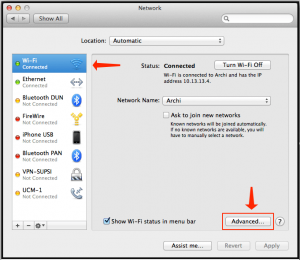
- Choose TCP/IP tab. At this point, you will notice that Configure IPv4 is tuned to Using DHCP. Choose the Renew DHCP Lease button.
- Take time until you encounter an amendment in IPv4 address. The procedure is completed now.
Linux/Ubuntu
The tutorial below gives an equivalent of ipconfig /release and ipconfig /renew commands on Linux. Refer to these steps to force DHCP Client to Renew the IP Address.
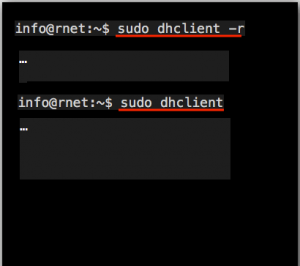
- Use the CTRL+ALT+T hotkey command to start the Terminal on Linux.
- In Terminal, specify sudo dhclient – r and hit Enter for releasing the present IP.
- Next, specify sudo dhclient and hit Enter to obtain a new IP address via the DHCP server.
Helpful DNS Resolver Commands for Windows
A part from the Renew and Release IP commands, you might decide or have to apply some of the commands set forth below.
- ipconfig /flushdns. This command aids in clearing the DNS Resolver cache so that the new IP data would be delivered right away.
- ipconfig /registerdns. This command refreshes all DHCP leases and assigns DNS names initially.
- ipconfig /displaydns. Displays present contents located in DNS Resolver Cache.
Repair IPconfig release renew not functioning
IPConfig /Release and /Renew commands functions only when your network adapter is tuned to obtain the IP address automatically. To say it differently, you ought to have DHCP activated. You can set these parameters using Windows Network and Sharing Center.
Force DHCP Client to Renew IP Address – How to do
Wondering how to force DHCP Client to renew IP address? We can help you.
Some cable ISPs require their clients to notify the server if they wish to release an assigned IP address.
The dhclient command provides a means for configuring one or more network interfaces using the Dynamic Host Configuration Protocol, BOOTP protocol, or if these protocols fail, by statically assigning an address.
Here at Bobcares, we handle DHCP Client on servers of our customers as a part of our Server Management Services.
Today let’s see to force DHCP clients to renew IP addresses along with the steps that our Support Techs follow to do this.
Linux force DHCP client to release IP address and renew the IP address
The following are two methods to force DHCP client to release IP address:
Method 1
Using the below command to force Linux to renew IP address using a DHCP for eth0 interface
Method 2
For Ubuntu/Debian servers we can use the following command to restart the networking service and obtain an IP address via DHCP:
For CentOS/RHEL/Fedora we can use the following command to restart the networking service and obtain an IP address via DHCP:
Method 3
Use the following NetworkManager command to obtain info about Linux IP address and interfaces
To take down Linux interface enp6s0 and release IP address in Linux we can use the following command:
For obtaining a new IP address for Linux interface enp6s0 and release IP address using DHCP we can use the following command:
Some other basic commands to release IP address or renew the IP address
1. In Windows, we can release IP address using the command:
2. In Windows, we can renew IP address using the command:
3. To Linux renew IP command using DHCP
4. To obtain a fresh IP address using DHCP on Linux:
How to renew or release an IP in Linux for eth0
To renew or release an IP address for the eth0 interface, enter:
Other options in Linux to renew DHCP
We can also execute the following commands:
nmcli command (NetworkManager) to renew IP address in Linux
The nmcli is a command-line tool for controlling NetworkManager and getting its status. To renew IP address using nmcli for connection named ‘bobcares_5G’:
Linux Force dhclient to renew the IP address on a CentOS 7/Ubuntu/Debian and other Linux-based servers
Most modern Linux-based system uses the systemd as a init system and here is how to force Linux to renew IP address using DHCP. Use the IP command to find out the current IP address:
OR use the systemctl command to restart network service on a CentOS 7:
[Need Assistance? We are available 24*7]
Conclusion
In short, we saw the steps that our Support Engineers follow to force DHCP client to renew IP address
PREVENT YOUR SERVER FROM CRASHING!
Never again lose customers to poor server speed! Let us help you.
Our server experts will monitor & maintain your server 24/7 so that it remains lightning fast and secure.