How to Fix Common Nginx Web Server Errors
Nginx is a very popular web server these days. This article will show you some common errors when running an Nginx web server and possible solutions. This is not a complete list. If you still can’t fix the error after trying the advised solutions, please check your Nginx server logs under /var/log/nginx/ directory and search on Google to debug the problem.
Unable to connect/Refused to Connect
If you see the following error when trying to access your website:

It could be that
- Nginx isn’t running. You can check Nginx status with sudo systemctl status nginx . Start Nginx with sudo systemctl start nginx . If Nginx fails to start, run sudo nginx -t to find if there is anything wrong with your configuration file. And check the journal ( sudo journalctl -eu nginx ) to find out why it fails to start.
- Firewall blocking ports 80 and 443. If you use the UFW firewall on Debian/Ubuntu, run sudo ufw allow 80,443/tcp to open TCP ports 80 and 443. If you use Firewalld on RHEL/CentOS/Rocky Linux/AlmaLinux, run sudo firewall-cmd —permanent —add-service=
- Fail2ban. If your server uses fail2ban to block malicious requests, it could be that fail2ban banned your IP address. Run sudo journalctl -eu fail2ban to check if your IP address is banned. You can add your IP address to the fail2ban ignoreip list, so it won’t be banned again.
- Nginx isn’t listening on the right network interface. For example, Nginx isn’t listening on the server’s public IP address.
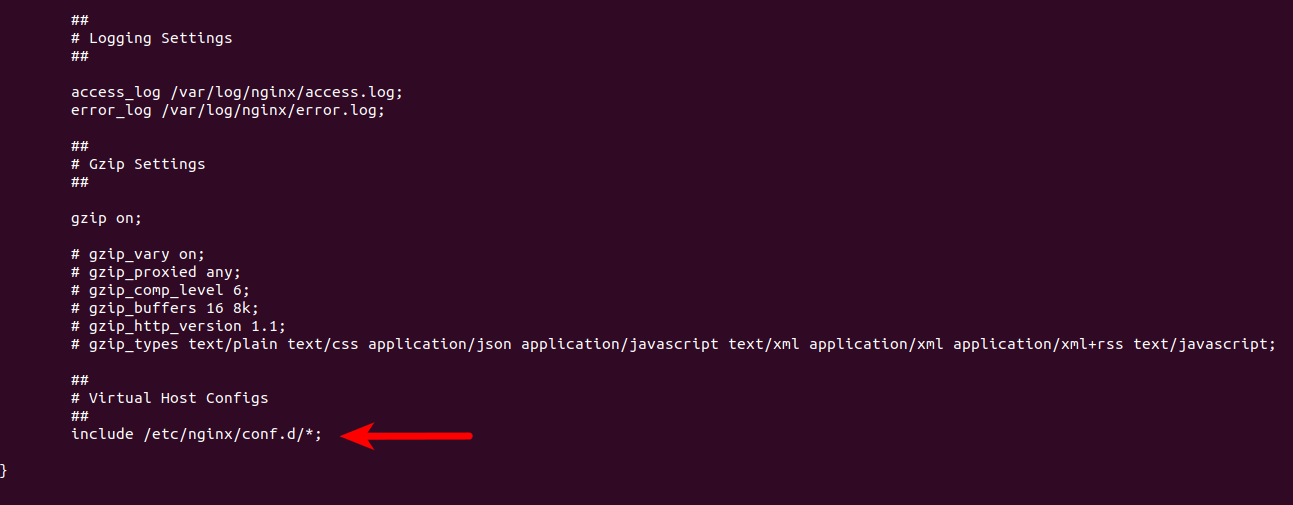
If systemctl status nginx shows Nginx is running, but sudo ss -lnpt | grep nginx shows Nginx is not listening on TCP port 80/443, it could be that you deleted the following lines in the /etc/nginx/nginx.conf file.
So Nginx doesn’t use the virtual host files in /etc/nginx/conf.d/ directory. Add this line back.
The Connection Has Timed Out

This could mean that your server is offline, or Nginx isn’t working properly. I once had an out-of-memory problem, which caused Nginx to fail to spawn the worker processes. If you can see the following error message in /var/log/nginx/error.log file, your server is short of memory.
404 Not Found
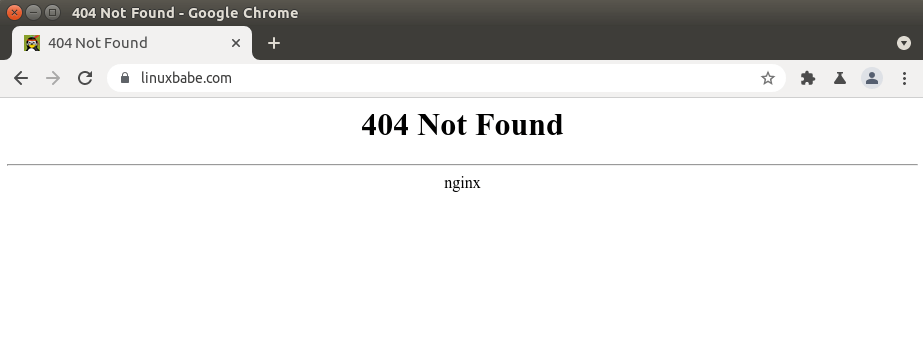
404 not found means Nginx can’t find the resources your web browser asks for. The reason could be:
- The web root directory doesn’t exist on your server. In Nginx, the web roor directory is configured using the root directive, like this: root /usr/share/nginx/linuxbabe.com/; . Make sure your website files (HTML, CSS, JavaScript, PHP) are stored in the correct directory.
- PHP-FPM isn’t running. You can check PHP-FPM status with sudo systemctl status php7.4-fpm (Debian/Ubuntu) or sudo systemctl status php-fpm .
- You forgot to include the try_files $uri /index.php$is_args$args; directive in your Nginx server config file. This directive is needed to process PHP code.
- Your server has no free disk space. Try to free up some disk space. You can use the ncdu utility ( sudo apt install ncdu or sudo dnf install ncdu ) to find out which directories are taking up huge amount of disk space.
403 Forbidden
This error means that you are not allowed to access the request resources. Possible scenario includes:
- The website administrator blocks public access to the requested resources with an IP whitelist or other methods.
- The website could be using a web application firewall like ModSecurity, which detected an intrusion attack, so it blocked the request.
Some web applications may show a different error message when 403 forbidden happens. It might tell you that “secure connection failed”, while the cause is the same.

500 Internal Server Error
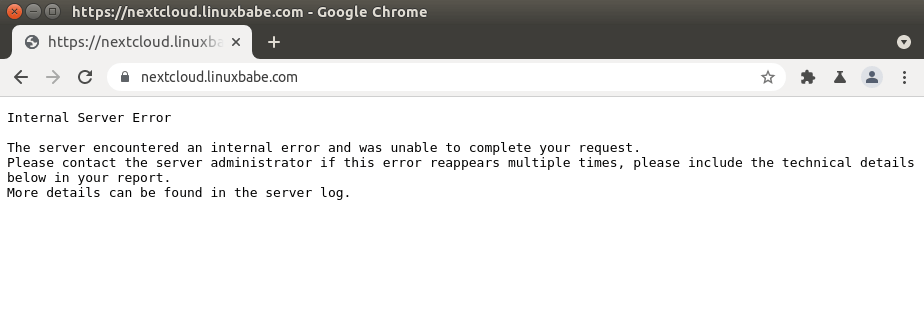
This means there is some error in the web application. It could be that
- The database server is down. Check MySQL/MariaDB status with sudo systemctl status mysql . Start it with sudo systemctl start mysql . Run sudo journalctl -eu mysql to find out why it fails to start. MySQL/MariaDB process could be killed due to out-of-memory issue.
- You didn’t configure Nginx to use PHP-FPM, so Nginx doesn’t know how to execute PHP code.
- If your web application has a built-in cache, you can try flushing the app cache to fix this error.
- Your web application may produce its own error log. Check this log file to debug this error.
- Your web application may have a debugging mode. Turn it on and you will see more detailed error messages on the web page. For example, you can turn on debugging mode in the Modoboa mail server hosting platform by setting DEBUG = True in the /srv/modoboa/instance/instance/settings.py file.
- PHP-FPM could be overloaded. Check your PHP-FPM log (such as /var/log/php7.4-fpm.log ). If you can find the [pool www] seems busy (you may need to increase pm.start_servers, or pm.min/max_spare_servers) warning message, you need to allocate more resources to PHP-FPM.
- Sometimes reloading PHP-FPM ( sudo systemctl reload php7.4-fpm ) can fix the error.
- It also might be that you didn’t install the database module for PHP, so PHP can’t connect to the database. For MySQL/MariaDB, install it with sudo apt install php7.4-mysql . For PostgreSQL, install it with sudo apt install php7.4-pgsql .
Nginx Shows the default page
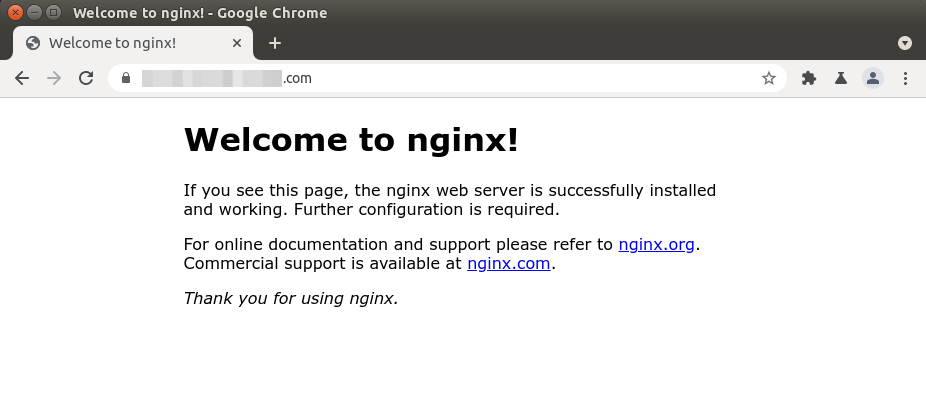
If you try to set up an Nginx virtual host and when you type the domain name in your web browser, the default Nginx page shows up, it might be
- Your Nginx virtual host file doesn’t have the server_name directive.
- You didn’t use a real domain name for the server_name directive in your Nginx virtual host.
- You forgot to reload Nginx.
- You can try deleting the default virtual host file in Nginx ( sudo rm /etc/nginx/sites-enabled/default ).
The page isn’t redirecting properly
Firefox displays this error as The page isn’t redirecting properly . Google Chrome shows this error as www.example.com redirected you too many times .
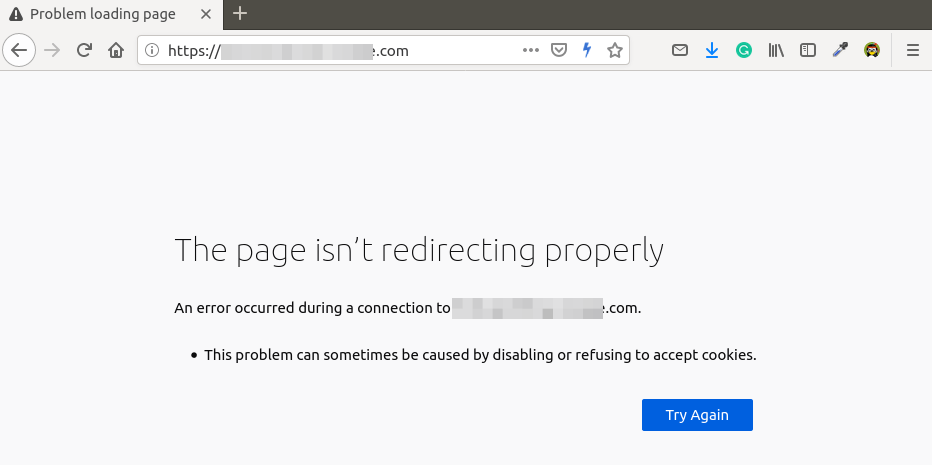
This means you have configured Nginx redirection too many times. For example, you may have added an unnecessary return 301 directive in the https server block to redirect HTTP to HTTPS connection.
If you have set up a page cache such as Nginx FastCGI cache, you need to clear your server page cache.
504 Gateway time-out
This means the upstream like PHP-FPM/MySQL/MariaDB isn’t able to process the request fast enough. You can try restarting PHP-FPM to fix the error temporarily, but it’s better to start tuning PHP-FPM/MySQL/MariaDB for faster performance.
Optimize MySQL/MariaDB Performance
Here is the InnoDB configuration in my /etc/mysql/mariadb.conf.d/50-server.cnf file. This is a very simple performance tunning.
- The InnoDB buffer pool size needs to be at least half of your RAM. ( For VPS with small amount of RAM, I recommend setting the buffer pool size to a smaller value, like 400M, or your VPS would run out of RAM.)
- InnoDB log file size needs to be 25% of the buffer pool size.
- Set the read IO threads and write IO thread to the maximum (64) and
- Make MariaDB use 3 instances of InnoDB buffer pool. The number of instances needs to be the same number of CPU cores on your system.
After saving the changes, restart MariaDB.
Find Out Which PHP Script Caused 504 Error
You can check the web server access log to see if there are any bad requests. For example, some folks might find the following lines in the Nextcloud access log file ( /var/log/nginx/nextcloud.access ).
Notice the HTTP status code 499, which means the HTTP client quit the connection before the server gives back an answer. Successful HTTP code should be 2xx or 3xx . If you can find HTTP code 4xx , it means there’s a problem with this HTTP request. In this example, the Nextcloud richdocumentscode app isn’t working.
Increase Timeout Settings
You can also set a longer timeout value in Nginx to reduce the chance of gateway timeout. Edit your Nginx virtual host file and add the following lines in the server <. >block.
If you use Nginx with PHP-FPM, then set the fastcgi_read_timeout to a bigger value like 300 seconds. Default is 60 seconds.
Then reload Nginx.
PHP-FPM also has a max execution time for each script. Edit the php.ini file.
You can increase the value to 300 seconds.
Then restart PHP-FPM
Memory Size Exhausted
If you see the following line in your Nginx error log, it means PHP reached the 128MB memory limit.
You can edit the php.ini file ( /etc/php/7.4/fpm/php.ini ) and increase the PHP memory limit.
Then restart PHP7.4-FPM.
If the error still exists, it’s likely there’s bad PHP code in your web application that eats lots of RAM.
PR_END_OF_FILE_ERROR
- You configured Nginx to rediect HTTP request to HTTPS, but there’s no server block in Nginx serving HTTPS request.
- Maybe Nginx isn’t running?
- Sometimes, the main Nginx binary is running, but a worker process can fail and exit due to various reasons. Check the Nginx error log ( /var/log/nginx/error.log ) to debug.
PHP-FPM Upstream Time Out
Some folks can find the following error in Nginx error log file ( under /var/log/nginx/ ).
- Restart PHP-FPM.
- Upgrade RAM. . Because PHP-FPM needs to fetch data from the database, if the database is slow to process requests, PHP-FPM will time out.
502 Bad Gateway
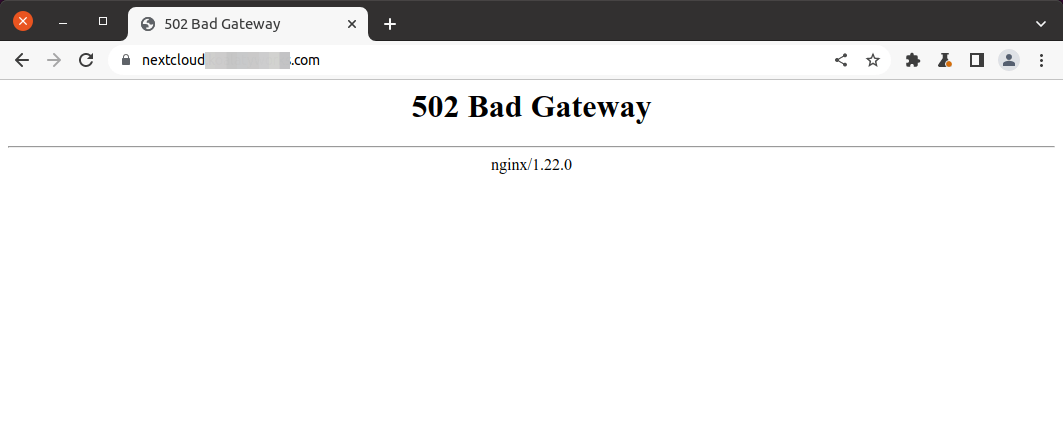
This error could be caused by:
- PHP-FPM isn’t running. Check its status: sudo systemctl status php7.4-fpm .
- PHP-FPM is running, but Nginx isn’t able to connect to PHP-FPM (Resource temporarily unavailable), see how to fix this error below.
- PHP-FPM is running, but Nginx doesn’t have permission to connect to PHP-FPM socket (Permission denied). It might be that Nginx is running as nginx user, but the socket file /run/php/php7.4-fpm.sock is owned by the www-data user. You should configure Nginx to run as the www-data user.
Resource temporarily unavailable
Some folks can find the following error in Nginx error log file ( under /var/log/nginx/ ).
This usually means your website has lots of visitors and PHP-FPM is unable to process the huge amounts of requests. You can adjust the number of PHP-FPM child process, so it can process more requests.
Edit your PHP-FPM www.conf file. (The file path varies depending on your Linux distribution.)
The default child process config is as follows:
The above configuration means
- PHP-FPM dynamically create child processes. No fixed number of child processes.
- It creates at most 5 child processes.
- Start 2 child processes when PHP-FPM starts.
- There’s at least 1 idle process.
- There’s at most 3 idle processes.
The defaults are based on a server without much resources, like a server with only 1GB RAM. If you have a high traffic website, you probably want to increase the number of child processes, so it can serve more requests. (Make sure you have enough RAM to run more child processes.)
Save and close the file. Then we also increase the PHP memory limit.
Find the following line.
By default, a script can use at most 128M memory. It’s recommended to set this number to at lest 512M.
Save and close the file. Restart PHP-FPM. (You might need to change the version number.)
To monitor the health of PHP-FPM, you can enable the status page. Find the following line in the PHP-FPM www.conf file.
Remove the semicolon to enable PHP-FPM status page. Then restart PHP-FPM.
Then edit your Nginx virtual host file. Add the following lines. The allow and deny directives are used to restrict access. Only the whitelisted IP addresses can access the status page.
Save and close the file. Then test Nginx configurations.
If the test is successful, reload Nginx for the changes to take effect.
Sample PHP-FPM status page.
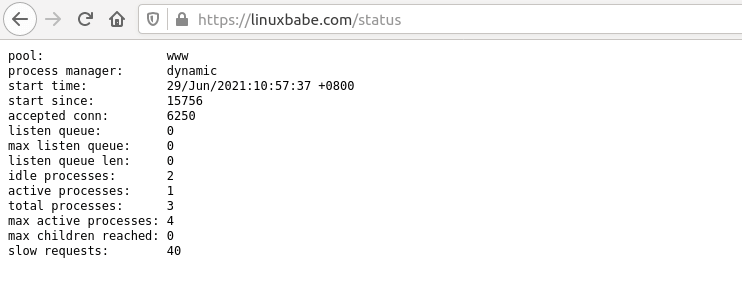
The PHP-FPM www.conf file gives you a good explanation of what each parameter means.
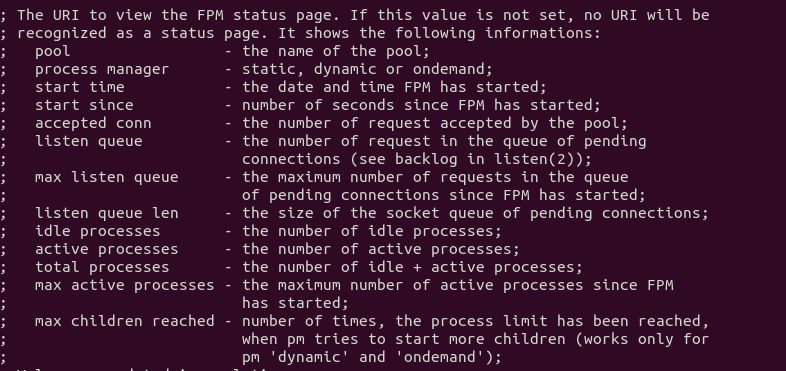
If PHP-FPM is very busy and unable to serve a request immediately, it will queue this request. By default, there can be at most 511 pending requests, determined by the listen.backlog parameter.
If you see the following value on the PHP-FPM status page, it means there has never been a request put in the queue, i.e. your PHP-FPM can process requests quickly.
If there are 511 pending requests in the queue, it means your PHP-FPM is very busy, so you should increase the number of child processes.
You may also need to change the Linux kernel net.core.somaxconn setting, which defines max number of connections allowed to a socket file on Linux, such as the PHP-FPM Unix socket file. By default, its value is 128 before kernel 5.4 and 4096 starting with kernel 5.4.
If you run a high traffic website, you can use a big value. Edit /etc/sysctl.conf file.
Add the following two lines.
Save and close the file. Then apply the settings.
Note: If your server has enough RAM, you can allocate a fixed number of child processes for PHP-FPM like below. In my experience, this fixed the 500 internal error for a Joomla + Virtuemart website.
Two Virtual Host files For the Same Website
If you run sudo nginx -t and see the following warning.
It means there are two virtual host files that contain the same server_name configuration. Don’t create two virtual host files for one website.
PHP-FPM Connection reset by peer
Nginx error log file shows the following message.
This may be caused by a restart of PHP-FPM. If it’s retarted manually by yourself, then you can ignore this error.
Nginx Socket Leaks
If you find the following error message in the /var/log/nginx/error.log file, your Nginx has a socket leaks problem.
You can restart the OS to solve this problem. If it doesn’t work, you need to compile a debug version of Nginx, which will show you debug info in the log.
invalid PID number “” in “/run/nginx.pid”
You need to restart your web server.
Cloudflare Errors
Here are some common errors and solutions if your website runs behind Cloudflare CDN (Content Delivery Network).
521 Web Server is Down
- Nginx isn’t running.
- You didn’t open TCP ports 80 and 443 in the firewall.
- You changed the server IP address, but forgot to update DNS record in Cloudflare.
The page isn’t redirecting properly
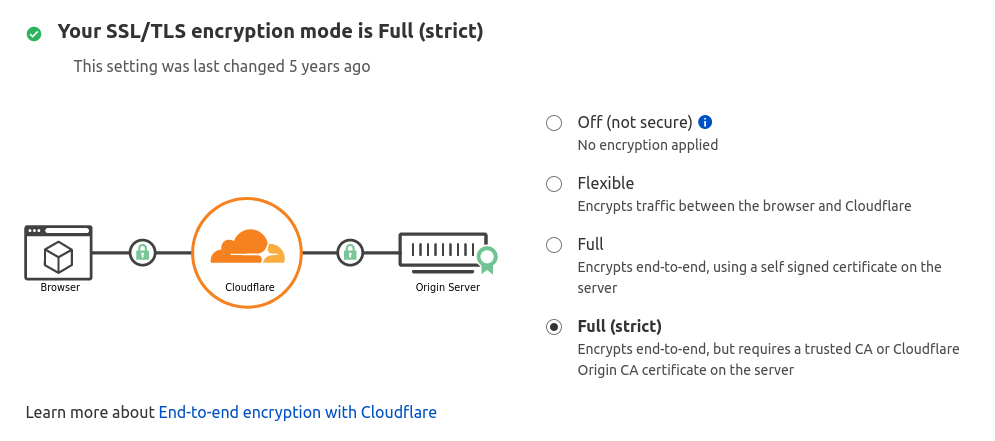
If your SSL setting on the SSL/TLS app is set to Flexible , but your origin server is configured to redirect HTTP requests to HTTPS, Your Nginx server sends reponse back to Cloudflare in encrypted connection. Since Cloudflare is expecting HTTP traffic, it keeps resending the same request, resulting in a redirect loop. In this case, you need to use the Full (strict) SSL/TLS option in your Cloudflare settings.
Wrapping Up
I hope this article helped you to fix common Nginx web server errors. As always, if you found this post useful, then subscribe to our free newsletter to get more tips and tricks ��
Решение проблем, связанных с ошибкой NGINX «403 Forbidden»
« 403 Forbidden » — наиболее распространенная ошибка при работе с NGINX . В этой статье мы расскажем о причинах возникновения 403 forbidden NGINX , а также о том, как найти ее причину и исправить основную проблему.
Об ошибке
« 403 Forbidden » — это универсальная ошибка NGINX , которая указывает на то, что вы запросили что-то, а NGINX ( по ряду причин ) не может это предоставить. « 403 » является кодом состояния HTTP , который означает, что веб-сервер получил и понял ваш запрос, но не может предпринять никаких дальнейших действий.
Поиск файла конфигурации NGINX
По умолчанию файлы конфигурации NGINX находятся в папке /etc/nginx . Если вы просмотрите этот каталог, то найдете несколько конфигурационных файлов для различных модулей сервера.
Главный файл конфигурации — /etc/nginx/nginx.conf . Он содержит основные директивы для NGINX и является аналогом файла httpd.conf для Apache .
Чтобы отредактировать этот файл, используйте команду:
Некорректный индексный файл
Одна из наиболее распространенных причин ошибки 403 forbidden NGINX — некорректная настройка индексного файла.
nginx.conf указывает, какие индексные файлы должны загружаться, и в каком порядке. Например, приведенная ниже строка указывает NGINX искать index.html , затем index.htm , затем index.php :
Если ни один из этих трех файлов не будет найден в каталоге, NGINX вернет ошибку « 403 Forbidden ».
Примечание . Имена файлов чувствительны к регистру. Если nginx.conf указывает index.html , а файл называется Index.html , это приведет к ошибке « 403 Forbidden ».
Если вы хотите использовать имя индексного файла, которое ваш веб-сервер NGINX не распознает, отредактируйте nginx.conf и добавьте имя файла в строку конфигурации индекса.
Например, чтобы добавить index.py в список распознаваемых индексных файлов, отредактируйте эту строку следующим образом:
Сохраните изменения, а затем перезапустите NGINX командой:
Автоиндекс
Альтернативным решением является разрешение индекса директории. Индекс директории означает, что если индексный файл не найден, сервер отобразит все содержимое директории.
По соображениям безопасности индекс директории в NGINX по умолчанию отключен.
При « 403 forbidden NGINX », если вы хотите показать индекс директории в ситуациях, когда NGINX не может найти ( идентифицировать ) файл, отредактируйте nginx.conf , как описано выше, и добавьте в него две следующие директивы:
Эти директивы должны быть добавлены в блок location . Можно либо добавить их в существующий блок location/ , либо добавить новый. Окончательный результат должен выглядеть так:
Также можно активировать индексирование директории в определенной папке, если не хотите, чтобы она была доступна для всего сайта:
Сохраните изменения в файле, затем перезапустите NGINX командой:
Права доступа к файлам
Некорректные права доступа к файлам являются еще одной причиной ошибки « 403 Forbidden NGINX ». Для использования с NGINX рекомендуется стандартная настройка: для каталогов — 755 и для файлов — 644 . Пользователь NGINX также должен быть владельцем файлов.
Идентификация пользователя NGINX
Для начала нужно определить, от имени какого пользователя запущен NGINX . Для этого используйте команду:
В этом примере рабочий процесс NGINX работает от имени пользователя nginx .
Установите права собственности на файл
Перейдите на уровень выше корневой директории документа сайта. Например, если корневая директория вашего сайта /usr/share/nginx/example.com , перейдите в /usr/share/nginx с помощью команды:
Измените права собственности на все файлы в директориях нижних уровней на пользователя nginx с помощью команды:
Установите права доступа
403 forbidden NGINX — как исправить: установите права доступа для каждой директории на 755 с помощью команды:
Например, чтобы установить права доступа для директории example.com , используется команда:
Затем перейдите в корневой каталог веб-документа:
Измените права доступа для всех файлов в этой директории с помощью команды:
Avoiding the Top 10 NGINX Configuration Mistakes

When we help NGINX users who are having problems, we often see the same configuration mistakes we’ve seen over and over in other users’ configurations – sometimes even in configurations written by fellow NGINX engineers! In this blog we look at 10 of the most common errors, explaining what’s wrong and how to fix it.
Mistake 1: Not Enough File Descriptors per Worker
The worker_connections directive sets the maximum number of simultaneous connections that a NGINX worker process can have open (the default is 512). All types of connections (for example, connections with proxied servers) count against the maximum, not just client connections. But it’s important to keep in mind that ultimately there is another limit on the number of simultaneous connections per worker: the operating system limit on the maximum number of file descriptors (FDs) allocated to each process. In modern UNIX distributions, the default limit is 1024.
For all but the smallest NGINX deployments, a limit of 512 connections per worker is probably too small. Indeed, the default nginx.conf file we distribute with NGINX Open Source binaries and NGINX Plus increases it to 1024.
The common configuration mistake is not increasing the limit on FDs to at least twice the value of worker_connections . The fix is to set that value with the worker_rlimit_nofile directive in the main configuration context.
Here’s why more FDs are needed: each connection from an NGINX worker process to a client or upstream server consumes an FD. When NGINX acts as a web server, it uses one FD for the client connection and one FD per served file, for a minimum of two FDs per client (but most web pages are built from many files). When it acts as a proxy server, NGINX uses one FD each for the connection to the client and upstream server, and potentially a third FD for the file used to store the server’s response temporarily. As a caching server, NGINX behaves like a web server for cached responses and like a proxy server if the cache is empty or expired.
NGINX also uses an FD per log file and a couple FDs to communicate with master process, but usually these numbers are small compared to the number of FDs used for connections and files.
UNIX offers several ways to set the number of FDs per process:
- The ulimit command if you start NGINX from a shell
- The init script or systemd service manifest variables if you start NGINX as a service
- The /etc/security/limits.conf file
However, the method to use depends on how you start NGINX, whereas worker_rlimit_nofile works no matter how you start NGINX.
There is also a system‑wide limit on the number of FDs, which you can set with the OS’s sysctl fs.file-max command. It is usually large enough, but it is worth verifying that the maximum number of file descriptors all NGINX worker processes might use ( worker_rlimit_nofile * worker_processes ) is significantly less than fs.file‑max . If NGINX somehow uses all available FDs (for example, during a DoS attack), it becomes impossible even to log in to the machine to fix the issue.
Mistake 2: The error_log off Directive
The common mistake is thinking that the error_log off directive disables logging. In fact, unlike the access_log directive, error_log does not take an off parameter. If you include the error_log off directive in the configuration, NGINX creates an error log file named off in the default directory for NGINX configuration files (usually /etc/nginx).
We don’t recommend disabling the error log, because it is a vital source of information when debugging any problems with NGINX. However, if storage is so limited that it might be possible to log enough data to exhaust the available disk space, it might make sense to disable error logging. Include this directive in the main configuration context:
Note that this directive doesn’t apply until NGINX reads and validates the configuration. So each time NGINX starts up or the configuration is reloaded, it might log to the default error log location (usually /var/log/nginx/error.log) until the configuration is validated. To change the log directory, include the -e <error_log_location> parameter on the nginx command.
Mistake 3: Not Enabling Keepalive Connections to Upstream Servers
By default, NGINX opens a new connection to an upstream (backend) server for every new incoming request. This is safe but inefficient, because NGINX and the server must exchange three packets to establish a connection and three or four to terminate it.
At high traffic volumes, opening a new connection for every request can exhaust system resources and make it impossible to open connections at all. Here’s why: for each connection the 4-tuple of source address, source port, destination address, and destination port must be unique. For connections from NGINX to an upstream server, three of the elements (the first, third, and fourth) are fixed, leaving only the source port as a variable. When a connection is closed, the Linux socket sits in the TIME‑WAIT state for two minutes, which at high traffic volumes increases the possibility of exhausting the pool of available source ports. If that happens, NGINX cannot open new connections to upstream servers.
The fix is to enable keepalive connections between NGINX and upstream servers – instead of being closed when a request completes, the connection stays open to be used for additional requests. This both reduces the possibility of running out of source ports and improves performance.
To enable keepalive connections:
Include the keepalive directive in every upstream<> block, to set the number of idle keepalive connections to upstream servers preserved in the cache of each worker process.
Note that the keepalive directive does not limit the total number of connections to upstream servers that an NGINX worker process can open – this is a common misconception. So the parameter to keepalive does not need to be as large as you might think.
We recommend setting the parameter to twice the number of servers listed in the upstream<> block. This is large enough for NGINX to maintain keepalive connections with all the servers, but small enough that upstream servers can process new incoming connections as well.
Note also that when you specify a load‑balancing algorithm in the upstream<> block – with the hash , ip_hash , least_conn , least_time , or random directive – the directive must appear above the keepalive directive. This is one of the rare exceptions to the general rule that the order of directives in the NGINX configuration doesn’t matter.
In the location<> block that forwards requests to an upstream group, include the following directives along with the proxy_pass directive:
By default NGINX uses HTTP/1.0 for connections to upstream servers and accordingly adds the Connection: close header to the requests that it forwards to the servers. The result is that each connection gets closed when the request completes, despite the presence of the keepalive directive in the upstream<> block.
The proxy_http_version directive tells NGINX to use HTTP/1.1 instead, and the proxy_set_header directive removes the close value from the Connection header.
Mistake 4: Forgetting How Directive Inheritance Works
NGINX directives are inherited downwards, or “outside‑in”: a child context – one nested within another context (its parent) – inherits the settings of directives included at the parent level. For example, all server<> and location<> blocks in the http<> context inherit the value of directives included at the http level, and a directive in a server<> block is inherited by all the child location<> blocks in it. However, when the same directive is included in both a parent context and its child context, the values are not added together – instead, the value in the child context overrides the parent value.
The mistake is to forget this “override rule” for array directives, which can be included not only in multiple contexts but also multiple times within a given context. Examples include proxy_set_header and add_header – having “add” in the name of second makes it particularly easy to forget about the override rule.
We can illustrate how inheritance works with this example for add_header :
For the server listening on port 8080, there are no add_header directives in either the server<> or location<> blocks. So inheritance is straightforward and we see the two headers defined in the http<> context:
For the server listening on port 8081, there is an add_header directive in the server<> block but not in its child location / block. The header defined in the server<> block overrides the two headers defined in the http<> context:
In the child location /test block, there is an add_header directive and it overrides both the header from its parent server<> block and the two headers from the http<> context:
If we want a location<> block to preserve the headers defined in its parent contexts along with any headers defined locally, we must redefine the parent headers within the location<> block. That’s what we’ve done in the location /correct block:
Mistake 5: The proxy_buffering off Directive
Proxy buffering is enabled by default in NGINX (the proxy_buffering directive is set to on ). Proxy buffering means that NGINX stores the response from a server in internal buffers as it comes in, and doesn’t start sending data to the client until the entire response is buffered. Buffering helps to optimize performance with slow clients – because NGINX buffers the response for as long as it takes for the client to retrieve all of it, the proxied server can return its response as quickly as possible and return to being available to serve other requests.
When proxy buffering is disabled, NGINX buffers only the first part of a server’s response before starting to send it to the client, in a buffer that by default is one memory page in size (4 KB or 8 KB depending on the operating system). This is usually just enough space for the response header. NGINX then sends the response to the client synchronously as it receives it, forcing the server to sit idle as it waits until NGINX can accept the next response segment.
So we’re surprised by how often we see proxy_buffering off in configurations. Perhaps it is intended to reduce the latency experienced by clients, but the effect is negligible while the side effects are numerous: with proxy buffering disabled, rate limiting and caching don’t work even if configured, performance suffers, and so on.
There are only a small number of use cases where disabling proxy buffering might make sense (such as long polling), so we strongly discourage changing the default. For more information, see the NGINX Plus Admin Guide.
Mistake 6: Improper Use of the if Directive
The if directive is tricky to use, especially in location<> blocks. It often doesn’t do what you expect and can even cause segfaults. In fact, it’s so tricky that there’s an article titled If is Evil in the NGINX Wiki, and we direct you there for a detailed discussion of the problems and how to avoid them.
In general, the only directives you can always use safely within an if<> block are return and rewrite . The following example uses if to detect requests that include the X‑Test header (but this can be any condition you want to test for). NGINX returns the 430 (Request Header Fields Too Large) error, intercepts it at the named location @error_430 and proxies the request to the upstream group named b.
For this and many other uses of if , it’s often possible to avoid the directive altogether. In the following example, when the request includes the X‑Test header the map<> block sets the $upstream_name variable to b and the request is proxied to the upstream group with that name.
Mistake 7: Excessive Health Checks
It is quite common to configure multiple virtual servers to proxy requests to the same upstream group (in other words, to include the identical proxy_pass directive in multiple server<> blocks). The mistake in this situation is to include a health_check directive in every server<> block. This just creates more load on the upstream servers without yielding any additional information.
At the risk of being obvious, the fix is to define just one health check per upstream<> block. Here we define the health check for the upstream group named b in a special named location, complete with appropriate timeouts and header settings.
In complex configurations, it can further simplify management to group all health‑check locations in a single virtual server along with the NGINX Plus API and dashboard, as in this example.
For more information about health checks for HTTP, TCP, UDP, and gRPC servers, see the NGINX Plus Admin Guide.
Mistake 8: Unsecured Access to Metrics
Basic metrics about NGINX operation are available from the Stub Status module. For NGINX Plus, you can also gather a much more extensive set of metrics with the NGINX Plus API . Enable metrics collection by including the stub_status or api directive, respectively, in a server<> or location<> block, which becomes the URL you then access to view the metrics. (For the NGINX Plus API , you also need to configure shared memory zones for the NGINX entities – virtual servers, upstream groups, caches, and so on – for which you want to collect metrics; see the instructions in the NGINX Plus Admin Guide.)
Some of the metrics are sensitive information that can be used to attack your website or the apps proxied by NGINX, and the mistake we sometimes see in user configurations is failure to restrict access to the corresponding URL. Here we look at some of the ways you can secure the metrics. We’ll use stub_status in the first examples.
With the following configuration, anyone on the Internet can access the metrics at http://example.com/basic_status.
Protect Metrics with HTTP Basic Authentication
To password‑protect the metrics with HTTP Basic Authentication, include the auth_basic and auth_basic_user_file directives. The file (here, .htpasswd) lists the usernames and passwords of clients who can log in to see the metrics:
Protect Metrics with the allow and deny Directives
If you don’t want authorized users to have to log in, and you know the IP addresses from which they will access the metrics, another option is the allow directive. You can specify individual IPv4 and IPv6 addresses and CIDR ranges. The deny all directive prevents access from any other addresses.
Combine the Two Methods
What if we want to combine both methods? We can allow clients to access the metrics from specific addresses without a password and still require login for clients coming from different addresses. For this we use the satisfy any directive. It tells NGINX to allow access to clients who either log in with HTTP Basic auth credentials or are using a preapproved IP address. For extra security, you can set satisfy to all to require even people who come from specific addresses to log in.
With NGINX Plus, you use the same techniques to limit access to the NGINX Plus API endpoint (http://monitor.example.com:8080/api/ in the following example) as well as the live activity monitoring dashboard at http://monitor.example.com/dashboard.html.
This configuration permits access without a password only to clients coming from the 96.1.2.23/32 network or localhost. Because the directives are defined at the server<> level, the same restrictions apply to both the API and the dashboard. As a side note, the write=on parameter to api means these clients can also use the API to make configuration changes.
For more information about configuring the API and dashboard, see the NGINX Plus Admin Guide.
Mistake 9: Using ip_hash When All Traffic Comes from the Same /24 CIDR Block
The ip_hash algorithm load balances traffic across the servers in an upstream<> block, based on a hash of the client IP address. The hashing key is the first three octets of an IPv4 address or the entire IPv6 address. The method establishes session persistence, which means that requests from a client are always passed to the same server except when the server is unavailable.
Suppose that we have deployed NGINX as a reverse proxy in a virtual private network configured for high availability. We put various firewalls, routers, Layer 4 load balancers, and gateways in front of NGINX to accept traffic from different sources (the internal network, partner networks, the Internet, and so on) and pass it to NGINX for reverse proxying to upstream servers. Here’s the initial NGINX configuration:
But it turns out there’s a problem: all of the “intercepting” devices are on the same 10.10.0.0/24 network, so to NGINX it looks like all traffic comes from addresses in that CIDR range. Remember that the ip_hash algorithm hashes the first three octets of an IPv4 address. In our deployment, the first three octets are the same – 10.10.0 – for every client, so the hash is the same for all of them and there’s no basis for distributing traffic to different servers.
The fix is to use the hash algorithm instead with the $binary_remote_addr variable as the hash key. That variable captures the complete client address, converting it into a binary representation that is 4 bytes for an IPv4 address and 16 bytes for an IPv6 address. Now the hash is different for each intercepting device and load balancing works as expected.
We also include the consistent parameter to use the ketama hashing method instead of the default. This greatly reduces the number of keys that get remapped to a different upstream server when the set of servers changes, which yields a higher cache hit ratio for caching servers.
Mistake 10: Not Taking Advantage of Upstream Groups
Suppose you are employing NGINX for one of the simplest use cases, as a reverse proxy for a single NodeJS‑based backend application listening on port 3000. A common configuration might look like this:
Straightforward, right? The proxy_pass directive tells NGINX where to send requests from clients. All NGINX needs to do is resolve the hostname to an IPv4 or IPv6 address. Once the connection is established NGINX forwards requests to that server.
The mistake here is to assume that because there’s only one server – and thus no reason to configure load balancing – it’s pointless to create an upstream<> block. In fact, an upstream<> block unlocks several features that improve performance, as illustrated by this configuration:
The zone directive establishes a shared memory zone where all NGINX worker processes on the host can access configuration and state information about the upstream servers. Several upstream groups can share the zone. With NGINX Plus, the zone also enables you to use the NGINX Plus API to change the servers in an upstream group and the settings for individual servers without restarting NGINX. For details, see the NGINX Plus Admin Guide.
The server directive has several parameters you can use to tune server behavior. In this example we have changed the conditions NGINX uses to determine that a server is unhealthy and thus ineligible to accept requests. Here it considers a server unhealthy if a communication attempt fails even once within each 2-second period (instead of the default of once in a 10-second period).
We’re combining this setting with the proxy_next_upstream directive to configure what NGINX considers a failed communication attempt, in which case it passes requests to the next server in the upstream group. To the default error and timeout conditions we add http_500 so that NGINX considers an HTTP 500 (Internal Server Error) code from an upstream server to represent a failed attempt.
The keepalive directive sets the number of idle keepalive connections to upstream servers preserved in the cache of each worker process. We already discussed the benefits in Mistake 3: Not Enabling Keepalive Connections to Upstream Servers.
With NGINX Plus you can configure additional features with upstream groups:
We mentioned above that NGINX Open Source resolves server hostnames to IP addresses only once, during startup. The resolve parameter to the server directive enables NGINX Plus to monitor changes to the IP addresses that correspond to an upstream server’s domain name, and automatically modify the upstream configuration without the need to restart.
The service parameter further enables NGINX Plus to use DNS SRV records, which include information about port numbers, weights, and priorities. This is critical in microservices environments where the port numbers of services are often dynamically assigned.
For more information about resolving server addresses, see Using DNS for Service Discovery with NGINX and NGINX Plus on our blog.
The slow_start parameter to the server directive enables NGINX Plus to gradually increase the volume of requests it sends to a server that is newly considered healthy and available to accept requests. This prevents a sudden flood of requests that might overwhelm the server and cause it to fail again.
The queue directive enables NGINX Plus to place requests in a queue when it’s not possible to select an upstream server to service the request, instead of returning an error to the client immediately.

Модуль ngx_http_status_module предоставляет доступ к информации о состоянии сервера.
Пример конфигурации
Примеры запросов информации о состоянии, возможные с данной конфигурацией:
В составе дистрибутива nginx имеется простая страница мониторинга, доступная по запросу “ /status.html ” в стандартной конфигурации. Для работы этой страницы требуется настроить location “ /status ” и location “ /status.html ” как показано выше.
Директивы
| Синтаксис: | status; |
|---|---|
| Умолчание: | — |
| Контекст: | location |
Информация о состоянии будет доступна из содержащего location. Доступ в location следует ограничить.
| Синтаксис: | status_format json ; status_format jsonp [ callback ]; |
|---|---|
| Умолчание: | |
| Контекст: | http , server , location |
По умолчанию информация выводится в формате JSON.
Также данные могут выводиться в формате JSONP. Параметр callback задаёт имя callback-функции. В значении параметра можно использовать переменные. Если параметр не задан или вычисленное значение является пустой строкой, используется имя “ ngx_status_jsonp_callback ”.
| Синтаксис: | status_zone зона ; |
|---|---|
| Умолчание: | — |
| Контекст: | server |
Включает сбор информации о состоянии виртуального сервера группы http или stream (1.7.11) в указанной зоне . В одной и той же зоне может одновременно собираться информация сразу по нескольким серверам.
Данные
Доступна следующая информация:
version Версия предоставляемого набора данных. Текущей является версия 8. nginx_version Версия nginx. nginx_build Название сборки nginx. address Адрес сервера, принявшего запрос на получение информации о состоянии. generation Суммарное число перезагрузок конфигурации. load_timestamp Время последней перезагрузки конфигурации, в миллисекундах с начала эпохи. timestamp Текущее время в миллисекундах с начала эпохи. pid Идентификатор рабочего процесса, обработавшего запрос на получение информации о состоянии. ppid Идентификатор главного процесса, запустившего рабочий процесс. processes respawned Суммарное число перезапусков аварийно завершённых дочерних процессов. connections accepted Суммарное число принятых клиентских соединений. dropped Суммарное число отвергнутых клиентских соединений. active Текущее число активных клиентских соединений. idle Текущее число бездействующих клиентских соединений. ssl handshakes Суммарное число успешных операций SSL handshake. handshakes_failed Суммарное число неуспешных операций SSL handshake. session_reuses Суммарное число повторных использований SSL-сессий во время операций SSL handshake. requests total Суммарное число клиентских запросов. current Текущее число клиентских запросов. server_zones Для каждой status_zone: processing Число обрабатываемых в настоящий момент клиентских запросов. requests Суммарное число запросов, полученных от клиентов. responses total Суммарное число ответов, отправленных клиентам. 1xx , 2xx , 3xx , 4xx , 5xx Число ответов со статусами 1xx, 2xx, 3xx, 4xx и 5xx. discarded Суммарное число запросов, завершившихся без отправки ответа. received Суммарное число байт, полученных от клиентов. sent Суммарное число байт, отправленных клиентам. slabs Для каждой зоны разделяемой памяти, в которой используется распределение slab: pages used Текущее число занятых страниц памяти. free Текущее число свободных страниц памяти. slots Для каждого размера слота памяти (8, 16, 32, 64, 128 и т.д.) доступны следующие данные: used Текущее число занятых слотов памяти. free Текущее число свободных слотов памяти. reqs Суммарное число попыток выделения памяти указанного размера. fails Число неудачных попыток выделения памяти указанного размера. upstreams Для каждой динамически настраиваемой группы доступны следующие данные: peers Для каждого сервера доступны следующие данные: id Идентификатор сервера. server Адрес сервера. name Имя сервера, указанное в директиве server. service Значение параметра service директивы server. backup Логическое значение, означающее, является ли сервер запасным. weight Вес сервера. state Текущее состояние, которое может быть одним из “ up ”, “ draining ”, “ down ”, “ unavail ”, “ checking ” или “ unhealthy ”. active Текущее число активных соединений. max_conns Ограничение max_conns для сервера. requests Суммарное число клиентских запросов, перенаправленных на этот сервер. responses total Суммарное число ответов, полученных от этого сервера. 1xx , 2xx , 3xx , 4xx , 5xx Число ответов со статусами 1xx, 2xx, 3xx, 4xx и 5xx. sent Суммарное число байт, отправленных на этот сервер. received Суммарное число байт, полученных с этого сервера. fails Суммарное число неудачных попыток работы с этим сервером. unavail Количество раз, когда сервер становился недоступным для клиентских запросов (состояние “ unavail ”) из-за достижения порогового числа неудачных попыток max_fails. health_checks checks Суммарное число запросов проверки работоспособности. fails Число неудачных проверок работоспособности. unhealthy Количество раз, когда сервер становился неработоспособным (состояние “ unhealthy ”). last_passed Логическое значение, означающее, была ли последняя проверка работоспособности удачной и удовлетворял ли ответ заданным тестам. downtime Суммарное время, когда сервер находился в состояниях “ unavail ”, “ checking ” и “ unhealthy ”. downstart Время (в миллисекундах с начала эпохи), когда сервер стал “ unavail ”, “ checking ” или “ unhealthy ”. selected Время (в миллисекундах с начала эпохи), когда сервер в последний раз был выбран для обработки запроса (1.7.5). header_time Среднее время получения заголовка ответа от сервера (1.7.10). До версии 1.11.6 поле было доступно только при использовании метода балансировки least_time. response_time Среднее время получения всего ответа от сервера (1.7.10). До версии 1.11.6 поле было доступно только при использовании метода балансировки least_time. keepalive Текущее число бездействующих keepalive-соединений. zombies Текущее число серверов, удалённых из группы, но всё ещё обрабатывающих активные клиентские запросы. zone Имя зоны разделяемой памяти, в которой хранятся конфигурация группы и её рабочее состояние. queue Для очереди запросов доступны следующие данные: size Текущее число запросов в очереди. max_size Максимальное число запросов, которые могут одновременно находиться в очереди. overflows Суммарное число запросов, отклонённых из-за переполнения очереди. caches Для каждого кэша, сконфигурированного при помощи proxy_cache_path и аналогичных директив: size Текущий размер кэша. max_size Ограничение на максимальный размер кэша, заданное в конфигурации. cold Логическое значение, указывающее, продолжается ли загрузка данных процессом “cache loader” с диска в кэш. hit , stale , updating , revalidated responses Суммарное число ответов, прочитанных из кэша (попадания в кэш или просроченные ответы вследствие proxy_cache_use_stale и аналогичных директив). bytes Суммарное число байт, прочитанных из кэша. miss , expired , bypass responses Суммарное число ответов, взятых не из кэша ( miss — отсутствие данных в кэше, expired — просроченные ответы, bypass — ответ не был взят из кэша вследствие proxy_cache_bypass и аналогичных директив). bytes Суммарное число байт, прочитанных с проксируемого сервера. responses_written Суммарное число ответов, записанных в кэш. bytes_written Суммарное число байт, записанных в кэш. stream server_zones Для каждой status_zone: processing Число обрабатываемых в настоящий момент клиентских соединений. connections Суммарное число соединений, полученных от клиентов. sessions total Суммарное число завершённых клиентских сессий. 2xx , 4xx , 5xx Число завершённых сессий со статусами 2xx, 4xx или 5xx. discarded Суммарное число соединений, завершённых без создания сессии. received Суммарное число байт, полученных от клиентов. sent Суммарное число байт, отправленных клиентам. upstreams Для каждого сервера в динамически настраиваемой группе доступны следующие данные: id Идентификатор сервера. server Адрес сервера. name Имя сервера, указанное в директиве server. service Значение параметра service директивы server. backup Логическое значение, означающее, является ли сервер запасным. weight Вес сервера. state Текущее состояние, которое может быть одним из “ up ”, “ down ”, “ unavail ”, “ checking ” или “ unhealthy ”. active Текущее число соединений. max_conns Ограничение max_conns для сервера. connections Суммарное число клиентских соединений, перенаправленных на этот сервер. connect_time Среднее время установки соединения с сервером группы. До версии 1.11.6 поле было доступно только при использовании метода балансировки least_time. first_byte_time Среднее время получения первого байта данных. До версии 1.11.6 поле было доступно только при использовании метода балансировки least_time. response_time Среднее время получения последнего байта данных. До версии 1.11.6 поле было доступно только при использовании метода балансировки least_time. sent Суммарное число байт, отправленных на этот сервер. received Суммарное число байт, полученных с этого сервера. fails Суммарное число неудачных попыток работы с этим сервером. unavail Количество раз, когда сервер становился недоступным для клиентских соединений (состояние “ unavail ”) из-за достижения порогового числа неудачных попыток max_fails. health_checks checks Суммарное число запросов проверки работоспособности. fails Число неудачных проверок работоспособности. unhealthy Количество раз, когда сервер становился неработоспособным (состояние “ unhealthy ”). last_passed Логическое значение, означающее, была ли последняя проверка работоспособности удачной и удовлетворял ли ответ заданным тестам. downtime Суммарное время, когда сервер находился в состояниях “ unavail ”, “ checking ” и “ unhealthy ”. downstart Время (в миллисекундах с начала эпохи), когда сервер стал “ unavail ”, “ checking ” или “ unhealthy ”. selected Время (в миллисекундах с начала эпохи), когда сервер в последний раз был выбран для обработки соединения. zombies Текущее число серверов, удалённых из группы, но всё ещё обрабатывающих активные клиентские соединения. zone Имя зоны разделяемой памяти, в которой хранятся конфигурация группы и её рабочее состояние.